Migration & Modernization
Kickstart Migration: Streamlining Cloud Migration Planning with AWS Serverless Technology
Large-scale cloud migration planning often requires coordinating multiple teams, gathering accurate technical information, and tracking schedules against migration progress across hundreds of applications. Migration planning teams often struggle with data collection, parsing scattered data across spreadsheets and emails. Application owners face repetitive questionnaires and changing timelines. And migration engineers require detailed infrastructure assessments to avoid surprises during the actual migration.
The authors of this blog post developed Kickstart Migration to address these limitations of traditional migration planning processes. Built on AWS serverless technology, this purpose-built solution transforms how organizations approach cloud migrations.
Kickstart Migration solves these problems with three core capabilities: centralized data collection and management that eliminates spreadsheet tracking and provides a single source of truth, automated communication that reduces coordination effort through notifications and updates, and real-time visibility into migration progress across tracked applications through customizable dashboards.
In this post, you’ll learn how Kickstart Migration automates migration planning throughout the assess phase of your large-scale migration. First, you’ll explore specific benefits for migration planning teams, application owners, and migration engineers. Next, you’ll understand the serverless architecture and AWS services that power the solution. Finally, you’ll learn how to deploy the solution in your AWS account.
Why Kickstart Migration?
Benefits for Migration Planning Teams
Kickstart Migration serves as a central hub for migration-related information, eliminating the need for disparate spreadsheets and email threads. This centralization improves data accuracy and communication between the parties involved in the migration process.
The tool’s automated scheduling and rescheduling capabilities save significant hours normally spent on manual coordination. By collecting reasons for declining a migration, Kickstart Migration provides valuable insights into potential roadblocks. This lets planning teams address issues before they impact the overall migration timeline.
Benefits for Application Owners
Streamline the process by collecting application’s technical information from the application owners. Instead of manually collecting technical data (e.g. managing email threads, scheduling meetings, etc.), application owners can log into the tool and answer technical questionnaires for applications assigned to them. This not only reduces the time required for gathering data, but it also provides a centralized location for storing application migration data.
If the application owner needs information from a specialist about a certain application, they can delegate that application to the specialist. The specialist will then log into the tool to fill out those questions.
Benefits for Migration Engineers
You can accurately assess:
- Accurately assess infrastructure requirements.
- Identify potential migration challenges early.
- Plan for necessary modifications or refactoring.
- Develop detailed migration build plans.
- Estimate resource needs for the migration and cutover phases.
By providing this level of detail upfront, Kickstart Migration reduces the likelihood of surprises during the actual migration process, enabling smoother transitions and reduced downtime.
Reporting Capabilities
You can view your applications and respective migration statuses on a single-pane-of-glass throughout the migration process.
Kickstart Migration collects data and transforms that into actionable insights. The tool offers robust reporting features that provide real-time visibility into the migration status of each application. These reports can be customized to show various metrics, such as the number of applications ready for migration, the percentage of applications that have accepted their proposed migration dates, common reasons for migration date declines, and overall progress against the migration timeline.
You can use these reports to make data-driven decisions to allocate resources effectively and keep the migration project on track.
Solution Overview
Kickstart Migration uses a serverless architecture, which provides several scalability, cost effectiveness and maintenance advantages. The serverless architecture scales automatically from small migrations to enterprise-wide transformations without manual infrastructure adjustments. You pay only when you use the tool actively, minimizing idle infrastructure costs. This approach reduces infrastructure management, letting your team focus on migration activities rather than server maintenance.
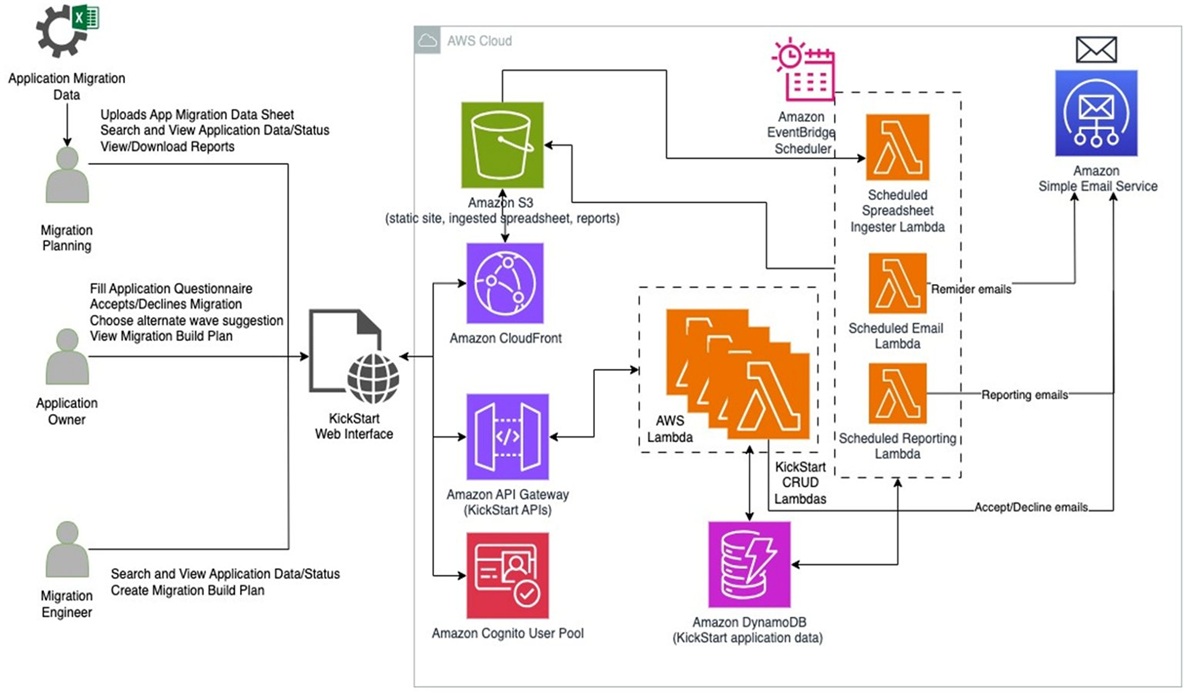
Figure 1: Kickstart migration architecture diagram
Figure 1 depicts the architecture of the Kickstart Migration tool.
- AWS Lambda delivers serverless compute, eliminating the server management overhead.
- Amazon DynamoDB provides fast, consistent database performance that scales with your migration metadata workload and users.
- Amazon API Gateway handles API requests securely, while Amazon CloudFront delivers the web interface with low latency.
- Amazon Cognito manages your user authentication and role-based access control for your three personas.
- Amazon Simple Email Service (Amazon SES) sends automated notifications to your migration stakeholders.
- AWS Cloud Development Kit (CDK) enables infrastructure-as-code deployment, making it easy to replicate the solution across AWS accounts.
Key Features
Sign In Managed by Amazon Cognito User Pools
Before accessing Kickstart Migration, authenticate via the sign-in page powered by Amazon Cognito user pools. Figure 2 depicts the sign-in page that utilizes the AWS Amplify UI sign-in component in the frontend and Amazon Cognito user pools in the backend.
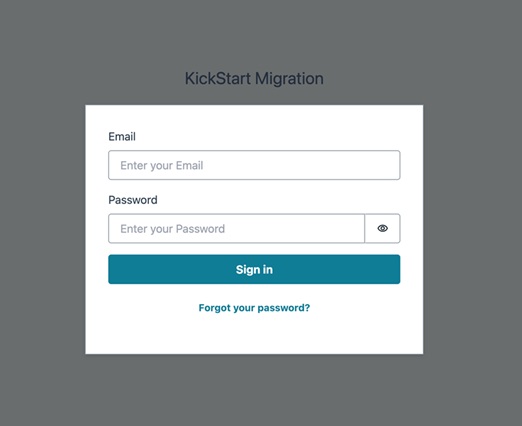
Figure 2: Kickstart sign-in page
Role-Based Access
Kickstart Migration has a role-based access capability based on the user’s assigned persona. The user can be assigned to one of three personas: migration planning team, application owners, or migration engineers. The screen you see after signing in will differ based on your persona.
Migration Planning Team Persona
The migration planning team persona will see the view shown in Figure 3 after they sign in. They see an option to upload the migration planning sheet. A sample Excel file (AppMigrationData_AWSKickStart.xlsx) is in the repository under the “sample-data” folder. Once the migration planning team persona uploads the Excel file, an AWS Lambda function will process the file and populate the Amazon DynamoDB table in the backend.
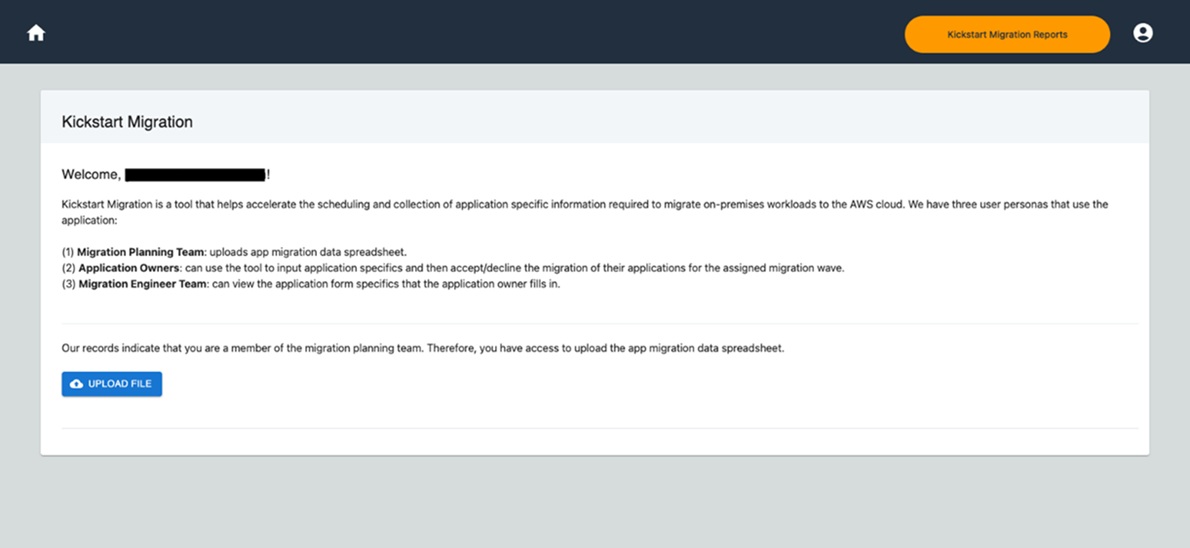
Figure 3: Migration planning team persona view
Application Owner Persona
As shown in Figure 4, you will only see applications for which you are an application owner or delegated user. There are three ways an application owner interacts with an application:
- Accept the migration for the recommended wave and fill in the information as shown in Figure 4.
- Decline the migration for the recommended wave or select a reason.
- Add a delegated user. Delegated users will have the same access as application owners. A delegated user is a person who can help to fill out the questionnaire. For example, an application owner might have limited technical information of the application; they can add an architect as a delegated user. You can add or delete delegated users by using their email address. Tool will send an email to the user to accept the delegation.
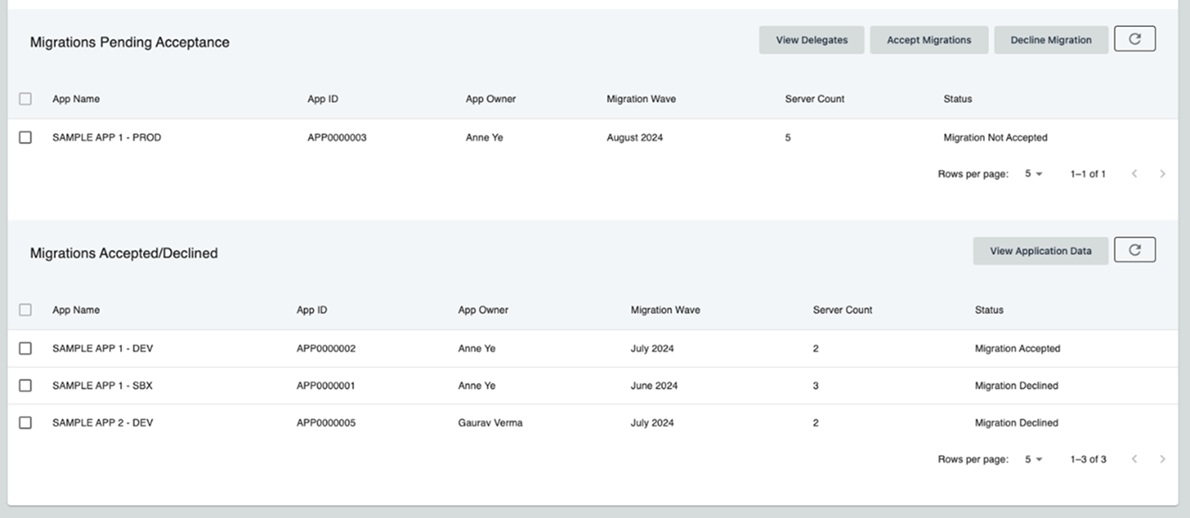
Figure 4: Application owner view
Once a user selects the application and chooses Accept Migration, they see application related information, migration wave, servers list and more as shown in Figure 5. The user has the choice to migrate only selected servers from the list of servers.
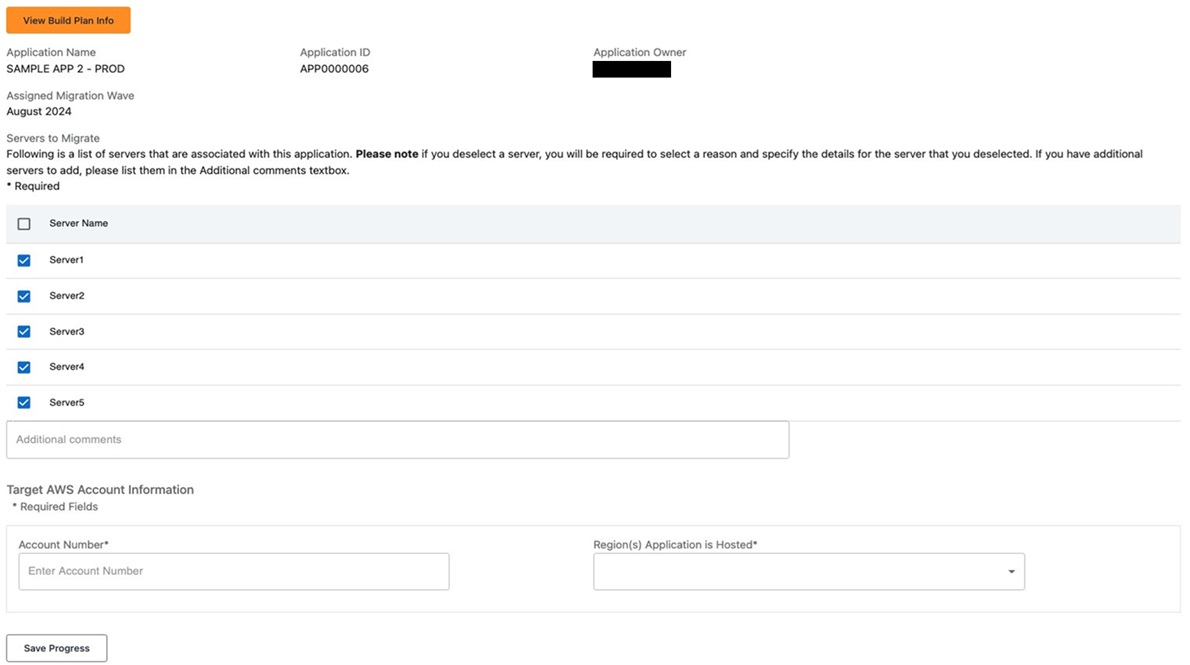
Figure 5: Application questionnaire view
The application owner can also view the build plan information (e.g. architecture diagram, planned cutover date, and additional notes) for an application, as shown in Figure 6.
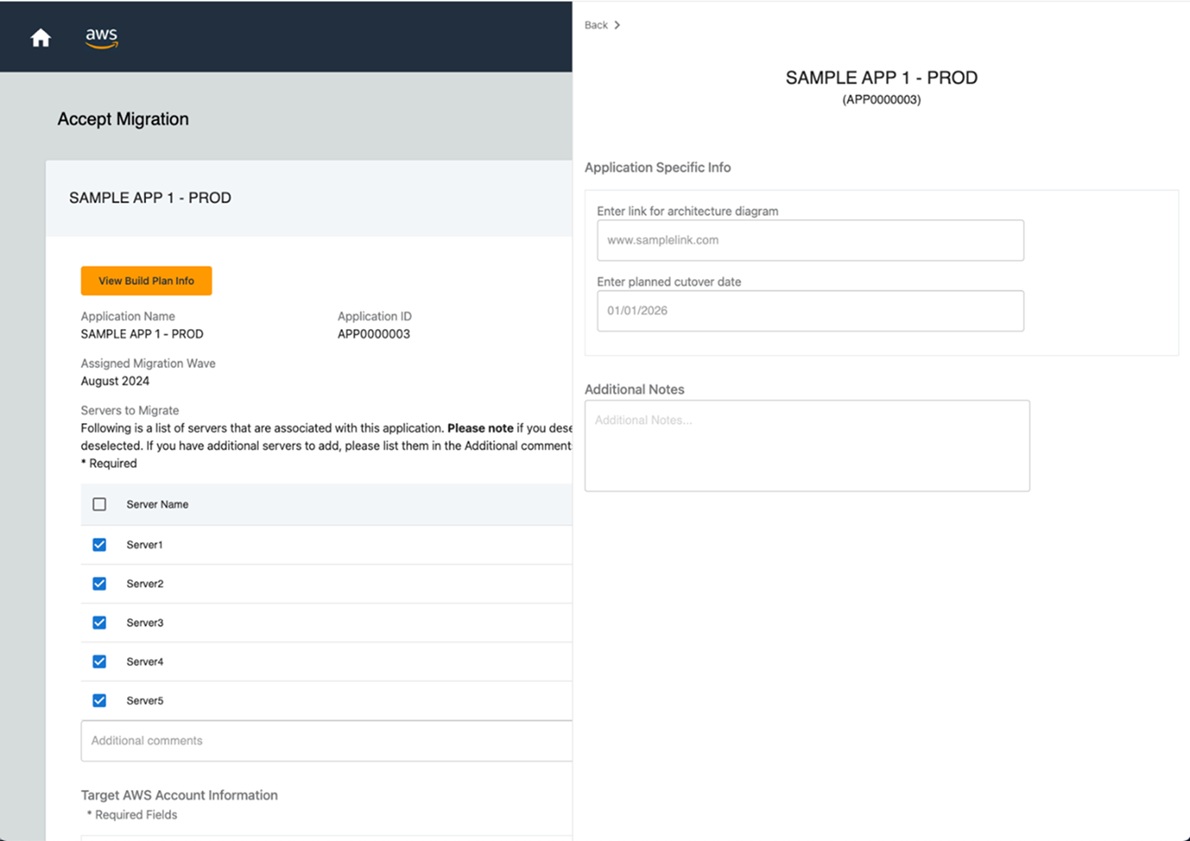
Figure 6: View Build plan information view for application owner
To decline the migration, the application owner has three options to choose from as shown in Figure 7:
- Date conflicts with other planned activities option is for selection if the application owner deems the migration date conflicts with other activities. Once selected, this option will suggest the next available date for migration, calculated based on the number of servers in the existing application and the migrations engineer’s availability.
- Application to be decommissioned option is available for selection if the application is going to be decommissioned soon.
- Other option is available for selection if the reason for declining migration does not fit the previous three options. Once selected, this option will present a free-text box for the application owner to explain the reason for declining.
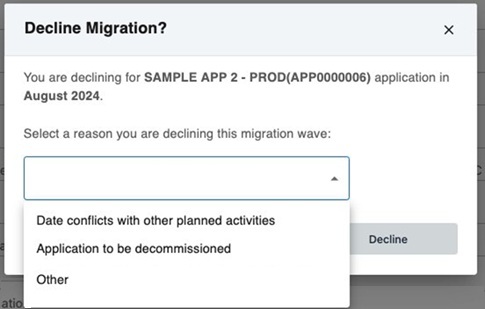
Figure 7: Decline migration selections
Migration Engineer Persona
The migration engineer view is shown in Figure 8. They can search for a specific application ID and then see the information in read-only view. Migration engineers cannot modify the answers provided by the application owner.
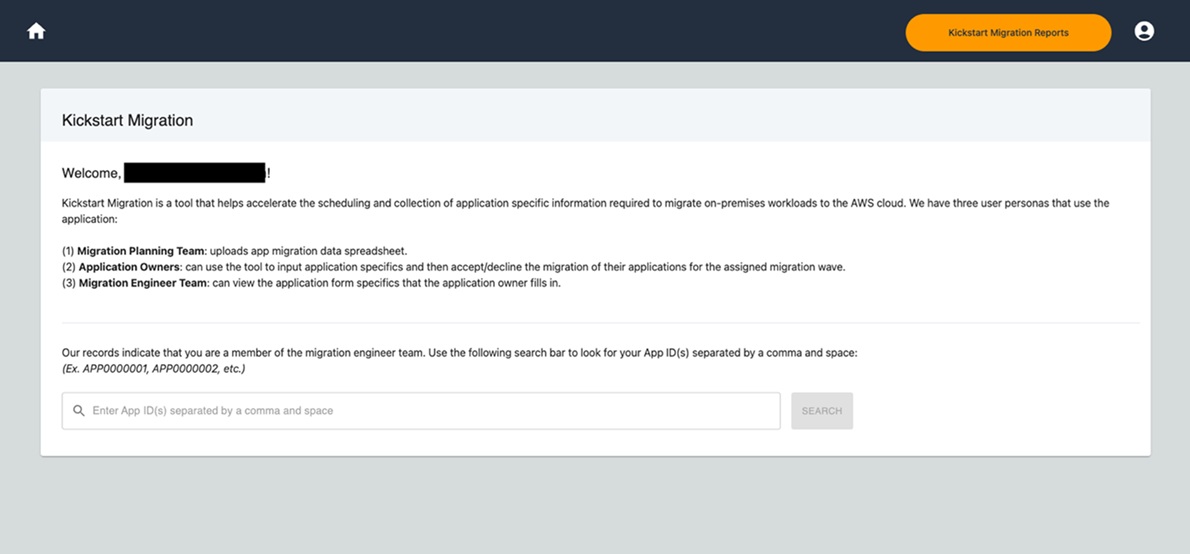
Figure 8: Migration Engineer persona view
The migration engineer can also input an application’s build plan information (e.g. architecture diagram, planned cutover date, and additional notes), as shown in Figure 9.
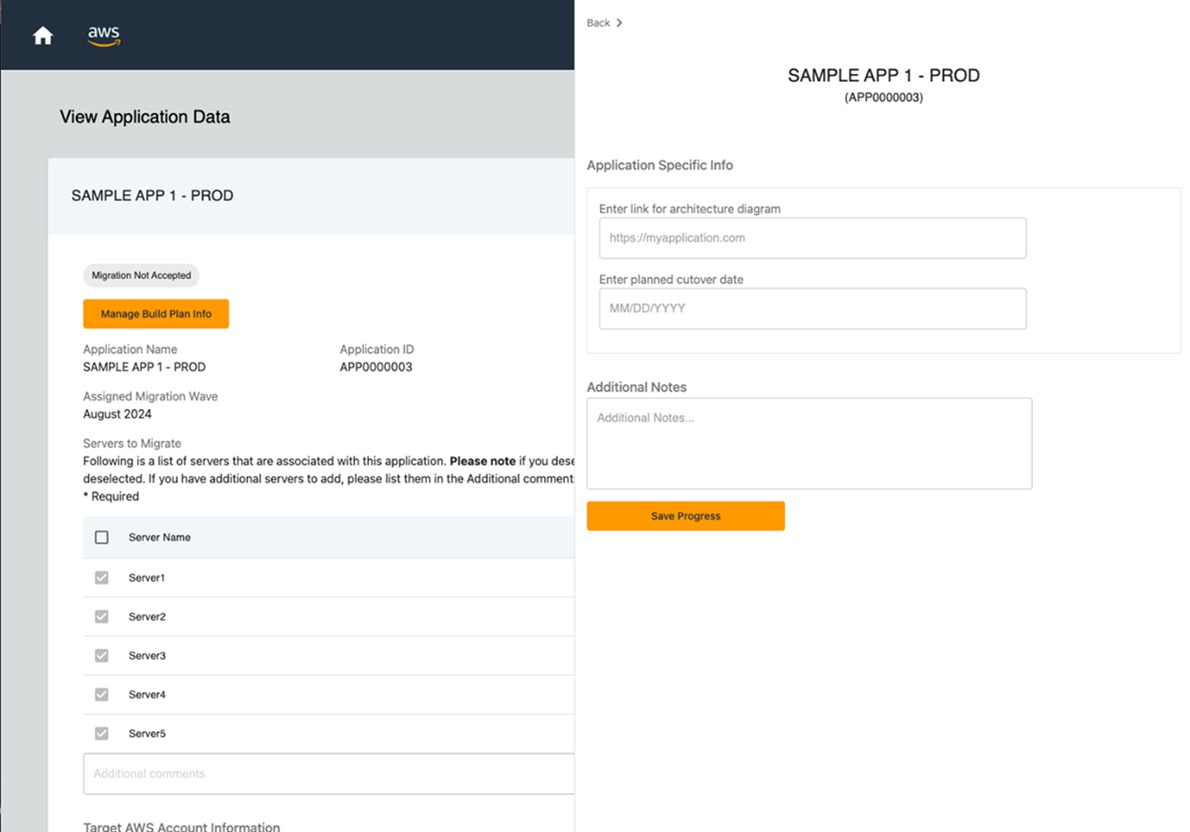
Figure 9: Manage build plan information view for migration engineer
Application Questionnaire Customization
You can customize the Kickstart Migration application questionnaire to meet your migration planning team’s requirements. These questions are in a file with JSON format located at kickstart-web-app/src/config/questions.json in the repository. Maintain a correct JSON format in this file to keep the tool running properly. Figure 10 shows a sample questionnaire generated from the file:
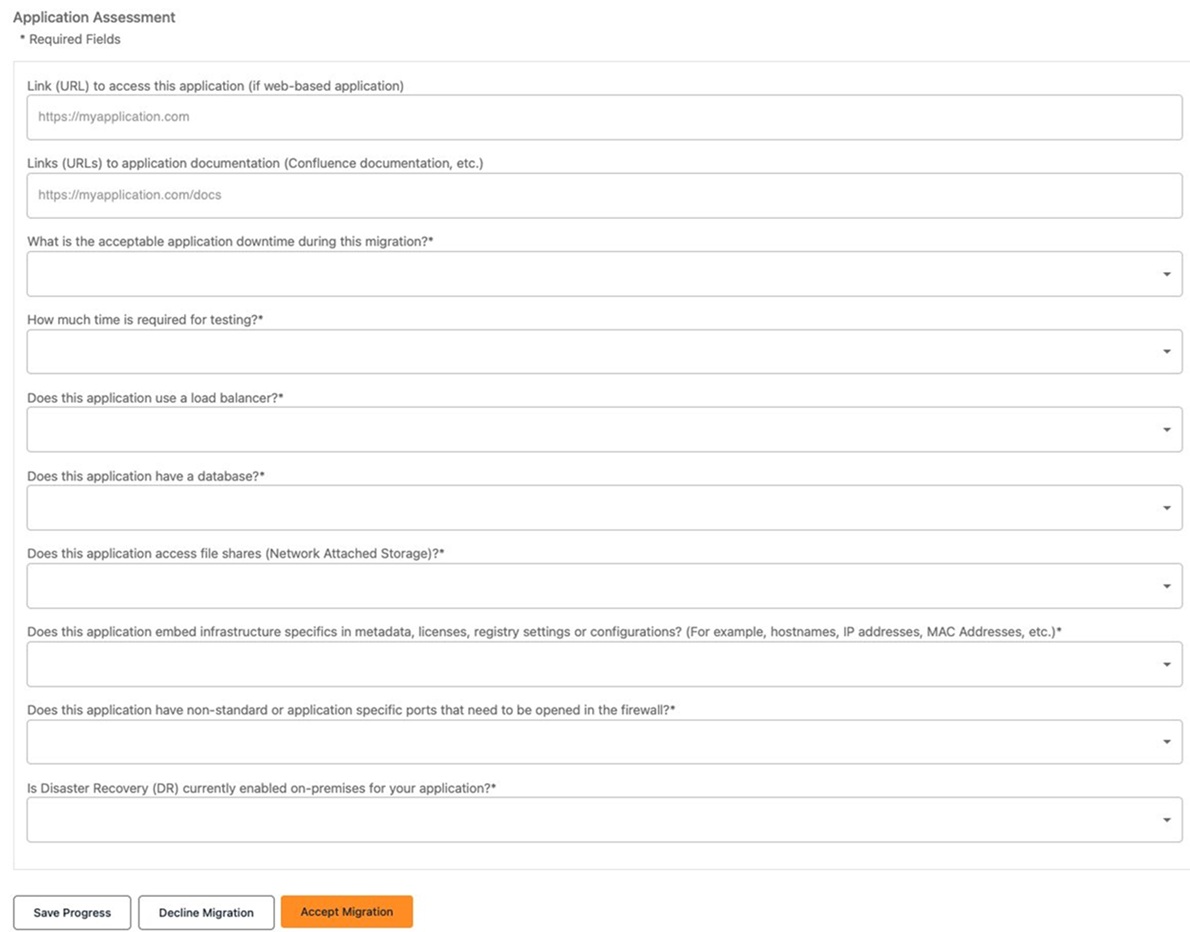
Figure 10: Kickstart application questionnaire
Reports
Kickstart Migration has the capability for you to download reports with migration data. Figure 11 shows the reports page, which has one sample report, “Application Migration Status Report”. A Lambda function powers this existing application migration status report. This reporting feature lets you download the migration status in CSV format for tracked applications from the DynamoDB table.
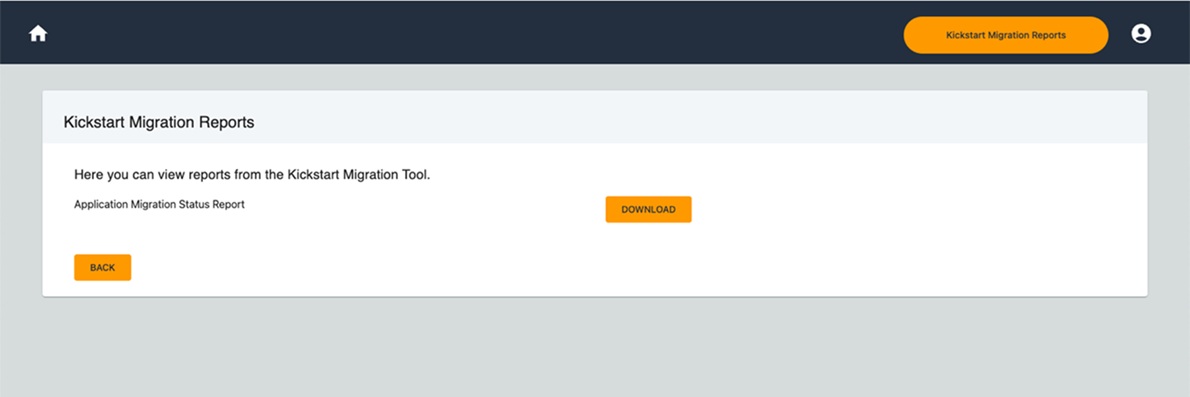
Figure 11: Kickstart reports page view
Deployment
Ready to deploy Kickstart Migration? Follow these steps:
- Review the prerequisites: Verify you have AWS account access, AWS CDK installed, and necessary IAM permissions.
- Clone the repository: Access the code repository at code repository.
- Deploy Kickstart Migration to your AWS account: Detailed deployment steps are available in the repository README.
- Customize the questionnaire: Modify the questions.json file to match your migration assessment requirements.
- Upload your migration data: Use the sample Excel template to structure your application portfolio data.
- Invite your team: Add users with appropriate personas (planning team, application owners, migration engineers) to Amazon Cognito so they can access the application.
 Try with a pilot: Start with a small set of applications (10-15) to familiarize your team with the tool before scaling to your full portfolio.
Conclusion
Kickstart Migration streamlines your cloud migration planning by centralizing data collection and management, automating communication, and providing real-time visibility in the migration process. The serverless architecture scales with your needs while minimizing infrastructure management overhead.
Get started by deploying Kickstart Migration in your AWS environment. Follow the deployment guide in the GitHub repository. Customize the application questionnaire to match your organization’s requirements, then pilot the solution with a small set of applications before scaling to your full migration portfolio.
For more information about AWS migration best practices and tools, reference: