Microsoft Workloads on AWS
Automated license tracking for Microsoft SQL Server across AWS accounts and regions using license asset groups
Amazon Web Services (AWS) recently announced license asset groups as a new feature for AWS License Manager to help you track license usage in a single AWS account or across different AWS accounts and regions in your AWS Organization. In our previous blog post, we explained how you can utilize license asset groups to build comprehensive visibility into your commercial software portfolio through automated discovery and centralized governance.
In this blog post, we’ll focus specifically on how you can use license asset groups for automated tracking of Microsoft SQL Server licenses across your AWS Organization, as well as how to leverage License Manager’s monitoring and reporting features for SQL Server license governance and procurement planning.
Why is tracking Microsoft SQL Server licensing important?
If you are running Microsoft workloads on AWS, the most common use case for license tracking is for Microsoft SQL Server licenses. SQL Server has License Mobility rights when licensed with active Software Assurance. License Mobility provides you the ability to Bring-Your-Own-License (BYOL) to AWS, effectively giving you the right to install SQL Server software on shared tenancy Amazon Elastic Cloud Compute (EC2) instances. In shared tenancy, each SQL Server core license is equivalent to a single vCPU being presented to the Amazon EC2 instance (i.e. an Amazon EC2 instance with 16 vCPUs will require 16 SQL Server core licenses). AWS also offers SQL Server License Included (LI) Amazon EC2 instances for customers looking for license flexibility in a pay-as-go option. These deployment options aren’t mutually exclusive; you can BYOL existing licenses and expand or fill in gaps using LI instances to suit your needs.
If you were to manually track SQL Server license usage, it can be difficult and time consuming to monitor how many of your BYOL licenses are being utilized. Not only would you need to track which Amazon EC2 instances have SQL Server software installed, but you would also need to track the vCPUs associated with each instance to know how many licenses are being consumed. This difficulty compounds significantly when licenses are being deployed across different AWS accounts and regions, when using a mix of BYOL and LI Amazon EC2 instances, or if you have a large SQL Server environment that changes frequently.
Previously, managing software licenses across AWS Organizations required complex workarounds involving multiple services. For example, this earlier blog post outlined a solution combining AWS License Manager, Systems Manager, and custom automation to centrally track Microsoft SQL Server licenses. While effective, these approaches demanded significant setup and ongoing maintenance. With License Manager license asset groups, this functionality is now built-in natively, eliminating the need for custom integrations and making license tracking substantially simpler.
How can license asset groups track SQL Server licenses?
License asset groups are designed to automate license tracking across your AWS Organization. License Manager provides AWS managed rulesets for SQL Server Standard and SQL Server Enterprise. These managed rulesets can be used for automated discovery of SQL Server software installed across your AWS accounts and regions. By default, the SQL Server managed rulesets differentiate which Amazon EC2 instances are using BYOL SQL Server licenses, and which are using LI SQL Server licenses.
License asset group managed rulesets for SQL Server can also be customized to track your BYOL instances by vCPU. This provides a simplified and centralized view of how many BYOL SQL Server licenses are being consumed each day. License Manager can create reports of these license asset groups, making it easy to generate a downloadable CSV file showing your SQL Server BYOL license usage across your AWS Organization.
Prerequisites
- AWS Systems Manager (SSM) agent installed on your Amazon EC2 instances.
- AWS Organizations, if you plan on using cross-account resource discovery.
- If you are onboarding for the first time, follow the License Manager getting started guide to set up all required permissions.
Getting started with license asset groups
Step 1: Configure discovery settings
- Browse to the AWS License Manager console.
- In the left pane, under Settings, choose License asset discovery and ruleset.
- In the License asset discovery section, choose Edit.
- For Organization discovery, select Enable to discover license assets across AWS accounts in your AWS Organization.
- For Region discovery, select the additional AWS regions where you run licensed software, then choose Save changes.
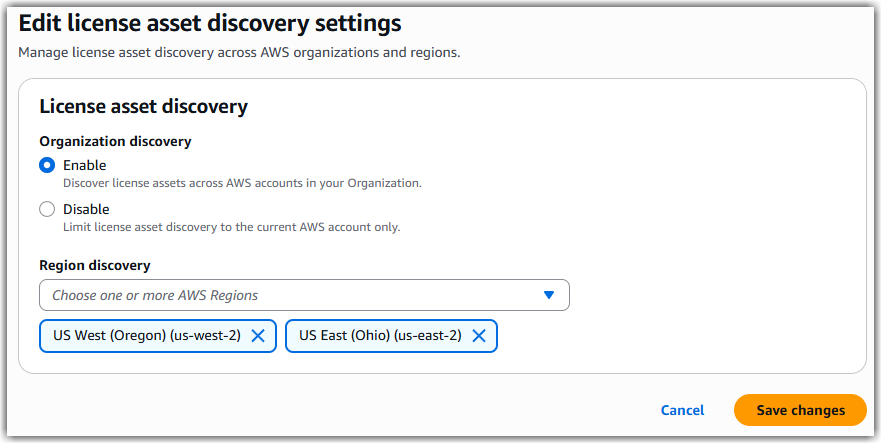
Figure 1. Enabling Organization discovery with two additional regions.
License Manager will begin discovering commercial software installations across your organization.
Step 2: Create customized license asset groups to track SQL Server instances by vCPU
These steps will use the managed rulesets to create license asset groups to track Amazon EC2 instances which have SQL Server installed. They will use the “vCPU” dimension type and report the number of vCPUs used by both BYOL and LI SQL Server instances.
- Browse to the AWS License Manager console.
- From the left pane, choose License assets.
- Select Create license asset groups.
- In the Choose how to create your license asset groups section, select Create a customized license asset group.
- Select the License asset group template drop down, then select the AWS managed ruleset for the SQL Server edition you want to track.
- (Optional) If you want to track both SQL Server Standard edition and Enterprise edition in the same license asset group, in the License asset ruleset section, click Add, then select AWS managed ruleset. In the right pane, select the other SQL Server edition, then select Add to license asset group. Both managed rulesets will be displayed in the License asset ruleset section, as shown in Figure 2.
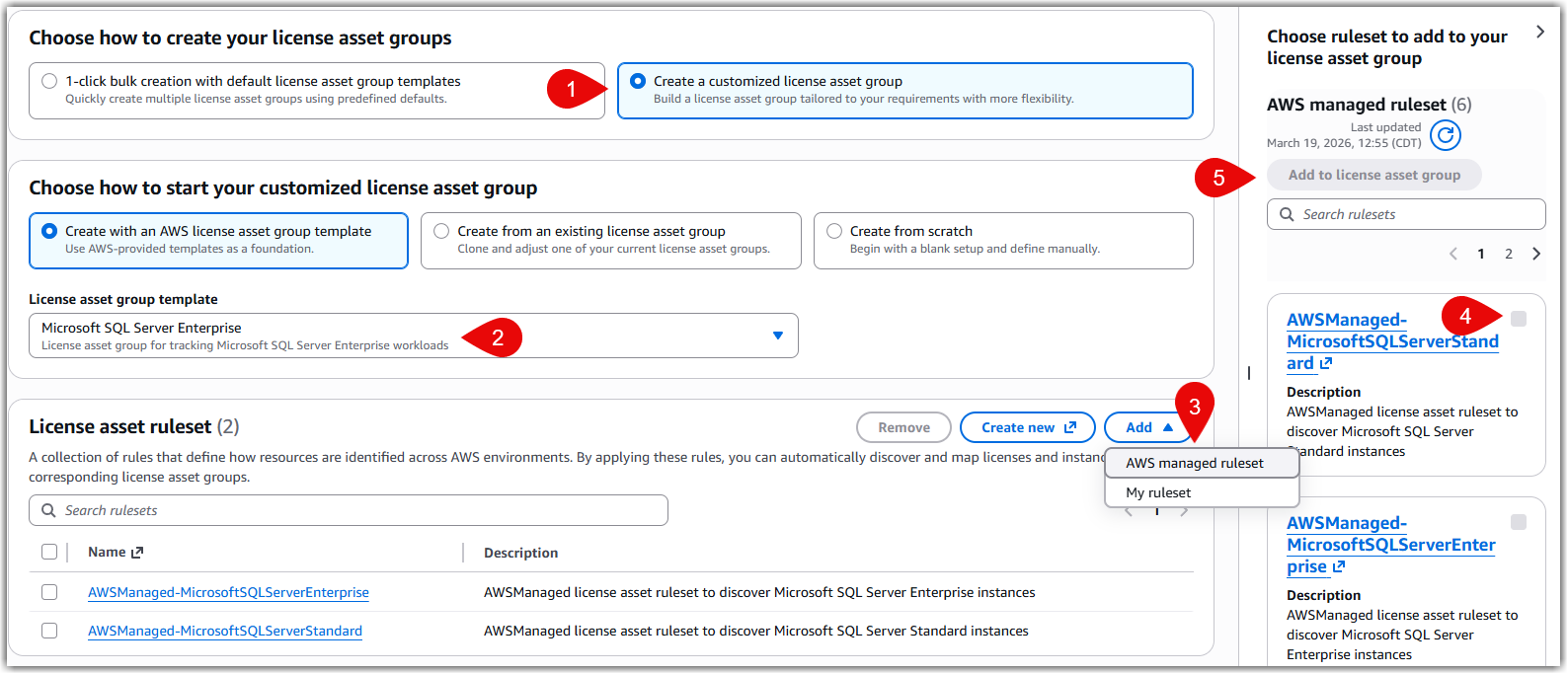
Figure 2. Create a customized license asset group for both SQL Server Standard and Enterprise.
- (Optional) If you want to track both SQL Server Standard edition and Enterprise edition in the same license asset group, in the License asset ruleset section, click Add, then select AWS managed ruleset. In the right pane, select the other SQL Server edition, then select Add to license asset group. Both managed rulesets will be displayed in the License asset ruleset section, as shown in Figure 2.
- Provide a license asset group name and description which differentiates it from other license asset groups. For the Usage dimension, select vCPUs from the drop down list, then select Next.
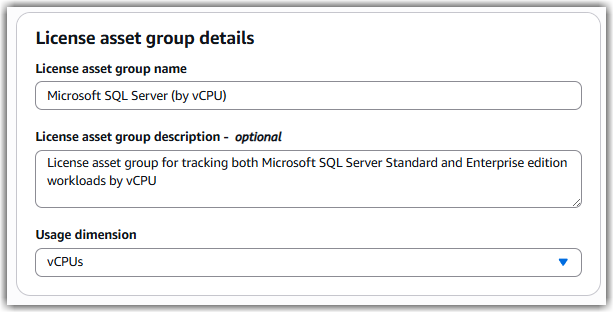
Figure 3. License asset group details selecting vCPUs as the usage dimension. - For License asset discovery settings, select options on whether to apply the license asset discovery to the entire Organization and to which specific regions, then choose Submit.
Discovery begins automatically and typically completes within 24 hours.
Step 3: View discovered resources
- Browse to the AWS License Manager console.
- From the left pane, choose License assets.
- Select the license asset group you created previously.
As shown in Figure 4, under the Instances tab you’ll be able to see the discovered Amazon EC2 instances which have SQL Server installed across different regions and accounts within your AWS Organization. The list includes both BYOL and LI instances, which can be differentiated by the Usage operation column.
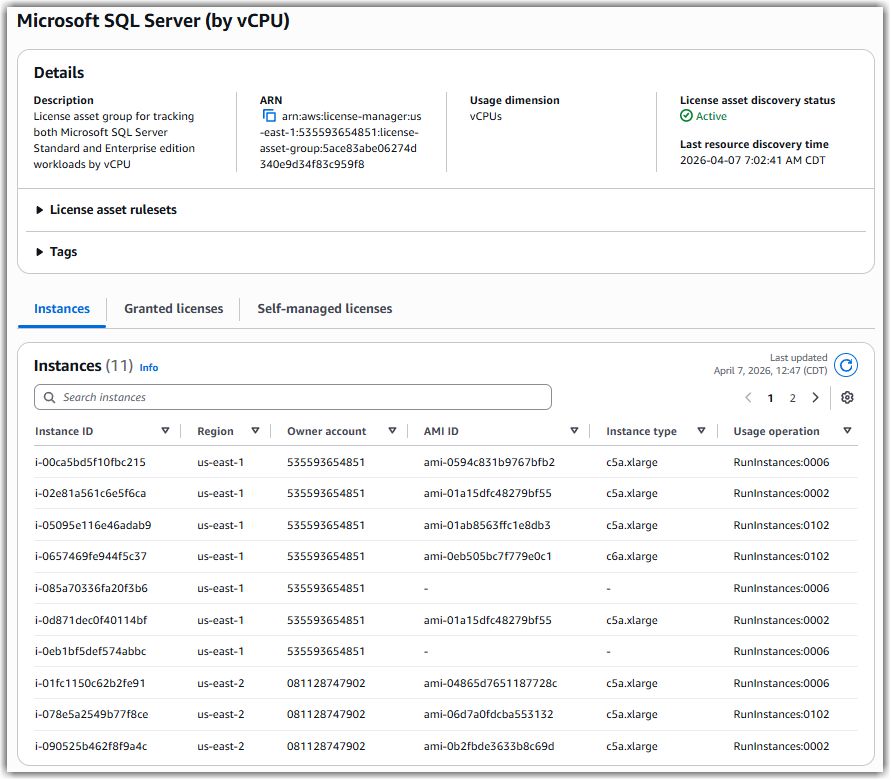
Figure 4. Amazon EC2 instances discovered by the license asset group.
AWS Billing Codes
AWS uses distinct usage operations to identify different SQL Server editions and licensing models. As shown in the table below, License Included instances have specific usage operations for each edition—Standard, Web, and Enterprise—making it straightforward to identify the exact SQL Server edition from billing data alone. However, all SQL Server BYOL instances, regardless of whether they’re running Standard or Enterprise edition, will be displayed as if they were only running Windows Server with RunInstances:0002 or RunInstances:0800.
Operating System Details |
Usage Operation |
| Windows Server as BYOL | RunInstances:0800 |
| Windows Server as BYOL SQL Server (any edition) as BYOL |
RunInstances:0800 |
| Windows Server as License Included | RunInstances:0002 |
| Windows Server as License Included SQL Server (any edition) as BYOL |
RunInstances:0002 |
| Windows Server as License Included SQL Server Web edition License Included |
RunInstances:0202 |
| Windows Server as License Included SQL Server Standard edition as License Included |
RunInstances:0006 |
| Windows Server as License Included SQL Server Enterprise edition as License Included |
RunInstances:0102 |
Figure 5. AWS billing codes
For example, as seen in Figure 6, the first instance with RunInstances:0006 has both Windows Server and SQL Server Standard as License Included. The second instance has RunInstances:0002, meaning it has Windows Server as License Included but SQL Server as BYOL. The third instance has RunInstances:0102, meaning it has both Windows Server and SQL Server Enterprise edition as License Included.
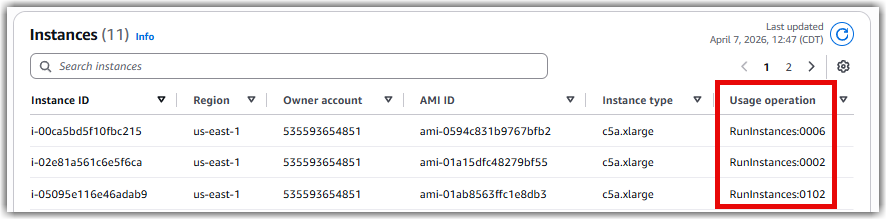
Figure 6. Amazon EC2 instances discovered by the license asset group with highlighted Usage Operation.
Because BYOL usage operations don’t differentiate between SQL Server editions, the License Manager license asset groups feature queries the actual SQL Server edition at the OS level using AWS Systems Manager. This ensures accurate license tracking and compliance reporting across both licensing models.
Step 4: Monitoring license usage
- Browse to the AWS License Manager console.
- In the left pane, choose License analytics.
- Select the license asset group you created previously, then select a time range from the drop down lists to view its history.
The Instance usage trends graph will display the number of instances running SQL Server. The License usage trends graph will show the number of vCPUs being used for the SQL Servers, which is vital for keeping track of the number of SQL Server licenses.
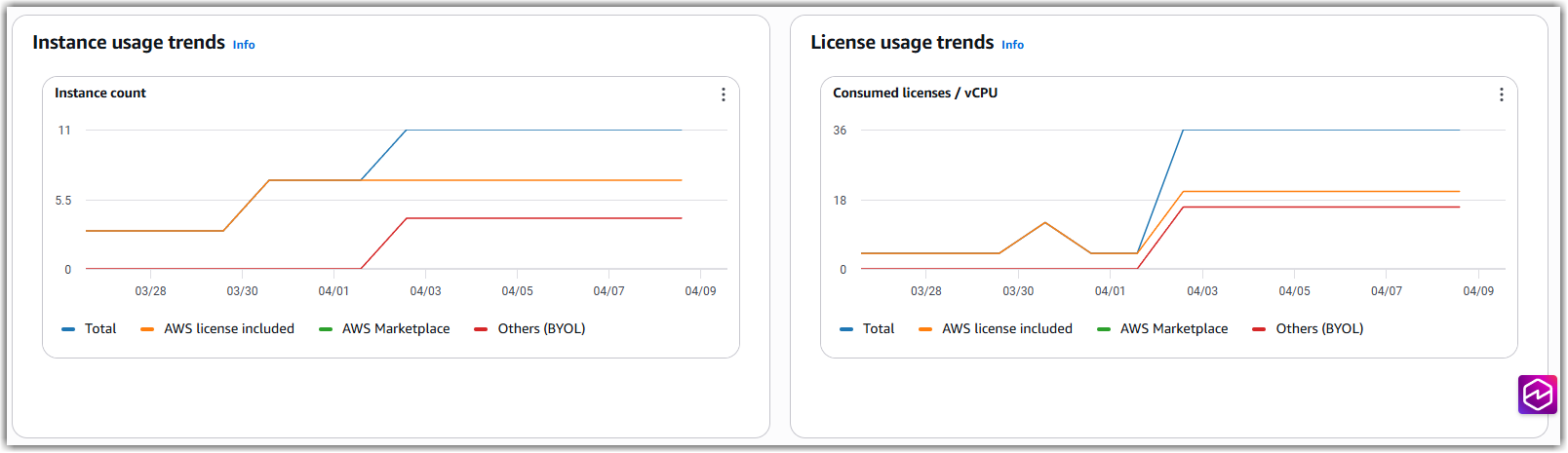
Figure 7. License analytics graphs for number of instances and number of vCPUs.
Hovering the pointer over the License usage trends graph will allow you to expand to a full screen. You can also hover over data points in the graph to quickly see license usage each day.
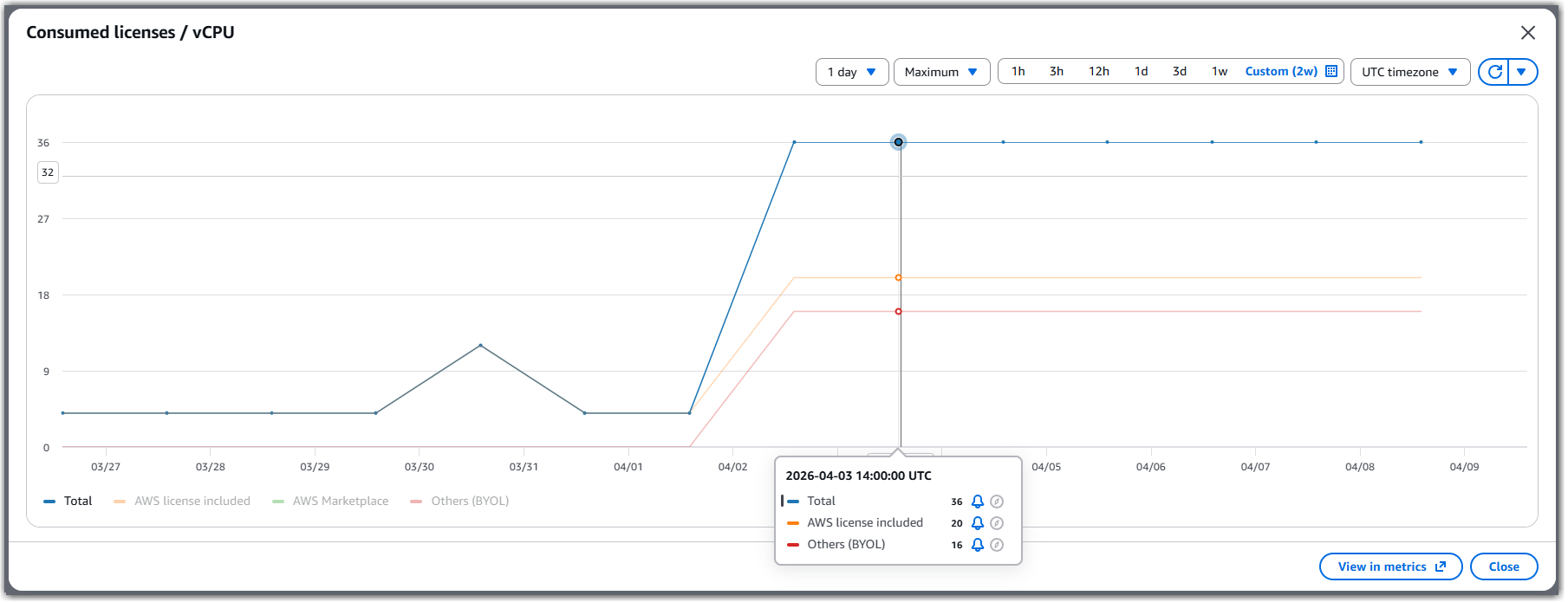
Figure 8. Hover over the license analytics graph to see the number of vCPUs for BYOL and License Included instances.
Step 5: Reporting license usage
- Browse to the AWS License Manager console.
- In the left pane, choose Usage reports.
- Under the License asset group report tab, choose Create license asset group report.
- Provide a License asset group report name and description.
- From the License asset group drop down, select the license asset group you created previously.
- For the Date Range, select the timeframe for the report, then choose Create usage report.
License reports are generated in CSV format and will be available to download once the report is complete.
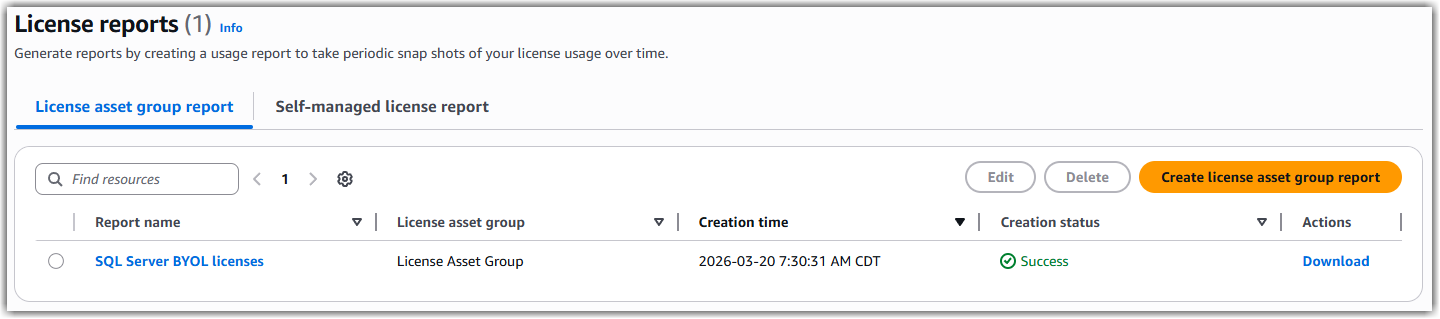
Figure 9. License asset group report available for download.
Rollback Options
If you need to revert changes, license asset groups and usage reports can be deleted on an individual basis.
Delete license asset groups
- Browse to the AWS License Manager console.
- In the left pane, choose License assets.
- Select the license asset group you want to remove.
- Select the Actions button, then select Delete.
- In the pop-up window, follow the instructions to confirm deletion, then select Delete.
Delete usage reports
- Browse to the AWS License Manager console.
- In the left pane, choose Usage reports.
- Select the usage report you want to remove, then select Delete.
- In the pop-up window, follow the instructions to confirm deletion, then select Delete.
Conclusion
In this blog post, we have reviewed how AWS License Manager can simplify the tracking of SQL Server license usage across different AWS accounts and regions when using license asset groups. To get started, visit the AWS License Manager page.
Want to learn more about Microsoft licensing on AWS? Check out more details here.