AWS Cloud Operations Blog
Add community skills and partner connectors to AWS DevOps Agent
AWS DevOps Agent investigates incidents with more context when it knows how your team operates and can reach the tools where your telemetry lives. In Extending AWS DevOps Agent with Skills, Model Context Protocol (MCP) Servers, Custom Agents and Connectors, we introduced the open-source Tools for DevOps Agent repository and the building blocks that extend the agent. Customers told us they liked these integrations, but setting them up took many steps. To add a skill, you uploaded a zip file or connected a GitHub account and imported a directory. To connect a partner’s MCP server, you looked up its endpoint URLs, OAuth URLs, and scopes, and entered them yourself.
Two new capabilities remove those steps by bringing the skills and connectors from the GitHub repository directly into AWS DevOps Agent. The Skills Catalog in the AWS DevOps Agent web app lists the skills published from the repository, and you can add one to your Agent Space without a GitHub account or a zip file. Partner-managed connectors on the Capability Providers page of the AWS DevOps Agent console register a partner’s MCP server from a definition that the partner publishes, so you enter only your own credentials. Custom agents and MCP servers from the repository still deploy the way they did before.
In this post, you learn how content moves from the repository into AWS DevOps Agent, how to add and update skills from the Skills Catalog, and how partner-managed connectors work. You also learn how to choose between the ways to add a skill.
Prerequisites
To follow along, you need the following:
- An Agent Space in AWS DevOps Agent.
- For the Skills Catalog, an operator role with the
AIDevOpsOperatorAppAccessPolicyAWS managed policy. If your operator role uses its own policy, add the actions that the Skills Catalog requires, listed in Catalog actions, andaidevops:CreateAssetandaidevops:UpdateAssetto add and sync skills. - For partner-managed connectors, permission to register capability providers and add capabilities to an Agent Space in the AWS DevOps Agent console, and an account with the partner that can create the credentials that the connector requires, such as an API key or OAuth client. For more information, see Before you begin.
- Some skills need additional AWS Identity and Access Management (IAM) permissions or an integration, such as an MCP server. Each skill’s
README.mdlists them. Some partner-managed skills don’t have aREADME.md; for those, check the skill’sSKILL.md.
How it works
The repository is the single source for both capabilities. Figure 1 shows how a skill or connector travels from a pull request to an investigation.
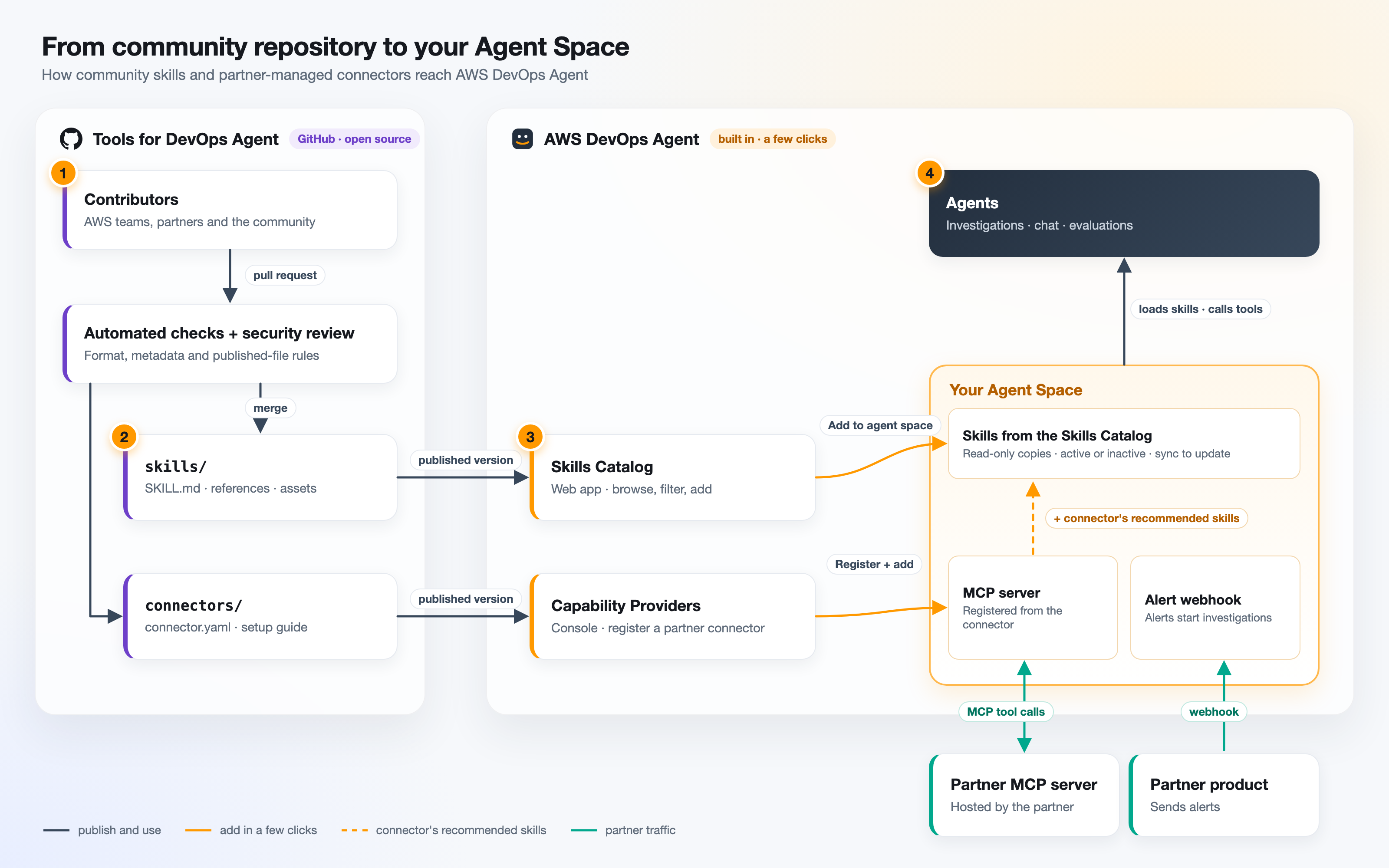
The flow works as follows:
- Contribute. AWS teams, partners, and community members add a skill under
skills/or a connector definition underconnectors/through a pull request. Automated checks validate the skill format, the metadata, and the published files. Before a contribution merges, a repository maintainer reviews it. Each skill also needs a sign-off from a named subject-matter expert for the service or domain, other than its author. Connector definitions are reviewed by maintainers, and the partner accepts the AWS DevOps Agent Partner Connector Terms. - Publish. Each merged skill is published as an immutable version. A connector is published when a maintainer promotes its version, and until then the community gallery shows it as Coming Soon. A skill’s
SKILL.mdfrontmatter supplies its name, description, card summary, version, and the agent types, AWS services, and technical domains that the catalog filters on. A connector’sconnector.yamlsupplies its endpoints, authentication methods, recommended skills, and alert format. - Add. You add skills from the Skills Catalog in the web app, and you register connectors from Capability Providers in the console. A connector’s recommended skills come from the same Skills Catalog.
- Use. Agents in your Agent Space load the skills that are active and target their agent type, and they call the partner’s MCP server as they do any other MCP server. Alerts from the partner’s product reach the Agent Space through a webhook and start investigations.
Add skills from the Skills Catalog in the AWS DevOps Agent web app
A skill is a directory with a SKILL.md file of instructions, and optional reference files and assets, that teaches the agent how to handle a specific operational scenario. The Skills Catalog lists more than 100 skills, such as investigating AWS Health events, checking service quotas, and running operational reviews for Amazon Elastic Kubernetes Service (Amazon EKS) and Amazon Relational Database Service (Amazon RDS).
To see the Skills Catalog and add skills, your operator role needs catalog IAM permissions. The AIDevOpsOperatorAppAccessPolicy AWS managed policy includes them. If your operator role uses its own policy, add the actions that the Skills Catalog requires, listed in Catalog actions plus aidevops:CreateAsset and aidevops:UpdateAsset to add and sync skills.
To browse the Skills Catalog
- In the AWS DevOps Agent web app, open the Knowledge page and choose the Skills tab.
- Next to Add skill, choose Browse catalog. The Skills Catalog tab opens.
- To find a skill, enter text in Find skills, or filter by agent type, AWS service, technical domain, or tag.
- To see a skill’s summary, agent types, and files, choose Details.
- To check what the skill needs, choose README.md under Included files. To browse all of the skill’s files, choose View all files.
Each skill card shows the skill’s name, summary, agent types and AWS services, its publisher, and its version. A badge at the top of the card tells you who maintains the skill. A Community skill is contributed through the repository by AWS teams or community members, and a Partner-managed skill is published and maintained by a partner, usually to help the agent use that partner’s tools. For example, the Bluebox Observability skill lets agents ask Bluebox, the Dynatrace observability agent, about service health, errors, latency, and dependencies during an investigation.
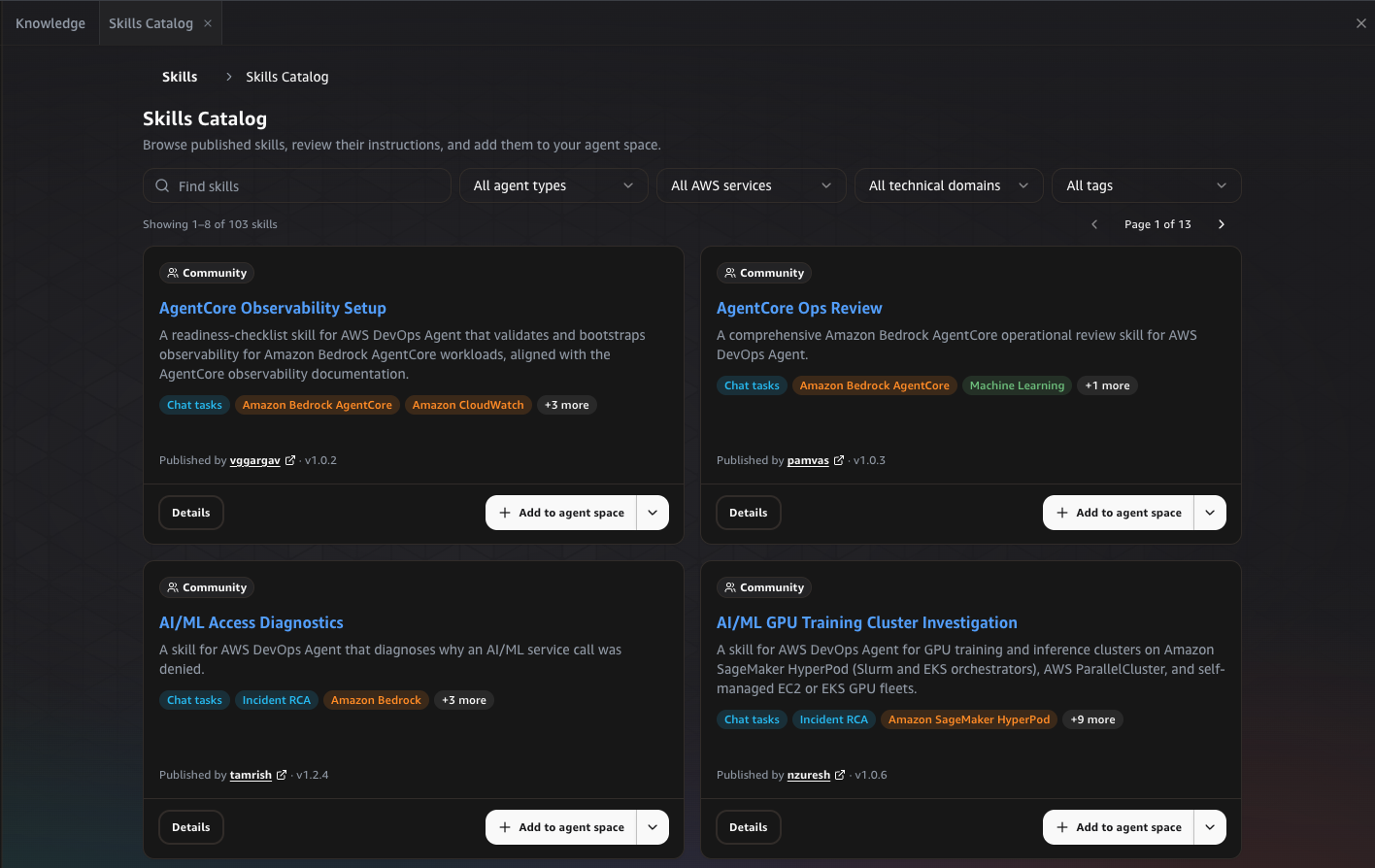
Some skills need additional AWS Identity and Access Management (IAM) permissions in the roles that AWS DevOps Agent uses to access your accounts. Others need an integration, such as an MCP server. The README lists these prerequisites. For many of these skills, the repository includes an AWS CloudFormation template that adds the permissions. It doesn’t cover every skill, so check the skill’s README.
To add a skill to your Agent Space
- On the Skills Catalog tab, find the skill that you want to add.
- To add the skill as inactive, for example before you’ve set up its prerequisites, choose the dropdown arrow next to Add to agent space, and for Status, choose Inactive. Agents don’t use an inactive skill until you activate it on the Skills tab. Otherwise, skip this step, and the skill is added as active.
- Choose Add to agent space. When the button shows Installed, the skill is in your Agent Space.
- To see it on the Skills tab, choose View in Skills.
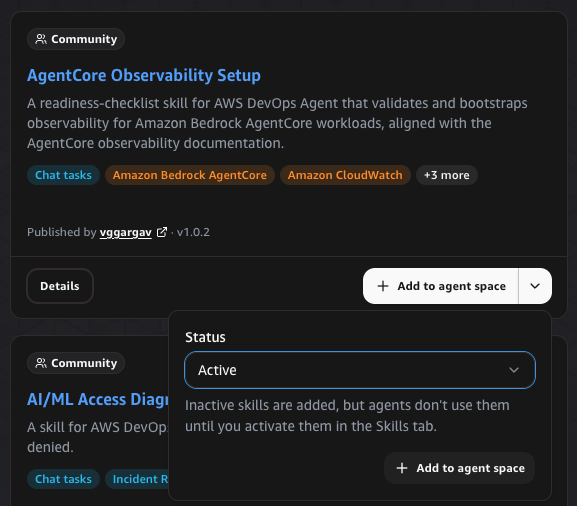
AWS DevOps Agent copies the skill into your Agent Space as a catalog skill. Its name, description, files, and agent types come from the catalog, so you can’t edit them, but you can activate, deactivate, or delete it. Catalog skills appear in the Custom skills section of the Skills tab with a Latest source on GitHub link to their folder in the repository, and they don’t count toward the limit of 200 user-created skills in an Agent Space. Your Agent Space can have one copy of each catalog skill.
If your Agent Space already has a skill with the same name, for example a copy that you imported from GitHub earlier, agents might use only one of them. Delete the copy that you don’t need.
Keep skills current
Catalog skills don’t update automatically, so a new version in the catalog never changes agent behavior without your approval. When you open a catalog skill, its tab shows the current version in the catalog. If that version is newer than yours, agents keep using yours until you sync.
To update a catalog skill
- On the Skills tab, find the skill in Custom skills.
- Choose Sync on the skill’s row.
AWS DevOps Agent replaces the skill’s files, name, description, and agent types with those of the current version, and the skill keeps its active or inactive status. If the skill is already up to date, nothing changes.
Skills are never renamed or removed from the repository, because installed copies point at their folder. When maintainers retire a skill, they mark it as deprecated. If the catalog no longer lists a skill that you added, the skill stays in your Agent Space and keeps working, but you can’t sync it. If you delete it after that, you can’t add it again, so keep the copy until you have a replacement.
How partner-managed connectors work
A partner-managed connector is a definition, published by a partner, that connects AWS DevOps Agent to the partner’s product, such as an observability or incident management service. It covers the MCP server that the partner hosts, the skills that the partner recommends, and how alerts from the partner’s product start investigations in AWS DevOps Agent. The definitions are publicly available in the connectors/ folder of the repository, so you can review a connector’s configuration before you register it. A definition holds no code. When a definition is published, AWS DevOps Agent lists the connector on the Capability Providers page of the console. When you register the connector, AWS DevOps Agent builds the MCP server registration in your AWS account from the definition. Each definition provides the following:
- Endpoints and authentication. The partner’s MCP server endpoints, such as one for each regional site, and the authentication methods that the server accepts, such as an API key or OAuth, with their URLs and scopes. You can’t change them. You choose an endpoint and enter only your own credentials, and your credentials go only to the endpoints in the definition, completed with the values you enter.
- Recommended skills. The skills that the partner recommends for using its tools during investigations. They come from the Skills Catalog, so you can install them when you add the connector to an Agent Space.
- Alert webhook. When you add the connector to an Agent Space, AWS DevOps Agent creates a webhook so that alerts from the partner’s product can start investigations. Some connectors also define the alert payload.
- Setup guide and links. The connector’s categories, such as telemetry or DevOps, a setup guide, and links to the partner’s documentation and support.
Each connector shows a Partner-managed or AWS-managed badge that names who maintains the definition. The partner operates and supports the MCP server, and each connector links to the partner’s documentation and support. Connectors marked Coming Soon in the community repository aren’t in the console yet.
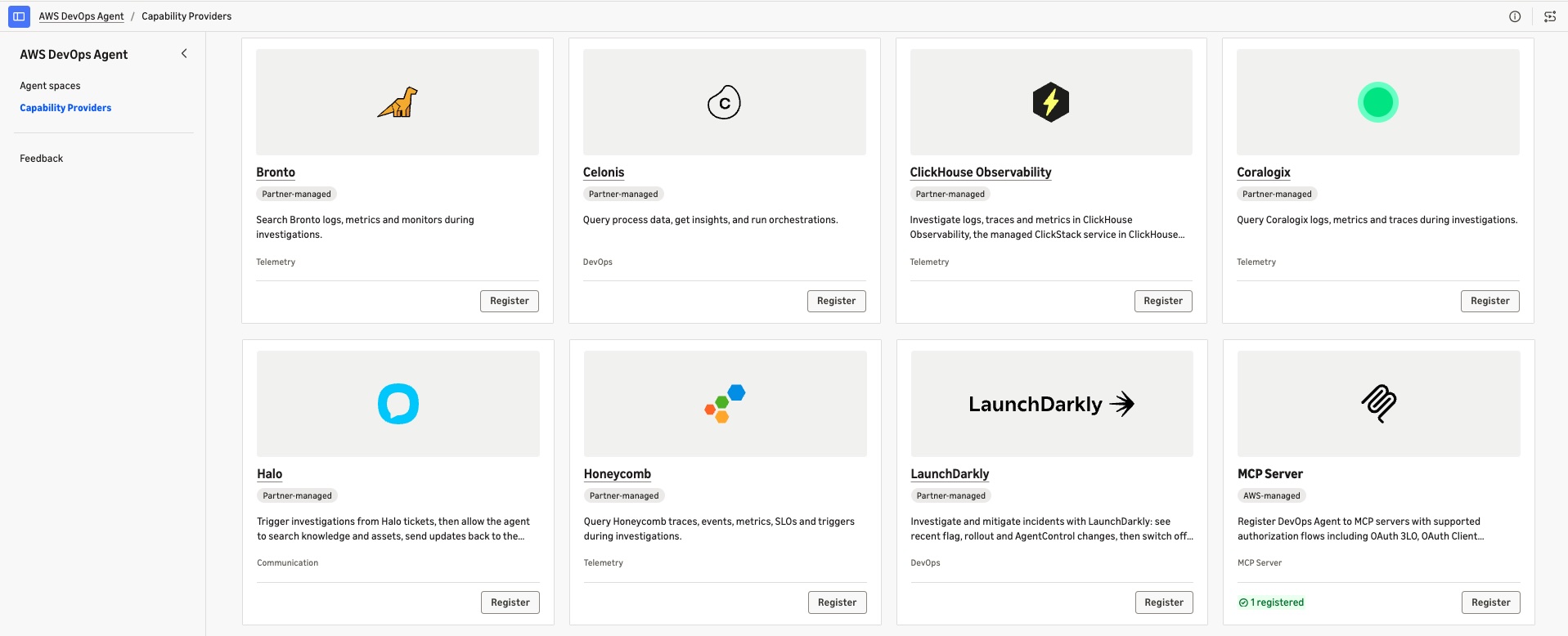
At the time of writing this blog, connectors are available from the following AWS Partners: Arize AX, Bluebox by Dynatrace, Bronto, Celonis, ClickHouse Observability, Coralogix, Cribl, Elastic, Halo, Honeycomb, LaunchDarkly, Neo4j, Sumo Logic, and Wiz. For the current list, see the community gallery.
The connector workflow in the console
To find a connector, open Capability Providers in the AWS DevOps Agent console and filter the Available section by category or by tier. You can also start from an Agent Space: on the Capabilities tab, choose Add for a category, and then under Partner-managed connectors, choose Register. The connector’s page shows its version, categories, setup guide, and recommended skills.
Registration is a wizard of up to four steps, and the console skips the steps that a connector doesn’t need:
- MCP server details. Name the MCP server, choose an endpoint, and fill in any fields that the connector asks for. Optionally, choose a private connection or a customer managed AWS Key Management Service (AWS KMS) key.
- Authentication method. Choose from the methods that the connector offers: API key, OAuth client credentials, signing in to the partner, or signing in with dynamic client registration.
- Authentication configuration. Enter your API key or client credentials. The OAuth settings appear as Defined by the connector.
- Review and register.
When you add the registered MCP server to an Agent Space, you select the tools that agents can use and classify each one as Read only, Mutative, or Destructive. A tool with no suggested classification defaults to Mutative, which needs approval, and choosing Destructive turns the tool off. You can then install the connector’s recommended skills and copy the webhook URL and credential into the partner’s product. For the full procedure, see Using partner-managed connectors.
A registration keeps the connector version that you registered. When a partner deprecates a connector, it no longer appears in the Available section, but existing registrations keep working until you deregister them. To use a newer version, or to change your API key or client credentials, remove the MCP server from each Agent Space that uses it, deregister it, and register the connector again.
Removing a connector from an Agent Space also deletes its recommended skills from that Agent Space, including any recommended skill that you installed yourself from the Skills Catalog. A skill stays only if another connector in the Agent Space also recommends it. The console tells you how many skills it will delete before it deletes them, and you can’t undo the removal, so check the list before you confirm.
Choose how to add a skill
The Skills Catalog doesn’t replace the other ways to add a skill. Use the following table to choose.
| Method | Best for | What you need | How it updates |
|---|---|---|---|
| Skills Catalog | Published community and partner skills | No GitHub account or zip file | Sync in the web app |
| Import from repository | Your own skills kept in GitHub | A GitHub connection on the Agent Space | Sync from your repository |
| Upload a zip file | Private skills with reference files or customized community skills | A SKILL.md with frontmatter, up to 6 MB |
Edit in the web app |
| Create in the web app | Short, single-file instructions | A name, description, and instructions | Edit in the web app |
Security considerations
Repository maintainers review every skill and connector before it’s published, and each skill also needs a sign-off from a subject-matter expert other than its author. The tools in the repository are still provided as sample code, so test a skill in a non-production Agent Space and review the IAM permissions it needs against your own policies before you use it in production. You control what the agent can access in your environment:
- Least privilege. Grant only the IAM permissions that a skill’s README lists, and add skills as Inactive until those permissions are in place.
- Tool classification. Allow only the connector tools that your Agent Space needs. Tools classified as Mutative need approval before agents run them.
- Data residency. A partner’s endpoint can be outside the AWS Region of your Agent Space, so requests to it leave that Region. To reach an endpoint through a private network, use a private connection.
- Webhook credentials. AWS DevOps Agent shows the webhook secret only once. To keep a copy, choose Download .csv file before you choose Done. To rotate the secret, go to the Capabilities tab, then Capability Webhooks, choose Edit, and then choose Rotate webhook.
Clean up
To remove what you added, complete the following steps:
- To delete a catalog skill, on the Skills tab, choose the delete icon on its row, and then choose Delete.
- To remove a connector from an Agent Space, on the Capabilities tab, select the MCP server, and then choose Remove. This also deletes the connector’s recommended skills, unless another connector in the Agent Space recommends them. You can’t undo this action.
- To deregister the connector, first remove it from every Agent Space that uses it. Then, on the Capability Providers page, choose View all on its card under Currently registered, select the MCP server, and choose Actions, Deregister.
- In the partner’s product, delete the alert webhook.
Conclusion
With the Skills Catalog and partner-managed connectors, the skills and integrations in the Tools for DevOps Agent repository are now available directly in AWS DevOps Agent, without a GitHub account, a zip file, or manual MCP server settings.
To get started, open the Skills Catalog in your Agent Space and add a skill that matches your workloads. Browse the community gallery to see the available skills and connectors. If your team has a runbook that other customers could use, contribute it as a skill by following the contribution guide, and every AWS DevOps Agent user can add it from the Skills Catalog. If you are a partner, you can make your MCP server available the same way. Publish a connector definition and the skills that help the agent use your tools through a pull request. A maintainer reviews them, and you accept the AWS DevOps Agent Partner Connector Terms in the same pull request, before they reach the console.