AWS Cloud Operations Blog
Import Historical data from AWS CloudTrail Lake to Amazon CloudWatch
Organizations managing workloads on AWS rely on AWS CloudTrail to answer the fundamental questions: Who did what, where, and when? Since January 2022, customers have stored their CloudTrail activity logs in CloudTrail Lake, a managed data lake purpose-built for capturing, storing, querying user and API activity across their AWS environment.
As organizations scale across multiple AWS accounts and Regions, security and operations teams face a common challenge: their CloudTrail data lives in isolation from the rest of their operational and security telemetry. When a security incident occurs, analysts need to correlate CloudTrail API activity with Amazon VPC Flow Logs, AWS WAF logs, application logs, and third-party security data, but these signals are scattered across different tools, consoles, and query languages. This context-switching can slow down investigations, increase mean time to resolution (MTTR), and leaves gaps in security coverage.
Amazon CloudWatch solves this problem by providing a centralized repository where you can collect, shape, and analyze your telemetry operational, security, and compliance data in one place. With CloudWatch as the unified data store, CloudTrail becomes a foundational data source alongside VPC Flow Logs, AWS WAF logs, third-party security tools, and custom application logs. You can query across all these data sources using CloudWatch Logs Insights, set up real-time alerting with metric filters, and access your data through Apache Iceberg-compatible tools like Amazon Athena, Amazon Redshift, and Amazon SageMaker for advanced analytics.
In this blog post, we will walk you through a step-by-step approach in transitioning from CloudTrail Lake to CloudWatch as your unified data store. We will cover how to migrate your historical data, enable organizational wide CloudTrail ingestion into CloudWatch, and demonstrate how centralization rules let you consolidate CloudTrail activity across accounts and regions. Amazon CloudWatch provides similar capabilities for CloudTrail Lake at a comparable price point. The following table shows the comparison between CloudTrail Lake and CloudWatch capabilities.
Exporting Data from CloudTrail Lake Event Data Store to CloudWatch
AWS launched a simplified way to unify your operational and security data by allowing you to import historical CloudTrail Lake event data stores (EDS) directly into Amazon CloudWatch for a specific date range. This integration utilizes CloudWatch’s new unified data management architecture to provide a single pane of glass for your logs.
Note: There is no additional ingestion cost when exporting your data from CloudTrail Lake to CloudWatch. However, before you begin, here are a few important considerations to keep in mind:
- Migration Dataset: It’s recommended to perform an initial migration using a small subset of data. Once you’ve validated the imported logs in CloudWatch, you can proceed to migrate the full historical dataset.
- Destination Log Group Naming Convention: When you export CloudTrail Lake data to CloudWatch, the destination log groups follow a naming convention based on the event data store ID:
aws/cloudtrail/<event-data-store-id> - Verify Schema: After the export, confirm that the log format appears as expected in CloudWatch Logs.
- Query Validation: Test your CloudWatch Logs Insights queries against the sample data to ensure your existing monitoring logic remains intact.
- Storage Cost: Standard CloudWatch Logs storage charges apply for exported data from CloudTrail Lake to CloudWatch.
Exporting CloudTrail Lake Data to CloudWatch
- Navigate to the CloudTrail console.
- In the left-hand navigation menu, choose Lake.
- Choose the Event Data Stores.
- Choose your Event Data Store for CloudTrail events.
- From the Actions dropdown, choose Export to CloudWatch.
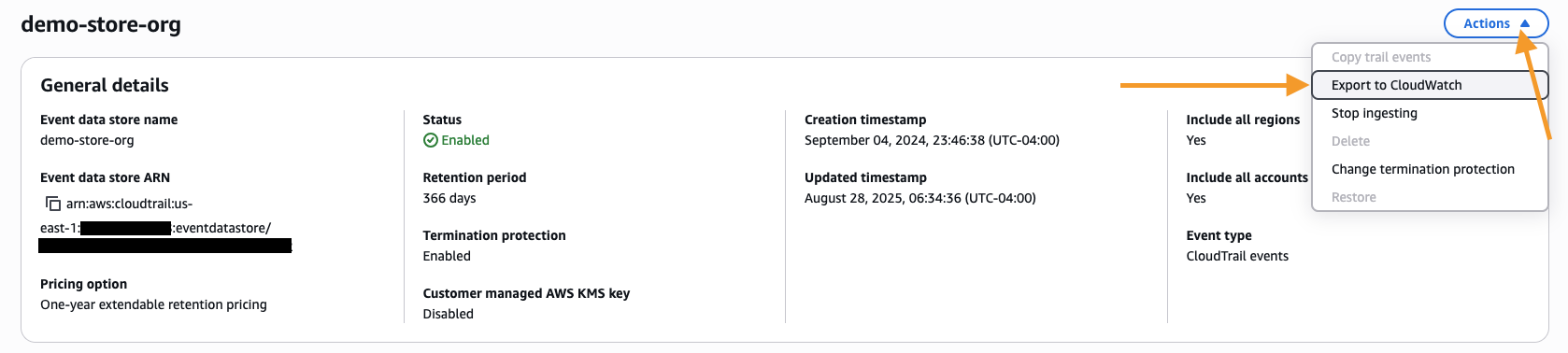
Figure 1: CloudTrail Lake Event Data Store Actions menu showing the Export to CloudWatch option.
- Choose the time range to export data for the event data store.
- Configure the IAM role using the instructions provided to either create a new IAM role or provide an existing IAM role that CloudTrail will use to access your data for export.
- Choose Export.
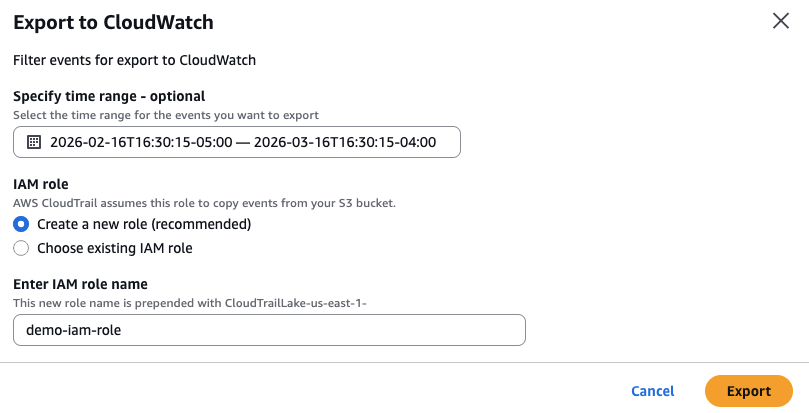
Figure 2: Export to CloudWatch configuration screen showing time range selection and IAM role configuration.
Note: Exported data uses Infrequent Access storage class, requiring CloudWatch Logs Insights to query the log information. Log groups created with Infrequent Access storage do not display export results directly in Log Streams on the console. Additionally, data prior to 2023 cannot be migrated from CloudTrail Lake to Amazon CloudWatch. If you require access to events older than 2023, you can continue to query them directly within CloudTrail Lake, or export the data to an S3 bucket. For more information, see the following documentation on Exporting data from CloudTrail Lake Event Data Store to CloudWatch and AWS Blog for Exporting a subset of AWS CloudTrail Lake events to Amazon S3.
Enabling the Ingestion of CloudTrail Logs into CloudWatch
With your historical CloudTrail Lake data now accessible in CloudWatch, the next step is to start ingesting new CloudTrail events directly into CloudWatch. This step is independent of any existing CloudTrail Trails or CloudTrail Lake event data stores — it establishes a new, dedicated path for CloudTrail activity to flow into CloudWatch.
Using CloudWatch’s telemetry configuration capabilities, you can set up automated ingestion of CloudTrail events directly through CloudWatch. Once enabled, every new CloudTrail event gets delivered alongside your other operational and security telemetry ready for unified querying, alerting, and analysis.
Creating Telemetry Enablement Rules for CloudTrail
For organizations managing hundreds or thousands of AWS accounts, manually configuring CloudTrail delivery to CloudWatch in each account isn’t practical. CloudWatch telemetry enablement rules solve this by automatically enabling CloudTrail log ingestion across your entire organization, specific organizational units (OUs), or individual accounts without requiring you to create or manage trails.
When you create a telemetry enablement rule for CloudTrail, CloudWatch uses service-linked channels to receive events directly from CloudTrail. CloudTrail events are delivered into managed CloudWatch log groups following the naming pattern aws/cloudtrail/<event-types>.
Note: This method operates independently of any existing CloudTrail Trails or CloudTrail Lake event data stores. Rather than relying on trails, it establishes a direct, dedicated channel for CloudTrail activity to flow into CloudWatch.
Creating a Telemetry Enablement Rule for CloudTrail
Prerequisite: Before configuring organizational Telemetry Enablement Rules, please see the following AWS documentation on Configuring Telemetry Auditing Feature for your organization.
- Open the CloudWatch console
- In the left navigation pane, click Ingestion.
- Click Enable Resource Discovery button from the top banner.
- CloudWatch will create necessary service-linked roles automatically.
- In the Data Sources tab, locate AWS CloudTrail in the list of available services.
- Choose Configure telemetry next to AWS CloudTrail.
- On the Specify Scope page, leave the default Rule name and choose Next. (Note: For organization-level rules, you can configure the source account scope in the selection settings.)
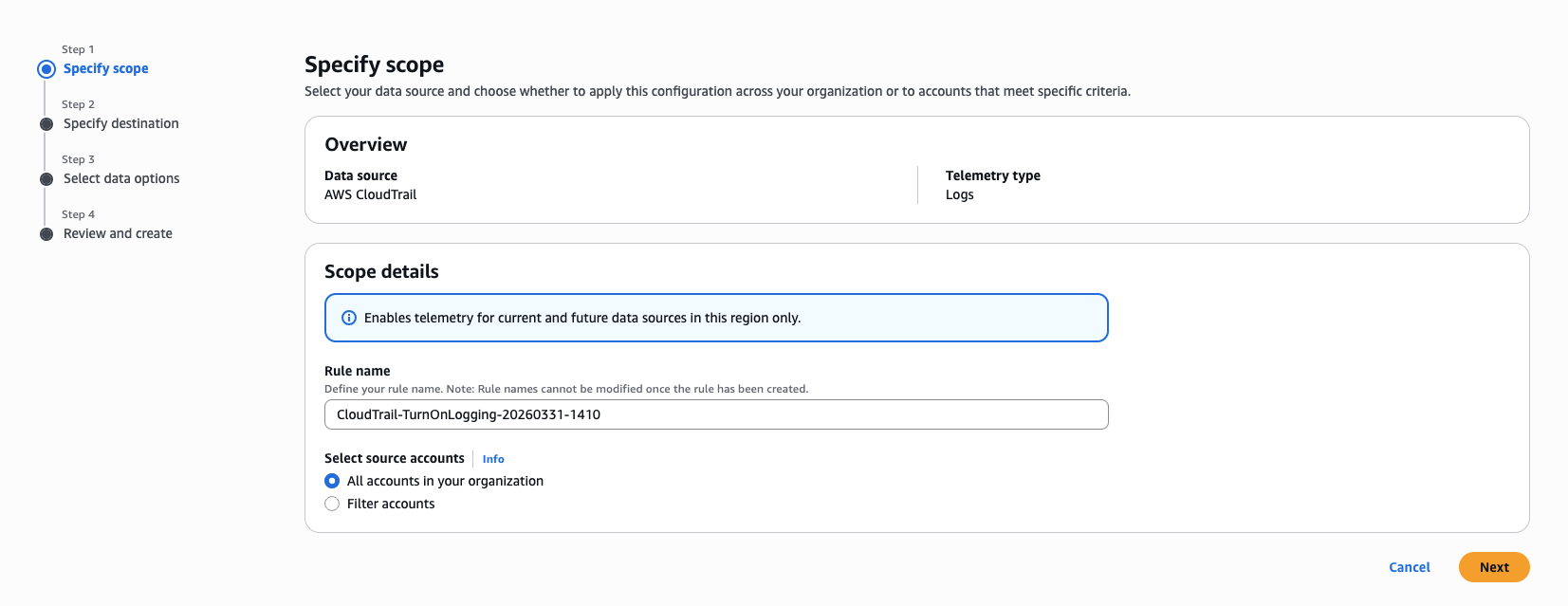
Figure 3: CloudWatch Telemetry config Enablement rules tab showing the Add rule wizard for CloudTrail.
- On the Specify Destination page, perform the following steps:
- For Send to, leave the default as CloudWatch Logs.
- For Log group name pattern will leave the default
aws/cloudtrail/[event-type]. - For Retention period, choose the retention period as per your compliance requirements. (Note: The CloudWatch to CloudTrail integration delivers logs directly to member accounts. The retention period you configure here applies to the log groups in each member account.)
- Choose Next.
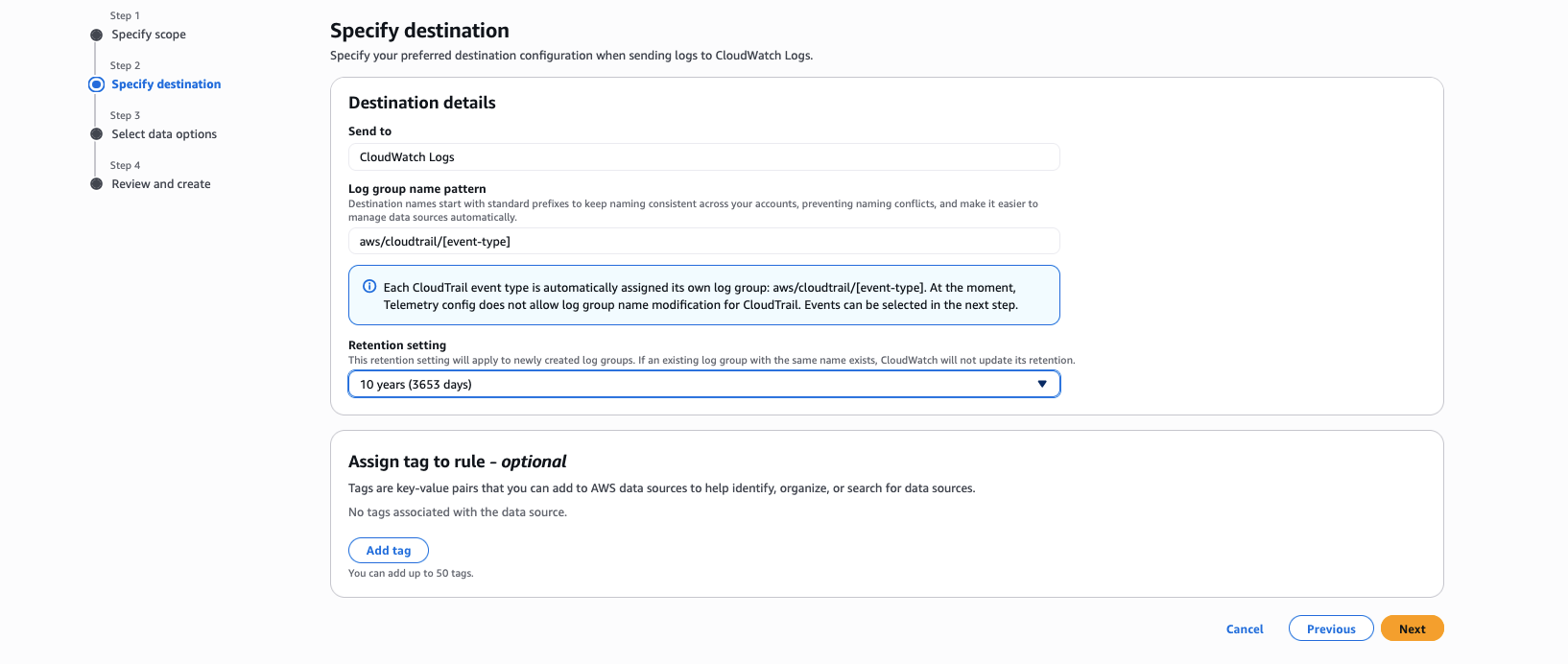
Figure 4: CloudWatch Telemetry config Enablement rules tab showing the Specify destination section for CloudTrail.
- On the Select Data Options page, for Event type, select which events you would like to ingest either Management events or Data events.
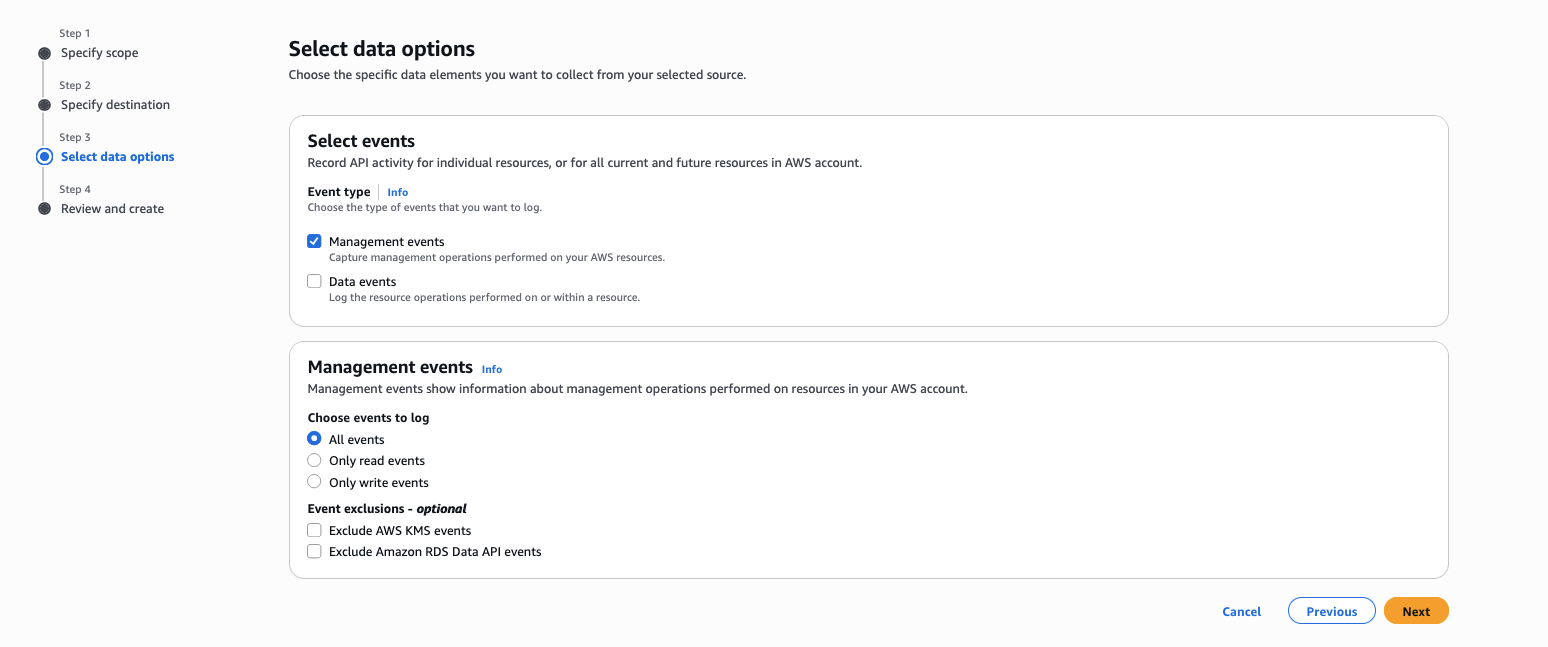
Figure 5: CloudWatch Telemetry config Enablement rules tab showing the Select data options for CloudTrail.
- Choose Next.
- On the Review and Create page, review the configuration settings and choose Configure CloudTrail enablement.
Note: You can create telemetry enablement rules across multiple accounts and regions currently, only commercial regions are supported. After enabling direct CloudTrail ingestion into CloudWatch, consider keeping both your CloudTrail Lake event data store and your CloudTrail ingestion for CloudWatch enabled for at least one day. This ensures that you can validate CloudTrail logs all events, but you incur duplicate event costs during that time. After validation, you can then stop ingestion on your CloudTrail Lake event data store.
For more information, see Working with telemetry enablement rules and Simplified enablement of CloudTrail events in CloudWatch.
Centralizing CloudTrail Logs Using Cross-Account / Cross-Region Centralization Rules
For organizations operating at scale with hundreds or thousands of AWS accounts spread across multiple regions, having CloudTrail data flowing into CloudWatch unified data store in each individual account is an important first step, but the full value is unlocked when you centralize all of that CloudTrail activity into a single destination account. This gives your security teams, compliance teams, and incident responders a single pane of glass for all API activity across your entire AWS Organization.
This is the scenario our story has been building toward: you have migrated your historical CloudTrail Lake data into CloudWatch, you have enabled your CloudTrail ingestion with telemetry enablement rules, and now you need to bring it all together in one centralized account for unified monitoring, analysis, and compliance.
CloudWatch Logs cross-account cross-region centralization works with AWS Organizations to collect log data from multiple member accounts into one central account using centralization rules. You define rules that automatically replicate log data from multiple accounts and AWS Regions into a centralized account within your organization. With this approach, each member account retains its own copy of the logs, while your central security and compliance teams receive their own consolidated copy. The first log copy is free, you only pay for each additional log copy, plus standard storage charges apply for all copies.
Creating a Centralization Rule
For a detailed walkthrough with practical examples, see the AWS blog post: Simplifying Log Management using Amazon CloudWatch Logs Centralization.
For step-by-step instructions on creating centralization rules, see the AWS documentation: Cross-account cross-Region log centralization.
Cleanup
If you created resources while following this blog post and no longer need them, make sure to clean up to avoid unnecessary charges:
- If you created a telemetry enablement rule, navigate to Telemetry config in the CloudWatch console, choose the Enablement rules tab, select the rule, and choose Delete.
- If you exported CloudTrail Lake data to CloudWatch, delete the destination log group if you no longer need the historical data in CloudWatch. Additionally, delete the log groups that were created from the telemetry rules or centralization rules.
- If you created a centralization rule, navigate to Settings in the CloudWatch console, choose the Organization tab, select the rule, and choose Delete.
Conclusion
In this blog post, we walked through a step by step approach in transitioning from CloudTrail Lake to Amazon CloudWatch unified data store addressing the fundamental challenge that security and operations teams face when their CloudTrail data lives in isolation from the rest of their telemetry.
We covered how to migrate your historical CloudTrail Lake data to CloudWatch for active monitoring and alerting. We then showed how to enable CloudTrail ingestion using telemetry enablement rules. Finally, we demonstrated how cross-account cross-region centralization rules bring all your CloudTrail activity together in a single destination account.
This blog post will help you begin planning your transition to CloudWatch unified data store today using the steps outlined in this guide, allowing you to take advantage of the unified analytics capabilities that CloudWatch provides.
Together, these capabilities transform CloudWatch unified data store into your single source of truth for CloudTrail activity across every account and region in your organization, ready for near real-time alerting, AI-assisted investigations, and compliance reporting.
To learn more, explore the following resources: