Networking & Content Delivery
Simplify VPC Flow Logs with EC2 resource tags and next-hop metadata
In this post, we show you how to use Amazon Elastic Compute Cloud (Amazon EC2) resource tags and next-hop metadata, two new capabilities in Version 11 of Amazon Virtual Private Cloud (Amazon VPC) Flow Logs. These fields let you simplify network traffic analysis without building custom enrichment pipelines. Since the introduction of VPC Flow Logs in 2015, AWS has continuously evolved the feature with additional metadata fields across multiple versions, giving you deeper insight into your network traffic.
Version 11 introduces EC2 resource tag embedding and next-hop interface metadata, eliminating the need to manually correlate flow log records with separate resource metadata from other sources. We walk through these new capabilities, show you how to enable them, and demonstrate how they simplify common network monitoring and troubleshooting tasks.
What’s new in Version 11
With Version 11 of VPC Flow Logs, you can now embed resource context directly in your flow log records with two categories of new fields.
EC2 resource tags
You can now include tag values from your EC2 instances, network interfaces, and auto scaling groups directly in flow log records. The following tag fields are available:
| Field | Description |
| instance-tag | Tag value for the first instance tag included in your TagFieldSpecifications |
| instance-tag-2 | Tag value for the second instance tag included in your TagFieldSpecifications |
| interface-tag | Tag value for the first network interface tag included in your TagFieldSpecifications |
| interface-tag-2 | Tag value for the second network interface tag included in your TagFieldSpecifications |
| asg-tag | Tag value for the first Auto Scaling group tag included in your TagFieldSpecifications |
| asg-tag-2 | Tag value for the second Auto Scaling group tag included in your TagFieldSpecifications |
With these fields, you can embed tags such as Name, Environment, Project, or CostCenter directly in each flow log record, removing the need for an external enrichment pipeline.
Next-hop interface metadata
You can now capture details about the next-hop network interface for each flow, helping you understand how traffic traverses your network resources:
| Field | Description |
| next-hop-interface-id | The ID of the next-hop network interface |
| next-hop-subnet-id | The ID of the subnet containing the next-hop interface |
| next-hop-az-id | The ID of the Availability Zone (AZ) containing the next-hop interface |
| next-hop-vpc-id | The ID of the VPC containing the next-hop interface |
| next-hop-interface-type | The type of the next-hop interface (for example, nat_gateway , network_load_balancer , transit_gateway , vpc_endpoint ) |
| interface-type | The type of the local network interface capturing the flow. If the network interface doesn’t have an associate service, or the service is not supported, the value is ‘-‘. See custom fields for more details. |
These fields help you trace traffic paths through NAT gateways, Network Load Balancers, AWS Transit Gateways, and VPC endpoints. You no longer need to manually correlate multiple data sources.
Why should you use these new fields?
These capabilities address several common challenges:
- Streamline enrichment: Add resource context such as application name, environment, or cost center directly in your flow log records, reducing the need for separate Amazon Data Firehose transformation pipelines.
- Identify traffic by workload: Filter and aggregate traffic by application name, project, environment, or cost center directly in your flow log queries.
- Trace traffic paths: Understand whether traffic is flowing through a NAT gateway, Network Load Balancer, or transit gateway using the next-hop interface type field.
- Simplify cross-AZ analysis: Compare the source AZ (
az-id) with the next-hop AZ (next-hop-az-id) to identify and quantify cross-AZ traffic patterns. - Accelerate security investigations: During incident response, quickly identify affected workloads by their tags rather than manually looking up IP addresses and ENI IDs.
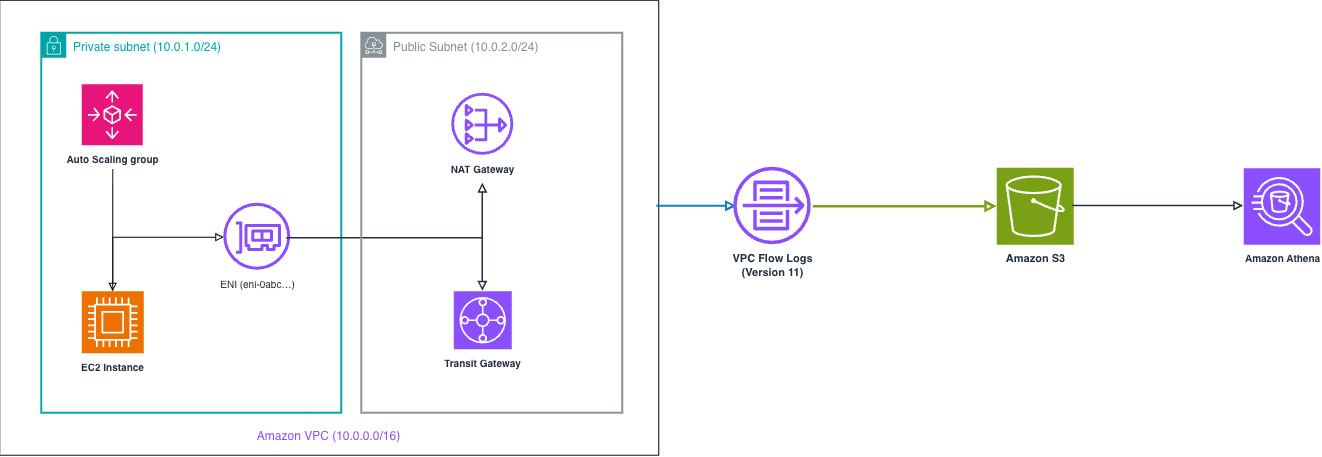
Figure 1: VPC Flow Logs (with native tags + next-hop metadata) → Amazon S3 → Amazon Athena.
Prerequisites
To use the new Version 11 fields, verify the following:
- AWS Identity and Access Management (IAM) permissions: Your flow log subscription requires permission to call
ec2:DescribeTagsfor tag fields. Theiam:CreateServiceLinkedRolepermission is only needed during initial setup to create the service-linked role. For Auto Scaling group tags (asg-tag,asg-tag-2), you also needautoscaling:DescribeTags. - Service-linked role: VPC Flow Logs uses a service-linked role to access tag information. For details, see Using service-linked roles for VPC Flow Logs.
- AWS CloudTrail (Auto Scaling group tags only): The asg-tag fields rely on CloudTrail events to detect Auto Scaling group tag changes. To keep these values updated in real time, you must have at least one active CloudTrail trail enabled in your account. This requirement applies only to the
asg-tag/asg-tag-2fields; theinstance-tagandinterface-tagfields do not depend on CloudTrail.
How to get started
Let’s walk through enabling these new fields on a VPC flow log.
Step 1: Create or modify a flow log with custom format
Open the Amazon VPC console,
- Select Your VPCs in the left navigation pane, then select the VPC you want to monitor.
- Under the Flow logs tab, choose Create flow log.
- Configure the following settings: –
- Name: Enter a descriptive name (for example,
vpc-flowlogs-with-tags) - Filter: Select the traffic type to capture (Accept, Reject, or All)
- Maximum aggregation interval: Select 1 minute for near-real-time analysis
- Destination: Choose Send to an Amazon Simple Storage Service (Amazon S3) bucket and specify your S3 bucket ARN
- Name: Enter a descriptive name (for example,
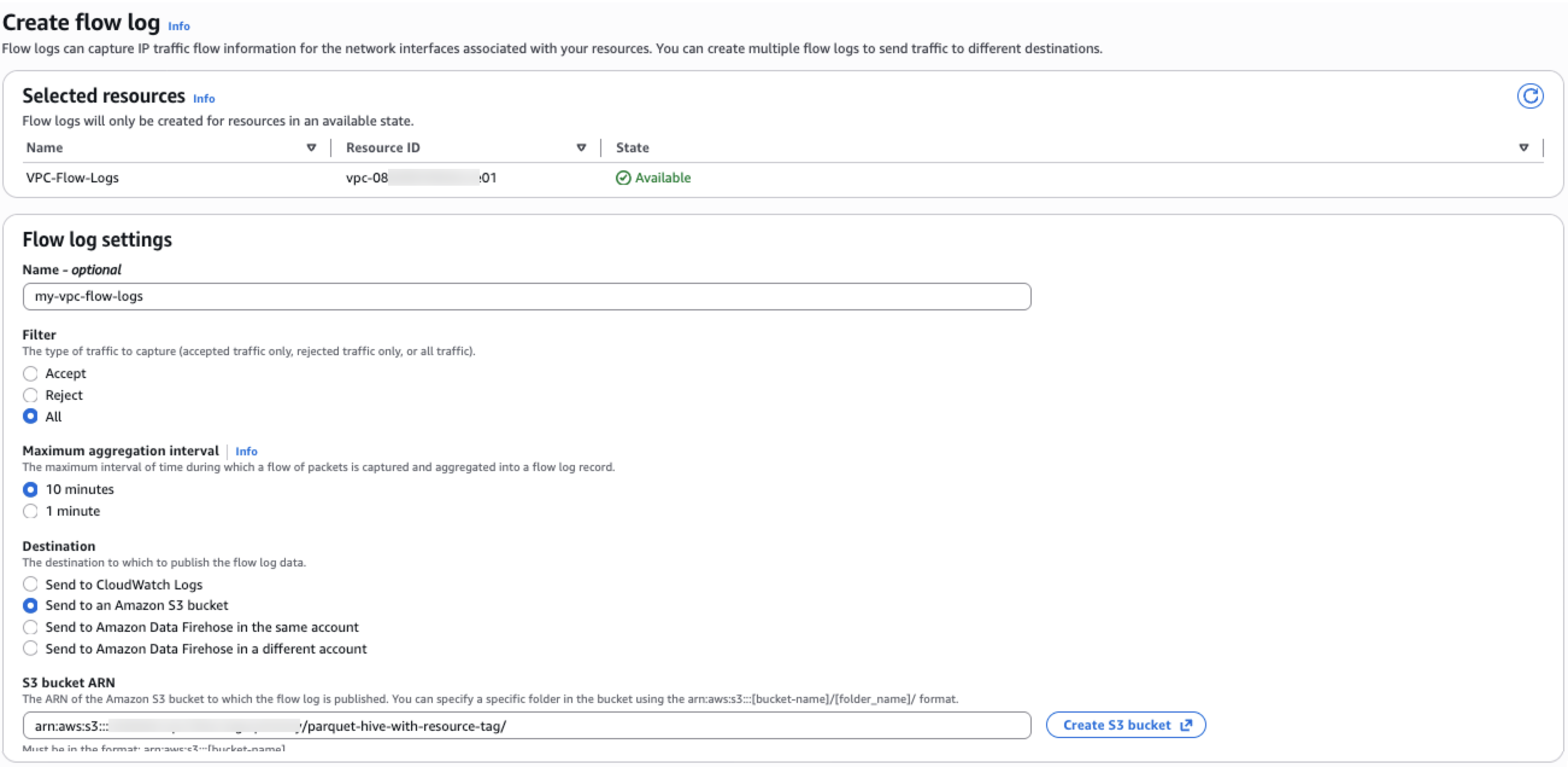
Figure 2: Screenshot of the Amazon VPC console showing the Create Flow Log configuration page with the settings described above.
Step 2: Select custom format with tag and next-hop fields
- Under Log record format, select Custom format. Select the fields you want to include. In addition to the standard fields, add the new Version 11 fields:
- For resource tags, select: –
instance-tagorinstance-tag-2(or both)-interface-tagorinterface-tag-2(or both)-asg-tagorasg-tag-2(or both) - For next-hop metadata, select: –
next-hop-interface-id- next-hop-subnet-id- next-hop-az-id- next-hop-vpc-id- next-hop-interface-type- interface-type
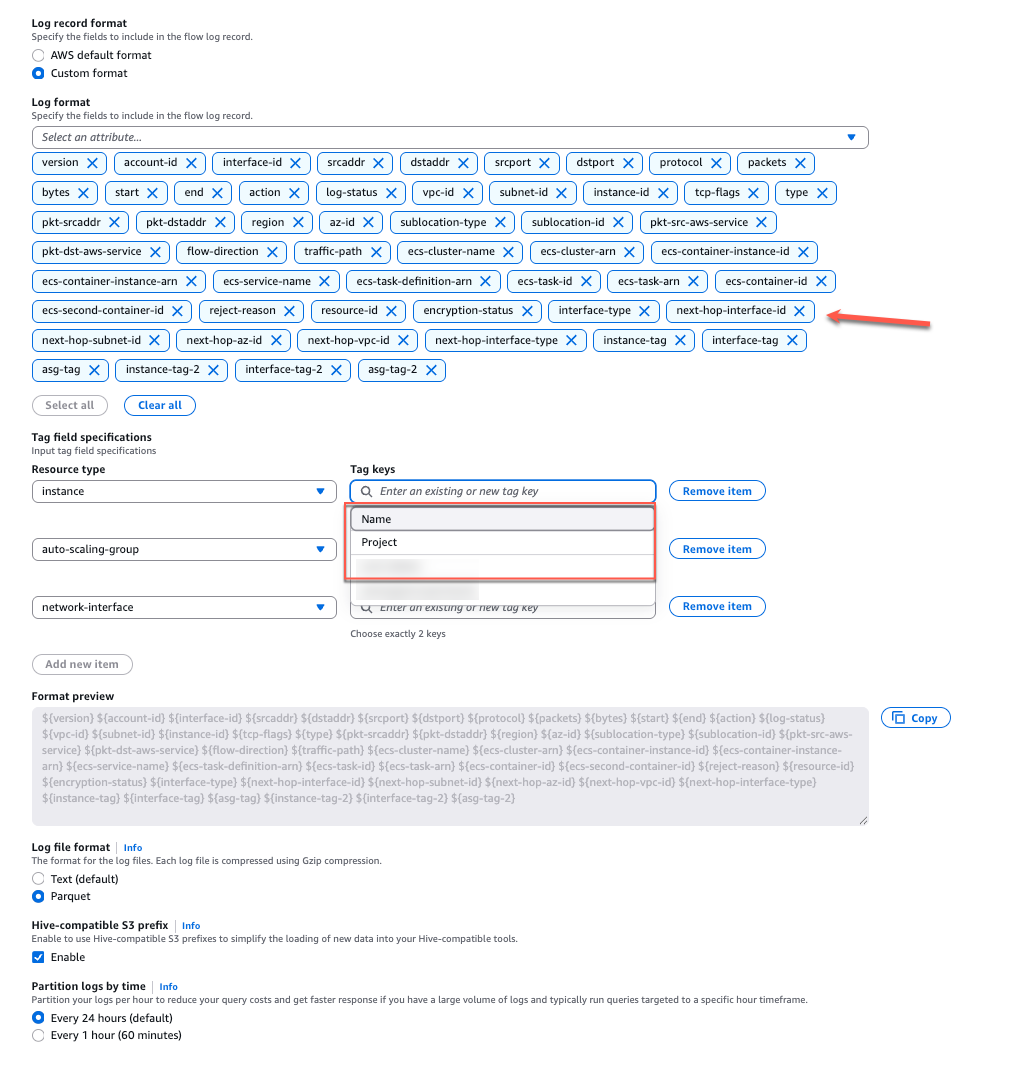
Figure 3: Screenshot of the Custom Format field selection in the Amazon VPC console, showing the Version 11 tag and next-hop fields checked.
Step 3: Configure TagFieldSpecifications
When you include tag fields, you need to specify which tag keys to embed using TagFieldSpecifications. For example, to include the Name tag from your Amazon EC2 instances and the Project tag from your network interfaces:
{
"ResourceType": "instance",
"TagKeys": ["Name", "Project"]
},
{
"ResourceType": "network-interface",
"TagKeys": ["Project", "Name"]
}
You can also create the flow log using the AWS Command Line Interface (AWS CLI):
aws ec2 create-flow-logs \
--resource-type VPC \
--resource-ids vpc-0example1234abcde \
--traffic-type ALL \
--log-destination-type s3 \
--log-destination arn:aws:s3:::my-flowlogs-bucket/vpc-logs/ \
--log-format '${version} ${account-id} ${interface-id} ${srcaddr} ${dstaddr} ${srcport} ${dstport} ${protocol} ${packets} ${bytes} ${start} ${end} ${action} ${log-status} ${instance-tag} ${instance-tag-2} ${interface-tag} ${interface-tag-2} ${next-hop-interface-id} ${next-hop-az-id} ${next-hop-interface-type}' \
--tag-field-specifications \ 'ResourceType=instance,TagKeys=Environment,CostCenter' \ 'ResourceType=network-interface,TagKeys=Project,Name'
Note: You can include up to two tag values each for instances, network interfaces, and Auto Scaling groups. This means each TagFieldSpecifications entry supports a maximum of two tag keys in the TagKeys array.
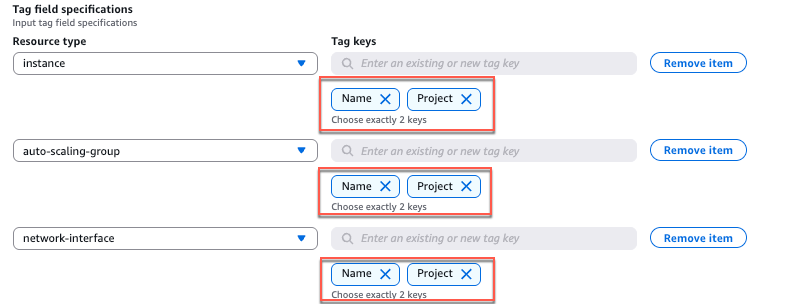
Figure 4: Screenshot of the TagFieldSpecifications section in the Amazon VPC console, showing how to select tag keys for instance and network interface resources.
Step 4: View enriched flow log records
After creating the flow log, it takes several minutes for data to begin flowing. Once published, your flow log records now include the embedded tag values and next-hop metadata. The following is a sample enriched record:
11 123456789012 eni-0abc1234def56789a 10.0.1.50 10.0.2.100 443 52000 6 25 5000 1718000000 1718000060 ACCEPT OK Production WebApp eni-0nat12345gateway use1-az1 nat_gateway
In this example: – Production is the Name, instance tag value WebApp is the Project, interface tag value eni-0nat12345gateway is the next-hop interface (a NAT gateway), use1-az1 is the AZ of the next-hop, nat_gateway is the next-hop interface type
Things to know
- Tag encoding: Tag values are displayed with UTF-8 percent encoding for all special characters. For example, a tag value of
My Appappears asMy%20Appin the flow log record. - Up to two tags per resource type: You can include up to two tag values each for instances, network interfaces, and Auto Scaling groups (six total tag fields).
- Best-effort metadata: Tag fields that do not come directly from the packet header are best-effort approximations. If a tag cannot be resolved, the record displays a `-` symbol.
- Parquet format: When publishing to Amazon S3 in Apache Parquet format, all new fields are of type STRING. This enables efficient querying with Amazon Athena.
- IAM permissions: Confirm the flow log’s IAM role has
ec2:DescribeTagspermission for instance and interface tags, andautoscaling:DescribeTagsfor Auto Scaling group tags.
Conclusion
With Version 11 of VPC Flow Logs, you can now embed EC2 resource tags and next-hop interface metadata directly in your flow log records. This eliminates the need to build and maintain custom enrichment pipelines, simplifies traffic analysis by workload and project, and helps you trace traffic paths through intermediate network resources like NAT gateways and transit gateways.
To learn more about all available fields and configuration options, visit the VPC Flow Logs documentation.