Networking & Content Delivery
Using AWS Edge to optimize object uploads to Amazon S3
Amazon S3 is a highly scalable, secure, and durable object storage service that offers industry-leading performance and availability. It’s widely used to store a variety of unstructured data such as images, videos, backups, and logs. However, when uploading data to Amazon S3, especially large files or data accessed from different Amazon Web Services (AWS) Regions, choosing the right architecture pattern becomes crucial for optimizing performance and cost. The right pattern can reduce upload times by up to 60% and improve user experience for globally distributed applications.
In this post, we explore three architecture patterns to upload objects to Amazon S3: Amazon CloudFront PUT/POST Methods, S3 Transfer Acceleration, and S3 Multi-Region Access Points. We cover when to use each one, with real-world scenarios and use cases to help you make informed decisions.
Architecture patterns
We can do a direct upload to Amazon S3, where clients such as web or mobile applications can upload objects directly to an S3 bucket using pre-signed URLs. This bypasses the need for an intermediary server, reducing server load, enhancing scalability, and improving upload time. Direct uploads are particularly effective for applications with local user bases or where upload sizes are moderate, and the latency between the client and the S3 bucket is low. For example, applications handling Regional user-generated content or moderately sized media files can benefit greatly from this approach.
However, for global users or scenarios involving large object uploads, such as high-resolution videos or extensive datasets, performance may not always meet expectations due to network latency or varying upload speeds.
In the following sections, we explore architecture patterns designed to optimize upload latency and enhance performance when working with Amazon S3.
Amazon S3 Transfer Acceleration
S3 Transfer Acceleration is an AWS managed solution that optimizes data uploads to Amazon S3 by using the AWS globally distributed edge locations (CloudFront). When enabled, uploads are routed to the nearest edge location and then transferred to the destination S3 bucket using the managed global network backbone of AWS. This feature is particularly beneficial for long-distance transfers, where traditional direct uploads might face internet routing and connectivity challenges. Although it works with files of any size, the performance improvements are typically more noticeable when transferring larger objects over greater distances.
Furthermore, when interacting with Amazon S3, we advise using temporary credentials provided through AWS Identity and Access Management (IAM) roles, combined with AWS Security Token Service (AWS STS) and an S3 bucket policy.
Consider an international e-commerce platform that frequently uploads large files, such as product catalog data and backups, to an S3 bucket located in a different Region. S3 Transfer Acceleration reduces upload times, enabling smooth, fast uploads, even from users distributed across multiple continents.
When to use S3 Transfer Acceleration
- S3 Transfer Acceleration is particularly effective for larger files (such as backups and media files) due to its optimized network protocol handling. When transferring data, it establishes connection points at AWS edge locations, enabling faster TCP connection establishment and more efficient data transmission. This architecture helps maintain higher throughput by optimizing network protocols and reducing the impact of internet routing inefficiencies, packet loss, and network congestion.
- When uploading from distant geographical locations to a central S3 bucket
- When minimizing transfer times is critical for operational efficiency
- When accessing the data, it also accelerates the transfer of data
For files smaller than 1 GB or datasets under this size, the benefits of using S3 Transfer Acceleration are minimal. This is because smaller files typically experience fewer TCP-level retransmissions and disruptions, and their transfer times are too short to fully use the protocol optimizations provided by S3 Transfer Acceleration.
As an alternative, CloudFront PUT command can also enhance upload performance by using the global edge network for efficient data transfer. This approach is particularly useful for optimizing smaller file uploads. We explore this option further in the next sections of this post.
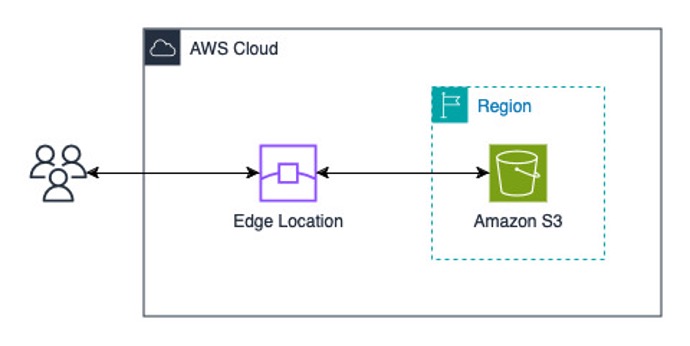
Figure 1. Object upload to Amazon S3 using S3 Transfer Acceleration
S3 Multi-Region Access Points
Amazon S3 Multi-Region Access Points streamline uploads by enabling seamless access to S3 buckets across multiple AWS Regions. This feature is ideal for scenarios where users are distributed globally (for example in the UK and India) and need automatic routing of requests to the nearest bucket, thus reducing latency. It also eliminates the need for complex bucket replication configurations, offering a highly available and fault-tolerant solution.
S3 Multi-Region Access Points use AWS Global Accelerator to optimize the transfer of large objects across the AWS network. AWS Global Accelerator intelligently routes traffic to the optimal AWS Region based on network conditions, making sure of low latency and high throughput. With this built-in capability, there’s no need to enable Transfer Acceleration separately when using Multi-Region Access Points, because the integration with AGA seamlessly improves efficiency for both uploads and downloads.
For interacting with Amazon S3, we recommend using temporary credentials provided through IAM roles in combination with AWS STS. An S3 bucket can have up to 10,000 access points, each capable of enforcing unique permissions and network controls, offering granular control over access to S3 objects. Access Points can be linked to buckets within the same account or in another trusted account. These access point policies are resource-based and are evaluated alongside the underlying bucket policy.
A global organization with users in the UK and India stores data in multiple Regions for improved performance. Users can use S3 Multi-Region Access Points to upload and retrieve objects from the closest Region. This reduces latency without needing AWS Region-specific application logic. This approach is especially beneficial when some latency is acceptable in exchange for the streamlined architecture.
When to use S3 multi-Region Access Points
- When you manage multiple S3 buckets across different AWS Regions
- When streamlines architecture is a priority, and some latency is acceptable
- When reducing latency is important but without the need for complex replication setups
- When accessing the data, it routes the request to nearest bucket and gives better performance by up to 60%
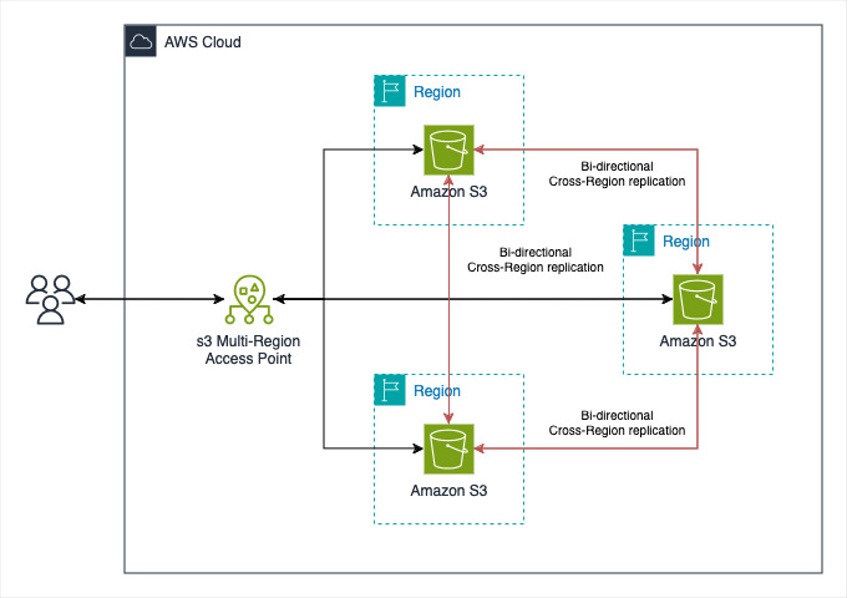
Figure 2. Object upload to Amazon S3 using S3 Multi-Region Access Point
CloudFront PUT to Amazon S3
CloudFront, while primarily known as a content delivery network (CDN), also supports uploading content to Amazon S3 through its edge locations using PUT HTTP method. This capability allows you to use the CloudFront global infrastructure for both content delivery and data ingestion. Although CloudFront supports large files, its upload performance characteristics differ from purpose-built transfer acceleration services such as S3 Transfer Acceleration. This makes it more suitable for scenarios where you’re already using CloudFront for content delivery and want to optimize the full request-response cycle.
Furthermore, we recommend validating upload requests when using CloudFront for uploads. This can be achieved with CloudFront Functions, lightweight JavaScript-based functions designed for high-scale, latency-sensitive CDN customizations. For example, you can include a JWT token in each upload request, which CloudFront Functions can validate. This makes sure that only authorized requests are processed while malicious ones are dropped at the edge.
Moreover, for Object Ownership, we recommend disabling ACLs and enforce the bucket owner setting. This makes sure that any objects uploaded through CloudFront to Amazon S3 remain owned by the bucket owner rather than the Origin Access Control. Most modern use cases in Amazon S3 no longer need ACLs, and it is advisable to keep them disabled unless there are specific scenarios where individual object-level access control is necessary. For more information, visit this Amazon S3 User Guide.
Consider a media company where users upload multiple files that need to be stored in Amazon S3. CloudFront PUT enables upload requests to be routed to the nearest CloudFront edge location, reducing latency for users. Then, CloudFront forwards the data to Amazon S3 over the optimized network of AWS, which provides faster and more reliable uploads. This approach is particularly advantageous when users are geographically dispersed, because it minimizes upload latency without needing significant workflow changes.
When to Use CloudFront PUT
- For objects smaller than 1 GB
- When improving upload performance for globally distributed users is a priority
- When CloudFront is already integrated into your workflow for content delivery
- When accessing the data, it accelerates performance and also lets you cache the data and control caching behavior
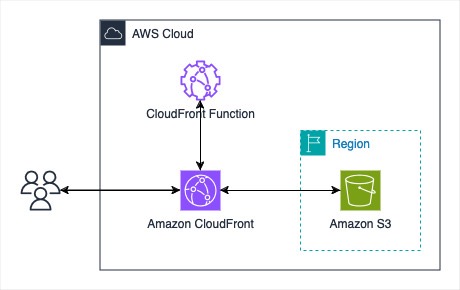
Figure 3. Object upload to Amazon S3 using Amazon CloudFront PUT request
Walkthrough
- Create an S3 bucket with default settings.
- Create a CloudFront distribution with the S3 bucket created above as the origin.
- Under Origin access, choose Origin access control settings (recommended).
- Choose Create new OAC.
- Enter the name of the OAC and choose create.
- Go to the Default Cache behavior settings.
- Under Viewer, choose GET, HEAD, OPTIONS, PUT, POST, PATCH, DELETE as the Allowed HTTP methods.
- Under WAF, choose Enable security protections.
Update the default AWS WAF rules as per your use case.
- Choose Create Distribution.
- On the CloudFront distribution management console, you should see a prompt that says the S3 bucket policy needs to be updated. Choose Copy policy and go to the S3 bucket permissions to update the policy. Furthermore, add
s3:PutObjectpermissions in the policy along with the existings3:GetObject.
Sample policy:
In the following steps, we will create a CloudFront Function to validate upload requests containing a JWT token, using the sample code from the documentation. The code leverages a CloudFront key pair to securely access the JWT secret for token validation. These steps will guide you through setting up all required resources. You only need to generate a JWT using your chosen secret and include it in the request; the CloudFront Function will validate the token and allow or block the request accordingly.
- Choose Functions under the CloudFront management console.
- Enter the name of the function and choose Create Function.
- Update the CloudFront Function with the reference code from this documentation.
- Choose save changes.
In this reference code, we are verifying a streamlining JWT token sent within the request. It uses CloudFront key-value pairs to store the JWT secret. We create a CloudFront key pair in coming steps.
- Go to Publish under the CloudFront Functions.
- Choose Publish Function tab.
- In the Associated Distributions, choose Add association.
- Choose the distribution
- Event Type: Viewer request
- Cache behaviour: Default (*)
- Choose Add association.
- Under Associate KeyValueStore, choose create new KeyValueStore.
- Enter the name and choose Create.
- In the newly created KeyValuePair, choose Add key value pairs and then choose add pair.
- Add the key name (
“jwt.secret”is used as the key name in the reference code provided above for the CloudFront Function, which stores your secret for generating the JWT token) along with its corresponding value that you should use in your CloudFront Function. Then, choose Save changes. - Go to your CloudFront Function.
- Choose Associate existing KeyValueStore.
- Choose the KeyValueStore that you just created.
- Choose associate KeyValueStore.
- Go to the Publish tab of CloudFront Functions and choose publish function.
- The live KeyValueStore association is updated when the function is published.
- You can use the following command to test the upload, when the distribution status is Deployed.
Alternatively, you can upload objects using CloudFront signed URLs, which provide built-in security and authentication. In this approach, objects uploaded through CloudFront are initially owned by the CloudFront service principal. However, you can configure your S3 bucket to transfer ownership to your account. For more information, see this.
Pricing comparison
We have created a table showcasing the cost components of S3 Transfer Acceleration, Multi-Region Access Point, and CloudFront for your reference. The following table highlights key pricing components beyond the general Amazon S3 storage and Amazon S3 request costs. Pricing may vary depending on factors such as AWS Region, object size, and other usage parameters.
| Methods | Additional Features Charges | Data Transfer IN Charges | Data Transfer OUT Charges |
| S3 Transfer Acceleration | – | To Amazon S3 from the Internet | From Amazon S3 to the Internet, Data Transfer between Amazon S3 and another AWS region |
| Multi-Region Access Point | S3 Multi-Region Access Points data routing, Replication charges | Internet acceleration pricing for IN | From Amazon S3 to the Internet, Data Transfer between Amazon S3 and another AWS region |
| CloudFront | Request Pricing for All HTTP Methods, CloudFront Functions, CloudFront KeyValueStore | – | Regional Data Transfer Out to Internet, Regional Data Transfer Out to Origin |
For further details about pricing please refer to Amazon S3 and CloudFront Pricing pages.
Conclusion
Optimizing object uploads to Amazon S3 necessitates choosing the right architecture pattern based on your use case, data size, and geographic distribution of users. Each pattern discussed in this blog offers unique advantages:
- S3 Transfer Acceleration is ideal for large files and long-distance uploads where reducing latency is critical.
- S3 Multi-Region Access Points streamlines multi-Region architectures by routing requests to the nearest bucket, enhancing availability and minimizing latency without complex replication setups.
- CloudFront PUT commands are suited for smaller objects, using edge locations to improve upload performance for globally distributed users.
You can align your requirements with these patterns to build efficient, scalable, and cost-effective solutions for object uploads to Amazon S3. Whether optimizing for performance, clarity, or fault tolerance, AWS provides powerful tools to meet your needs.
Start by evaluating your current upload workloads and consider experimenting with these patterns to see how they improve your user experience. With the right approach, you can unlock the full potential of Amazon S3 for global-scale applications.
About the authors

Rohit Raj
Rohit Raj is a Solutions Architect at AWS, specializing in Serverless technologies. He partners with customers to architect secure, scalable cloud solutions and guides them in adopting emerging technologies like Generative AI. Outside of work, he enjoys travelling, music, and outdoor sports.

Urvi Sharma
Urvi Sharma is a Solutions Architect at AWS who works with customer adopting cloud and helps them migrate and modernize, build resilient and secure architectures, and incorporate AI/ML services with modern technologies like Generative AI. She also specializes in AWS Edge Services and helps customers with perimeter protection and web acceleration on AWS.