AWS Security Blog
Simplifying policy management with URL and Domain Category filtering on AWS Network Firewall
Network administrators face a persistent challenge: maintaining domain blocklists and allowlists that keep pace with the internet. New websites and services emerge daily, and keeping these lists current requires constant manual updates that leave gaps in coverage. This challenge intensifies when managing access to rapidly evolving categories like AI services, where new tools launch on a regular basis.
AWS Network Firewall is a managed, stateful network firewall and intrusion detection and prevention service for fine-grained control of your virtual private cloud (VPC) network traffic. With URL and domain category filtering, security teams can use predefined categories to control access instead of managing individual domains. AWS-managed URL and domain categories stay current automatically as new domains are registered, removing the need for manual list maintenance.
This feature is especially useful for organizations navigating AI governance. Instead of manually tracking every new AI service, you can control access to the entire Artificial Intelligence and Machine Learning category while creating exceptions for approved services. The same approach works for social media, streaming sites, gambling, and dozens of other categories, all with built-in audit trails for compliance reporting.
In this post, we walk through URL and domain category filtering configurations for AWS Network Firewall, from basic rules to exception handling and monitoring strategies that give you visibility into how your workloads interact with external services.
Streamlined policy management with predefined categories
With URL and domain category filtering, you control website access using predefined categories instead of individually specifying sites in a domain list rule group. You can select from AWS-managed categories such as Social Networking, Gambling, or Artificial Intelligence and Machine Learning to implement and maintain filtering policies. AWS keeps these categories current automatically, so you don’t need to update firewall policies when new domains are registered.
Network Firewall offers two category filtering options. Domain category filters by domain name using the TLS Server Name Indication (SNI) field, with no decryption required. URL category filters by the full URL path, which requires TLS inspection for HTTPS traffic. To keep things straightforward, this post focuses on domain category filtering. To set up URL category filtering with TLS inspection, see Creating a TLS inspection configuration in Network Firewall.
Prerequisites
To follow the steps in this post, start by making sure that you have the following prerequisites in place:
- An existing Network Firewall deployment: This walkthrough assumes you have an existing Network Firewall deployment to filter egress traffic flows from your Amazon Virtual Private Cloud (Amazon VPC) in place. If you aren’t already using Network Firewall, see Getting started with AWS Network Firewall to set up your firewall before proceeding.
- The HOME_NET variable set correctly at the firewall policy level: The rules in this post use the
$HOME_NETvariable to scope traffic to your internal network. In the AWS Management Console for Amazon VPC, select your firewall policy under the Firewall policies tab, select the Details tab, and check the policy variables section under HOME_NET variable override values. We recommend setting this to all RFC 1918 private IP address ranges:10.0.0.0/8,172.16.0.0/12, and192.168.0.0/16. When you set$HOME_NETat the policy level, all rule groups associated with that policy inherit the value automatically. Network Firewall automatically maps$EXTERNAL_NETto the inverse of$HOME_NET, so configuringHOME_NETcorrectly also configures$EXTERNAL_NET.
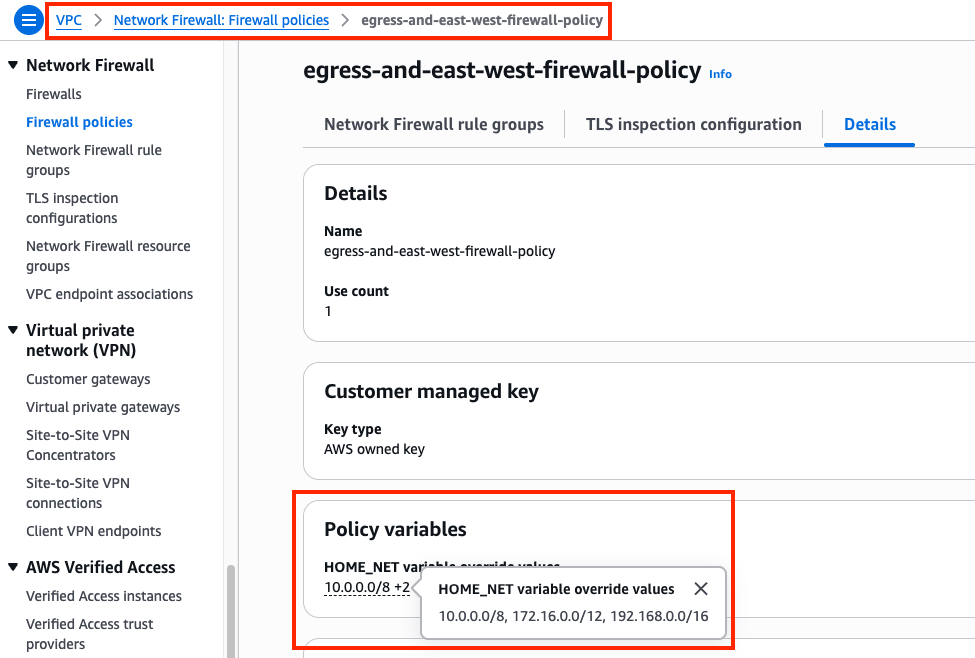
Figure 1: Firewall policy details tab showing the HOME_NET variable override values set to RFC 1918 private IP address ranges
Create a category rule using the console rule builder
To get started quickly, you can create a domain category rule using the console’s built-in rule builder. In this example, we create a single alert rule for the Artificial Intelligence and Machine Learning category.
- Open the AWS Management Console, search for and open the Amazon VPC console.
- In the left navigation, scroll to Network Firewall and select Rule groups.
- Choose Create rule group.
- For Rule group type, select Stateful rule group.
- For Rule group format, select Standard stateful rules.
- For Rule evaluation order, select Strict order. Choose Next.
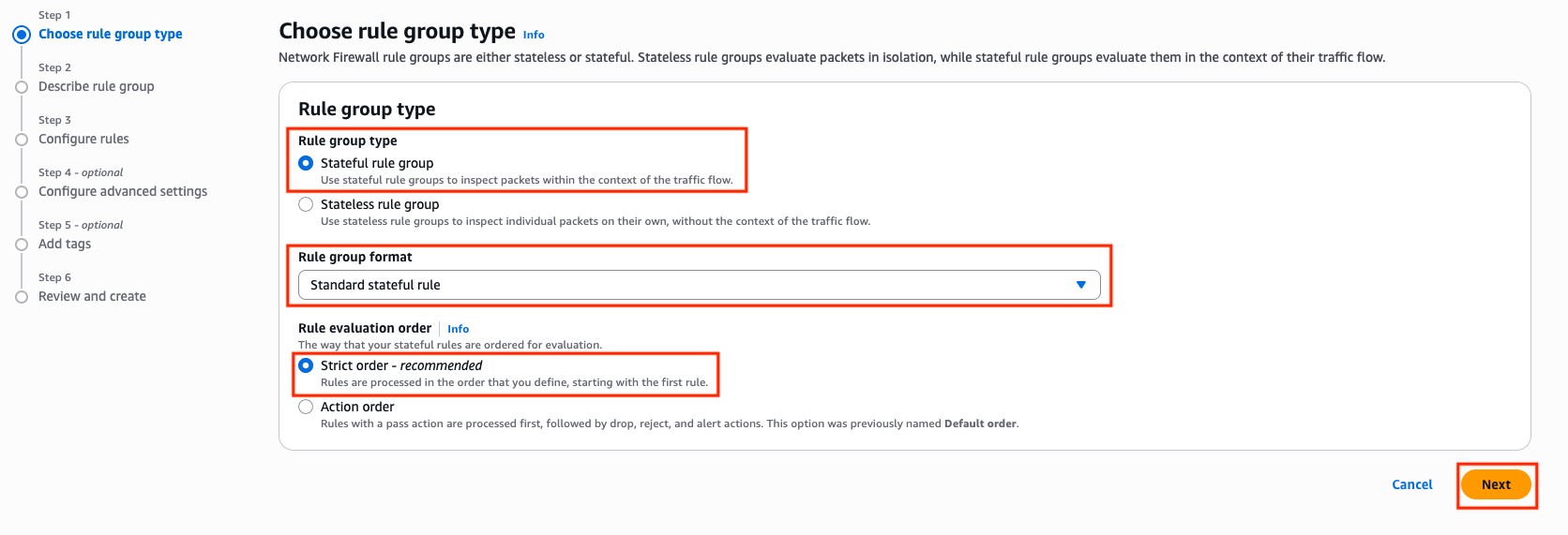
Figure 2: Create Network Firewall rule group page showing Stateful rule group type, Standard stateful rules format, and Strict order evaluation selected
- Enter
Domain-Category-Rulesfor the Name,Domain Category Rulesfor the Description, and50for the Capacity. Choose Next. - In the rule group editor, select the Category Matching radio button.
- Under Category Matching, select Match all selected categories.
- Under AWS category type, select Domain Category from the dropdown.
- Under Categories, select Artificial Intelligence and Machine Learning.
- For Protocol, select TLS.
- For Source, select Custom, then enter
$HOME_NETin the dialog box. - Set the Destination IP to Any.
- For Action, select Alert.
- Choose Add rule to add this rule to the rule group. Choose Next.
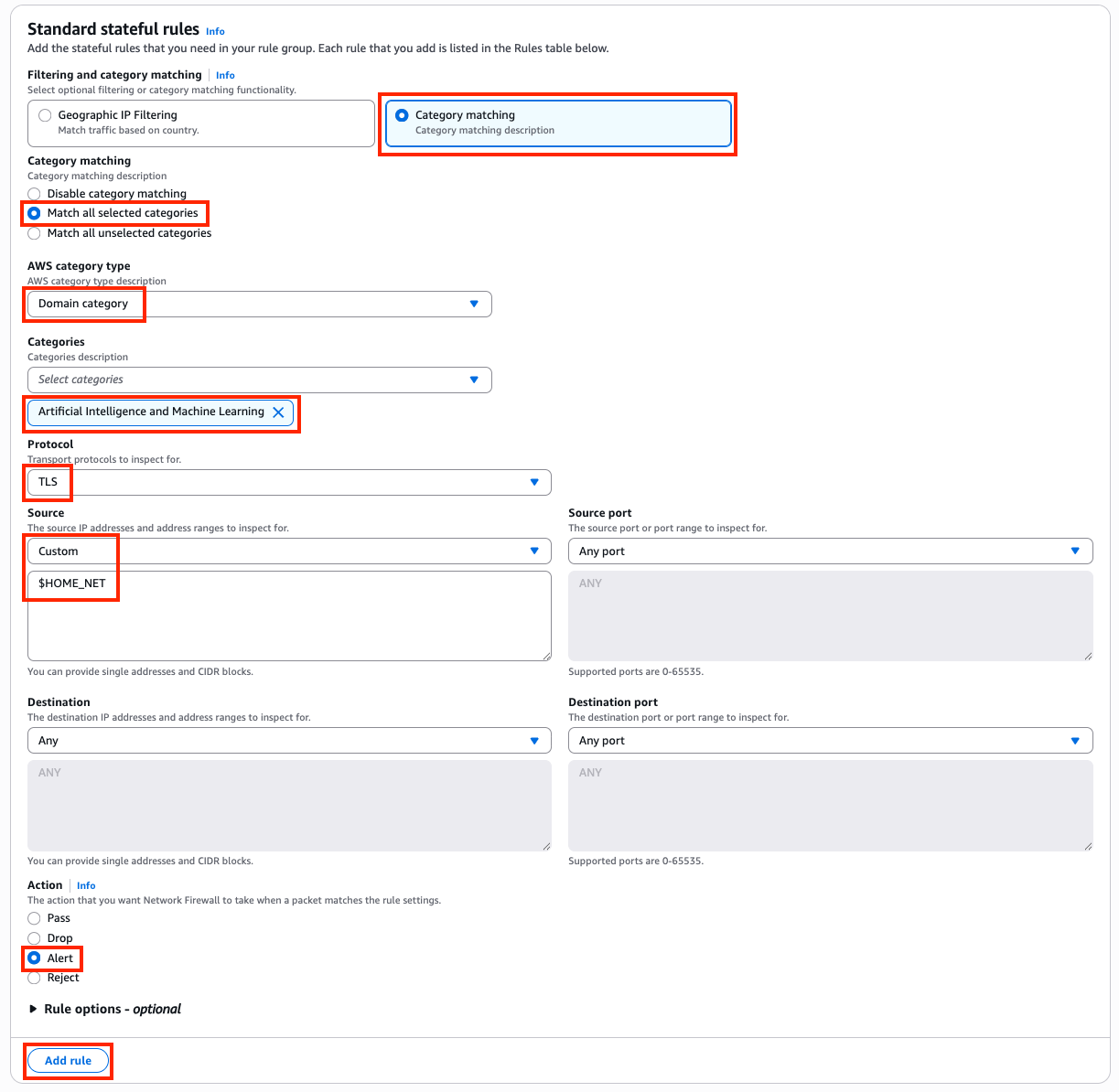
Figure 3: Completed category matching rule showing TLS protocol, $HOME_NET source, Any destination, and Alert action added to the rule group
- Under Customer managed key, leave the default setting (Customize encryption settings should remain unchecked).
- Under Add tags – optional, leave the default setting of no tags.
- Choose Next, then Create rule group.
This rule generates an alert log entry each time a connection matches a domain in the Artificial Intelligence and Machine Learning category. It doesn’t block traffic. To block traffic, change the action to Drop or Reject in step 15.
Creating the same rule using Suricata compatible rule strings
The console rule builder is a quick way to get started, but we recommend using Suricata compatible rule strings for production deployments. Suricata rules give you full control over rule options, make rules straightforward to copy, edit, share, and back up, and support the majority of the Suricata engine. For more information, see Limitations and caveats for stateful rules in AWS Network Firewall.
The following walkthrough creates the same alert rule you built with the console rule builder, this time using a Suricata rule string.
In the Amazon VPC console, navigate to Network Firewall, then select Network Firewall rule groups.
- Choose Create rule group.
- For Rule group type, select Stateful rule group.
- For Rule group format, select Suricata compatible rule string.
- For Rule evaluation order, select Strict order. Choose Next.
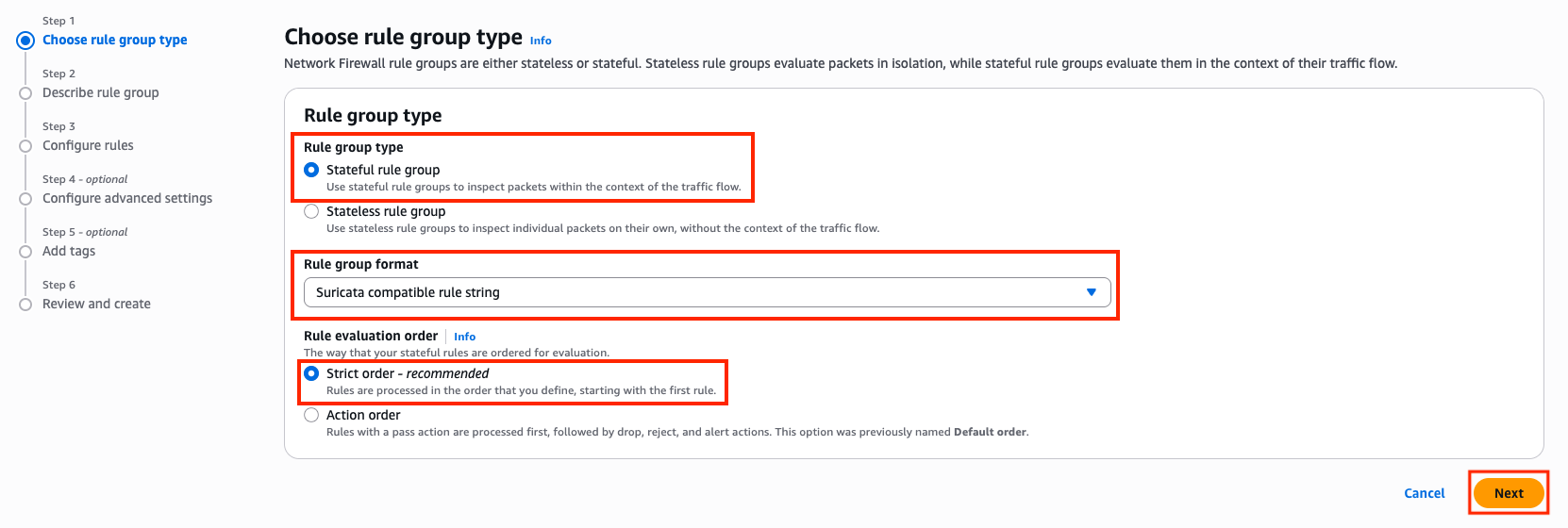
Figure 4: Create Network Firewall rule group page showing Stateful rule group type, Suricata compatible rule string format, and Strict order evaluation selected
- Enter
Suricata-Domain-Category-Rulesfor the Name,Suricata Domain Category Rulesfor the Description, and50for the Capacity. Choose Next. - Leave the Rule variables section empty. The $HOME_NET variable is inherited from the firewall policy, as configured in the prerequisites.
- Leave IP set references empty.
- Paste the following rule into the Suricata compatible rule string editor:
- Choose Next.
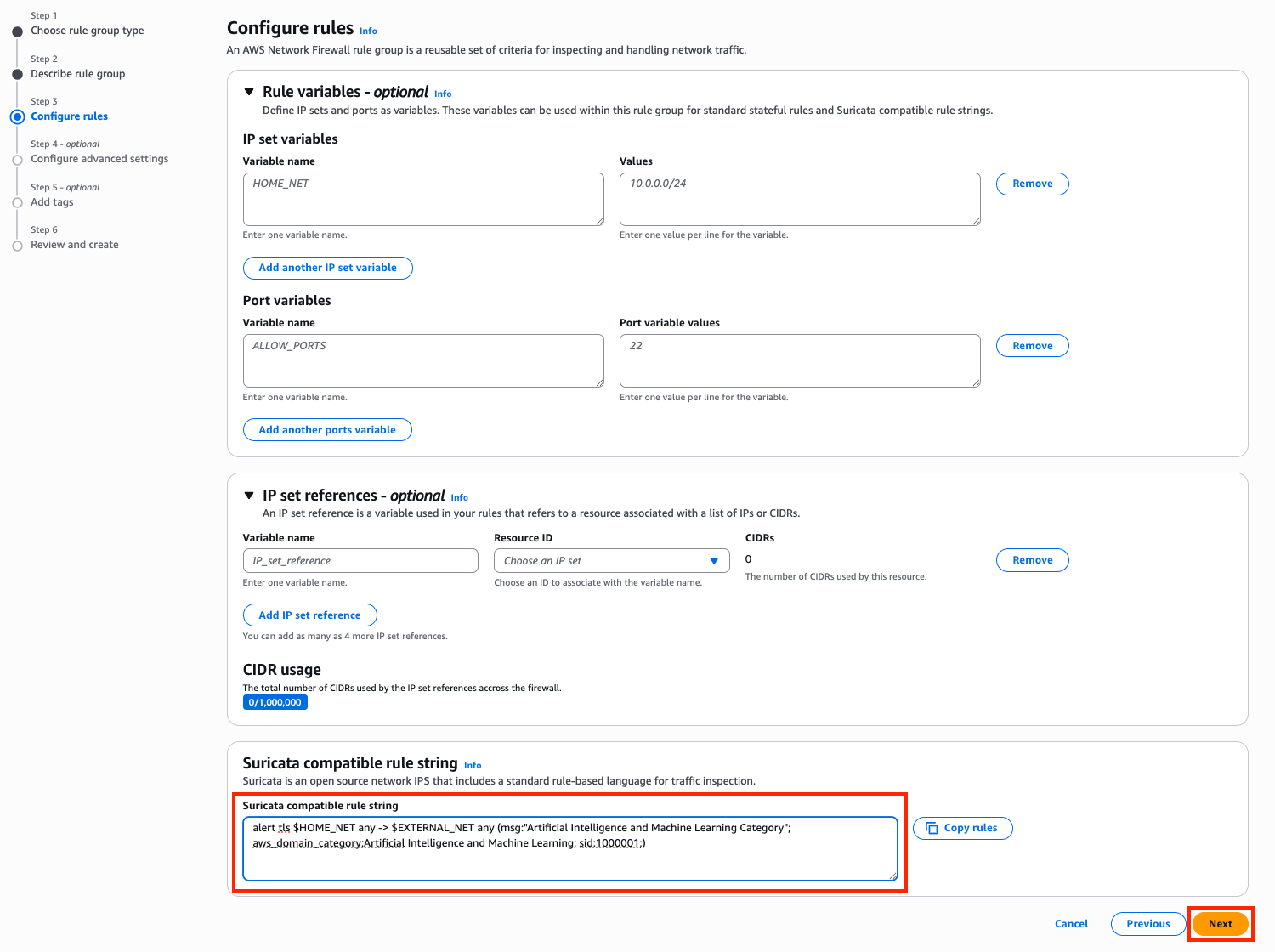
Figure 5: Suricata compatible rule string editor with the domain category alert rule pasted in and the rule variables section left empty
- Under Customer managed key, leave the default setting (Customize encryption settings should remain unchecked).
- Under Add tags – optional, leave the default setting of no tags. Choose Next.
- Choose Create rule group.
- After creating the rule group, return to your firewall policy and add it under Stateful rule groups. We recommend associating new rule groups in a development or test environment first to validate behavior before deploying to production.
The following table explains each component of this rule:
| alert | Action: generate an alert log entry when the rule matches. Other actions include pass, drop, and reject. |
| tls | Protocol: inspect TLS traffic, matching against the SNI field in the TLS Client Hello. |
| $HOME_NET any -> $EXTERNAL_NET any | Source and destination: match traffic from any internal IP address (HOME_NET) and port to any external IP address (EXTERNAL_NET) and port. The HOME_NET variable defines your internal network ranges, and the EXTERNAL_NET variable is automatically set to the inverse. |
| msg:”Artificial Intelligence and Machine Learning Category” | The message written to the alert log when this rule is triggered. |
| aws_domain_category:Artificial Intelligence and Machine Learning | The AWS-managed domain category to match against. The firewall looks up the destination domain in the category database and matches if the domain belongs to this category. |
| sid:1000001 | A unique signature ID for this rule. Each rule in a rule group must have a unique SID. |
Managing exceptions for approved services
You can manage exceptions to keep business-critical websites accessible. For example, say you need to allow access to OpenAI while blocking all other AI and ML traffic. To do this, return to the Suricata-Domain-Category-Rules rule group you created earlier and replace the basic alert rule with the following ruleset. Select the Suricata-Domain-Category-Rules rule group, under the Rules section, choose Edit.
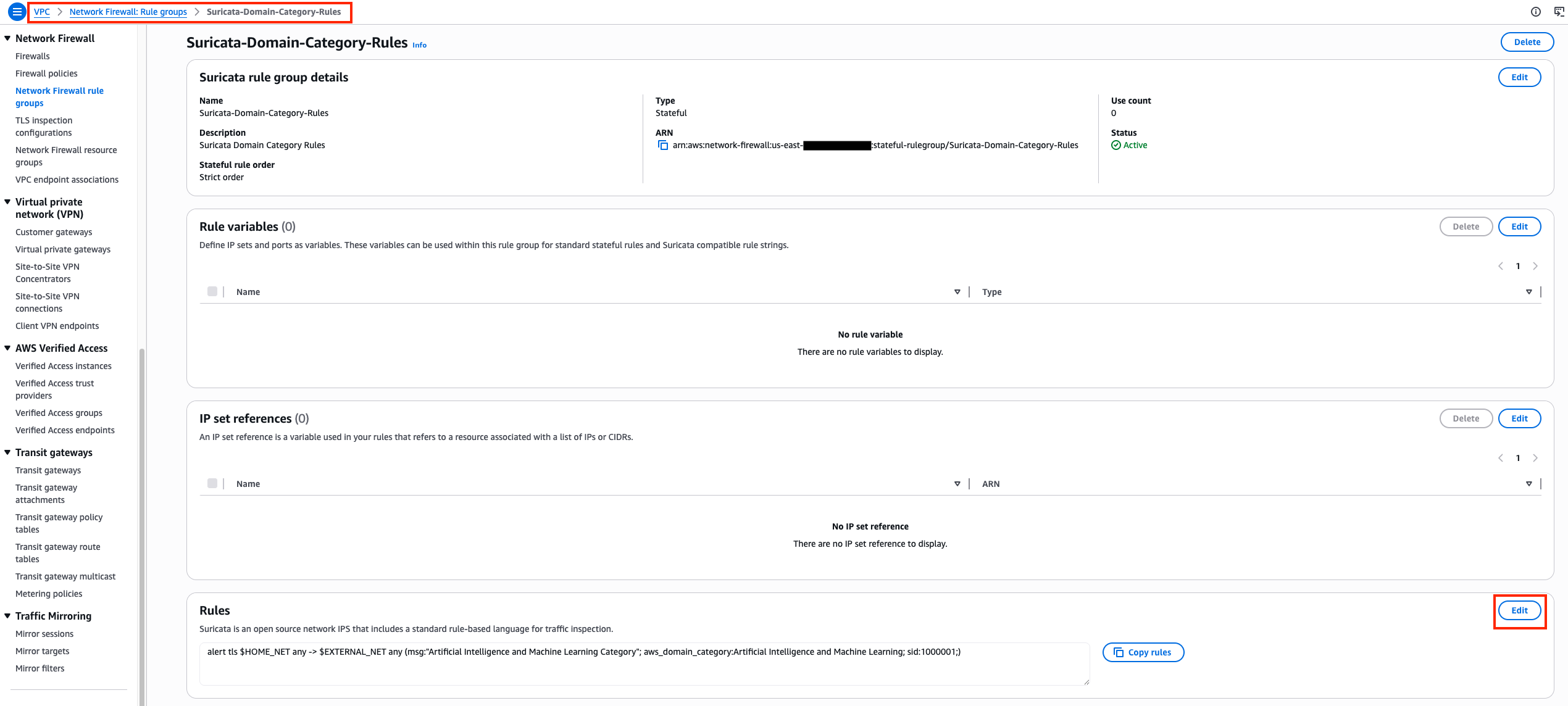
Figure 6: Selecting Suricata-Domain-Category-Rules rule group to edit with new rules
Paste in the following rules and choose Save rule group.
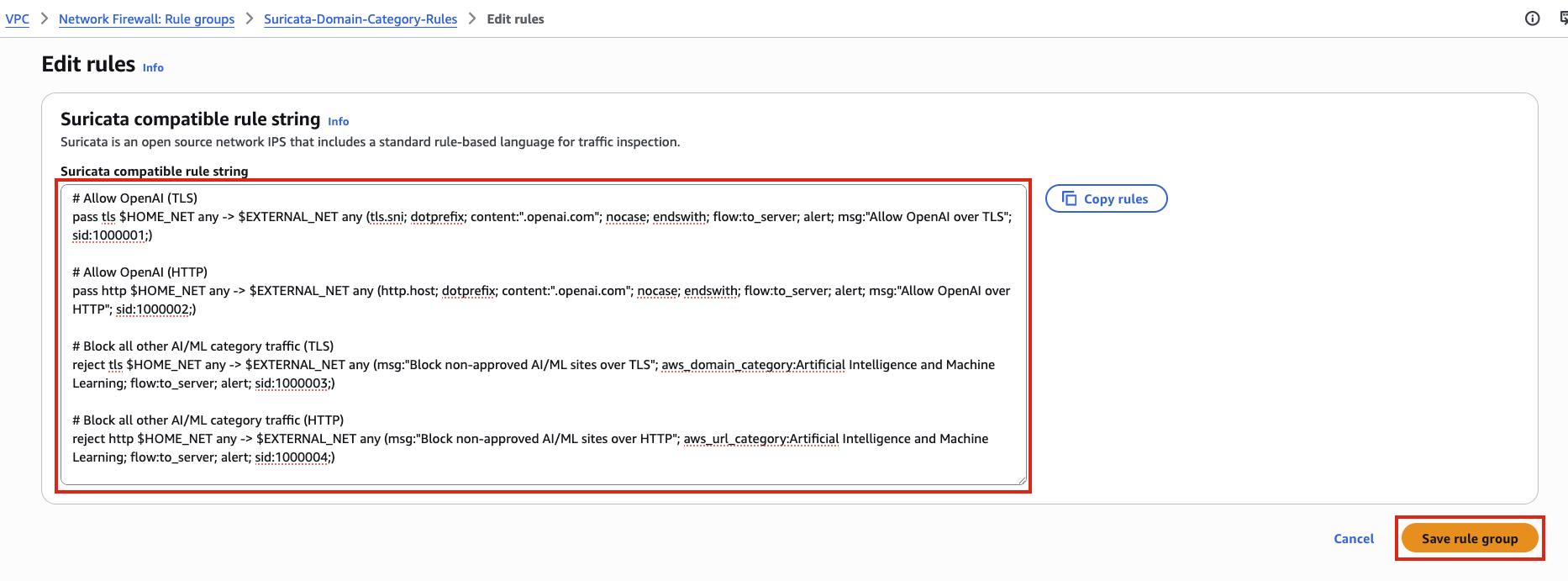
Figure 7: Suricata compatible rule string editor with the exception-based ruleset containing pass rules for OpenAI and reject rules for the AI/ML category
With strict order evaluation, the firewall evaluates rules in the order you define them. The pass rules for OpenAI appear first, so matching traffic is allowed before the broader category block rules run.
To verify the rules are working as expected, test from a host that routes traffic through your network firewall. These commands suppress the response body and check the exit code of the curl request. If curl completes a TCP connection, it prints CONNECTION ALLOWED. If the firewall resets the connection, curl exits with a non-zero code and prints CONNECTION BLOCKED.
A request to openai.com should succeed because it matches the pass rule:
Result: CONNECTION ALLOWED
A request to chat.mistral.ai should be rejected because it matches the broader AI/ML category block rule:
Result: CONNECTION BLOCKED
How to monitor category usage
When you add a domain category rule to your firewall policy, Network Firewall performs a category lookup for every connection that matches the rule’s protocol and IP specifications. The rules in this post match on $HOME_NET any -> $EXTERNAL_NET any, which means the firewall looks up the category for all outbound traffic originating from your internal network. This is why it’s important to have the $HOME_NET variable configured correctly at the firewall policy level. With this configuration, a single category rule is enough for category metadata to appear in your firewall logs across all matching connections, not just connections that match the specific category in your rule.
Each log entry includes an aws_category field containing a JSON array of all categories the destination domain belongs to. A single domain can map to multiple categories. For example, a request to chat.mistral.ai produces a log entry with “aws_category": "[\"Social Networking\",\"Artificial Intelligence and Machine Learning\"]” because that domain belongs to both categories.
You can access firewall logs through Amazon CloudWatch, Amazon Simple Storage Service (Amazon S3), and Amazon Data Firehose. These logs show which categorized websites your workloads access, helping you track usage patterns and enforce acceptable use policies.
The following sample log entry shows what a blocked request to chat.mistral.ai looks like using the exception-based rules from the previous section. The alert.signature field contains the rule’s msg value, and the aws_category field lists all categories the destination domain belongs to:
The aws_category field shows the domain belongs to both the “Social Networking” and “Artificial Intelligence and Machine Learning” categories. The verdict field confirms the connection was dropped with a TCP reset sent to the client.
Traffic that matches a pass rule with the alert keyword also generates a log entry with the aws_category field populated. For example, a connection to chat.openai.com that matches the OpenAI exception rule from the earlier section produces a log entry with alert.action set to “allowed” and the same category metadata. This means your queries capture both blocked and allowed traffic.
Querying logs with CloudWatch Logs Insights
If you send your firewall logs to Amazon CloudWatch Logs, you can use CloudWatch Logs Insights to analyze category traffic patterns. A single connection can generate multiple log entries (for example, a reject rule log and a default action log for the same flow), so the following queries deduplicate by flow_id to count each connection only once. Because a single domain can belong to multiple categories, results are grouped by category combination. For example, traffic to a domain categorized as both “Social Networking” and “Artificial Intelligence and Machine Learning” appears as a single combined entry.
To get started, navigate to the CloudWatch console. In the left navigation pane under Logs, select Logs Insights. Under Query scope, leave Log group name selected, then select your AWS Network Firewall alert logs log group. For the time window, we recommend starting with the default of 1 hour to keep the queries light. Enter each of the following queries into the editor and choose Run query to review the results. Note that CloudWatch Logs Insights queries incur charges based on the amount of data scanned. See Amazon CloudWatch pricing for details.
Most accessed categories
This query shows which category combinations your workloads connect to most frequently:
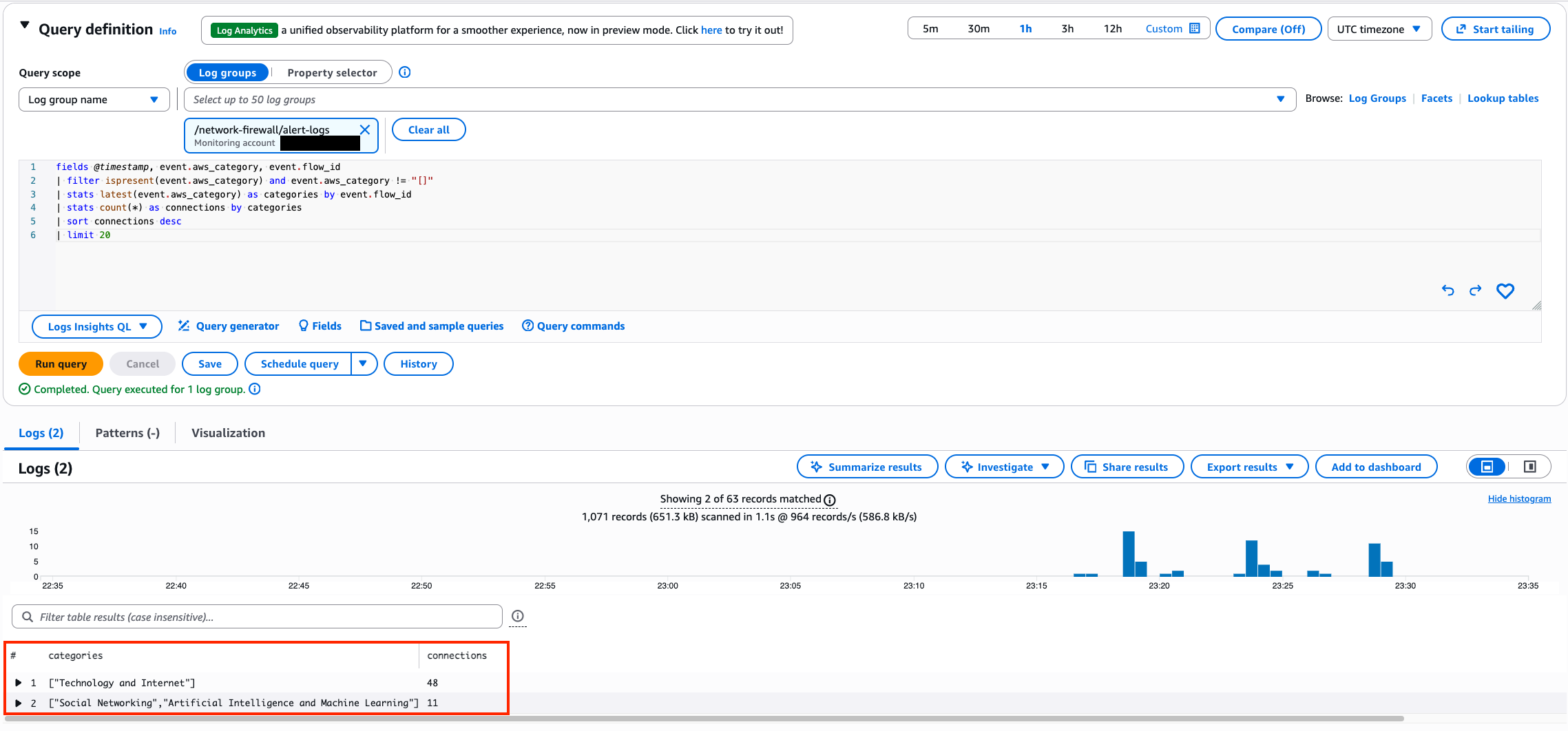
Figure 8: CloudWatch Logs Insights query results showing the most frequently accessed category combinations sorted by connection count
Least accessed categories
This query reverses the sort order to surface category combinations with the fewest connections, helping you identify categories that might not be relevant to your environment or that warrant further investigation:
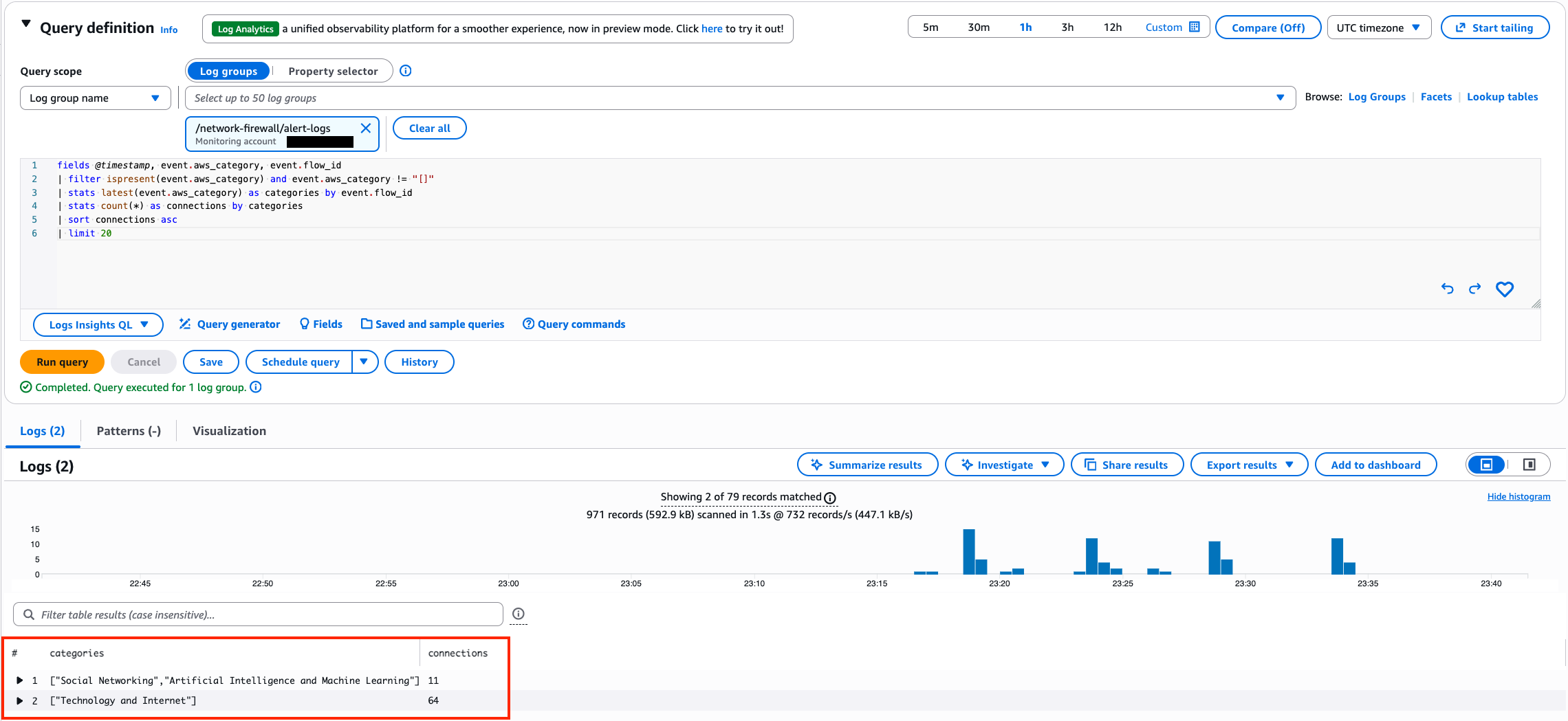
Figure 9: CloudWatch Logs Insights query results showing the least frequently accessed category combinations sorted by connection count ascending
Most accessed categories, allowed traffic only
The event.verdict.action field indicates the actual outcome of each connection:drop for blocked traffic and alert for allowed traffic. This query shows which category combinations have the most allowed connections:
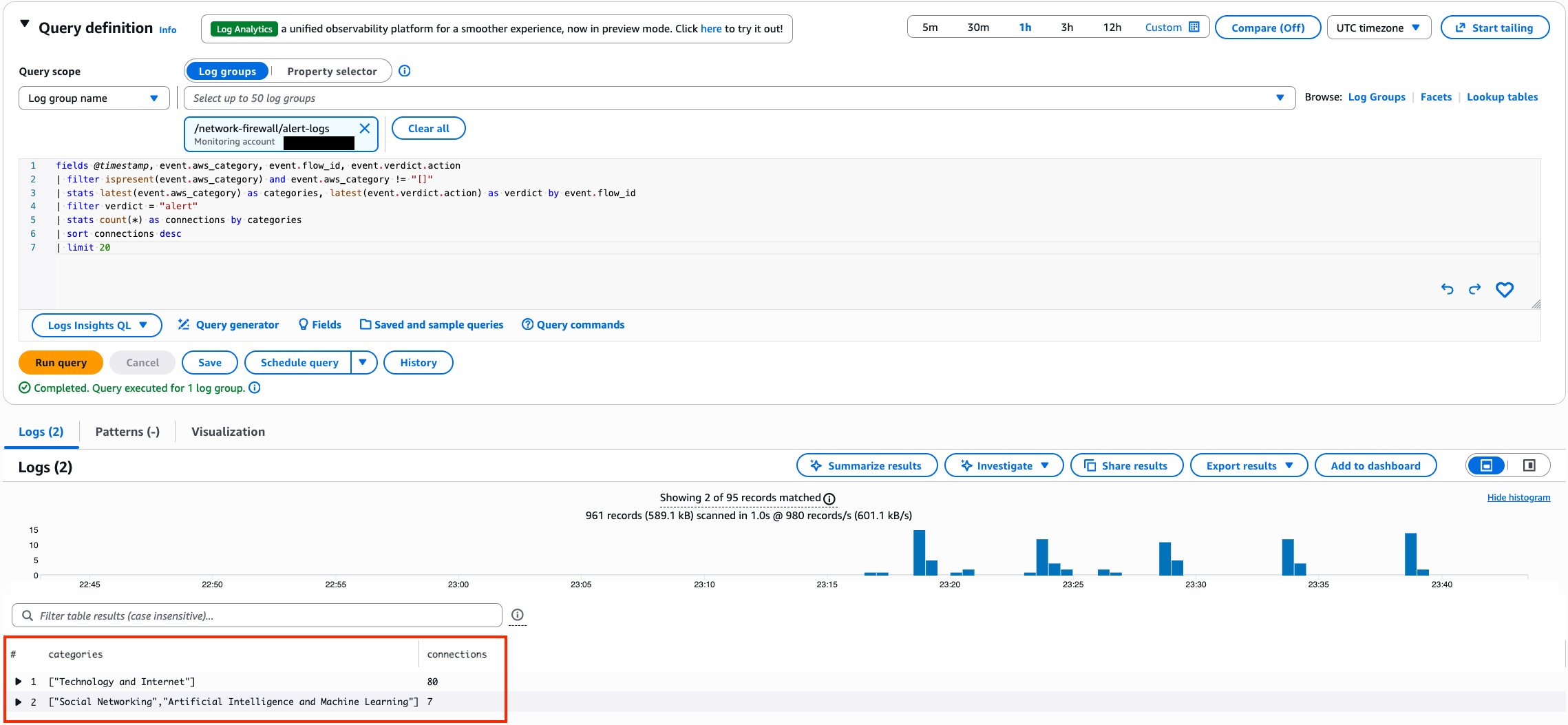
Figure 10: CloudWatch Logs Insights query results showing the most accessed category combinations filtered to allowed traffic only
Most accessed categories, blocked traffic only
The same query filtered to blocked connections. Change the verdict filter to drop:
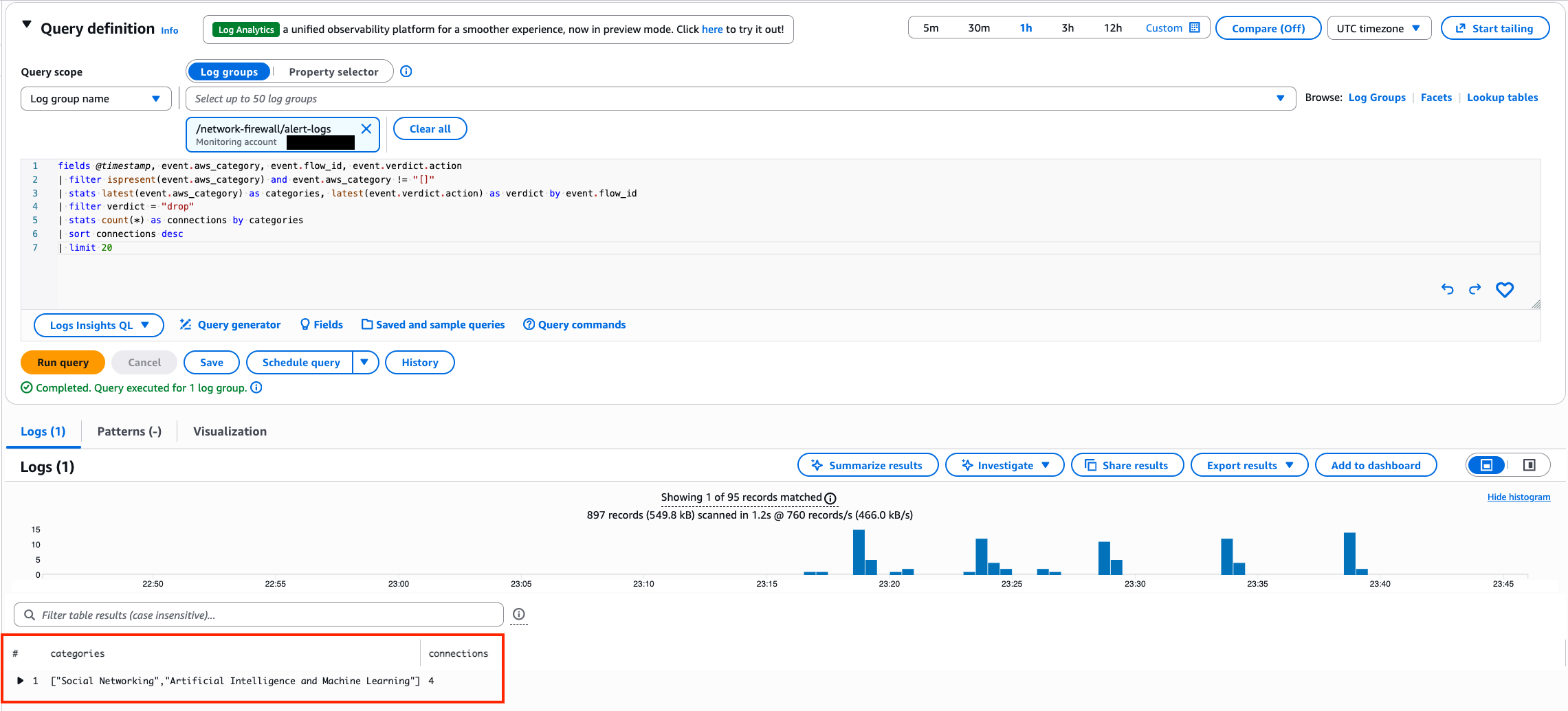
Figure 11: CloudWatch Logs Insights query results showing the most accessed category combinations filtered to blocked traffic only
Drill down into a specific category
This query uses a like filter to find all traffic where the aws_category field contains a specific category, regardless of what other categories the domain also belongs to. In this example, the query returns all domains your workloads have connected to that map to the Artificial Intelligence and Machine Learning category, broken down by domain and verdict. Replace the category name in the like filter to investigate any category.
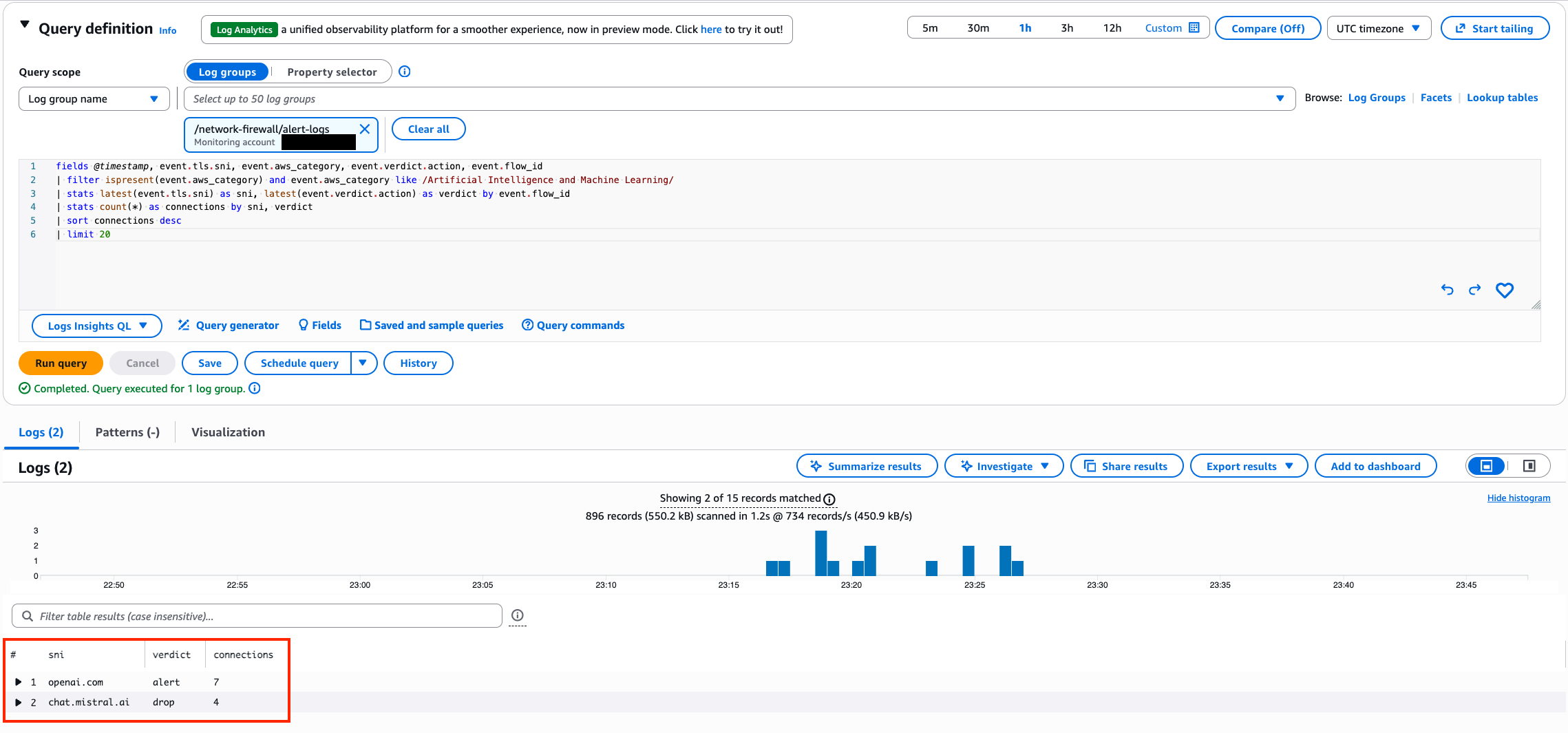
Figure 12: CloudWatch Logs Insights query results showing a drill down into the Artificial Intelligence and Machine Learning category with connections broken down by domain and verdict
Bandwidth consumption by category
This query shows which category combinations consume the most egress bandwidth. It correlates flow logs (which contain byte counts) with alert logs (which contain category data) using the shared flow_id field. To run this query, select both your alert log group and your flow log group in CloudWatch Logs Insights.
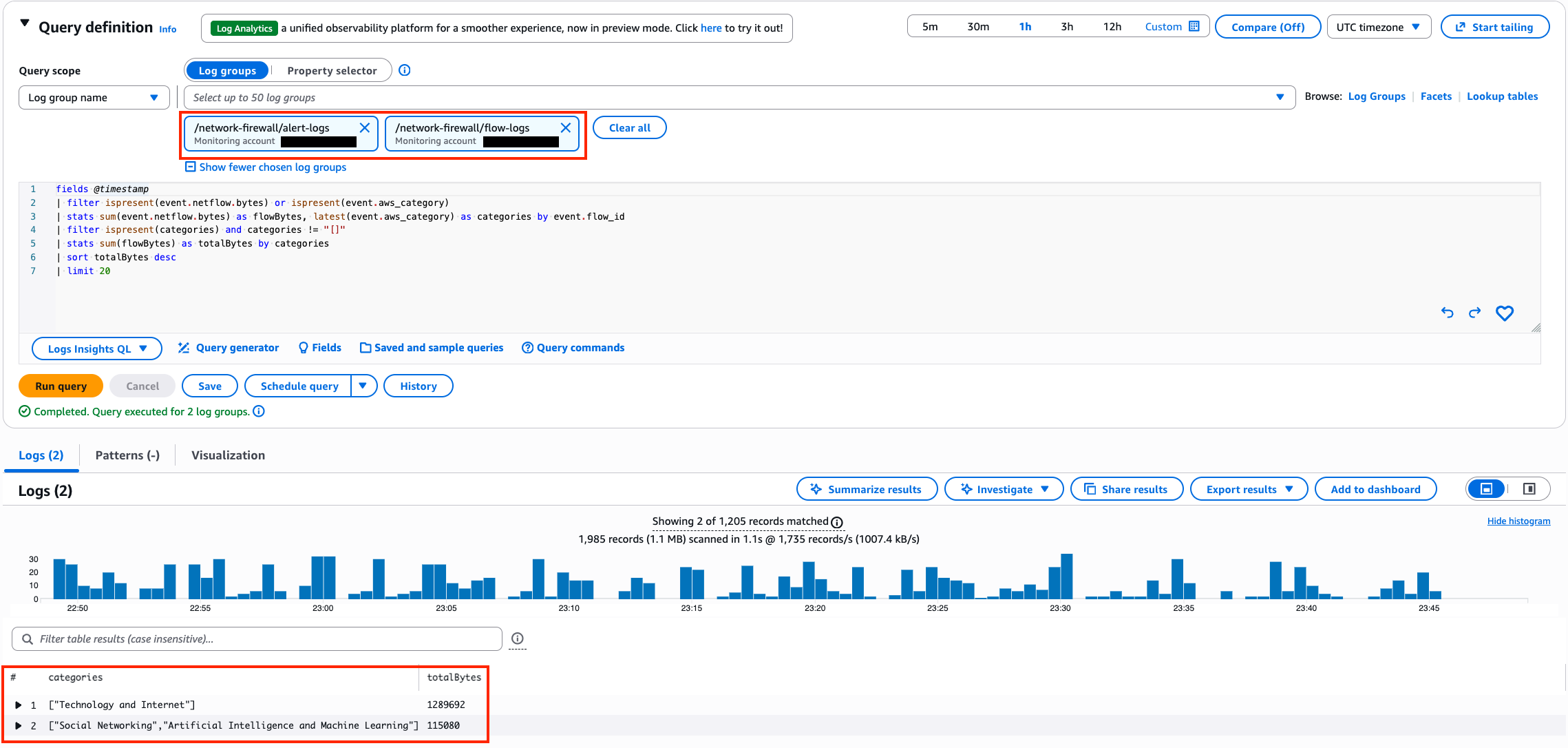
Figure 13: CloudWatch Logs Insights query results showing bandwidth consumption by category combination sorted by total bytes descending
These queries help you identify which categories your workloads access by volume, surface blocked and allowed traffic patterns, and pinpoint where the bulk of your egress bandwidth is going.
Conclusion
In this post, you walked through how to set up URL and domain category filtering on AWS Network Firewall, from creating your first category rule using both the console rule builder and Suricata compatible rule strings, to managing exceptions for approved services and monitoring category traffic patterns with CloudWatch Logs Insights. With AWS-managed categories that stay current automatically, you can control access to broad classes of websites without maintaining individual domain lists, and the built-in aws_category log field gives you the visibility to track how your workloads interact with external services.
This feature is available in all AWS commercial regions where AWS Network Firewall is supported.
To learn more, visit the AWS Network Firewall product page and the feature documentation.