AWS Storage Blog
Reduce Amazon DynamoDB backup storage costs with incremental backups in AWS Backup
Recovering a business-critical application means restoring every component it depends on, which requires regular backups across compute, application, and database resources. Compliance and risk teams often add requirements for defined retention, isolation from production, and protection against deletion. When a backup approach stores a complete copy of a large database at every interval, storage costs grow with each recovery point, even when only a small part of the data has changed.
Until now, each AWS Backup recovery point for an Amazon DynamoDB table was a full copy of the table. With incremental backups for DynamoDB, each subsequent backup after the first stores only the changes from the previous backup, with periodic full backups in between. You pay to store mostly changed data instead of a full copy every time. This lowers the cost of protecting large tables on a frequent schedule, including backups written directly to logically air-gapped vaults for ransomware recovery.
In this post, we explain how incremental backups for DynamoDB work and walk through setting them up in the AWS Backup console. We also cover what to consider when you adopt them, how they support ransomware recovery with logically air-gapped vaults, how pricing works, and how AWS Backup complements DynamoDB point-in-time recovery (PITR).
Introducing incremental backups for Amazon DynamoDB
Incremental backup extends advanced features for DynamoDB backups. It is enabled by default for all new AWS accounts that protect DynamoDB with AWS Backup. Existing customers who already back up DynamoDB with AWS Backup can opt in by enabling it under advanced features in AWS Backup settings (account and Region level). The first backup of a table in a vault is a full backup, and each subsequent backup stores only the changes since the previous one, forming an incremental chain. AWS Backup currently rebases (takes a new full backup) every 15 days, which starts a new chain and helps optimize for recovery time objective (RTO). Every recovery point can be restored on its own.
Each incremental backup reflects how much a table changed rather than how big it is. So a large table with a low change rate costs little to back up after the first full backup. Stored data follows a sawtooth pattern: it rises when a new chain starts, grows slowly as small incremental backups accumulate, and drops as retention expires older recovery points.
Set up incremental backups in the AWS Backup console
In this example, you create a backup plan with an hourly rule for frequent recovery points and a daily rule that copies each backup to another Region. Before you start, create a backup vault named ddb-dr-vault in US West (Oregon) to receive the copies.
Step 1: Turn on advanced features and incremental backups
New AWS Backup customers for DynamoDB get both settings turned on automatically. If you already use advanced features, turn on incremental backup yourself.
- Open the AWS Backup console at https://console.aws.amazon.com/backup/. This example uses the US East (N. Virginia) Region.
- In the navigation pane, choose Settings.
- Under Supported services, confirm that DynamoDB is enabled.
- Under Advanced features for Amazon DynamoDB backups, confirm that Advanced features shows Enabled. If it doesn’t, choose Enable.
- Confirm that Incremental backup shows Enabled. If it doesn’t, choose Enable.

Figure 1: Incremental backup enabled under advanced features for Amazon DynamoDB backups
To use the AWS Command Line Interface (AWS CLI) instead, check that DynamoDB is true under ResourceTypeManagementPreference, ResourceTypeOptInPreference, and ResourceTypeOptInIncremental:
If any value is false, turn all three on:
Step 2: Tag your tables
- Open the DynamoDB console at https://console.aws.amazon.com/dynamodb/.
- In the navigation pane, choose Tables, and then choose a table that you want to back up.
- On the Tags tab, choose Manage tags.
- Add a tag with the key
backup-policyand the valueddb-incremental, and then choose Save changes. - Repeat these steps for each table that you want to back up.

Figure 2: Adding the backup-policy tag to a DynamoDB table
Step 3: Create the backup plan
- In the AWS Backup console navigation pane, choose Backup plans, and then choose Create backup plan.
- Choose Build a new plan, and for Backup plan name, enter
ddb-incremental. - Under Backup rule configuration, for Backup rule name, enter
hourly-short-retention. - For Backup vault, choose Default.
- For Backup frequency, choose Hourly, and for Total retention period, enter 7 days.
- Choose Create plan.
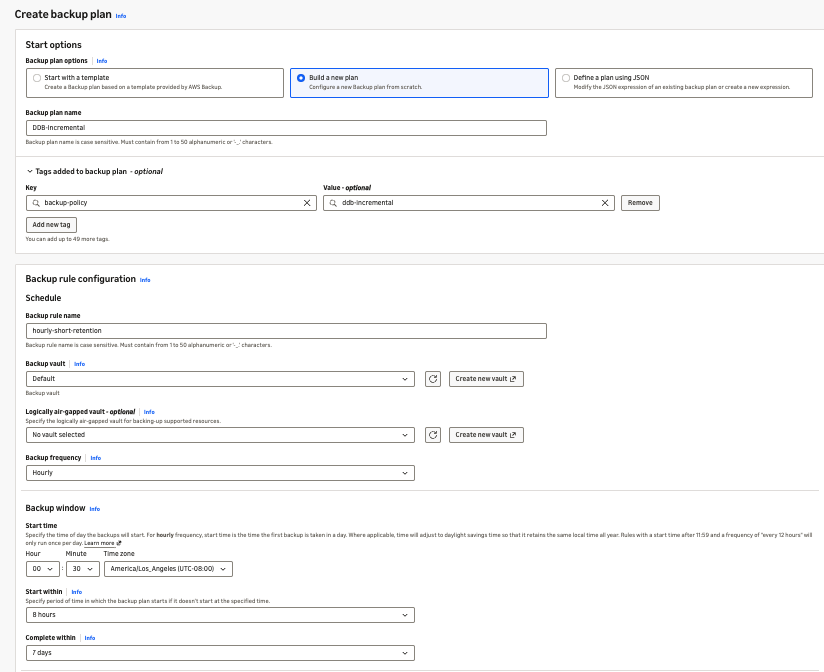
Figure 3: Creating the backup plan with an hourly backup rule
Step 4: Assign your tables
- On the plan details page, under Resource assignments, choose Assign resources.
- For Resource assignment name, enter
ddb-tagged-tables, and for IAM role, choose Default role. - Under Resource selection, choose Include specific resource types, and then select DynamoDB.
- Under Refine selection using tags, add the key
backup-policyand the valueddb-incremental. - Choose Assign resources.
Step 5: Add a daily rule with a cross-Region copy
- In the navigation pane, choose Backup plans, choose
ddb-incremental, and then under Backup rules, choose Add backup rule.
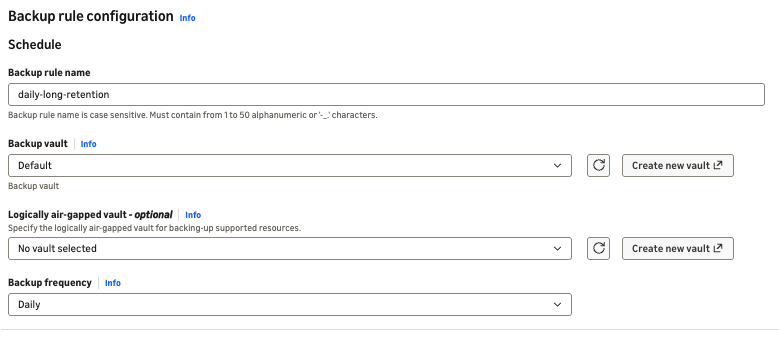
Figure 4: Adding a backup rule to the ddb-incremental backup plan
- For Backup rule name, enter
daily-long-retention. - For Backup vault, choose Default.
- For Backup frequency, choose Daily, and for Total retention period, enter 30 days.
- Under Copy to destination, for Region, choose US West (Oregon), and for Backup vault, choose
ddb-dr-vault. For Total retention period, enter 30 days. - Choose Add backup rule.
The plan’s two rules write to the same vault, and AWS Backup keeps a single incremental chain per table per vault, so backups from either rule continue the same chain. When both rules are due at the same time, AWS Backup keeps the backup from the rule with the longer retention.
Step 6: Restore and validate a table
After the plan has run for a few days, confirm that a restore produces the complete table. When you restore an incremental recovery point, AWS Backup automatically restores the full backup and every incremental backup in the chain up to that recovery point.
- In the AWS Backup console navigation pane, choose Backup vaults, choose Default, and select a recent recovery point for one of your tables.
- Choose Actions, Restore, enter a New table name such as
orders-restored, and then choose Restore backup. - When the restore completes, compare the item count of the restored table with the source table in the DynamoDB console.
Cleaning up
To avoid ongoing charges, delete the resources from this walkthrough:
- In the AWS Backup console, delete the
ddb-incrementalbackup plan and the recovery points it created in the Default vault. - In US West (Oregon), delete the recovery points in
ddb-dr-vault, and then delete the vault. - In the DynamoDB console, delete
orders-restored. (Optional) Remove thebackup-policytag from your tables.
Considerations for incremental backups
Keep the following in mind when you adopt incremental backups.
Backup frequency
Incremental backups apply to backup rules that run weekly or more often. Rules that run less often than weekly continue to produce full backups. To get incremental backups for those tables, move them to a weekly or more frequent schedule.
Existing backup plans and full backups
Your existing backup plans continue to apply unchanged. After you turn on incremental backups, the next backup of each table is a full backup and later backups are incremental. Earlier full backups stay as full backups and expire on their original schedule.
Restores and retention
Restoring an incremental recovery point, or a copy of one, always creates a new DynamoDB table. You choose the encryption key at restore time, and you must specify one when you restore to a different Region. Recovery points stay restorable even if the source table, its encryption key, or earlier recovery points in the chain are deleted, and each recovery point keeps its own retention.
Incremental backups support cold storage transitions, and cold storage charges apply as soon as a recovery point transitions.
Settings and opting out
Incremental backup settings apply to new DynamoDB backups in the account and Region where you turn them on. With AWS Organizations backup policies, the opt-in settings in the management account apply to backup jobs those policies create in member accounts. Backup plans created directly in a member account use that account’s settings.
You can turn off incremental backups at any time in AWS Backup settings, and new backups are then full backups. Turning them back on starts a new chain. If you turn off advanced features, AWS Backup still schedules your DynamoDB backups, but new backups lose incremental storage, cross-account and cross-Region copies, and cold storage.
Ransomware recovery for DynamoDB
Incremental backups make it practical to keep a frequent, isolated recovery history for DynamoDB. You can write incremental backups directly to a logically air-gapped vault in the same account, where recovery points are locked against deletion and stored in an AWS service-owned account. You can share the vault with a recovery account through AWS Resource Access Manager (AWS RAM). If the owning account is compromised or locked out, a team of approvers can grant access from a separate account through Multi-party approval.
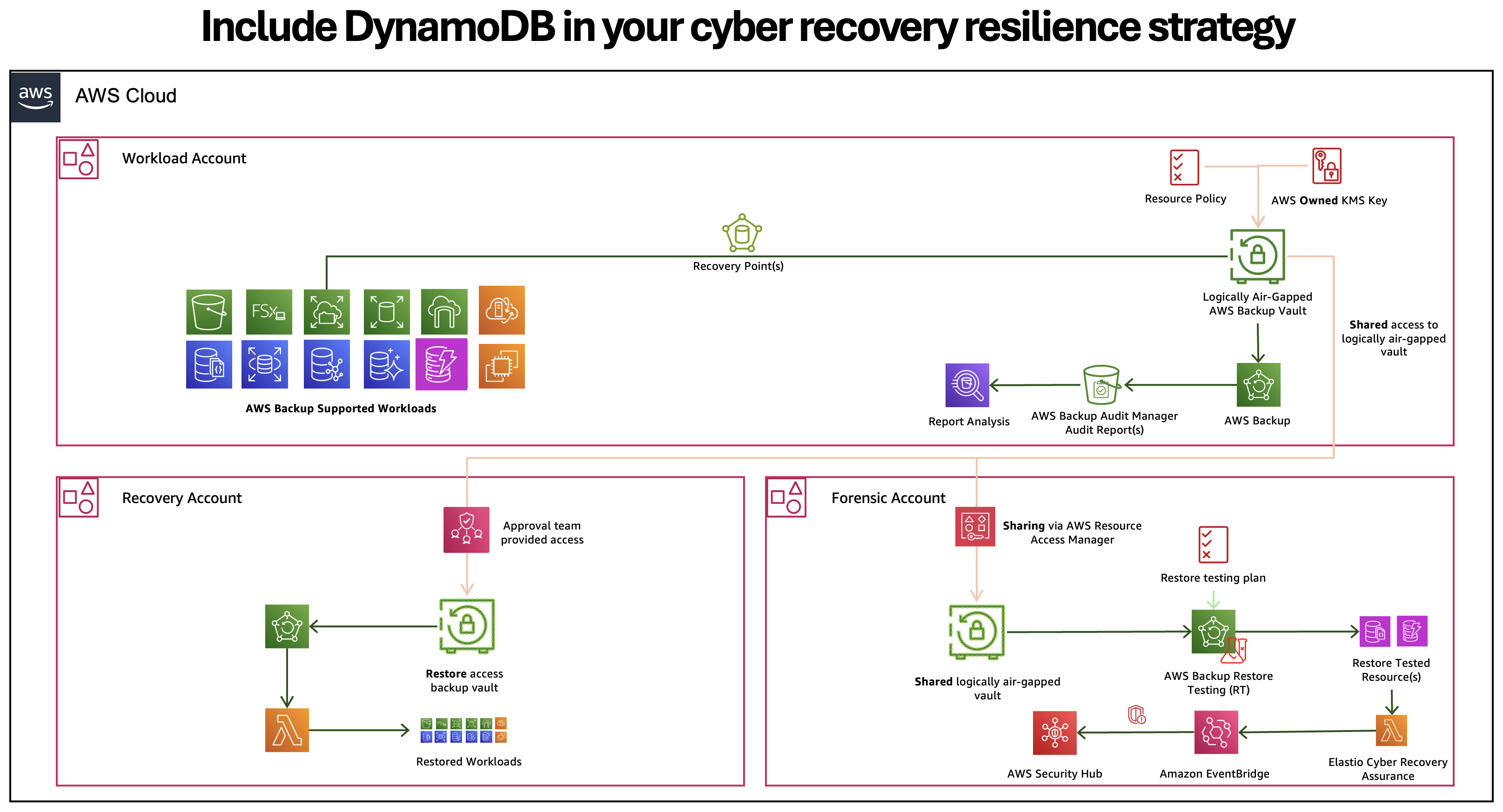
Figure 5: AWS Backup writing full and incremental DynamoDB backups directly to a logically air-gapped vault
Pricing
Incremental backups for DynamoDB are billed as a separate backup storage line item in AWS Backup. You pay to store the changes between backups plus the periodic full backups in each chain. The main driver of cost is the daily change rate (the percentage of a table’s items that change between backups), not the table size. Updating the same item many times between backups counts once. For current rates, see AWS Backup pricing.
Example: estimating monthly backup storage costs
The following example is a theoretical estimate, not a measured result. It shows how change rate affects cost under a fixed set of assumptions. Your costs depend on your tables, workload, and backup settings such as lifecycle.
Consider a 1 TB DynamoDB table in the US East (N. Virginia) Region, backed up once a day and retained for 30 days. The example assumes a 15-day rebase period. Because the 30-day retention window overlaps three chains, about 3 full backups and 28 incremental backups are stored at any time. It also assumes the share of items that change each day stays steady. It uses US East (N. Virginia) warm storage rates of $0.10 per GB-month for full backups and $0.14 per GB-month for incremental backups.
Without incremental backups: 30 full backups × 1,024 GB × $0.10 = $3,072 per month
With incremental backups at a 10% daily change rate: (3 × 1,024 GB + 28 × 102.4 GB) × $0.14 = $831 per month
The following table applies the same assumptions to three daily change rates:
| Daily change rate | Estimated storage per month | Estimated cost per month | Estimated savings compared to full backups |
| 1% | 3,360 GB | $470 | ~85% |
| 10% | 5,940 GB | $831 | ~73% |
| 30% | 11,670 GB | $1,634 | ~47% |
Under these assumptions, savings shrink as the daily change rate rises, because each incremental backup stores more data at the higher incremental rate. Pricing varies by AWS Region. For current rates, see AWS Backup pricing.
Using PITR and AWS Backup together
DynamoDB point-in-time recovery (PITR) continuously backs up your table so that you can restore it to any second within a recovery window of up to 35 days. This per-second precision makes PITR the right tool for recovering from operational events such as accidental writes, a faulty application release, or a bad data load, with minimal data loss. AWS Backup extends this protection with scheduled incremental backups that you can store in isolated, immutable vaults and copy to other Regions and accounts. This supports ransomware recovery, long-term retention, and compliance-driven disaster recovery. We recommend using both, with PITR for precise recovery within the table’s Region and AWS Backup for isolated copies and long-term retention. The two features are billed separately, and incremental backups don’t require PITR. For details, see Point-in-time recovery for DynamoDB.
Conclusion
With incremental backups for DynamoDB, AWS Backup stores mostly changed data between backups. You avoid paying to store a full copy of the table with every backup, while keeping the centralized policy, compliance, and isolation capabilities of AWS Backup. If you already protect DynamoDB with AWS Backup, turn on incremental backup in AWS Backup settings, then use AWS Cost Explorer to watch incremental storage as your next backups run. If you’re new to AWS Backup for DynamoDB, follow the walkthrough in this post to get started.
To learn more, visit the AWS Backup Developer Guide or explore AWS Backup.