AWS Storage Blog
Transfer Amazon S3 data from commercial AWS Regions to AWS European Sovereign Cloud using AWS DataSync Enhanced mode
With the introduction of AWS European Sovereign Cloud, organizations across Europe are adopting this dedicated partition to meet stringent data sovereignty requirements. However, organizations face significant operational challenges because they must maintain their existing AWS commercial partition deployments for global customers while simultaneously establishing AWS European Sovereign Cloud infrastructure.
This dual-partition reality can cause data synchronization challenges due to the network and identity isolation of operating in both commercial AWS Regions and an AWS European Sovereign Cloud partition, which might require moving data between them. The process of moving data should provide data encryption in transit, data validation, monitoring and auditing, and data transfer scheduling.
In this post, we explore how AWS DataSync can aid in transferring data in Amazon Simple Storage Service (Amazon S3) between an AWS commercial partition and AWS European Sovereign Cloud. We also demonstrate how to use AWS Secrets Manager to securely store and manage AWS Identity and Access Management (IAM) credentials of the AWS European Sovereign Cloud user. AWS DataSync is an online data movement service that simplifies and accelerates data migrations to AWS. It moves data to and from on-premises storage, connected edge locations, other cloud providers and between AWS Storage services.
AWS DataSync is one way to accomplish these transfers between partitions, but each organization must determine which approach best aligns with their specific standards, protocols and regulatory obligations.
Overview of AWS European Sovereign Cloud
The AWS European Sovereign Cloud is a new, independent cloud for Europe entirely located within the European Union (EU), designed to help customers meet their evolving sovereignty requirements. Built in Europe for Europe, it is a fully featured, independently operated sovereign cloud backed by strong technical controls, sovereign assurances and legal protections. The AWS European Sovereign Cloud operates with an independent governance structure and a dedicated Security Operations Center. It is run by a newly established parent company that is locally controlled in the EU, led by EU citizens and subject to local laws.
Solution overview
This solution establishes a pipeline for transferring data from Amazon S3 buckets in an AWS commercial Region to Amazon S3 buckets in AWS European Sovereign Cloud. It uses AWS DataSync Enhanced mode, which enables cross-partition data movement without requiring agent deployment. AWS Secrets Manager securely stores and manages the IAM credentials needed for cross-partition authentication, eliminating the need to handle long-term secrets directly in the DataSync configuration. All AWS DataSync communications in transit are TLS encrypted. For more details, see Data protection in AWS DataSync.
The following diagram illustrates the solution architecture.
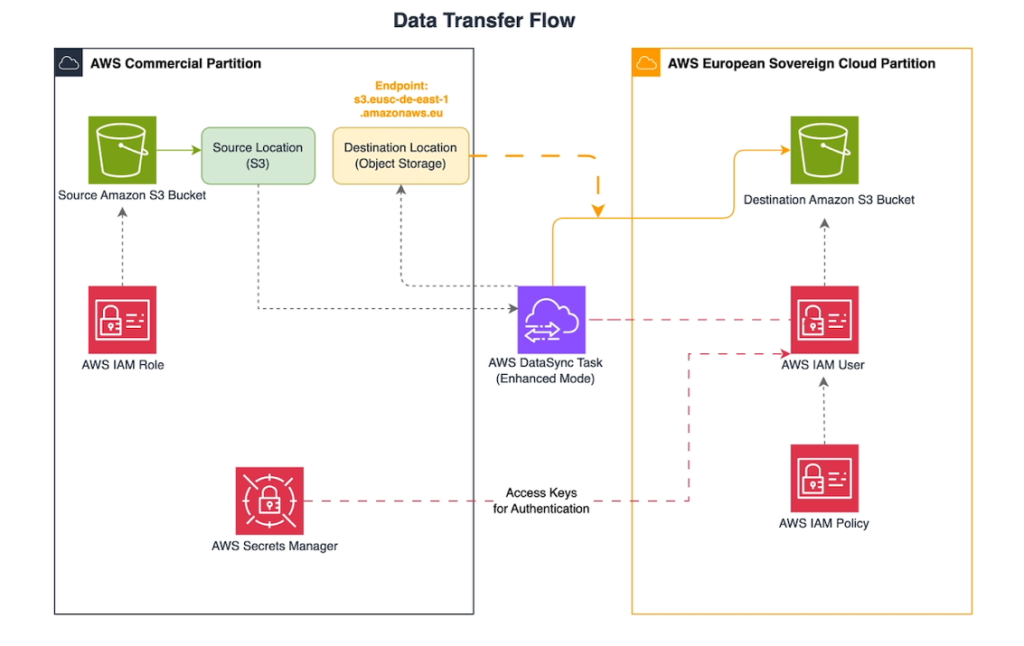
AWS DataSync integrates with AWS Secrets Manager for secure and centralized credential management in data transfers. When creating an AWS DataSync destination location with object storage, you can choose from three options to store the secret access key using AWS Secrets Manager:
- Customer managed secret: You create the secret in AWS Secrets Manager before creating the AWS DataSync location then provide the secret Amazon Resource Name (ARN) and an IAM role that grants AWS DataSync access. This gives you full control over the secret lifecycle, encryption key and rotation policy. We use this approach in this walkthrough.
- AWS DataSync managed secret (default KMS key) — When creating the AWS DataSync location, you provide the secret access key directly and AWS DataSync automatically creates and manages a secret in AWS Secrets Manager, encrypting it with the default AWS Key Management Service (AWS KMS) for AWS Secrets Manager (aws/secretsmanager). The secret is automatically deleted when the location is deleted or updated to use a different secret.
- AWS DataSync managed secret (customer managed KMS key) — Similar to the previous option, but you provide your own KMS key ARN for encryption. AWS DataSync creates and manages the secret in AWS Secrets Manager but encrypts it with your specified KMS key, giving you control over the encryption while AWS DataSync handles the secret lifecycle. The KMS key must use symmetric encryption with the ENCRYPT_DECRYPT key type.
The walkthrough covers four stages:
- Set up the destination environment (AWS European Sovereign Cloud) — Create an IAM user and policy in the sovereign partition that grants AWS DataSync the minimum permissions needed to write objects to the destination S3 bucket.
- Set up the source environment (Commercial Region) — Store the sovereign-partition credentials in AWS Secrets Manager and create an IAM role that allows AWS DataSync to retrieve those credentials and read from the source S3 bucket.
- Create and run the DataSync task — Configure source and destination locations, define transfer options (such as filtering and scheduling), and execute the task.
- Monitor progress — Use the AWS DataSync console and Amazon CloudWatch to verify transfer status, inspect transferred byte counts, and troubleshoot any errors.
Prerequisites
The following prerequisites are required to continue with this post:
- An AWS account in AWS European Sovereign Cloud
- An AWS account in your AWS commercial Region
- A destination Amazon S3 bucket (create a new bucket if you don’t want to use an existing bucket)
- Sufficient privileges in both accounts
- Basic understanding of AWS DataSync
- Familiarity with Amazon S3 and AWS Secrets Manager
- Understanding of IAM roles, users and policies
Set up destination environment (AWS European Sovereign Cloud)
In this section, we walk through the steps to prepare the destination environment. Perform these steps in AWS European Sovereign Cloud.
Create IAM policy
This policy will have permissions to put objects in the S3 bucket of AWS European Sovereign Cloud Region and get permissions for verification, allowing AWS DataSync to verify transferred data integrity. AWS recommends following the principle of least privilege when creating an IAM policy for the role. To learn more, see Techniques for writing least privilege IAM policies.
Complete the following steps to configure your IAM policy:
- On the IAM console (in AWS European Sovereign Cloud), choose Policy in the navigation pane, then choose Create policy.
- On the JSON tab, enter the following policy, replacing YOURBUCKETNAME with your actual bucket name:
{
    "Version": "2012-10-17",
    "Statement": [
        {
            "Effect": "Allow",
            "Action": [
                "s3:PutObject",
                "s3:AbortMultipartUpload",
                "s3:ListMultipartUploadParts",
                "s3:ListBucketMultipartUploads",
                "s3:GetBucketLocation",
                "s3:GetObject",
                "s3:GetObjectTagging",
                "s3:GetObjectAcl",
                "s3:ListBucket",
	       "s3:DeleteObject",
	       "s3:GetObjectVersion",
	       "s3:GetObjectVersionTagging",
                "s3:GetObjectAttributes",
	       "s3:DeleteObjectVersion",
	       "s3:PutObjectTagging"
            ],
            "Resource": [
                "arn:aws-eusc:s3:::YOURBUCKETNAME",
                "arn:aws-eusc:s3:::YOURBUCKETNAME/*"
            ]
        }
    ]
}
Note: The s3:DeleteObject and s3:DeleteObjectVersion permissions are only required if your AWS DataSync task is configured to delete files at the destination that no longer exist at the source. If your task only transfers new or updated files without removing stale objects, you can safely omit these permissions from the policy.
- Review the policy and provide a descriptive name, such as DataSync-ESC-S3-Access-Policy.
- Choose Create policy.
Create IAM user
In this step, you create an IAM user and attach the IAM policy created in the previous step. After you create the IAM user, you can generate an access key. This access key will be configured with DataSync in the commercial Region, allowing DataSync to use the permissions to access the S3 bucket in the AWS European Sovereign Cloud Region.
Complete the following steps to configure your user:
- On the IAM console, choose Users in the navigation pane, then choose Create user.
- Provide a username, such as datasync-esc-user.
- Attach the policy you created.
- Complete the user creation process.
- On the Security Credentials tab, generate an access key for this user.
- Securely store both the access key ID and secret access key for later use.
Do not share or commit these credentials. They will be stored in AWS Secrets Manager in the next step. Access keys are long-term credentials for an IAM user. Regularly rotating your IAM credentials helps prevent a compromised set of IAM access keys from accessing components in your AWS account. Rotating IAM credentials is also an important part of security best practices in IAM.
Set up source environment (Commercial Region)
In this section, we walk through the steps to prepare the source environment. These steps should be performed in your commercial Region.
Store secret access key in AWS Secrets Manager
Complete the following steps to store your secret access key in Secrets Manager:
- Open the AWS Secrets Manager console in your commercial Region.
- Choose Secrets in the navigation pane, then choose Store a new secret.
- Select Other type of secret.
- Choose Plaintext and enter the secret access key value you saved and then choose Next.
- Provide a descriptive name for the secret, such as datasync-esc-secret-key and optionally add tags for resource management. Choose Store to create your secret.
Create IAM policy and role for AWS DataSync to access AWS Secrets Manager
AWS DataSync will use this IAM role to access the source S3 bucket and access secrets in the commercial Region. Complete the following steps to create the role:
- On the IAM console, choose Policies in the navigation pane, then choose Create policy.
- On the JSON tab, enter the following policy, replacing the placeholders with your secret ARN:
{
    "Version": "2012-10-17",
    "Statement": [
        {
            "Sid": "VisualEditor0",
            "Effect": "Allow",
            "Action": [
                "secretsmanager:GetSecretValue",
                "secretsmanager:DescribeSecret",
                "secretsmanager:ListSecretVersionIds"
            ],
            "Resource": "arn:aws:secretsmanager:REGION:YOURACCOUNTID:secret:YOURSECRETNAME"
        }
    ]
}- Provide a descriptive name for the policy, such as DataSync-SecretsManager-Access-Policy and choose Create policy.
- Choose Roles in the navigation pane, then choose Create role.
- Select Custom trust policy and enter the following JSON:
{
    "Version": "2012-10-17",
    "Statement": [
        {
            "Effect": "Allow",
            "Principal": {
                "Service": "datasync.amazonaws.com"
            },
            "Action": "sts:AssumeRole"
        }
    ]
}- Attach the IAM policy you created.
- Provide a descriptive name for the role, such as DataSync-SecretsManager-Role
and choose Create role.
Create AWS DataSync locations
A DataSync location is a configured endpoint defining the source or destination for transferring data. For this post, we create a source and destination location in AWS DataSync.
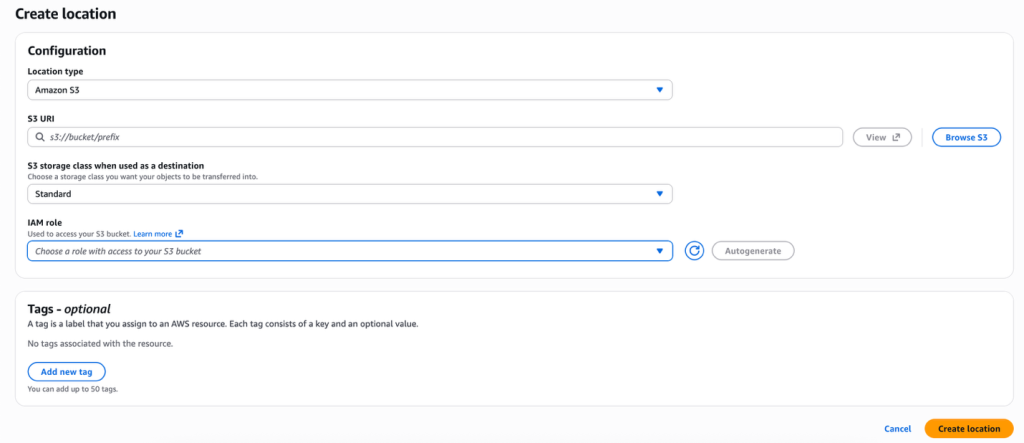
Create source location
Complete the following steps to create the source location:
- Open the AWS DataSync console in your commercial Region.
- Choose Locations in the navigation pane, then choose Create location.
- For Location type, choose Amazon S3.
- For S3 URI, enter the S3 URI for your source bucket folder.
- For S3 storage class when used as a destination, choose the appropriate storage class for the destination.
- For IAM role, choose Autogenerate, which will create the IAM role to access the S3 bucket.
- Choose Create location.
Create destination location
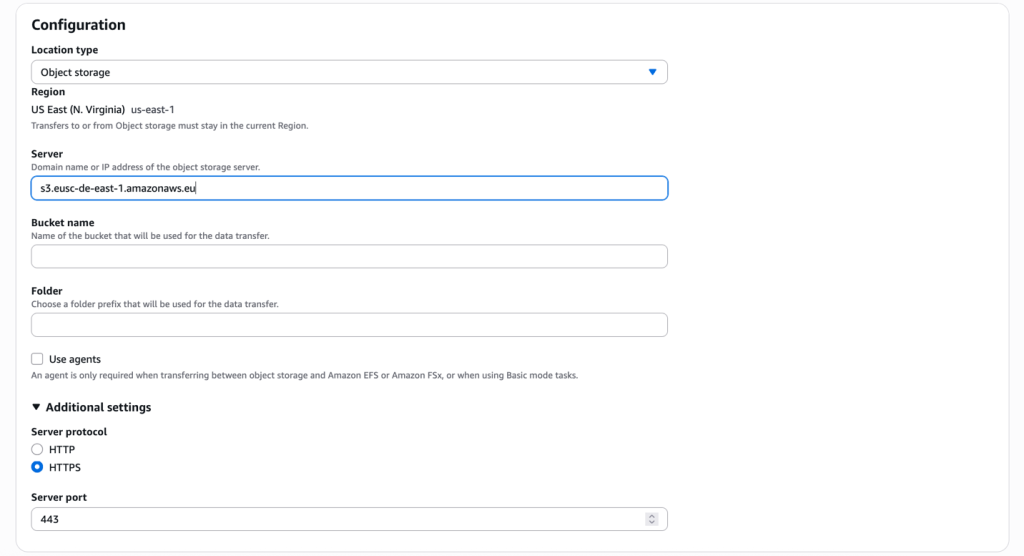
Complete the following steps to create the destination location:
- On the AWS DataSync console, choose Locations in the navigation pane, then choose Create location.
- For Location type, choose Object storage.
- For Server, enter the S3 endpoint of AWS European Sovereign Cloud (s3.eusc-de-east-1.amazonaws.eu).
- For Bucket name, enter the destination Amazon S3 bucket name from AWS European Sovereign Cloud.
- For Folder, enter the folder prefix that will be used for the data transfer.
- Under Additional settings, Server protocol is set to HTTPS by default.
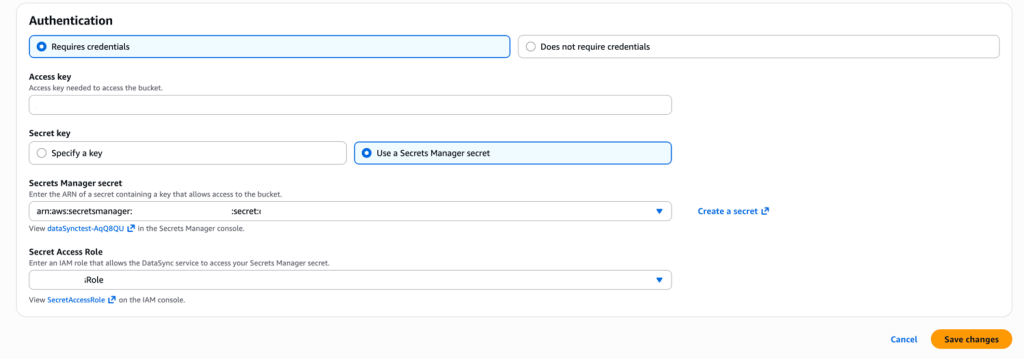
- For Authentication, select Requires credentials.
- For Access key, enter the access key ID from the IAM user you created in AWS European Sovereign Cloud.
- For Secret key, select Use a AWS Secrets Manager Secret and enter the secret key ARN you created previously, which allows access to the AWS European Sovereign Cloud destination bucket.
- For Secret Access Role, enter the IAM role DataSync-SecretsManager-Role you created earlier.
- Choose Save changes and Create location.
Create AWS DataSync task
After you configure both locations, you can create a task. When using object storage as one of the locations, by default the task is configured to run in Enhanced mode, without agents. You can schedule tasks to run hourly, daily, weekly, or on a custom schedule to transfer data from source to destination. You can configure the task to transfer all data or only changed files. Additionally, you can enable verification checks to maintain data integrity after each transfer.
Complete the following steps to create your AWS DataSync task:
- On the AWS DataSync console (in your commercial Region), choose Tasks in the navigation pane, then choose Create task.
- For Source location options, select Choose an existing location, enter the S3 storage location created earlier, then choose Next.
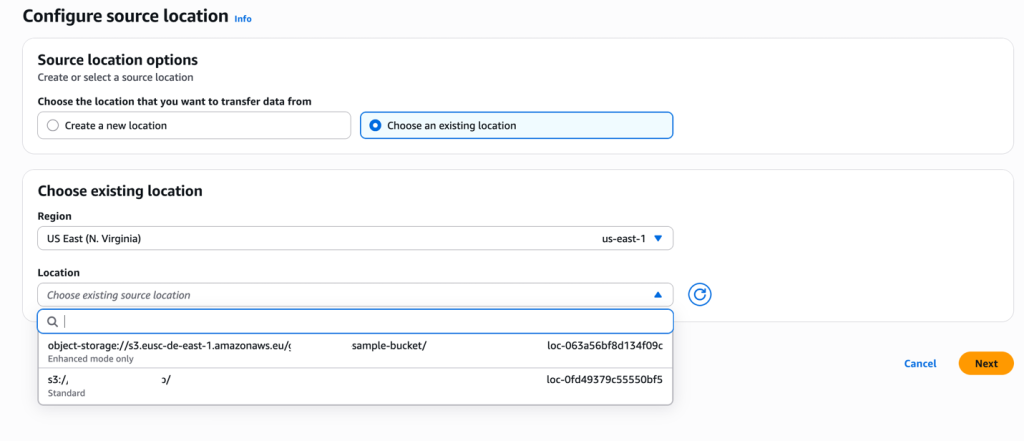
- For Destination location options, select Choose an existing location, enter the object storage location created earlier, then choose Next.
- Provide a task name.
- For Task mode, Enhanced mode is enabled by default.
- For Transfer mode, choose between transferring all data or only changed files.
- For Verification, choose Verify only transferred data.
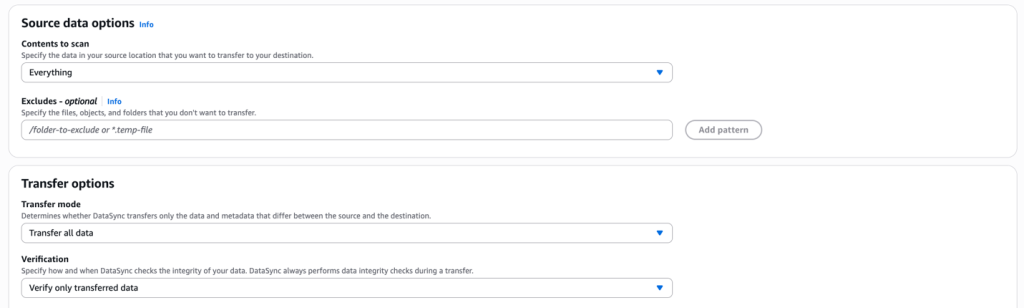
- For Schedule, set your task to run hourly, daily, weekly, or on a custom schedule. For this post, we configure the task to run daily.
- For Logging, choose your required logging level.
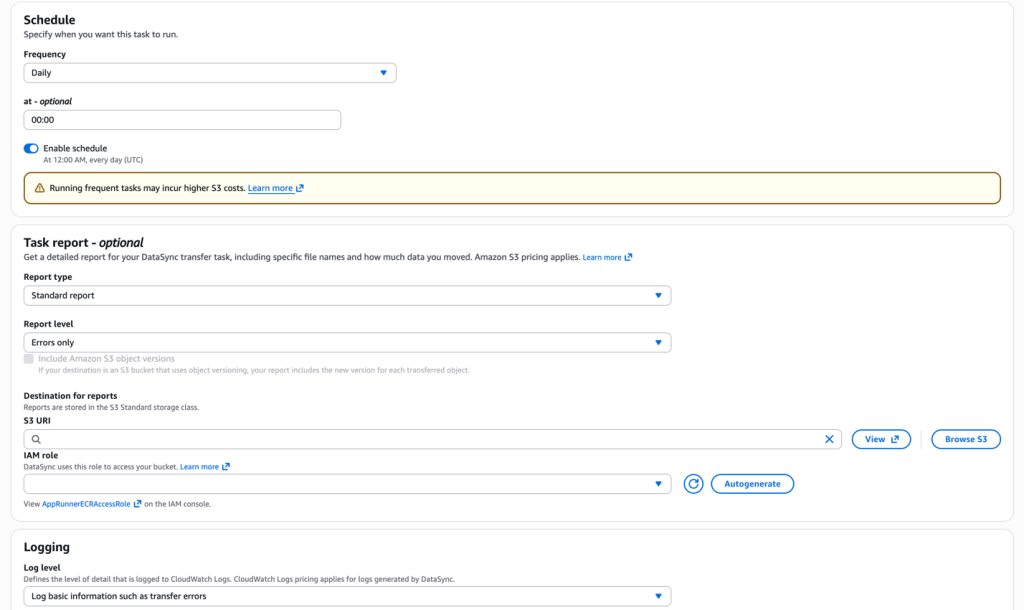
- Review all settings and create the task.
- Go to the task details page, select the task, and choose Start with defaults.
Monitor and validate
After starting the task, you can monitor its progress on the AWS DataSync console in your commercial Region. You can also review logs in Amazon CloudWatch for detailed transfer information. Lastly, verify successful data transfer in the destination S3 bucket.
Clean up
To avoid incurring future charges, delete the resources created in this tutorial:
- Delete the user and policy in AWS European Sovereign Cloud.
- Delete the IAM credentials, DataSync task, and locations in your commercial Region.
- Delete the S3 buckets if you created new buckets for this walkthrough.
- Delete the secret in Secrets Manager.
Cost considerations
When transferring objects from a commercial Region to eusc-de-east-1 using AWS DataSync Enhanced mode, there are five cost components to account for and pricing varies based on the Region:
- AWS DataSync data transfer fee – Per GB data copied, charged at the source Region
- Task execution fee – Charged at the source Region each time the task runs, including scheduled executions
- S3 request fees – Standard request charges on both the source (GET/LIST/HEAD) and destination (PUT) buckets
- Data Transfer OUT – When copying data from AWS commercial to AWS European Sovereign Cloud, you pay Data Transfer OUT charges from your source Region
- S3 storage at destination – Ongoing storage costs for the transferred objects in the destination bucket
The exact S3 operations performed depend on the configuration of your AWS DataSync task. Requests and storage charges can vary between S3 storage classes and you might incur additional charges when reading and writing objects in different storage classes. For more information, refer to Evaluating S3 request costs when using DataSync and Storage class considerations with Amazon S3 transfers.
Additionally, this solution uses Secrets Manager to store and access storage credentials required for cross-partition authentication. Standard Secrets Manager charges apply for secret storage and API calls. For more information, refer to AWS Secrets Manager pricing.
There is no AWS DataSync data transfer charge for data received at the destination—the per-GB fee covers the transfer itself.
For example, transferring 1 TB (1,024 GB) of data containing 100,000 objects from eu-central-1 to eusc-de-east-1 would cost approximately $15.36 in DataSync data transfer fees (1,024 GB × $0.015/GB), plus a $0.55 task execution fee, approximately $0.08 in S3 GET/HEAD requests on the source, $0.50 in S3 PUT requests on the destination, and $20.48 in Data Transfer OUT from eu-central-1 (1,024 GB × $0.02/GB)—totaling approximately $36.97 for the transfer. This does not include ongoing S3 storage costs at the destination or Secrets Manager charges. Use the AWS Pricing Calculator to estimate costs for your specific workload volume and transfer frequency.
Conclusion
In this post, we walked through the step-by-step implementation of transferring data between an AWS commercial partition and AWS European Sovereign Cloud partition using DataSync Enhanced mode and using Secrets Manager to securely store the credentials for cross-partition authentication. Organizations should evaluate additional security controls and encryption requirements based on their specific compliance and risk management needs.
Ready to implement? Explore the DataSync Enhanced mode documentation to begin configuring your own cross-partition transfers and visit AWS European Sovereign Cloud to learn more about sovereign workload options.
If you have questions or want to share your experience, leave a comment below or reach out through AWS re:Post.