AWS Big Data Blog
Analyzing your data catalog: Query SageMaker Catalog metadata with SQL
As your data and machine learning (ML) assets grow, tracking which assets lack documentation or monitoring asset registration trends becomes challenging without custom reporting infrastructure. You need visibility into your catalog’s health, without the overhead of managing ETL jobs. The metadata feature of Amazon SageMaker provides this capability to users. Converting catalog asset metadata into Apache Iceberg tables stored in Amazon S3 Tables removes the need to build and maintain custom ETL pipelines. Your team can then query asset metadata directly using standard SQL tools. You can now answer governance questions like asset registration trends, classification status, and metadata completeness using standard SQL queries through tools like Amazon Athena, Amazon SageMaker Unified Studio notebooks, and BIsystems.
This automated approach reduces ETL development time and gives your team visibility into catalog health, compliance gaps, and asset lifecycle patterns. The exported tables include technical metadata, business metadata, project ownership details, and timestamps, partitioned by snapshot date to enable time travel queries and historical analysis. Teams can use this capability to proactively monitor catalog health, identify gaps in documentation, track asset lifecycle patterns, and make sure that governance policies are consistently applied.
How metadata export works
After you enable the metadata export feature, it runs automatically on a daily schedule:
- SageMaker Catalog creates the infrastructure — An Amazon Simple Storage Service (Amazon S3) table bucket named
aws-sagemaker-catalogis created with anasset_metadatanamespace and an empty asset table. - Daily snapshots are captured — A scheduled job runs once per day around midnight (local time per AWS Region) to export updated asset metadata.
- Metadata is structured and partitioned — The export captures technical metadata (resource_id, resource_type), business metadata (asset_name, business_description), project ownership details, and timestamps, partitioned by
snapshot_datefor query performance. - Data becomes queryable — Within 24 hours, the asset table appears in Amazon SageMaker Unified Studio under the
aws-sagemaker-catalogbucket and becomes accessible through Amazon Athena, Studio notebooks, or external BI tools. - Teams query using standard SQL — Data teams can now answer questions like “How many assets were registered last month?” or “Which assets lack business descriptions?” without building custom ETL pipelines.
The export evaluates catalog assets and their metadata properties in the domain, converting them into Apache Iceberg table format. The data flows into downstream analytics operations immediately, with no separate ETL or batch processes to maintain. The exported metadata becomes part of a queryable data lake that supports time-travel queries and historical analysis.
In this post, we demonstrate how to use the metadata export capability in Amazon SageMaker Catalog and perform analytics on these tables. We explore the following specific use-cases.
- Audit historical changes to investigate what an asset looked like at a specific point in time.
- Monitor asset growth view how the data catalog has grown over the last 30 days.
- Track metadata improvements to see which assets gained descriptions or ownership over time.
Solution overview
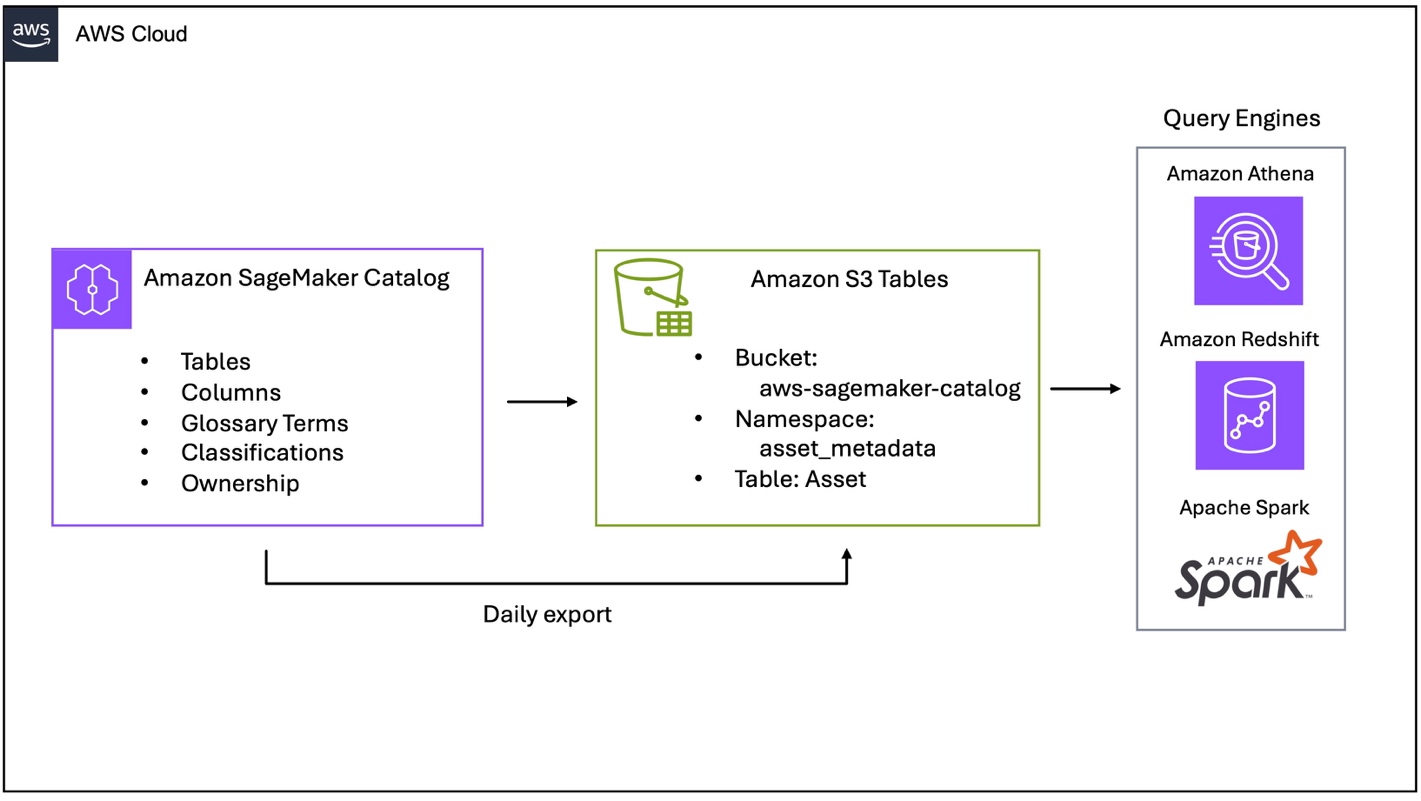
Figure 1 – SageMaker catalog export to S3 Tables
The architecture consists of three key components:
- Amazon SageMaker Catalog exports asset metadata daily to Amazon S3.
- S3 Tables stores metadata as Apache Iceberg tables in the
aws-sagemaker-catalogbucket with ACID compliance and time travel. - Query engines (Amazon Athena, Amazon Redshift, and Apache Spark) access metadata using standard SQL from the
asset_metadata.assettable.
What metadata is exposed?
SageMaker Catalog exports metadata in the asset_metadata.asset table:
| Metadata Type | Fields | Description |
| Technical metadata | resource_id, resource_type_enum, account_id, region |
Resource identifiers (ARN), types (GlueTable, RedshiftTable, S3Collection), and location |
| Namespace hierarchy | catalog, namespace, resource_name |
Organizational structure for assets |
| Business metadata | asset_name, business_description |
Human-readable names and descriptions |
| Ownership | extended_metadata['owningEntityId'] |
Asset ownership information |
| Timestamps | asset_created_time, asset_updated_time, snapshot_time |
Creation |
| Custom metadata | extended_metadata['form-name.field-name'] |
User-defined metadata forms as key-value pairs |
The snapshot_time column supports point-in-time analysis and query of historical catalog states.
Prerequisites
To follow along with this post, you must have the following:
- An Amazon SageMaker Unified Studio domain set up with a domain owner or domain unit owner permissions.
- A SageMaker Unified Studio domain identifier
- AWS Identity and Access Management (IAM) permissions for configuring metadata export.
- Grant catalog, database, and table Select and Describe permissions with AWS Lake Formation.
- AWS Command Line Interface (AWS CLI) version 2.33.0 or later installed and configured
- An Amazon SageMaker project for publishing assets.
For SageMaker Unified Studio domain setup instructions, refer to the SageMaker Unified Studio Getting started guide.
After you complete the prerequisites, complete the following steps.
- Add this policy to our IAM user or role to enable metadata export. If using SageMaker Unified Studio to query the catalog, add this policy to the
AmazonSageMakerAdminIAMExecutionRolemanaged role.
{ "Version": "2012-10-17",
"Statement": [
{
 "Effect": "Allow",
 "Action": [ "datazone:GetDataExportConfiguration",
 "datazone:PutDataExportConfiguration"
 ],
 "Resource": "*"
 },
 {
 "Effect": "Allow",
 "Action": [
 "s3tables:CreateTableBucket",
 "s3tables:PutTableBucketPolicy"
 ],
 "Resource": "arn:aws:s3tables:*:*:bucket/aws-sagemaker-catalog"
}
]
}- Grant describe and select permissions for SageMaker Catalog with AWS Lake Formation. This step can be performed in the AWS Lake Formation console.
- Select Permissions -> Data permissions and choose Grant.
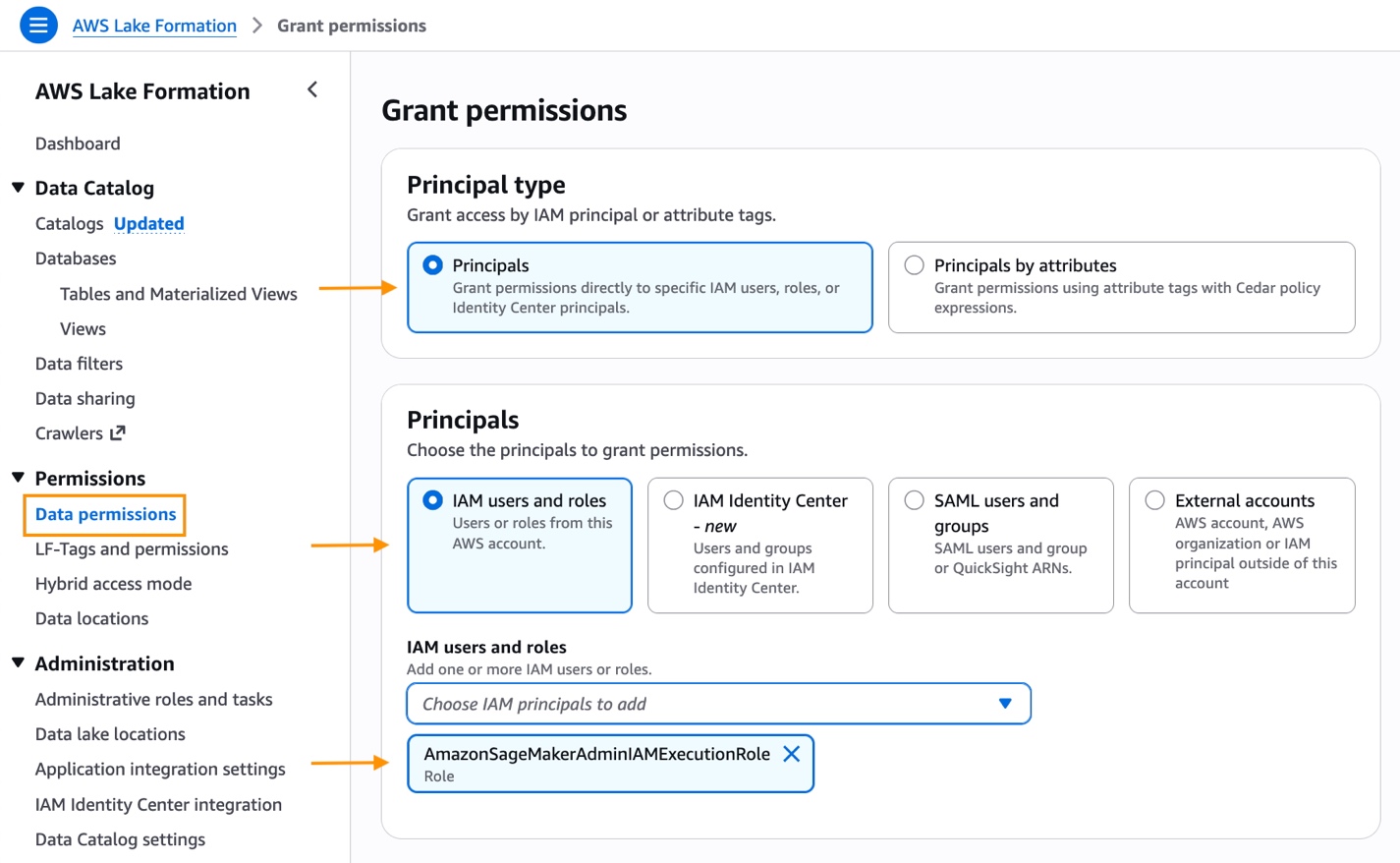
Figure 2 – AWS Lake Formation grant permission
- Under Principal type, select Principals, IAM users and roles and the AWS managed AmazonSageMakerAdminIAMExecutionRole execution role.
- Choose Named Data Catalog resources.
- Under Catalogs, search for and select <account-id>:s3tablecatalog/aws-sagemaker-catalog.
- Under Databases, select asset_metadata database.
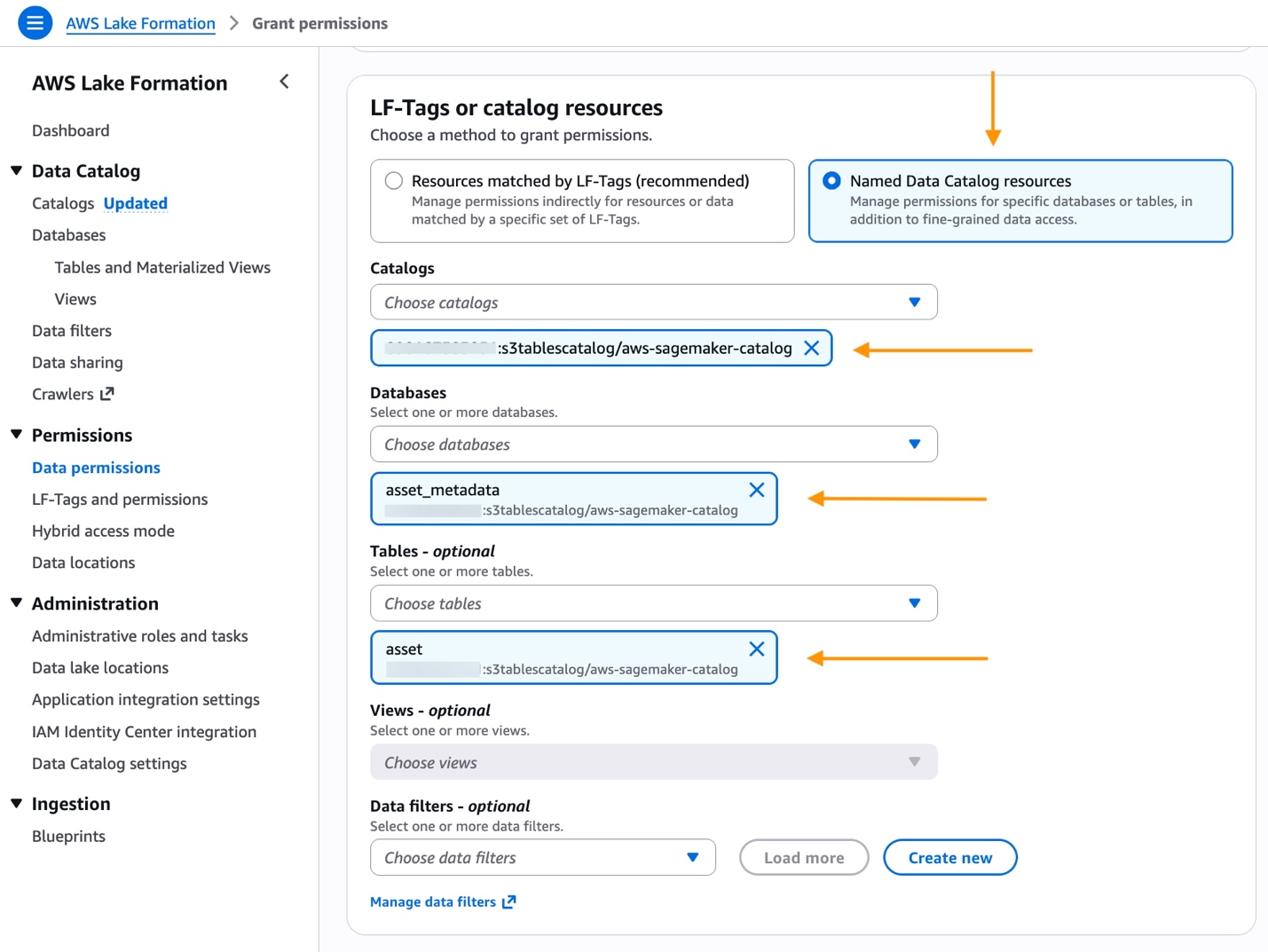
Figure 3 – AWS Lake Formation catalog, database, and table
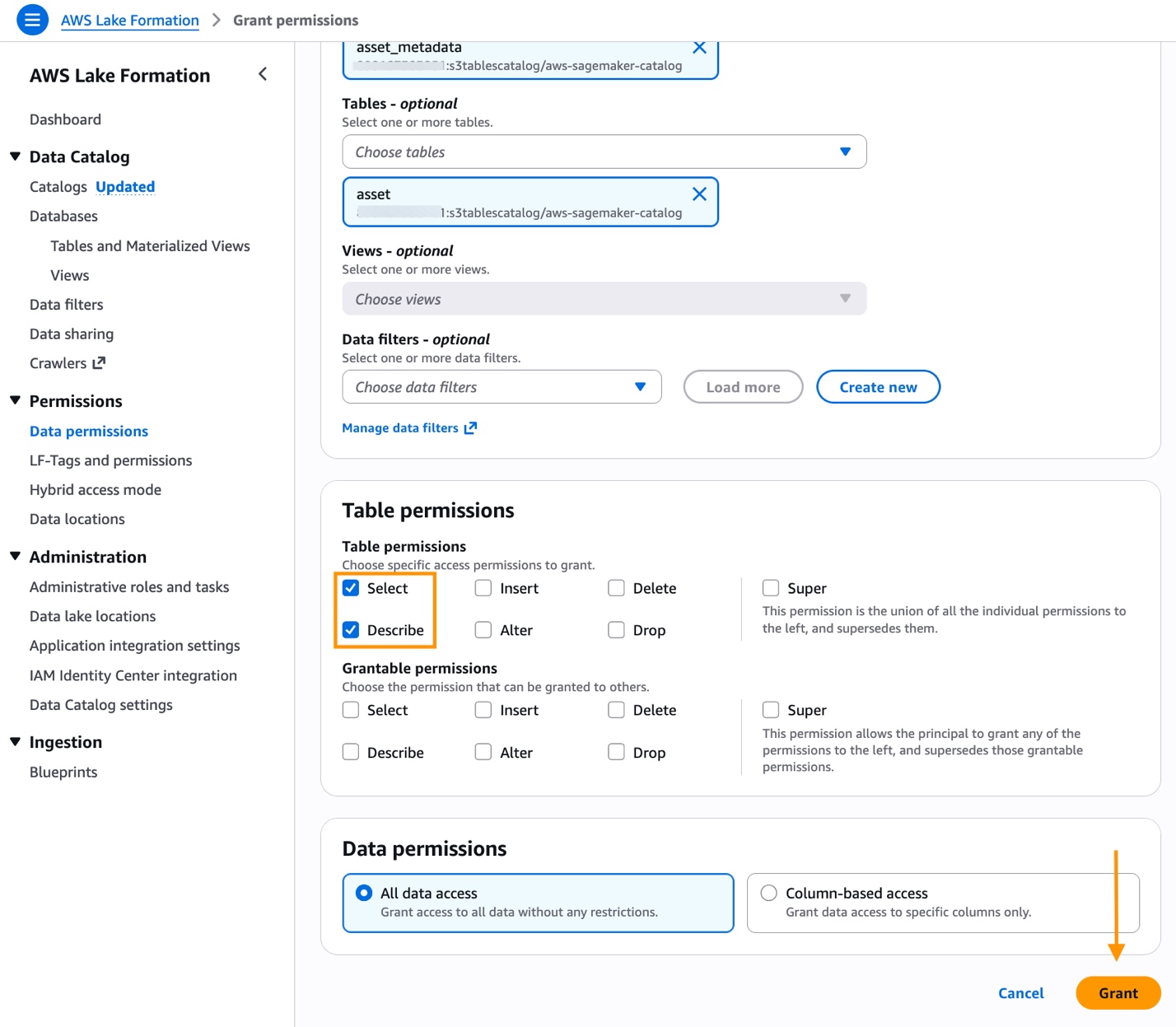
Figure 4 – AWS Lake Formation grant permission
- For Table, select asset.
- Under Table permissions, check Select and Describe.
- Choose Grant to save the permissions.
- Select Permissions -> Data permissions and choose Grant.
Enable data export using the AWS CLI
Configure metadata export using the PutDataExportConfiguration API. The Amazon DataZone service automatically creates an S3 table bucket named aws-sagemaker-catalog with an asset_metadata namespace, and schedules a daily export job. Asset metadata is exported once daily around midnight local time per AWS Region.
The SageMaker Domain identifier is available on domain detail page in the AWS Management Console. Accessing the asset table through the S3 Tables console or the Data tab in SageMaker Unified Studio can require up to 24 hours.
AWS CLI command to enable SageMaker catalog export:
Use this AWS CLI command to validate the configuration is enabled:
Access the exported asset table
- Navigate to Amazon SageMaker Domains in the AWS Management Console.
- Select your domain and select Open.
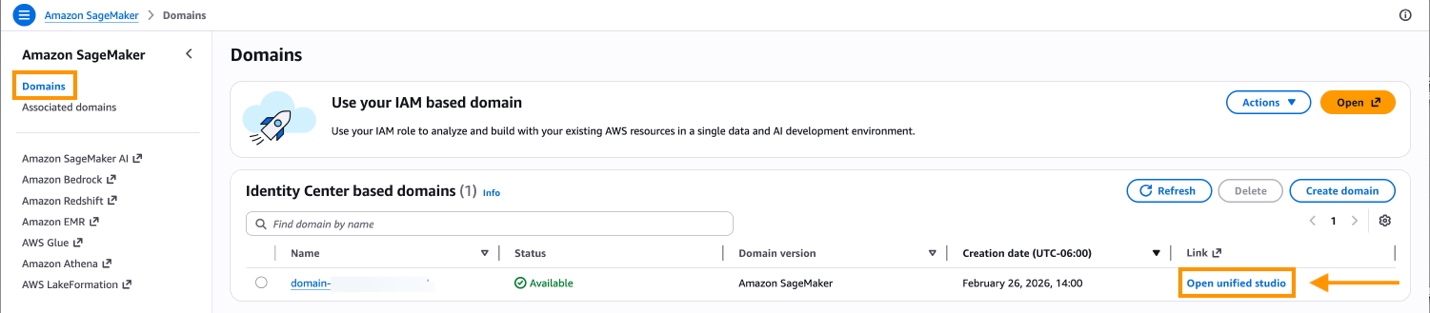
Figure 5 – Open Amazon SageMaker Unified Studio
- In SageMaker Unified Studio, choose a project from the Select a project dropdown list.
- To query SageMaker catalog data, select Build in the menu bar and then choose Query Editor. To create a new project, follow the instructions in the Amazon SageMaker Unified Studio User Guide.
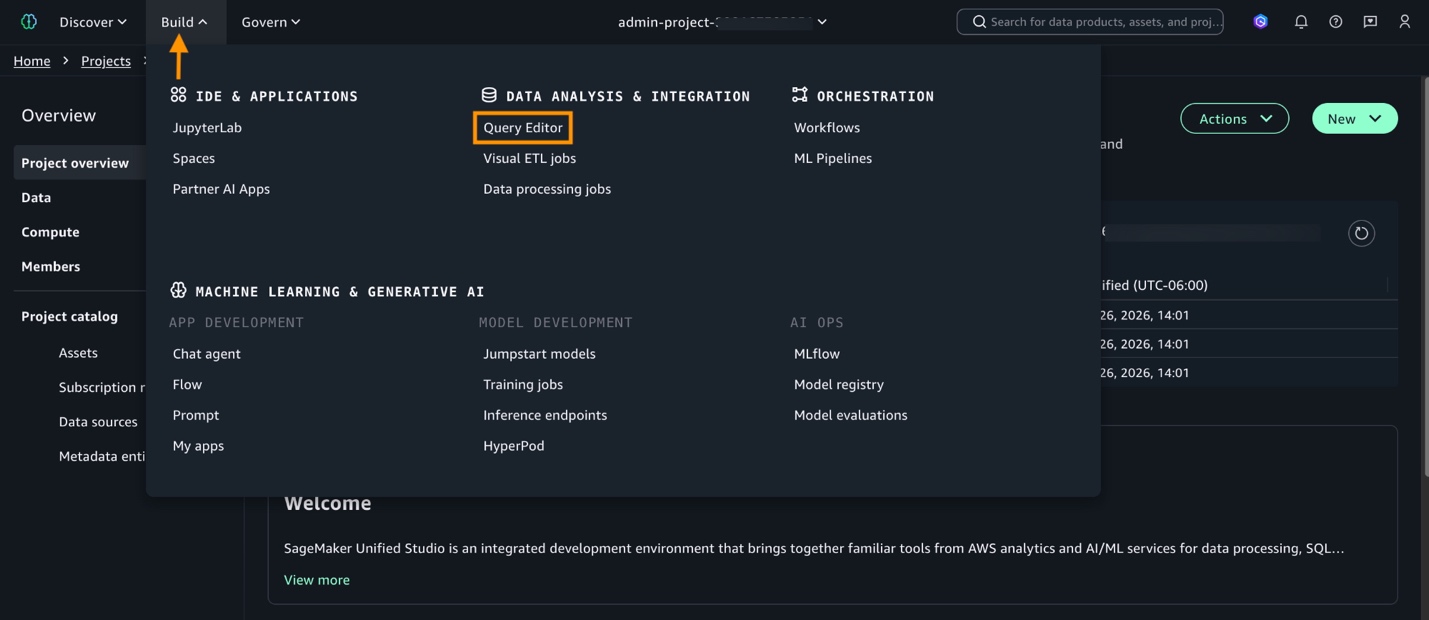
Figure 6 – Open SageMaker Unified Studio Query Editor
The asset_metadata.asset table is available in Data explorer. Use Data explorer to view the schema and query data to perform analytics from.
- Expand Catalogs in Data explorer. Then, select and expand s3tablecatalog, aws-sagemaker-catalog, asset_metadata, and asset.
- Test querying the catalog with
SELECT * FROM asset_metadata.asset LIMIT 10;.
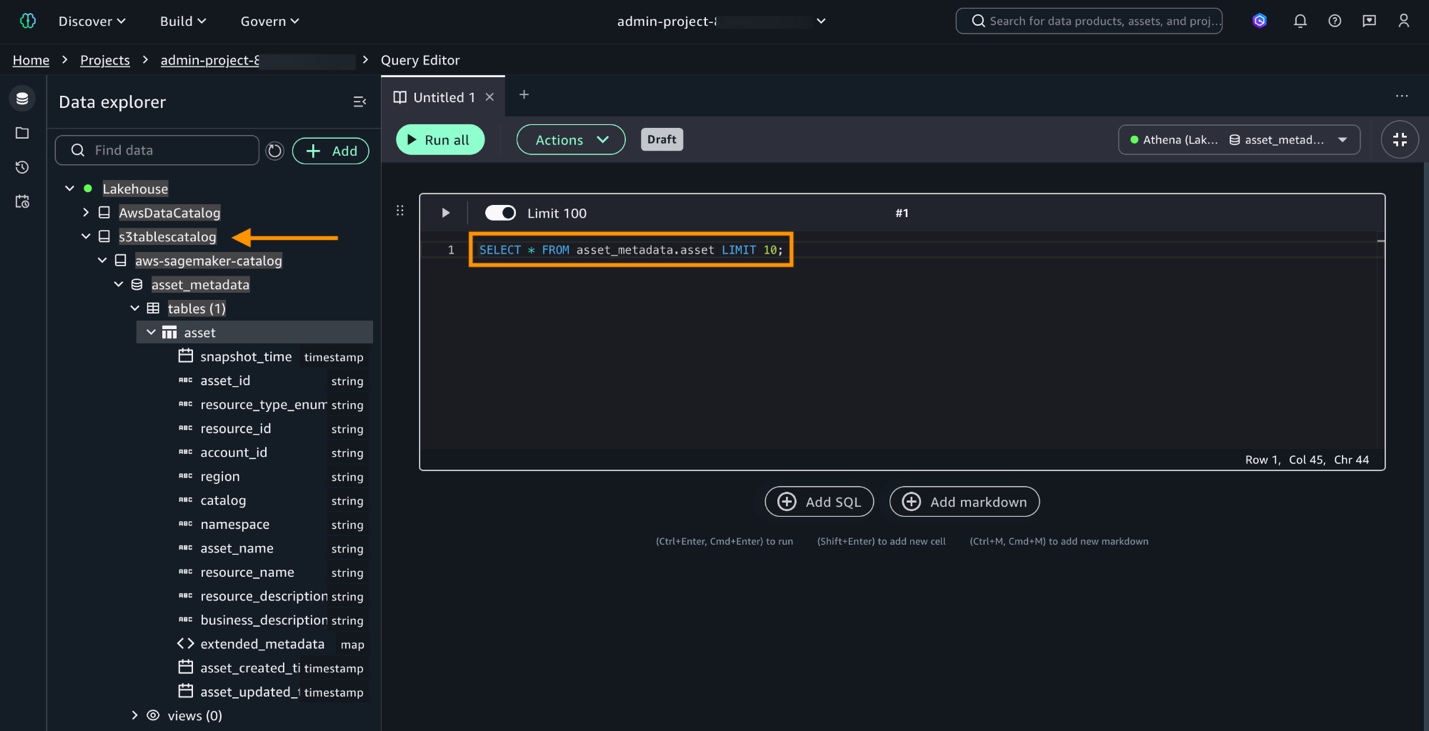
Figure 7 – Query SageMaker catalog
Queries for observability and analytics
With setup complete, execute queries to gain insights on catalog usage and changes. To monitor asset growth, and view how the data catalog has grown over the last five days:
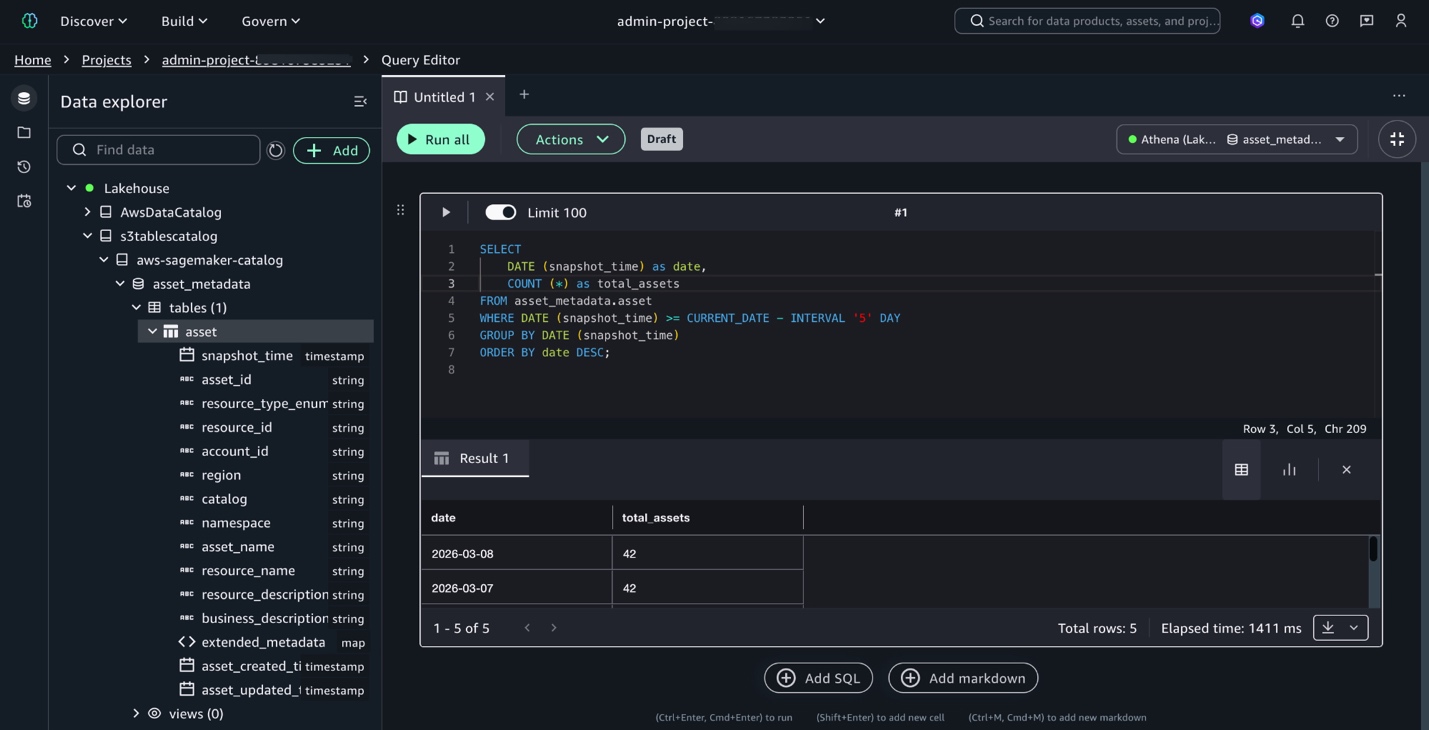
Figure 8 – Query asset growth
Use the catalog to track metadata changes to determine which assets gained descriptions or ownership over time. Use this query to identify assets that gained business descriptions over the past five days by comparing today’s snapshot with the earlier snapshot.
Investigate asset values at a specific point in time using this query to retrieve metadata from any snapshot date.
Clean up resources
To avoid ongoing charges, clean up the resources created in this walkthrough:
- Disable metadata export:
Disable the daily metadata export to stop new snapshots:
- Delete S3 Tables resources:
Optionally, delete the S3 Tables namespace containing the exported metadata to remove historical snapshots and stop storage charges. For instructions on how to delete S3 tables, see Deleting an Amazon S3 table in the Amazon Simple Storage Service User Guide.
Conclusion
In this post, you enabled the metadata export feature of SageMaker Catalog and used SQL queries to gain visibility into your asset inventory. The feature converts asset metadata into Apache Iceberg tables partitioned by snapshot date, so you can perform time-travel queries, monitor catalog growth, track metadata completeness, and audit historical asset states. This provides a repeatable, low-overhead way to maintain catalog health and meet governance requirements over time.
To learn more about Amazon SageMaker Catalog, see the Amazon SageMaker Catalog documentation. To explore Apache Iceberg table formats and time-travel queries, see the Amazon S3 Tables documentation.