AWS Big Data Blog
Building scalable AWS Lake Formation governed data lakes with dbt and Amazon Managed Workflows for Apache Airflow
Organizations often struggle with building scalable and maintainable data lakes—especially when handling complex data transformations, enforcing data quality, and monitoring compliance with established governance. Traditional approaches typically involve custom scripts and disparate tools, which can increase operational overhead and complicate access control. A scalable, integrated approach is needed to simplify these processes, improve data reliability, and support enterprise-grade governance.
Apache Airflow has emerged as a powerful solution for orchestrating complex data pipelines in the cloud. Amazon Managed Workflows for Apache Airflow (MWAA) extends this capability by providing a fully managed service that eliminates infrastructure management overhead. This service enables teams to focus on building and scaling their data workflows while AWS handles the underlying infrastructure, security, and maintenance requirements.
dbt enhances data transformation workflows by bringing software engineering best practices to analytics. It enables analytics engineers to transform warehouse data using familiar SQL select statements while providing essential features like version control, testing, and documentation. As part of the ELT (Extract, Load, Transform) process, dbt handles the transformation phase, working directly within a data warehouse to enable efficient and reliable data processing. This approach allows teams to maintain a single source of truth for metrics and business definitions while enabling data quality through built-in testing capabilities.
In this post, we show how to build a governed data lake that uses modern data tools and AWS services.
Solution overview
We explore a comprehensive solution that includes:
- A metadata-driven framework in MWAA that dynamically generates directed acyclic graphs (DAGs), significantly improving pipeline scalability and reducing maintenance overhead.
- dbt with Amazon Athena adapter to implement modular, SQL-based data transformations directly on a data lake, enabling well-structured, and thoroughly tested transformations.
- An automated framework that proactively identifies and segregates problematic records, maintaining the integrity of data assets.
- AWS Lake Formation to implement fine-grained access controls for Athena tables, ensuring proper data governance and security throughout a data lake environment.
Together, these components create a robust, maintainable, and secure data management solution suitable for enterprise-scale deployments.
The following architecture illustrates the components of the solution.

The workflow contains the following steps:
- Multiple data sources (PostgreSQL, MySQL, SFTP) push data to an Amazon S3 raw bucket
- S3 event triggers AWS Lambda Function
- Lambda function triggers the MWAA DAG to convert file formats to parquet
- Data is stored in Amazon S3 formatted bucket under formatted_stg prefix
- Crawler crawls the data in formatted_stg prefix in the formatted bucket and creates catalog tables
- dbt using Athena adapter processes the data and puts the processed data after data quality checks under formatted prefix in Formatted bucket
- dbt using Athena adapter can perform further transformations on the formatted data and put the transformed data in Published bucket
Prerequisites
To implement this solution, the following prerequisites need to be met.
- An AWS account with create/operate access for the following AWS services:
Deploy the solution
For this solution, we provide an AWS CloudFormation (CFN) template that sets up the services included in the architecture, to enable repeatable deployments.
Note:
- US-EAST-1 Region is required for the deployment.
- Deploying this solution will involve costs associated with AWS services.
To deploy the solution, complete the following steps:
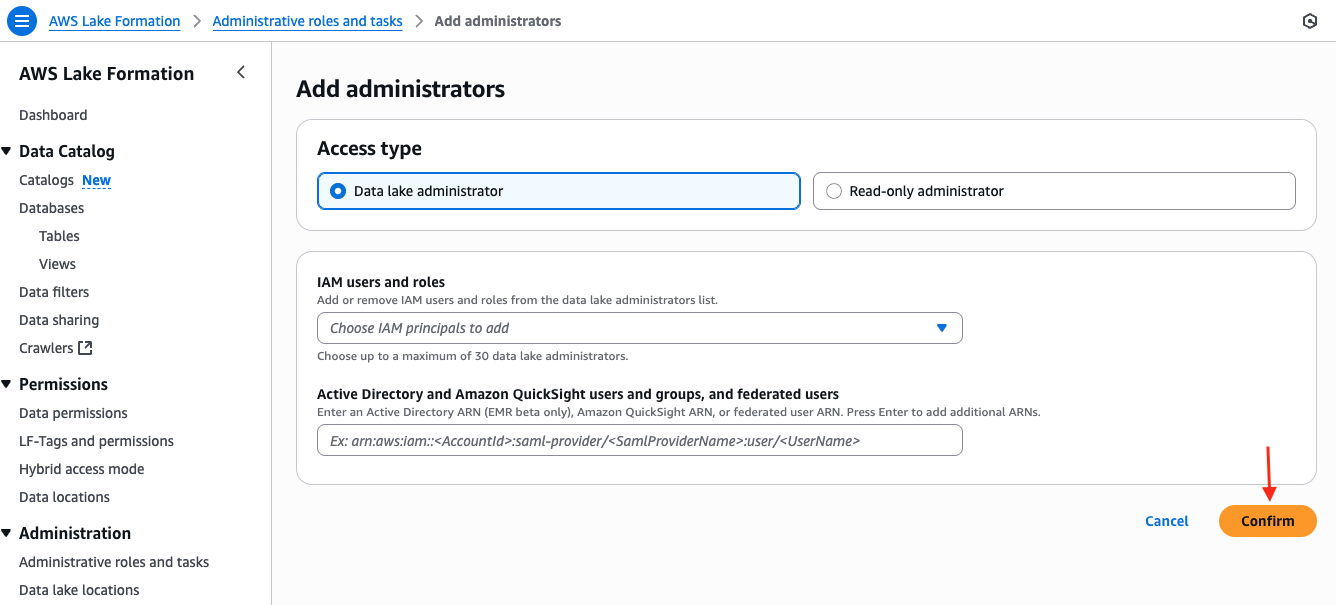
- Before deploying the stack, open the AWS Lake Formation console. Add your console role as a Data Lake Administrator and choose Confirm to save the changes.
- Download the CloudFormation template.
After the file is downloaded to the local machine, follow the steps below to deploy the stack using this template:- Open the AWS CloudFormation Console.
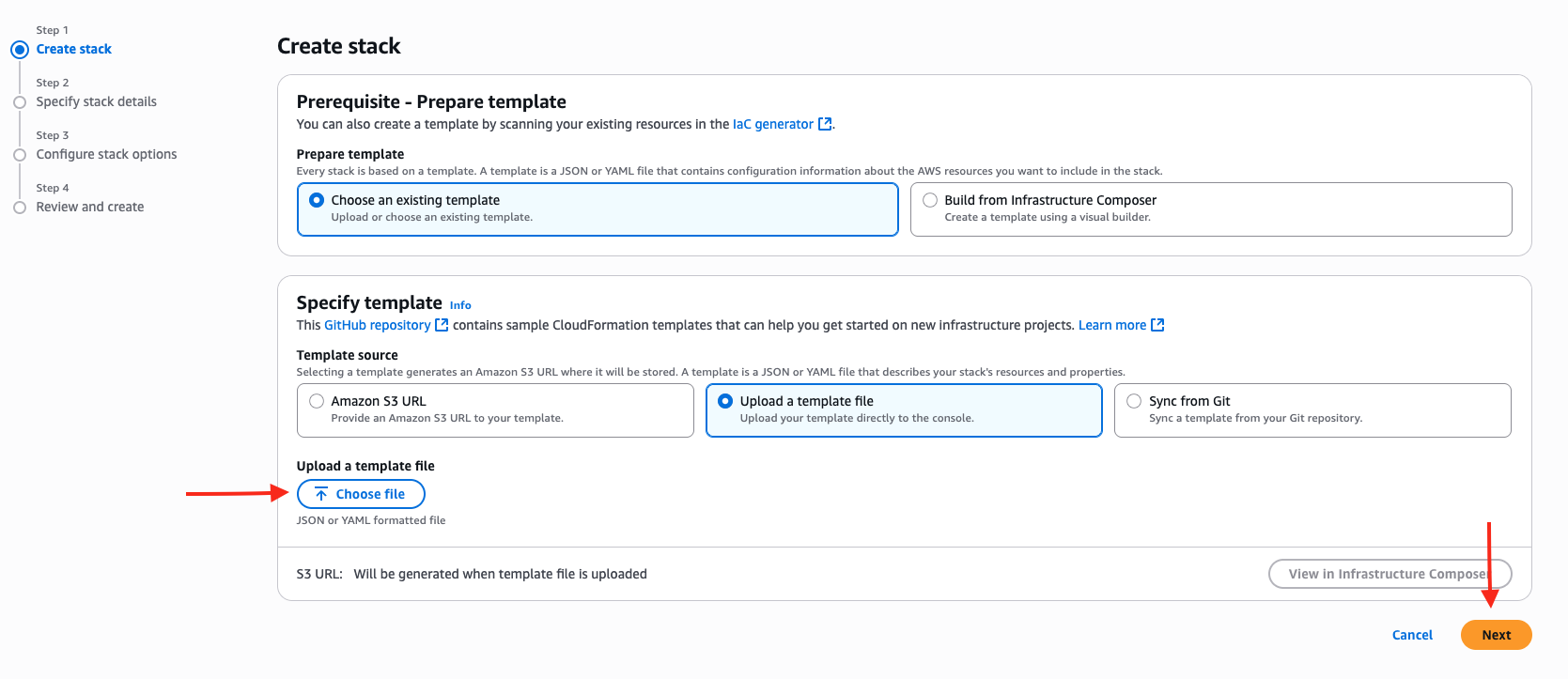
- Choose Create stack and choose With new resources (standard).
- Under Specify template, select Upload a template file.
- Select Choose file and upload the CFN template that was downloaded earlier.
- Choose Next to proceed.
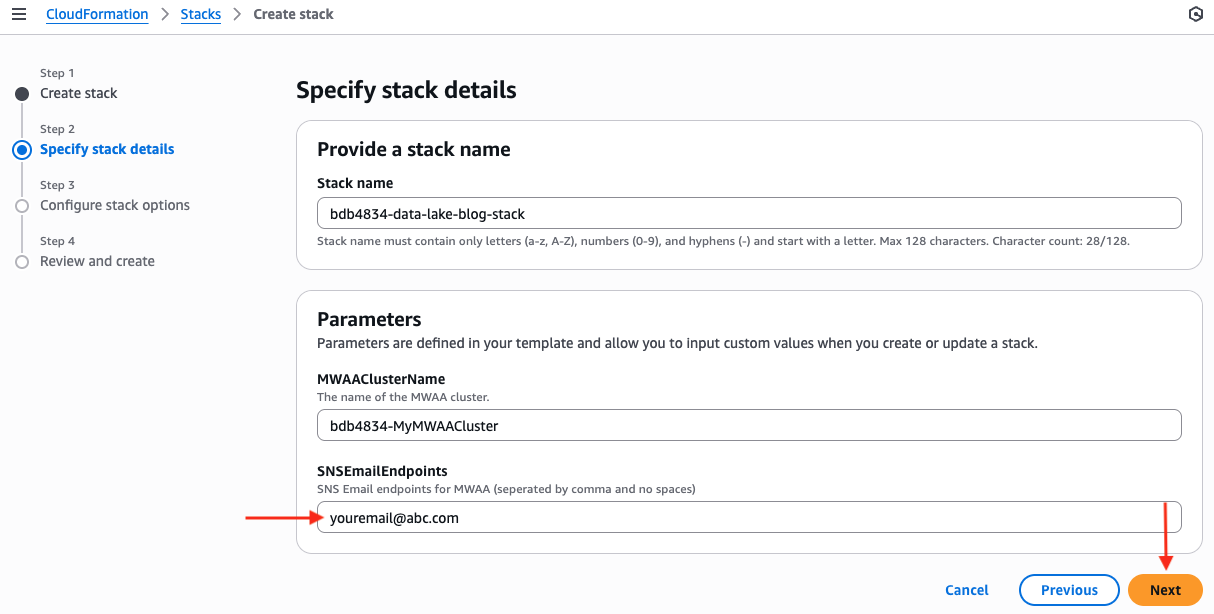
- Enter a stack name (for example, bdb4834-data-lake-blog-stack) and configure the parameters (bdb4834-MWAAClusterName can be left as the default value and update SNSEmailEndpoints with your email address), then choose Next.
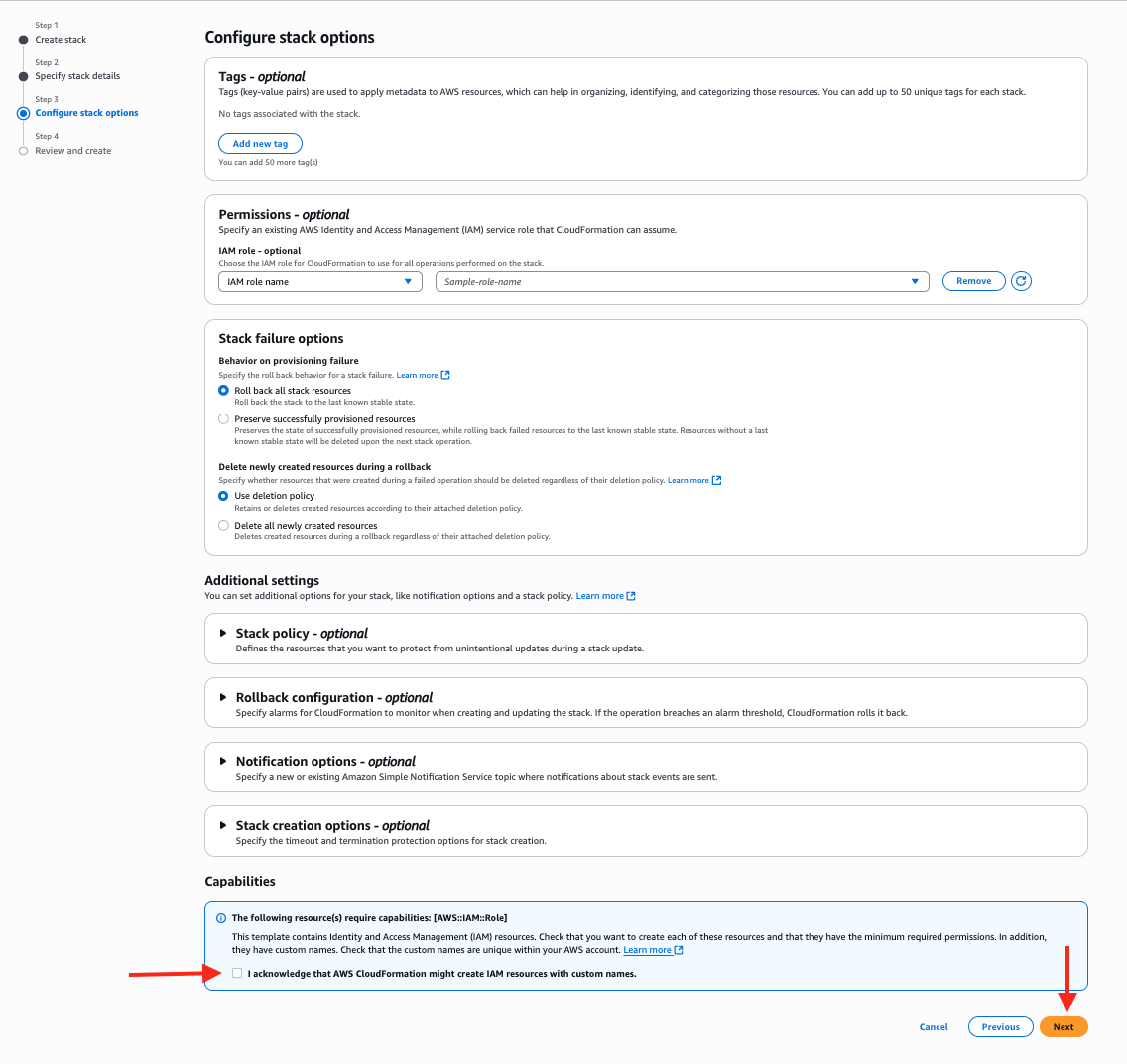
- Select “I acknowledge that AWS CloudFormation might create IAM resources with custom names” and choose Next
- Review all the configuration details on the next page, then choose Submit.
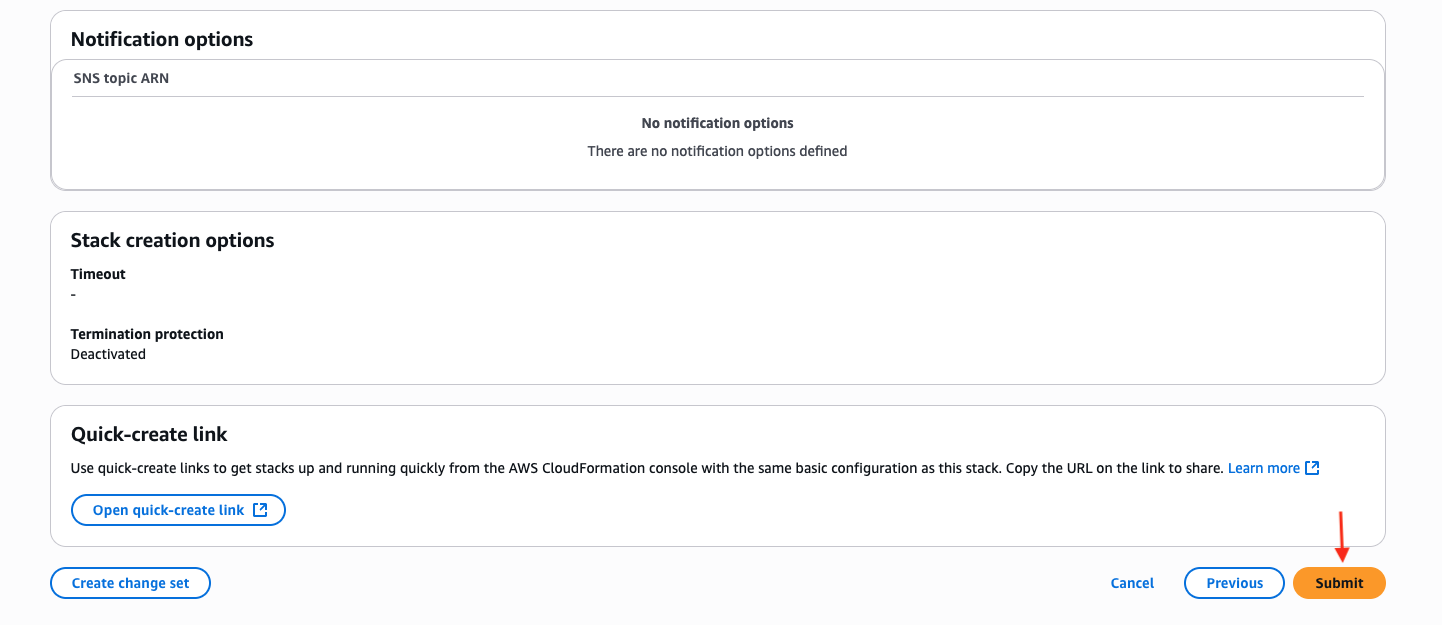
- Wait for the stack creation to complete in the AWS CloudFormation console. The process typically takes approximately 35 to 40 minutes to provision all required resources.
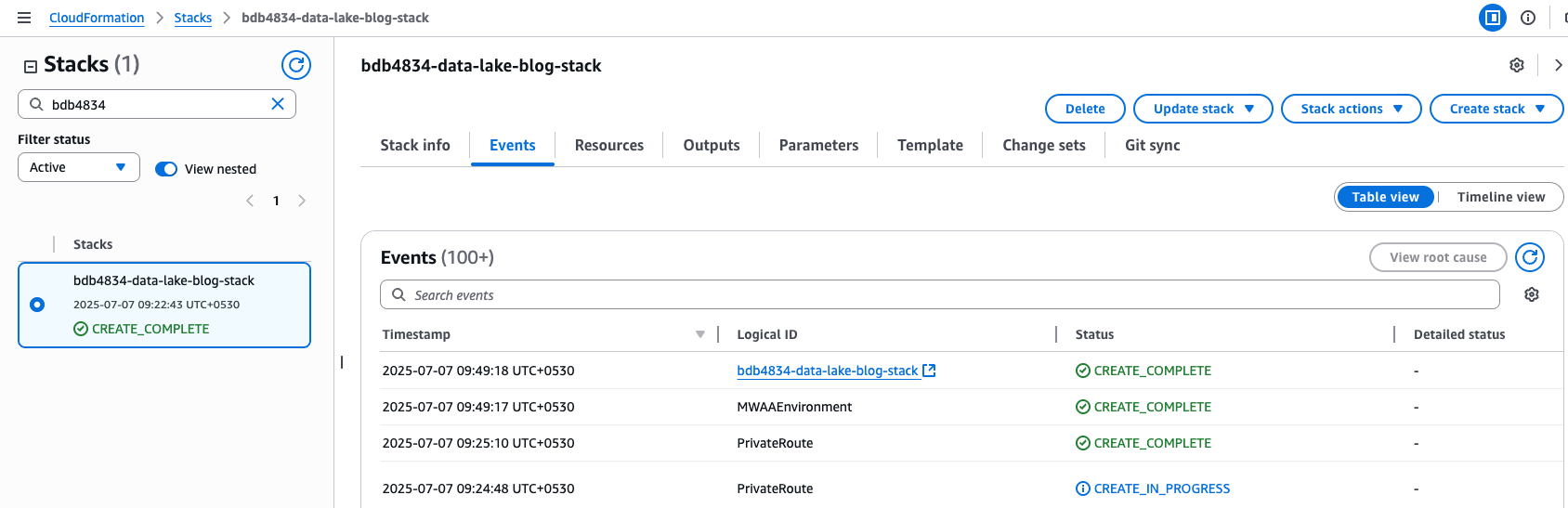
The following table shows resources available in the AWS Account after CloudFormation template deployment is successfully completed:
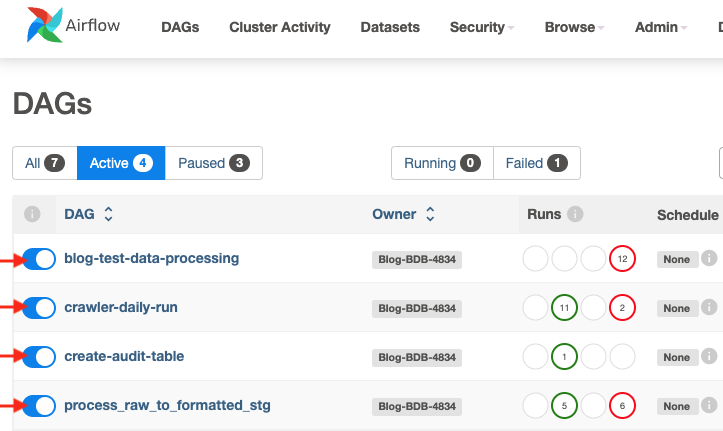
Resource Type Description Example Resource Name S3 Buckets For storing raw, processed data and assets bdb4834-mwaa-bucket-<AWS_ACCOUNT>-<AWS_REGION>,bdb4834-raw-bucket-<AWS_ACCOUNT>-<AWS_REGION>,bdb4834-formatted-bucket-<AWS_ACCOUNT>-<AWS_REGION>,bdb4834-published-bucket-<AWS_ACCOUNT>-<AWS_REGION> IAM Role Role assumed by MWAA for permissions bdb4834-mwaa-role MWAA Environment Managed Airflow environment for orchestration bdb4834-MyMWAACluster VPC Network setup required by MWAA bdb4834-MyVPC Glue Catalog Databases Logical grouping of metadata for tables bdb4834_formatted_stg,bdb4834_formatted_exception, bdb4834_formatted, bdb4834_published Glue Crawlers Automatically catalog metadata from S3 bdb4834-formatted-stg-crawler Lambda Lambda to Trigger MWAA DAG on file arrival and to setup Lake Formation Permissions bdb4834_mwaa_trigger_process_s3_files,bdb4834-lf-tags-automation Lake Formation Setup Centralized governance and permissions LF-Setup for the above Resources Airflow DAGs Airflow DAGs are stored in the S3 bucket named mwaa-bucket-<AWS_ACCOUNT>-<AWS_REGION> under the dags/ prefix. These DAGs are responsible for triggering data pipelines based on either file arrival events or scheduled intervals. The exact functionality of each DAG is explained in the following sections. blog-test-data-processingcrawler-daily-runcreate-audit-tableprocess_raw_to_formatted_stage - When the stack is complete perform the below steps:
- Open the Amazon Managed Workflows for Apache Airflow (MWAA) console, choose on Open Airflow UI
- In the DAGs console, locate the following DAGs and unpause them by unchecking the toggle switch (radio button) next to each DAG.
Add sample data to raw S3 bucket and create catalog tables
In this section, we upload sample data to raw S3 bucket (bucket name starting with bdb4834-raw-bucket) and convert the file formats to parquet and run AWS Glue crawler to create catalog tables that are used by dbt in the ELT Process. Glue Crawler automatically scans the data in S3 and creates or updates tables in the Glue Data Catalog, making the data queryable and accessible for transformation.
- Download the sample data.
- Zip folder contains two sample data files, cards.json and customers.json
Schema for cards.jsonField Data Type Description cust_id String Unique customer identifier cc_number String Credit card number cc_expiry_date String Credit card expiry date Schema for customers.json
Field Data Type Description cust_id String Unique customer identifier fname String First name lname String Last name gender String Gender address String Full address dob String Date of birth (YYYY/MM/DD) phone String Phone number email String Email address - Open S3 console, choose General purpose buckets in the navigation pane.
- Locate the S3 bucket with a name starting with bdb4834-raw-bucket. This bucket is created by the CloudFormation stack and can also be found under the stack’s Resources tab in the CloudFormation console.
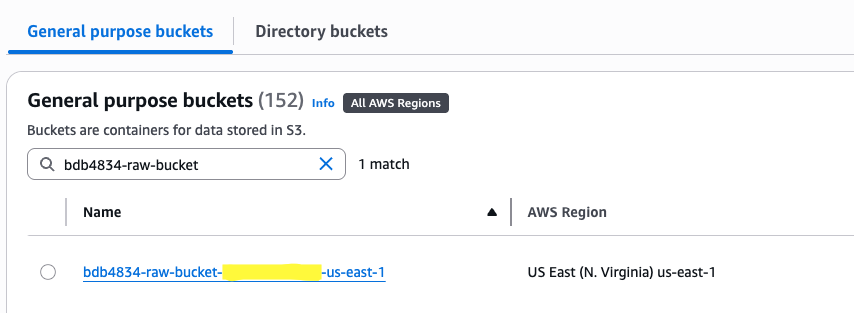
- Choose the bucket name to open it, and follow these steps to create the required prefix:
- Choose Create folder.
- Enter the folder name as mwaa/blog/partition_dt=YYYY-MM-DD/, replacing YYYY-MM-DD with the actual date to be used for the partition.
- Choose Create folder to confirm.
- Upload the sample data files from the location to the s3 raw bucket prefix.
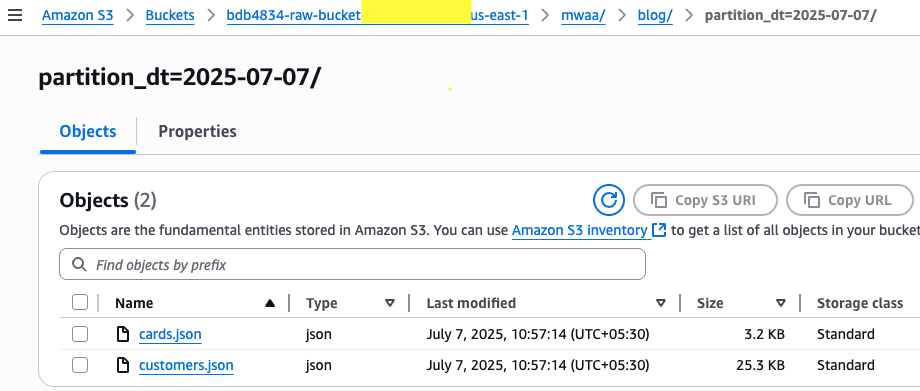
- As soon as the files are uploaded, the on_put object event on the raw bucket invokes
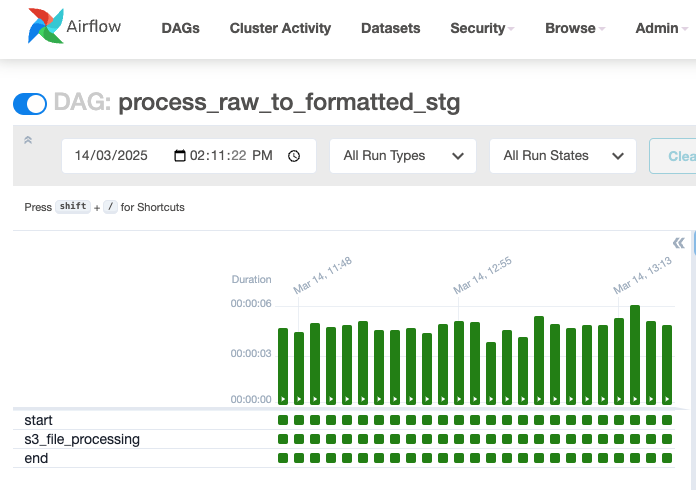
thebdb4834_mwaa_trigger_process_s3_fileslambda which triggers the process_raw_to_formatted_stg MWAA DAG.- In the Airflow UI, choose the process_raw_to_formatted_stg DAG to view execution status. This DAG converts the file formats to parquet and typically completes within a few seconds.
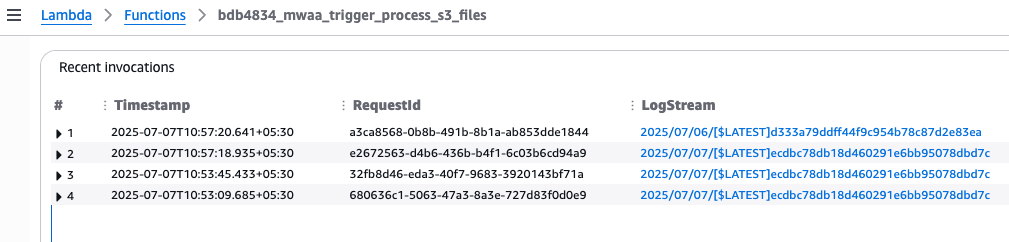
- (Optional) To check the Lambda execution details:
- On the AWS Lambda Console, choose Functions in the navigation pane.
- Select the function named bdb4834_mwaa_trigger_process_s3_files.
- In the Airflow UI, choose the process_raw_to_formatted_stg DAG to view execution status. This DAG converts the file formats to parquet and typically completes within a few seconds.
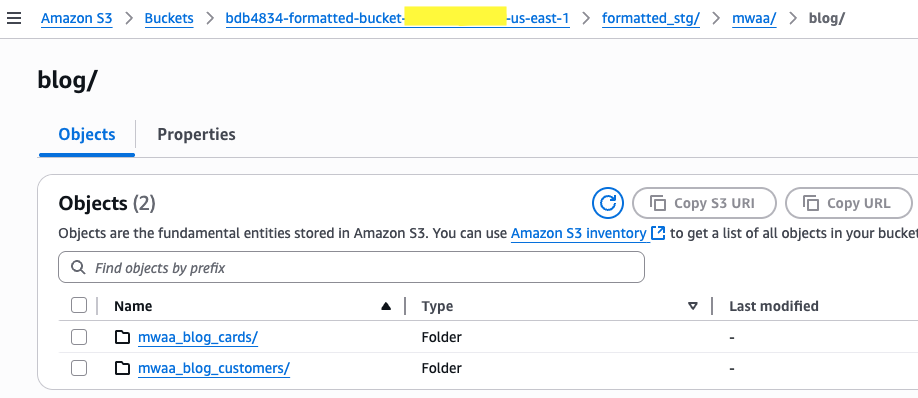
- Validate the parquet files are created in formatted bucket (bucket name starting with
bdb4834-formatted) under the respective data object prefix.
- Before proceeding further, re-upload the Lake Formation metadata file in MWAA bucket.
- Open the S3 console, choose General purpose buckets in the navigation pane.
- Search for the bucket starting with bdb4834-mwaa-bucket
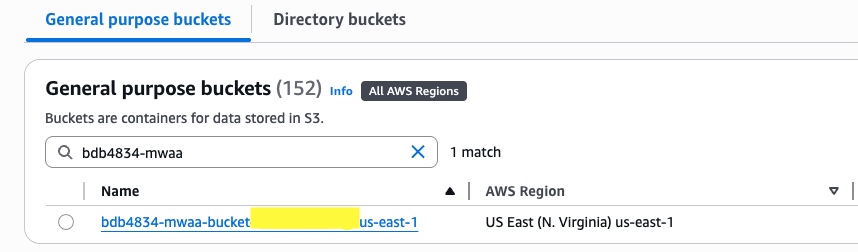
- Choose the bucket name and go to the lakeformation prefix. Download the file named
lf_tags_metadata.json. Now, re-upload the same file to the same location.
Note: This re-upload is necessary because the Lambda function is configured to trigger on file arrival. When the resources were initially created by the CloudFormation stack, the files were simply moved to S3 and did not trigger the Lambda. Re-uploading the file ensures the Lambda function is executed as intended. - As soon as the file is uploaded, the on_put object event on the MWAA bucket invokes the lf_tags_automation lambda, which creates the Lake Formation (LF) tags as defined in the metadata file and grants access to the specified AWS Identity and Access Management (IAM) roles for read/write.
- Validate that the LF-Tags have been created by visiting the Lake Formation Console. In the left navigation pane, choose Permissions, and then select LF-Tags and permissions.
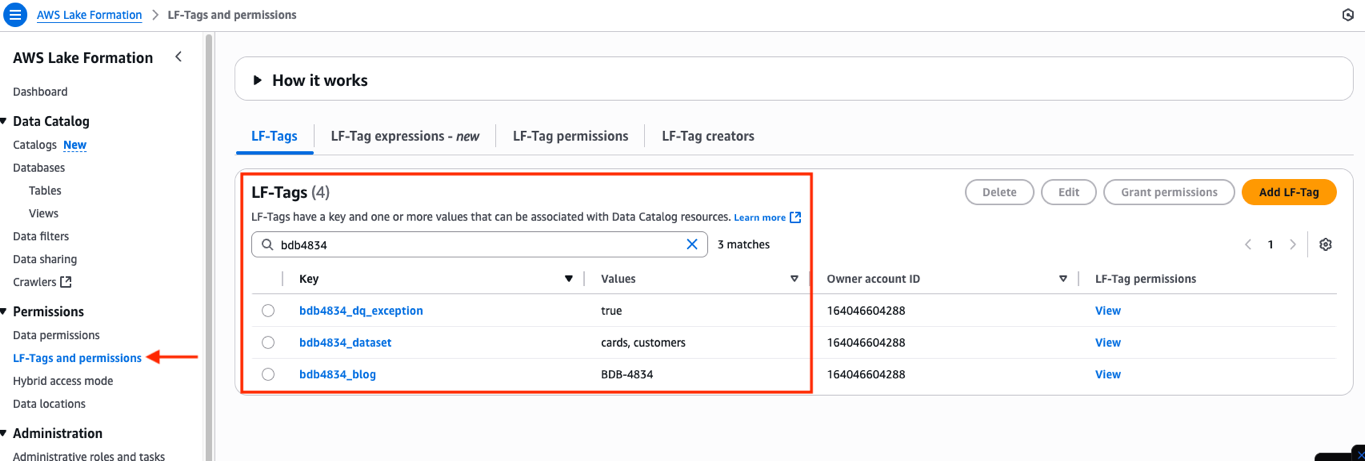
- Now, run the crawler DAG to create/update the catalog tables:
crawler-daily-run- In the Airflow UI select the
crawler-daily-runDAG and choose Trigger DAG to execute it. - This DAG is configured to trigger Glue Crawler which crawls the
formatted_stgprefix under thebdb4834-formatteds3 bucket to create catalog tables as per the prefixes available under theformatted_stgprefix.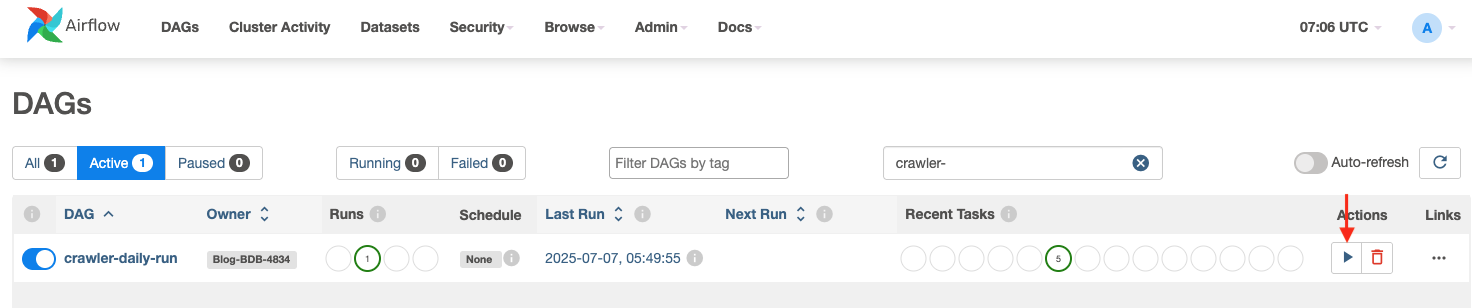
- Monitor the execution of the crawler-daily-run DAG until it completes, which typically takes 2 to 3 minutes. The crawler run status can be verified in the AWS Glue Console by following these steps:
- Open the AWS Glue Console.
- In the left navigation pane, choose Crawlers.
- Search for the crawler named
bdb4834-formatted-stg-crawler. - Check the Last run status column to confirm the crawler executed successfully.
- Choose the crawler name to view additional run details and logs if needed.
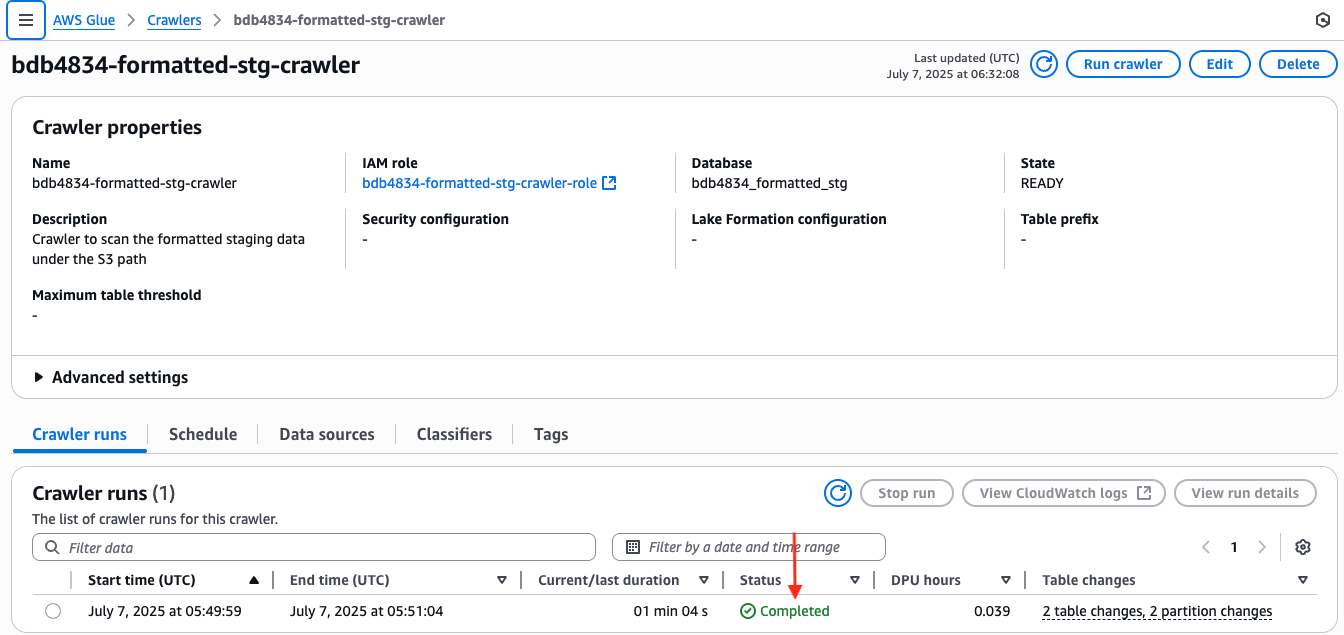
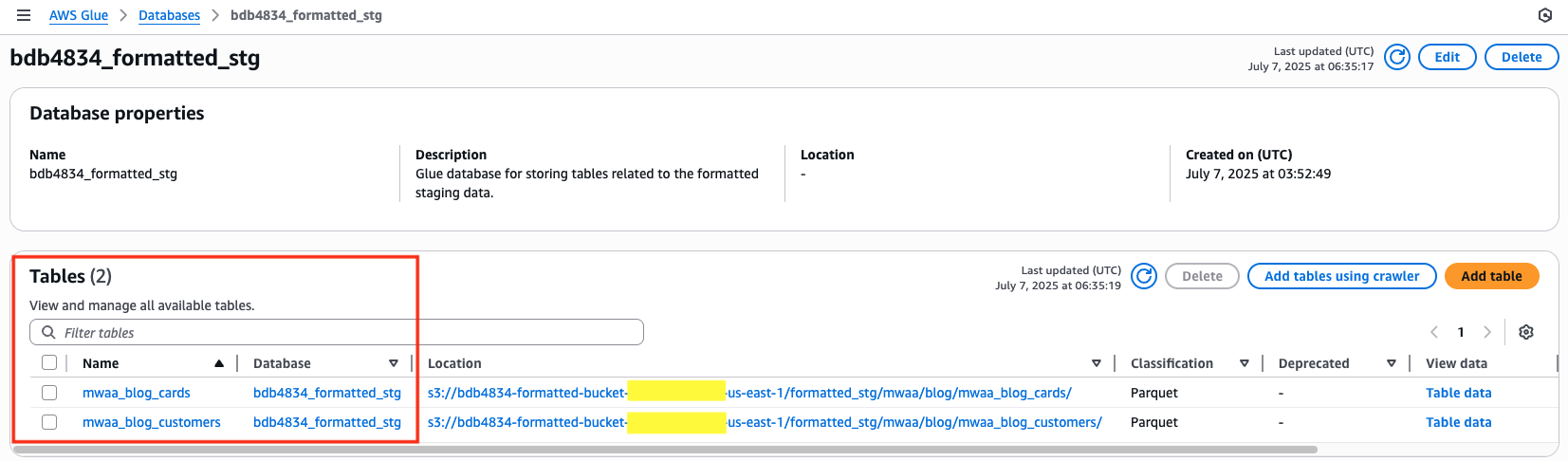
- Once the crawler has completed successfully, in the left-hand panel, choose Databases and select the bdb4834_formatted_stg database to view the created tables, which should appear as showing in the following image. Optionally, select the table’s name to view its schema, and then select Table data to open Athena for data analysis. (An error may appear when querying data using Athena due to Lake Formation permissions. Review the Governance using Lake Formation section in this post to resolve the issue.)
- In the Airflow UI select the
Note: If this is the first time Athena is being used, a query result location must be configured by specifying an S3 bucket. Follow the instructions in the AWS Athena documentation to set up the S3 staging bucket for storing query results.
Run model through DAG in MWAA
In this section, we cover how dbt models run in MWAA using Athena adapter to create Glue-catalogued tables and how auditing is done for each run.
- After creating the tables in the Glue database using the AWS Glue Crawler in the previous steps, we can now proceed to run the dbt models in MWAA. These models are stored in S3 in the form of SQL files, located at the S3 prefix: bdb4834-mwaa-bucket-<account_id>-us-east-1/dags/dbt/models/
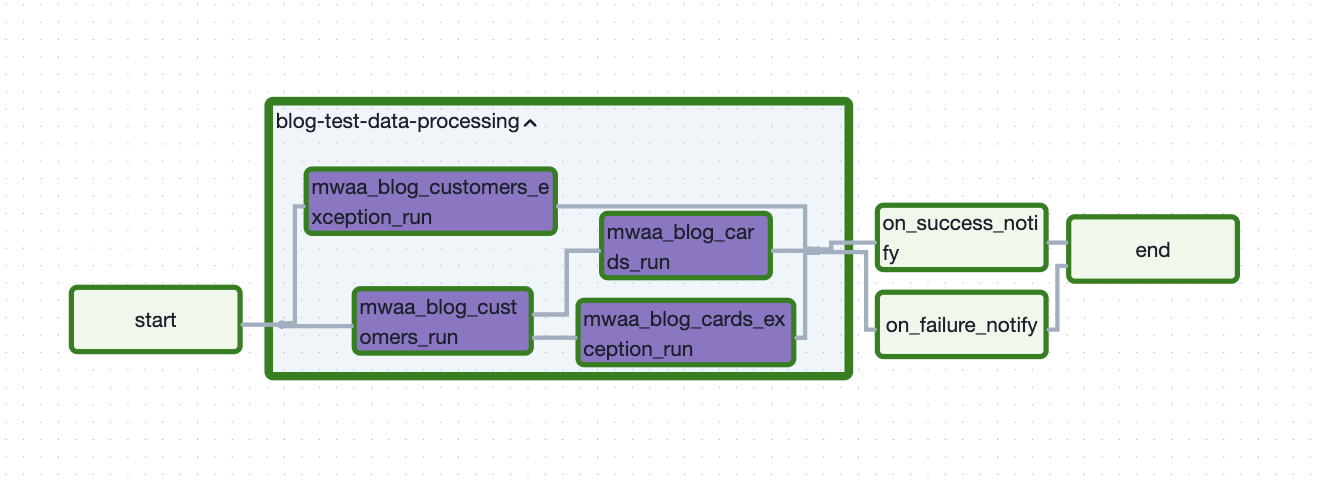
The following are the dbt models and their functionality:mwaa_blog_cards_exception.sqlThis model reads data from themwaa_blog_cardstable in thebdb4834_formatted_stgdatabase and writes records with data quality issues to themwaa_blog_cards_exceptiontable in thebdb4834_formatted_exceptiondatabase.mwaa_blog_customers_exception.sqlThis model reads data from themwaa_blog_customerstable in thebdb4834_formatted_stgdatabase and writes records with data quality issues to themwaa_blog_customers_exceptiontable in thebdb4834_formatted_exceptiondatabase.mwaa_blog_cards.sqlThis model reads data from themwaa_blog_cardstable in thebdb4834_formatted_stgdatabase and loads it into themwaa_blog_cardstable in thebdb4834_formatteddatabase. If the target table does not exist, dbt automatically creates it.mwaa_blog_customers.sqlThis model reads data from themwaa_blog_customerstable in thebdb4834_formatted_stgdatabase and loads it into themwaa_blog_customerstable in thebdb4834_formatteddatabase. If the target table does not exist, dbt automatically creates it.
- The
mwaa_blog_cards.sqlmodel processes credit card data and depends on themwaa_blog_customers.sqlmodel to complete successfully before it runs. This dependency is necessary because certain data quality checks—such as referential integrity validations between customer and card records—must be performed beforehand.- These relationships and checks are defined in the
schema.ymlfile located in the same S3 path:bdb4834-mwaa-bucket-<account_id>-us-east-1/dags/dbt/models/. The schema.yml file provides metadata for dbt models, including model dependencies, column definitions, and data quality tests. It utilizes macros likeget_dq_macro.sqlanddq_referentialcheck.sql(found under the macros/ directory) to enforce these validations.
As a result, dbt automatically generates a lineage graph based on the declared dependencies. This visual graph helps orchestrate model execution order—ensuring models like
mwaa_blog_customers.sqlrun before dependent models such asmwaa_blog_cards.sql, and identifies which models can execute in parallel to optimize the pipeline. - These relationships and checks are defined in the
- As a pre-step before running models, choose the trigger DAG button for create-audit-table to create audit table for storing run details for each model.

- Trigger the
blog-test-data-processingDAG in the Airflow UI to start the Model run. - Choose
blog-test-data-processingto see the execution status. This DAG runs the models in order and creates Glue catalogued iceberg tables. The flow diagram of a DAG from Airflow UI can be found by choosing Graph after choosing DAG.

- The exception models puts the failed records under exception prefix in S3:
Records that failed are found in an added column, tests_failed, where all the data quality checks that failed for that particular row are added, separated by a pipe (‘|’). (For the
mwaa_blog_customers_exceptiontwo exception records are found in the table.) - The passed records are put under formatted prefix in S3.
- For each run, a run audit is captured in the audit table with execution details like model_nm, process_nm, execution_start_date, execution_end_date, execution_status, execution_failure_reason, rows_affected.
Find the data in S3 under the prefixbdb4834-formatted-bucket-<aws-account-id>-<region>/audit_control/ - Monitor the execution until the DAG completes, which can take up to 2-3 mins. The execution status of the DAG can be seen in the left panel after opening the DAG.

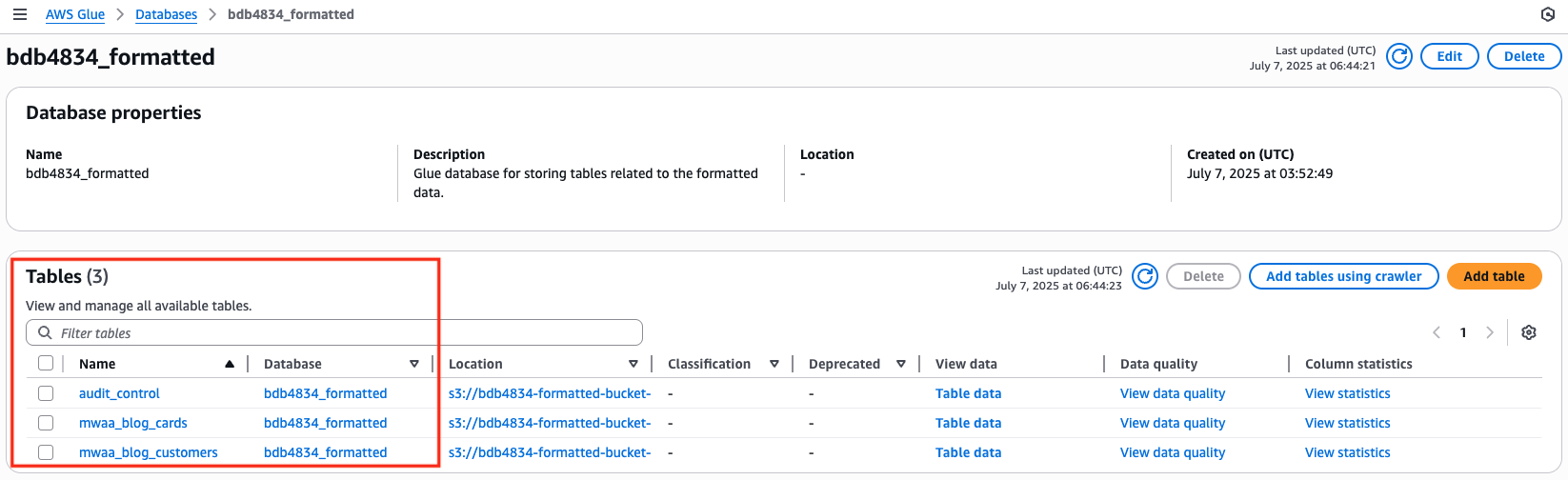
- Once the DAG has completed successfully, open the AWS Glue console and select Databases. Select the
bdb4834_formatteddatabase, which should create three tables, as shown in the following image.
Optionally, choose Table data to access Athena for data analysis.
- Choose
bdb4834_formatted_exceptiondatabase from under Databases in AWS Glue console, which should create two tables as shown in the following image.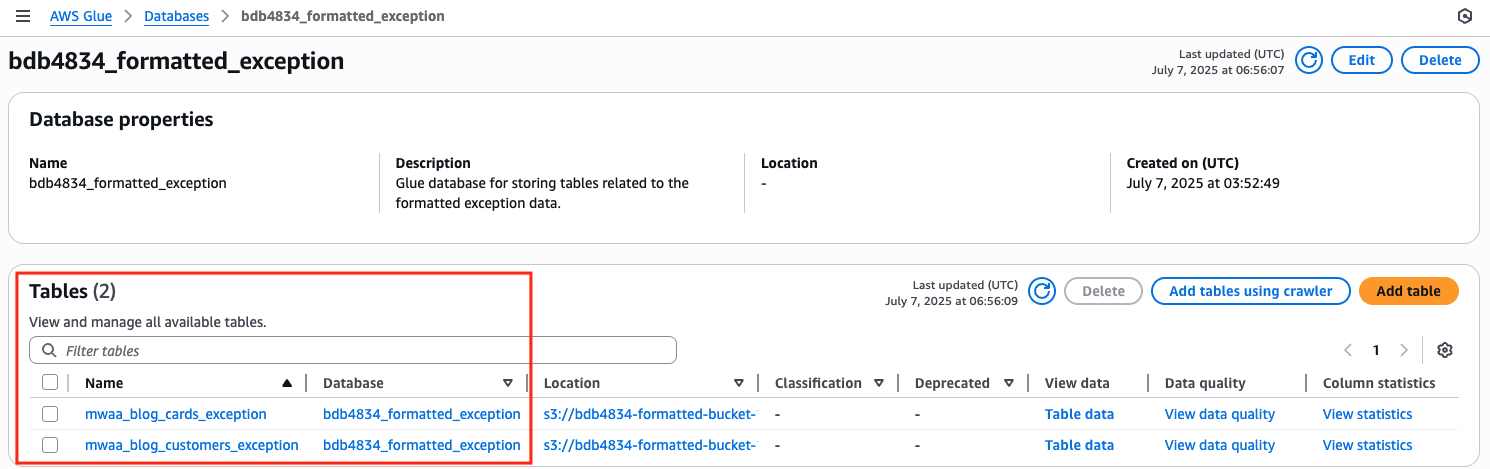
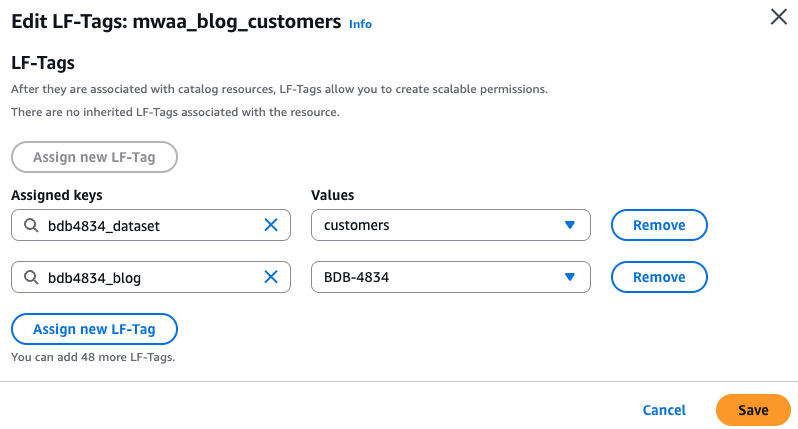
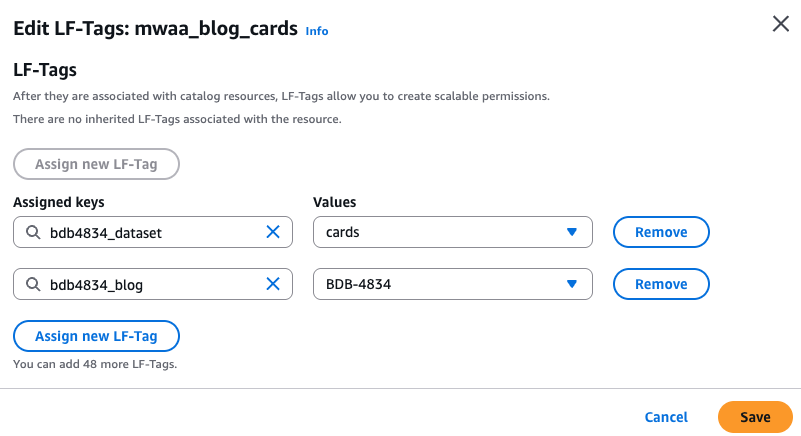
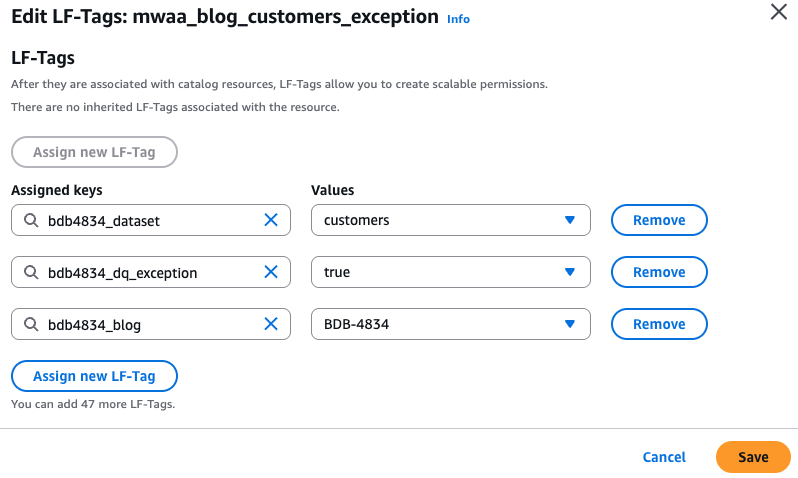
- Each model is assigned LF tags through the config block of model itself. Therefore, when the iceberg tables are created through dbt, LF tags are attached to the tables after the run completes.
Validate the LF tags attached to the tables by visiting the AWS Lake Formation console. In the left navigation pane, choose Tables and look for
mwaa_blog_customersormwaa_blog_cardstable underbdb4834_formatteddatabase. Select any table among the two and under Actions, choose Edit LF tags and the tags are attached, as shown in the following screen shot.
- Similarly, for the
bdb4834_formatted_exceptiondatabase, select any one of the exception tables under thebdb4834_formatted_exceptiondatabase and the LF tags are attached.
- Run SQL queries on the tables created by opening the Athena console and running Analytical queries on the tables created above.Sample SQL queries:


- The exception models puts the failed records under exception prefix in S3:
Governance using Lake Formation
In this section, we show how assigning Lake Formation permissions and creating LF tags is automated using the metadata file.Below is a metadata file structure, which is needed for reference when uploading the metadata file for Lake Formation in Airflow S3 bucket, inside the Lake Formation prefix.
Components of the metadata file
role_arn: The IAM role that the Lambda function assumes to perform operations.access_type: Specifies whether the action is to grant or revoke permissions (GRANT, REVOKE).lf_tags: Tags used for tag-based access control (TBAC) in Lake Formation.named_data_catalog: A list of databases and tables on which Lake Formation permissions or tags are applied to.table_permissions: Lake Formation-specific permissions (e.g., SELECT, DESCRIBE, ALTER, etc.).
Lambda function bdb4834-lf-tags-automation parses this JSON and grants the required LF tags to the role with given table permissions.
- To update the metadata file, download it from the MWAA bucket (lakeformation prefix)
- Add a JSON object with the metadata structure defined above, mentioning the IAM role ARN and the tags and tables to which access needs to be granted.
Example:Let’s assume below is how the metadata file initially looks like:Below is the json object that has to be added in the above metadata file:
So now, the final metadata file should look like:
- Upon uploading this file at the same location (
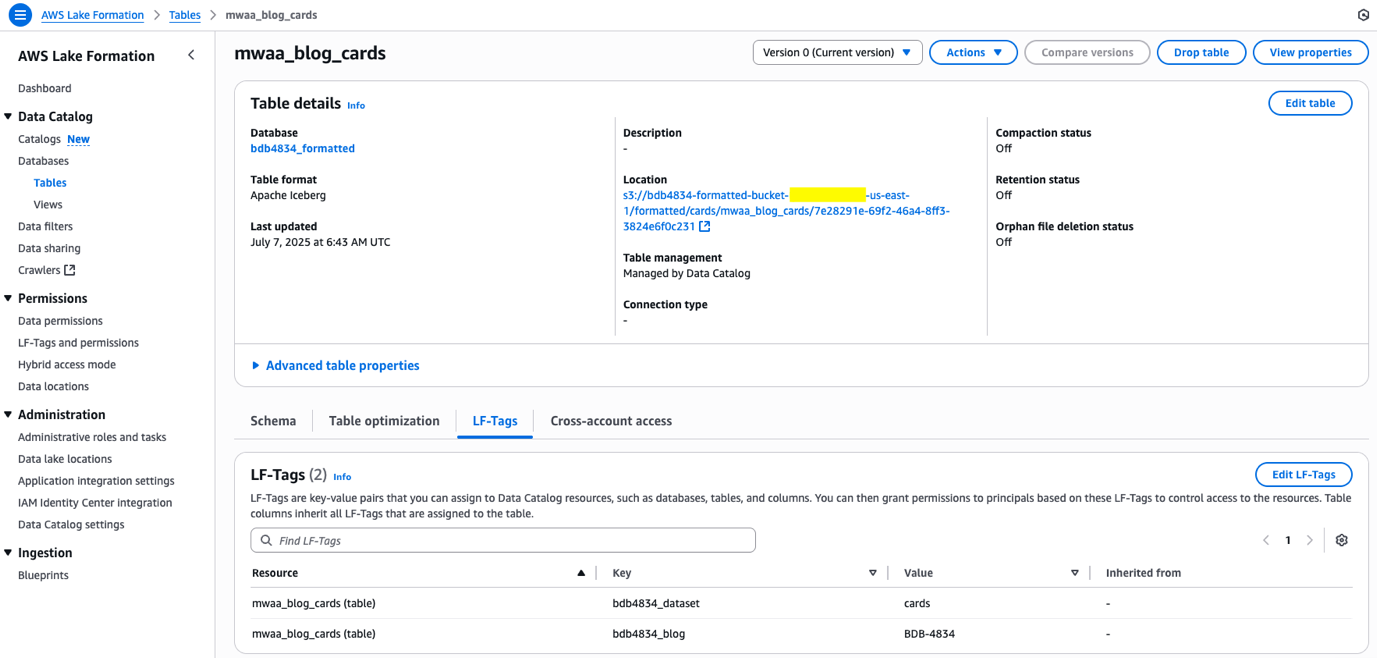
bdb4834-mwaa-bucket-<<ACCOUNT_NO>>-<<REGION>>/lakeformation/) in S3, thelf_tags_automationlambda is triggered to create LF tags if they don’t exist and then it assigns those tags to the IAM role ARN and also grants permission to the IAM role ARN usingnamed_data_catalogas defined.To verify the permissions, go to the Lake Formation console and choose Tables under Data Catalog and search for the table name.

To check LF-Tags, choose the table name and under the LF tags section, all the tags are found attached to this table.
This metadata file used as a structured input to an AWS Lambda function automates the following to perform automated, consistent, and scalable data access governance across the AWS Lake Formation environments:
- Granting AWS Lake Formation (LF) permissions on Glue Data Catalog resources (like databases and tables).
- Creating Lake Formation Tags and Applying Lake Formation tags (LF-Tags) for tag-based access control (TBAC).
Explore more on dbt
Now that the deployment includes a bdb4834-published S3 bucket and a published Catalog database, robust dbt models can be built for data transformation and curation.
Here’s how to implement a complete dbt workflow:
- Start by developing models that follow this pattern:
- Read from the formatted tables in the staging area
- Apply business logic, joins, and aggregations
- Write clean, analysis-ready data to the published schema
- Tagging for automation: Use consistent dbt tags to enable automatic DAG generation. These tags trigger MWAA orchestration to automatically include new models in the execution pipeline.
- Adding new models: When working with new datasets, refer to existing models for guidance. Apply appropriate LF tags for data access control. The new LF tags can also now be used for permissions.
- Enable DAG execution: For new datasets, update the MWAA metadata file to include a new JSON entry. This step is necessary to generate a DAG that executes the new dbt models.
This approach ensures the dbt implementation scales systematically while maintaining automated orchestration and proper data governance.
Clean up
1. Open the S3 console and delete all objects from below buckets:
- bdb4834-raw-bucket-<aws-account-id>-<region>
- bdb4834-formatted -bucket-<aws-account-id>-<region>
- bdb4834-mwaa-bucket-<aws-account-id>-<region>
- bdb4834-published-bucket-<aws-account-id>-<region>
To delete all objects, choose the bucket name, select all objects and choose Delete.
After that, type ‘permanently delete’ in the text box and choose Delete Objects.
Do this for all three buckets mentioned above.
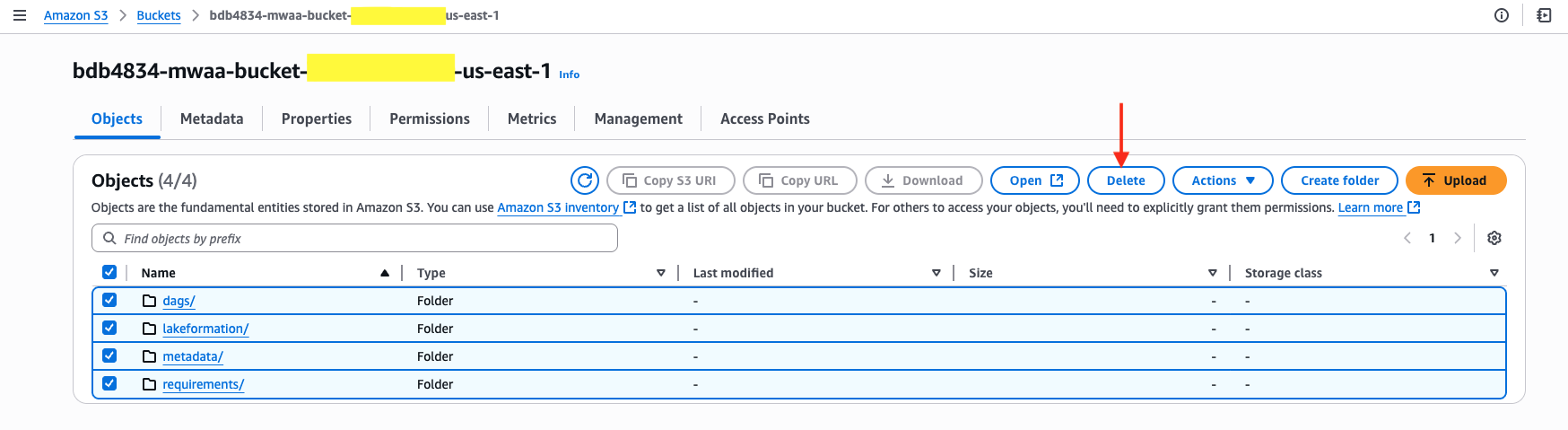
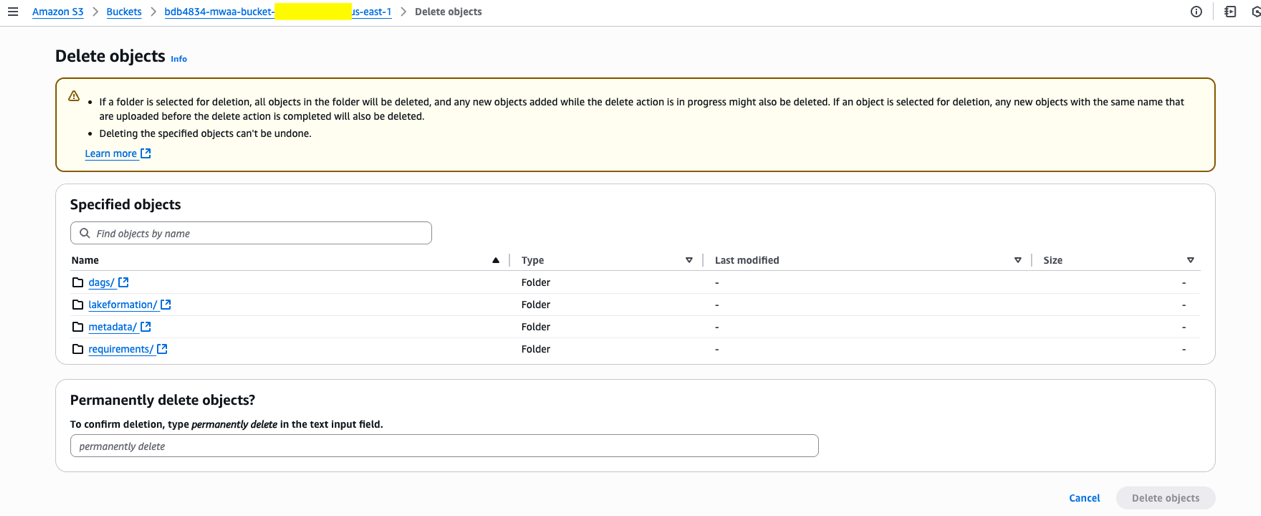
2. Go to the AWS Cloudformation console, choose you’re the stack name and select Delete. It may take approximately 40 mins for the deletion to complete.
Recommendations
When using dbt with MWAA, some typical challenges include worker resource exhaustion, dependency management issues, and in some rare cases, issues like DAGs disappearing and re-appearing when there are a large number of dynamic DAGs being created from a single python script.
To mitigate these issues, follow these best practices:
1. Scale the MWAA environment appropriately by upgrading the environment class as required.
2. Use custom requirements.txt and proper dbt adapter configuration to ensure consistent environments.
3. Set airflow configuration parameters to tune the performance of MWAA.
Conclusion
In this post, we explored the end-to-end setup of a governed data lake using MWAA and dbt which improved data quality, security, and compliance, leading to better decision-making and increased operational efficiency. We also covered how to build custom dbt frameworks for auditing and data quality, automate Lake Formation access control, and dynamically generate MWAA DAGs based on dbt tags. These capabilities enable a scalable, secure, and automated data lake architecture, streamlining data governance and orchestration.
For further exploring, refer to From data lakes to insights: dbt adapter for Amazon Athena now supported in dbt Cloud