AWS Big Data Blog
Implement least-privilege access with designations in Amazon SageMaker Unified Studio
When teams move data and AI work to production in a shared environment, one question quickly becomes unavoidable: who can do what? Amazon SageMaker Unified Studio now answers it with designations, which are named permission sets that give administrators granular control over the actions each member can perform within a project. Administrators define a designation once, then assign it to project members. A member might sign in through an AWS Identity and Access Management (IAM) role, an IAM user, or an AWS IAM Identity Center user or group. In each case, designations help you give each persona only the access its responsibilities require. Effective access also depends on identity and resource policies, service control policies, permissions boundaries, group memberships, and how the customer configures permission sets and assignments. Designations integrate with AWS CloudFormation, and there is no additional charge to use them beyond Amazon SageMaker Unified Studio itself.
In this post, we walk through why differentiated permissions matter, how designations work, and how to create and assign your first designation using the console and the AWS Command Line Interface (AWS CLI).
The challenge: One project, many roles
A single SageMaker Unified Studio project often brings together data engineers, data stewards, analysts, and machine learning (ML) engineers, each needing very different access. Consider a financial services team running its Lakehouse and ML workflows in one project. Engineers build and schedule extract, transform, and load (ETL) pipelines, and a steward approves subscription requests to keep sensitive data governed. Analysts query curated tables for dashboards, and ML engineers iterate on models in notebooks. They all work on the same data, but their access needs differ. The steward shouldn’t alter production pipelines, analysts shouldn’t launch expensive compute, and the scheduled ETL service account shouldn’t share permissions with someone running exploratory experiments. In the past, common approaches included giving everyone the same broad project role or splitting the work across separate projects.
“We automated everything about how teams get set up in SageMaker Unified Studio. Projects are created, members are synced from our directory daily, and data sources are registered without anyone clicking a button. The one thing we couldn’t automate was controlling what each person could do once they were inside. Solution teams, data scientists, and business analysts all arrived with the same access. With designations, we now define each user type’s permissions as part of the same automation that creates the project, so the right access is enforced from day one.”
— Tim Kopacz, Cloud Platform Architect, Swiss Life Germany
Without a purpose-built mechanism to scope permissions within a project, organizations face operational risk. A user might accidentally delete a connection that disrupts a production workload or modify catalog settings outside their area of responsibility. Teams often work around this by creating a separate project for each persona to isolate access. That approach fragments data across project boundaries and adds provisioning and member-management overhead. As more teams onboard, these workarounds compound to slow adoption and increase the governance burden.
Designations address several common scenarios:
- Controlling access to Notebooks: Grant members full access, read-only access, or no access to notebooks within a project, so compute-intensive interactive work is available only to the roles responsible for it. This helps control costs by limiting who can run notebook workloads.
- Separating exploration from production: Grant exploratory users read and explore access while production service accounts run scheduled workflows, all within the same project.
- Supporting governance workflows: Assign specific personas responsibility for data stewardship, subscription approval, and metadata management, which helps prevent other members from bypassing your review process.
How designations work
Designations separate policy definition from member assignment, which is what makes them reusable across projects.
- Define once: A domain administrator creates a designation by selecting granular permissions. For example, publish an asset, create data products, or approve subscriptions. Permissions are grouped into categories such as Catalog, Project, Subscriptions, Connections, and Notebooks, and are backed by the Cedar policy language.
- Assign per project: Within a project, the project owner assigns one designation to each member. When a member performs an action through the portal or the API, SageMaker Unified Studio evaluates the assigned designation. It permits or denies the action based on the permissions the designation contains. Additionally, a member can also inherit designations through single sign-on (SSO) group membership. If a user is directly assigned one designation and also belongs to a group assigned to another, the user receives the union of both permission sets. Because effective permissions are the union of direct and group-inherited designations, review SSO group assignments regularly so members don’t receive more access than intended.
Because a designation is defined once and assigned per project, you get consistent permissions across every project without recreating policies each time. Data engineers, stewards, analysts, and automated pipelines can work within the same project with different permissions, which keeps data unified in one place rather than fragmented across duplicate projects.
Designations complement your existing IAM controls rather than replace them, and they provide one consistent authorization layer across every user type that SageMaker Unified Studio supports. This matters because SageMaker Unified Studio supports IAM roles, IAM users, SSO users, and SSO groups. You can’t attach IAM policies directly to SSO users or groups within SageMaker Unified Studio. Designations apply uniformly to all of these principals, so every user type is governed by the same permission model within a project.
Authorization happens in two layers. First, IAM evaluates whether a principal can invoke an API at the AWS API boundary. If IAM allows the call, the designation then evaluates whether the assigned permission set grants the specific action within the project. You don’t need to modify your existing IAM policies to adopt designations, but we still recommend that you continue to scope IAM roles to least privilege.
For example, the AmazonSageMakerDomainExecution role might hold the IAM permission to perform an API action such as datazone:CreateListingChangeSet, the permission to publish a data asset. The next layer is the designation: the action succeeds only if the project member’s designation includes the Manage Asset Publishing permission to publish assets in that project. Both layers must allow the action, and an IAM Deny blocks the call regardless of what the designation permits.
The following diagram shows how a project member’s request to publish a data set passes through both authorization layers.
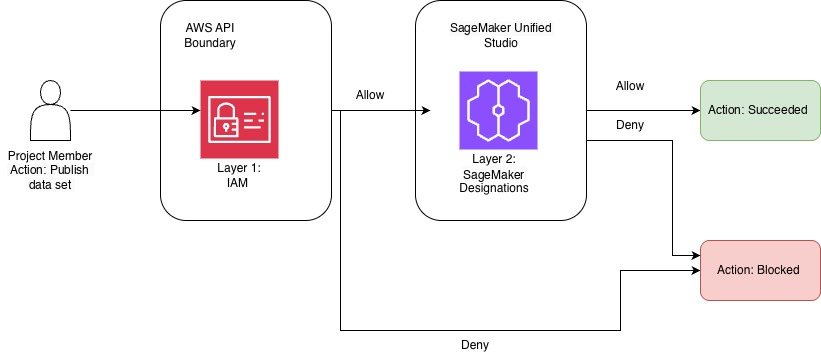
Figure 1: How a request to publish a data set passes through the IAM and designation authorization layers
The request first reaches the AWS API boundary, where IAM (layer 1) evaluates whether the principal can call the API. If IAM denies the call, the action is blocked. If IAM allows it, SageMaker Unified Studio (layer 2) evaluates the member’s designation. The action succeeds only when the designation also allows it. Otherwise, the action is blocked.
Managed designations
Every domain includes two AWS managed designations at the project level so you can start immediately:
- Owner – Full control over all project resources, including project member management.
- Contributor – Full access except for project member management and project deletion. Because Contributor is broad, we recommend custom designations for personas that don’t need full access.
You can view the permissions for these managed designations, but you can’t edit or delete them. To create your own permission sets, you build custom designations for the personas your organization needs.
Create a designation on the console
Designations are created and managed from the domain management portal. Only users whose profile is a domain administrator can access it. The domain management portal is separate from the Amazon SageMaker Unified Studio portal where members do their day-to-day work. In this example, we create an ML Engineer designation for members who build workloads through notebooks.
- Sign in to the SageMaker Unified Studio domain management portal.
- In the navigation pane, choose Designations. The Managed tab shows the AWS managed Owner and Contributor designations.
- Choose Create designation.
- For Name, enter
ML Engineer, and add a Description. - In the visual permission selector, expand the Notebook category and select only the permissions this persona requires, for example, Read-only actions for reviewers, or All Actions only for members who author notebooks.
- Choose Create.
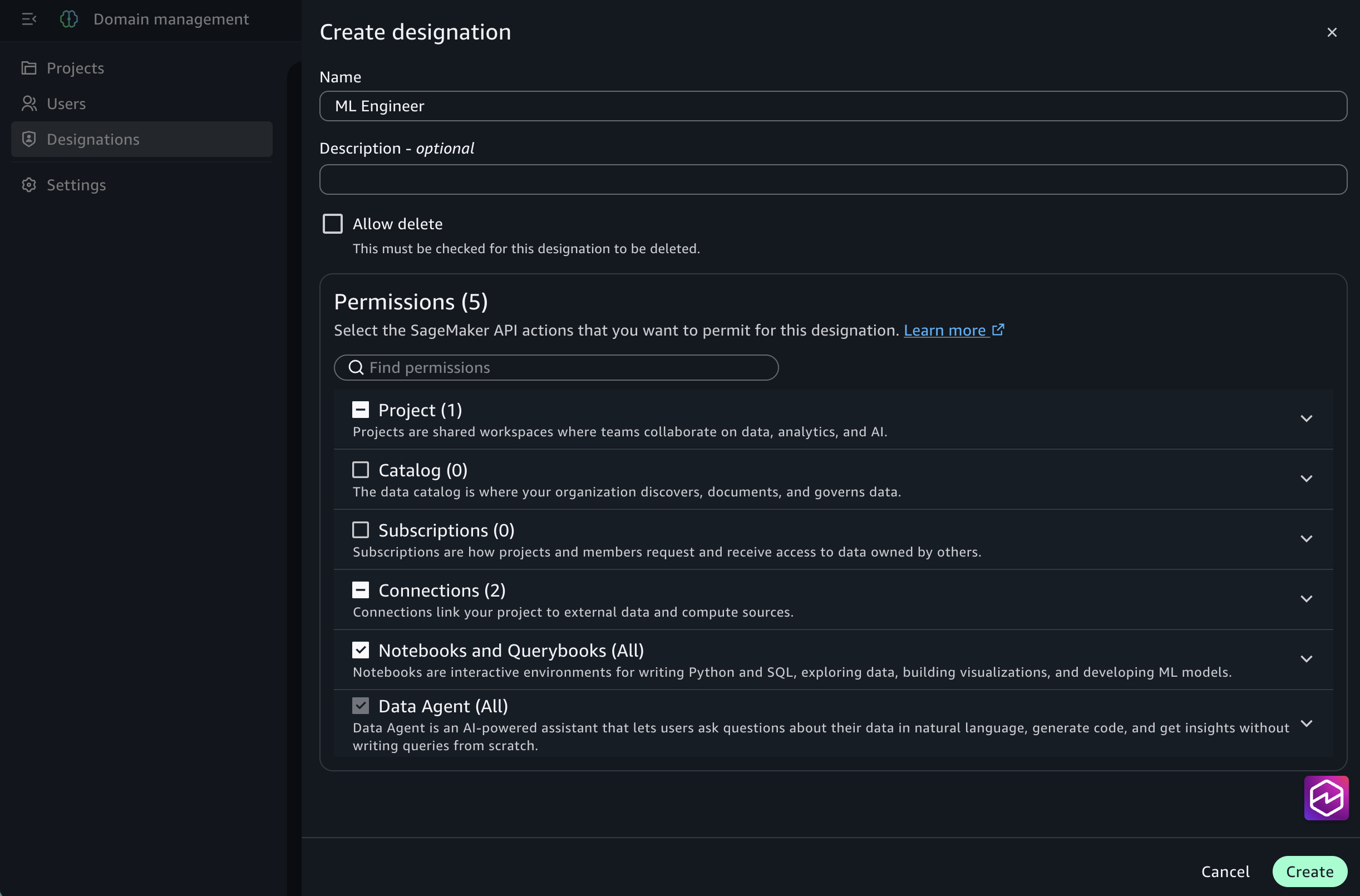
Figure 2: Creating a designation in the Amazon SageMaker Unified Studio domain management portal, using the visual permission selector to choose the actions to include
The ML Engineer designation is now available to every project in the domain. You can also create a designation by duplicating an existing one, which pre-selects a set of permissions for you to customize. Review the pre-selected permissions and remove any that the new persona doesn’t need.
Assign a designation to a project member
After creation, a designation is available to every project in the domain. You can assign it from two places, depending on your domain type.
From the SageMaker Unified Studio portal (Identity Center-based domains), assign the designation from a project where you are an owner, or if your designation has the Manage Membership permission. Grant Manage Membership only to trusted project members. A member who has the Manage Membership permission can assign designations with more permissions than their own.
- Navigate to the project in the SageMaker Unified Studio portal.
- Choose the Members tab.
- To update an existing member, choose a designation from the Designation column for that user. To add a new member, choose Add member and select the member.
- For Designation, choose ML Engineer.
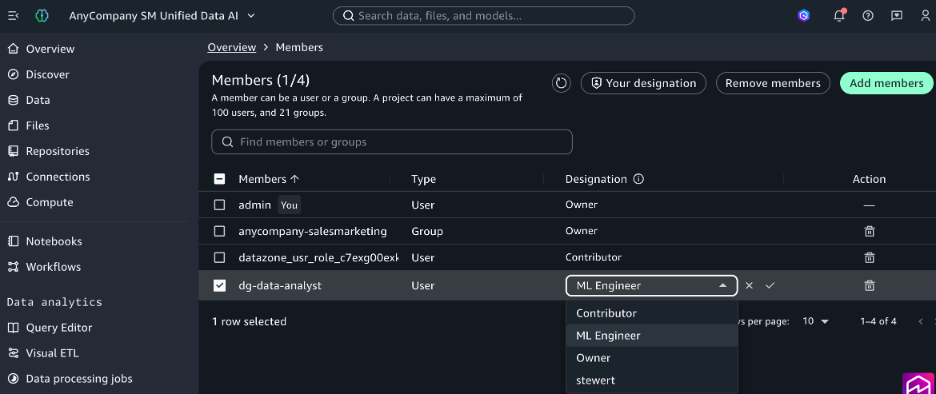
Figure 3: Assigning a designation to a project member from the Amazon SageMaker Unified Studio portal (Identity Center-based domains) using the Role list on the Members tab
From the domain management portal (both IAM and Identity Center-based domains):
- Sign in to the domain management portal and choose Projects in the navigation pane.
- Select the project, then choose the Members tab.
- To update an existing member, choose a designation from the Project designation column. To add a new member, choose Add members and select the type and member.
- For Designation, choose the designation to assign, then choose Save.
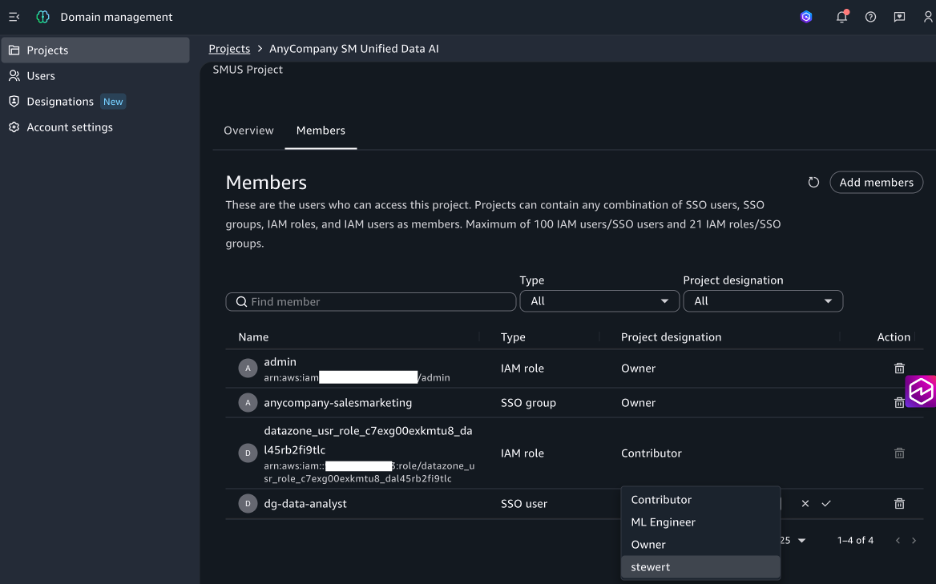
Figure 4: Assigning a designation from the domain management portal (both IAM and Identity Center-based domains) using the Project designation column on the Members tab
When the assigned user logs in to the project, they are permitted to create notebooks. Every project member is assigned a designation. Members without a valid designation have no permissions in the project.
Automate the full lifecycle with the AWS CLI and infrastructure as code (IaC)
You can manage the entire lifecycle, from creating a designation to assigning it, programmatically. This is useful for codifying governance and rolling it out at scale.
Prerequisites:
The IAM principal that runs these commands needs permissions (scoped to the domain) such as datazone:CreateDesignation, datazone:UpdateDesignation, and datazone:DeleteDesignation to manage designations. They need datazone:CreateProjectMembership to assign the designation to project members. Grant only the actions you need.
Create a designation with the AWS CLI:
Assign the designation when you add a member to a project:
Because designations are supported as resources in AWS CloudFormation, you can define them in your templates, version them in source control, and deploy them across domains through your existing infrastructure-as-code pipelines. You can also manage assignments with the CreateProjectMembership and UpdateProjectMembership API operations, so the full workflow can be automated without using the console.
Update designations as your needs evolve
When you update a designation’s permissions, the change takes effect immediately for all members assigned that designation across all projects, with no reassignment required. This means you can start with the minimum permissions each persona needs, and add permissions as requirements or new capabilities emerge. Because updates apply immediately across all projects, review designation changes through your change-management process and use AWS CloudTrail to audit them.
Delete a designation
Designations include an Allow delete property that is turned off by default, so a designation can’t be deleted until you explicitly allow it. When you create or edit a designation, set Allow delete to make the designation eligible for deletion. Once allowed, you can delete the designation even if project members are still assigned to it.
When you delete a designation that is still in use, those members remain in the project, but their assigned designation becomes invalid. They have no permissions in the project until the project owner reassigns them a valid designation. Plan deletions accordingly so members are not left without access.
You can also set this property programmatically. The CreateDesignation API and AWS CLI accept a deletion protection parameter, so you can codify the setting in your infrastructure as code templates.
To create the designation without delete protection, use the --no-deletion-protection flag.
Conclusion
Designations give administrators control over who can do what within each Amazon SageMaker Unified Studio project. Define named permission sets once and assign them per project to help enforce separation of duties across data engineers, stewards, analysts, ML engineers, and automated pipelines. You don’t need to duplicate projects or build a permission system outside SageMaker Unified Studio. Designations require no additional infrastructure or cost, integrate with AWS CloudFormation, and layer cleanly on top of your existing IAM controls.
To get started, open the domain management portal for your Amazon SageMaker Unified Studio domain, choose Designations, and create your first permission set. To learn more, see the Amazon SageMaker Unified Studio documentation.