AWS Big Data Blog
Introducing Apache Spark troubleshooting agent for Amazon EMR on EKS
Debugging a failed Apache Spark application on Amazon EMR on EKS often means correlating signals from several places at once. These signals include Spark driver and executor pod logs, Spark event logs, and container termination signals that surface as pod exit codes rather than clear Spark errors. For example, a single out-of-memory failure can appear as a Kubernetes exit code 137 with no obvious link back to the line of code or configuration that caused it. This cross-system investigation can extend a single incident’s mean-time-to-resolution (MTTR) to days and requires deep Spark and Kubernetes expertise.
We recently announced Amazon EMR on EKS now supports Apache Spark troubleshooting agent extending the Apache Spark troubleshooting agent to support Amazon EMR on EKS. The agent already helps data engineers diagnose Spark failures on Amazon EMR on EC2, Amazon EMR Serverless, and AWS Glue using natural language prompts. With this launch, you can now point the same workflow at a failed Amazon EMR on EKS job run. From a single natural language prompt, the agent automatically retrieves your Spark logs from Amazon Simple Storage Service (Amazon S3) or Amazon CloudWatch (depending on your job’s logging configuration) along with Spark History Server Event log data, identifies the root cause, and recommends a fix when the failure is code-related. This can help reduce incident MTTR from days to minutes. Amazon EMR on EKS customers can use the agent at no additional cost. You only pay for your existing Amazon EMR on EKS resources.
In this post, we show you how to set up the agent for Amazon EMR on EKS and walk through troubleshooting a failed job run. We demonstrate the workflow from both the Amazon EMR console and an AI assistant that supports the Model Context Protocol (MCP), an open standard for connecting AI assistants to external tools and data.
How the troubleshooting agent works on Amazon EMR on EKS
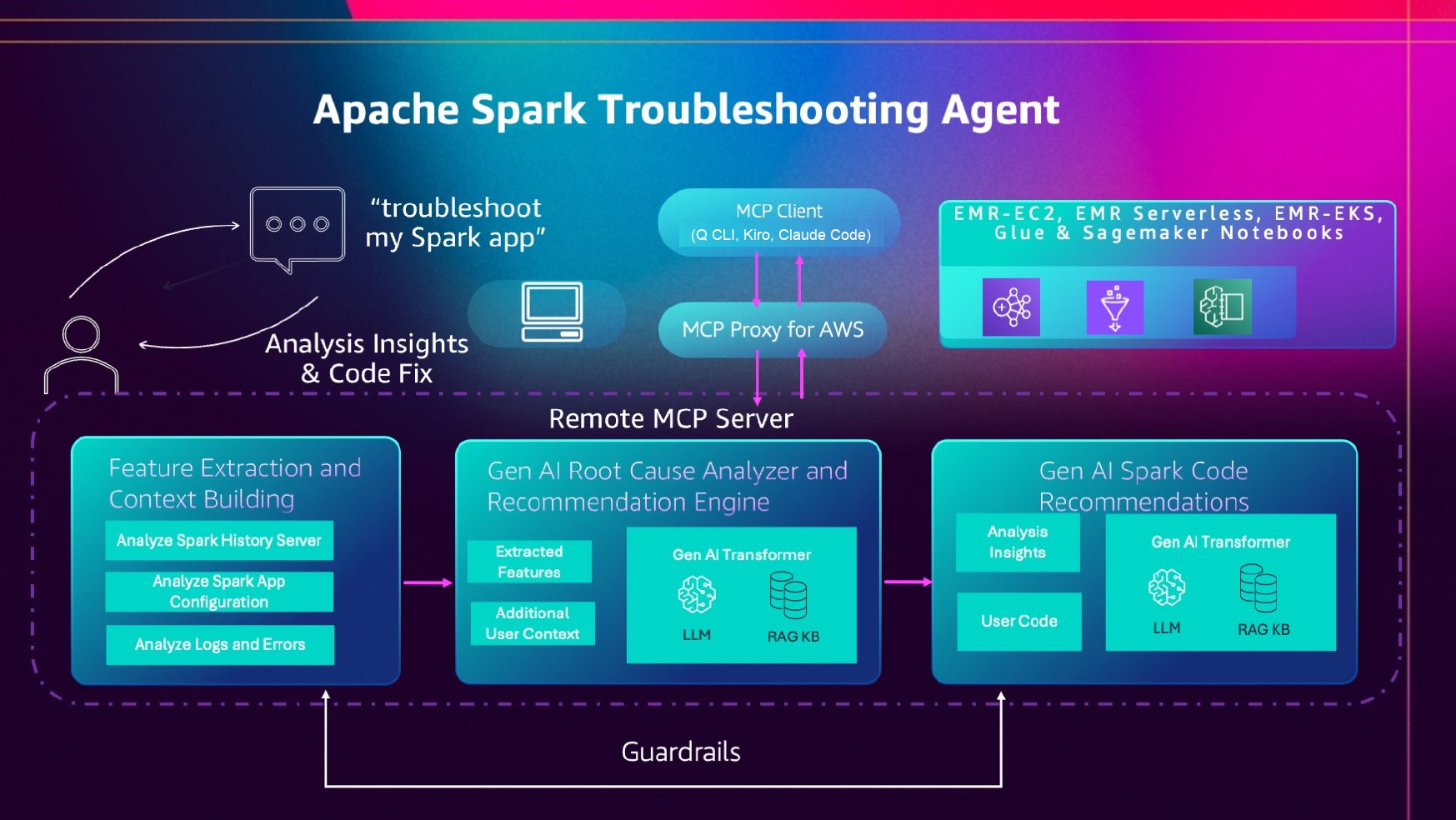
The troubleshooting agent exposes a single interface to diagnose failed Spark applications across Amazon EMR on EKS, Amazon EMR on EC2, Amazon EMR Serverless, AWS Glue, and Amazon SageMaker notebooks. Instead of navigating different consoles, APIs, and log locations for each service, you describe your failed job in natural language, and the agent handles the rest. You can reach the agent from the Amazon EMR console or from MCP-compatible AI assistants, such as Kiro CLI, Kiro IDE, or Claude Code. We walk through both later in this post.
The troubleshooting agent runs as a fully managed MCP server, so you do not need to deploy or maintain a local MCP server. It uses a single-tenant design to keep your application data and code isolated. Operations are read-only and governed by AWS Identity and Access Management (IAM) permissions. The agent can only access the resources and actions your IAM role grants. Tool calls are automatically logged to AWS CloudTrail for complete auditability.
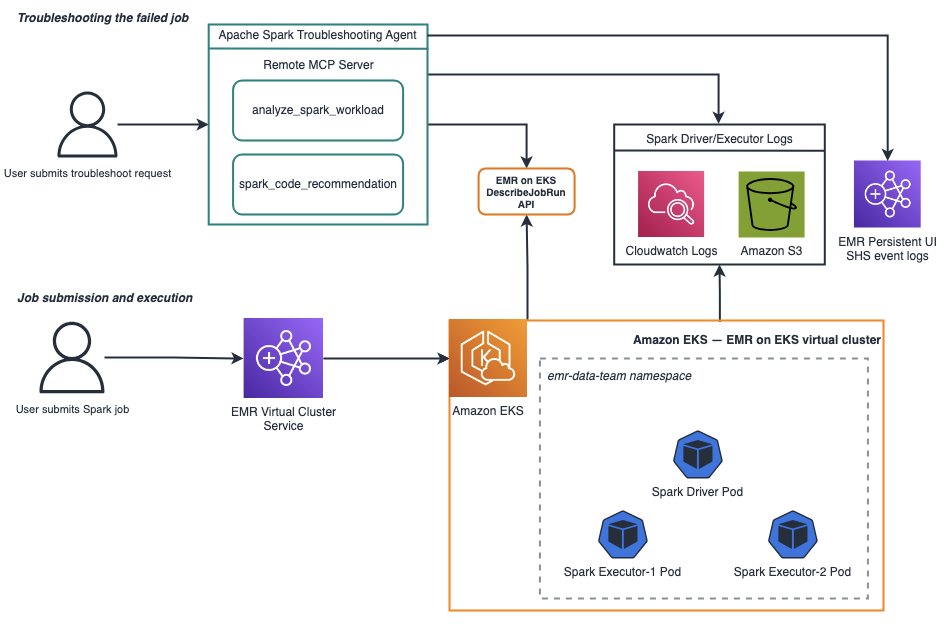
What’s specific to Amazon EMR on EKS is how the agent gathers its inputs. On Amazon EMR on EKS, your Spark driver and executor logs can be delivered to Amazon S3, Amazon CloudWatch Logs, or both, depending on your job’s monitoring configuration. The agent handles both sources automatically:
- Driver and executor pod logs in Amazon S3 – When your job is configured with S3 monitoring, the agent reads the Spark event logs and the per-container
stderr/stdoutlogs from your S3 log location, including discovering executor pod logs. - Driver and executor container logs in Amazon CloudWatch – When your job is configured with CloudWatch monitoring, the agent reads the driver and executor container log streams directly from your CloudWatch log group.
- Spark History Server (SHS) data through the Amazon EMR Persistent UI – For the richer SHS signals (query plans, executor timelines, stage metrics, and configurations), the agent connects to the Amazon EMR Persistent UI for your job run, the same mechanism used for Amazon EMR on EC2.
Drawing on years of AWS experience running millions of Spark applications at scale, the agent extracts the relevant features and signals from these sources, work that would otherwise require manual correlation across Amazon S3, Amazon CloudWatch, and the Spark UI. It then uses a large language model on Amazon Bedrock, grounded in a managed knowledge base of Spark and AWS troubleshooting expertise through Retrieval Augmented Generation (RAG), to produce a root cause analysis and, when the failure is code-related, a code recommendation.
The large language model (LLM), the knowledge base, and the retrieval that connects them are fully managed as part of the agent. There’s nothing for you to provision, host, or tune. This managed inference is provided at no additional cost for Amazon EMR on EKS. You pay only for the AWS resources you already use to run your Spark applications and to validate recommended changes.
Getting started
You can use the agent from either the Amazon EMR console or an MCP client. Both rely on setting up a single IAM role. The following sections walk through creating that role and then troubleshooting a failed job run with each method.
Set up IAM permissions
The IAM role grants the agent read access to the diagnostic sources it analyzes, such as your Amazon EMR on EKS job runs, the Amazon EMR Persistent UI, and your Spark logs in Amazon S3 and Amazon CloudWatch. Creating this role is the only setup required for the console experience. The MCP client path has a few additional prerequisites, covered later in the section on troubleshooting from an MCP client.
To run the commands in this section, you need the AWS Command Line Interface (AWS CLI) (version 2.30.0 or later) installed and configured with your AWS credentials. For instructions, see Setting up the AWS CLI.
Step 1: Create the IAM role
The agent uses your IAM role to authorize operations at the AWS service level. It can only access what your role allows. Create a role your account can assume, then attach a policy granting the permissions the agent needs for Amazon EMR on EKS.
First, set some variables for the commands that follow. ACCOUNT_ID is derived from your configured credentials. Set REGION to the AWS Region where you run your Amazon EMR on EKS workloads:
Create a trust policy that allows your account to assume the role, and create the role:
Step 2: Attach Amazon EMR on EKS permissions
Create and attach a policy granting the agent read access to your Amazon EMR on EKS job runs, the Amazon EMR Persistent UI, and your S3 and CloudWatch logs. Replace amzn-s3-demo-logging-bucket with the name of your logging bucket and replace my_log_group_name and my_log_stream_prefix with your CloudWatch log group name and log stream prefix, respectively.
Note: If you prefer an automated setup, an AWS CloudFormation template that creates this role with the required permissions is available in the setup documentation. The previous CLI steps give you the same result with finer control over each permission.
Troubleshooting a failed Amazon EMR on EKS job run
You can reach the troubleshooting agent two ways: directly from the Amazon EMR console, or from an MCP-compatible AI assistant such as Claude Code. We walk through both, using two different failures to show the range of what the agent diagnoses.
Option 1: Troubleshoot from the Amazon EMR console
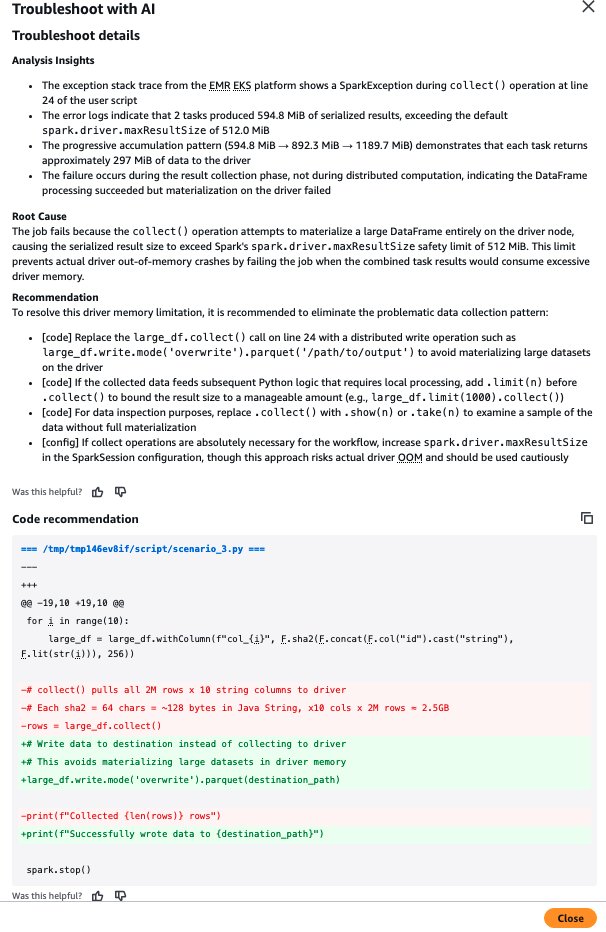
The console offers the fastest path. Once you’ve created the IAM role in the Set up IAM permissions section, no additional setup is required. Here we troubleshoot a job that failed with a driver out-of-memory error. The application generates a large dataset and calls collect() to pull it back to the driver, exceeding the configured spark.driver.maxResultSize of 512 MiB.
- Open the Amazon EMR console, choose Virtual clusters (under Amazon EMR on EKS), and select the virtual cluster that ran your job.
- In the Jobs list, find your failed job run and choose its Failed status. This opens a popover with a Troubleshoot with AI button.
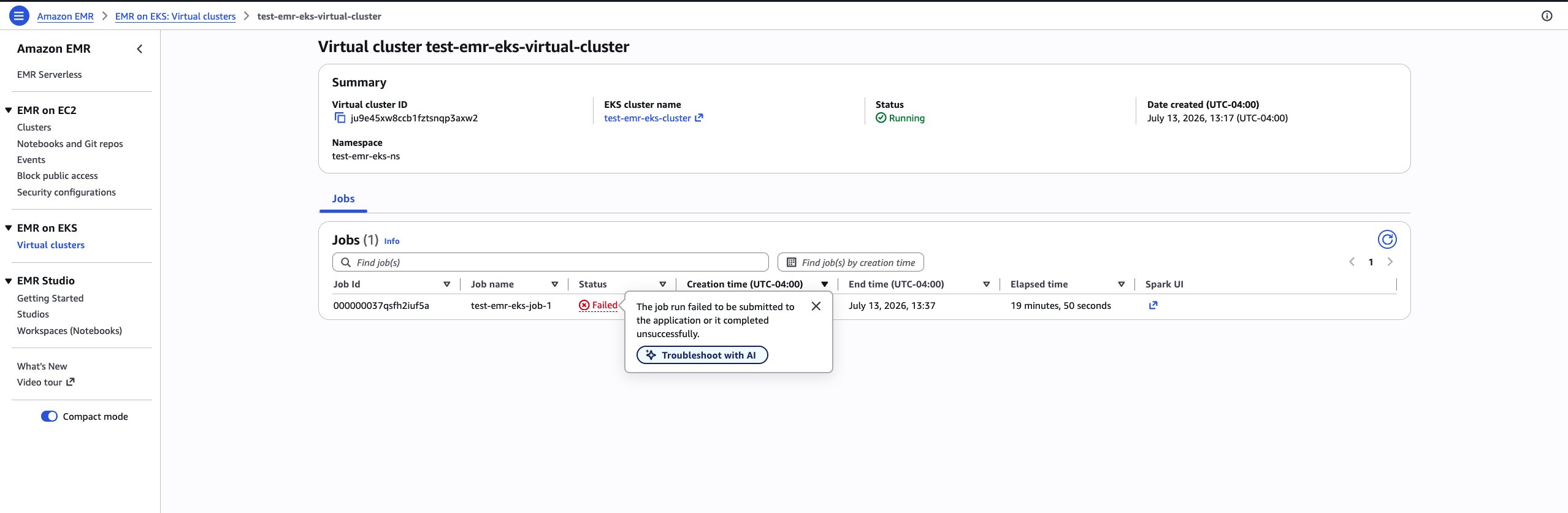
- Choose Troubleshoot with AI. The agent analyzes the job and returns its findings directly on the console, namely the analysis insights, a root cause, and a recommendation. For this job, it identifies that the
collect()operation on line 24 attempts to materialize the full result set on the driver, exceeding thespark.driver.maxResultSizesafety limit. This fails the job before an actual driver out-of-memory crash. Because the failure stems from the application code, the agent also returns a code recommendation: a before-and-after diff that replaces thecollect()call with a distributed write to the destination path. Executors then persist their partitions in parallel instead of funneling the data through the driver.
Option 2: Troubleshoot from an MCP client (Claude Code)
You can also use the agent from MCP-compatible AI assistants. This option requires a one-time setup to connect the assistant to the agent’s MCP servers, and it unlocks a conversational workflow where the agent chains from analysis into a concrete code fix. In this walkthrough, we use Claude Code.
Prerequisites
In addition to the IAM role from the Set up IAM permissions section, the MCP client path requires:
- Python 3.10 or higher.
- The
uvpackage manager. For instructions, see Installing uv. - Claude Code installed. For instructions, see Install Claude Code. You can also use another MCP-compatible AI assistant such as Kiro CLI or Kiro IDE.
Configure an AWS CLI profile
Configure a profile that assumes the IAM role you created, so the MCP servers call AWS with the agent’s permissions:
Add the MCP servers
The troubleshooting agent provides two tools through two MCP servers: analyze_spark_workload (workload analysis and root cause) and spark_code_recommendation (code fixes). Add both to your assistant.
For Claude Code:
Verify your setup by running the /mcp command in Claude Code to confirm the sagemaker-unified-studio-mcp-troubleshooting and sagemaker-unified-studio-mcp-code-rec servers are connected and their tools are available.
For Kiro CLI:
Verify with the /tools command in Kiro CLI to confirm the analyze_spark_workload and spark_code_recommendation tools are available.
Run the agent
For this walkthrough, we troubleshoot a different failure to show how the agent chains from analysis into a concrete code fix. The job is a small PySpark application that reads a CSV file into a DataFrame and registers it as a temporary view named people. It runs a Spark SQL query to uppercase the Name column before displaying the results. The job run failed because the query calls UPPERX, a function that doesn’t exist in Spark SQL (it’s a typo for the built-in UPPER).
From the Claude Code terminal (or MCP-compatible assistants), describe your failed job run in natural language, providing the virtual cluster ID and job run ID:
The agent invokes the analyze_spark_workload tool, which automatically:
- Calls the Amazon EMR on EKS API to retrieve your job run’s configuration and determine where its logs are stored.
- Retrieves your Spark logs from Amazon S3 or Amazon CloudWatch, depending on your job’s logging configuration.
- Connects to the Amazon EMR Persistent UI to extract Spark UI features such as the execution plan, stage metrics, and executor timelines.
- Analyzes the correlated signals and returns a root cause explanation.
For this job, the agent returns:
Root cause: SQL function error. Your Spark SQL query references a function UPPERX that doesn’t exist in an available function catalog (system.builtin, system.session, or spark_catalog.default). Category: SQL_ERROR. The job failed because the function name can’t be resolved. UPPERX is almost certainly a typo for the built-in UPPER function.
Because the failure is code-related, the agent then chains into the spark_code_recommendation tool, which produces a concrete before-and-after fix:
The two tools work together. analyze_spark_workload identifies the root cause, and when the failure stems from the application code, spark_code_recommendation returns the exact edit to make. You review the recommendation and apply it with full control over the change. The agent only provides the analysis and recommendations.
Supported failure categories
The troubleshooting agent diagnoses a wide range of Apache Spark failures on Amazon EMR on EKS, including:
- Out-of-memory and resource exhaustion – Driver and executor out-of-memory errors, including driver-side failures from operations like
collect()and executor terminations that surface as Kubernetes pod exit codes (such as exit code 137). - Data skew and shuffle issues – Uneven partitioning and shuffle failures that concentrate work on a few executors.
- Configuration errors – Misconfigured Spark settings that lead to failures or inefficiency.
- Code-level issues – Problems such as incorrect API usage, unbounded
collect()calls, and user-defined function (UDF) errors, for which the agent can recommend code fixes.
Code recommendations are supported for PySpark workloads on Amazon EMR on EKS, Amazon EMR on EC2, Amazon EMR Serverless, and AWS Glue.
Conclusion
With support for Amazon EMR on EKS, the Apache Spark troubleshooting agent gives platform and data engineering teams a shared workflow for investigating failed Spark applications. By bringing together Spark and Kubernetes diagnostic signals, the agent can reduce manual investigation and repeated handoffs between teams, helping engineers identify likely causes and corrective actions faster.
There’s no additional charge for using the troubleshooting agent, including the large language model used through Amazon Bedrock. You pay only for the AWS resources used to run your Spark applications and validate recommended changes.
To get started:
- Follow the setup guide in the Apache Spark troubleshooting agent documentation.
- Configure the MCP servers in Kiro CLI, Kiro IDE, or Claude Code, and try troubleshooting a failed Amazon EMR on EKS job run.