AWS Contact Center
Automate Agent Schedule Tracking with Amazon Connect Customer Campaigns
Introduction
Proactive outbound campaigns can transform how Business Process Outsourcing (BPO) operations handle agent schedule tracking. Managing Contact Centre agent schedules across diverse locations, time zones, and contact center platforms is a persistent challenge. By some estimates, supervisors spend up to 20% of their time tracking schedules and sending shift reminders, while agents struggle with confusion about work hours — leading to attendance issues that affect the entire operation.In this blog post, we provide step-by-step instructions to build an automated agent schedule reminder system using Amazon Connect Customer Outbound Campaigns, including the code and configuration steps you need. This solution proactively notifies agents about upcoming shifts and follows up with those who haven’t logged in on time — reducing manual effort and improving operational efficiency.
While this post focuses on agent shift reminders, the same pattern applies to other scheduling use cases: employee clock-in reminders based on shift hours, appointment reminders, or any scenario where a system of record tracks employee schedules and login times.
Automated Schedule Management
Amazon Connect Outbound Campaigns transforms the traditional approach to schedule management by automating critical communication processes. This post explores several capabilities. Automated shift reminders deliver scheduled call notifications to agents about upcoming shifts — extensible to email and SMS — with customizable templates based on shift patterns and time zones, plus automated escalation for unconfirmed acknowledgments.
- The solution also delivers integration benefits, connecting seamlessly with existing workforce management systems for real-time schedule synchronization and automated attendance tracking and reporting. Finally, it improves supervisor efficiency by reducing manual intervention, providing real-time visibility into shift acknowledgments and potential gaps, and generating automated analytics on attendance patterns.
By implementing Amazon Connect’s outbound capabilities, organizations can reduce the share of supervisor time spent on schedule management (industry estimates put this as high as 20%, though actual figures vary by operation). The system’s ability to handle complex scheduling scenarios across multiple time zones while maintaining clear communication channels makes it an ideal solution for modern business operations.
Note: When implementing agent login time tracking, incorporate a tolerance buffer to account for practical operational considerations. For example, if an agent’s scheduled login time is 10:00 AM, determine your organization’s acceptable grace period (e.g., 10:00 AM + X minutes) and verify your implementation reflects existing organizational policies.
Before getting started, verify you have:
1. An AWS account with appropriate IAM permissions
2. An Amazon Connect instance
3. A claimed phone number for your Connect instance
4. Outbound Campaigns enabled on your Connect instance
5. Basic familiarity with AWS Lambda, Amazon S3, and Amazon AppFlow.
Solution Overview
The campaign workflow is triggered by uploading agent schedules in a CSV file to an Amazon S3 bucket. Although we’ve implemented a manual upload process for this demonstration, the solution remains flexible for automated integration in real-world applications. You can improve efficiency by automating this step through integration with your existing scheduling system, and another method enables direct API calls for a more streamlined, real-time data ingestion path. Additionally, Amazon AppFlow offers native integration with popular third-party systems and databases. This lets organizations sync customer data from sources such as Salesforce, ServiceNow, or Zendesk directly into the pipeline. Review the Amazon Connect customer profiles documentation for more details about the profile attributes.Navigate to Amazon Connect console and select your Amazon Connect Instance. Review the Instance alias, Access URL and make sure that the status is Active.

Figure 1: Amazon Connect Instance
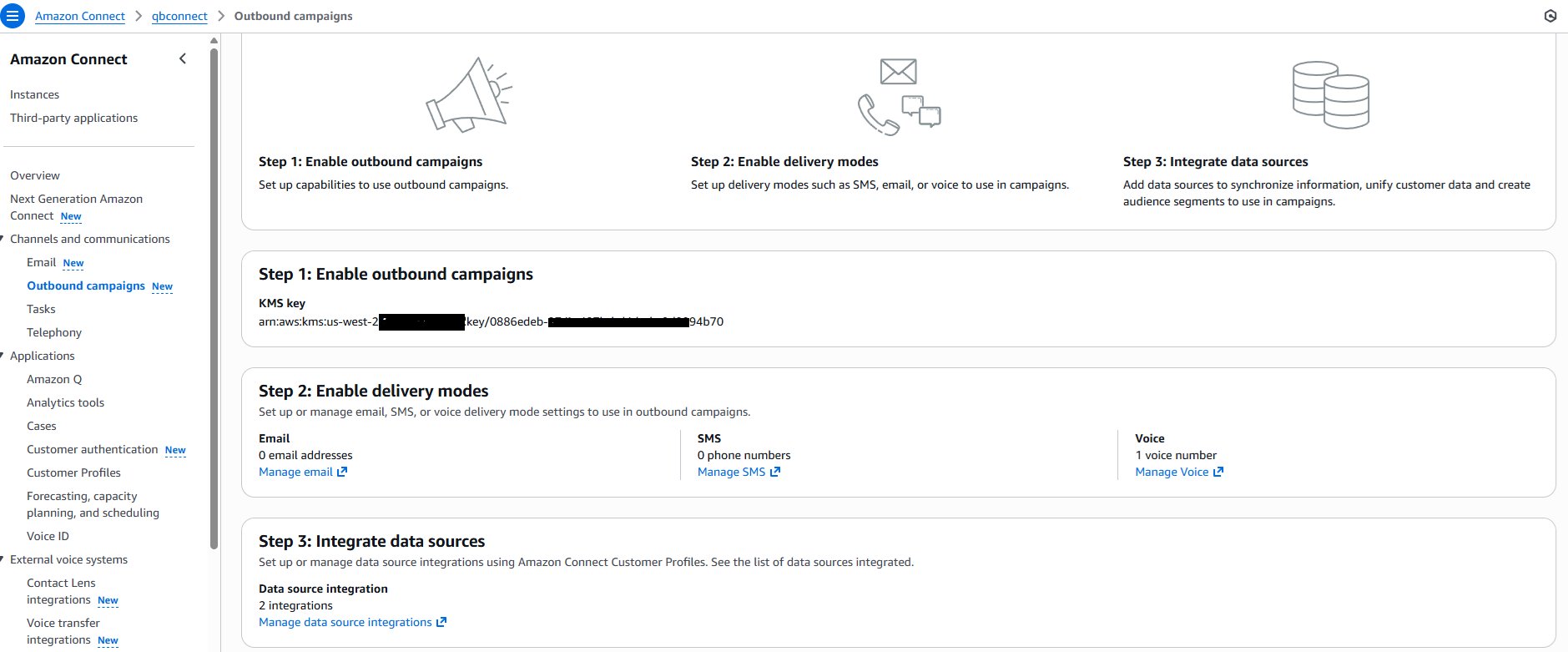
Figure 2: Outbound Campaign Page
Once you are done with the steps above. We are moving to the next phase to develop the solution. Before we do that, let’s examine the architecture diagram that this solution uses.
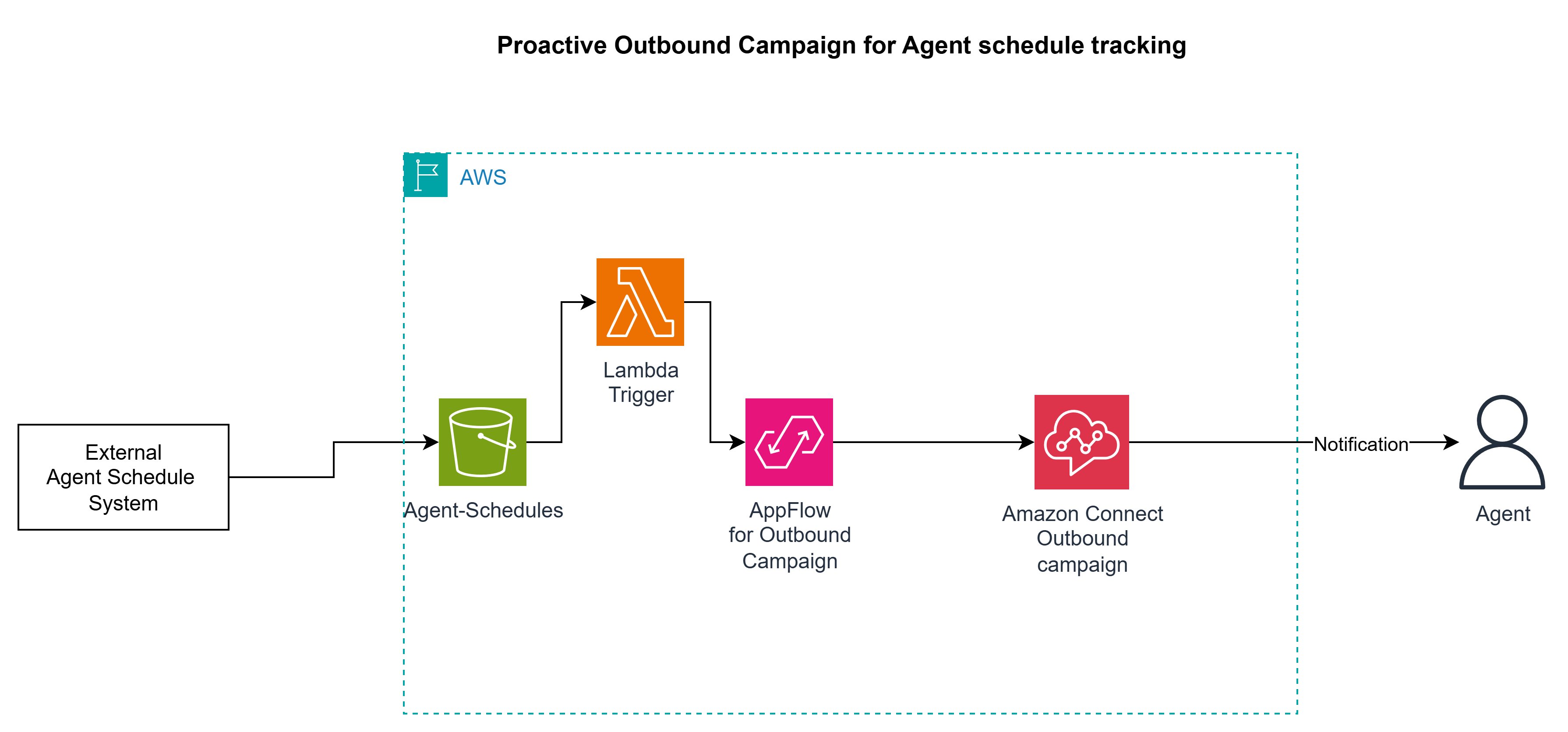
Figure 3: Solutions Architecture
This Solutions Architecture integrates various AWS services to provide a comprehensive suite of Amazon Connect Customer features and solutions, creating a robust and scalable customer experience solution.Key Components:
- Amazon Connect Outbound Campaigns: Amazon Connect outbound campaigns, allows you to proactively communicate with end customers across channels to drive deeper engagement.
- Amazon Connect customer Profile: A customer profile is a record that stores contact history combined with information about customers, such as account number, additional information, birth date, email, multiple addresses, name, and party type.
- Amazon Connect Customer Flow: A flow defines the customer experience with your contact center from start to finish
- Amazon S3 Bucket: Amazon S3 is an object storage service that offers scalability, data availability, security, and performance
- Amazon AppFlow is a fully managed, no-code AWS integration service that lets you securely transfer data between Software-as-a-Service (SaaS) applications (like Salesforce, SAP, and Slack) and AWS services (like Amazon S3 and Amazon Redshift) in just a few clicks
- AWS Lambda: Provides serverless compute capabilities for custom logic and integrations
Implementation Details
Now that you understand the AWS services this solution uses, this section walks you through the step-by-step configuration of the proactive outbound campaign solution for contact center agent schedule tracking, as follows:
- Create Amazon S3 bucket and upload “Agent schedules””:
Create an Amazon S3 bucket and upload your agent schedule CSV file. The CSV should include columns for agent contact information, scheduled shift times, and status fields.
- Configure Customer Profile Data Source Integration
- Navigate to **Customer Profiles** in your Amazon Connect instance.
- Choose **Data Source Integration**.
- Choose **Add data source integration** and follow the instructions to create and ingest customer data into Customer Profiles.
Note: The Data source integration takes few minutes to sync
- Create the Outbound Campaign
- Log in to your Amazon Connect instance Admin workspace using the Access URL <https://<your-instance-name>.my.connect.aws>
- Choose Outbound Campaigns from the left navigation and choose Create Campaign.
- Provide a name for your Campaign
- Select “Customer event” for Campaign initiation
- Select S3 for Event source
- Select the CSV file containing your agent schedule data for Event category
- Under Event attributes, add the following filter conditions so the campaign only targets agents who are scheduled and haven’t been contacted yet:
- `Ok_to_call` → is → `True`
- `CallStatus` → is → `PENDING`
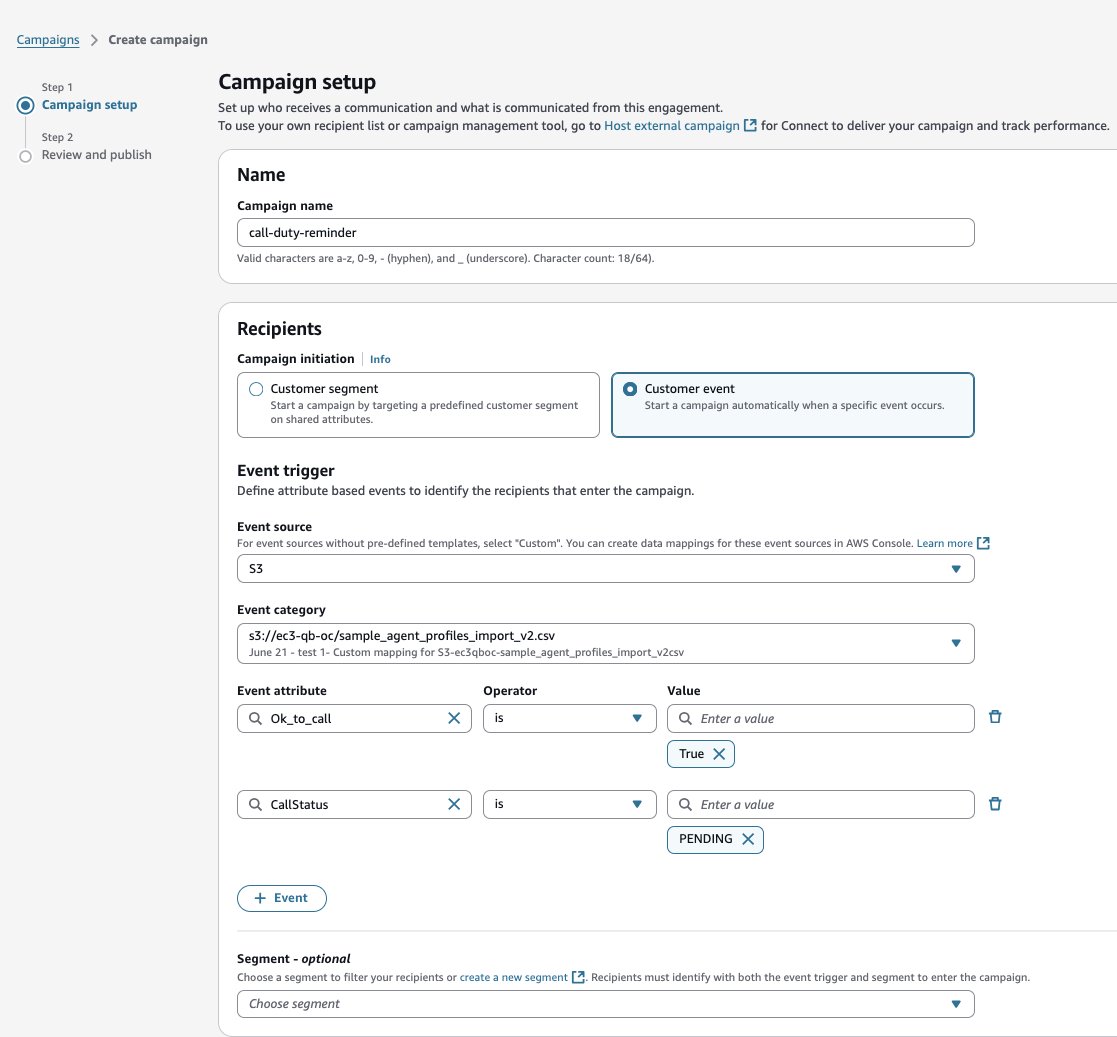
Figure 4: Outbound Campaign setup page
- Select Automated voice as the communication delivery mode
- Select a Flow and source phone number to use for making the calls.
Note: For testing, use the example Flow that is available for download: Agentless-AppointmentReminders.json
- Choose Next and publish the campaign.
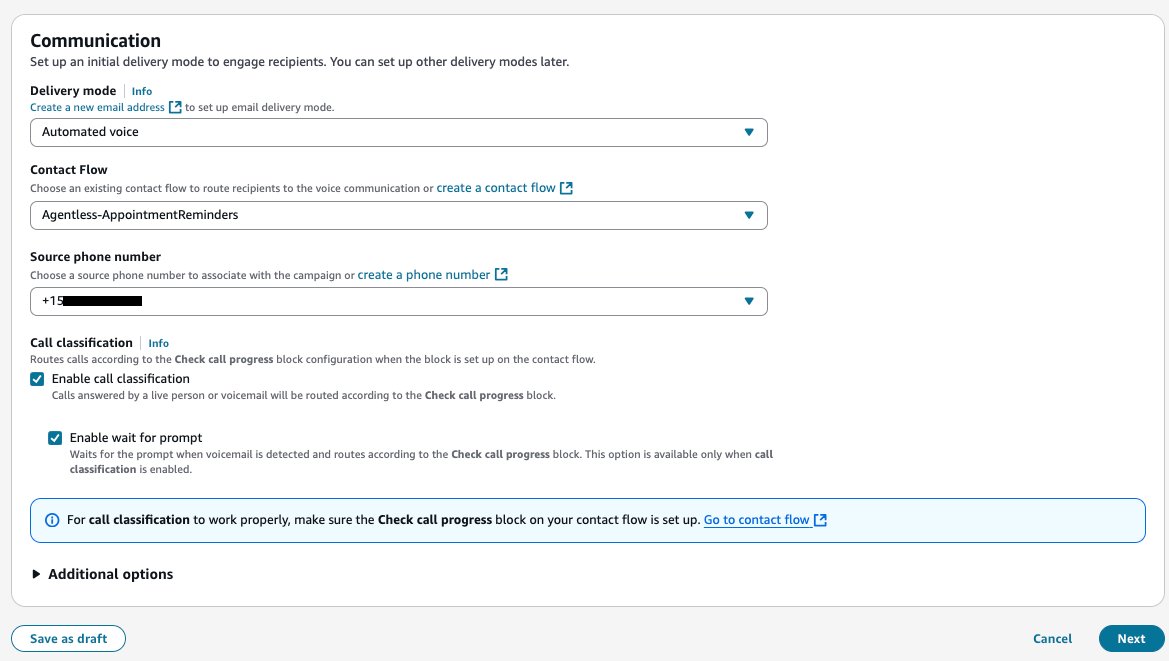
Figure 5: Additional details Outbound Campaign creation
Configure Amazon AppFlow
When you add data sources to Amazon Connect Customer Profiles, an Amazon AppFlow flow is automatically created to map data between your source and Customer Profiles. You can also create your own flow for custom data source mapping
For this solution, modify the auto-created flow(s) trigger from “Schedule” to “Run on Demand”.Why are we making this modification? The Flow that was automatically created based on the S3 Data source mapping are scheduled to run hourly by default. We want to make sure that the schedule can run on demand based on an event trigger.
- Open Amazon AppFLow in the same region as your Connect Instance
- Choose “View Flows” on the Home page
- Select the flow that corresponds to your data sources
- Choose Edit, Navigate to the flow trigger section, change it to “Run on demand” and save.
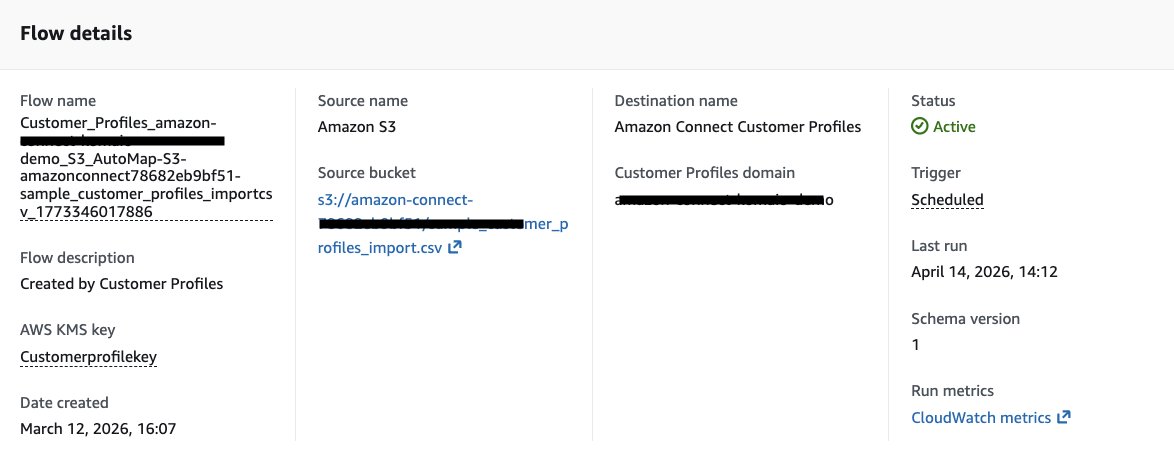
Figure 6: Amazon AppFlow Flow Details page
Important: Take note of the Flow Name — you’ll need it as an environment variable for the AWS Lambda function in the next step.
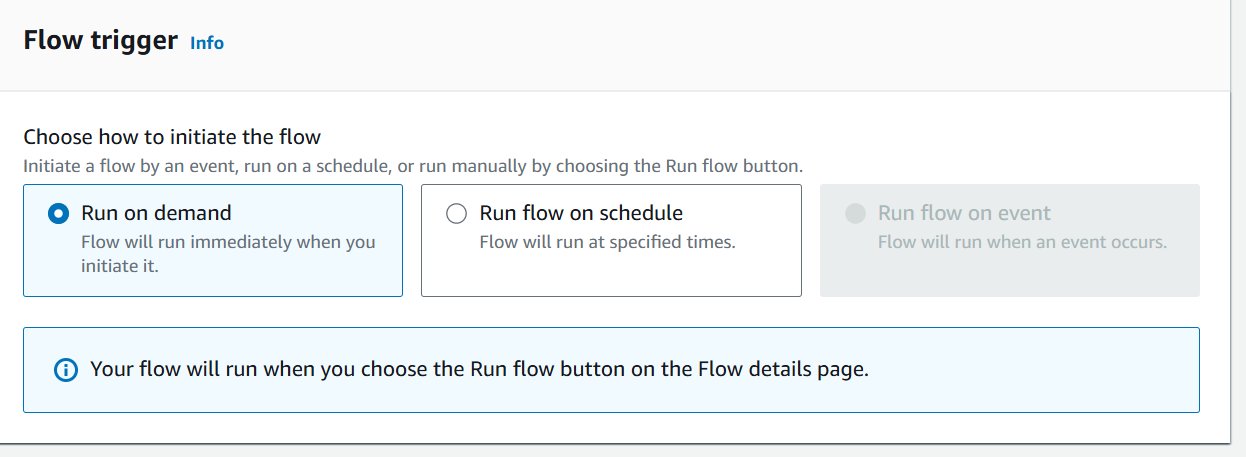
Figure 7: Flow trigger settings
- Create a Lambda function that triggers the AppFlow flow whenever the agent schedules are uploaded to S3 bucket. Amazon S3 Event Notification will invoke this function.
We have provided a sample code below for your Lambda Function.
- For the Lambda function, modify the environment variable by adding a Key/Value pair;
- KEY: <APPFLOW_FLOW_NAME>
- VALUE: <your AppFlow flow name>
- Update the Lambda execution role with permission to triggering AppFlow.
- Add an S3 trigger to Lambda function – select the S3 bucket you specified as the data source. Configure it to trigger on “s3:ObjectCreated:*” events.
- Deploy the Lambda Function
Setting up Data Sources and Trigger Mechanisms
For this demonstration, upload agent information via a CSV file to the S3 bucket specified as the data source.The S3 PUT event triggers the Lambda function via S3 Event Notifications. The CSV includes a critical column `Ok_to_call` set to `True` for scheduled agents. When uploaded, the campaign automatically triggers based on the event attribute (where `Ok_to_call` equals `True`) as configured in Step 3.At the designated schedule start time, the system automatically initiates calls to all scheduled agents, providing personalized reminders about upcoming shifts.
Agent Did Not Login at Scheduled Start Time
When agents miss their scheduled login times, the automated reminder system follows up:
- Upload an updated agent schedule CSV to S3 with the `CallStatus` field set to `PENDING` for agents who missed their login.
- The S3 PUT event triggers the Lambda function.
- The Lambda function triggers the AppFlow flow (configured to run on demand in Step 5).
- AppFlow refreshes and synchronizes contact information to the outbound campaign.
- Based on the event attributes, the system initiates reminder calls to the targeted agents.
Testing and Validation
- Upload a test CSV with your own phone number to the S3 bucket.
- Check Amazon CloudWatch Logs for the Lambda function to confirm it triggered successfully.
- Verify in Amazon AppFlow that the flow executed and data synced to Customer Profiles.
- Monitor the Outbound Campaign dashboard in Amazon Connect to confirm calls are being initiated.
- Answer the test call to verify the contact flow delivers the expected shift reminder message.
- Test the missed-login scenario by uploading an updated CSV with `CallStatus` set to `PENDING` and confirming the follow-up call is triggered.
Clean up resources
To avoid ongoing charges, remove the resources you created for this solution when you are finished testing. Complete the following steps:
- Disable or delete the Outbound Campaign in the Amazon Connect Customer console
- Delete the AWS Lambda function and its associated execution role and CloudWatch log group.
- Delete the Amazon AppFlow flow that synchronizes data to Customer Profiles.
- Empty and delete the Amazon S3 bucket that stored the agent schedule CSV files, and remove the S3 event notification.
- If you created an Amazon Connect Customer instance or claimed phone number solely for this walkthrough, release the phone number and delete the instance.
Summary
Amazon Connect Customer Outbound Campaigns can be adapted beyond traditional customer outreach to automate internal operations like agent shift management. In this post, we built a solution that:
- Automatically notify agents about upcoming shifts via a voice call.
- Follows up with agents who haven’t logged in on time
- Reduces supervisor workload by eliminating manual schedule management
- Scales across time zones and locations using event-driven architecture
By combining Amazon Connect Customer, Amazon S3, Amazon AppFlow, and AWS Lambda, organizations can significantly reduce the time supervisors spend on schedule management while improving agent attendance and operational efficiency.