Containers
Automatically recover from GPU failures with Amazon ECS Managed Instances
When you run GPU inference at scale, hardware failures are a matter of when, not if. Double-bit ECC memory errors can crash running applications, NVLink failures can break multi-GPU communication, and a GPU falling off the PCIe bus makes it completely unreachable. An unhealthy GPU can stall workloads and leave expensive accelerator capacity idle until someone detects the failure and replaces the host. As GPU fleets grow, detecting these failures and recovering workloads quickly becomes an important part of operating a reliable inference platform.
On self-managed GPU fleets, teams typically build monitoring and remediation workflows around NVIDIA GPU health signals. This can involve custom health-check scripts that poll NVIDIA SMI, Amazon CloudWatch alarms, an AWS Lambda function that deregisters the instance from the load balancer, and a manual or scripted instance refresh. Each step adds operational complexity and latency, and introduces new failure modes.
Amazon Elastic Container Service (Amazon ECS) Managed Instances provides built-in GPU health monitoring and automatic repair powered by NVIDIA Data Center GPU Manager (DCGM). When Amazon ECS detects a critical GPU hardware failure, it marks the instance impaired, sets it to draining so no new tasks land on it, provisions a healthy replacement, and terminates the impaired instance after all tasks have stopped. You don’t need to change application code or take any operator action. GPU auto-repair is enabled by default for Amazon ECS Managed Instances.
In this post, we use an asynchronous GPU inference pipeline as a running example to show how GPU auto-repair works in practice. We cover which GPU failures trigger instance replacement, how Amazon ECS performs the repair, how to observe health changes through Amazon EventBridge and Amazon CloudWatch, and how to safely validate the complete workflow using DCGM fault injection.
Why ECS Managed Instances for GPU workloads
Operating GPU inference involves more than running containers. On self-managed fleets, teams are responsible for provisioning instances, maintaining AMIs and GPU drivers, applying security updates, monitoring GPU health, and building remediation workflows when hardware fails.
ECS Managed Instances handles this infrastructure lifecycle for you. You define your compute requirements, and Amazon ECS takes care of instance provisioning, NVIDIA driver configuration, security patching, scaling, and GPU health monitoring. GPU auto-repair builds on this foundation, automatically detecting critical hardware failures and replacing impaired instances.
For a hands-on walkthrough of running GPU inference on ECS Managed Instances, including attribute-based instance selection and scale-to-zero, see Run GPU batch inference on Amazon ECS Managed Instances with scale to zero.
How GPU auto-repair works
ECS Managed Instances includes GPU health monitoring and auto-repair as first-class features. The following sections describe DCGM integration, the monitored fault codes, and the repair workflow.
NVIDIA DCGM integration
ECS Managed Instances runs the NVIDIA Data Center GPU Manager (DCGM) host engine on every GPU instance. DCGM monitors GPU hardware at the silicon level, collecting telemetry and watching for XID error codes that indicate GPU failures. No sidecar container, custom agent, or additional configuration is required.
GPU auto-repair is enabled by default at the capacity provider level. Every ECS Managed Instances capacity provider that uses a GPU-enabled instance type enables the following configuration automatically:
You do not need to set this explicitly unless you want to disable the feature.
GPU hardware failures
Not every GPU failure requires replacing the underlying instance. ECS distinguishes critical GPU hardware failures from application-level GPU faults based on the remediation each one requires.
The following table lists the subset of critical hardware failures (XID errors). When one of these is detected, ECS marks the container instance as IMPAIRED and, with auto-repair enabled, replaces the affected instance.
| XID | Description |
| 48 | Double-bit ECC error |
| 74 | NVLink error |
| 79 | GPU has fallen off the bus |
| 95 | Uncontained memory error |
| 140 | Unrecoverable ECC error |
Application-level GPU faults
NVIDIA classifies a separate set of XIDs in the RESTART_APP immediate-action resolution bucket, where the recommended action is restarting the affected application rather than replacing the instance. Examples include XID 13 (Graphics Engine Exception) and XID 31 (GPU memory page fault).
ECS surfaces these faults through two CloudWatch metrics: TaskGPURestartAppXidCount counts RESTART_APP XIDs per task, and ContainerGPURestartAppXidCount counts them per container. With these metrics, you can identify transient GPU faults separately from hardware failures that trigger instance replacement. For the full list of tracked XIDs and metric details, see GPU application restart metrics.
Auto-repair workflow
When DCGM reports one of the critical GPU XIDs, ECS performs the following sequence using a start-before-stop pattern that provisions replacement capacity before removing the impaired host:
- ECS detects the critical GPU failure and marks the container instance IMPAIRED.
- ECS sets the impaired instance to DRAINING. No new tasks are scheduled on it.
- The capacity provider provisions a healthy replacement instance and registers it with the cluster.
- Existing tasks on the impaired instance stop gracefully, respecting their configured stopTimeout.
- After all tasks have stopped, ECS terminates the impaired instance.
Each state transition publishes a container instance state change event to Amazon EventBridge. The event includes a draining reason code that identifies the cause of the drain. You can use it to distinguish a GPU auto-repair drain from a manual drain or a scheduled instance refresh. You can create Amazon EventBridge rules that match on these state changes to trigger custom alerting or automation workflows, such as notifying an on-call channel or updating a capacity dashboard.
To protect against cascading replacements during correlated failures, ECS limits the number of simultaneous repairs. No more than 20% of instances belonging to a capacity provider can be drained at once. For capacity providers with fewer than nine instances, at most one instance is drained at a time.
Recovery time depends on the fault detection interval, the drain-and-replace cycle, and how long the replacement task takes to initialize the model. The Walkthrough section later in this post shares timings observed in our sample environment.
GPU metrics and observability
ECS Managed Instances publishes native NVIDIA DCGM metrics to Amazon CloudWatch when Amazon CloudWatch Container Insights with enhanced observability is enabled on the cluster. Metrics are available at the cluster, service, task, container, and per-GPU device level, with no custom agents or sidecars required. For the full list of available GPU metrics, see GPU monitoring with Container Insights.
The following alarms are recommended for GPU inference workloads:
| Alarm | Condition | Purpose |
| GPU temperature | TaskGPUTemperature > 90 °C |
Detect thermal conditions that may indicate cooling or hardware issues |
| Application-level XID count | TaskGPURestartAppXidCount > 0 |
Detect transient GPU faults where NVIDIA recommends restarting the application |
| DLQ depth | For workloads using Amazon SQS: ApproximateNumberOfMessagesVisible > 0 on the dead-letter queue (DLQ) |
Identify inference requests that repeatedly fail processing |
Observing auto-repair through Amazon EventBridge
Critical GPU hardware failures that cause ECS to mark an instance IMPAIRED are observable through container instance health change events in Amazon EventBridge.
When a GPU hardware failure is detected, ECS publishes a health event identifying the affected container instance and its impaired GPU health status:
These events can be matched using Amazon EventBridge rules and routed to downstream targets, such as an operations notification channel, a Lambda function, an operational log, or an infrastructure health dashboard.
With metrics, alarms, and Amazon EventBridge events in place, you can validate the auto-repair workflow using fault injection.
Testing auto-repair with fault injection
You can test the auto-repair workflow end to end with NVIDIA DCGM fault injection. The test writes a synthetic XID 79 (GPU has fallen off the bus), which is one of the critical GPU hardware failures that Amazon ECS monitors. It doesn’t affect the GPU hardware.
Note: The XID is synthetic, but it triggers the real Amazon ECS drain-and-replacement workflow. The targeted instance is marked IMPAIRED, drained, and terminated. Run this test against a dedicated test cluster or during a maintenance window to avoid disrupting production workloads.
How the injection works
You run a short-lived Amazon ECS task, the injector, on a GPU instance. The injector writes a synthetic XID into the instance’s DCGM host engine, which the Amazon ECS GPU health monitor reads. Amazon ECS treats it like a real hardware fault: it marks the instance IMPAIRED and starts auto-repair.
The injector runs the following command to inject XID 79 on GPU 0:
The -f 230 flag selects the XID field, and -v 79 sets its value to XID 79. The chroot lets the injector use the dcgmi tool and DCGM socket already installed on the instance. You don’t need to ship an NVIDIA image or match its DCGM version to the host’s. You can build the injector from any lightweight Linux base image that includes a shell.
Injector task definition settings
To inject the fault, run a short-lived Amazon ECS task on the target GPU instance with the following settings:
requiresCompatibilities: ["MANAGED_INSTANCES"]: runs the task on Amazon ECS Managed Instances.networkMode: hostorawsvpc, the network modes that Managed Instances supports.pidMode: host: shares the host’s process namespace.privileged: true: allows the task to communicate with the DCGM host engine.- No GPU or CPU reservation: Set
cpu: 0on the container definition (containerDefinitions[].cpu) and omit the task-levelcpu, which Amazon ECS rejects as 0. The injector talks to DCGM over a local socket and doesn’t need a GPU. Without a reservation, it fits on an instance that’s already running inference, instead of waiting for or launching a dedicated GPU instance.
Placing the injector
Amazon ECS Managed Instances handles task placement for you, so you don’t choose a specific instance for the injector. Placement constraints support ecs.subnet-id, ecs.availability-zone, ecs.instance-type, and ecs.cpu-architecture. Instance ID isn’t a supported attribute (see Amazon ECS task definition differences for Amazon ECS Managed Instances). Instead, launch the injector with run-task on the capacity provider that runs your GPU instances, and then check which instance Amazon ECS placed it on. Because ACCELERATED_COMPUTE is an instance-level health check, a single critical XID on any GPU instance is enough to test the full repair workflow.
What to expect
After injection, Amazon ECS marks the instance IMPAIRED and starts auto-repair, the same way it would for a real GPU hardware failure on Amazon ECS Managed Instances. In the Amazon ECS console, the container instance’s health status changes to IMPAIRED, and its status then changes to DRAINING. A healthy replacement instance registers with the cluster, and Amazon ECS terminates the impaired instance after its tasks stop. Amazon ECS also publishes an ECS Container Instance Health Change event to Amazon EventBridge, with the ACCELERATED_COMPUTE check and the reason XID_79. The Walkthrough section runs this test against a sample inference pipeline and walks through the steps in more detail.
Sample architecture: Dual-tier async inference pipeline
The sample deploys an asynchronous multi-tier inference pipeline on ECS Managed Instances. The following diagram shows the request path from Amazon API Gateway through both GPU model tiers.
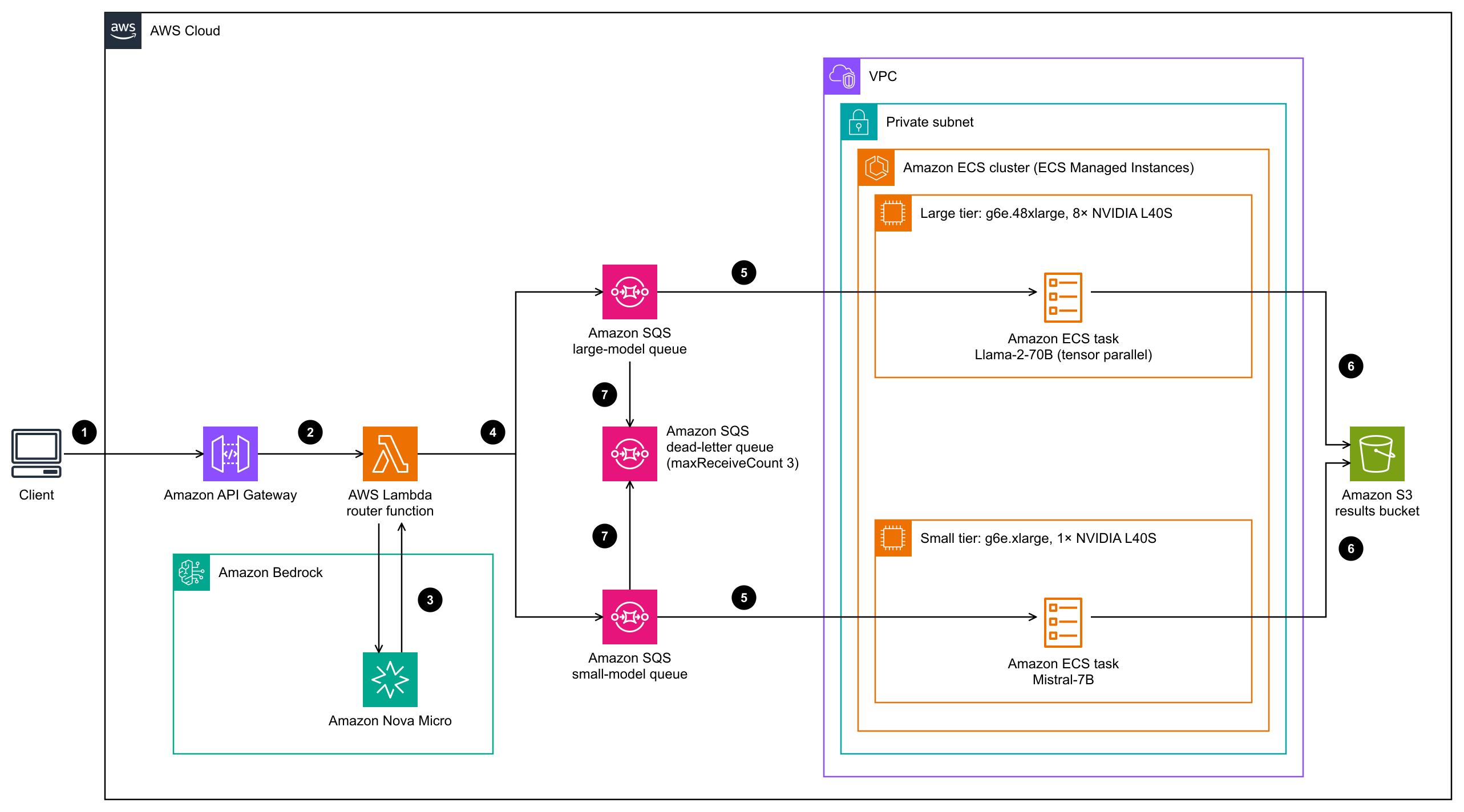
Figure 1: Dual-tier GPU inference pipeline with intelligent routing on Amazon ECS Managed Instances
In the diagram, requests flow from Amazon API Gateway to an AWS Lambda router, which uses Amazon Nova Micro in Amazon Bedrock for ambiguous requests. The router sends each request to one of two Amazon SQS queues. GPU workers on ECS Managed Instances process the queues and write results to Amazon Simple Storage Service (Amazon S3). The pipeline uses two model tiers: a small-model tier running on a single GPU and a large-model tier using multiple GPUs with tensor parallelism. Amazon Simple Queue Service (Amazon SQS) decouples request ingestion from inference processing, and GPU auto-repair runs underneath both tiers.
Request flow
The pipeline handles inference requests through the following path:
- Amazon API Gateway receives an inference request and forwards it to an AWS Lambda routing function.
- The router selects a model tier and places the request into the matching Amazon SQS queue. An explicit route override takes precedence. Otherwise, the router applies prompt length and maxTokens thresholds. For prompts in the ambiguous 500–2,000 character range, it calls Amazon Nova Micro in Amazon Bedrock to classify the request.
- Amazon SQS holds the message until an inference worker picks it up. The visibility timeout protects the message during processing.
- An ECS inference worker running on a GPU-enabled Managed Instance pulls the message from the queue, performs inference, and writes the result to Amazon S3.
Components
| Component | Technology | Role |
| API Gateway | Amazon API Gateway | Receives inference requests |
| Router | AWS Lambda | Routes requests to the appropriate model tier based on prompt size, token limit, or explicit override |
| Small queue | Amazon SQS | Buffers requests for the small-model tier |
| Large queue | Amazon SQS | Buffers requests for the large-model tier |
| Dead-letter queue | Amazon SQS | Captures messages that exceed the maximum retry count |
| Small-model tier | ECS service on g6e.xlarge (1× L40S GPU) | Runs Mistral-7B inference |
| Large-model tier | ECS service on g6e.48xlarge (8× L40S GPUs) | Runs Llama-2-70B inference with tensor parallelism |
| Results store | Amazon S3 | Stores inference results for retrieval |
| GPU auto-repair | DCGM + ECS Managed Instances | Detects GPU faults and replaces impaired instances automatically |
Prerequisites
Before you start, make sure you have the following:
- An AWS account with permissions to create AWS CloudFormation stacks, IAM roles, Amazon ECS resources, Amazon SQS queues, and Amazon S3 buckets.
- An AWS Region with g6e instance capacity (g6e.xlarge and g6e.48xlarge), and sufficient service quotas for these instance types.
- Model access in Amazon Bedrock for Amazon Nova Micro, used by the router.
- The AWS Command Line Interface (AWS CLI) version 2, installed and configured.
- Git, to clone the sample repository.
Walkthrough
You can deploy the sample stack and test GPU auto-repair in about an hour, most of which is stack deployment and model loading. For complete prerequisites and cleanup instructions, see the GPU auto-repair README.
Step 1: Clone the repository and set environment variables
Step 2: Deploy the CloudFormation stack
The template provisions the virtual private cloud (VPC) and endpoints, the ECS cluster, GPU capacity providers with auto-repair enabled, SQS queues (including a DLQ), least-privilege IAM roles, autoscaling, and the CloudWatch dashboard. Models are pulled from Hugging Face by default (or from S3 if you set the S3 path parameters). Inference results are written to the OutputDestination you configure. The template is approximately 77 KB, which exceeds the AWS CloudFormation 51 KB inline (--template-body) limit, so upload it to S3 and deploy by URL:
Deployment typically completes in 10–15 minutes. Verify the stack has reached CREATE_COMPLETE before proceeding:
Step 3: Inject a GPU fault to trigger auto-repair
The CloudFormation stack provisions the cluster, capacity providers, and inference task definitions, but not the injector. Register the injector from xid-inject-taskdef.json in the repo, using the stack’s existing task and execution roles. The task definition includes the settings and injection command described in the “Testing auto-repair with fault injection” section.
Run the injector on the stack’s GPU capacity provider, which you set as GPU_CAPACITY_PROVIDER in Step 1:
Note: The --enable-execute-command flag requires the ssmmessages:* permissions that ECS Exec uses. The sample’s task role is scoped to Amazon S3 and Amazon SQS, so either add those permissions first or remove the flag. The injection works without ECS Exec. You only lose the option to re-run the injection interactively.
Wait for the task to start, and then find the GPU instance that Amazon ECS placed it on:
To confirm the injection ran, look for Successfully injected field info. or INJECT_OK in the /ecs/xid-inject CloudWatch log group.
Step 4: Observe the repair
Monitor the repair in three places:
- Amazon ECS console: On the cluster’s Infrastructure tab, open the impaired container instance. Its health status changes from OK to IMPAIRED (the
ACCELERATED_COMPUTEcheck). When auto-repair begins, its status changes from ACTIVE to DRAINING. A replacement instance registers with the cluster, and Amazon ECS terminates the impaired instance after its tasks stop. The console shows the IMPAIRED status but not the XID code, which you can read from the Amazon EventBridge event. - Amazon EventBridge: The OK to IMPAIRED transition is published as an
ECS Container Instance Health Changeevent, with theACCELERATED_COMPUTEcheck and theXID_79reason. The IMPAIRED to DRAINING transition is published as anECS Container Instance State Changeevent. You can route either event to an Amazon Simple Notification Service (Amazon SNS) topic, an AWS Lambda function, or another supported target. - Workload recovery: If a worker is processing a request when the instance is drained, the in-progress work on that worker is lost. For workloads using Amazon SQS, the unacknowledged message returns to the queue after the visibility timeout and a healthy worker processes it. You can track this with the queue’s Amazon SQS metrics in CloudWatch, such as
ApproximateNumberOfMessagesVisible.
In this sample, Amazon ECS marked the affected instance IMPAIRED about 2 minutes after fault injection. It completed the drain-and-replace cycle in about 8 minutes. On the replacement instance, task startup took about 7 minutes for the small-model tier (Mistral-7B). The large-model tier (Llama-2-70B with tensor parallelism) took 15–20 minutes. Startup time depends on how long the model weights take to download and load into VRAM. For strategies to reduce model loading time, see Minimizing model re-pull time on replacement. These timings are from this sample environment and are not service guarantees.
Clean up
The large-model tier runs on g6e.48xlarge instances, which incur significant charges. Delete the resources when you finish testing. First, delete the CloudFormation stack and wait for deletion to complete:
Then empty and delete the template bucket. If you configured a separate S3 output bucket, empty and delete it as well:
Finally, deregister the xid-inject task definition and delete the /ecs/xid-inject CloudWatch log group if you no longer need them.
Conclusion
GPU failures are an expected operational reality when running inference at scale. The important question is how quickly those failures are detected, isolated, and recovered without requiring operators to build and maintain their own remediation systems.
Amazon ECS Managed Instances uses NVIDIA DCGM to distinguish critical GPU hardware failures that require instance replacement from application-level GPU faults that can be surfaced independently through CloudWatch metrics. For critical hardware failures, Amazon ECS marks the affected instance IMPAIRED and automatically performs a start-before-stop drain-and-replacement workflow.
Combined with CloudWatch GPU metrics and Amazon EventBridge health change events, teams get both automatic infrastructure remediation and the observability signals needed to integrate GPU health into their own operational workflows.
The sample in this post lets you validate that behavior directly by deploying a dual-tier inference pipeline, injecting a synthetic XID 79, and observing the complete lifecycle from fault detection through instance replacement and workload recovery.
To get started, clone the sample repository and follow the walkthrough.