AWS Database Blog
Analyzing Aurora MySQL issues with Kiro IDE and Aurora MySQL MCP server
Amazon Aurora MySQL-Compatible Edition (Aurora MySQL) provides high performance and availability for business-critical applications. When running at scale, proactive monitoring and rapid diagnosis of performance events, such as IOPS spikes or lock contention, help teams maintain optimal application responsiveness.
Kiro IDE from AWS, integrated with the Aurora MySQL Model Context Protocol (MCP) server, brings AI-powered diagnostics directly into the IDE so teams can investigate and resolve these events in minutes rather than hours. This transforms traditionally manual, expert-dependent diagnostic processes into automated, AI-guided workflows accessible to the broader development team.
In this post, we show you how to use Kiro IDE with the Aurora MySQL MCP server to diagnose deadlocks and high IOPS events in Aurora MySQL clusters through natural language prompts. We walk through the setup, configuration, and two real-world use cases that demonstrate the end-to-end diagnostic workflow. For an introduction to Kiro IDE and MCP, refer to Amazon RDS log analysis with natural language queries using Kiro and MCP.
Diagnosing Aurora MySQL performance events at scale
A deadlock occurs when two or more transactions hold locks that the other needs, causing MySQL to roll back one transaction to break the cycle. Deadlocks are common in high-concurrency environments, particularly when transactions acquire locks in different orders or use isolation levels that introduce gap locks and next-key locks. Diagnosing them typically requires parsing dense SHOW ENGINE INNODB STATUS output, understanding the interactions between lock types, and tracing conflicting lock acquisition orders across multiple application queries.
Similarly, sudden IOPS spikes during peak traffic can cause application slowdowns. With hundreds of concurrent sessions, pinpointing the responsible queries means correlating statement digests, I/O statistics, and table access patterns. This work often spans multiple monitoring tools, including Amazon CloudWatch, Amazon RDS Performance Insights, and SQL clients.
Solution overview
The solution combines Kiro IDE, Amazon Bedrock, and the Aurora MySQL MCP server to provide natural language database diagnostics.
The following diagram shows the solution architecture:
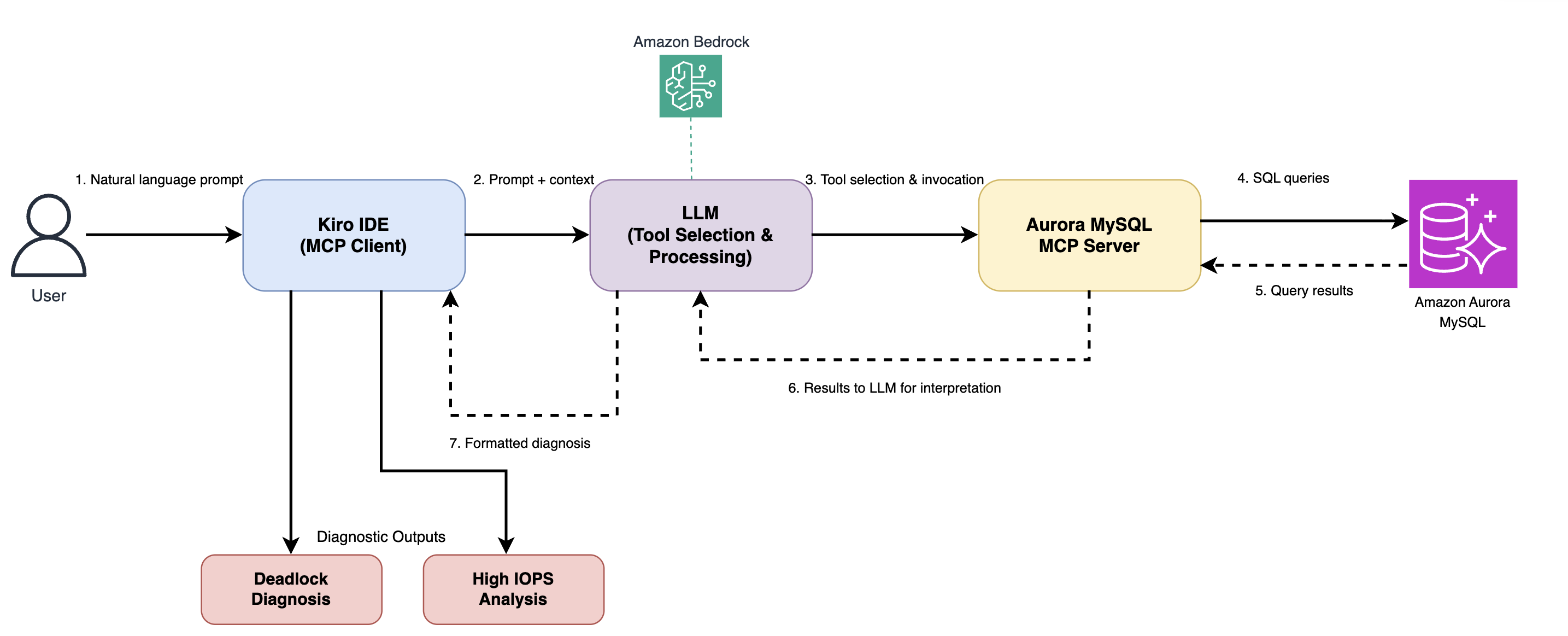
Figure 1: Solution overview
Kiro IDE: Kiro is an AI-powered IDE built by AWS that teams can use to interact with AWS services through natural language. The Model Context Protocol (MCP) is an open standard that defines how applications provide context and capabilities to large language models (LLMs). Together, they provide direct, conversational access to database diagnostics without leaving the IDE.
Aurora MySQL MCP server: Amazon Aurora MySQL MCP Server is an open-source MCP server from AWS Labs. It converts natural language prompts into MySQL-compatible SQL queries and executes them against Aurora MySQL, Amazon RDS for MySQL, and Amazon RDS for MariaDB databases. It supports multiple connection methods: the RDS Data API, direct MySQL wire protocol, and connections authenticated with AWS Identity and Access Management (IAM), giving you flexibility based on your network and security requirements. Running locally alongside your IDE, it uses your existing AWS credentials to provide authenticated access to database environments without exposing sensitive information or requiring custom integration work.
Solution walkthrough: When the user submits a natural language prompt to Kiro IDE, Kiro forwards the prompt along with relevant context to an LLM hosted on Amazon Bedrock. For this post, you can pick any currently available model or set the model to Auto, and Kiro chooses one automatically. The model interprets the request, selects the appropriate MCP tools, and invokes the Aurora MySQL MCP server. The MCP server then executes SQL queries against the Aurora MySQL cluster, querying performance_schema, information_schema, and SHOW ENGINE INNODB STATUS as needed. The query results flow back through the MCP server to the model, which formats the raw data into actionable insights. Finally, Kiro presents the user with structured diagnostic outputs.
Prerequisites
You need the following resources in place before starting this walkthrough. For detailed setup instructions, refer to the linked documentation.
- An AWS Account
- AWS Command Line Interface (AWS CLI) configured with credentials (using aws configure or environment variables)
- An Aurora MySQL cluster
- IAM permissions: appropriate permissions for your connection method:
mysqlwire: database credentials stored in AWS Secrets Manager.rdsapi: permissions to access the RDS Data API and read secrets from AWS Secrets Manager.mysqlwire_iam: IAM authentication enabled on the cluster, withrds-db:connectpermission granted to the IAM role or user.
- Python 3.10+: required by the MCP server runtime.
- uv from Astral (or from GitHub)
- Kiro IDE
Verifying prerequisites
Open a terminal on the machine where you will run Kiro IDE and the MCP server. Run the following commands to confirm each prerequisite is installed and configured:
This confirms your AWS credentials are configured correctly.
IAM permissions
The Aurora MySQL MCP server authenticates to AWS using the profile in the AWS_PROFILE environment variable and retrieves the database credentials from the cluster’s managed secret in AWS Secrets Manager. Following least-privilege principles, grant the IAM identity only the permissions the server needs:
rds:DescribeDBClustersandrds:DescribeDBInstances, so the server can validate the database endpoint and locate the cluster’s managed secret.secretsmanager:GetSecretValueon the cluster’s managed secret ARN (found inMasterUserSecret.SecretArn), to read the database credentials.kms:Decrypton the secret’s KMS key if the managed secret is encrypted with a customer managed key, not required if the secret uses the default AWS managed key.
Save the following as aurora-mcp-policy.json, replacing the placeholders with your own account ID, AWS Region, cluster identifier, and AWS Key Management Service (AWS KMS) key:
Create the policy and attach it to the IAM identity your profile uses:
Confirm the profile resolves to the expected identity before configuring the MCP server:
Controlling access
Two layers govern what this setup can reach, and it is worth being precise about what each one guarantees.
- The scoped IAM policy that was previously mentioned, which restricts the AWS APIs the profile can call to Secrets Manager reads, RDS describe calls, and the KMS decrypt needed to read the managed secret.
- Read-only mode at the MCP server, controlled by the
--allow_write_queryflag. Omitting the flag makes the server reject statements it parses as writes.
Database user privileges aren’t a third layer here, and that’s worth knowing before you point this at a cluster you care about. The current server release has no option for supplying your own secret or database user: it calls DescribeDBClusters (or DescribeDBInstances), reads MasterUserSecret.SecretArn, and connects as the cluster’s master user. That holds for all three connection methods. The server’s own SQL-text check is therefore the only thing standing between a generated statement and a privileged session, and the package documents that check as a best-effort safeguard rather than a security boundary.
Plan around that instead of assuming it away:
- Prefer a clone or a restored snapshot while you are exploring, so the blast radius is a throwaway cluster.
- For read-heavy investigations like Use case 2, point
--db_endpointat the cluster’s reader endpoint. When the cluster has at least one Aurora Replica, the engine restricts that session to read-only statements, which is an enforced control rather than a parsed one. Mind the caveat: on a cluster with only a primary instance, the reader endpoint connects to the primary and writes will succeed. - Deadlock analysis needs the writer, because
SHOW ENGINE INNODB STATUSreports the deadlock on the instance that detected it. Treat that session as privileged and time-box it.
For this walkthrough we run the server in read-only mode (the flag is omitted), which is appropriate for diagnostics.
Setup and installation
You have two ways to wire this server into Kiro, and the prompts in this post work with either one.
Option 1: The Aurora MySQL integration with Kiro Powers. Kiro Powers is a repository of curated, pre-packaged MCP servers, steering files, and hooks validated by Kiro partners, and Aurora MySQL has been part of it since May 2026. The integration bundles this same MCP server with steering files that load Aurora MySQL guidance into the agent’s context on demand, covering topics such as Aurora Serverless scaling, migration from Amazon RDS for MySQL, and replication configuration. Because that guidance travels with the request, the recommendations you get back are shaped by Aurora MySQL conventions rather than by your prompt alone. It installs in one click from the Kiro IDE or the Kiro webpage. For a task-oriented walkthrough, see Guide your Amazon Aurora MySQL migration with Kiro powers. Note that the Powers integration deliberately spans both data plane operations and control plane operations such as creating and managing clusters, so it is broader than the diagnostic-only setup described in the following section. Scope the IAM identity accordingly.
Option 2: Configure the server manually, which is what the rest of this post does. Choose this when you want explicit control over the connection method, endpoint, database, and AWS profile, when you are fitting the server into an existing workspace configuration, or when you want the narrowest possible surface for a diagnostic session. The investigation workflow from Use case 1 onward is identical either way.
To activate the Aurora MySQL MCP Server in Kiro manually, you can add the following configuration to workspace MCP settings file (mcp.json) or the global user-level settings (~/.kiro/settings/mcp.json):
The following is an example MCP server configuration for the wire-protocol connection method used in this post. Your values and options may differ depending on your connection method and environment.
Note: Omitting the --allow_write_query flag puts the MCP server in read-only mode, which reduces the risk of accidental data modification during diagnostics. As described in Controlling access, treat it as a guardrail rather than a boundary, and pair it with a clone, a restored snapshot, or a reader endpoint when the target matters. Replace the placeholder values with your Aurora MySQL cluster details.
Key configuration parameters
| Parameter | Description |
--connection_method |
MYSQL_WIRE_PROTOCOL — connects through the MySQL wire protocol using Secrets Manager credentials |
--db_endpoint |
The Aurora cluster writer endpoint |
--database |
The target database name |
--region |
The AWS Region where the cluster resides |
AWS_PROFILE |
The AWS CLI profile with permissions to access Secrets Manager and the RDS cluster |
In Kiro IDE, you can navigate to MCP server settings by selecting the Kiro icon on the left panel and selecting MCP SERVERS section:
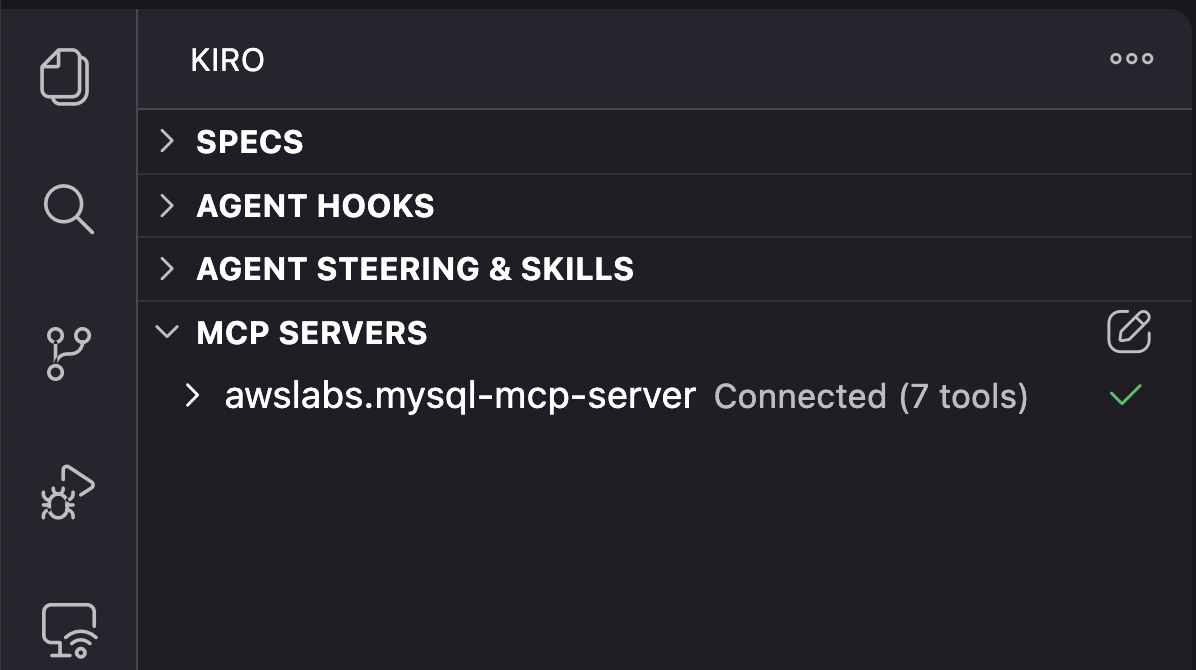
Figure 2: Kiro IDE setting
Verifying the installation
In Kiro IDE, from the sidebar, open the MCP Servers panel to verify the server status. The awslabs.mysql-mcp-server entry should appear with a green indicator showing it is connected. To verify the available tools, expand the server entry in the panel. Expand the entry to see the tools the server exposes, such as running read-only SQL queries and retrieving table schema and connection details. The exact set of tools might vary by server version.
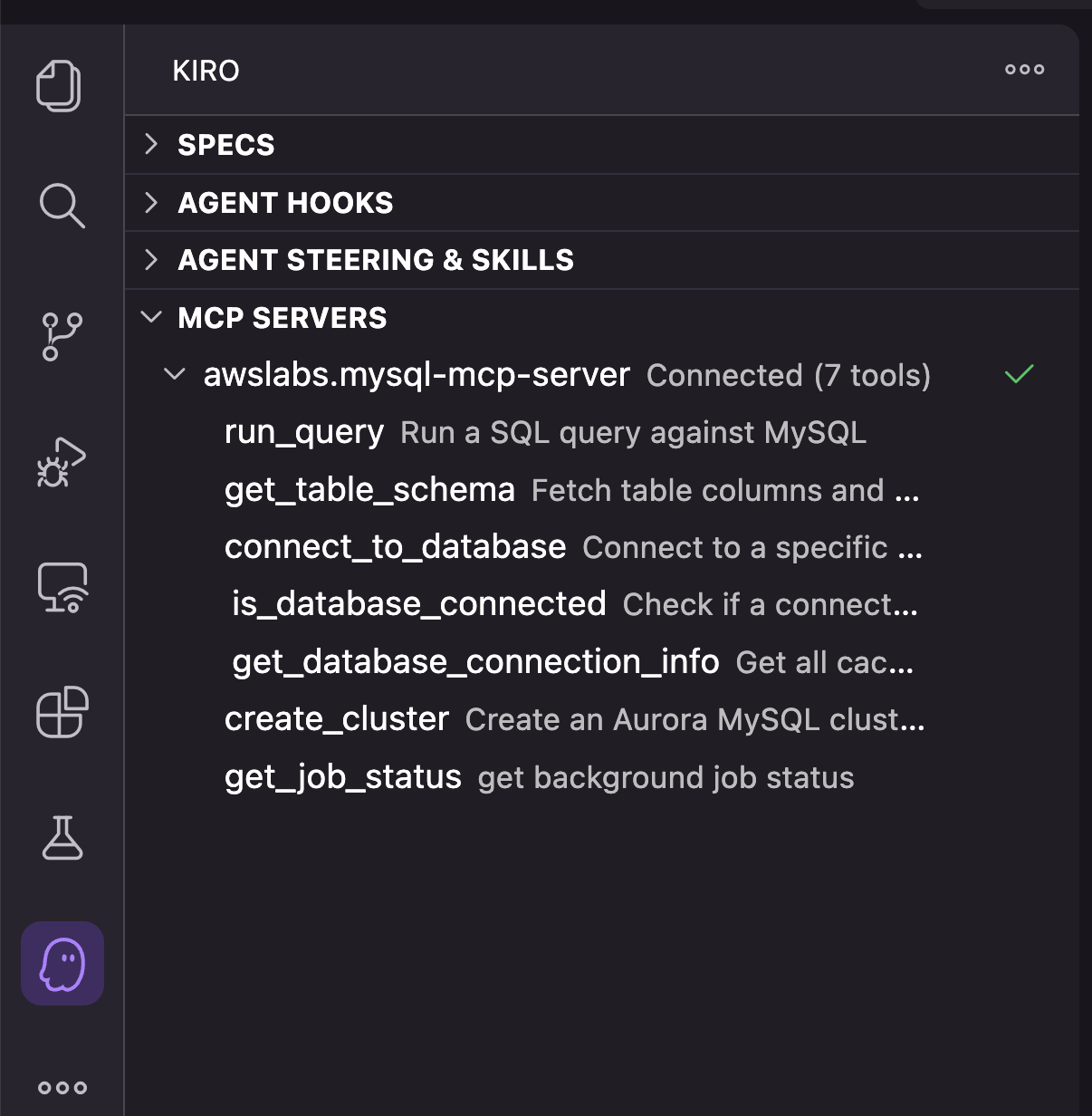
Figure 3: Verifying the MCP server connection in Kiro IDE
Diagnosing deadlocks and high IOPS with the Aurora MySQL MCP Server
You can use the Aurora MySQL MCP Server to investigate the following use cases.
Use case 1: Deadlock analysis and resolution
In this use case, we reproduce a cross-table deadlock, then use Kiro IDE and the MCP server to diagnose and resolve it.
Step 1: Reproduce the deadlock (Optional)
To generate a cross-table deadlock in a test cluster, open two MySQL sessions and run the following in the interleaved order shown. Each locks patient_billing and patient_appointments in the opposite order, which is the contention pattern the analysis identifies. MySQL detects the cycle and rolls back one transaction as the victim.
Set up sample data:
Example Script:
Step 2: Diagnose with Kiro
Using a single natural language prompt in Kiro IDE, we ask it to analyze the deadlock:
Prompt: “Analyze recent deadlocks in our Aurora MySQL cluster, identify the root cause and provide recommendations”
The MCP server connects to the Aurora MySQL cluster and executes diagnostic queries against performance_schema, information_schema, and SHOW ENGINE INNODB STATUS. It returns the results to Kiro, which the LLM formats into a human-readable response, as shown in Figures 4–8. As you review Figures 4–8, look for the two conflicting transactions, the deadlock cycle showing both tables locked in opposite order, and the lock-wait statistics that quantify the impact.
Note: The figures in following sections show sample output from our test run. The exact values—thread IDs, timestamps, “Active For” durations, undo entries, and row-lock counts—will vary in your environment based on your schema, data volume, and the timing of concurrent sessions. Focus on the patterns (the lock cycle and root causes) rather than the specific numbers.
Called MCP tool: awslabs.mysql-mcp-server / run_query
Deadlock Analysis Report
Deadlock Detected
Time: 2026-06-18 06:08:20 UTC (approximately 14 minutes ago)
The Two Transactions
Transaction 1 Transaction 2
─────────────────────────────────────────────────────────────────────────
Thread ID 215 224
User app_billing app_clinical
Active For 216 seconds 59 seconds
Undo Entries 11 6
Row Locks 28 14
Query
UPDATE patient_appointments UPDATE patient_billing
SET duration_minutes = 75 SET status = ‘Completed in 2026’
WHERE patient_id = 1001 WHERE patient_id IN (1001, 1002)
Outcome Won (kept running) Rolled back (victim)
Figure 4: Sample output of the Kiro IDE showing deadlock analysis
Deadlock Cycle (Root Cause)
Transaction 1 (app_billing):
HOLDS lock on → clinical_data.patient_billing (idx_patient_id)
WAITS for lock → clinical_data.patient_appointments (idx_patient_id)
Transaction 2 (app_clinical):
HOLDS lock on → clinical_data.patient_appointments (idx_patient_id)
WAITS for lock → clinical_data.patient_billing (idx_patient_id)
Classic cross-table deadlock: Two transactions lock the same tables but in opposite order.
Root Cause Analysis
- Inconsistent table access ordering – app_billing modifies patient_billing first then patient_appointments, while app_clinical modifies patient_appointments first then patient_billing.
- Broad WHERE clauses using secondary indexes – WHERE patient_id = 1001 and WHERE patient_id IN (1001, 1002) use the idx_patient_id secondary index, which locks multiple rows across the index (28 and 14 row locks respectively).
- Long-running transactions – Transaction 1 was active for 216 seconds with 11 undo entries. Long transactions hold locks for extended periods, greatly increasing deadlock probability.
- Index design – The idx_patient_id index on both tables is a single-column non-unique index. When used for UPDATE filtering, InnoDB locks all matching rows in the index plus the primary key rows, creating a wide lock footprint.
Figure 5: Sample output of the Kiro IDE showing the deadlock cycle
Lock Statistics (since instance restart)
|
|
|
|
|
|
|
|
|
|
|
|
Figure 6: Sample output of the Kiro IDE showing lock statistics for the deadlock
Recommendations
1. Enforce consistent table access order (Critical)
All application code that touches both tables must access them in the same order:
Always: patient_billing → patient_appointments
Both app_billing and app_clinical services need to follow this convention.
2. Shorten transaction duration
Transaction 1 was active 216 seconds — far too long. Break large operations into smaller batches:
– Instead of one big transaction updating multiple patients
– Process one patient_id at a time, commit between each
3. Narrow the lock footprint
Instead of:
UPDATE patient_billing SET status = ‘Completed in 2026’ WHERE patient_id IN (1001, 1002)
Use primary key updates where possible:
– Get specific billing_ids first, then update by PK
UPDATE patient_billing SET status = ‘Completed in 2026’ WHERE billing_id =
4. Add a composite index (if query patterns warrant)
If updates frequently filter by patient_id + status:
ALTER TABLE clinical_data.patient_billing ADD INDEX idx_patient_status (patient_id, status);
ALTER TABLE clinical_data.patient_appointments ADD INDEX idx_patient_status (patient_id, status);
This reduces the number of rows locked during the UPDATE scan.
5. Implement retry logic in application code
Deadlocks are sometimes unavoidable. The rolled-back transaction should be retried:
MAX_RETRIES = 3
for attempt in range(MAX_RETRIES):
try:
execute_transaction()
break
except DeadlockError:
if attempt == MAX_RETRIES – 1:
raise
time.sleep(0.1 * (2 ** attempt)) # Exponential backoff
6. Enable slow query log
SET GLOBAL slow_query_log = ‘ON’;
SET GLOBAL long_query_time = 2;
This will help identify the long-running transactions contributing to lock contention.
Figure 7: Sample output of the Kiro IDE showing remediation steps
Note: These recommendations are generated by Kiro and the MCP server for a specific environment and should be verified in a lower/test environment before production. The SQL above is a simplified sample to illustrate the deadlock for interested readers. Our actual lab table was far larger (approximately 11M rows / 2.8 GB). At that scale, the composite index in Recommendation 4 is heavy online DDL that consumes significant I/O and can run long. This is especially risky on a cluster already under IOPS pressure. Test on a non-production instance and apply during a low-traffic window.
Kiro doesn’t only name the deadlock. It turns the diagnosis into ordered fixes (consistent table-access order, shorter transactions, a narrower lock footprint, retry logic), each tied to a specific finding. You decide what to apply and test before rolling out.
Because MySQL resolves each deadlock automatically by rolling back one transaction, no immediate action was needed in our test. For a production workload, we would apply the recommended table-access ordering and retry logic, rolling the changes out through the application’s normal release process after testing.
Finally, Kiro consolidates the entire investigation into a concise summary, closing the loop from the two conflicting transactions to the root cause and the recommended fix:
Deadlock analysis summary
|
|
|
|
|
|
|
|
|
|
|
|
|
|
|
|
|
|
Figure 8: Sample output of the Kiro IDE showing a summary of the deadlock analysis
Use case 2: High IOPS investigation
In this use case, we generate an IOPS spike from unindexed queries against a large table, then use Kiro IDE and the MCP server to identify the root cause and remediate it.
Step 1: Reproduce the workload (Optional)
Note: This step is optional if you want to reproduce an IOPS spike in a test system. Otherwise, you can diagnose using Kiro when there is a real production IOPS spike.
Set up sample data (optional)
Run these analytical queries against a large, unindexed table to drive up read IOPS, then watch the VolumeReadIOPS metric rise in Amazon CloudWatch before you begin the investigation:
Note: The two queries below are a representative subset. Our full test run also included JOIN-based batch-report queries (for example, INSERT INTO tmp_* ... SELECT ... FROM diagnoses_archive JOIN patient_appointments ... ORDER BY treatment_notes), which is why the analysis output that follows reports several query patterns rather than just these two.
Example Script:
Step 2: Diagnose with Kiro
Using a single natural language prompt in Kiro IDE, we ask it to investigate the spike:
Prompt: “Analyze the increase of IOPS in our Aurora MySQL cluster in the last few hours, identify the root cause and provide recommendations”
The MCP server connects to the Aurora MySQL cluster and analyzes statement digests, I/O statistics, and table access patterns from performance_schema views. It returns the results to Kiro, which the LLM formats into a human-readable response, as shown in Figures 9–13. As you review Figures 9–13, look for the tables and query patterns driving the most I/O (such as full table scans indicated by SUM_NO_INDEX_USED > 0) and the time window of the spike. In this case, Kiro traces it to full table scans on one large table.
Note: The figures in the following sections show sample output from our test run. The exact values, statement digests, I/O and row counts, latencies, and the spike’s time window, will vary in your environment based on your table sizes, data volume, and query concurrency. Focus on the patterns (full table scans with SUM_NO_INDEX_USED > 0 and the tables driving the most I/O) rather than the specific numbers.
IOPS Spike Analysis Report
Root Cause Identified: Full Table Scans on diagnoses_archive (11M rows, 2.8 GB)
Timeline of IOPS-Generating Queries
All offending queries occurred between 04:32 – 05:04 UTC:
|
|
|
|
|
|
|
|
|
|
|
|
|
|
|
|
|
|
|
|
|
|
|
|
|
|
|
|
|
|
|
|
|
|
|
Figure 9: Sample output of the Kiro IDE showing high IOPS analysis
To reach this, Kiro queried performance_schema live and correlated statement digests, per-query I/O statistics, and table access patterns into a single root cause and timeline. This is work that would otherwise mean manually joining several performance_schema views and aligning their timestamps by hand.
Having used Kiro to identify the tables, queries, and time window behind the IOPS spike, we now turn to why these queries are so expensive. This explanation comes from the same Kiro response, no additional prompt needed, so we continue reading its output:
Why This Causes Massive IOPS
- diagnoses_archive = 11M rows, 2.8 GB — the largest table by 1000x
- Every query does a full table scan — SUM_NO_INDEX_USED > 0 for all of them
- treatment_notes is a TEXT column with no index — queries filter/group by this column, forcing InnoDB to read every row
- The data exceeds buffer pool working set — 2.8 GB table being scanned repeatedly forces pages from disk → buffer pool → eviction → re-read
- JOIN queries with ORDER BY on TEXT columns — ORDER BY a.treatment_notes, b.notes creates massive temporary sort operations
Key Evidence
|
|
|
|
|
|
|
|
|
|
|
|
|
|
|
|
|
|
Figure 10: Sample output of the Kiro IDE showing the root cause and evidence of the IOPS spike
Note: In Aurora, Innodb_buffer_pool_reads appears low because I/O is handled by Aurora’s shared storage layer beneath the buffer pool. This counter doesn’t reflect actual storage-level IOPS. Use CloudWatch metrics (VolumeReadIOPS, VolumeWriteIOPS) for accurate IOPS measurement and billing visibility.
This section ties the reported symptoms to the underlying query behavior and shows the supporting evidence (row-read counts, buffer pool activity, and table size) in the same response, with no additional prompt.
Now that Kiro has explained why the workload is so I/O-heavy, it drills into the specific queries responsible. Continuing in the same response, Kiro breaks the offending SQL down into a few distinct patterns so we can see exactly which query shapes to address:
The Problematic Query Patterns
Pattern 1: GROUP BY on unindexed TEXT column
SELECT treatment_notes, status, diagnosis_description, COUNT(*)
FROM diagnoses_archive
GROUP BY treatment_notes, status, diagnosis_description
– 89.7M rows examined across 8 executions, 1,595 seconds total
Pattern 2: LIKE filter on TEXT column
SELECT COUNT(*) FROM diagnoses_archive
WHERE treatment_notes LIKE ‘%something%’
– Full table scan every time (11.2M rows)
Pattern 3: JOIN + ORDER BY TEXT columns
INSERT INTO tmp_* SELECT a.patient_id, b.appointment_date, a.icd_code
FROM diagnoses_archive a JOIN patient_appointments b ON a.patient_id = b.patient_id
ORDER BY a.treatment_notes, b.notes LIMIT ?
– Creates massive temp sort on TEXT fields
Figure 11: Sample output of the Kiro IDE showing the problematic query patterns
Kiro grouped the slow queries into three recurring patterns, each tied to the I/O it generated, three query shapes to fix instead of dozens of individual statements. Still in the same response, Kiro turns each finding into a prioritized recommendation:
Recommendations
1. Add indexes for the GROUP BY queries (High Impact)
– For severity/status grouping queries
ALTER TABLE clinical_data.diagnoses_archive
ADD INDEX idx_severity_status (severity, status);
– For archived_at filtering
– (idx_archived_at already exists — good)
2. Avoid GROUP BY / ORDER BY on TEXT columns
treatment_notes is a TEXT field — grouping or sorting by it is inherently expensive. Consider:
– Add a computed hash column:
ALTER TABLE diagnoses_archive ADD COLUMN treatment_notes_hash VARCHAR(64)
AS (SHA2(treatment_notes, 256)) STORED,
ADD INDEX idx_treatment_hash (treatment_notes_hash);
• Or group by a truncated version if exact matching isn’t needed
3. Move these queries to the reader instance
These analytical queries don’t need to run on the writer. Route them to the reader endpoint to:
• Isolate IOPS impact from the writer
• Prevent interference with transactional workload
• Use reader’s buffer pool independently
4. Add a fulltext index for LIKE queries
ALTER TABLE clinical_data.diagnoses_archive
ADD FULLTEXT INDEX ft_treatment_notes (treatment_notes);
Then rewrite:
– Instead of: WHERE treatment_notes LIKE ‘%keyword%’
– Use: WHERE MATCH(treatment_notes) AGAINST(‘keyword’ IN BOOLEAN MODE)
5. Limit the JOIN + INSERT queries
The INSERT INTO tmp_* … ORDER BY treatment_notes, notes LIMIT ? queries scan the entire cross-product before applying LIMIT. Rewrite to:
• Filter with a WHERE clause first (date range, patient_id range)
• Remove the ORDER BY on TEXT columns if not strictly needed
• Use pagination with indexed columns
6. Schedule analytical queries during off-peak
These batch reporting queries (tmp_patient_visit_summary, tmp_monthly_billing_reconciliation, etc.) should run:
• During low-traffic hours
• On the reader endpoint
• With rate limiting between batches
7. Consider Aurora I/O-Optimized pricing
If these analytical workloads are regular, Aurora I/O-Optimized removes per-IOPS charges for a higher instance price — potentially significant savings with this volume.
Figure 12: Sample output of the Kiro IDE showing remediation steps
Kiro orders the fixes by impact: indexes for the expensive GROUP BY and LIKE queries, constraining the costly JOINs, routing heavy analytical reads to the reader endpoint and off-peak windows, and Aurora I/O-Optimized for consistently I/O-heavy workloads, each tied to a specific finding. You decide what to apply and test before rolling out.
In our case, since this was a test setup, we applied the indexing and query-tuning recommendations to confirm the offending scans were resolved. For a production workload, we would also route the heavy analytical reads to a reader node to isolate that traffic from the primary instance.
Finally, Kiro consolidates the entire investigation into a concise summary, closing the loop from symptom to root cause to recommended action:
High IOPS investigation summary
|
|
|
|
|
|
|
|
|
|
|
|
|
|
|
|
|
|
Figure 13: Sample output of the Kiro IDE showing a summary of the high IOPS analysis
Everything in the two reports above is model output. Run it before you change anything and treat it as the durable skill this post is really teaching: the tooling will keep changing, but the obligation to check it will not.
- Confirm the signal in CloudWatch before you accept the narrative.
The model describes an incident. Independently confirm that the incident happened, in the window it claims. For deadlocks, use the Aurora Deadlocks metric. For an IOPS spike, use VolumeReadIOPS and VolumeWriteIOPS. Note that Deadlocks is published as a per-second rate rather than a running total, so graph it as Sum over your period to see how many actually occurred. If the metric is flat across the window the model narrated, stop: the narrative is describing something other than your incident, and no amount of downstream detail will fix that.
- Re-run the queries behind the quoted numbers.
A number is only evidence if you can reproduce it. For the IOPS investigation, re-run the digest query shown earlier in this post and compare COUNT_STAR and SUM_ROWS_EXAMINED against the figures the model quoted. For the deadlock investigation, run SHOW ENGINE INNODB STATUS and read the LATEST DETECTED DEADLOCK section. One caveat matters here: that section holds only the most recent deadlock, so if another has occurred since the model ran, the one it described is already gone. To keep a durable record, set innodb_print_all_deadlocks in your DB parameter group so every deadlock is written to the error log. For locks being waited on right now, query performance_schema.data_lock_waits joined to performance_schema.data_locks.
- Validate each recommendation against Aurora behavior, on a clone.
A recommendation that is valid MySQL is not automatically valid Aurora. Recommendation 6 in Use case 1 is the clearest example in this post: SET GLOBAL slow_query_log fails with ERROR 1227 because the master user holds neither SUPER nor SYSTEM_VARIABLES_ADMIN, and the Aurora path is a DB parameter group instead. Test on a clone or a restored snapshot rather than the cluster you are trying to protect and pay attention to cost as well as correctness: the DDL suggested in Use case 2 is a rebuild of an 11M-row table, which is itself heavy I/O on a cluster already short of it.
Key capabilities
Across both use cases, the value wasn’t any single query: it was that Kiro did the investigative legwork through a single natural-language interface. The key capabilities for IOPS and deadlock investigation include:
- Real-time querying of
performance_schemaviews (statement digests, lock waits, I/O statistics). - Automated parsing of
SHOW ENGINE INNODB STATUSfor deadlock analysis. - Index coverage and access-pattern analysis with optimization recommendations.
- Querying
information_schemafor table structure and index coverage assessment. - Natural language interface that reduces the need for specialized tooling.
As a preventive practice, you can periodically review production incidents for these kinds of issues and use Kiro with the MCP server to surface recommendations and apply the fix. You can also run the same checks against similar workloads or application patterns in your QA and test environments and implement the recommended best practices there, so problems are caught and resolved before they ever reach production.
Cleanup
To help avoid incurring ongoing charges, remove the resources provisioned for this walkthrough:
- Aurora MySQL cluster: If you created a cluster specifically for this demonstration, delete it from the Amazon RDS console or using the AWS CLI:
- Secrets Manager secret: Delete the secret storing your database credentials:
- IAM resources: Remove the IAM policy and role created for MCP server access if they are no longer needed.
- MCP server configuration: Remove the awslabs.mysql-mcp-server entry from your Kiro MCP settings file (
mcp.jsonor.kiro/settings/mcp.json) if you no longer require the connection.
Kiro reloads MCP servers automatically when the file is saved, so the connection is removed without a restart.
Conclusion
In this post, we showed how you can use Kiro IDE integrated with the Amazon Aurora MySQL MCP Server to diagnose recurring deadlocks and high IOPS spikes in an Aurora MySQL cluster through natural language prompts. By connecting Kiro directly to performance_schema, information_schema, and SHOW ENGINE INNODB STATUS through MCP, we replaced a manual workflow that required context-switching between Amazon CloudWatch, Amazon RDS Performance Insights, error logs, and SQL clients with an AI-assisted approach that delivers root cause analysis and actionable remediation steps in a single interaction.
The Aurora MySQL MCP server supports Aurora MySQL, Amazon RDS for MySQL, and Amazon RDS for MariaDB through multiple connection methods: RDS Data API (Aurora MySQL), direct MySQL wire protocol, and IAM authentication. These connection methods adapt to diverse network and security requirements. Because the MCP server runs in read-only mode when --allow_write_query is omitted, it reduces the risk of accidental data modification while teams try AI-assisted diagnostics, and pairing it with a clone, a restored snapshot, or a reader endpoint gives you a control the engine enforces. This approach can be extended to other database performance challenges such as slow query analysis, index coverage assessment, execution plan optimization, and lock contention investigation.
We encourage you to begin with a pilot project targeting your most frequent database incidents to see how Kiro with MCP can streamline database operations and make deep diagnostic capabilities accessible to your broader development team. To get started, download Kiro IDE and configure the Amazon Aurora MySQL MCP Server.