AWS Database Blog

Exploring Optimize CPU feature on Amazon RDS for SQL Server

Amazon Relational Database Service (Amazon RDS) for SQL Server now supports the Optimize CPU feature. With the Optimize CPU feature you can define the number of cores when you launch new instances or when modifying existing database instances. It is available starting from the 7th Generation instance class. It provides the following benefits:

  • Customize the number of vCPUs for your RDS SQL Server instances
  • Achieve desired memory-to-CPU ratios for specific workloads
  • Potentially reduce licensing costs and gain additional flexibility in overall cost management

In this post, we explore how you can use the Optimize CPU feature with Amazon RDS for SQL Server, including:

  1. Creating a new instance by configuring Optimize CPU
  2. Modifying an existing instance with Optimize CPU
  3. Restoring from a snapshot that is configured with Optimize CPU
  4. Performing a point-in-time restore (PITR) with Optimize CPU

Prerequisites

The examples in this post use the AWS Command Line Interface (AWS CLI). You should have basic knowledge of creating an RDS for SQL Server DB instance and understand CPU architecture concepts (cores, threads per core, and vCPUs).

You should also be familiar with how the Optimize CPU feature impacts both Amazon RDS for SQL Server pricing and DB instance performance.

Creating a new instance with Optimize CPU

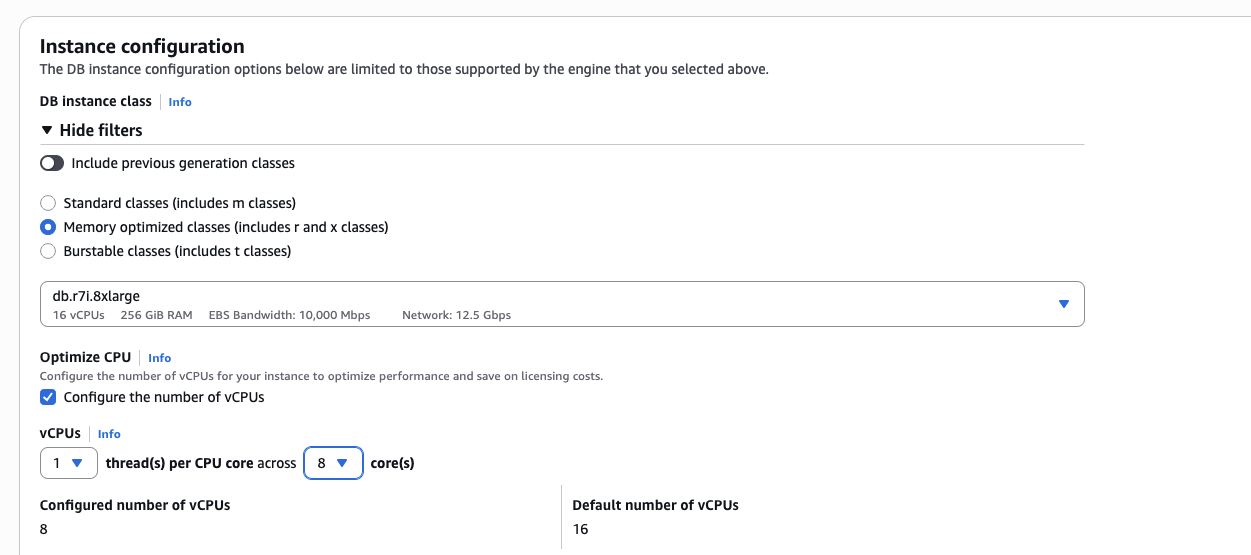
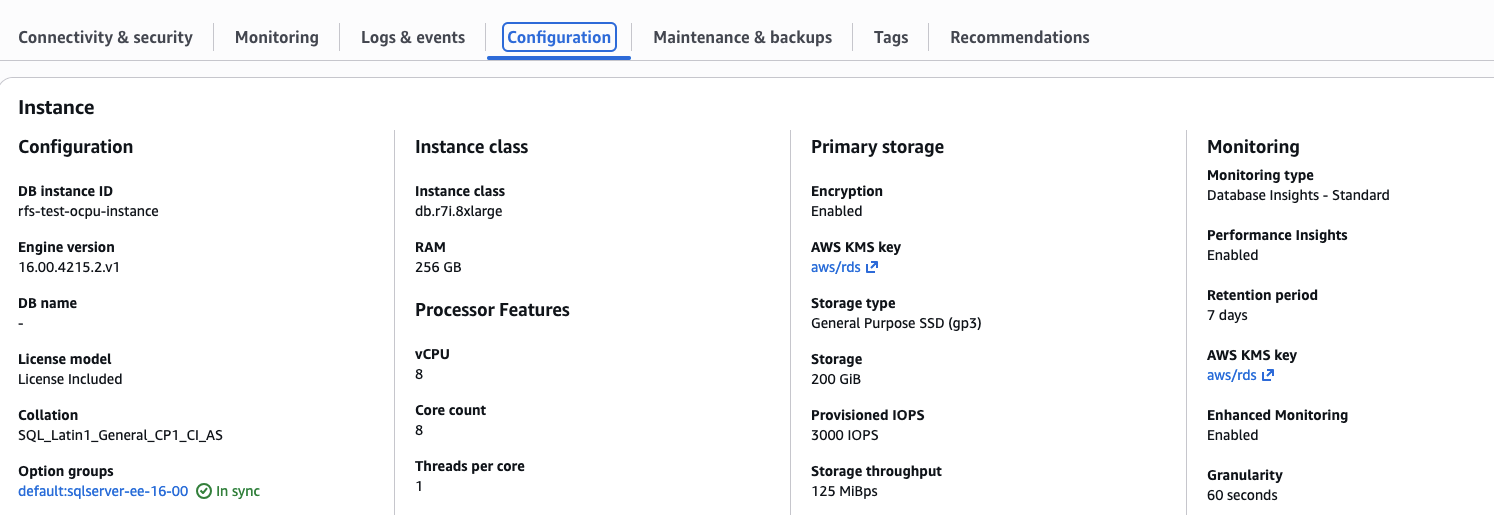
To create an RDS SQL Server instance with Optimize CPU, use the create-db-instance command with the --processor-features parameter. Specify values for coreCount and threadsPerCore. The following command creates an instance with 8 cores and 1 thread per core, resulting in 8 vCPUs total.

aws rds create-db-instance --region us-west-2 \
--engine-version 16.00 \
--allocated-storage 100 \
--license-model license-included \
--master-username admin --master-user-password XXXXX \
--no-multi-az \
--publicly-accessible \
--vpc-security-group-ids sg-XXXXX \
--db-subnet-group-name rds-db-sub-net-group-xxx \
--db-instance-identifier rfs-test-ocpu-instance \
--db-instance-class db.r7i.8xlarge \
--engine sqlserver-ee \
--processor-features "Name=coreCount,Value=8" "Name=threadsPerCore,Value=1"

When using this command:

  • It is mandatory to specify both coreCount and threadsPerCore for --processor-features parameter.
    • coreCount: You can customize the number of CPU cores for the instance. See DB instance classes that support Optimize CPU to find the allowed values for core count for a selected instance type.
    • threadsPerCore: Threads per core is configured to define the number of threads per CPU core. Starting from the 7th generation instance class type, the optimized CPU feature is supported, and the allowed value for threads per core is 1, as the 7th generation instance has Hyper-threading disabled.
  • The --processor-features parameter requires a minimum of 4 vCPU for Amazon RDS for SQL Server.

To verify these settings, use the describe-db-instances command:

----------------------------------------------------------------------------------
|                               DescribeDBInstances                              |
+-----------------+--------------------------+---------------+-------------------+
| DBInstanceClass |  DBInstanceIdentifier    |    Engine     |   EngineVersion   |
+-----------------+--------------------------+---------------+-------------------+
|  db.r7i.8xlarge |  rfs-test-ocpu-instance  |  sqlserver-ee |  16.00.4215.2.v1  |
+-----------------+--------------------------+---------------+-------------------+
||                               ProcessorFeatures                              ||
|+---------------------------------------------------+--------------------------+|
||                       Name                        |          Value           ||
|+---------------------------------------------------+--------------------------+|
||  coreCount                                        |  8                       ||
||  threadsPerCore                                   |  1                       ||
|+---------------------------------------------------+--------------------------+|

The following is a depiction of the Optimize CPU feature as it appears in the AWS Management Console.


Note: We recommend benchmarking your workload with the Optimize CPU feature so that the configured vCPU can handle the workload without causing resource constraints for your workload or RDS automation.

Modifying an existing instance with Optimize CPU

Instance modification with –use-default-processor-features

To revert an Optimize CPU instance to default settings, you can use the --use-default-processor-features parameter.

For example, the following command modifies an existing instance (rfs-test-ocpu-instance) that is configured with a db.r7i.8xlarge instance type and processor feature setting of 8 cores and 1 thread, to its default settings.

aws rds modify-db-instance --region us-west-2 \
--db-instance-identifier rfs-test-ocpu-instance \
--use-default-processor-features \
--apply-immediately

In the previous example, the existing instance of db.r7i.8xlarge configured with Optimize CPU settings of 8 cores and 1 thread per core is converted back to use the default settings of db.r7i.8xlarge instance type with 16 cores and 1 thread per core.

For Multi-AZ instances, both the primary and secondary instances will have identical vCPU configurations in accordance with processor feature settings.

Note: When you modify a DB instance to configure Optimize CPU, there is a brief DB instance downtime same as it takes when you modify the instance class type

Instance modification with –processor-features

You can modify an existing instance to specify processor feature settings. For example, the following command modifies an existing instance (rfs-test-ocpu-instance) that is configured with a db.r7i.8xlarge instance type and default settings to custom setting of Optimize CPU.

aws rds modify-db-instance --region us-west-2 \
--db-instance-identifier rfs-test-ocpu-instance \
--db-instance-class db.r7i.16xlarge \
--processor-features "Name=coreCount,Value=8" "Name=threadsPerCore,Value=1" \
--apply-immediately

By default, the db.r7i.16xlarge instance supports 32 cores and 1 thread per core, resulting in a total of 32 vCPUs. Utilizing the Optimize CPU feature with the specified settings, it will modify the instance to 8 cores and 1 thread per core resulting in a total of 8 vCPUs.

Restoring from a snapshot that is configured with Optimize CPU

When restoring from a snapshot of an instance with Optimize CPU enabled, the settings are copied to the target instance by default. You can also specify different Optimize CPU settings during the restore process.

Snapshot restore with the Optimize CPU feature

In this example, we are using a snapshot backup of an existing instance (rfs-test-ocpu-instance) configured with Optimize CPU settings. It uses db.r7i.16xlarge instance type and Optimize CPU settings of 8 cores and 1 thread per core, resulting into a total 8 vCPU’s.

To create a snapshot, run the following command:

aws rds create-db-snapshot --region us-west-2 \
--db-instance-identifier rfs-test-ocpu-instance \
--db-snapshot-identifier backup-rfs-test-ocpu-instance

To describe the DB snapshot, run the following command:

aws rds describe-db-snapshots --region us-west-2 \
--db-snapshot-identifier backup-rfs-test-ocpu-instance  \
--query "DBSnapshots[*].{DBInstanceIdentifier:DBInstanceIdentifier,DBSnapshotIdentifier:DBSnapshotIdentifier,Engine:Engine,EngineVersion:EngineVersion,ProcessorFeatures:ProcessorFeatures}"

You get the following output:

------------------------------------------------------------------------------------------------
|                                      DescribeDBSnapshots                                     |
+-------------------------+---------------------------------+---------------+------------------+
|  DBInstanceIdentifier   |      DBSnapshotIdentifier       |    Engine     |  EngineVersion   |
+-------------------------+---------------------------------+---------------+------------------+
|  rfs-test-ocpu-instance |  backup-rfs-test-ocpu-instance  |  sqlserver-ee |  16.00.4215.2.v1 |
+-------------------------+---------------------------------+---------------+------------------+
||                                      ProcessorFeatures                                     ||
|+-------------------------------------------------------------+------------------------------+|
||                            Name                             |            Value             ||
|+-------------------------------------------------------------+------------------------------+|
||  coreCount                                                  |  8                           ||
||  threadsPerCore                                             |  1                           ||
|+-------------------------------------------------------------+------------------------------+|

To restore from the snapshot, run the following command:

aws rds restore-db-instance-from-db-snapshot --region us-west-2 \
--vpc-security-group-ids sg-XXXXX \
--db-subnet-group-name rds-db-sub-net-group-xxx \
--publicly-accessible \
--db-snapshot-identifier backup-rfs-test-ocpu-instance \
--db-instance-identifier rfs-test-ocpu-instance-3

For restore-db-instance-from-db-snapshot, we did not specify the instance type or Optimize CPU settings, so Amazon RDS creates an instance with the same instance type (db.r7i.16xlarge) and Optimize CPU settings (8 cores, 1 thread per core) from the snapshot.

There are multiple scenarios to use the Optimize CPU feature with snapshot restore.

Restore a snapshot to a different instance type and default processor features

You can restore a snapshot taken on Optimize CPU enabled instance by specifying the different instance type and --use-default-processor-features.

For this example, we are using a snapshot backup of an existing instance (rfs-test-ocpu-instance) configured with Optimize CPU settings. The original instance uses a db.r7i.16xlarge instance type and Optimize CPU settings of 8 cores and 1 thread per core, resulting in a total of 8 vCPUs.

The following command restores a snapshot to a different instance type (db.r7i.8xlarge) with its default CPU settings (16 cores and 1 thread per core).

aws rds restore-db-instance-from-db-snapshot --region us-west-2 \
--vpc-security-group-ids sg-XXXXX \
--db-subnet-group-name rds-db-sub-net-group-xxx \
--publicly-accessible \
--db-snapshot-identifier backup-rfs-test-ocpu-instance \
--db-instance-identifier rfs-test-ocpu-instance-5 \
--db-instance-class db.r7i.8xlarge \
--use-default-processor-features

(Invalid) Restore a snapshot to a different instance type and no processor features set

When restoring a snapshot from an Optimize CPU-enabled instance to a different instance type, you cannot omit the processor feature settings. The following example demonstrates what happens if you attempt this.

In this scenario, we’re restoring a snapshot from an instance (rds-test-ocpu-instance), configured with db.r7i.16xlarge, 8 cores, and 1 thread per core, to a different instance type (db.r7i.8xlarge) without specifying processor features:

aws rds restore-db-instance-from-db-snapshot --region us-west-2 \
--vpc-security-group-ids sg-XXXXX \
--db-subnet-group-name rds-db-sub-net-group-xxx \
--publicly-accessible \
--db-snapshot-identifier backup-rfs-test-ocpu-instance \
--db-instance-identifier rfs-test-ocpu-instance-6 \
--db-instance-class db.r7i.8xlarge

This command fails with the following error:

An error occurred (InvalidParameterCombination) when calling the RestoreDBInstanceFromDBSnapshot operation: 
Your request must specify ProcessorFeatures settings or set UseDefaultProcessorFeatures since the snapshot has ProcessorFeatures set.

When a snapshot has processor features enabled and you specify a different instance type during restore, you must explicitly provide either the ProcessorFeatures settings or UseDefaultProcessorFeatures option.

Restore a snapshot to a different instance type with custom processor features

For example, the following command restores a snapshot of an instance (rfs-test-ocpu-instance) configured with Optimize CPU settings (8 core and 1 thread per core) using the db.r7i.16xlarge instance type. We specified a new instance type (db.r7i.12xlarge) and new Optimize CPU settings (18 cores, 1 thread per core).

aws rds restore-db-instance-from-db-snapshot --region us-west-2 \
--vpc-security-group-ids sg-XXXXX \
--db-subnet-group-name rds-db-sub-net-group-xxx \
--publicly-accessible \
--db-snapshot-identifier backup-rfs-test-ocpu-instance \
--db-instance-identifier rfs-test-ocpu-instance-7 \
--db-instance-class db.r7i.12xlarge \
--processor-features "Name=coreCount,Value=18" "Name=threadsPerCore,Value=1"

Point-in-time restore (PITR) with Optimize CPU

With Point-in-Time Restore (PITR) you can restore an instance to a specific point in time. This process involves restoring a specific snapshot based on the designated time for PITR and subsequently applying all transaction log backups to that snapshot, thereby bringing the instance to the specified point in time.

For PITR, the processor feature settings for coreCount and threadsPerCore are derived from the source snapshot (not the point in time) unless custom values are specified during the PITR request. If the source snapshot being used is enabled with Optimize CPU and you are using a different instance type for PITR, you must define the Optimize CPU options for the target instance or specify the --use-default-processor-features option. The use cases described above for snapshot restore are also applicable to PITR.

TimeStamp-1: Describe source database instance that is configured with Optimize CPU

For example, we have an instance (rfs-test-ocpu-instance-8) that is run on a db.r7i.8xlarge instance type with Optimize CPU settings of 8 cores and 1 thread per core. The following command shows the instance configuration.

aws rds describe-db-instances --region us-west-2 \
--db-instance-identifier rfs-test-ocpu-instance-8 \
--query 'DBInstances[].{DBInstanceIdentifier:DBInstanceIdentifier,Engine:Engine,EngineVersion:EngineVersion,ProcessorFeatures:ProcessorFeatures,DBInstanceClass:DBInstanceClass}'

The following is the command’s output:

------------------------------------------------------------------------------------
|                                DescribeDBInstances                               |
+-----------------+----------------------------+---------------+-------------------+
| DBInstanceClass |   DBInstanceIdentifier     |    Engine     |   EngineVersion   |
+-----------------+----------------------------+---------------+-------------------+
|  db.r7i.8xlarge |  rfs-test-ocpu-instance-8  |  sqlserver-ee |  16.00.4215.2.v1  |
+-----------------+----------------------------+---------------+-------------------+
||                                ProcessorFeatures                               ||
|+-----------------------------------------------------+--------------------------+|
||                        Name                         |          Value           ||
|+-----------------------------------------------------+--------------------------+|
||  coreCount                                          |  8                       ||
||  threadsPerCore                                     |  1                       ||
|+-----------------------------------------------------+--------------------------+|

TimeStamp-2: Create a database snapshot

We run the following command to create a database snapshot.

aws rds create-db-snapshot --region us-west-2 \
--db-instance-identifier rfs-test-ocpu-instance-8 \
--db-snapshot-identifier pitr-backup-rfs-test-ocpu-instance-8

Now we use the following command to describe database snapshot:

aws rds describe-db-snapshots --region us-west-2 \
--db-snapshot-identifier pitr-backup-rfs-test-ocpu-instance-8 \
--query "DBSnapshots[*].{DBInstanceIdentifier:DBInstanceIdentifier,DBSnapshotIdentifier:DBSnapshotIdentifier,Engine:Engine,EngineVersion:EngineVersion,ProcessorFeatures:ProcessorFeatures}"

We get the following output:

---------------------------------------------------------------------------------------------------------
|                                          DescribeDBSnapshots                                          |
+---------------------------+----------------------------------------+---------------+------------------+
|   DBInstanceIdentifier    |         DBSnapshotIdentifier           |    Engine     |  EngineVersion   |
+---------------------------+----------------------------------------+---------------+------------------+
|  rfs-test-ocpu-instance-8 |  pitr-backup-rfs-test-ocpu-instance-8  |  sqlserver-ee |  16.00.4215.2.v1 |
+---------------------------+----------------------------------------+---------------+------------------+
||                                          ProcessorFeatures                                          ||
|+-------------------------------------------------------------------+---------------------------------+|
||                               Name                                |              Value              ||
|+-------------------------------------------------------------------+---------------------------------+|
||  coreCount                                                        |  8                              ||
||  threadsPerCore                                                   |  1                              ||
|+-------------------------------------------------------------------+---------------------------------+|

TimeStamp-3: Modifying instance processor feature settings

Now, we run the following command to modify the instance’s processor feature settings to 4 cores and 1 thread per core:

aws rds modify-db-instance --region us-west-2 \
--db-instance-identifier rfs-test-ocpu-instance-8  \
--db-instance-class db.r7i.8xlarge \
--processor-features "Name=coreCount,Value=4" "Name=threadsPerCore,Value=1" \
--apply-immediately

We describe the instance:

aws rds describe-db-instances --region us-west-2 \
--db-instance-identifier rfs-test-ocpu-instance-8 \
--query 'DBInstances[].{DBInstanceIdentifier:DBInstanceIdentifier,Engine:Engine,EngineVersion:EngineVersion,ProcessorFeatures:ProcessorFeatures,DBInstanceClass:DBInstanceClass}'

We get the following output:

-----------------------------------------------------------------------------------
|                                DescribeDBInstances                               |
+-----------------+----------------------------+---------------+-------------------+
| DBInstanceClass |   DBInstanceIdentifier     |    Engine     |   EngineVersion   |
+-----------------+----------------------------+---------------+-------------------+
|  db.r7i.8xlarge |  rfs-test-ocpu-instance-8  |  sqlserver-ee |  16.00.4215.2.v1  |
+-----------------+----------------------------+---------------+-------------------+
||                                ProcessorFeatures                               ||
|+-----------------------------------------------------+--------------------------+|
||                        Name                         |          Value           ||
|+-----------------------------------------------------+--------------------------+|
||  coreCount                                          |  4                       ||
||  threadsPerCore                                     |  1                       ||
|+-----------------------------------------------------+--------------------------+|

TimeStamp-4: PITR to latest restorable time

Next, we restore the instance to the latest restorable time.

aws rds restore-db-instance-to-point-in-time --region us-west-2 \
--vpc-security-group-ids sg-XXXXX \
--db-subnet-group-name rds-db-sub-net-group-xxx \
--publicly-accessible \
--source-db-instance-identifier rfs-test-ocpu-instance-8 \
--target-db-instance-identifier rfs-test-ocpu-instance-9 \
--use-latest-restorable-time

We run the describe command on the restored instance:

aws rds describe-db-instances --region us-west-2 \
--db-instance-identifier rfs-test-ocpu-instance-9 \
--query 'DBInstances[].{DBInstanceIdentifier:DBInstanceIdentifier,Engine:Engine,EngineVersion:EngineVersion,ProcessorFeatures:ProcessorFeatures,DBInstanceClass:DBInstanceClass}' \

We get the following output:

------------------------------------------------------------------------------------
|                                DescribeDBInstances                               |
+-----------------+----------------------------+---------------+-------------------+
| DBInstanceClass |   DBInstanceIdentifier     |    Engine     |   EngineVersion   |
+-----------------+----------------------------+---------------+-------------------+
|  db.r7i.8xlarge |  rfs-test-ocpu-instance-9  |  sqlserver-ee |  16.00.4215.2.v1  |
+-----------------+----------------------------+---------------+-------------------+
||                                ProcessorFeatures                               ||
|+-----------------------------------------------------+--------------------------+|
||                        Name                         |          Value           ||
|+-----------------------------------------------------+--------------------------+|
||  coreCount                                          |  8                       ||
||  threadsPerCore                                     |  1                       ||
|+-----------------------------------------------------+--------------------------+||

At the time of Point-in-Time Restore (PITR) the source instance is running on a db.r7i.8xlarge instance type, featuring 4 cores and 1 thread per core. However, the restored instance’s (using the latest restorable time) CPU settings are derived from the snapshot using 8 cores and 1 thread per core.

Clean up

If you no longer need your RDS for SQL Server instance, delete it to avoid incurring additional costs.

  • Delete the RDS SQL Server DB Instance

    You can use the following command:

    aws rds delete-db-instance \
      --region us-west-2 \
      --db-instance-identifier <db_instance_name> \
      --skip-final-snapshot
  • Delete the manual DB Snapshot

    You can use the following command:

    aws rds delete-db-snapshot \
      --region us-west-2 \
      --db-snapshot-identifier <db_snapshot_name>

Conclusion

In this post, we demonstrated how to use the Optimize CPU feature on Amazon RDS for SQL Server to customize vCPU allocation, potentially reducing costs and optimizing performance for your specific workloads. We covered creating new instances, modifying existing ones, and performing snapshot restores and point-in-time recoveries with Optimize CPU settings. By fine-tuning your CPU resources, you can achieve better cost optimization while maintaining the performance your applications require. We encourage you to try out this feature for your use cases and share your experiences in the comments below.

For more information about Amazon RDS for SQL Server and its features, refer to the Amazon RDS User Guide.
About the authors

Srikanth Katakam

Srikanth Katakam

Srikanth is a Senior Database Engineer at AWS, specialized in Amazon RDS commercial database engines such as Amazon RDS managed and Amazon RDS Custom for SQL Server. With a wealth of technical expertise, Srikanth is passionate about designing and developing robust features that serve the diverse needs of AWS customers.

Sandesh Bhandari

Sandesh Bhandari

Sandesh is a Software Development Engineer at AWS, working on Amazon RDS for SQL Server and RDS Custom for SQL Server. He specializes in building scalable database solutions and tackling complex technical problems. With a focus on detailed analysis and innovation, Sandesh develops features that enhance the reliability and efficiency of AWS database services.