AWS Database Blog
From instant Aurora PostgreSQL databases to production-ready in your VPC
With express configuration for Amazon Aurora PostgreSQL-Compatible Edition (Aurora PostgreSQL), you or an AI coding agent can create and query a serverless database in seconds. By default, clients connect over the internet through the Aurora internet access gateway, using AWS Identity and Access Management (IAM) database authentication. That makes express configuration ideal for rapid prototyping.
Prototypes that succeed don’t stay prototypes. In production, security and compliance requirements usually call for the database to run in private subnets of a virtual private cloud (VPC), with security groups controlling which applications can connect. Features such as Amazon Relational Database Service (Amazon RDS) Proxy, Amazon Aurora Global Database, and Amazon RDS Blue/Green Deployments also require a VPC. Until now, moving a cluster with express configuration into a VPC meant restoring the database from a snapshot into a new cluster. You had to migrate its data to the new cluster, which had a new endpoint, and then update every application that connected to it. The process was lengthy and interrupted connected applications.
On November 19, 2026, we announced VPC networking for Aurora PostgreSQL with express configuration. You can now move an existing cluster into your VPC with a single modify operation, from the AWS Management Console, the AWS Command Line Interface (AWS CLI), or an AI agent’s tool call. The cluster keeps its data and its endpoint, so there’s no data migration and no connection string to change. If your security posture requires it, you can also create a cluster with express configuration in your VPC from the start.
This post shows how to move a cluster with the console or the AWS CLI and how to verify the move. It then shows how an AI agent can run the same operation, with IAM permissions that allow it to move a database into a VPC but prevent it from moving the database back to the internet access gateway.
How the connection changes
The internet access gateway and VPC networking are mutually exclusive connection patterns. With the internet access gateway, clients connect over the internet and authenticate with IAM. With VPC networking enabled, the cluster uses subnets in your VPC, and VPC security groups control which clients can connect. Aurora turns on VPC networking and turns off the internet access gateway in the same operation. For connections to work, make sure that there’s a network path between your clients and the database’s VPC.
The move causes a brief interruption. The transition completes in seconds, but existing database connections drop and must reconnect through the VPC. Schedule the move for a time when your application can tolerate a short interruption, and check that its connection pool or retry logic reconnects.
The following diagram shows the cluster before and after the move. In the VPC configuration shown, the VPC security group for the database allows PostgreSQL connections on port 5432 from the application’s security group.
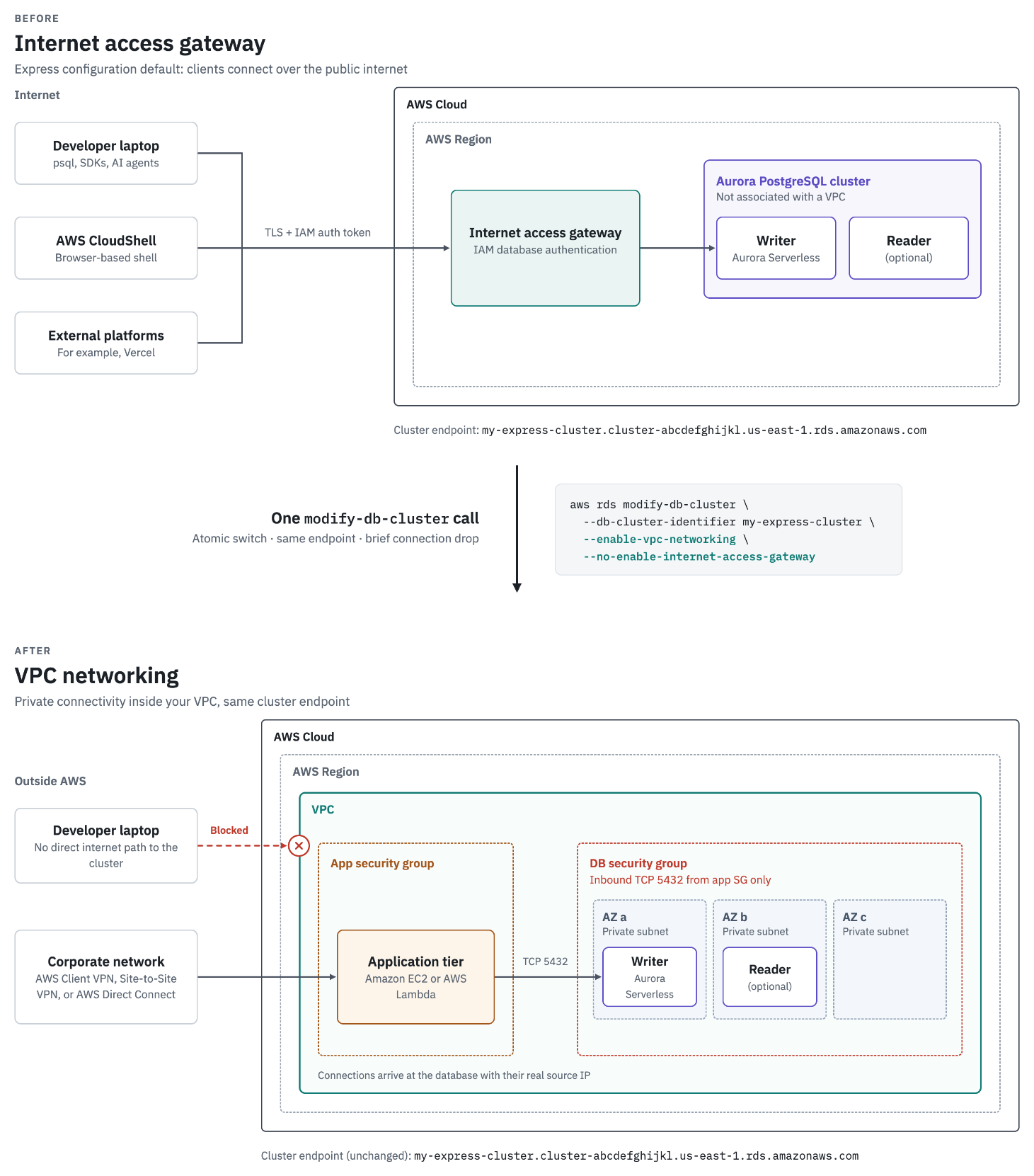
Figure 1: Moving the existing cluster from the internet access gateway to VPC networking while keeping its endpoint.
To create a new cluster directly in a VPC, choose VPC as the network access type on the console’s express configuration dialog, or add --enable-vpc-networking --no-enable-internet-access-gateway to create-db-cluster --with-express-configuration, and select the subnet group and security group. Creating a cluster with VPC networking takes longer than the default express configuration path, which creates a database in seconds. The following walkthrough focuses on moving an existing cluster.
Before you move
Prepare the following before you start:
- A network path for every client. Application hosts, administration tools, and agents that run SQL need a path into the VPC, such as an Amazon Elastic Compute Cloud (Amazon EC2) instance in the VPC, an AWS CloudShell VPC environment, AWS Client VPN, AWS Site-to-Site VPN, or AWS Direct Connect. A laptop or external platform that has only the gateway connection loses access after the move, unless you place the database in public subnets and make it publicly accessible. After the move, the cluster endpoint resolves to private IP addresses in your VPC. Make sure that your clients honor DNS TTLs, so they pick up the new addresses when they reconnect.
- A DB subnet group with a subnet that has available IP addresses in each Availability Zone where the cluster has a DB instance. To list these zones, run this command:
aws rds describe-db-instances --filters Name=db-cluster-id,Values=my-express-cluster --query "DBInstances[].AvailabilityZone" - A VPC security group for the database that allows inbound PostgreSQL traffic on port 5432 from your application’s security group, with subnet routes and network ACLs that allow the connection. If your network ACLs restrict traffic, remember that they’re stateless: allow inbound traffic on port 5432 and the return traffic on ephemeral ports (1024–65535).
- TLS trust configuration on each client. If your client verifies the server certificate, for example with sslmode=verify-full, download the appropriate Amazon RDS certificate bundle before the test and make it available on the client. A direct Aurora PostgreSQL connection uses an Amazon RDS server certificate, whereas the internet access gateway uses AWS root certificates.
- IAM permissions to move the cluster. In addition to rds:ModifyDBCluster, the move requires rds:EnableVpcNetworking and rds:DisableInternetAccessGateway on the cluster. Because the request names a DB subnet group, rds:ModifyDBCluster must also be allowed on the DB subnet group. This separates permission to change the connectivity mode from general permission to modify a cluster.
- An up-to-date AWS CLI or, for the Python example, Boto3, released on or after November 19, 2026. Earlier versions don’t support the new networking parameters.
Move the cluster
Use the console
- Open the Amazon RDS console in the cluster’s Region and choose Databases.
- Select the Aurora PostgreSQL cluster with express configuration and choose Modify.
- In the Connectivity section, for Network access type, choose VPC.
- Select the target VPC, DB subnet group, and VPC security group.
- Choose Continue and review the changes, including disabling the internet access gateway.
- Choose Apply immediately, then choose Modify cluster.
The following screenshot shows the Connectivity section with VPC selected as the network access type.
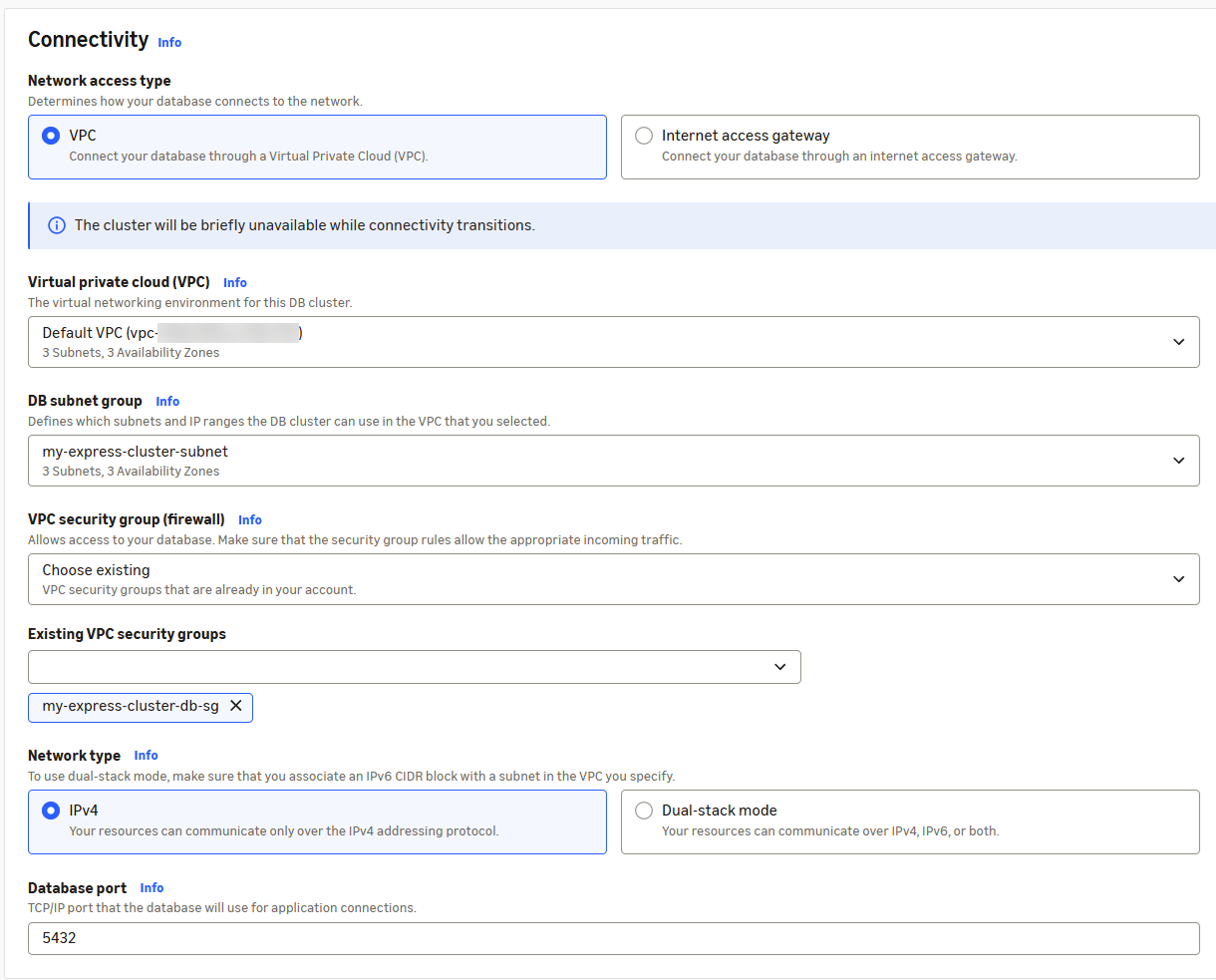
Figure 2: Choosing VPC as the network access type on the Modify DB cluster page.
Use the AWS CLI
The examples use the US East (N. Virginia) Region (us-east-1) and the cluster name my-express-cluster. Submit both connectivity changes in one modify-db-cluster call:
Specify the DB subnet group and security group explicitly. If you leave them out, Aurora uses the account’s defaults, which might not match the network you prepared. For example, all subnets in a default VPC are public subnets. If every subnet in the subnet group has an IPv6 CIDR block, you can add --network-type DUAL for dual-stack mode.
Verify the move
The modify command returns right away, and the move continues in the background. To check its progress, run:
The move is complete when Status is available, VPC (VPCNetworkingEnabled) is true, and Gateway (InternetAccessGatewayEnabled) is false. The endpoint is the same as before the move. The console shows the same result: on the Configuration tab, Network access type is VPC (Figure 3), and on the Connectivity & security tab, the internet access gateway is disabled (Figure 4).
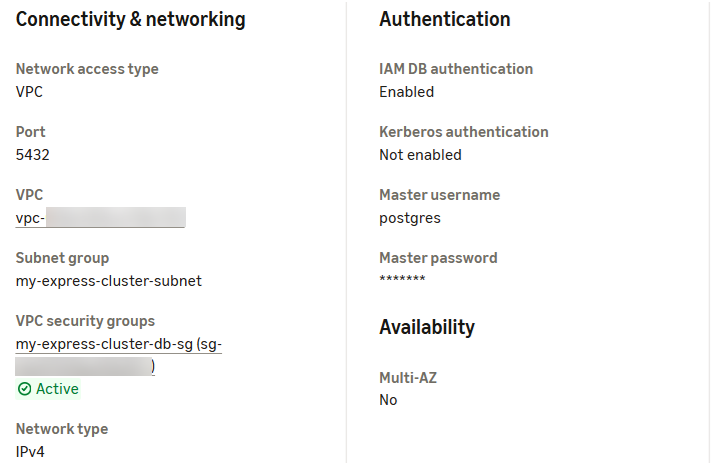
Figure 3: The Configuration tab after the move, showing the VPC, DB subnet group, and security group.

Figure 4: The Connectivity & security tab after the move, showing the internet access gateway disabled.
If the DB subnet group doesn’t cover an Availability Zone where the cluster has a DB instance, Aurora rejects the request right away. If the move starts but can’t complete, Aurora returns the cluster to the internet access gateway, keeps its endpoint, and publishes an RDS event with the cause. You can see the event on the Events page of the Amazon RDS console, or by running aws rds describe-events --source-type db-cluster --source-identifier my-express-cluster. Correct the issue and try again. The following is an example of the event:
Finally, connect from a client in the VPC, such as an EC2 instance associated with the application’s security group. The following example uses IAM database authentication, which the cluster already uses. Only the internet access gateway requires IAM authentication, so after the move you can also set up standard database user names and passwords. Replace db_user with your IAM-enabled database user:
The query returns the EC2 instance’s private IP address, for example 10.0.1.25, rather than the gateway’s address. Also check that your application reconnects as expected before you consider the move complete.
Let an AI agent run the move
An agent that created a prototype database can use the same modify operation when the application needs VPC connectivity. Because the operation acts on the existing cluster, the agent doesn’t need to coordinate a data migration, a replacement database, and an endpoint cutover. It still needs an approved subnet group and security group, and the application must be ready for the brief interruption.
If you use Kiro, you can ask for the move in plain language through the AWS MCP Server, a managed remote MCP server. The agent acts with your IAM permissions, so the permissions and the deny policy in this section apply, and AWS CloudTrail logs each call. To connect Kiro CLI to the AWS MCP Server, run the following command:
For more details, see Setting up the AWS MCP Server. Then describe the change you want:
The agent submits the move, waits until the cluster is available in the VPC, and reports the endpoint, which hasn’t changed. Kiro asks for your approval before the agent changes the cluster, so you can review the request first.
If you build your own agent tools, the following Boto3 function does the same thing. It submits the move, waits until the cluster reports the new configuration, and returns the endpoint. The timeout limits how long the tool waits. It doesn’t cancel the move.
Give the agent’s IAM role the permissions listed earlier, scoped to the clusters it may change. To stop the role from moving a database back out of the VPC, attach an explicit deny:
We recommend this deny for developer and agent roles. Moving a database out of a VPC requires rds:DisableVpcNetworking, so the deny prevents the move.
For a database that serves users, require human approval of the target network and the timing before the agent submits the move. An agent that also runs SQL needs a private path to the database after the move, like any other client.
Move the cluster back to the internet access gateway
You can also move a cluster out of the VPC and return it to the internet access gateway. The change keeps the endpoint and briefly interrupts connections. Use --no-enable-vpc-networking and --enable-internet-access-gateway in the modify request. Because the gateway supports only IAM database authentication, also include --enable-iam-database-authentication and --master-user-authentication-type iam-db-auth. Clients that use a database password lose access. This direction requires rds:DisableVpcNetworking and rds:EnableInternetAccessGateway permissions. If the master user password is managed in AWS Secrets Manager, also include --no-manage-master-user-password, and include --apply-immediately when the request turns on IAM database authentication. For the full list of requirements, see Moving a DB cluster out of a VPC in the Amazon Aurora User Guide.
Before you move the cluster back, disable features that require a VPC, such as RDS Proxy, Aurora Global Database, and Blue/Green Deployments. Aurora rejects the network change while they’re active.
Clean up
If you created resources only for this walkthrough, delete the test cluster and its DB instances, then the DB subnet group, the VPC security group for the database, and the test EC2 instance. Keep a final cluster snapshot if you need the data. Retained snapshots continue to incur charges.
Conclusion
With VPC networking for express configuration, a database that started as a prototype can move into your VPC without a data migration or an endpoint change, and workloads that need a VPC from day one can start there. In the VPC, you can control network access with subnets and security groups, and use features such as Amazon RDS Proxy for connection pooling, Aurora Global Database for cross-Region disaster recovery, and Amazon RDS Blue/Green Deployments for database updates.
To get started, map each client to its private connection path, then move the cluster. To learn more, see Moving a cluster with express configuration into a VPC in the Amazon Aurora User Guide. VPC networking for Aurora PostgreSQL with express configuration is available in all AWS Regions where express configuration is supported. For the list, see Supported Regions.