AWS Database Blog
Intuitive risk investigation with Amazon Neptune and Linkurious Enterprise
One of the challenges organizations face when adopting graph technology for risk investigation and analysis is the relative scarcity of query examples and learning resources compared to SQL. Although graph query languages like openCypher and Gremlin are powerful, finding practical examples and patterns to reference can be more difficult than with traditional database technologies. This means that even after the initial technical setup is done, teams might need additional support to derive full value from their graph data. Common use cases include fraud investigation, money laundering detection, and supply chain risk analysis.
This is where Amazon Neptune combines with the user-friendly, flexible, and scalable graph visualization and analytics solutions from Linkurious. Developed to democratize graph technology, Linkurious Enterprise builds on your Neptune data to make graph exploration and investigation accessible for technical and non-technical users alike. Together, Amazon Neptune and Linkurious Enterprise put data analytics and visualization directly in your hands, for investigations that are up to 10 times faster and more intuitive.
In this post, we show you how to configure Linkurious Enterprise to connect to Amazon Neptune and help end users quickly visualize and analyze graph data for critical insights. We then walk through an investigation that manages compliance risk, including alert creation, using Linkurious Enterprise with Neptune data. Our example investigates ultimate beneficial owners (UBOs).
First things first: Why use Amazon Neptune for your graph data?
Amazon Neptune is a fully managed graph database service that offers distinct advantages for working with graph data. Neptune provides two purpose-built options: Neptune Database and Neptune Analytics. Neptune Database is for building and running graph applications that require high availability, consistent performance, and serverless scaling. Neptune Analytics is for running graph analytic algorithms and low-latency queries over large volumes of graph data without managing infrastructure. Neptune Database is optimized for transactional workloads such as real-time fraud detection and identity resolution. Neptune Analytics is designed for batch analytics workloads such as finding communities or computing centrality scores across an entire graph. In this post, we use Neptune Database for our graph workload with Linkurious Enterprise.
The challenges for teams working with graph data
Although Neptune handles the complexity of managing graph infrastructure, a gap often remains between the power of graph queries and the ability of non-query-writing users to access insights directly. Users who are unfamiliar with graph query languages like openCypher or Gremlin are typically dependent on technical teams to extract insights, creating bottlenecks and delays in time-sensitive workflows like fraud investigations.
Finding patterns of interest and insights in connected data has also mostly required a relatively high degree of technical know-how. This has meant that non-technical or business users have been overly dependent on technical teams to use graph data in an efficient, timely manner. Although emerging generative AI-powered natural language interfaces are beginning to lower this barrier, visual graph exploration tools remain the most mature and widely adopted path for non-technical users today.
These challenges have meant that despite its obvious benefits, graph data has remained out of reach for some organizations. Tools like Linkurious Enterprise, working alongside Amazon Neptune, are changing that.
Using Amazon Neptune with Linkurious Enterprise
Linkurious Enterprise is a graph visualization and analytics tool that empowers both technical and business users to work with their graph data at scale. Although setup and integrations require technical know-how, the platform is designed to be intuitive and user-friendly for teams working with data stored in Neptune. After it’s integrated, it puts significant capability directly into the hands of end users.
In the following sections, we take a deep dive into how this works. We first look at how to configure Linkurious Enterprise to connect to Neptune and how to set up Neptune full-text search (powered by Amazon OpenSearch Service), step by step, before exploring how end users can carry out risk management analysis and investigations with their graph data.
Configuring Linkurious Enterprise to connect to Neptune
Linkurious Enterprise connects to Amazon Neptune through a dedicated service account. This means the Linkurious Enterprise server mediates all requests to the graph database, which can help prevent direct user access to Neptune and support a centralized channel between the application and Neptune. The effectiveness of this configuration depends on properly securing your Neptune cluster, including enabling AWS Identity and Access Management (IAM) authentication and restricting network access.
On top of this, Linkurious Enterprise provides its own authentication layer. You can extend this with external identity providers such as Lightweight Directory Access Protocol (LDAP), single sign-on (SSO), or OpenID. The benefit for organizations is integration into existing IT ecosystems, allowing employees to log in with their corporate credentials without requiring additional accounts.
Authorization is managed through a fine-grained, group-based model. You can use access rights to define both data visibility and the actions permitted for each group. These groups can also be synchronized with external authentication systems, supporting consistent identity and access management policies across platforms. For container-based deployments, Linkurious Enterprise can also run on Amazon Elastic Kubernetes Service (Amazon EKS), as shown in the following architecture diagram.
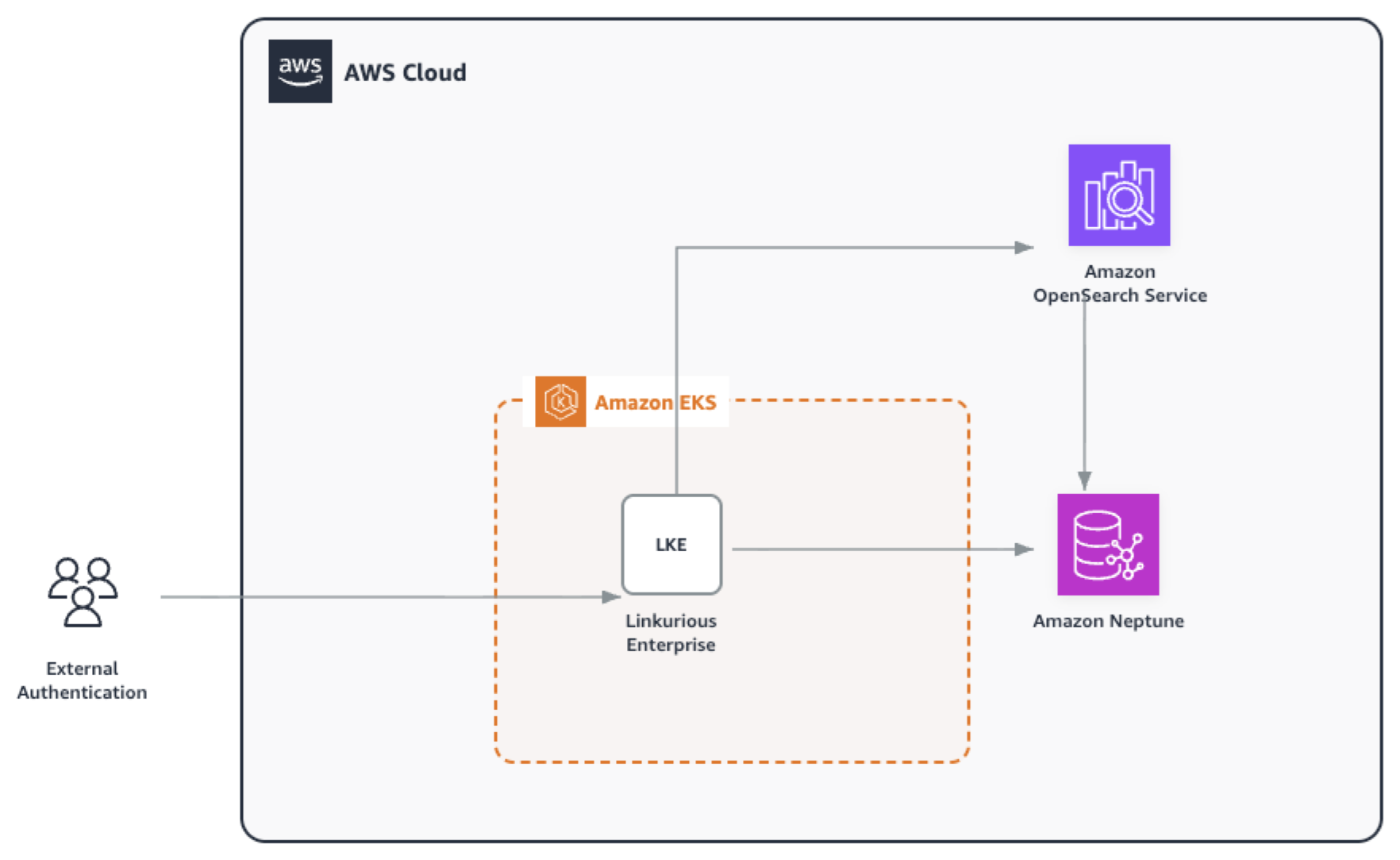
Figure 1: Linkurious Enterprise deployed on Amazon EKS, connecting external authentication to Amazon Neptune and Amazon OpenSearch Service
Note: As a best practice, we recommend enabling IAM authentication on your Neptune cluster in production environments. The authentication layer of Linkurious Enterprise operates on top of Neptune IAM authentication. It doesn’t replace it.
Getting Linkurious Enterprise
Linkurious Enterprise is available as both a cloud-hosted solution and an on-premises deployment. You can get started by requesting a 30-day free trial directly from Linkurious. Pricing and subscription options are also available on AWS Marketplace, so you can use your existing AWS billing relationship for procurement.
For on-premises deployments, Linkurious Enterprise is a web-application server that you can install on a dedicated server (including an Amazon Elastic Compute Cloud (Amazon EC2) instance) and then access through a web browser. Full setup instructions are available in the Linkurious Enterprise administration manual.
Starting your Linkurious Enterprise and Amazon Neptune configuration
Before business users can freely work with their Neptune data in Linkurious Enterprise, there’s an initial configuration to complete. First, let’s look step by step at how to configure Linkurious Enterprise to connect to Neptune.
The first step is to set up network access. By default, Amazon Neptune isn’t accessible from outside your Amazon Virtual Private Cloud (Amazon VPC). To allow Linkurious Enterprise access to Neptune, you have several connectivity options depending on your environment and security requirements.
For production environments, we recommend enforcing private accessibility for your Neptune cluster. A straightforward approach is to run Linkurious Enterprise from within the same VPC (for example, on an Amazon EC2 instance) in a subnet that can reach the Neptune subnet. Other secure connectivity options include:
- Set up an AWS Network Load Balancer.
- Set up VPC peering between the Neptune VPC and the VPC containing your Linkurious Enterprise instance.
- Use AWS Transit Gateway to connect the Neptune VPC with the network containing your Linkurious Enterprise instance.
- Set up a virtual private network (VPN) between the Neptune VPC and the network containing your Linkurious Enterprise instance.
Note: For testing and development purposes only, you can enable public endpoints on your Neptune cluster. This isn’t recommended for production environments.
Prerequisites
Before proceeding, you must have Linkurious Enterprise installed and running. Linkurious Enterprise is a web-application server that you can deploy on an Amazon EC2 instance within your VPC, or run as a container on Amazon EKS. For installation instructions, see the Linkurious Enterprise administration manual. Additionally, Linkurious Enterprise requires the Neptune Graph summary API to retrieve metadata from an Amazon Neptune instance. This API provides the graph schema, including details about the node labels and edge types present in your data. For more details about this API, see the Neptune graph summary documentation.
If your use case requires full-text search across node and edge properties, you must also provision an Amazon OpenSearch Service domain and configure Neptune-to-OpenSearch replication before configuring Linkurious Enterprise. For details, see Setting up Neptune full-text search with Amazon OpenSearch Service later in this post. Note that the Neptune-to-OpenSearch integration must be set up on an empty Neptune graph. Existing data won’t be automatically synchronized if you configure the integration after data has been loaded.
The Graph summary API is available by default on Neptune clusters running engine version 1.2.1.0 or later (Neptune doesn’t allow creation of clusters with earlier engine versions). The summary data is drawn from DFE (Data Flow Engine) statistics that are computed automatically during runtime and enabled by default when you create a new Neptune DB cluster. Note that statistics might be unavailable if the predicate count in your graph is very large.
Important: The Graph summary API isn’t available on db.t3.medium or db.t4g.medium instance types, because statistics generation is disabled on these instances to conserve memory. You must use a different instance type, such as the db.r7g or db.r8g family, or Neptune Serverless, to use this feature with Linkurious Enterprise.
Configuration
To edit a Neptune data-source configuration, go to Admin > Data Sources in the Linkurious Enterprise web interface, or edit the configuration file located at <linkurious>/data/config/production.json (where <linkurious> is your Linkurious Enterprise installation directory).
The following screenshot shows the Linkurious Enterprise data-source settings page.
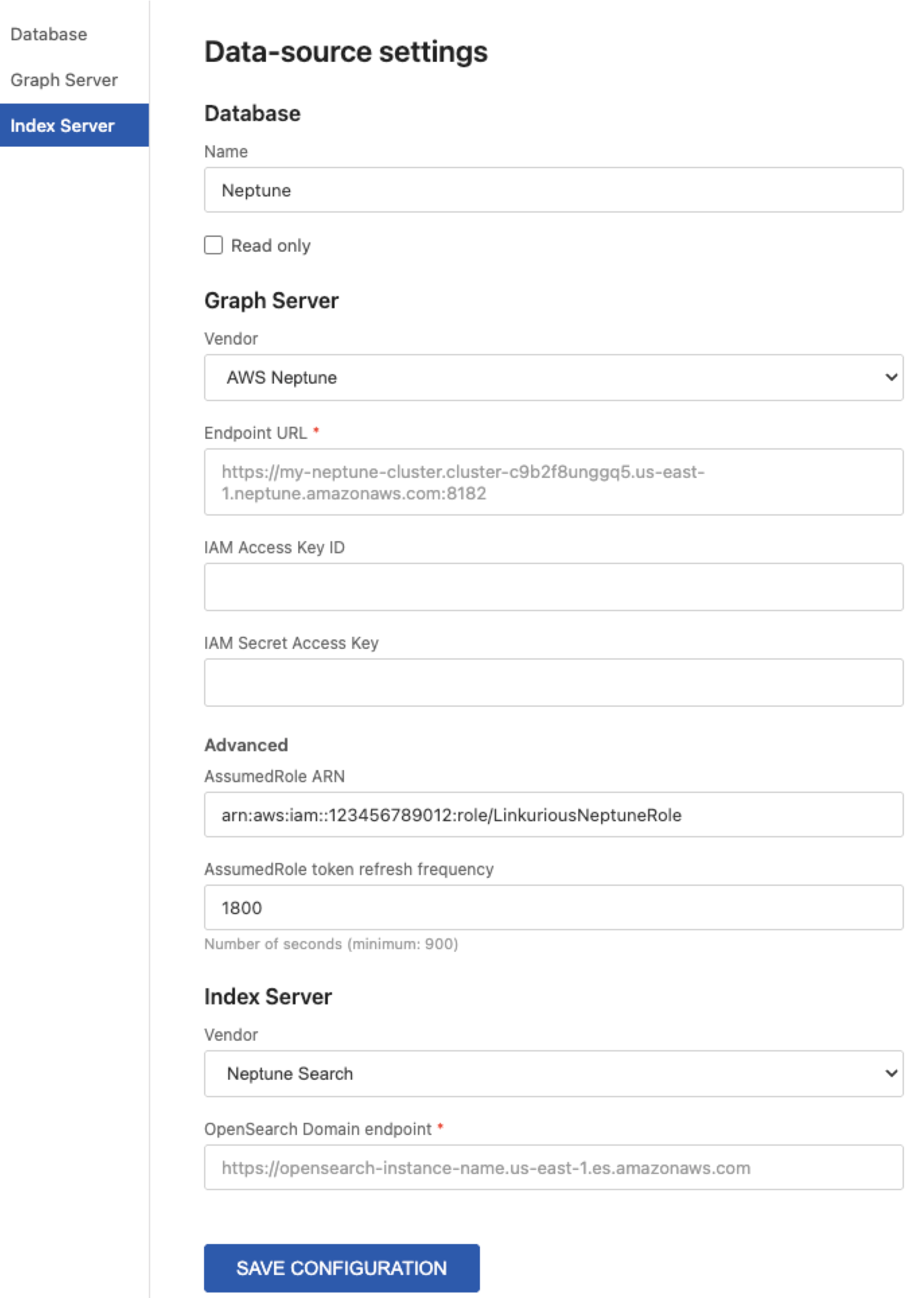
Figure 2: The Linkurious Enterprise data-source settings page
Alternatively, you can configure the connection directly in the JSON configuration file. The following is an example configuration using IAM Role ARN (recommended):
Security best practice: Use the assumedRoleArn option to authenticate with an IAM role rather than static access keys. This approach follows AWS security best practices by using temporary credentials that are automatically rotated. The assumedRoleTokenRefreshSeconds setting (default: 1800 seconds) controls how frequently the temporary credentials are refreshed. The IAM role must have permissions for Neptune data access actions, including neptune-db:ReadDataViaQuery, neptune-db:WriteDataViaQuery, and neptune-db:DeleteDataViaQuery depending on your use case. For read-only access, you can restrict the role to neptune-db:ReadDataViaQuery. For details on creating custom IAM policies for Neptune data access, see Creating custom IAM policy statements to access data in Amazon Neptune in the Neptune documentation.
Linkurious Enterprise supports several configuration options within the “graphdb” object (the graph database connection section of the configuration file) for Neptune:
- url (required): The URL of the Gremlin endpoint for the Neptune server. Linkurious Enterprise works with the Neptune property graph model using the Gremlin query language.
- assumedRoleArn (recommended): The Amazon Resource Name (ARN) of the IAM role to assume for authentication.
- assumedRoleTokenRefreshSeconds (default: 1800): When assumedRoleArn is used, number of seconds before the temporary access token is refreshed.
- accessKeyId (alternative to assumedRoleArn): The Access Key ID for the IAM role used to access Neptune. Use only if IAM role assumption is not feasible.
- secretAccessKey (alternative to assumedRoleArn): The Secret Access Key for the IAM role used to access Neptune.
- latitudeProperty (optional): The name of the node property to use for latitude (used in geo mode).
- longitudeProperty (optional): The name of the node property to use for longitude (used in geo mode).
- ignoredEdgeTypePrefixes (optional): The list of edge type prefixes to be excluded in the schema sampling.
Setting up Neptune full-text search with Amazon OpenSearch Service
The Neptune full-text search integration enables full-text search capabilities within Linkurious Enterprise when connected to Amazon Neptune. This integration uses Amazon OpenSearch Service in combination with Neptune-to-OpenSearch replication to provide an always-up-to-date search index. Although Linkurious Enterprise can function without this integration, when you enable it you can perform text-based searches across node and edge properties directly from the Linkurious Enterprise interface. If your use case requires full-text search, you must set up an Amazon OpenSearch Service domain and configure Neptune-to-OpenSearch replication before configuring Linkurious Enterprise.
Data-source configuration
When configuring Neptune full text search, the following options are available:
- vendor: must be neptuneSearch.
- url: the OpenSearch domain endpoint URL.
Setting up Neptune-to-OpenSearch replication
Important: If you choose to enable full-text search, the Neptune-to-OpenSearch integration must be set up on an empty Neptune graph. If you set up the integration after you have already added data to Neptune, existing data will not be automatically synchronized to Amazon OpenSearch Service. Plan to configure this integration before loading data into your Neptune database.
Full details on how to set up the Neptune to OpenSearch integration are available in the AWS documentation.
Managing anti-money laundering (AML) risk with Linkurious Enterprise: Identifying ultimate beneficial owners (UBOs)
After Linkurious Enterprise is configured and connected to Amazon Neptune, end users can start independently using their graph data to investigate and analyze complex cases.
You can conduct many kinds of investigations and analysis using your graph data. In this example, we look at how you can use Linkurious Enterprise to quickly track down ultimate beneficial owners (UBOs) to understand potential money laundering or compliance risk.
Ultimate beneficial owners are the real-world entities that ultimately own or control a company, even when that ownership is obscured through layers of shell companies, trusts, or nominee arrangements. Identifying UBOs is a legal requirement in many jurisdictions under anti-money laundering (AML) and know your customer (KYC) regulations. For example, in many jurisdictions, financial institutions must verify the identity of any individual who owns more than a defined threshold (often 25 percent) of a legal entity. This verification must happen before onboarding them as a client. Failing to do so can expose organizations to significant regulatory penalties.
The challenge is that bad actors can construct complex, multi-layered ownership structures to hide their identity, making manual investigation slow and prone to error. This is precisely the kind of problem that you can solve using graph-based investigation.
Beginning your visualization
There are different ways of beginning a graph visualization in Linkurious Enterprise. You can start typing an entity of interest into the search bar, then select it to add it to your visualization. You can also perform an advanced search to add filters related to fuzziness, category, properties, and so on. In this example, we’re looking for companies with certain properties.
The following screenshot shows the search interface with advanced filtering options, including fuzziness, category, and property filters.
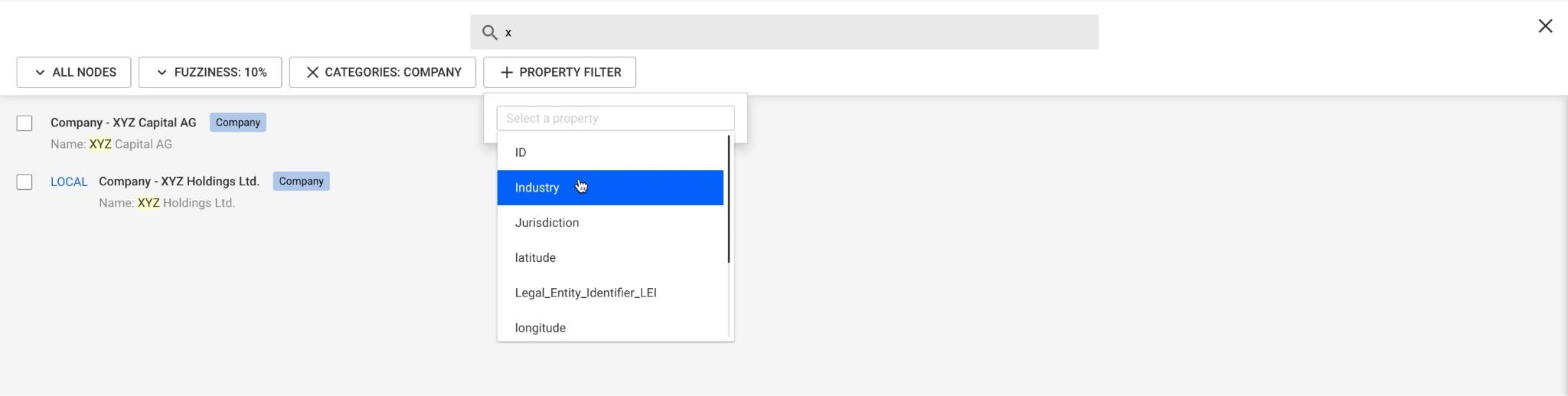
Figure 3: The advanced search interface with fuzziness, category, and property filters
You can also run a query directly against your Neptune graph data using openCypher or Gremlin, or use a previously saved query, stored in the query panel on the right of the screen. With the query panel, you can tag, filter, and save queries, and share them with other users in your workspace.
The following screenshot shows the query panel with a query against Neptune graph data.
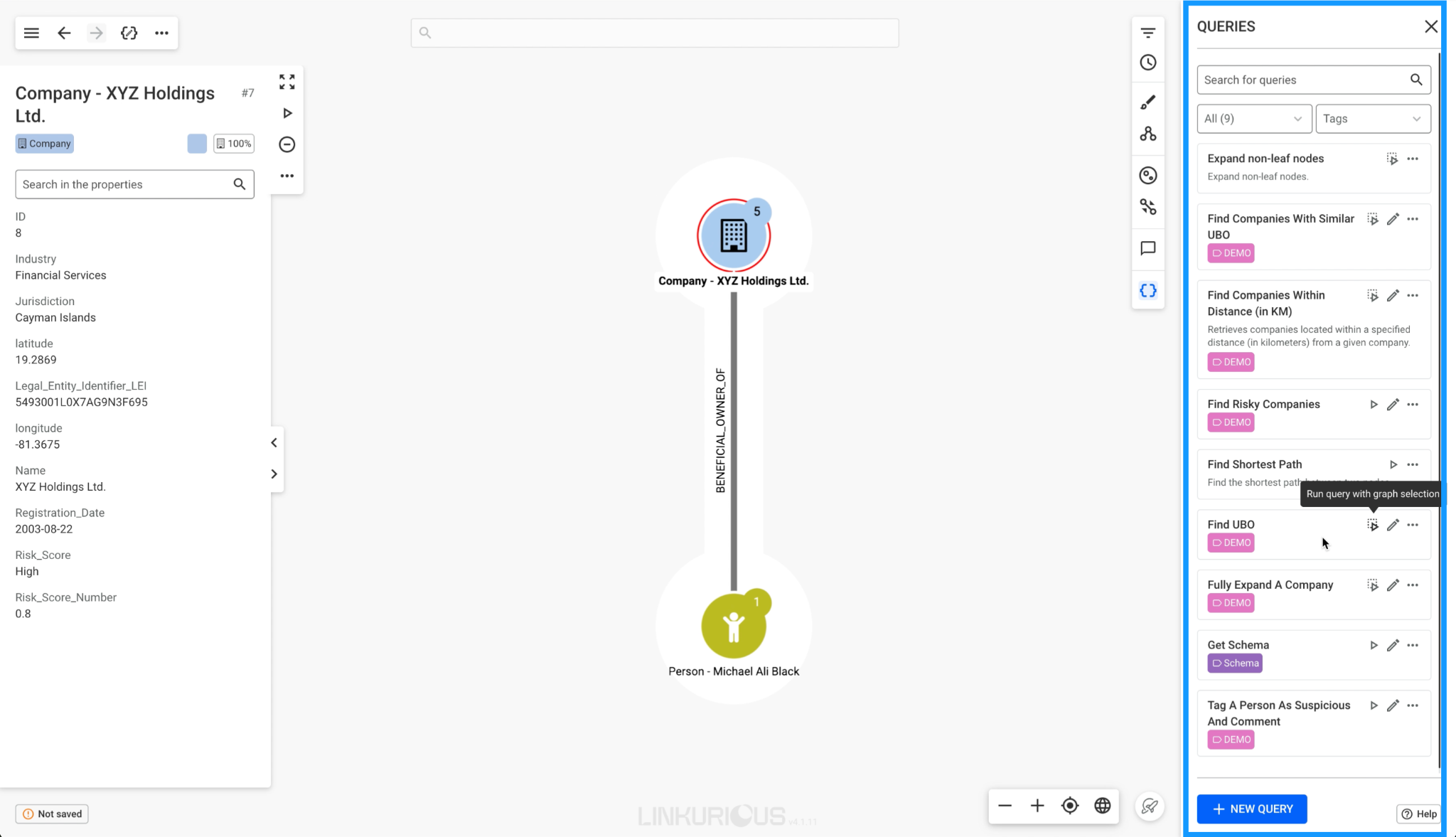
Figure 4: The query panel running a query against Neptune graph data
Querying your graph data
After you’ve added an entity or networks of interest to your visualization, you can start expanding connections by selecting your nodes. Networks of ownership structure already start to emerge in the visualization as you expand connections. With Linkurious Enterprise open and connected to your Neptune cluster, you can also do this quickly using a “fully expand a company” query, a query pre-built in Linkurious Enterprise that retrieves all direct connections for a selected entity in one click.
The following screenshot shows an expanded network visualization where ownership structures begin to emerge.
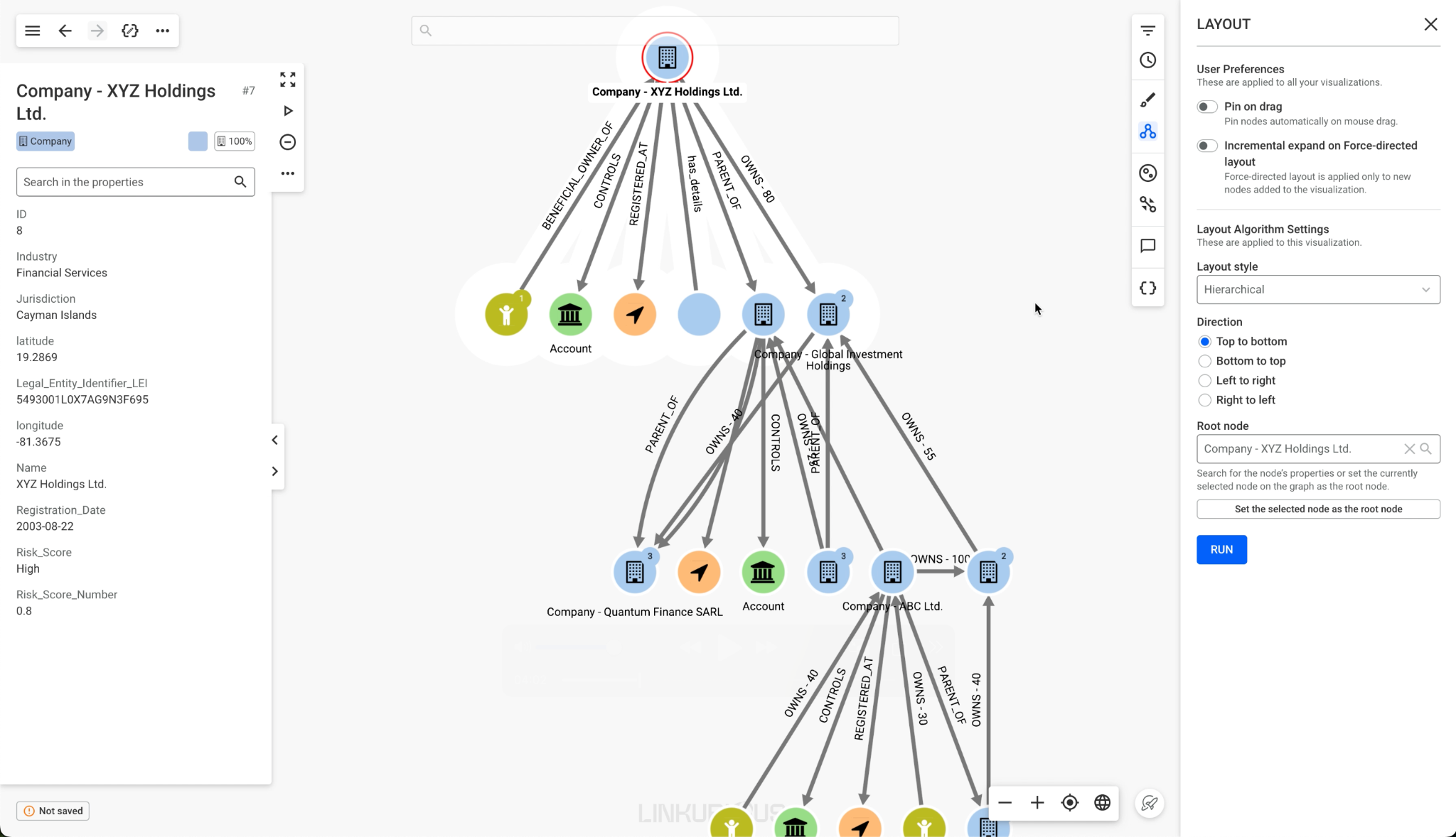
Figure 5: An expanded network visualization where ownership structures begin to emerge
UBOs can be concealed by layers of complex structures, and graph analytics is uniquely suited to traverse many relationships. Even if your data is very complex, Linkurious Enterprise can surface a UBO in seconds (traversal time might vary depending on graph size and query complexity), and give you the visual context to interpret it.
In Linkurious Enterprise, custom queries can be saved and named (for example, “find UBO”) so that any team member can select and run it from the query panel, without needing to write any code themselves.
The following screenshot shows a saved custom query named “find UBO” available in the query panel.
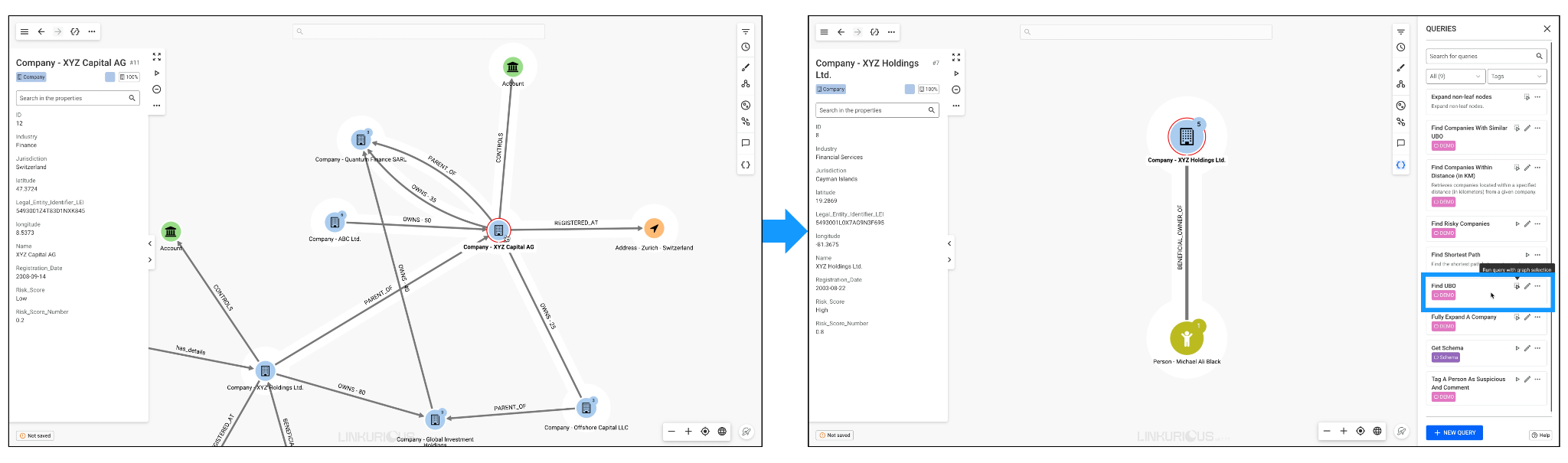
Figure 6: A saved custom query named find UBO in the query panel
Filtering and customizing your visualization
Depending on the information you need to see in your visualization, you can apply filters, for instance to see only companies in certain industries (available filters depend on the properties present in your graph data). You can also customize visualizations to make key information visible at a glance. For example, dynamic node sizing automatically scales the size of each node in the graph based on a property value, so individuals with high risk scores are visually prominent and stand out. The following images show the filter panel (left) and the resulting visualization with dynamic node sizing applied (right).
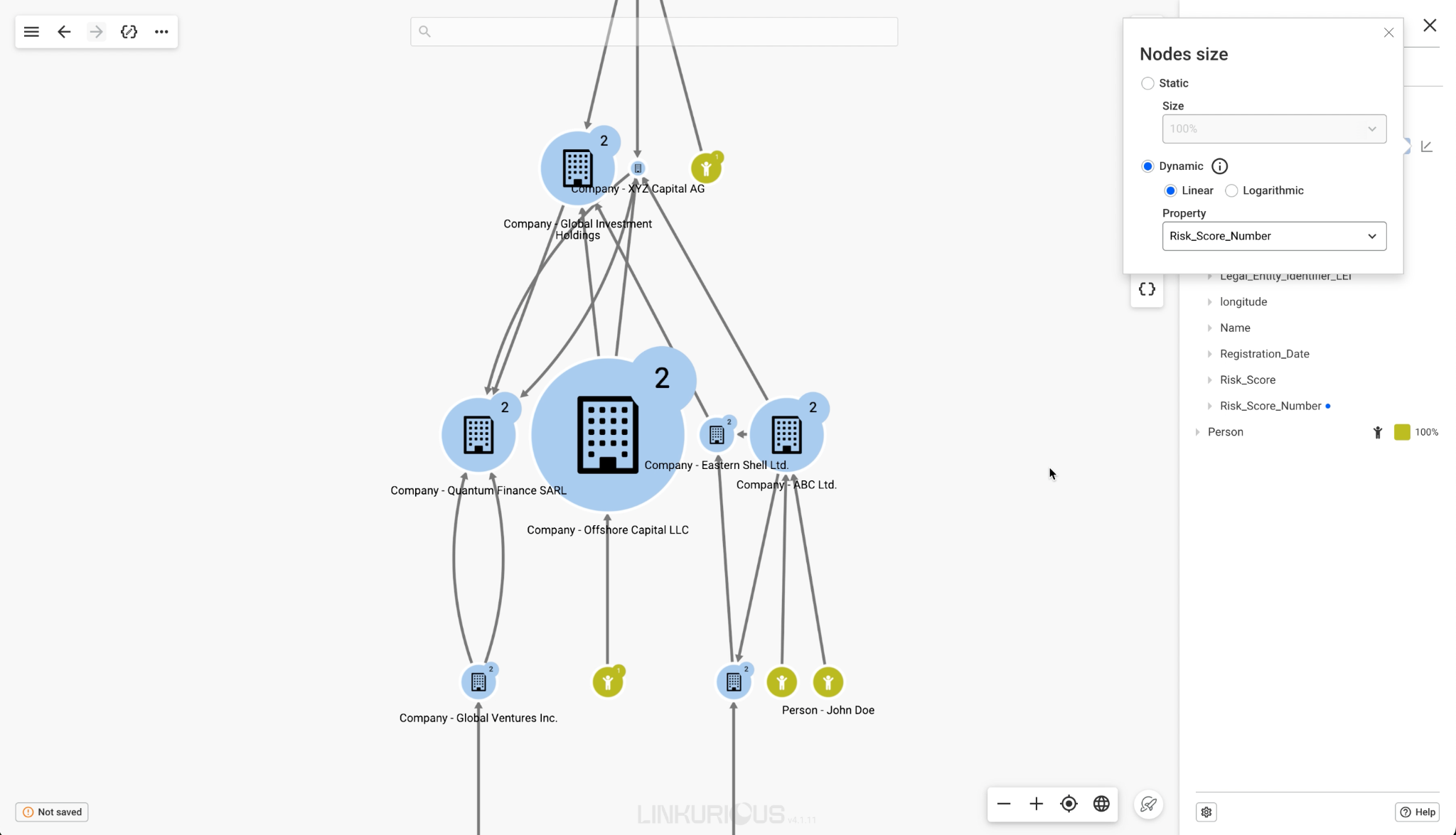
Figure 7: The filter panel for narrowing the visualization by company properties
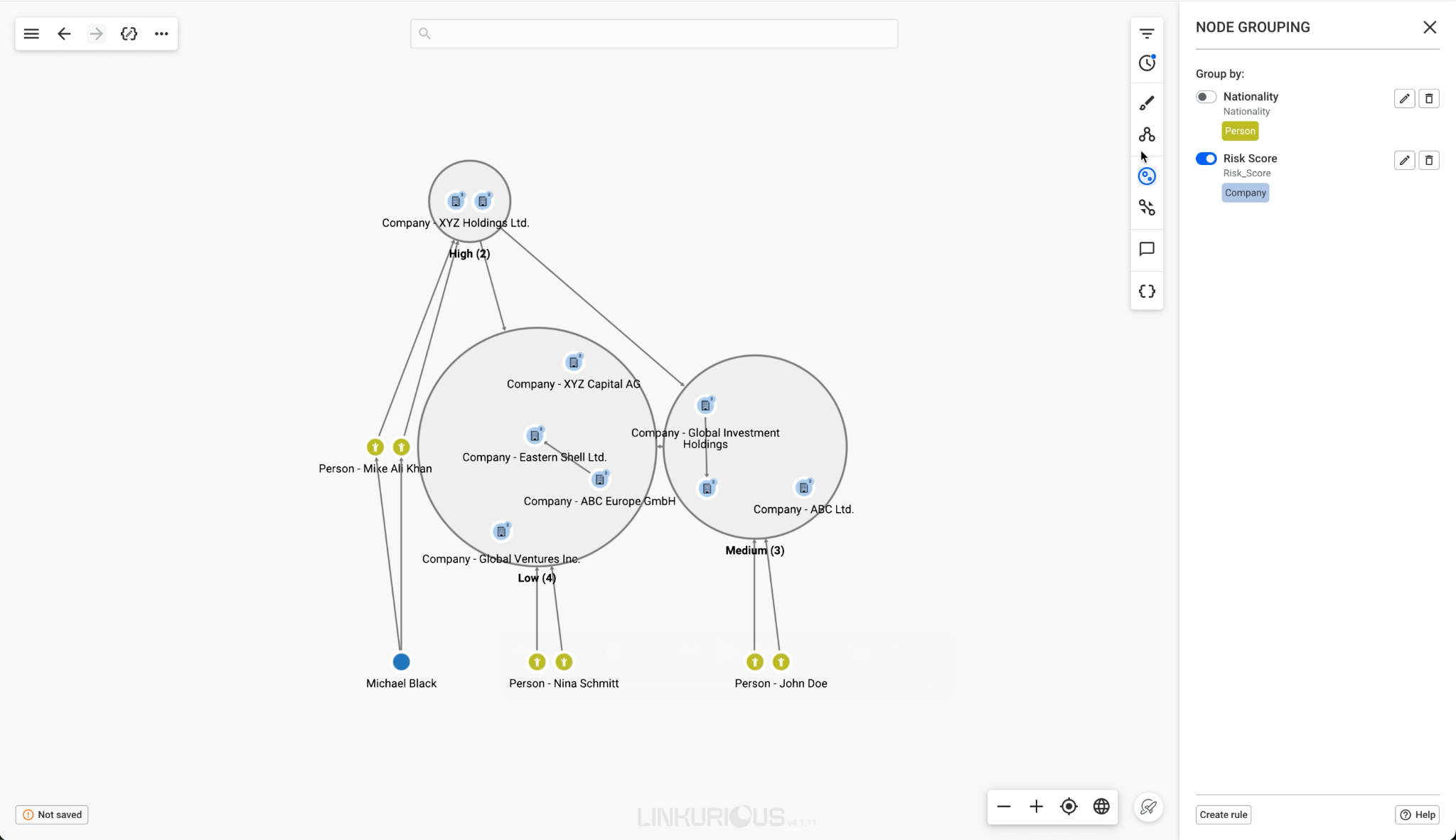
Figure 8: The visualization with dynamic node sizing applied
Visualizing geographic and temporal information
In some cases, quickly understanding the jurisdiction of a company or the evolution of an ownership structure over time might be important for evaluating risk. In Linkurious Enterprise, there are solutions for both. With geo mode, you can see your full network on a map, as shown in the following image.
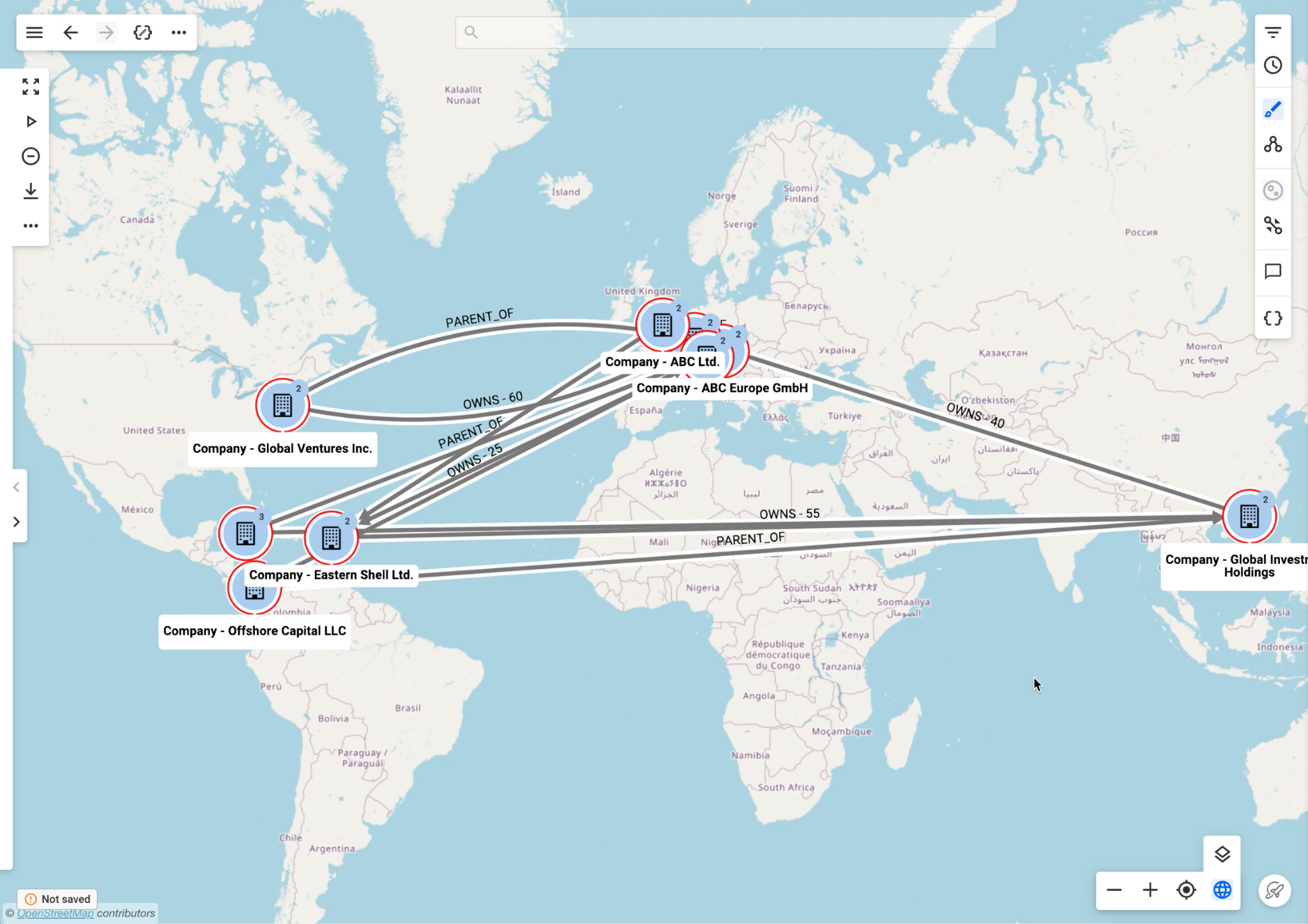
Figure 9: Geo mode showing the network plotted on a map
Separately, using the timeline feature (shown in the following image), you can look at company registration dates within your network visualization, toggling the timeline to visualize companies according to when they were registered. You can then spot anomalies in company registration dates. For guidance on visualization capacity and the recommended number of nodes and edges to display simultaneously, consult the Linkurious Enterprise documentation.
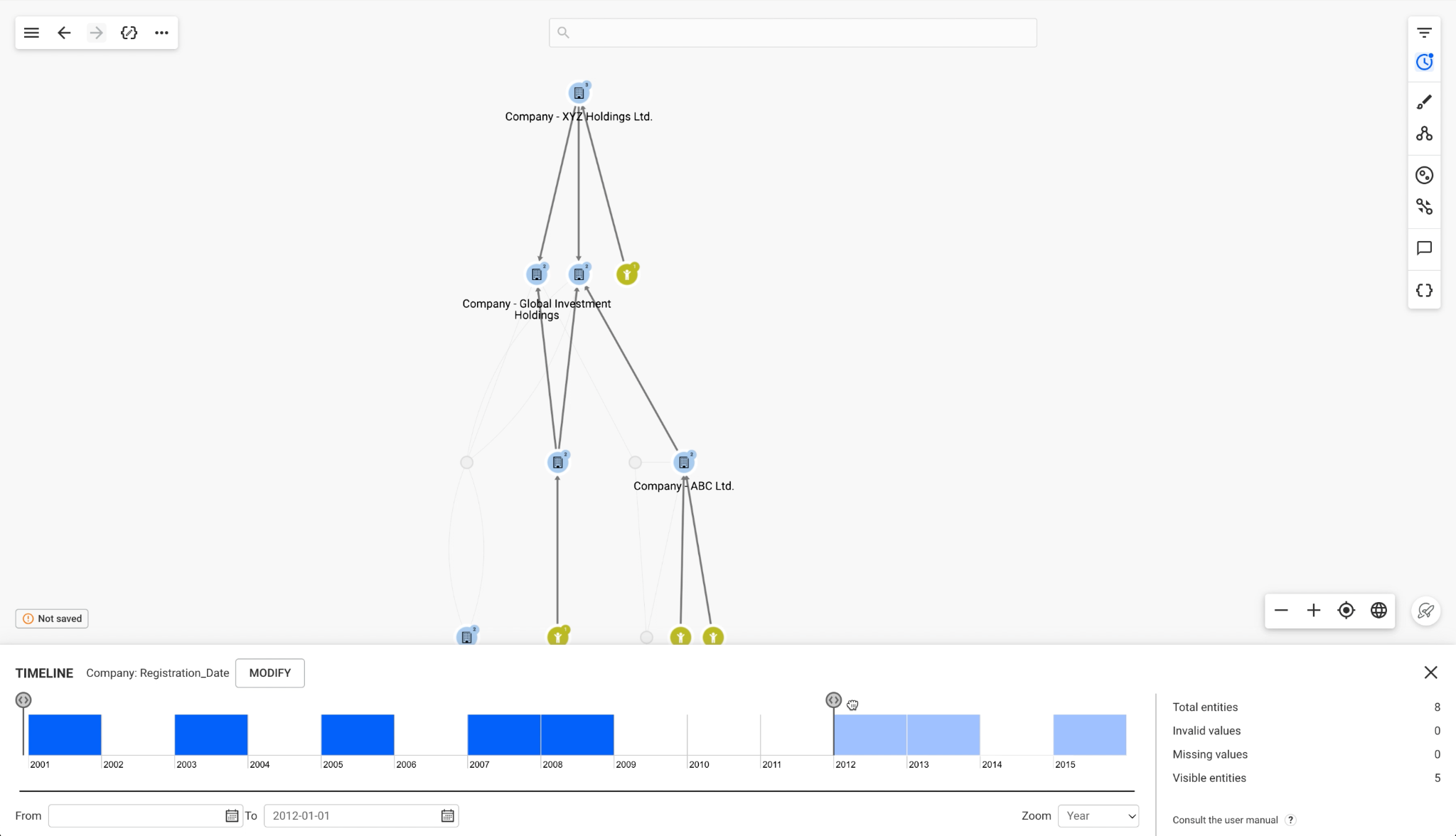
Figure 10: The timeline view showing companies by registration date
Setting up alerts for risk management
To automate investigative workflows, you can set up alerts. Rather than manually running queries each time, you can define detection rules that run automatically on a schedule and flag new matches for your team to review. You can combine multiple rules to uncover complex hidden patterns.
Alerts run automatically at the interval of your choosing. Linkurious Enterprise populates results to a case management list, giving investigators a structured case list to work through.
The following screenshot shows the alert case management list where investigators can review and manage flagged results.
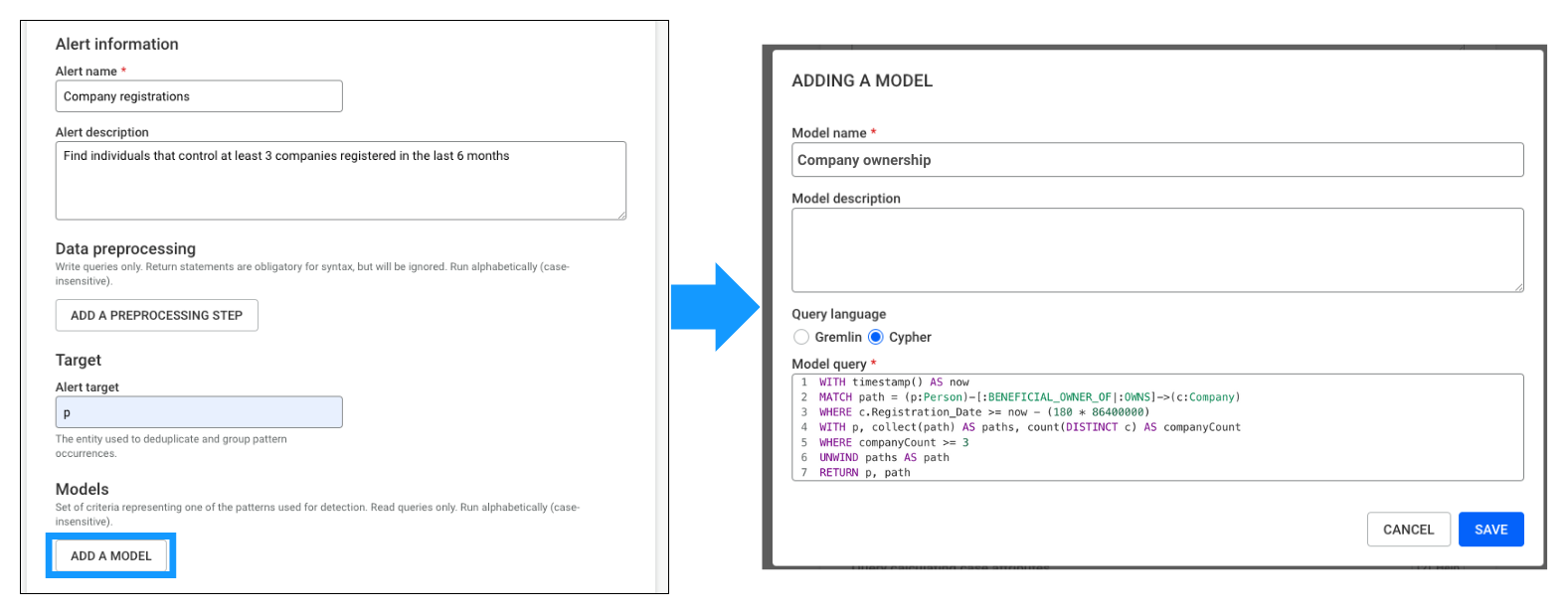
Figure 11: The alert case management list for reviewing flagged results
Conclusion
The combination of Amazon Neptune and Linkurious Enterprise helps democratize graph analytics in enterprise risk management. In this post, we showed how organizations can overcome the traditional technical barriers that have limited access to graph data insights, from the initial configuration steps needed to connect Linkurious Enterprise to Amazon Neptune, to the practical application of investigating ultimate beneficial owners for AML compliance.
We walked through the end-to-end process of connecting Linkurious Enterprise to Neptune, configuring full-text search with Amazon OpenSearch Service, and conducting a practical UBO investigation for AML compliance. We demonstrated how investigators can visually traverse complex ownership structures, apply filters and geographic views, and set up automated alerts, all without writing graph queries directly. The result is faster, more accessible investigations that can identify complex patterns like fraud rings, money laundering networks, and supply chain risks.
You can learn more about how to set up and use Linkurious Enterprise in the Linkurious Enterprise documentation. Or, visit the Linkurious platform page to see how the solution works for investigating and analyzing complex connected data.