AWS Database Blog
Upgrade legacy Amazon RDS file systems to increase storage capacity and improve performance with minimal downtime
Amazon Relational Database Service (Amazon RDS) DB instances use current file systems and the latest io2 Block Express volumes to deliver high performance and scalability. In contrast, RDS instances running on legacy file systems face several limitations. Storage is capped at 16 TiB, and some engines, including MySQL, MariaDB, and PostgreSQL, may encounter per-file size limits of approximately 2 TiB due to file system constraints, even though the database engines themselves support larger objects. Legacy file systems may also perform writes less efficiently, which can reduce overall database throughput.
RDS instances using previous-generation io1 storage face similar storage limits and provide lower IOPS and throughput compared with io2 Block Express volumes. Upgrading to the current file system removes these limitations without additional charges for the file system itself. Storage can expand up to 64 TiB, and write performance is improved.
Storage choice has a direct impact on database responsiveness. io2 Block Express supports up to 256,000 provisioned IOPS and 4,000 MiB/s of throughput, depending on the DB instance class, with consistent sub-millisecond latency. Smaller instance classes may achieve lower maximums. For many workloads, io2 delivers higher and more predictable performance than io1, often at comparable cost per IOPS, with improved durability and consistency.
In this post, I show you how to upgrade an RDS instance to the current file system with minimal downtime using Amazon RDS blue/green deployments. During the same maintenance window, you can also migrate your storage volume from io1 to io2 Block Express without increasing costs. By combining the file system and storage upgrades in a single blue/green deployment, you modernize both layers at once, reducing operational effort while gaining immediate performance improvements.
Amazon RDS blue/green deployments: benefits and workflow
Amazon RDS blue/green deployments provide a controlled, low-downtime method for upgrading databases by maintaining two synchronized environments: a blue production environment and a green upgraded environment created from a snapshot of production. While applications continue running on the blue environment, upgrades are applied and validated on the green environment. Once validation is complete, traffic is switched to the green environment, which then becomes the new production system.
This approach simplifies complex upgrades by automating manual tasks, reducing the risk of human error, and ensuring consistent changes across both primary and replica databases. Schema changes can be applied without interrupting operations, and data consistency is maintained through physical replication.
The green environment is fully provisioned before cutover, avoiding lazy restore behavior and ensuring predictable performance immediately after switchover. Administrators can also resize storage volumes without manual migration, improving cost and resource efficiency.
Overall, blue/green deployments enable faster, safer upgrades with minimal downtime, improved reliability, and seamless application continuity.
The file system upgrade process includes the following steps:
- Environment creation – Amazon RDS creates a green environment by using a snapshot of your existing blue environment.
- Change tracking – Ongoing changes in the blue environment are captured through engine-level physical replication mechanisms, allowing you to test and validate the upgrade without interrupting live workloads and enabling a seamless, low-downtime switchover.
- Data transfer – Transaction logs are replicated from blue to green through physical replication, maintaining synchronization between environments.
- File system upgrade – Amazon RDS upgrades the file system in the green environment by using block-level snapshots, a new storage layer, and checksum validation.
- Traffic switchover – After the green environment is validated, application traffic is redirected to the green environment, which becomes the new production system.
Identify DB instances with legacy file systems
Before starting the upgrade, determine which DB instances use legacy file systems. Amazon RDS provides this information via the AWS Management Console or AWS CLI.
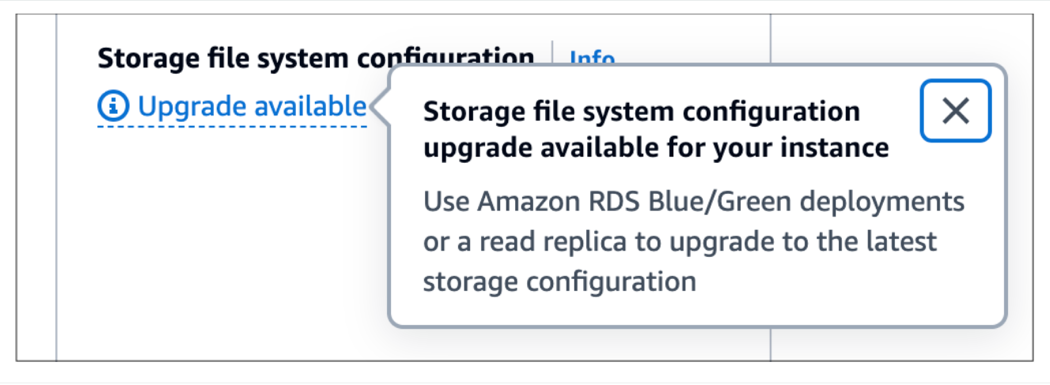
In the console, RDS automatically flags instances using legacy file systems. You can view these notifications on the instance details page under Storage. If an update is needed, the console displays a storage file system configuration upgrade notification, as shown in the screenshot below.
To use the AWS CLI, run the following command:
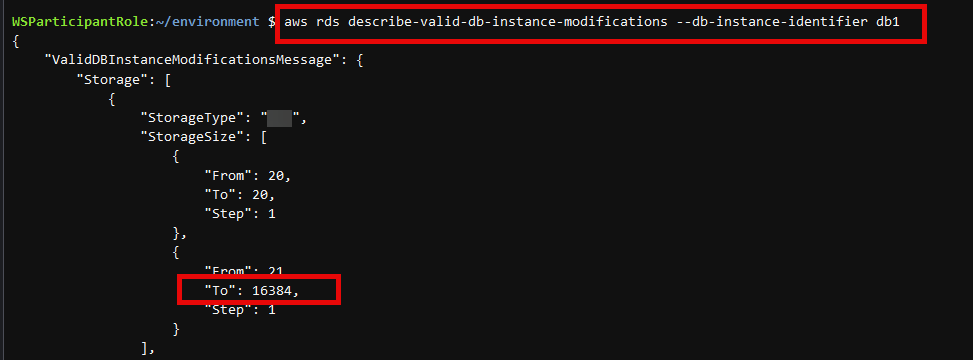
Replace your-db-instance-name with your database identifier and review the StorageSize value in the response. If it shows 16,384 GiB (16 TiB), the instance is at the maximum storage limit for legacy file systems. The AWS CLI does not provide a direct flag for identifying legacy file systems. The most reliable way to determine eligibility for a file system upgrade is through the RDS console, where instances requiring a storage file system configuration upgrade are explicitly flagged.
Solution overview
This solution uses Amazon RDS blue/green deployments to upgrade legacy file systems to the latest version, while simultaneously migrating to io2 Block Express storage for improved performance and scalability.
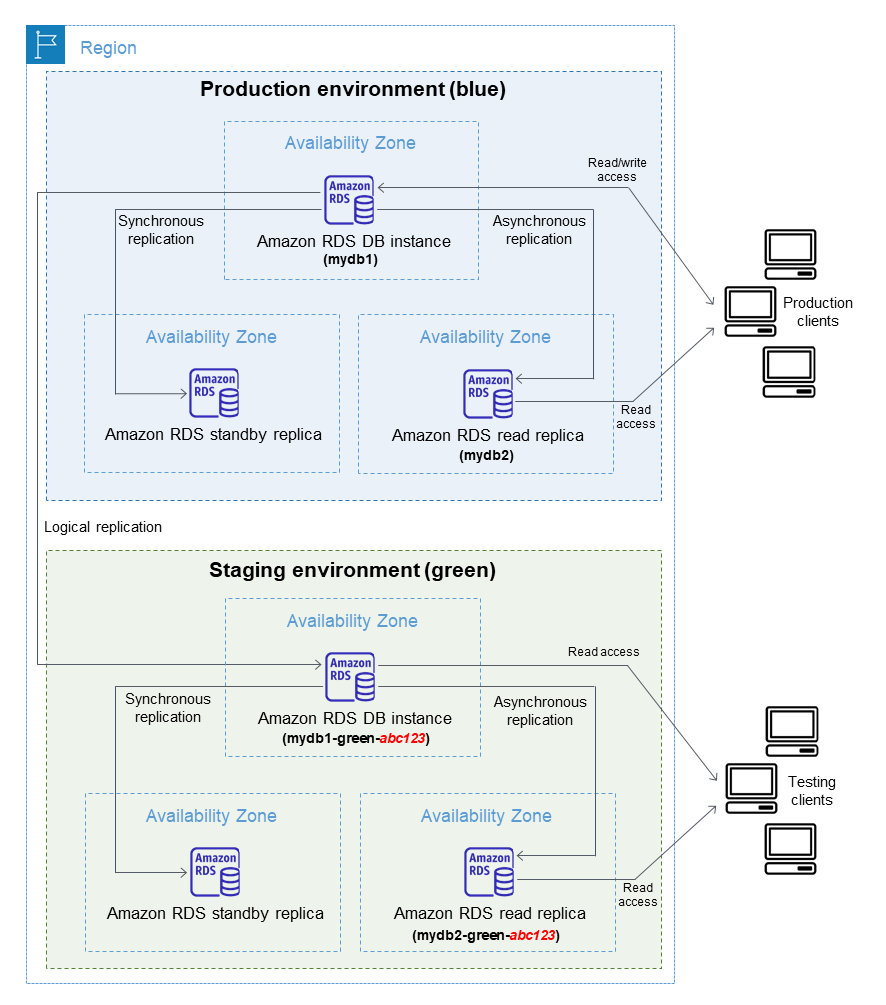
The diagram below illustrates a blue/green architecture, where production (blue) and staging (green) environments run in parallel within the same AWS Region. This setup lets teams test changes with near-production data and perform low-risk deployments, ensuring consistent and reliable database operations.
Restrictions with major version upgrades in blue/green deployments
When planning a blue/green deployment, it’s important to understand that major version upgrades rely on logical replication rather than physical replication. Many SQL databases have inherent limitations with logical replication. Physical replication copies data at the storage layer, making it faster, more complete, and more reliable for large-scale operations. In contrast, logical replication applies changes through SQL statements and may not support all data types, extensions, or operations, which can create restrictions during an upgrade.
To avoid these limitations, use the same engine version for both the blue and green environments. This allows the upgrade to leverage physical replication, resulting in a more robust and consistent process. While it is technically possible to combine a major version upgrade with a legacy file system upgrade, doing so significantly increases complexity and risk.
Prerequisites
Before you begin, confirm the following:
- You have an active AWS account.
- You are running Amazon RDS with a DB engine version that supports blue/green deployments.
- You have sufficient permissions to modify and upgrade Amazon RDS instances including actions such as
rds:ModifyDBInstance,rds:CreateBlueGreenDeployment,rds:SwitchoverBlueGreenDeployment,andrds:DescribeDBInstances. Verify your access via the IAM console your AWS administrator.
Create an Amazon RDS blue/green deployment
You can create a blue/green deployment by using the AWS Management Console or AWS CLI. The following steps describe how to perform this operation by using the console.
AWS Management Console
- Navigate to the Amazon RDS console and choose Databases from the navigation pane.
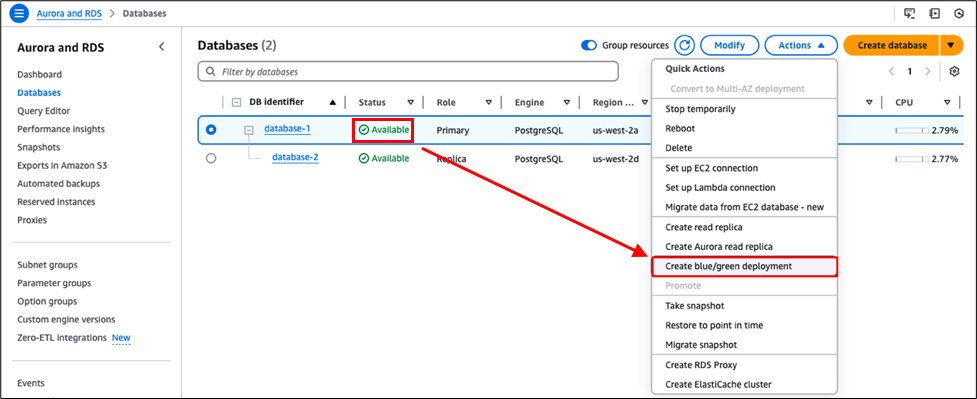
- Choose your source (blue) database instance, which must be in the Available state. Then, from the Actions menu, choose Create blue/green deployment.
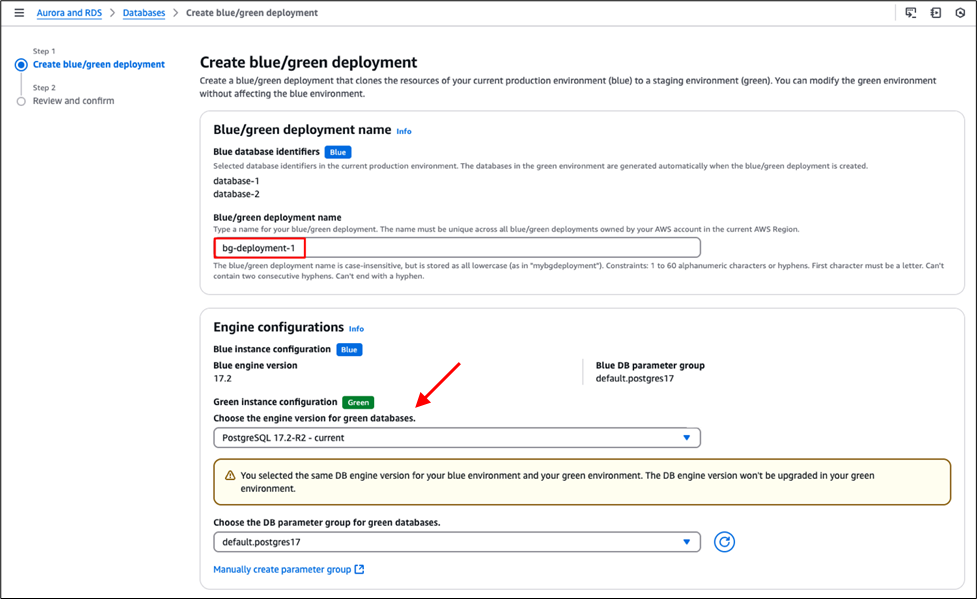
- Enter a blue/green deployment name and select the same database engine version as the blue environment. Using the same version allows physical replication, which provides faster and more reliable upgrades than logical replication.
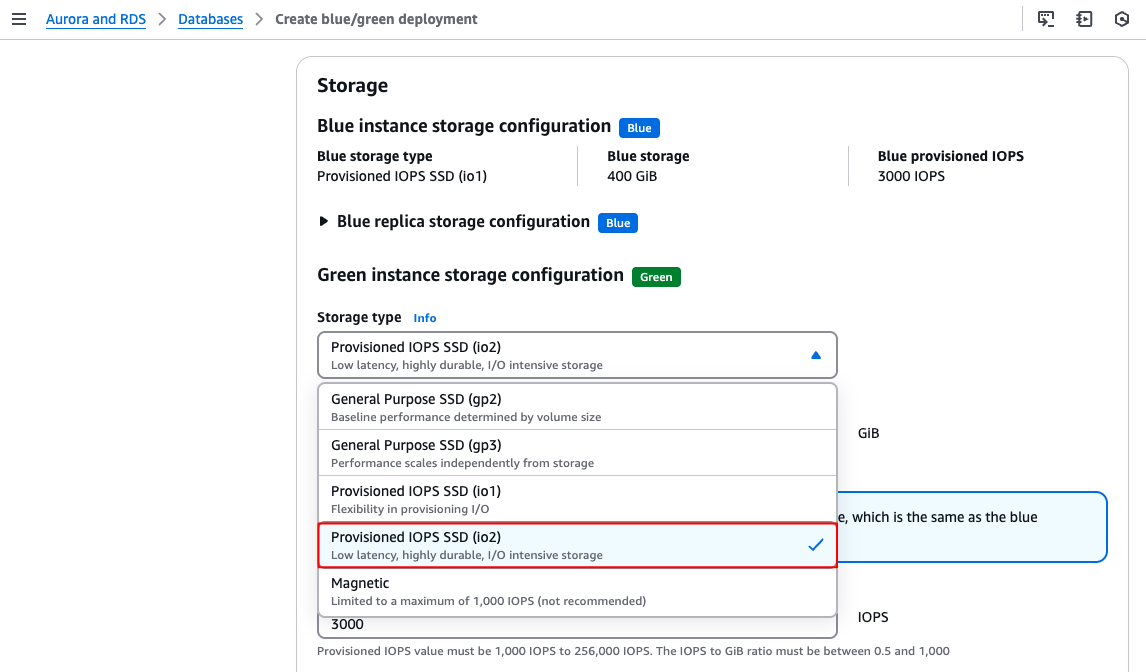
- (Optional) Under Storage type, select Provisioned IOPS SSD (io2) and adjust IOPS settings as needed. Upgrading to io2 during the same operation provides immediate performance benefits and helps reduce overall maintenance time without increasing storage cost.
- On the same page under Storage configuration upgrade, select Storage file system configuration upgrade to migrate from the legacy file system layout to the current version. This upgrade is irreversible, so confirm that you are ready to proceed before continuing.

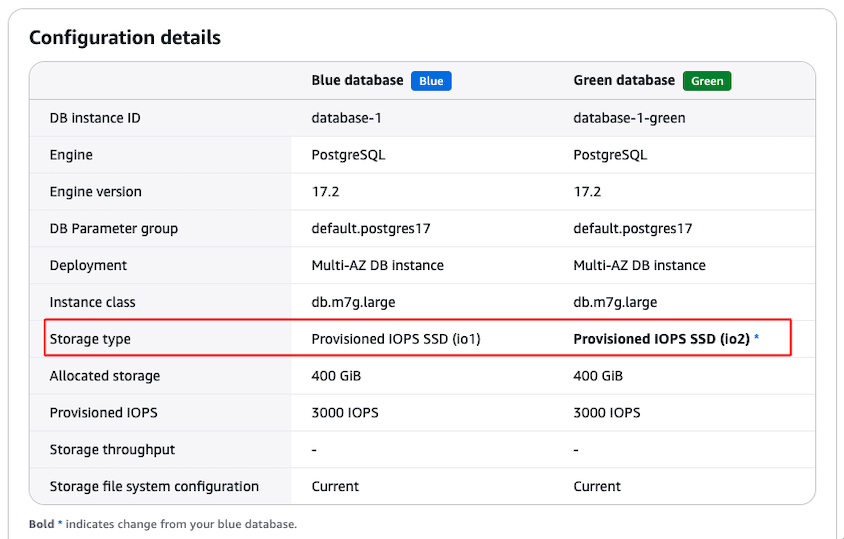
- Ensure all configurations, including storage and file system upgrade selections, are correct. The duration of the upgrade varies based on the size and workload of your database. In the example below, the red-boxed line highlights the storage type change from io1 to io2.
- Choose Next to begin the upgrade and migration process.
Monitor your Amazon RDS blue/green deployment
After you start the deployment, you can track progress through the Amazon RDS console or AWS CLI.
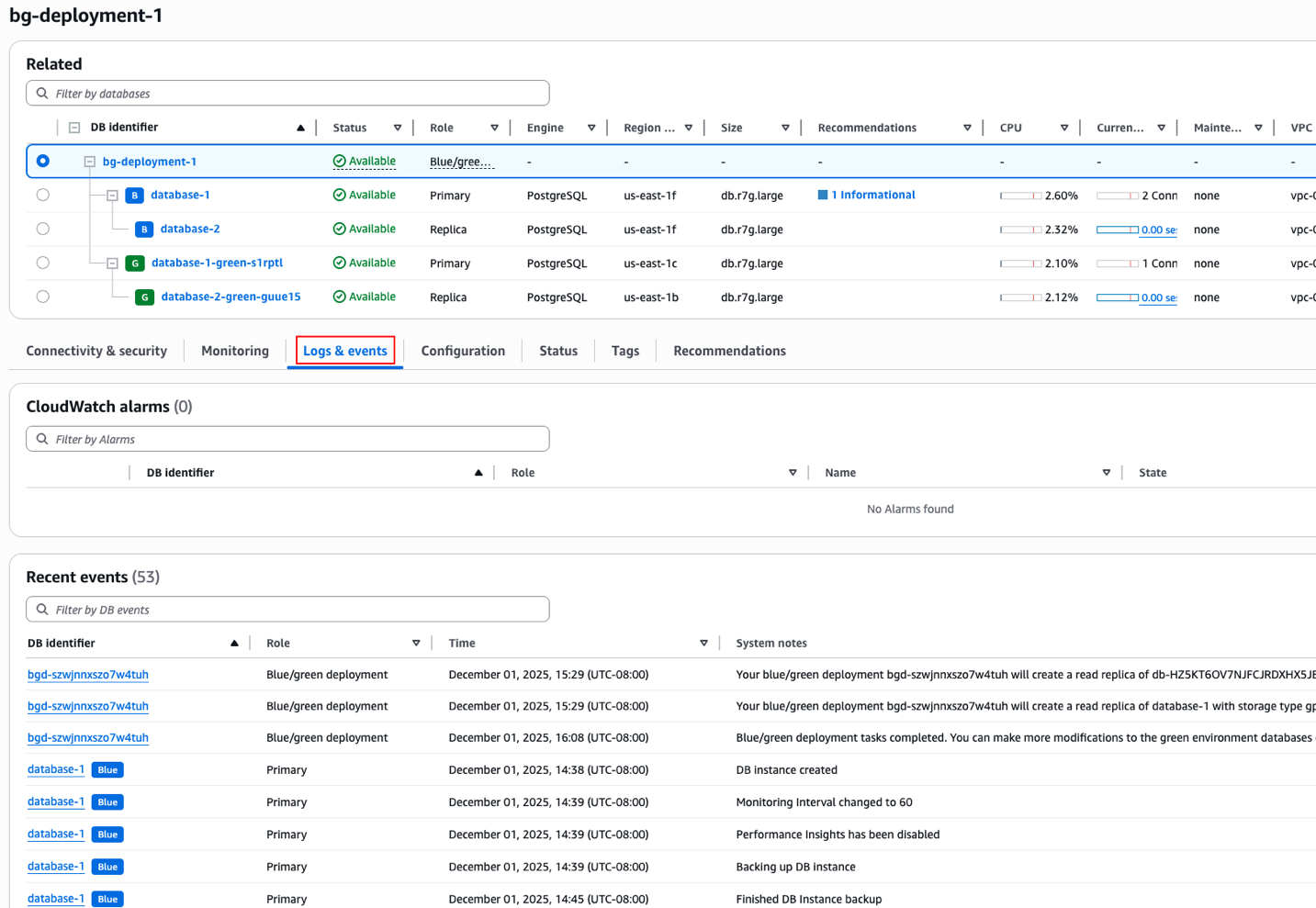
In the console, open your blue/green deployment and choose the Monitoring tab to view metrics such as CPU utilization, database connections, memory usage, and available storage. These metrics are powered by Amazon CloudWatch.
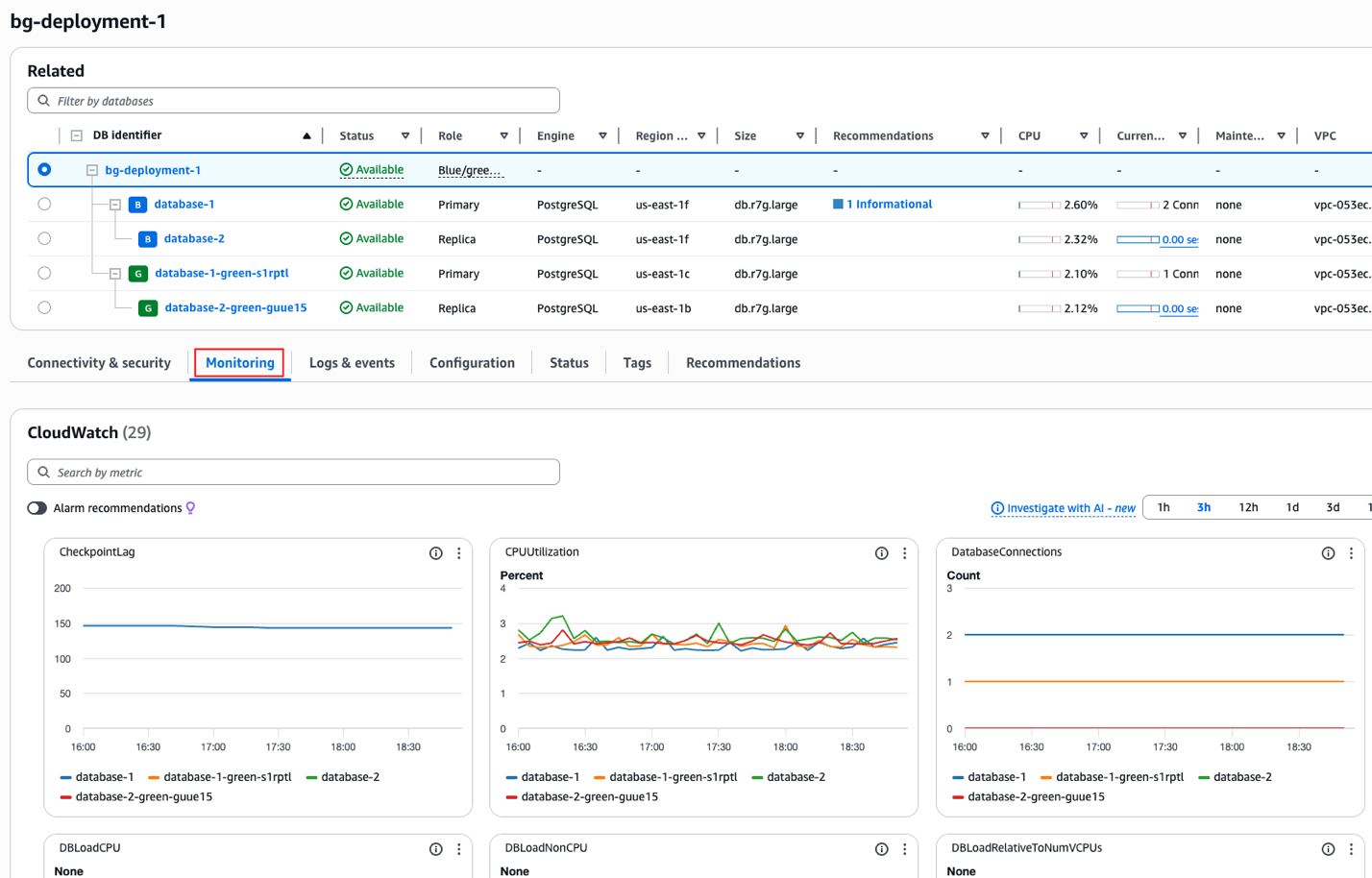
You can also go to the Logs & events tab to follow replication activity and upgrade progress.
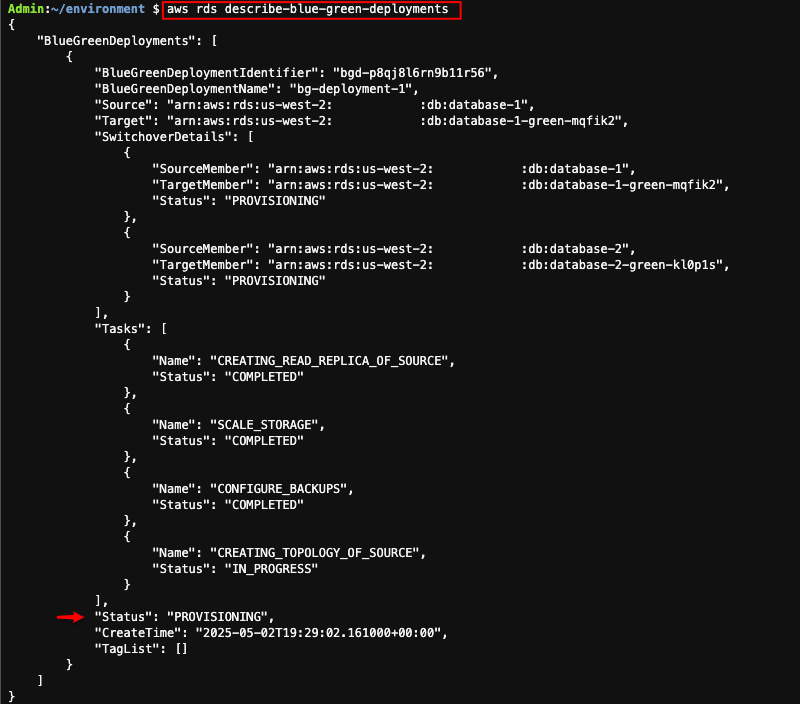
To monitor the deployment’s progress by using the AWS CLI, run:
The output shows the current deployment status. PROVISIONING indicates the green environment is being created and is not yet ready for cutover. Tracking this status helps you monitor progress.
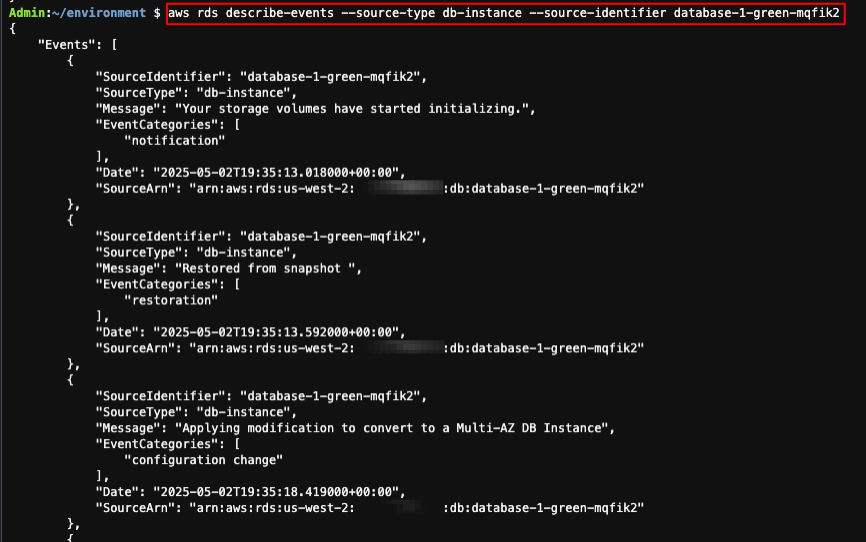
To view recent RDS events associated with a specific DB instance, run:
The output shows recent actions and status changes, helping you verify progress, diagnose issues, and confirm that the blue/green deployment is proceeding as expected.
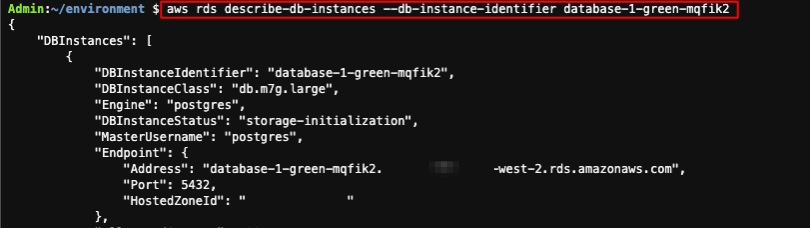
To check the DB instance status and storage upgrade progress, run:
The output indicates the storage is being initialized and PercentProgress shows the percentage of the storage upgrade that has completed so far. Because the output is lengthy, it is shown in two screenshots for readability.

Configure event notifications
You can receive real-time updates about your blue/green deployment through Amazon RDS event notifications by using Amazon Simple Notification Service (Amazon SNS). Notifications alert you to status changes, progress milestones, and any issues through email, SMS, or HTTP endpoints.
To set up notifications about your blue/green deployment:
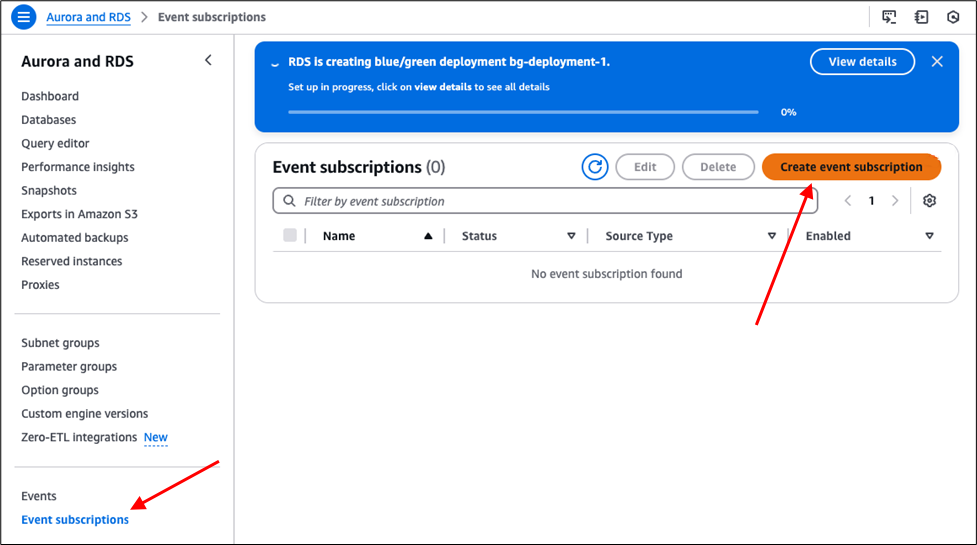
- Navigate to the Amazon RDS console. Choose Event subscriptions in the navigation pane and then choose Create event subscription.
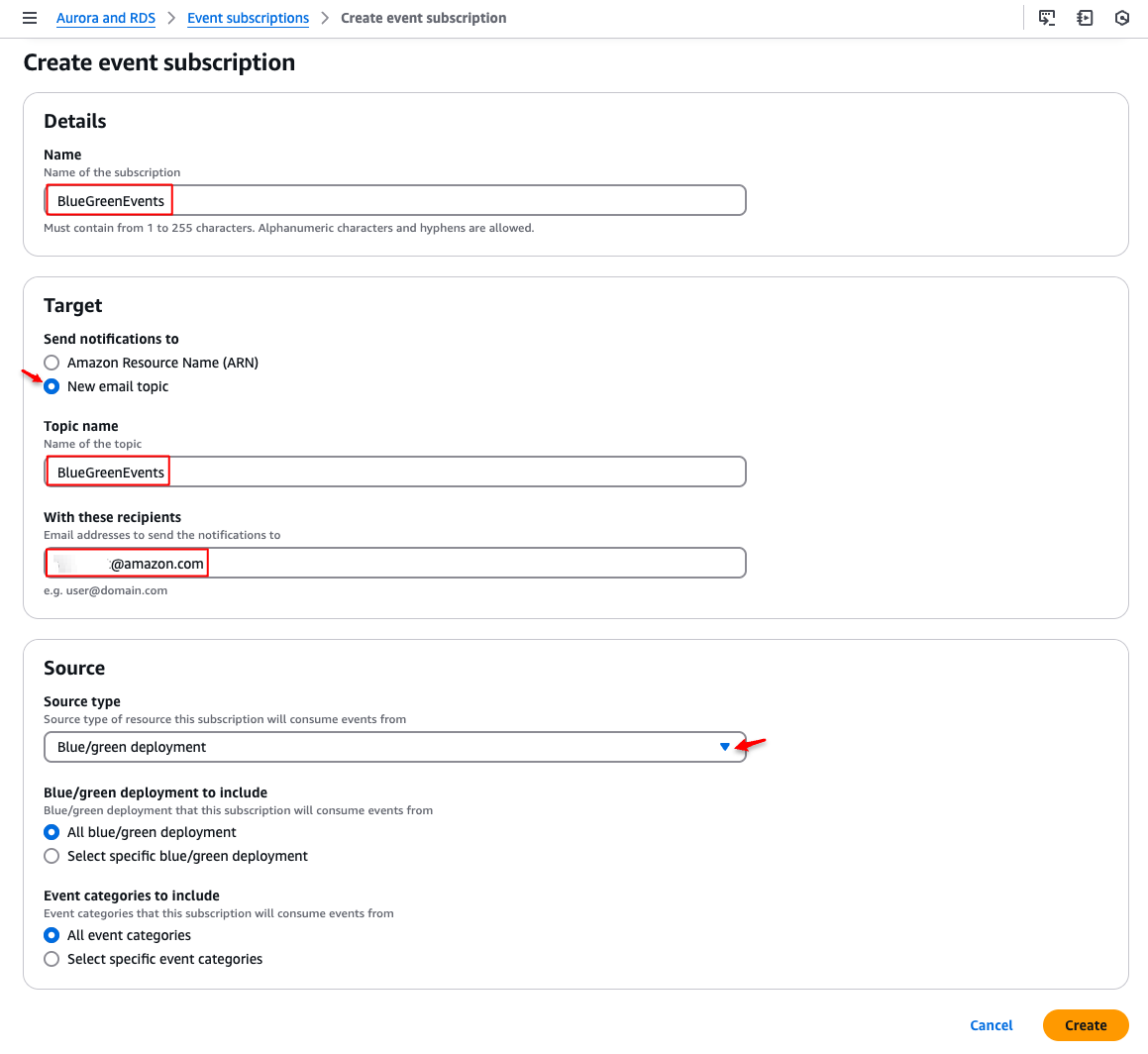
- Enter an event subscription name, choose where to send notifications to, and then select Blue/green deployment as the Source type.
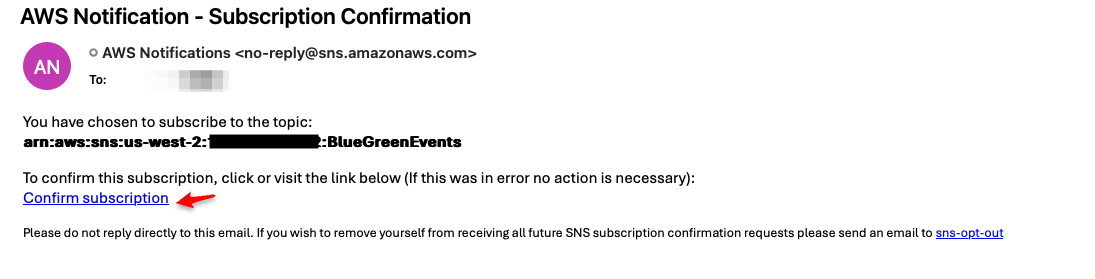
- Create the subscription and choose Confirm subscription in the verification email you receive from AWS.
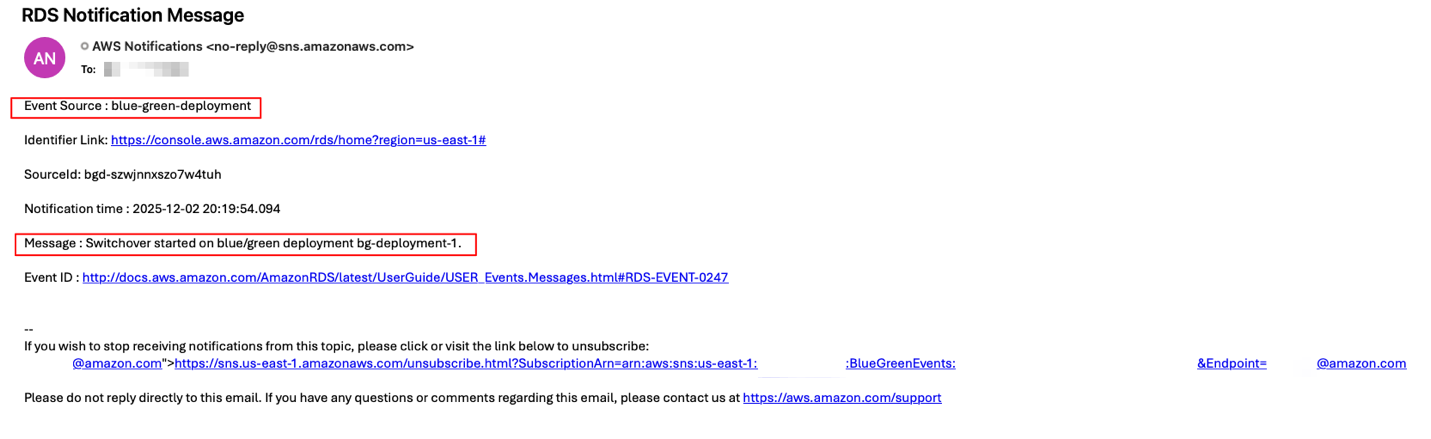
You will receive alerts for key moments in the deployment process, including status changes, stage transitions, completion events, and any errors that occur. In the example below, the notification shows an event type indicating that the blue/green switchover has started, along with the SourceID involved and the timestamp of when the event occurred. These details help you quickly understand what action took place and when it happened.
Perform a traffic switchover
A traffic switchover moves application traffic to your green environment, making it the new production database. After the switchover, all traffic automatically routes to the upgraded DB instance and its read replicas.
Before starting, make sure both the blue and green environments show as Available. Test the green environment to confirm it can handle production workloads and schedule the switchover during low-traffic periods to minimize user impact.
If you try to switch traffic before both environments are ready, AWS will block the operation and show an error. This prevents accidental downtime and ensures traffic only flows to a fully prepared environment.
To perform the traffic switchover:
- Navigate to the Amazon RDS console to your blue/green deployment.
- From the Actions menu, choose Switch over.
- Review the details and confirm the traffic switchover.
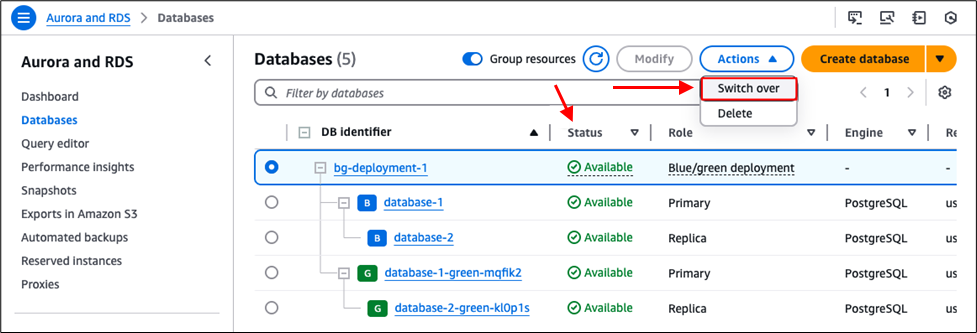
The switchover typically completes within a few minutes, depending on workload size. After completion, monitor application performance and confirm that all clients are connecting to the new production environment.
Following the switchover, the original blue environment is retained and continues to incur charges, but replication stops. RDS swaps the endpoints so applications automatically connect to the new production environment. Instance identifiers may be suffixed for distinction, but applications should always use the cluster or instance endpoint. The former blue DB instances are placed in read-only mode until write access is explicitly re-enabled.
Keep the blue environment available until the new environment is confirmed to be stable and operating as expected. If issues arise and a rollback is required, you can restore write access to the blue environment and redirect applications back to its endpoint, providing a safe fallback while you troubleshoot.
Cleanup
You can delete a blue/green deployment before or after the switchover via the RDS Console or AWS CLI.
To remove the deployment and its green DB instances using the CLI, run:
--blue-green-deployment-identifier– The resource ID of the blue/green deployment to delete.--delete-target– Deletes the DB instances in the green environment.--no-delete-target– Retains the DB instances in the green environment.
Conclusion
In this post, I explained how you can upgrade Amazon RDS database instances from legacy to current file systems using blue/green deployments, enabling expanded storage capacity, improved performance, and minimal downtime through an automated, low-risk process. I also showed how to combine the file system upgrade with Amazon EBS io2 Block Express storage for immediate performance improvements without increasing costs. In addition, the post detailed how to identify DB instances with legacy file systems, create and monitor blue/green deployments, set up event notifications for real-time updates, and complete a successful traffic switchover to the new production environment.
Upgrading your file system and storage layer is a crucial step toward building faster, more scalable, and more resilient databases, while also laying the foundation for future growth and simpler operational upgrades as workloads evolve. For more guidance on optimizing your workloads, see Using Amazon RDS blue/green deployments for database updates and Amazon EBS volume types.