.NET on AWS Blog
Bring AWS Transform into GitHub Copilot with MCP
Introduction
If GitHub Copilot is already part of your .NET workflow, you know how much it accelerates day-to-day coding. Now you can bring the power of AWS Transform directly into that same workflow through the AWS Transform MCP server. AWS Transform is an agentic AI service that analyzes and transforms whole applications, infrastructure, and code, not just individual files.
By exposing AWS Transform through the Model Context Protocol (MCP), you invoke its transformation capabilities in natural language from Copilot agent mode. No console and no context switch required. Copilot is the front door; AWS Transform does the deep work. The AWS Transform MCP server gives you access to both the AWS Transform .NET agent and AWS Transform custom from Copilot. This post walks through one representative task end to end: transforming a .NET Azure Functions app (HTTP, Queue, and Blob triggers) into AWS Lambda using the Lambda Annotations Framework, entirely from within Copilot.
You will learn how to:
- Install and configure the AWS Transform MCP server for GitHub Copilot
- Use AWS Transform to transform Azure Functions (.NET) into AWS Lambda functions using the Lambda Annotations Framework
- Use AWS Transform to create your own custom transformations, for any source-to-target scenario
How AWS Transform capabilities show up inside Copilot
Once AWS Transform is connected through MCP, you can invoke its core capabilities directly from the Copilot chat box. The following table maps each AWS Transform capability to how you invoke it from Copilot.
| AWS Transform capability | How you use it from inside Copilot |
| Topology & dependency analysis | Ask Copilot to run a structural analysis of your project; AWS Transform maps the application and its dependencies before any code changes. |
| Orchestrated transformation jobs | Agent mode prompts create and run an AWS Transform job end to end, instead of Copilot editing files one at a time. |
| Gap surfacing | When a source construct has no direct AWS equivalent, AWS Transform flags it in the Copilot chat rather than silently emitting broken code. |
| Continual learning / knowledge items | Fixes and resolution patterns are captured as reusable knowledge, so your next transformation starts ahead. |
| Human-in-the-loop (HITL) controls | AWS Transform pauses for your approval on destructive actions (push, merge, delete), surfaced as prompts in Copilot. |
Architecture overview
The diagram in Figure 1 shows how AWS Transform, integrated with GitHub Copilot via the AWS Transform MCP server, automates the migration of Azure Functions to an equivalent AWS serverless stack.
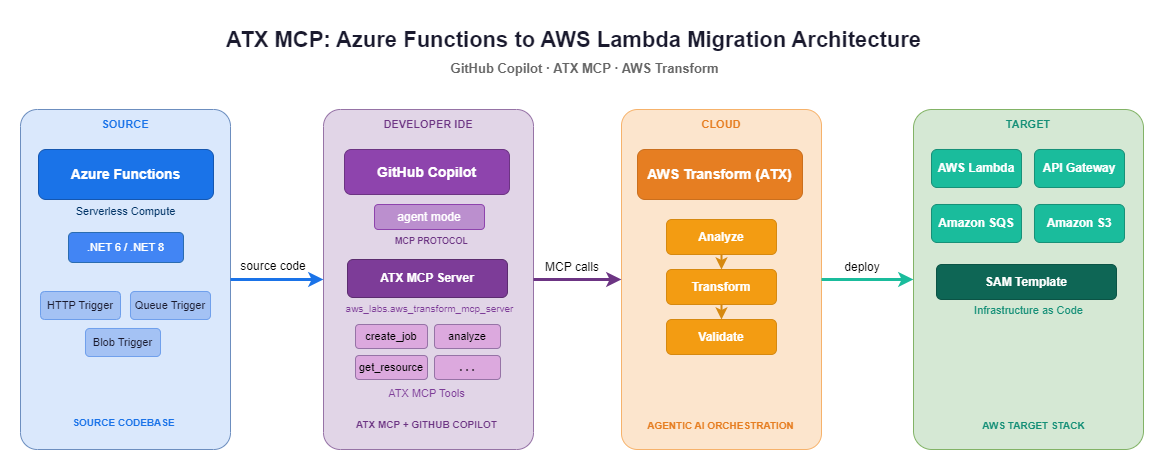
Figure 1: Azure to AWS migration architecture
Zooming in, Figure 2 details how the AWS Transform cloud service orchestrates the transformation leveraging agentic AI capabilities such as topology analysis, continual learning, and knowledge extraction, along with a team-wide skill registry.
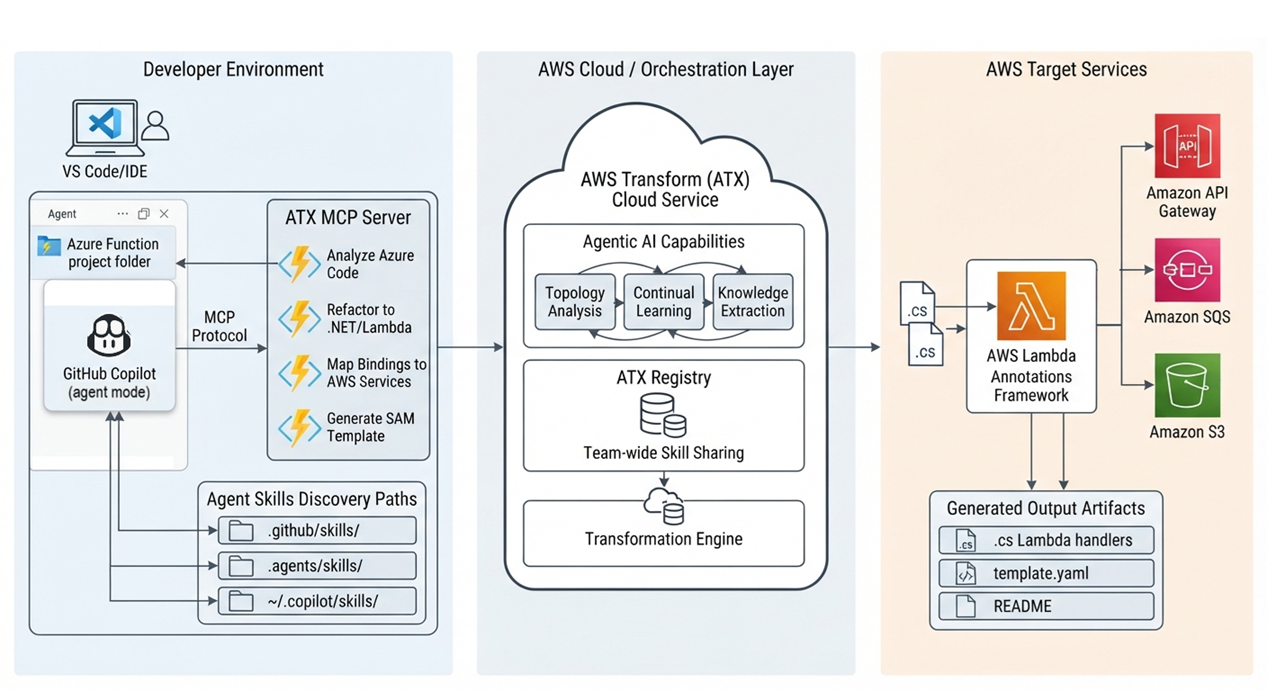
Figure 2: AWS Transform MCP detailed integration flow
Prerequisites
To follow this walkthrough, you will need the following:
- Python 3.10 or later: Required to run the AWS Transform MCP server module
- Git: For source control operations
- Node.js (v18+): Required by ATX CLI internals
- AWS CLI v2: Configured with valid credentials (aws configure)
- Visual Studio or Visual Studio Code (VS Code): With GitHub Copilot extension with agent mode support
- A GitHub Copilot subscription with access to agent mode (Copilot Chat)
- AWS Transform configured with an IAM Identity Center Start URL, region and user
Setup
Here are the setup instructions to prepare your system to transform Azure Functions to AWS Lambda functions.
1. Install AWS Transform ATX CLI (v3.6.0+)
Use the following commands to install the AWS Transform CLI
# Windowsirm https://transform-cli.awsstatic.com/install.ps1 | iex
# Linux / macOScurl -fsSL https://transform-cli.awsstatic.com/install.sh | bash
Verify ATX CLI installation
atx --version
2. Configure AWS credentials
Configure AWS credentials that have permissions for AWS Lambda, Amazon S3, Amazon SQS, AWS CloudFormation, Amazon API Gateway, AWS Transform Custom and AWS IAM PassRole.
Use the principle of least privilege in the IAM role & policies, granting access only to specific resources.
3. Install AWS Transform MCP Server
Install AWS Transform MCP server python module.
# Windows (PowerShell)C:\Python314\python.exe -m pip install awslabs.aws-transform-mcp-server mcp[cli]
# Linux / macOSpython3 -m pip install awslabs.aws-transform-mcp-server "mcp[cli]"
AWS Transform MCP integration with GitHub Copilot
The AWS Transform MCP server is a standard stdio MCP server, so it works with any MCP-compatible client, including GitHub Copilot in agent mode. The Copilot setup here uses generic MCP configuration rather than a dedicated AWS plugin.
GitHub Copilot discovers MCP servers through a JSON configuration file. The file paths differ based on the IDE and OS:
VS Code (Copilot): mcp.json file is globally available in the VS Code user folder. The file can be found in any of these folders – %APPDATA%\Code\User\ or ~/Library/Application Support/Code/User/, or ~/.config/Code/User/). Project level file can be found at <project_root>/.vscode/mcp.json
Visual Studio: .mcp.json file is globally available at %USERPROFILE%\.mcp.json or ~/.mcp.json. The solution level file can be found at <solution_root>/.mcp.json
Refer to the aws-transform-mcp-server README for other MCP clients.
Add the AWS Transform MCP server entry to the appropriate config file. Use one entry: set command to python3 on macOS/Linux, or the full path to python.exe on Windows
{
  "servers": {
    "atx-server": {
      "command": "python3",        // Windows: full path to python.exe, e.g. C:\Python\python.exe
      "args": ["-m", "awslabs.aws_transform_mcp_server.server"],
      "env": { "AWS_REGION": "us-east-1" }
    }
  }
}
If your AWS Transform package registers a global binary instead, replace command/args with “command”: “atx”, “args”: [“ct”, “mcp”].
Before enabling AWS Transform MCP in Copilot, manually verify the server starts correctly using the following commands:
# For Python module approach:python3 -m awslabs.aws_transform_mcp_server.server
# For direct binary approach:atx ct mcp
You should see the MCP server initialize without errors. After verifying the MCP server execution, stop the server/process (using Ctrl+C) and perform the following steps to enable it in GitHub Copilot:
- Restart your IDE (Visual Studio Code or Visual Studio) to force Copilot to re-scan the configuration.
- Open the Copilot Chat panel and switch the drop-down mode from Ask or Edit to Agent mode.
- Choose the Tools icon (the small gear or plug logo at the bottom of the chat box).
- Look for atx-server in the list of discovered servers and enable it, including all tools under it.
Verifying AWS Transform MCP integration
In Copilot agent mode, ask: “Check my AWS Transform connection status and list available tools on my atx-server.” You should see tools like create_job and create_workspace listed. If not, revisit the earlier configuration steps.
Authenticating with AWS Transform
After verifying AWS Transform MCP tools availability in Copilot, you should authenticate with AWS Transform. In Copilot agent mode chat, type:
Configure AWS Transform with SSO
This will trigger the AWS Transform MCP server to provide a start URL and open your browser for IAM Identity Center login. Alternatively, if your AWS CLI credentials are already configured, the server should pick them up automatically.
Sample use case: transforming Azure Functions to AWS Lambda
Now let’s put the integration to work: transforming a .NET Azure Functions app into AWS Lambda from Copilot, using the Lambda Annotations Framework.
The Lambda Annotations Framework uses C# attributes and source generators to cut boilerplate, provide built-in dependency injection, generate SAM entries, and support ASP.NET Core-style patterns. This makes it a natural migration target from Azure Functions for .NET developers. The transformed project targets net8.0 on the Lambda provided.al2023 custom runtime.
Step 1: Prepare your source project
For this walkthrough we will use the sample-azure-functions-to-aws-lambda repo in AWS Samples that contains HTTP, Queue and Blob triggers. Clone the repository, delete the AWS infrastructure folder and remove the Lambda function projects from the .NET solution before proceeding to Step 2.
Here is one representative source function: an HTTP-triggered Azure Function that returns an order, which we follow through to its Lambda form so you can map source to target. The Queue and Blob triggered functions follow the same pattern.
Source: Azure Function (HTTP trigger)
[Function("GetOrder")]
public async Task<HttpResponseData> Run(
    [HttpTrigger(AuthorizationLevel.Function, "get", Route = "orders/{id}")]
    HttpRequestData req, string id)
{
    var order = await _orderService.GetByIdAsync(id);
    var response = req.CreateResponse(HttpStatusCode.OK);
    await response.WriteAsJsonAsync(order);
    return response;
}
Step 2: Initiate the transformation
In Copilot agent mode, use a targeted prompt to drive the transformation.
Here’s a sample prompt:
[Replace the AWS IAM Identity Center start URL and AWS region.]
You are an expert cloud migration agent using the AWS Transform MCP server (ATX MCP Server).
In ATX, use the ATX Custom orchestration agent (do not use DotNetModernization) and create a new ATX job.
Provide the Requirement, Entry Criteria, and Implementation Steps to the ATX job.

## Authentication
Authenticate to AWS Transform via SSO using start URL https://d-xxxxxxxxxx.awsapps.com/start (region us-east-1); open the browser for login if required.

## Human-in-the-loop (HITL)
Call load_instructions first. Present any HITL tasks and wait for explicit approval before any destructive action (push, merge, delete).

## Permissions
You may run the ATX CLI against this repo, apply artifacts to my workspace, and build/test locally. Create a branch and prepare PR instructions, but wait for my confirmation before pushing or opening a PR.

## Requirement
Migrate .NET Azure Functions (Isolated Worker model) to AWS Lambda using the Lambda Annotations Framework: map Azure triggers to AWS equivalents, preserve dependency injection, and generate a SAM template.

## Entry Criteria (summary)
Isolated Worker model; [Function("name")] attributes; HttpTrigger/QueueTrigger/BlobTrigger; source targets .NET 8+; Program.cs with HostBuilder + ConfigureFunctionsWorkerDefaults().

## Implementation Steps (summary)
Phase 1 - create a new self-contained Lambda project targeting net8.0 on the provided.al2023 custom runtime (arm64), with the required NuGet packages, bootstrap file, and a SAM template skeleton.
Phase 2 - add [LambdaStartup] with deferred DI registrations, preserve business services, drop Azure worker wiring, and read secrets from AWS Secrets Manager.
Phase 3 - add [LambdaFunction] handlers: [HttpApi(...)] for HTTP triggers, SQSEvent for queues, S3Event for blobs; preserve logic while adapting SDK calls.
The AWS Transform MCP Server exposes tools that map to multiple AWS Transform tracks (Windows Full Stack .NET, VMware, Mainframe, Custom, Assessments). When Copilot sees “.NET” + “transformation” it may default to the .NET Modernization track, which is portfolio/assessment-oriented. This track only accepts infrastructure inventory inputs (RVTools, CSV exports, server lists), not raw .cs source code. Hence you should explicitly state that the AWS Transform Custom orchestration agent be used for this transformation.
Step 3: Review and approve the transformation plan and AWS Transform actions
Copilot begins by invoking SSO authentication; approve it to open the browser and sign in with your AWS IAM Identity Center credentials
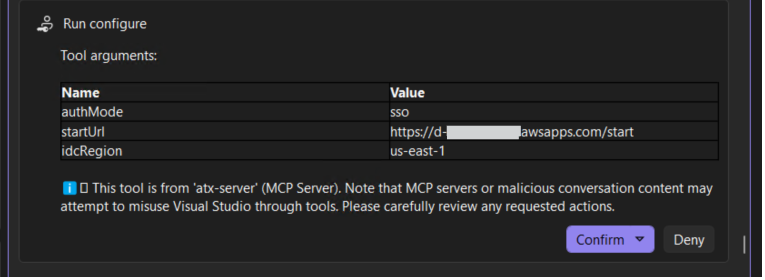
Figure 3: Copilot requesting confirmation to execute AWS Transform authentication tool
After successful authentication, Copilot will proceed to create a new AWS Transform job. You should confirm this action:
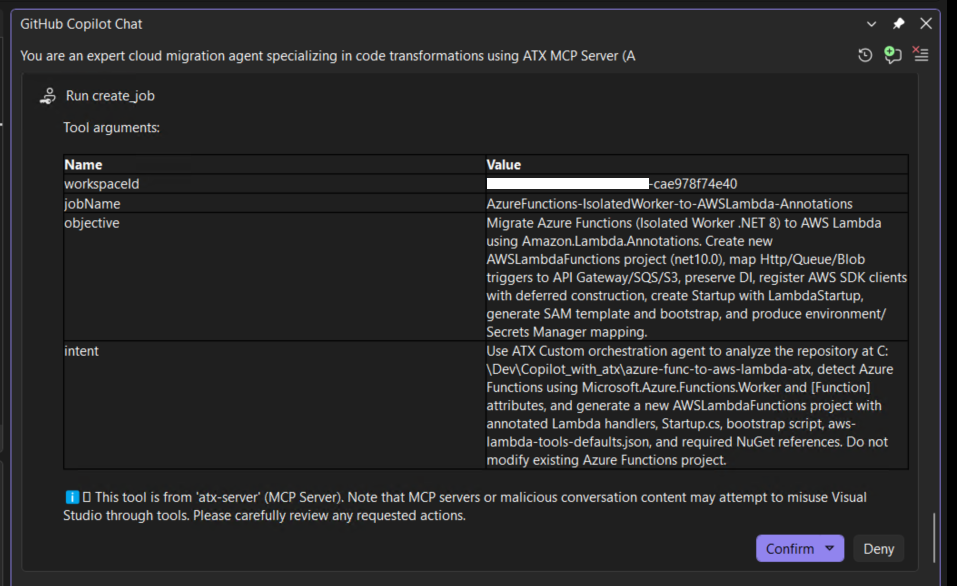
Figure 4: Copilot requesting confirmation to execute AWS Transform create_job tool
After creating the AWS Transform job, Copilot will execute a series of other AWS Transform commands, requesting confirmation for each step; you should confirm each action to go to the next step.
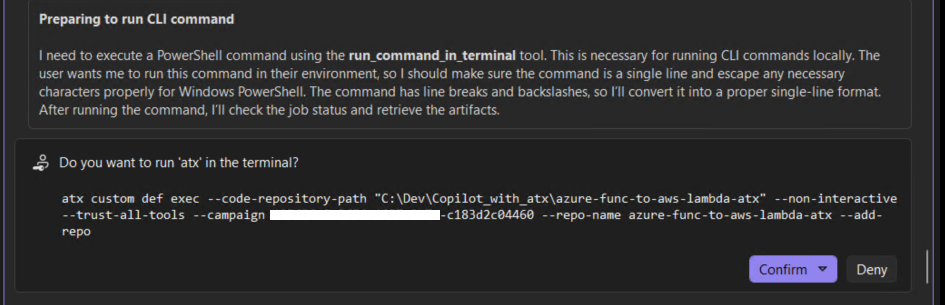
Figure 5: Copilot requesting confirmation to execute AWS Transform custom definition command in CLI
You can monitor the active progress and diagnostics of an AWS Transform modernization job directly within Visual Studio by checking the output logs or by utilizing dedicated interface windows such as Job Plan and Worklogs provided by the AWS Transform Plugin.
When the AWS Transform job completes, Copilot presents a summary and asks for confirmation before applying the changes to your local repo.
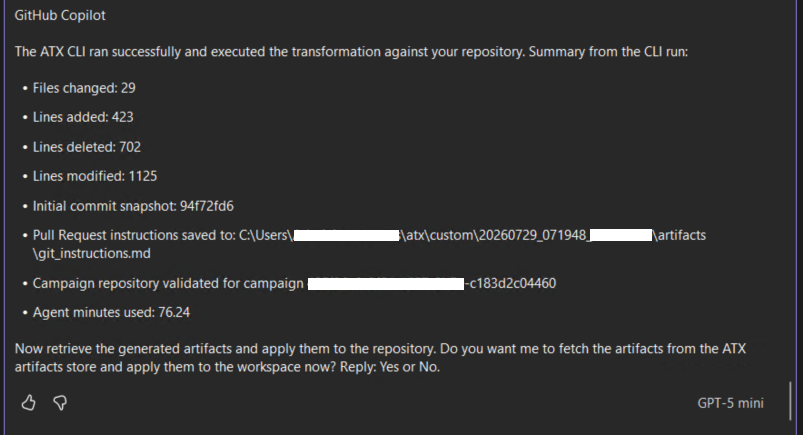
Figure 6: Copilot providing a summary of the transformation after running the AWS Transform custom definition command
Reply with ‘Yes’, wait for the operation to complete and check the transformed Azure Functions, that is, the new Lambda functions.
Example: Transformed Lambda function (HTTP trigger)
Here’s what a transformed HTTP-triggered Lambda function looks like using the Annotations Framework:
using Amazon.Lambda.Annotations;
using Amazon.Lambda.Annotations.APIGateway;

namespace AWSLambdaFunctions.Functions;

public class GetOrderHandler
{
    [LambdaFunction]
    [HttpApi(LambdaHttpMethod.Get, "/orders/{id}")]
    public object GetOrder(string id)
    {
        // Preserve original business logic: return order summary
        return new { orderId = id, status = "Confirmed", amount = 59.97 };
    }
}
What can go wrong here
- Job fails to start: Re-run SSO login (session likely expired) or verify your IAM user has the required transform:CreateJob, transform:GetJob, and related job/workspace permissions (grant only the specific actions your workflow uses, per least privilege).
- Fewer functions than expected: Confirm the project uses the Isolated Worker model with [Function(“name”)] attributes, not the legacy in-process model.
- Copilot stalls mid-job: Check that the AWS Transform MCP server process is still running and its tools remain enabled in the Copilot tools panel.
Step 4: Iterate and refine
After the initial transformation completes:
- Review generated files: Check the Lambda function code, SAM template, and project structure.
- Validate recommendations: AWS Transform may flag gaps where Azure capabilities don’t have direct AWS equivalents (for example, Durable Functions orchestration patterns).
- Accept or modify: Use Copilot to refine specific functions or adjust the SAM template.
- Test locally: Build the project and run unit tests after every iteration.
Step 5: Deploy and test on AWS
Use AWS SAM to build, validate, and deploy the transformed application, running these commands from the folder containing the SAM template: Bash
# Build the Lambda deployment packages
sam build

# Validate the SAM template
sam validate

# Deploy to your AWS account (guided mode for first deployment)
sam deploy --guided
After deployment, verify the Lambda functions and their event source mappings in the AWS Management Console, then test each function through its event source.
Now you have taken a workload all the way from source to deployed, tested result on AWS, driving every step from inside Copilot through the AWS Transform MCP integration.
Interactive, in-IDE transformation is one way to use AWS Transform . There is a second, complementary approach for when you want to capture and reuse a transformation, which the next section introduces.
Using AWS Transform Agent Skills (SKILL.md) with GitHub Copilot
Agent Skills are self-contained folders: instructions, reference files, templates, and scripts, that AI agents discover automatically and reuse.
When an AWS Transform Custom transformation job completes, it generates transformation_definition.md and a references/ directory under .atx/. To convert this into an Agent Skill:
Rename the file to SKILL.md and add YAML frontmatter:
---
name: azure-func-to-lambdadescription: Transforms Azure Functions to AWS Lambda functions
---
[rest of your transformation_definition.md content]
Enrich with specific instructions such as intent, entry criteria, examples, expected outputs, and safety notes etc.
Place in a skill folder:
azure-functions-to-lambda/|── SKILL.md # Required: transformation instructions + metadata|── references/ # Supporting documentation, examples, mapping rules
The skill is now reusable with any compatible tooling: GitHub Copilot, Kiro, and Claude Code, without re-running the transformation interactively.
How agents load skills: Agents use progressive disclosure: at startup they read only each skill’s name and description; when a task matches, they load the full SKILL.md into context and execute its instructions, pulling reference files as needed.
How Copilot discovers skills
Copilot auto-discovers SKILL.md files from these directories:
| Scope | Directory |
| Project-level | <project>/.github/skills/<skill-name>/SKILL.md |
| Personal | ~/.copilot/skills/<skill-name>/SKILL.md |
| Cross-client | <project>/.agents/skills/<skill-name>/SKILL.md |
The .agents/skills/ directory is the cross-client standard recognized by GitHub Copilot, Claude Code, Codex, and the AWS Transform CLI. For Kiro, copy or import the skill into .kiro/skills/; the format is identical.
Choosing the right integration approach
Use MCP for interactive, cloud-powered transformations; use Agent Skills for portable, reusable definitions that work across tools without cloud calls.
| Approach | Best For | Capabilities |
| AWS Transform + MCP Server | Full-powered transformations with orchestration and validation | Complete tool access, build/test validation, continual learning |
| Copilot + Agent Skill | Quick, in-IDE transforms on individual files or small projects | Skill instructions applied in chat; no cloud API calls |
| AWS Transform Registry + Scaled Execution | Portfolio-wide transforms across many repositories | Bulk execution, progress monitoring, team-wide sharing |
Extending AWS Transform for custom transformations
The AWS Transform Custom capability you invoked from Copilot is not limited to Azure Functions. It works for any source-to-target transformation, and to define your own you give AWS Transform the same four things:
Define your source: What technology, framework, or platform are you starting from?
Define your target: What AWS service, framework, or architecture are you targeting?
Specify mapping rules: How should source constructs map to target equivalents?
Capture learnings: As AWS Transform executes, it builds a knowledge base that accelerates future transformations.
Cleanup
To avoid incurring ongoing AWS charges, clean up all resources created during this walkthrough.
# Remove AWS Resourcessam delete --stack-name <your-stack-name>
# Remove transformation definitions (optional)atx custom definitions delete --name <your-definition-name>
If you no longer need the AWS Transform MCP server, disable it or remove the entry from your MCP JSON file.
Conclusion
By integrating the AWS Transform MCP server with your AI code companion, you can bring AWS Transform into the assistant you already use. In this blog post I showed how to add AWS Transform to GitHub Copilot, driving a full Azure Functions to AWS Lambda transformation from agent mode. You can now:
- Run orchestrated transformation jobs from chat, transforming entire projects with topology-aware intelligence.
- Monitor progress and apply results without leaving your IDE: no context-switching to consoles or migration tools.
- Build on reusable transformation knowledge: every transformation makes the next one faster.
Call to action: Install the ATX CLI, configure the AWS Transform MCP server, and run your first transformation today. The same pattern extends to broader modernization such as, .NET Framework to cross-platform .NET, mainframe (COBOL), and custom transformations you define.