Migration & Modernization
Running parallel migration waves on AWS Transform with team isolation
Introduction
Parallelism shortens a migration timeline by running multiple waves concurrently. With AWS Transform for migrations, multiple teams can run different migration waves at the same time, turning a sequential plan into parallel execution. Both approaches are safe; parallel execution is faster.
Teams maximize that concurrency when each one has a defined boundary to work within. With the right isolation model in place, each team runs independently, owning its scope and cutover window without waiting on the others. When you use AWS Transform as part of your migration, the connector and tagging setup you choose enforces those boundaries. Selecting the right model before execution begins is what lets all teams run concurrently without interfering. After reading this guidance, you will be able to:
- Understand the three isolation models available in AWS Transform for migrations.
- Choose the right model based on your team size, account layout, and dependency map.
- Understand how connectors and workspace roles behave in jobs and workspaces.
- Set up job naming and resource ownership so teams run in parallel without interfering.
How to establish migration teams
Large migrations move fastest when the work is split among small, independently operating teams. AWS describes this model as a migration factory (refer to AWS Prescriptive Guidance: Large Migration Strategy). In a migration factory, teams of migration engineers and infrastructure leads work in parallel sprints, repeating proven patterns on hundreds of servers.
Each team owns a defined set of servers or applications, with its own wave schedule and cutover window. Each team also has the authority to execute within its scope without cross-team dependencies, and a nominated lead accountable for its wave outcomes. Size each team at two to four engineers: a migration lead and one to three infrastructure engineers. That size covers the workspace roles each team needs, an Approver and at least one Contributor, and keeps teams small enough to run several waves in parallel.
Prerequisites
Before running parallel migration waves, confirm the following are in place:
- Activate AWS Transform for migrations and provision your workspace or workspaces.
- Configure a connector for your target accounts, and decide the owning team and workspace up front.
- Configure workspace access for all team members, and assign appropriate roles at the workspace.
- Map servers and applications to specific teams in an assignment document, so ownership is unambiguous before jobs begin.
- Align team leads on the number of target accounts involved, whether teams share any resources (VPCs, subnets, source servers), the coordination model, and cross-team visibility requirements. These answers point you toward the isolation model that fits.
How connectors and tags define isolation boundaries
Two mechanisms in AWS Transform for migrations enforce team boundaries. A connector links a workspace to your target accounts. The connector carries the scoped IAM role that AWS Transform uses to perform write actions. A single connector in a designated admin account can serve multiple target accounts. The ATWorkspace tag scopes VPCs, subnets, and source servers to their workspace. Each resource can belong to only one workspace at a time.
The connector determines which accounts a workspace can reach. The ATWorkspace tag determines which resources within those accounts it can access. Together, the connector and ATWorkspace tag define the isolation boundary.
Parallelism as a cutover accelerator
Migrations are organized into waves: batches of servers migrated together through a repeatable process. Running multiple waves concurrently, each owned by an independent migration team, removes weeks from a three-to-six-month timeline. With AWS Transform for migrations, you can run concurrent execution in jobs and workspaces. What makes that concurrency work smoothly is an explicit ownership model.
Common team groupings
Choose your grouping strategy based on team size, account layout, and dependency map:
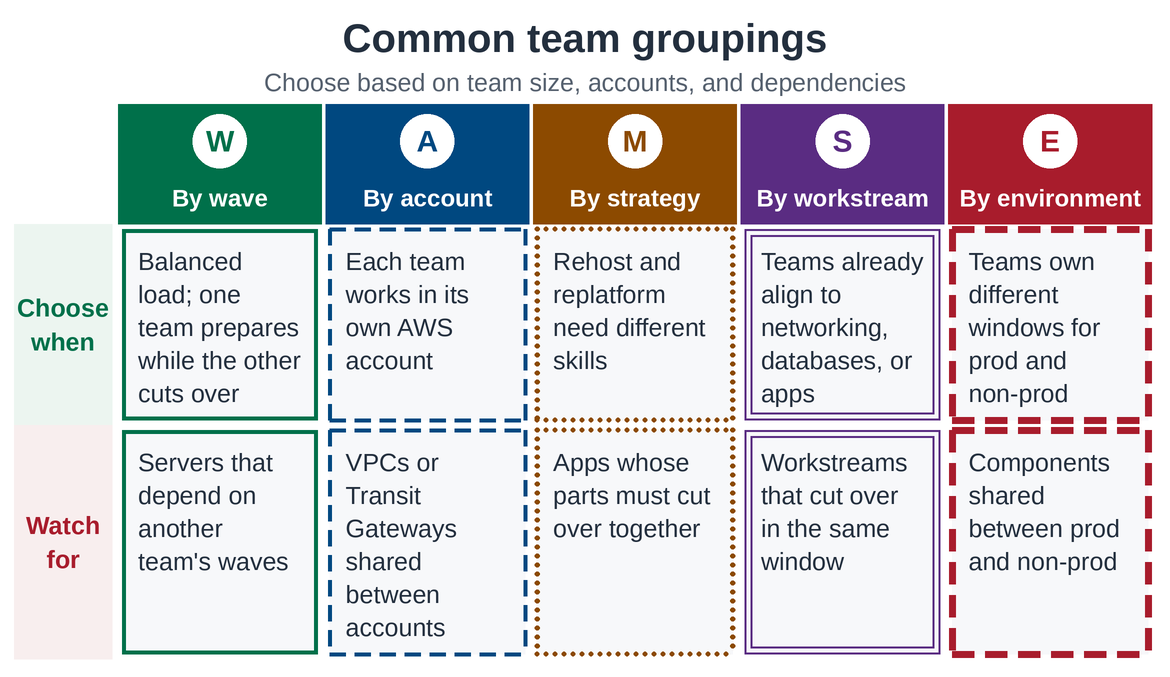
Figure 1. Common team grouping strategies. For each strategy, the top row shows when to choose it and the bottom row shows the dependency to plan for.
Roles and how they map to your team
You assign roles at the workspace level. Those roles govern all jobs in that workspace, so placing a team in its own workspace gives it its own access boundary.
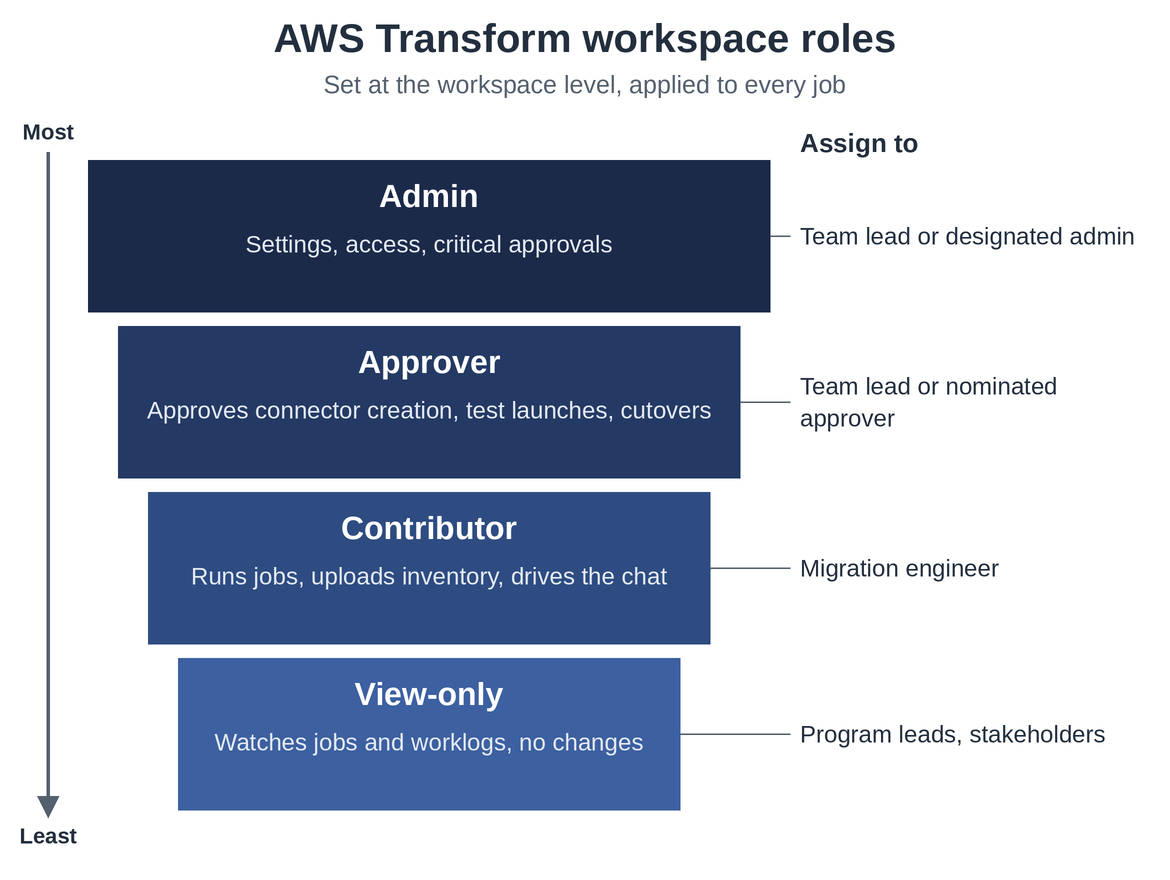
Figure 2. AWS Transform workspace roles, from most access (Administrator) to least (View-only). Roles are assigned at the workspace level and apply to all jobs in that workspace. The right column shows the recommended team assignment for each role.
Because you assign roles per workspace, the workspace you place a team in determines its access boundary.
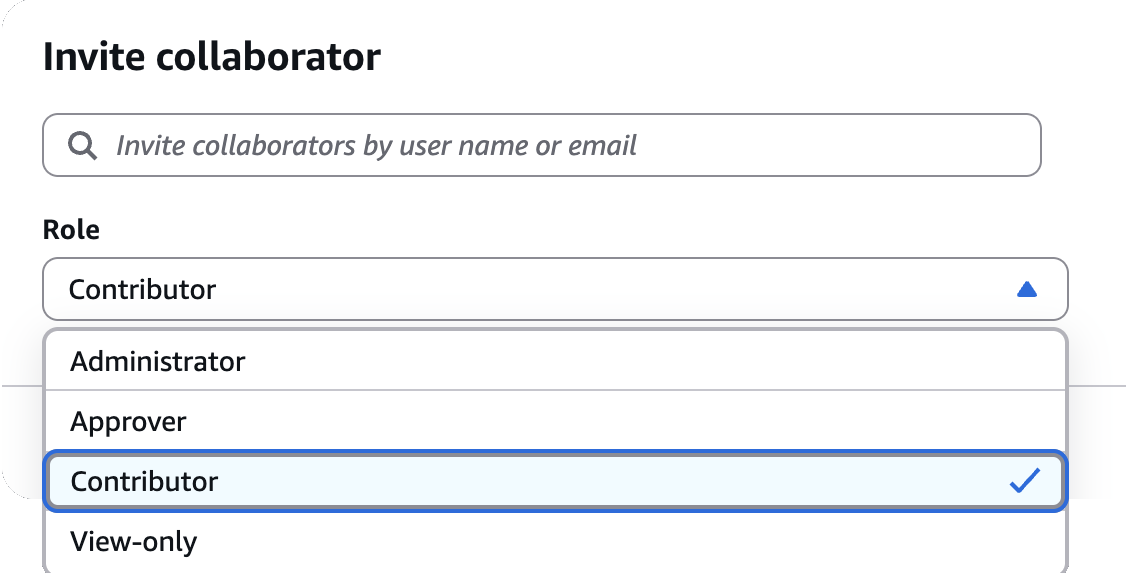
Figure 3. The Invite collaborator modal in AWS Transform. You assign roles (Administrator, Approver, Contributor, View-only) at the workspace level, and they govern all jobs within that workspace.
Three isolation models
AWS Transform for migrations provides three natural isolation boundaries. Each model is valid for its context. The following sections explain each model in detail, followed by a comparison table.
Within a job
In this approach, all teams work inside a single AWS Transform job, using waves in the job plan to organize their work. This is the most straightforward model to set up and operate. Use this model when two or three migration teams want a single view of every wave in one job. One coordinator owns the job and approves progressions, keeping oversight centralized. Teams share a single job. There is no system-enforced boundary between waves; team discipline and explicit wave naming prevent cross-wave interference. Each team operates within its assigned wave and confirms it is prompting into the correct wave before executing.
Setup: Create a single job and assign each team’s servers to a dedicated wave. Use the mgn:wave:name column (used to assign servers to waves) in the mgn_import CSV, the inventory file used by AWS Transform MGN. AWS Transform generates the mgn_import CSV as an artifact in the Artifacts tab. The wave assignment in that column determines which team owns each server during execution. Designate one Administrator or Approver as the coordinator who approves the human-in-the-loop (HITL) gates.
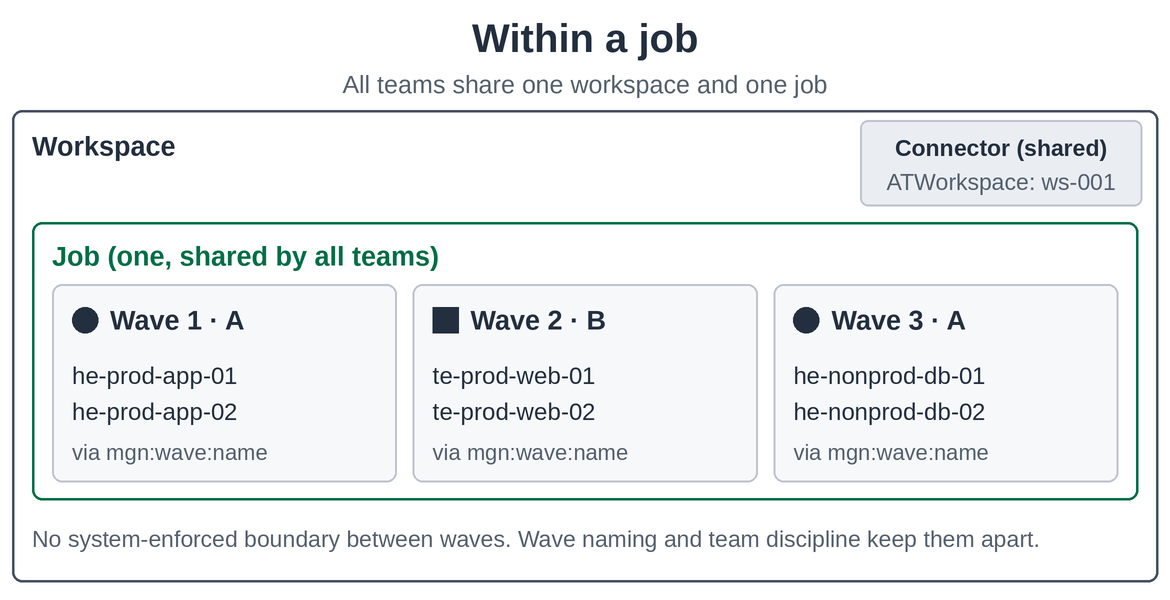
Figure 4. Within a job: all teams share a single workspace and job. Team A is marked with a filled circle and Team B with a filled square. Waves in the job plan (assigned via mgn:wave:name) define team boundaries.
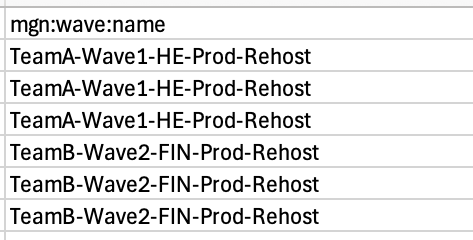
Figure 5. The mgn:wave:name column in the mgn_import CSV that AWS Transform generates as an artifact. Rows assigned to TeamA-Wave1-HE-Prod-Rehost belong to Team A, and rows assigned to TeamB-Wave2-FIN-Prod-Rehost belong to Team B.
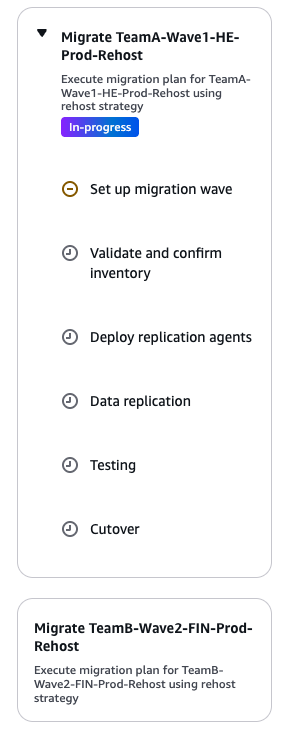
Figure 6. The AWS Transform job plan showing one wave per team. Migrate TeamA-Wave1-HE-Prod-Rehost is in progress, with its six steps listed: Set up migration wave, Validate and confirm inventory, Deploy replication agents, Data replication, Testing, and Cutover. A separate, collapsed Migrate TeamB-Wave2-FIN-Prod-Rehost wave follows it.
Shared workspace, separate jobs
Each team owns a dedicated job within one shared workspace. Because all jobs share a single workspace ID, every team uses the same ATWorkspace value. This model works well for medium programs (three to six teams) that share network resources. Teams share connectors in jobs within the workspace, and workspace-level roles govern all jobs.
Setup: Establish a job naming convention using the pattern {Team}-{Wave}-{Application}-{Environment}-{Disposition} (for example, TeamA-Wave1-HE-Prod-Rehost). In addition to execution jobs, create shared jobs for cross-cutting work:
Wave0-MigrationAssessmentfor discovery and planning.Wave0-LandingZonefor account and network setup.Wave0-WavePlanningfor inventory grouping.
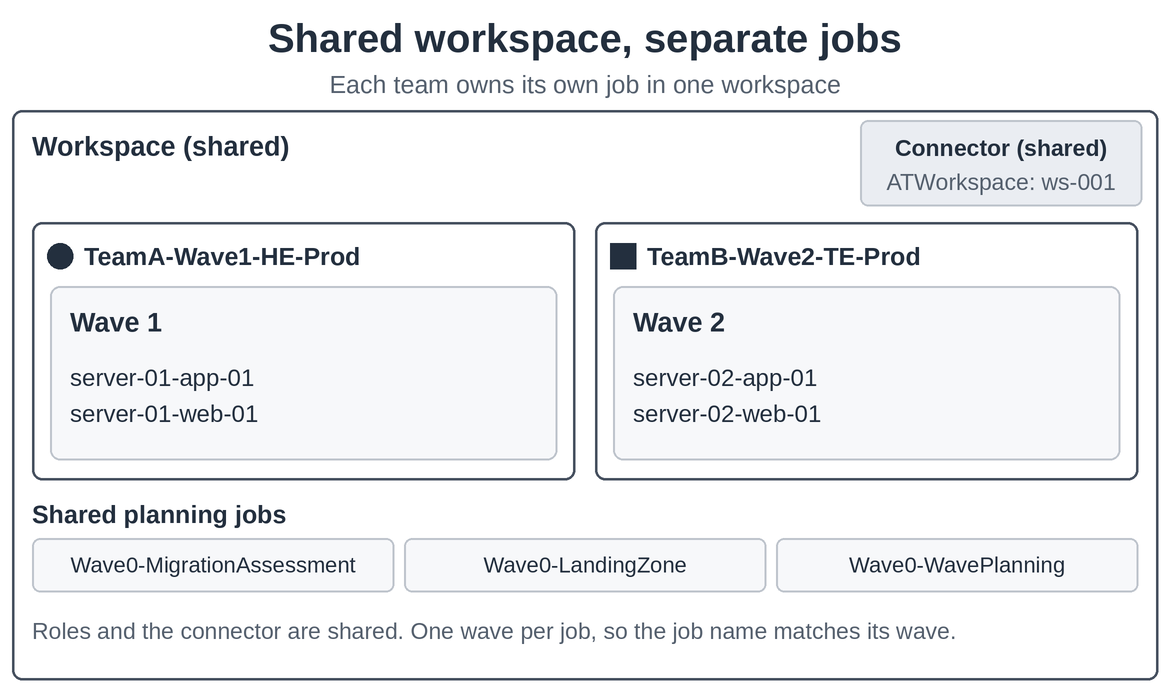
Figure 7. Shared workspace, separate jobs. Team A (filled circle) owns job TeamA-Wave1-HE-Prod and Team B (filled square) owns job TeamB-Wave2-TE-Prod, sharing one connector (ATWorkspace ws-001). Each job carries one wave, so the job name matches its wave. Three Wave0 planning jobs are shared by both teams.
Create a connector for your target accounts that all teams share. Document job-to-team ownership in a shared assignment tracker, and confirm you are in the correct job before executing.
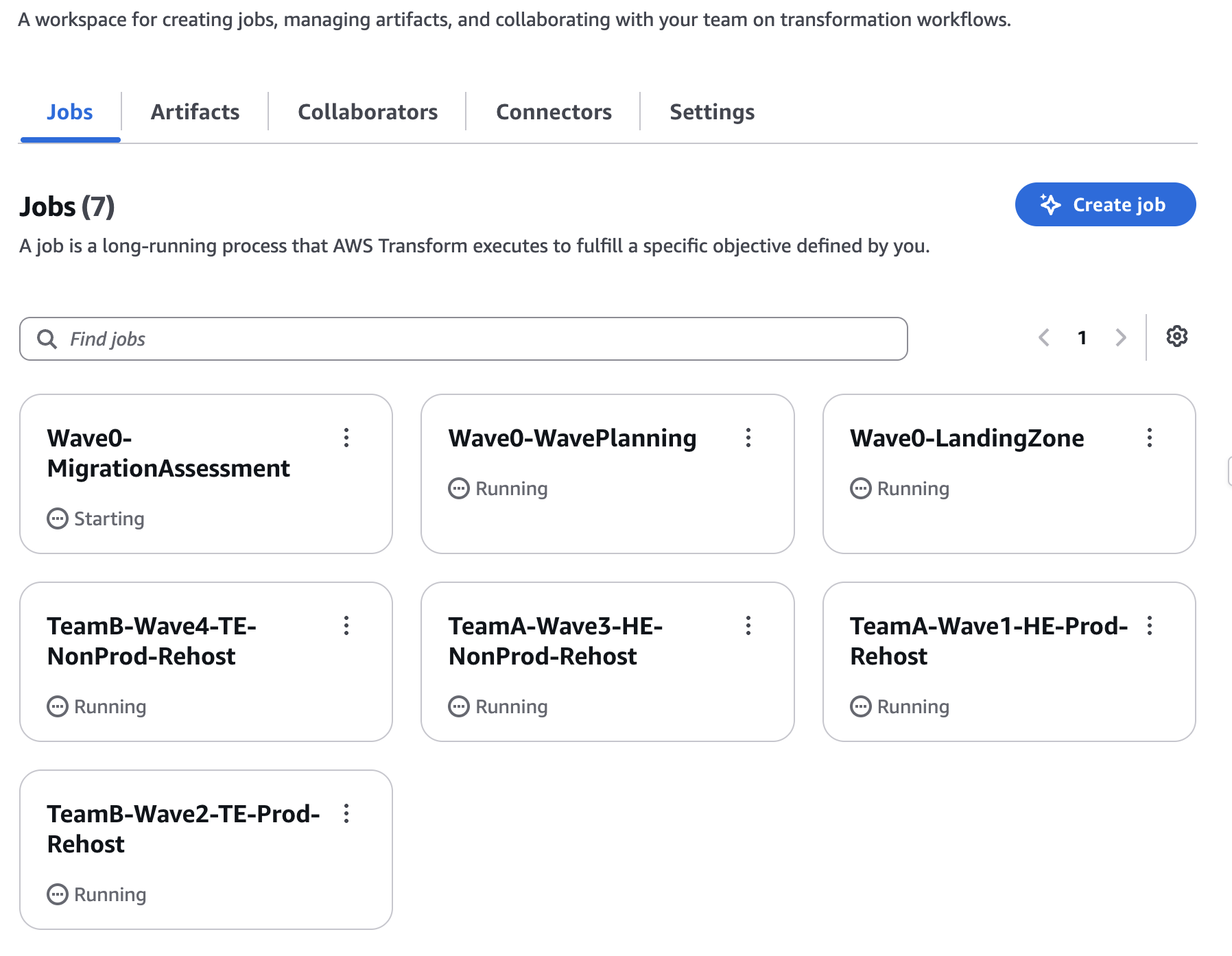
Figure 8. Shared workspace in practice: the Jobs page shows seven jobs. Team execution jobs (TeamA-Wave1-HE-Prod-Rehost, TeamB-Wave2-TE-Prod-Rehost, TeamA-Wave3-HE-NonProd-Rehost, TeamB-Wave4-TE-NonProd-Rehost) sit alongside shared planning jobs (Wave0-MigrationAssessment, Wave0-LandingZone, Wave0-WavePlanning). Each card shows a text status label.
Separate workspaces, one per team
Each team gets its own dedicated workspace, which gives the most complete isolation: access roles, jobs, and resources all live inside that team’s workspace. This model suits large programs (six or more teams) with strict compliance requirements, or teams that target separate accounts.
Setup: Give each team its own workspace and its own target set. Keep resource ownership one-to-one with a workspace: each VPC, subnet, and source server belongs to exactly one workspace. Where teams must reach the same account, use a connector in the designated admin account that can serve multiple workspaces.
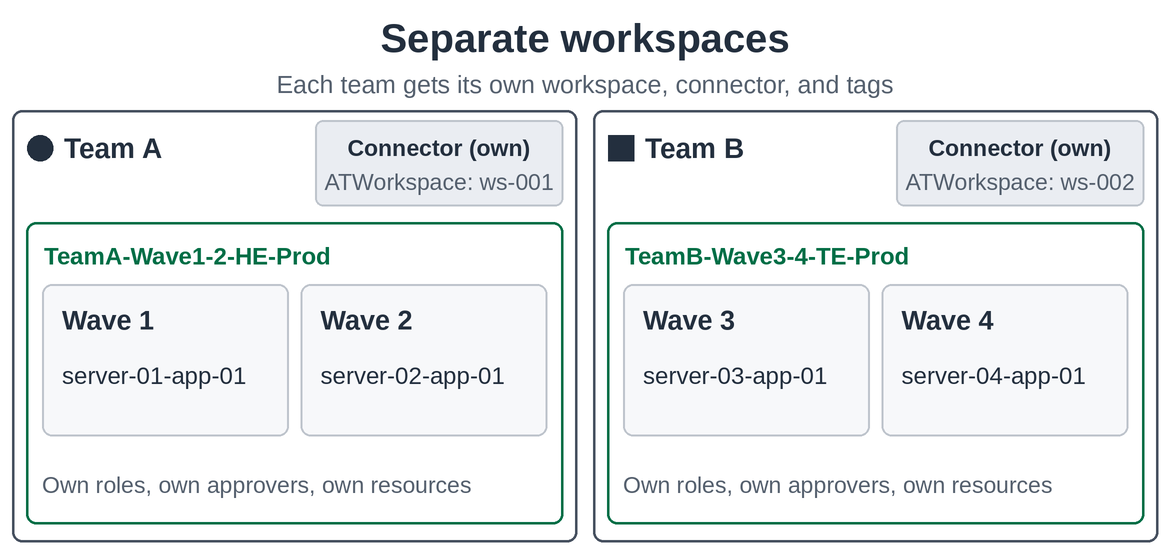
Figure 9. Separate workspaces. Team A (filled circle, ATWorkspace ws-001) owns job TeamA-Wave1-2-HE-Prod and Team B (filled square, ATWorkspace ws-002) owns job TeamB-Wave3-4-TE-Prod. Each workspace has its own connector, roles, and resources, so jobs, approvers, and resources are fully separated.
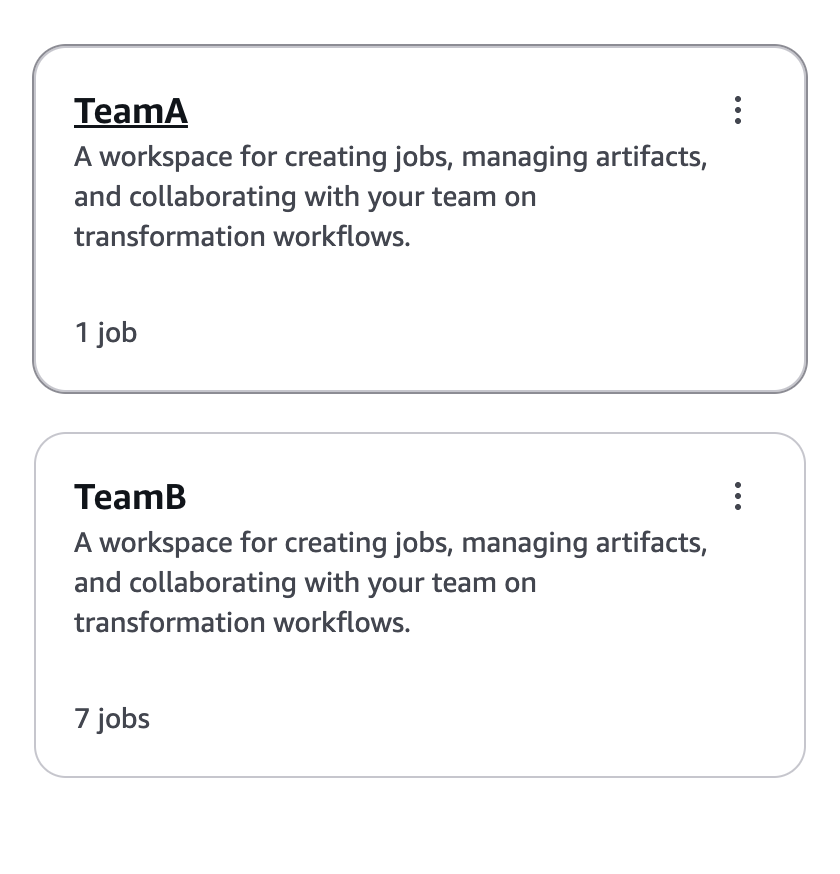
Figure 10. The AWS Transform workspace selector showing separate workspaces. Each team operates in its own workspace (TeamA and TeamB) with independent jobs, roles, and resource ownership.
Isolation model comparison
| Attribute | Within a job | Shared workspace | Separate workspaces |
|---|---|---|---|
| Isolation strength | Basic (logical only) | Moderate (job-level) | Complete (workspace-level) |
ATWorkspace tag |
Single tag, no conflict | Single tag, no conflict | One tag per workspace; each resource belongs to one workspace |
| Connector sharing | Fully shared | Shared among jobs | The creating workspace owns the connector; use an admin-account connector for shared accounts |
| Team discipline | Very high (teams must prompt into the right wave) | High (naming conventions) | Medium |
| Use for | Small teams, 2-3 teams, 1-2 accounts in a single view | Medium teams, 3-6 teams, shared network | Large programs, strict compliance, separate accounts |
| Roles | Workspace roles apply for the job | Workspace roles apply; job naming keeps teams organized | Each workspace has its own role assignments |
| Maintain boundaries by | Explicit wave grouping, for example Wave1-HE-Prod | Explicit job naming, for example TeamA-Wave1-HE-Prod-Rehost |
One workspace owns each resource |
Validating your isolation model
Find the worklog inside each job. The worklog records every action AWS Transform performs, including timestamps and step transitions. Review it to confirm that only the expected team is executing within each job or wave. In the Artifacts tab, verify that mgn_import CSVs and the configurations that AWS Transform generates reference only the servers your team owns.
Figure 11. The job worklog in AWS Transform, showing inventory-ingestion entries with timestamps in EDT. Use the worklog to confirm that only the expected team is operating within this job.
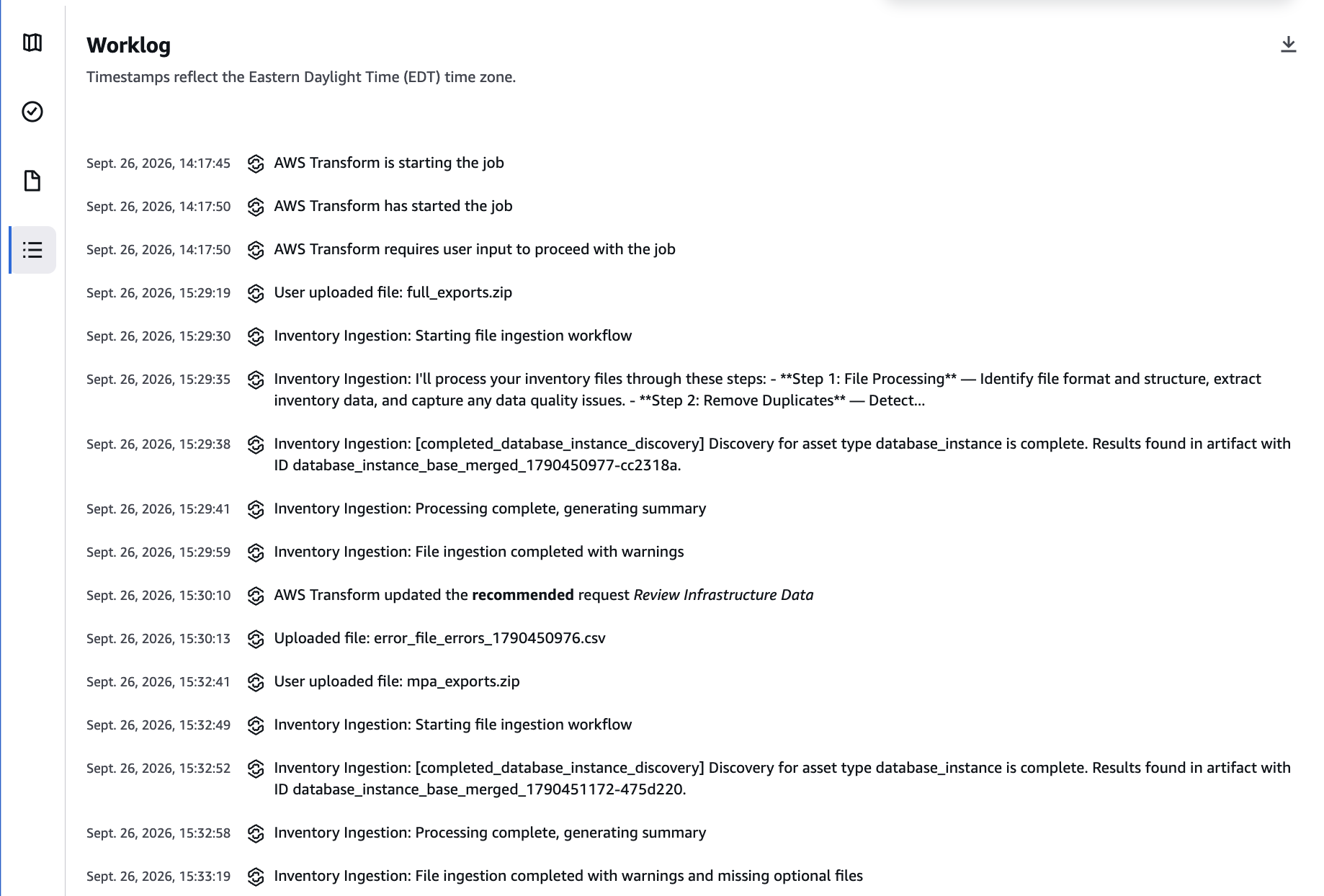
Figure 11. The job worklog in AWS Transform, showing inventory-ingestion entries with timestamps in EDT. Use the worklog to confirm that only the expected team is operating within this job
If a team’s servers appear in another team’s job worklog or artifacts, revisit your wave naming, job assignments, or workspace resource ownership before proceeding.
Conclusion
Running parallel migration waves on AWS Transform for migrations accelerates your migration timeline when each team has a defined boundary to work within. Choose the isolation model that matches your team size, account layout, and coordination capacity. Each model suits a different context:
- Within a job works well for small teams that want a single view of every wave.
- A shared workspace with separate jobs fits medium programs with shared infrastructure.
- Separate workspaces provide the most complete isolation for large programs with strict compliance needs.
Moving between models after you begin requires re-tagging resources and reconfiguring workspaces. Get the choice right at the start. Before your first parallel wave, convene your team leads. Align on the isolation model using the comparison table and the prerequisite questions in this guidance.
Related resources
How CI Financial ran parallel teams on AWS Transform
Centralized multi-account server migration to AWS with AWS Transform
AWS Prescriptive Guidance: Large Migration Strategy
How resource tagging scopes the AWS Transform connector role
AWS Transform connector documentation
AWS Transform collaborator permissions
Acknowledgements
Special thanks to Deepak Kumar, Diego Dalmolin, Mangesh Budkule, Monowar Chowdhury, Sumit Gupta, Suman Rajotia, and Tilly Wolfram for their contributions to this post.