Migration & Modernization
Centralized multi-account server migration to AWS with AWS Transform
Introduction
AWS Transform for migrations lets you orchestrate a centralized, multi-account migration of your workloads to Amazon EC2 from a single location. It coordinates the migration across all your target accounts and applies AI-powered automation to dependency mapping, wave planning, and network configuration, so dependent workloads move together while landing in their intended destination accounts. It migrates virtual and bare-metal server environments, including VMware, Hyper-V, and other sources.
Business challenge
Organizations migrating dozens of applications across multiple AWS accounts often hit a coordination wall. Without a single view of cross-account dependencies, centralized wave planning, or shared replication infrastructure, what should be a streamlined migration becomes a drawn-out, error-prone process. For organizations migrating to 10 or more target accounts, manual per-account setup can take three to four weeks of planning and coordination before the first workload moves. As you add each account, the infrastructure, coordination, and governance all compound. AWS Transform’s multi-account orchestration addresses three core challenges.
Multi-account migration orchestration lacks a single control plane. Without centralized orchestration, you manually map application dependencies, determine wave sequences, and coordinate cutover activities across multiple accounts. You spend weeks identifying which workloads depend on each other and in what order they should move. You lack visibility into cross-account dependencies and have no automated way to ensure workloads land in their intended target accounts with dependency awareness, so migration teams coordinate across distributed stakeholders without a single source of truth.
Governance boundaries multiply the setup burden. You must maintain strict security boundaries when migrating workloads to multiple accounts representing different business units, environments, or compliance requirements. Each additional target account requires you to repeat security configuration, resource tagging policies, access control setup, and source network translation into AWS-native constructs, with no centralized guardrails to catch inconsistencies.
Replication infrastructure duplicates with every account. AWS Transform MGN (formerly AWS Application Migration Service) replicates your source servers into a staging area before launch, and that staging area lives in the account you replicate to. In a multi-account migration, the traditional approach is to stand up separate replication infrastructure in each target account. Every new account means another staging Amazon Virtual Private Cloud (VPC) and subnet, another replication template, and another set of resources to size, secure, and pay for. This duplication scales directly with the number of target accounts and becomes the dominant source of cost and management overhead.
In this blog post, you learn how to implement a centralized architecture with AWS Transform’s multi-account orchestration to migrate workloads to multiple AWS accounts from one location.
Prerequisites
Ensure the following are in place:
- AWS accounts: This architecture uses three types of accounts:
- AWS Organization management account
- Central migration orchestrator account (referred to as the central account in this post)
- Target accounts for migrated workloads
- AWS Organizations: All accounts must be members of the same AWS Organization.
- Target account network: Each target account must have its network (VPCs and subnets) in place for the migrated workloads. You can use AWS Transform to build your landing zone and migrate your network configuration.
- Access to AWS Transform: AWS Transform enabled in the central account, with web application access assigned to your users. For details, see Setting up AWS Transform.
- Network connectivity: Network connectivity as described in the AWS MGN network requirements.
Solution overview
AWS Transform MGN runs lightweight replication servers in the staging area subnet that receive the replicated data and store it as Amazon Elastic Block Store (Amazon EBS) snapshots. In this architecture, the central account hosts this staging subnet and shares it with the target accounts. It runs AWS Transform as an orchestration plane and your workloads migrate into one or more target accounts, as shown in the diagram below: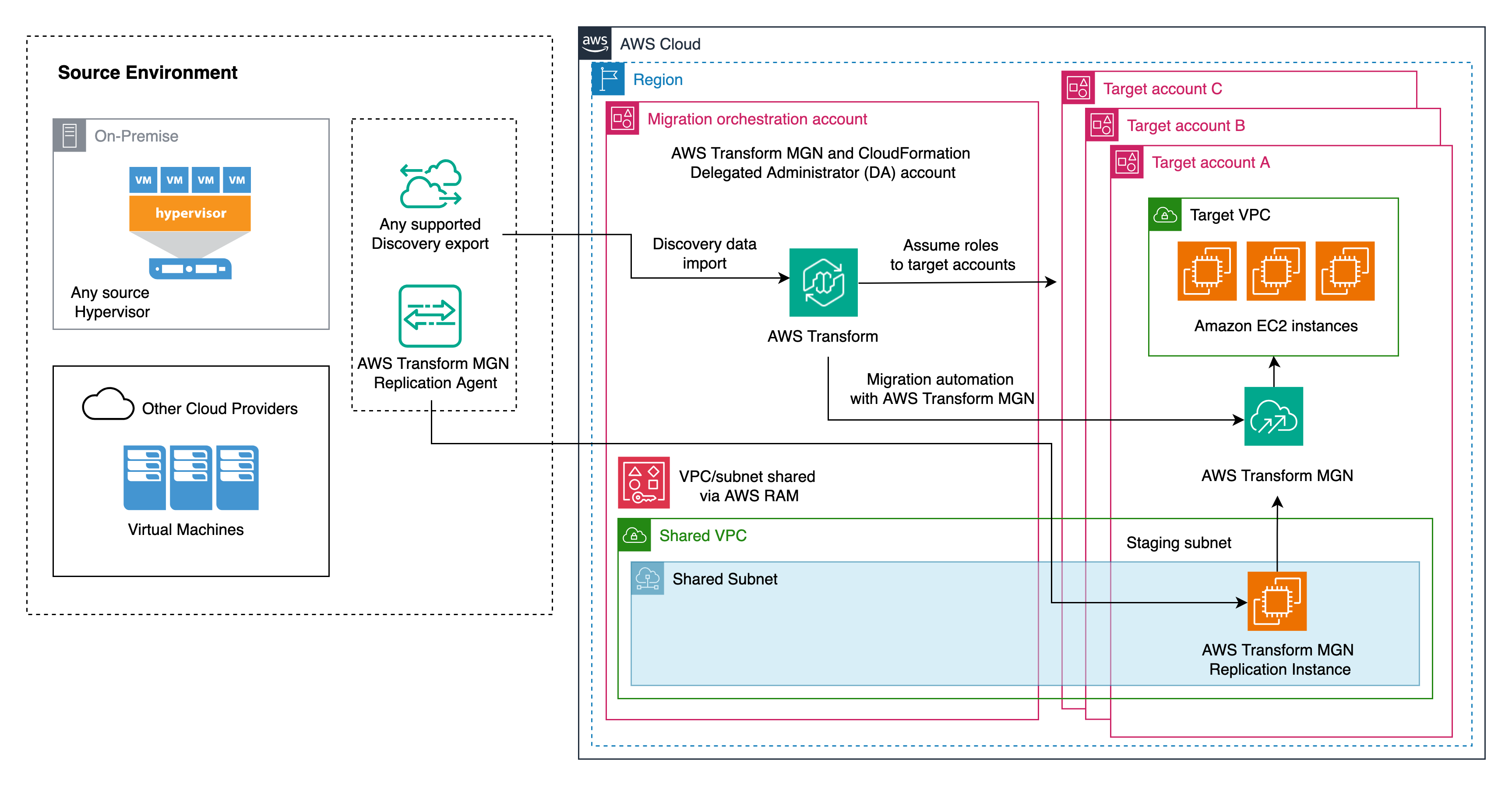
Figure 1: Centralized multi-account migration architecture
Central account:
- Hosts a centralized staging area VPC and subnet, which is shared across the AWS Organization or specific target accounts using AWS Resource Access Manager (RAM)
- Runs AWS Transform, which serves as the single orchestration plane for the entire migration
Target accounts:
- Receive the shared staging area subnet from the central account via AWS RAM
- Host the migrated EC2 instances
- Have AWS Transform MGN enabled by AWS Transform, with the shared VPC/subnet selected as the staging area
- Perform test and cutover launches to the local account’s VPC/subnet
This architecture eliminates the need to provision separate MGN replication infrastructure in each target account, while the migrated workloads still land in their respective target accounts after cutover.
Single control plane for multi-account orchestration
AWS Transform centralizes the following capabilities in a single control plane, so you manage the entire multi-account migration from one workspace without switching between accounts:
- Job planning and wave assignment: You assign each wave to its target account in a single job, and AWS Transform coordinates the server rehost across all of them.
- Connector to the management or DA account: The target account connector connects to the AWS Organization management account or a delegated administrator (DA) account, and AWS Transform uses it to orchestrate across all member accounts.
- AWS Identity and Access Management (IAM) role deployment: AWS Transform deploys the IAM roles it needs in each target account automatically through AWS CloudFormation StackSets, eliminating manual cross-account permission setup.
- Multi-user collaboration: A team can plan waves together and execute them in parallel, with different users driving different waves at the same time from the central workspace.
Migration environment setup
Before you build the shared subnet, prepare your organization so the central account can orchestrate across member accounts. These are one-time tasks that apply to every migration wave that follows. Some are performed in the central account and some in the organization management account.
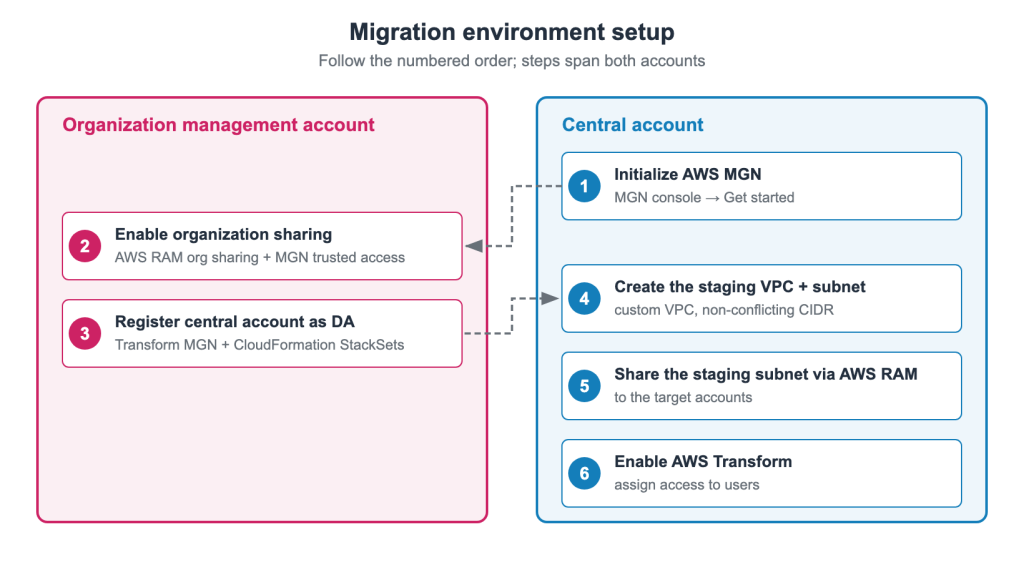
Figure 2: Multi-account migration environment setup
Initialize AWS Transform MGN (central account)
Initialize AWS Transform MGN in the central account, because the delegated-administrator registration in the next step requires the service to be active. Navigate to AWS MGN console and choose Get started. Choose Set up service to create all the required IAM roles.
Configure the AWS Organization management account
Perform the following tasks signed in to the AWS Organization management account:
Enable trusted access for AWS Transform MGN and AWS RAM
Enabling trusted access lets these services operate across your organization without per-account configuration. You activate trusted access from the organization management account:
- AWS Transform MGN: Global view requires AWS Transform MGN to be initialized in the management account. Open the AWS MGN console in the management account and choose Set up service. Once initialized, choose Global view, then Enable AWS Organizations service access.
- AWS RAM: Enables subnet sharing across accounts without requiring individual resource share invitations. Open the AWS RAM console, choose Settings, and select Enable sharing with AWS Organizations. Alternatively, run:
aws ram enable-sharing-with-aws-organization
This creates the AWSServiceRoleForResourceAccessManager service-linked role and enables AWS RAM trusted access with AWS Organizations automatically.
Register the central account as a delegated administrator
With AWS Transform MGN initialized and trusted access enabled, register the central account as a delegated administrator (DA). A DA account lets the central account manage AWS Transform MGN and deploy resources across member accounts without using the organization management account directly, which keeps the migration aligned with least-privilege best practices. Run these commands from the management account:
- AWS Transform MGN. Grants the central account the multi-account permissions it needs to manage source servers, apps, and waves across member accounts:
aws organizations register-delegated-administrator \--service-principal mgn.amazonaws.com \--account-id <central-account-id>
- CloudFormation StackSets. Lets the central account deploy the cross-account IAM roles that AWS Transform provisions in each member account:
aws organizations register-delegated-administrator \--service-principal member.org.stacksets.cloudformation.amazonaws.com \--account-id <central-account-id>
Note: You can also connect the AWS Transform connector to the organization management account instead of a DA account. AWS recommends the DA approach for least privilege. For more information, see Delegated administrator for MGN.
Create the centralized staging VPC and subnet (central account)
In the central account, create a dedicated VPC and subnet that serves as the staging subnet shared across all target accounts for the replication traffic. Choose a CIDR block that doesn’t conflict with your source environment or target accounts and attach an internet gateway if replication servers require internet access.
When sizing the subnet, plan for enough IP address space to cover concurrent replication across all target accounts. AWS Transform MGN consolidates multiple source server disks onto shared replication servers, so the number of replication servers is smaller than the number of source servers. Because every target account replicates through this one subnet, base your CIDR on the peak number of concurrent replication servers you expect across all accounts, plus headroom.
Share the staging subnet using AWS RAM (central account)
Use AWS Resource Access Manager (AWS RAM) to share the staging subnet with your target migration accounts.
To share the subnet:
- Navigate to the AWS RAM console and choose Create resource share.
- Configure the resource share:
- Name: Enter a descriptive name (for example, migration-staging-subnet-share)
- Resource type: Select Subnets
- Select resource: Choose your staging subnet
- For managed permissions, accept the default AWSRAMDefaultPermissionSubnet (allows launching resources and creating network interfaces in the shared subnet).
- Under Grant access to principals:
- Select Allow sharing only within your organization
- Principal type: AWS account
- Enter the target account ID and choose Add
- Review and choose Create resource share.
Because trusted access is enabled between AWS RAM and AWS Organizations, the target account automatically accepts the shared resource without requiring manual invitation acceptance.
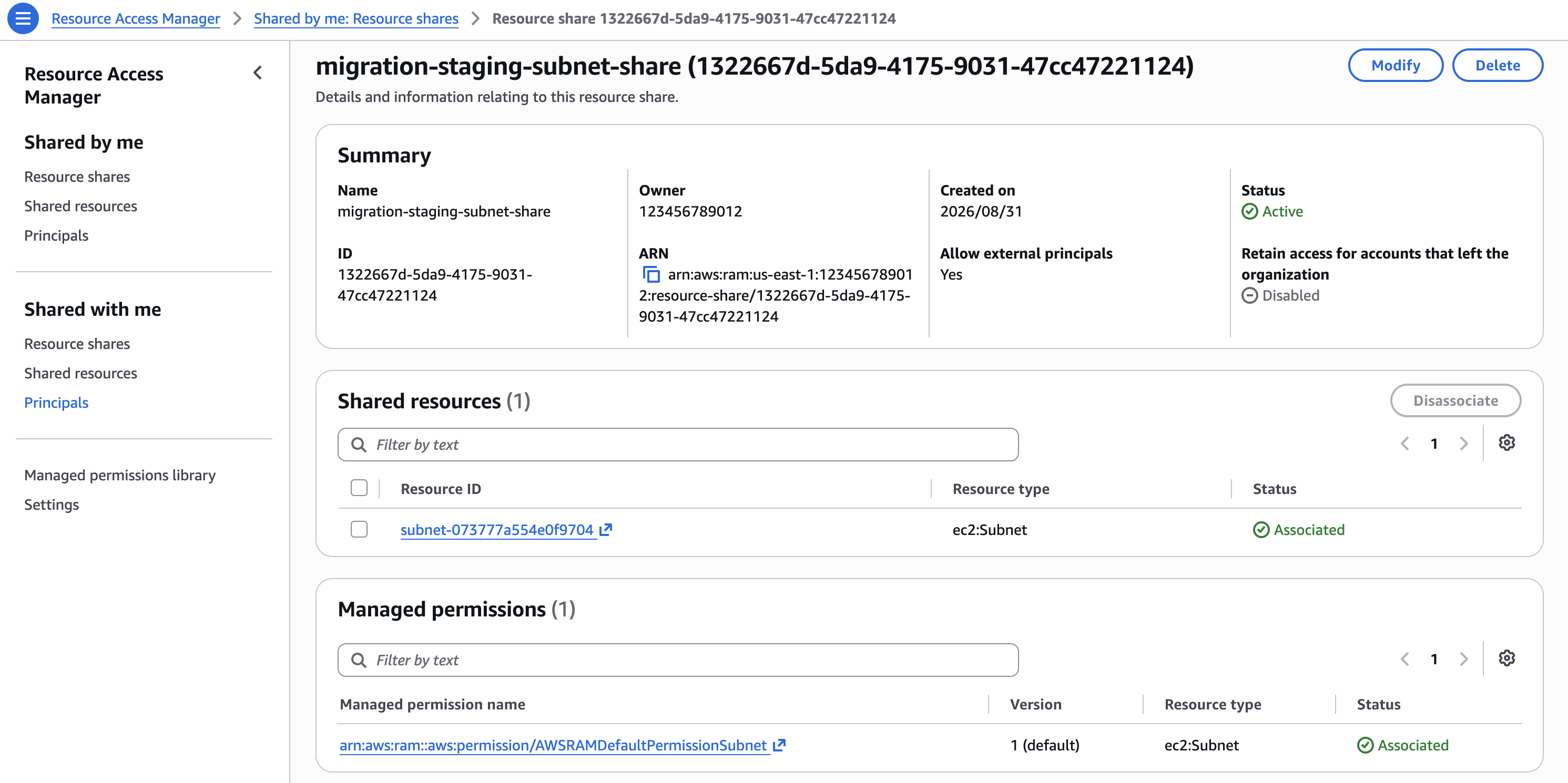
Figure 3: The AWS RAM resource share showing the staging subnet associated and active
To verify the share, switch to a target account and open VPC → Subnets. The staging subnet appears labeled as Shared with the central account as the owner.
Orchestrate the multi-account migration with AWS Transform
Now that setup is complete, open the AWS Transform web application hosted from the central account. From there, create a workspace and a migration job for your source environment, and proceed through the regular AWS Transform flow: discover your source environment, group servers into applications, and plan your migration waves. Alternatively, you can access AWS Transform over the Model Context Protocol (MCP) to drive the same migration workflows from within an AI coding agent, keeping planning and execution in the tool you already work in. The following points call out the configuration that makes centralized, multi-account orchestration work within the migration job:
- Connect the Transform connector to the delegated administrator account: When you reach the target account connection step on the migration job, choose the multi-account migration. Set up the target account connector against the central account you registered as a delegated administrator. When you approve the connector, AWS Transform creates the connector IAM role in that account.
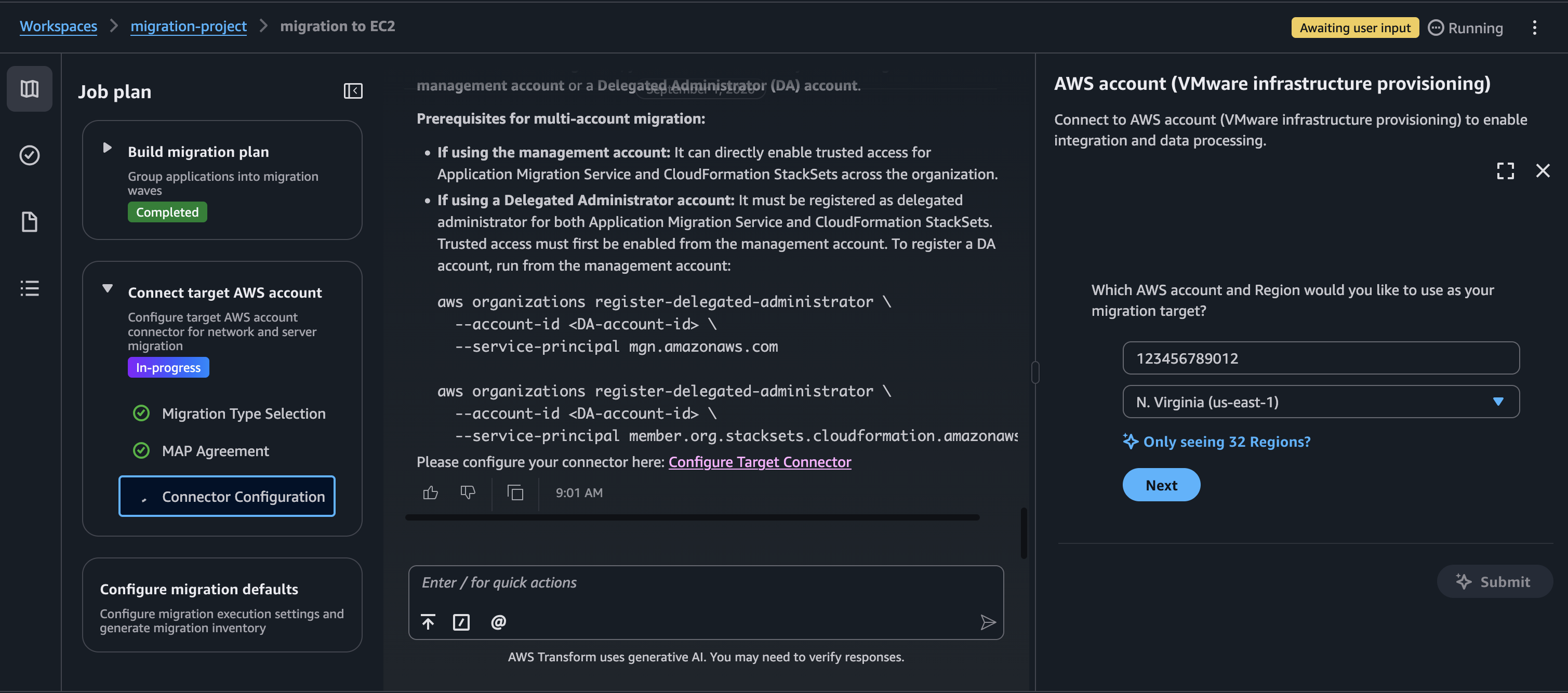
Figure 4: AWS Transform multi account connector configuration
- Assign each wave to its target account: In the step to configure migration execution defaults, you assign each wave to the specific target member account, where those workloads reside after cutover.
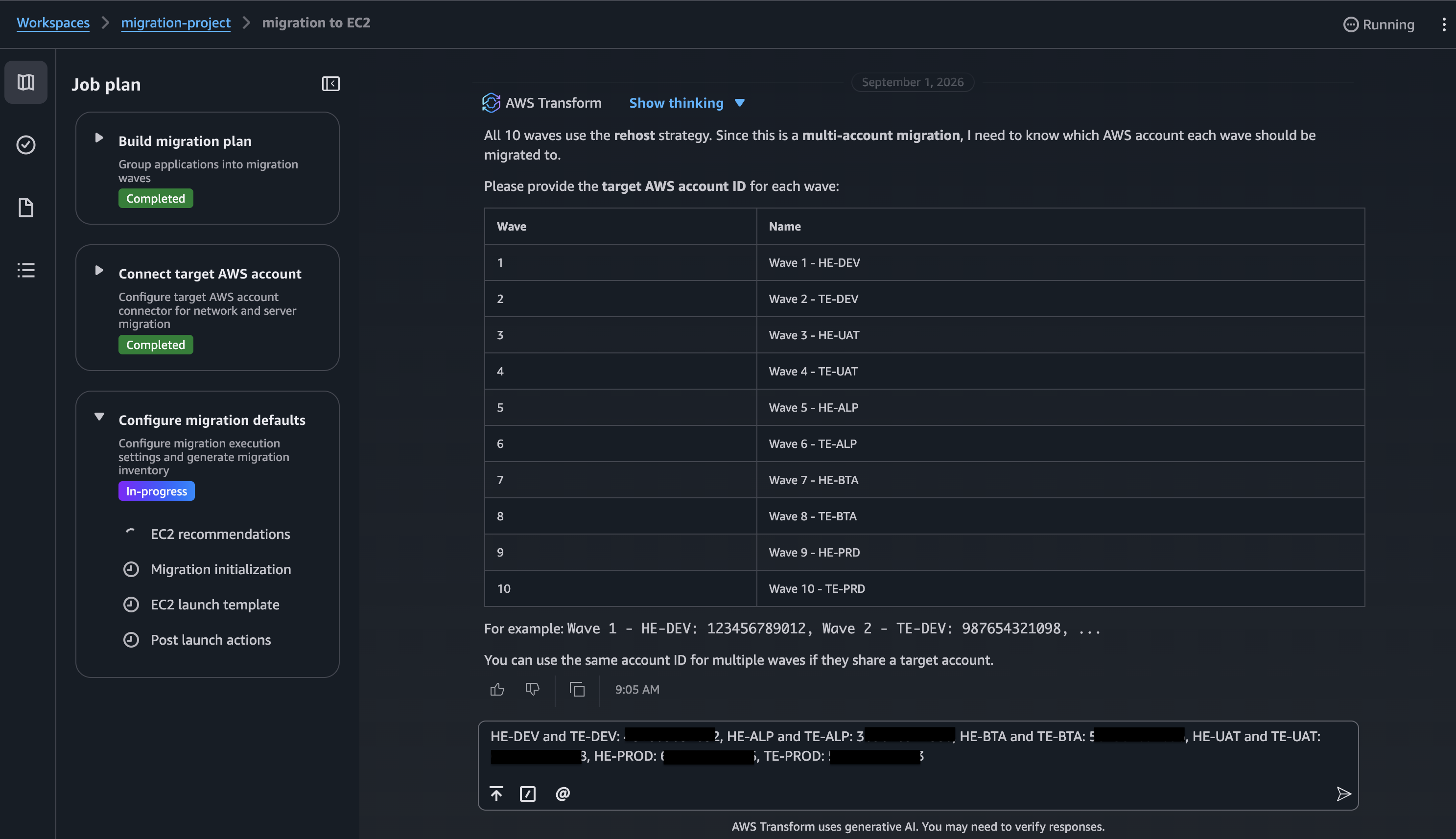
Figure 5: Assign waves to the target accounts
- Deploy the multi-account IAM roles: After you assign the waves to their target accounts, AWS Transform prompts you to set up the multi-account IAM roles. Follow the provided link (signed in to your central account) to open the setup in the AWS console.
- Choose View IAM Roles to review the template to confirm the permissions and resources it creates.
- This step deploys the AWSTransformRehostSharingRole_<management-or-delegated-admin-account-id> role across the target accounts.
- Choose the target accounts for this migration and Deploy Rehost Roles to proceed with the deployment.
- After the deployment is completed in the console, return to AWS Transform and choose Continue to proceed with the migration.
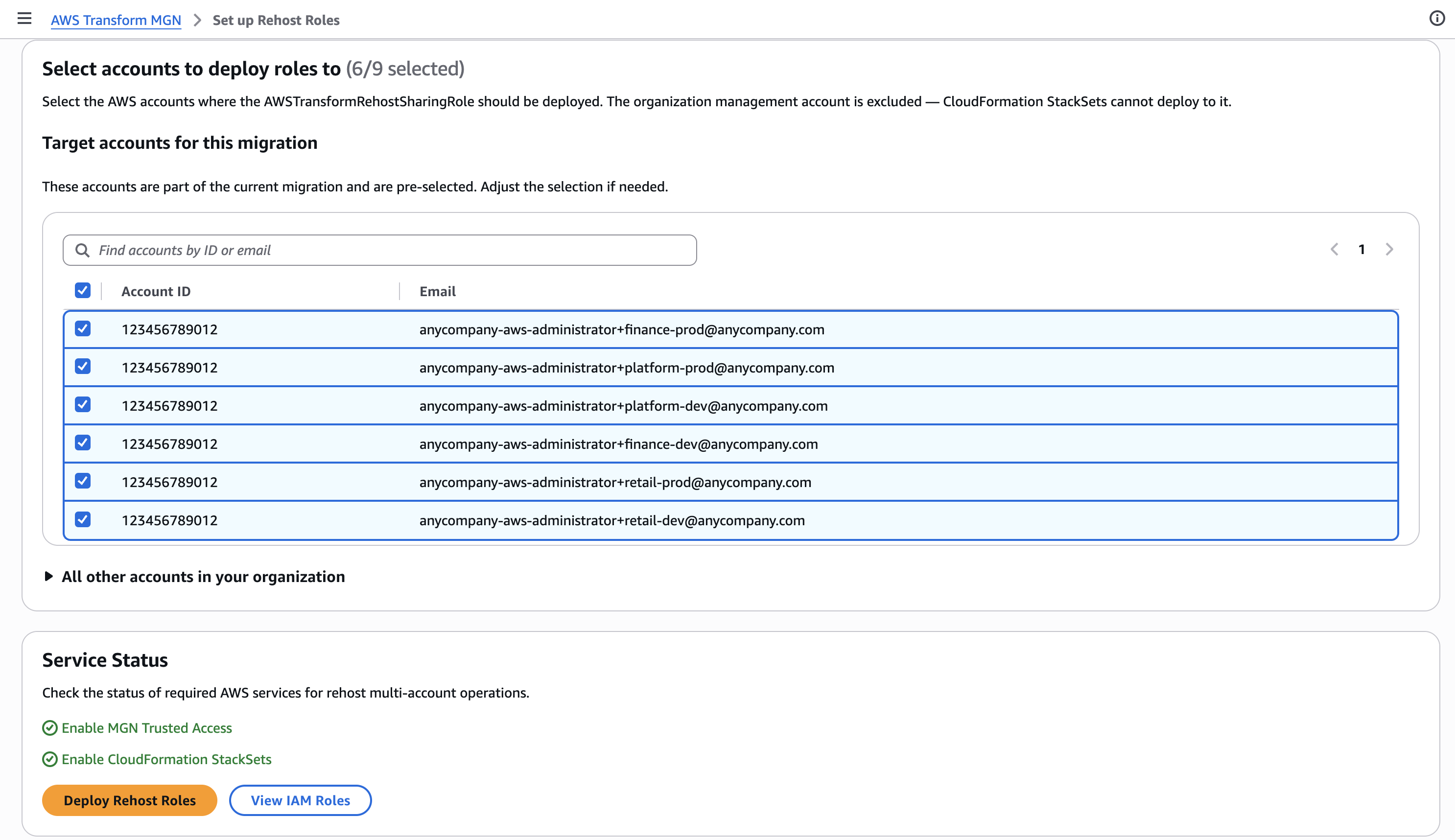
Figure 6: Deploy the multi-account IAM roles
- Deploy the AWS MGN IAM roles in the target accounts: AWS Transform then prompts you to deploy the MGN service roles. Follow the provided link (signed in to your central account) to review and deploy the roles across your target accounts. This step also initializes MGN on all target accounts. Once complete, return to AWS Transform and choose Continue.
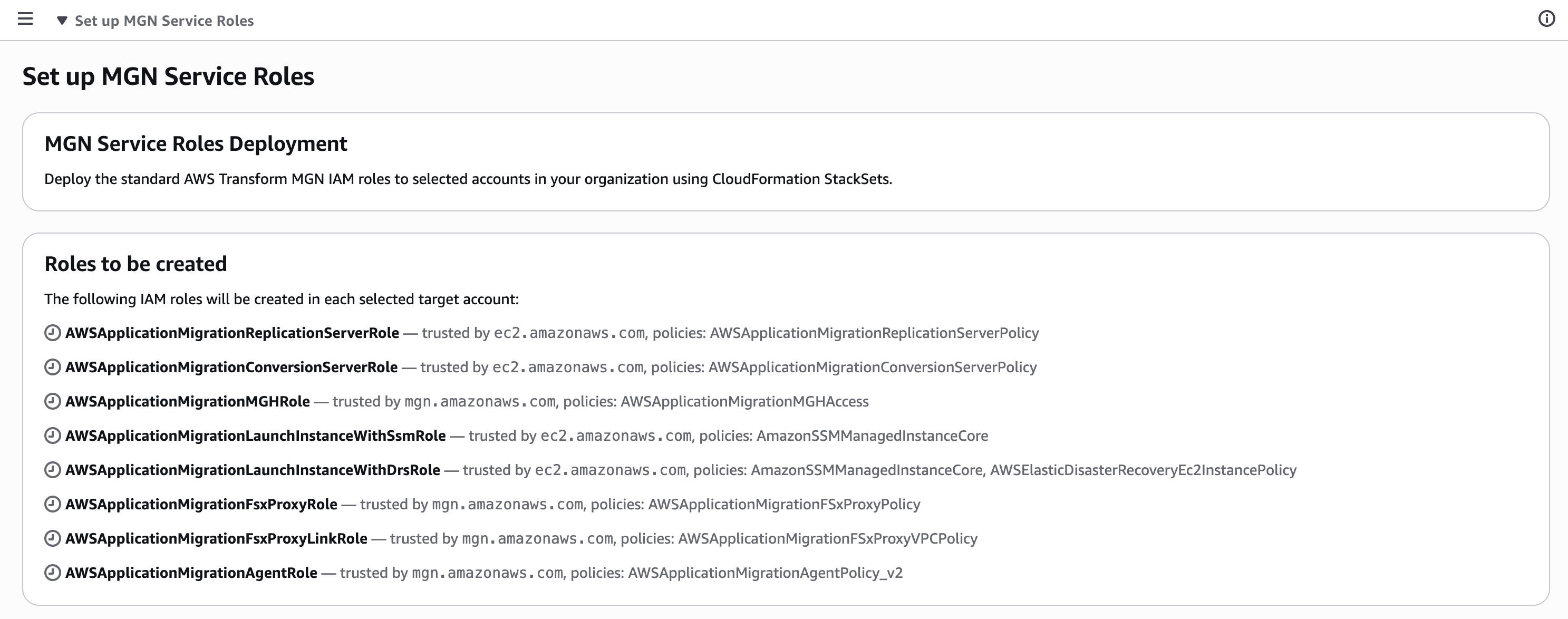
Figure 7: Deploy AWS MGN IAM roles in the target accounts
-
- Configure migration defaults: After the IAM roles are deployed, AWS Transform walks you through the migration execution defaults including the Amazon EC2 recommendations, default launch settings and post-launch actions. Configure these based on your requirements.
- Configure the wave: Once the job-level defaults are set, AWS Transform moves into the individual wave migration flow. For each wave, the agent guides you through the following wave-level configuration:
- Tag migration resources: AWS Transform prompts you to tag the VPCs, subnets, and security groups in the target account. MGN requires these tags to identify the staging area for replication and to map target network resources into your migration inventory. Since tags are not shared through AWS RAM, sign in to the target account and follow the provided link to tag the resources. Choose the shared staging subnet and the target VPC and subnets for the workloads. If you used AWS Transform Network Migration to create these resources, they are already tagged.
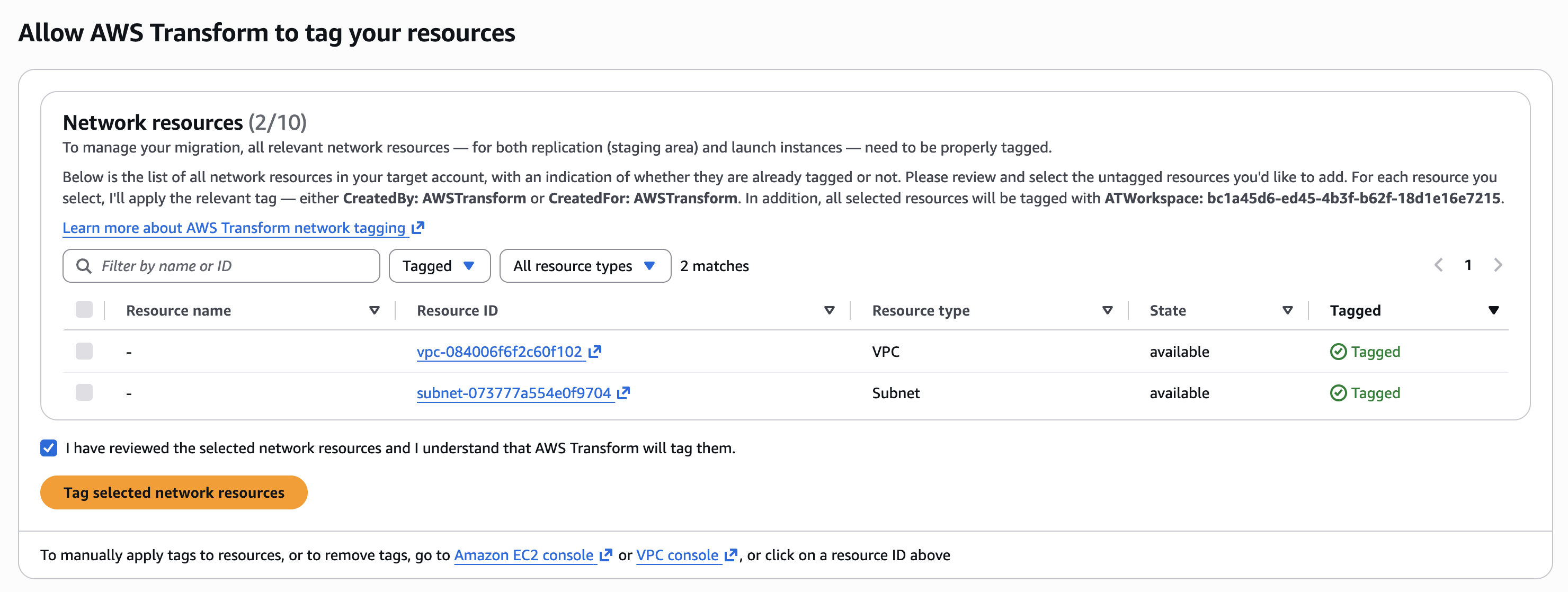
Figure 8: Allow Transform to tag the staging and target resources
- Set the replication subnet: For each wave, AWS Transform defaults to the default subnet in the target account for replication. Prompt the Transform chat interface to change the replication subnet and enter the shared staging subnet ID. Additionally, you can customize other replication settings for the wave.
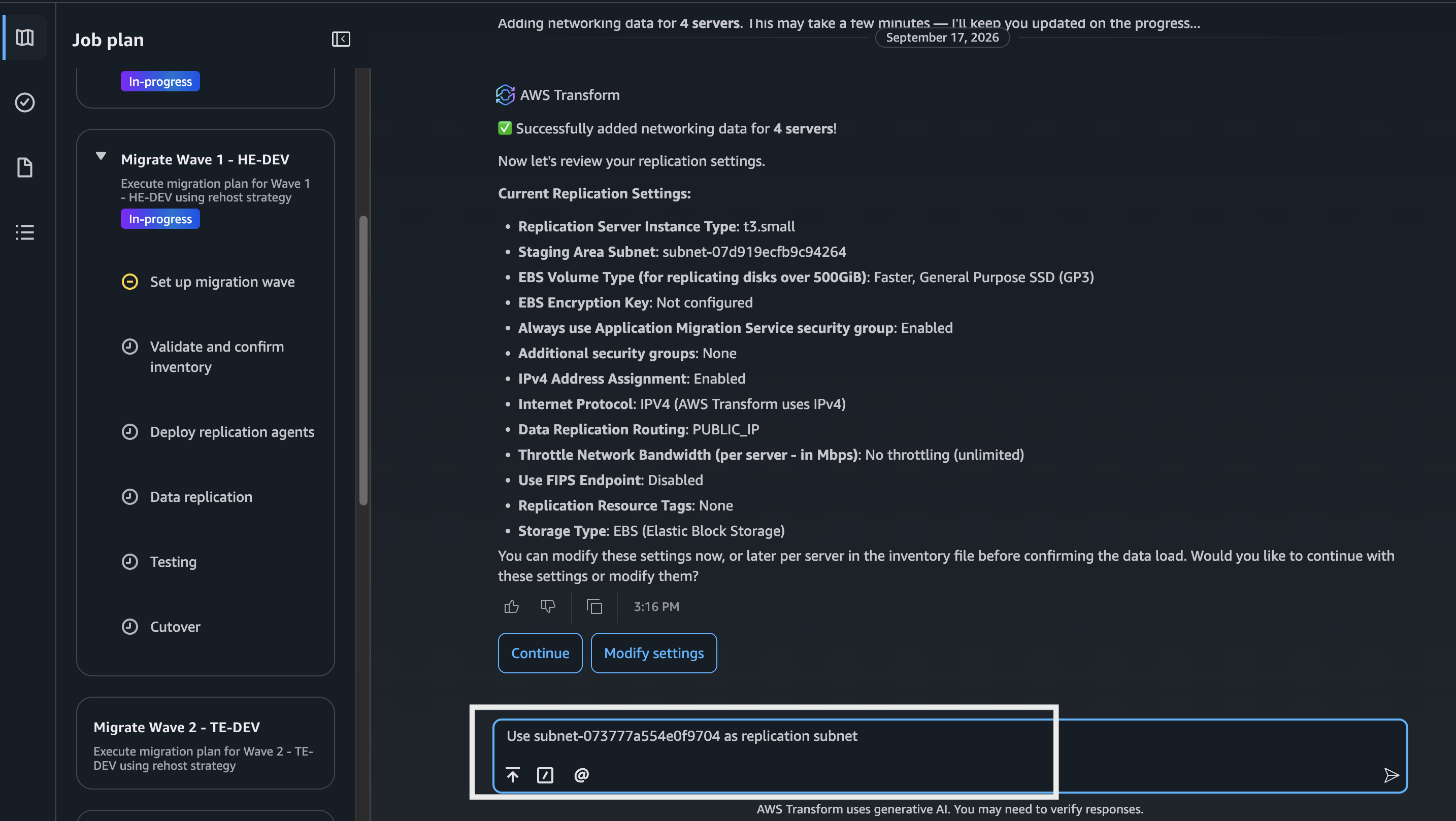
Figure 9: Set the shared subnet as the replication subnet in Transform job
- Validate inventory and network assignments: Review and confirm the server inventory, instance type recommendations, and network mappings for the wave. Configure these based on your requirements.
- Tag migration resources: AWS Transform prompts you to tag the VPCs, subnets, and security groups in the target account. MGN requires these tags to identify the staging area for replication and to map target network resources into your migration inventory. Since tags are not shared through AWS RAM, sign in to the target account and follow the provided link to tag the resources. Choose the shared staging subnet and the target VPC and subnets for the workloads. If you used AWS Transform Network Migration to create these resources, they are already tagged.
In this walkthrough, the centralized staging subnet is shared with all target accounts upfront and reused across every wave. Alternatively, you can share the subnet on demand; share it with the specific target account when a wave is ready to migrate, set it as the staging subnet in the Transform wave configuration, complete the migration and cutover, and then remove the AWS RAM share for that account. This approach gives you tighter control over cross-account access by limiting subnet sharing to only the account actively migrating.
- Deploy the replication agents: In the step to deploy replication agents, AWS Transform prompts you to choose the method to install the AWS MGN Replication Agent on the source servers:
- MGN connector (recommended for multi-account): A single MGN connector can automate agent deployment to source servers across all waves and target accounts. AWS Transform guides you through the setup.
- Existing tooling or manual installation: If you install agents with your own software distribution tooling or manually, you must generate IAM credentials from each specific target account and use them when installing the agent on the corresponding source servers. The IAM credentials determine which target account the agent registers the source server with in MGN.
- Replicate, test, and cutover: After the agents are deployed, replication begins automatically and flows through the shared staging subnet on target accounts. When you launch test instances and perform cutover, the servers launch in the target account’s VPC and subnet you configured during the wave setup.
After each wave completes cutover, validate the migrated workloads in their target accounts. Once a wave is validated, decommission its source servers, clean up the replication resources from the staging subnet, and proceed to the next wave.
Conclusion
In this post, you learned how to use AWS Transform for migrations to orchestrate a centralized, multi-account migration from a single control plane. By connecting AWS Transform to a delegated administrator account and sharing a staging subnet through AWS RAM, you can plan waves across multiple target accounts, deploy IAM roles and replication agents from one location, and coordinate test and cutover operations all within a single migration job. This approach replaces the traditional per-account setup with centralized orchestration while preserving the security and governance boundaries of your multi-account structure. To get started, visit the AWS Transform for migrations documentation.