Microsoft Workloads on AWS
Gain organization-wide visibility into software licensing with AWS License Manager license asset groups
Enterprises are under increasing pressure to optimize software licensing costs, maintain vendor compliance, and make data-driven renewal decisions while managing fragmented license data across multiple Amazon Web Services (AWS) accounts and regions. Centralizing and governing this license data facilitates cost optimization, audit readiness, and strategic procurement planning.
In this blog post, we’ll show you how AWS License Manager helps you build comprehensive visibility into your commercial software portfolio through automated discovery and centralized license asset groups. You can use License Manager to standardize license management processes and support your compliance, cost optimization, and renewal planning initiatives. We’ll show how to get started with AWS License Manager, providing step-by-step guidance on how to use automated discovery and license asset groups to track software licenses across your organization. These features will help teams monitor consumption, identify optimization opportunities, and maintain audit-ready documentation for enterprise-wide compliance and cost management.
The software licensing challenge
When managing hundreds or thousands of Microsoft SQL Server, Windows Server, Red Hat, or Oracle licenses across multiple regions and AWS accounts, you may face time-consuming, error-prone manual tracking processes. In addition, when audit season arrives, teams scramble to compile spreadsheets and reconcile data from different sources. Meanwhile, unused licenses sit idle while procurement teams purchase more capacity—a cycle that costs organizations millions of dollars annually. With licenses spread across dozens of AWS accounts and multiple regions, enterprises lack a centralized view of what they own, what they’re using, and what’s sitting idle, making it nearly impossible to maintain accurate license counts or plan renewals based on actual usage.
Centralized software asset management with AWS License Manager
AWS License Manager now provides centralized software asset management across all AWS regions and accounts in your organization through license asset groups. Instead of manually tracking licenses account-by-account and region-by-region, you can now automatically discover your commercial software installations and gain a unified, product-centric view of your entire software portfolio.
Automated Discovery Across Your Organization
AWS License Manager automatically discovers commercial software running on Amazon Elastic Compute Cloud (Amazon EC2) instances across all regions and accounts in your AWS Organization. License Manager continuously tracks your instances and maps them to your license inventory. Use AWS-managed rulesets for popular products like Microsoft SQL Server, Windows Server, Red Hat Enterprise Linux, and SUSE Linux Enterprise Server—or custom rulesets for specialized software.
Product-Centric License Tracking
Organize licenses by product rather than by account or region. Create license asset groups for each software product you use, such as “SQL-Server-Enterprise” or “Windows-Server-Production,” and License Manager automatically associates all relevant instances across your organization. This product-centric approach makes it easy to understand total consumption, identify optimization opportunities, and plan renewals based on actual usage patterns.
Real-Time Dashboard and Analytics
Access comprehensive dashboards showing license consumption trends, instance inventories, and utilization metrics. View your top 5 license asset groups at a glance, then drill down to see detailed information for specific products. Track usage trends over time with flexible date ranges, compare self-managed (Bring Your Own License) versus License Included consumption, and identify instances that might be running without proper licensing coverage.
Proactive Expiration Alerts
Configure license expiration dates and receive proactive Amazon SNS notifications 7, 30, or 90 days before licenses expire. This gives your procurement team sufficient lead time to negotiate renewals, analyze usage trends to right-size quantities, and avoid emergency purchases at less favorable terms.
Audit-Ready Reporting
Generate comprehensive reports showing historical license consumption, complete instance inventories, and compliance status. Export reports to CSV or schedule automated delivery to Amazon S3 buckets. When vendors arrive for audits, you can provide accurate documentation in minutes instead of weeks.
Prerequisites
- AWS Systems Manager (SSM) agent installed on your Amazon EC2 instances.
- AWS Organizations, if you plan on using cross- account resource discovery.
- If you are onboarding for the first time, follow the License Manager getting started guide to set up all required permissions.
Getting started
Step 1: Configure Discovery Settings
- Browse to the AWS License Manager console.
- In the left pane, under Settings, choose License asset discovery and ruleset.
- In the License asset discovery section, choose Edit.
- For Organization discovery, select Enable to discover license assets across AWS accounts in your AWS Organization.
- For Region discovery, select the additional AWS regions where you run licensed software, then choose Save changes.
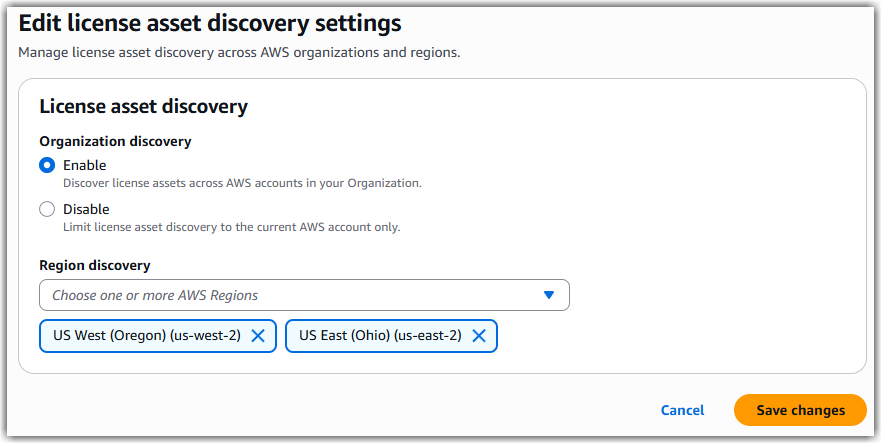
Figure 1. Enabling Organization discovery with two additional regions.
License Manager will begin discovering commercial software installations across your organization.
Step 2: Create License Asset Groups
- Browse to the AWS License Manager console.
- From the left pane, choose License assets.
- In the License asset group section, select Create license asset groups.
- In the License asset group template section, select the AWS-managed ruleset for product you want to track, then select Next.
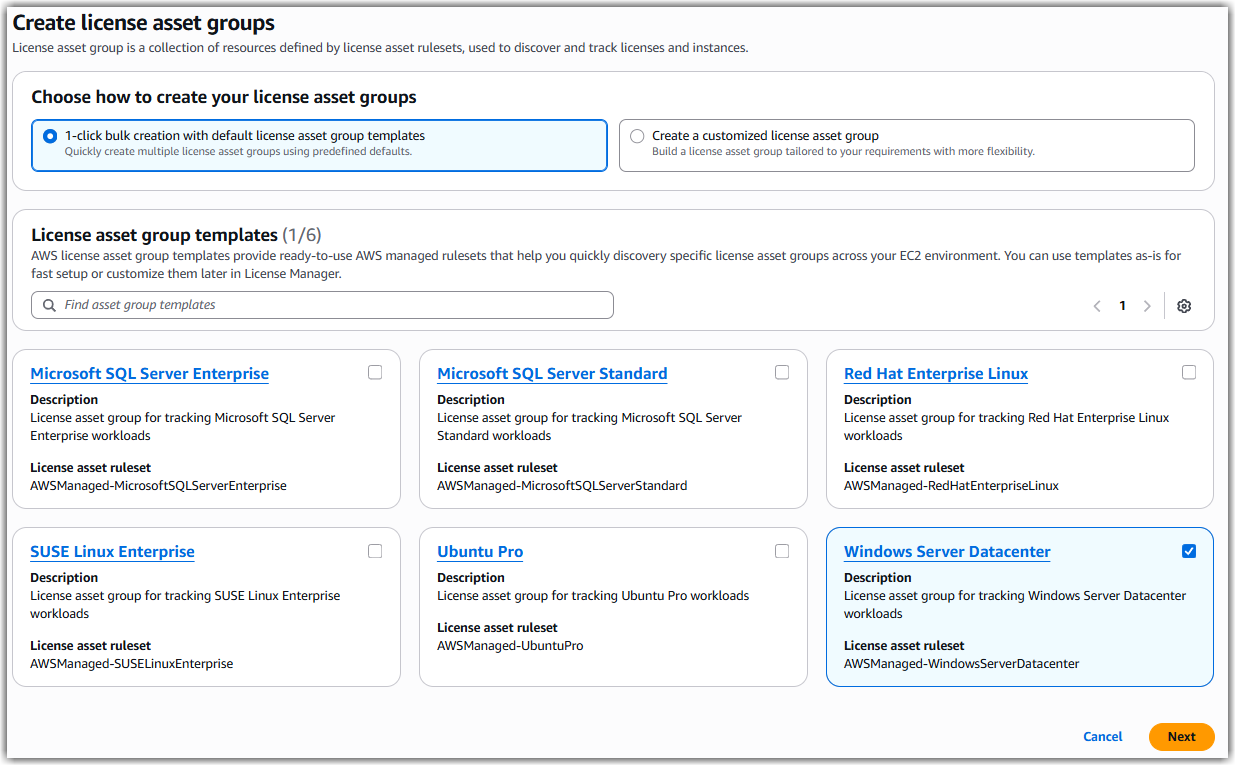 Figure 2. Creating a license asset group using AWS-managed rulesets to discover Windows Server licenses.
 - (Optional) For License asset discovery, select Enable to discover license assets across your AWS Organization or Disable if you want to limit discovery to only your AWS account, then choose Submit.
Discovery begins automatically and typically completes within 24 hours.
Step 3: (Optional) Create Custom Rulesets
Custom rulesets provide you with adjustable options to track both granted licenses and self-managed licenses, or to track instance configurations like Amazon EC2 billing codes, Amazon Machine Images (AMI), instance types, and more. For example, the following steps show how to track an AMI used to deploy a Bring Your Own License (BYOL) version of Windows Server.
- Browse to the AWS License Manager console.
- In the left pane, under Settings, choose License asset discovery and ruleset.
- In the License asset ruleset section, choose Create ruleset.
- Provide a Ruleset name, then choose Next.
- Do not add inclusion rules for license discovery. To skip this step, choose Next.
- To add inclusion rules for instance discovery, choose Add rules.
- In the Instances meet condition field, select AMI ID, then select Equals.
- For the value field, enter the AMI ID of the BYOL Windows Server image, then select Next.
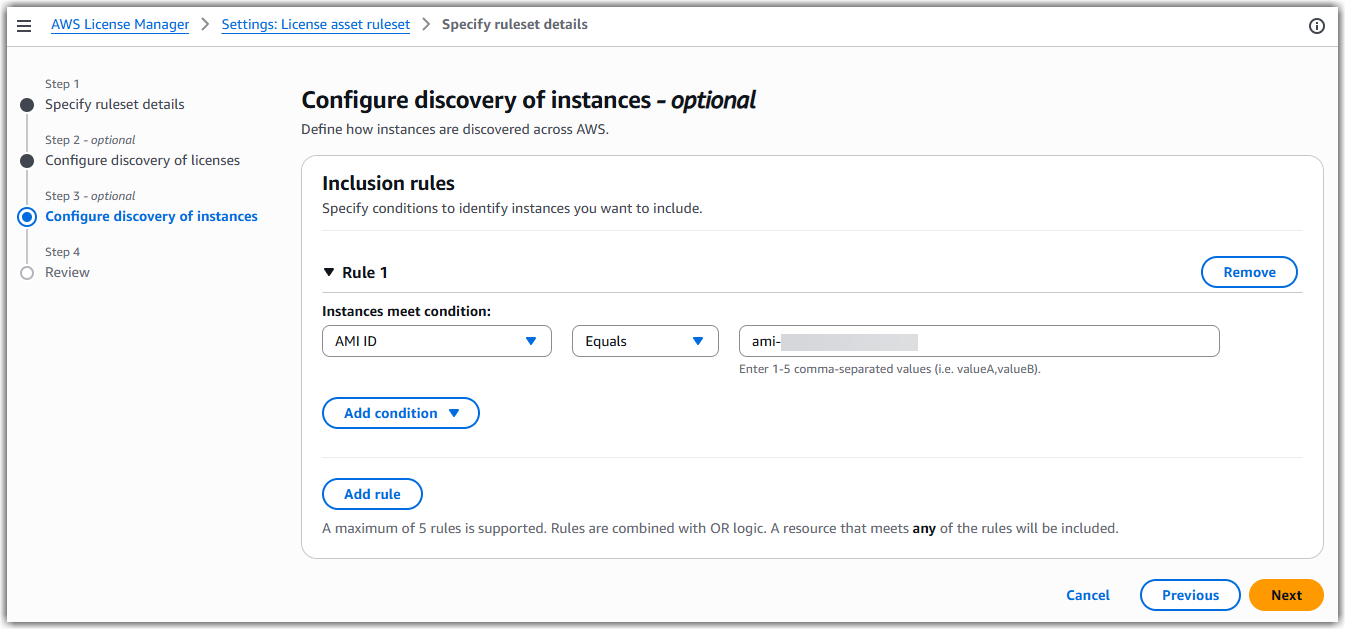 Figure 3. Configuring AMI discovery matching the BYOL Windows Server AMI ID
 - Review the ruleset configuration, then choose Submit.
- Select the newly created ruleset from the My ruleset tab, then choose Create license asset group with ruleset.
- Provide a License asset group name.
- For the Usage dimension drop down list, select Instances, then choose Create license asset groups.
Step 5: View License Asset Groups
- Browse to the AWS License Manager console.
- In the left pane, choose License assets.
- License asset groups are shown for both custom rulesets and AWS-managed rulesets.
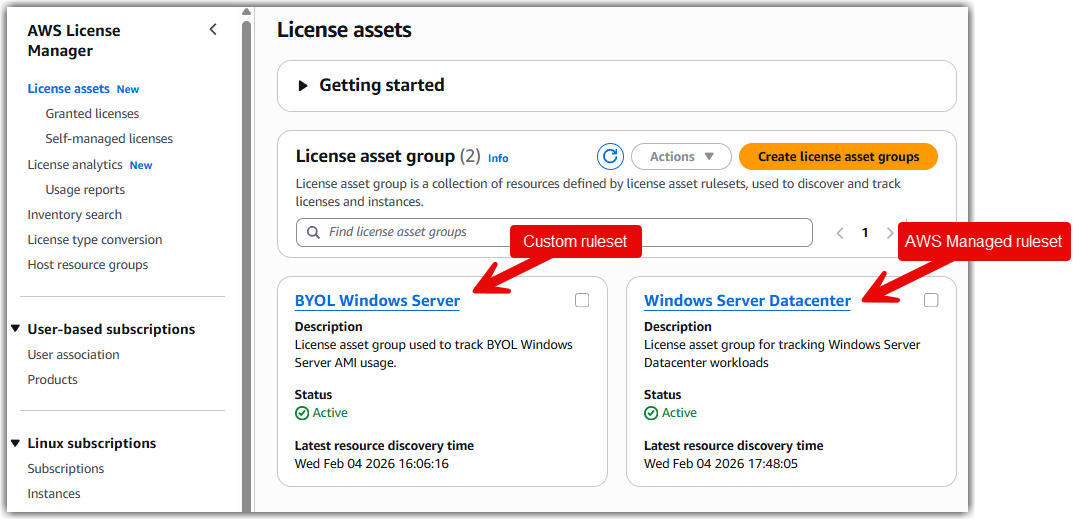 Figure 4. Viewing license asset groups
 - Select a license asset group’s name to see additional details and the discovered resources.
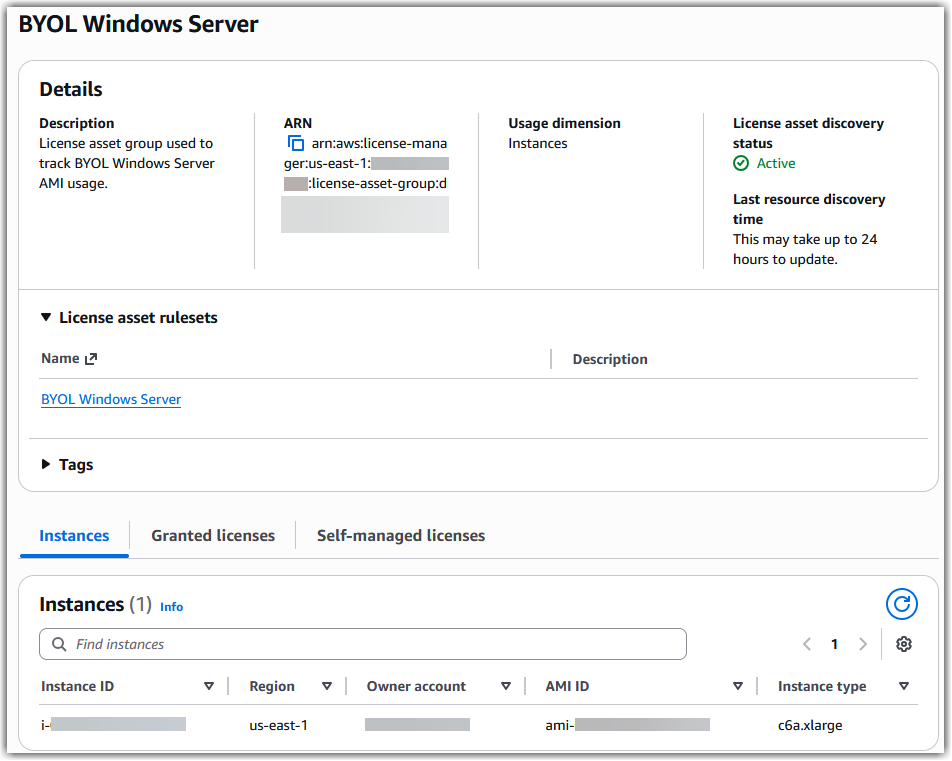
Figure 5. License asset group details created from a custom ruleset.
Step 5: Monitoring and Reporting
- Browse to the AWS License Manager console.
- In the left pane, choose License analytics.
- Select a single license asset group and time range from the dropdown lists to view its history.
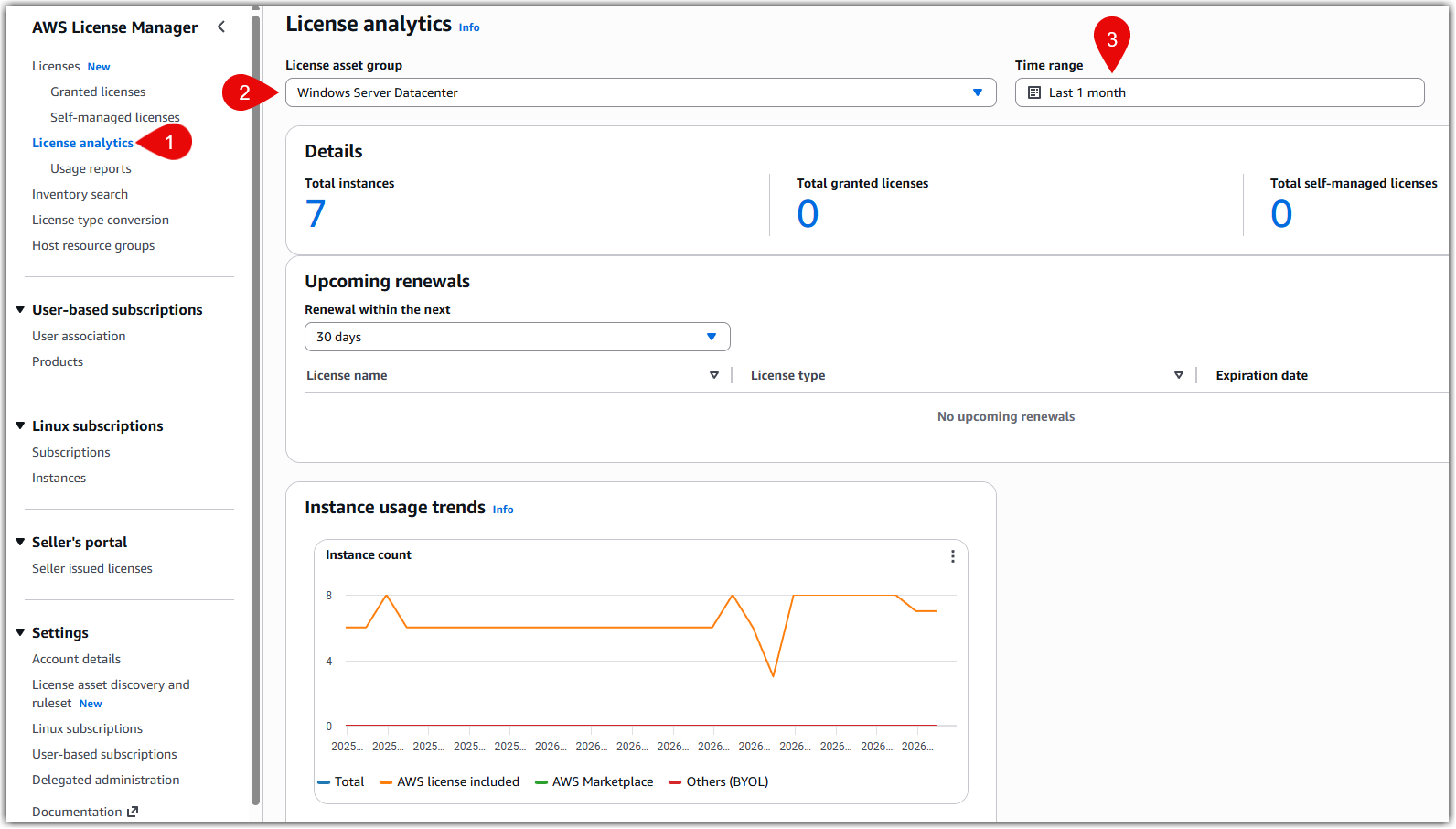 Figure 6. License asset group analytics.
 - For reporting, choose Usage reports in the left pane.
- Under the License asset group report tab, choose Create license asset group report.
- Provide a License asset group report name and description.
- From the License asset group drop down, select a license asset group.
- For the Date Range, select the timeframe for the report, then choose Create usage report.
- License reports are generated in CSV format and will be available to download once the report is complete.
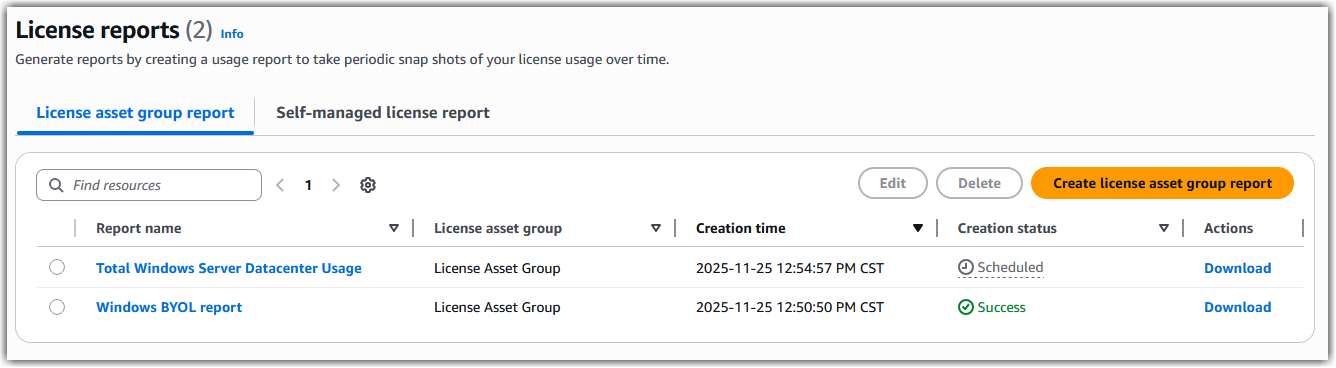
Figure 7. License asset group report status.
Review your dashboards regularly to monitor consumption trends, identify unused licenses, and plan renewals. You can also integrate Amazon CloudWatch alarms for proactive alerting when consumption approaches license limits.
Clean up
Delete license asset groups
- Browse to the AWS License Manager console.
- In the left pane, choose License assets.
- Select the license asset group you want to remove.
- Select the Actions button, then select Delete.
- In the pop-up window, follow the instructions to confirm deletion, then select Delete.
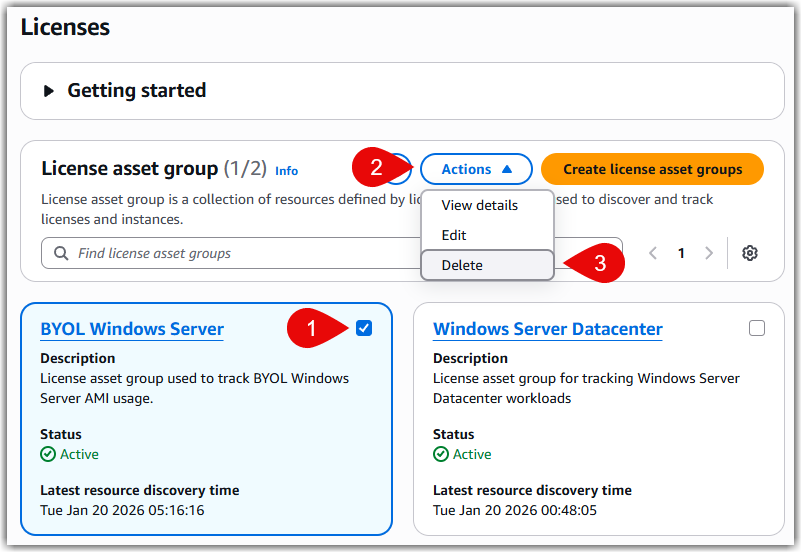
Figure 8. Deleting a license asset group.
Delete custom rulesets
- Browse to the AWS License Manager console.
- In the left pane, under Settings, choose License asset discovery and ruleset.
- In the License asset ruleset section, select the My rulesets tab.
- Select the custom ruleset you want to remove.
- Select the Actions button, then select Delete.
- In the pop-up window, follow the instructions to confirm deletion, then select Delete.
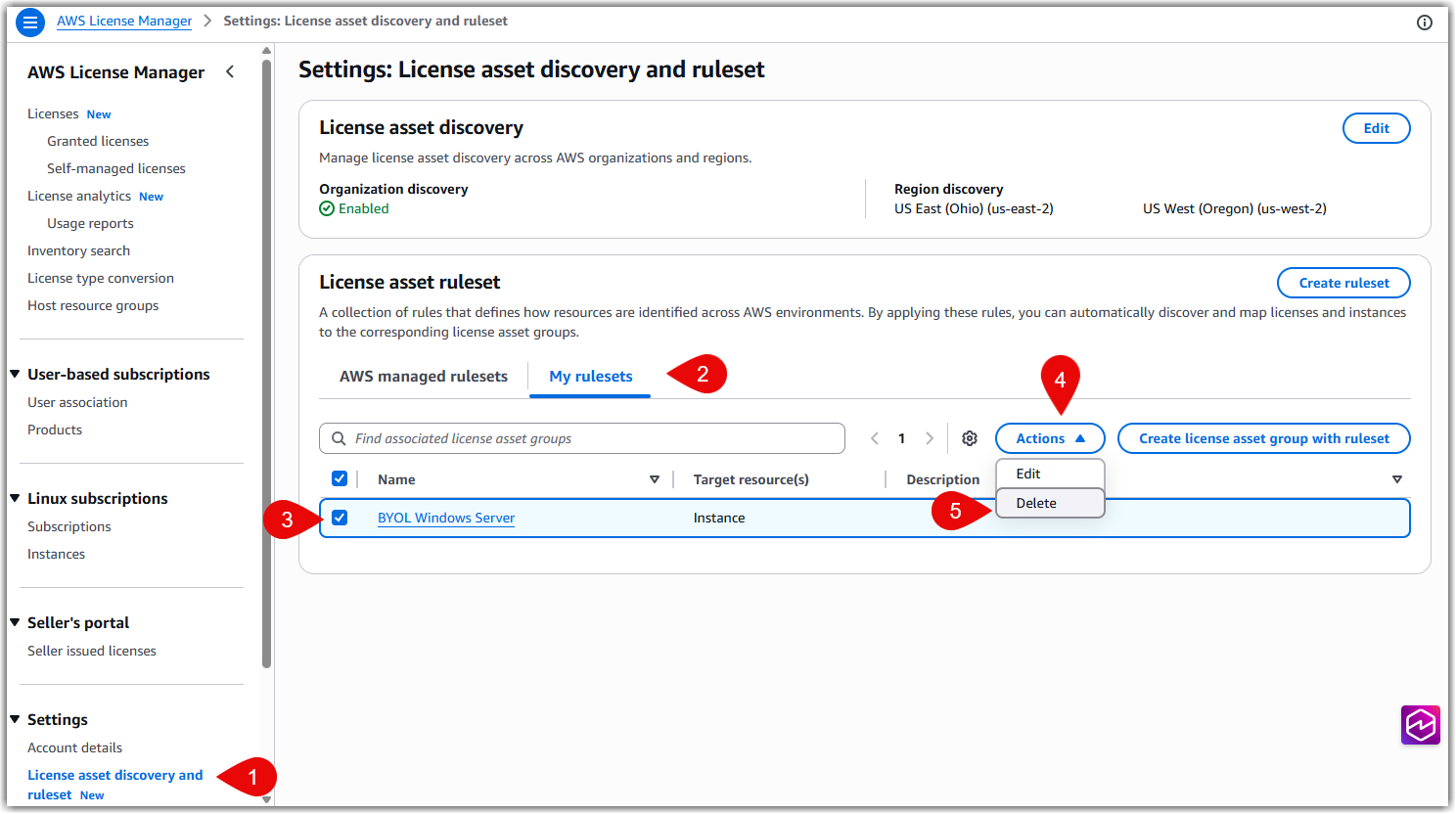
Figure 9. Deleting a license asset group custom ruleset.
Delete usage reports
- Browse to the AWS License Manager console.
- In the left pane, choose Usage reports.
- Select the usage report you want to remove, then select Delete.
- In the pop-up window, follow the instructions to confirm deletion, then select Delete.
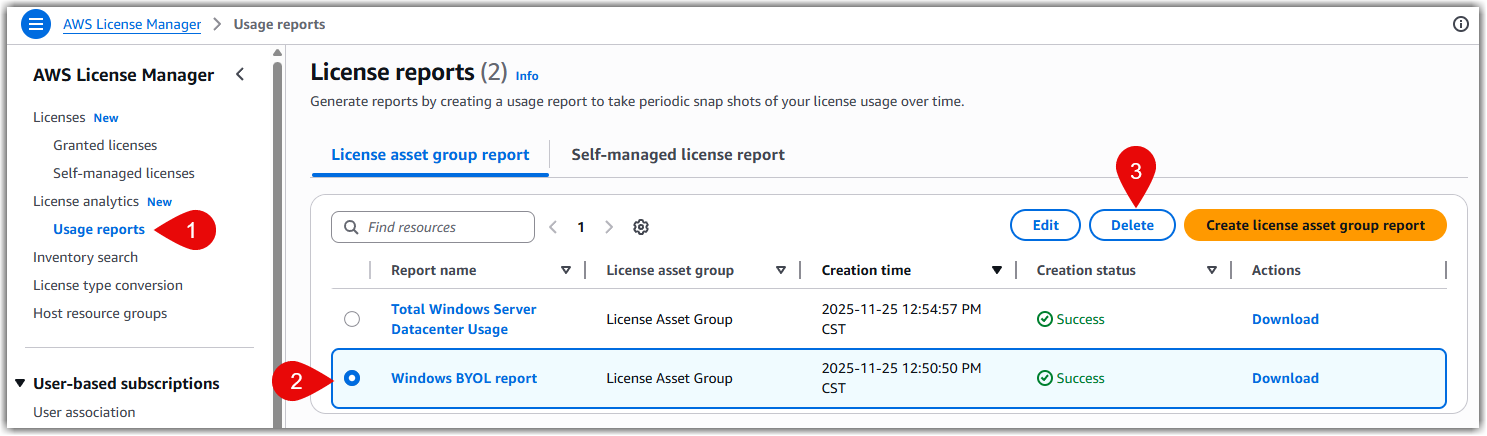
Figure 10. Deleting a license asset group usage report.
Conclusion
In this blog post, we have reviewed how AWS License Manager helps you build comprehensive visibility into your commercial software portfolio through automated discovery with license asset groups. To get started, visit the AWS License Manager page.