AWS Cloud Operations Blog
Best practices for deploying Amazon CloudWatch Omni at enterprise scale
At enterprise scale, organizations run applications and AI agents side by side across hundreds of AWS accounts, several Regions, and often other clouds and on-premises data centers. Site reliability engineering (SRE) teams watch service latency, agent developers observe agent traces and evaluation scores, operation teams monitor alerts, and security reviews AWS API activity. When a support agent starts timing out because a downstream service slowed down, the evidence sits in several accounts. The context gets lost in screenshots. Bringing it together raises new concerns: business units must stay separate, residency rules decide where some telemetry can live, and agent traces carry prompts that may include customer data.
Amazon CloudWatch Omni brings application and agent observability into one experience, reachable through one sign-in URL backed by AWS IAM Identity Center. How well it serves an enterprise depends on decisions you make before the first team signs in. A boundary drawn too wide exposes data that teams should not see. One drawn too narrow splits an incident across spaces that cannot be queried together.
This post provides best practices for those decisions, in the order you apply them. One example enterprise runs through every section, so you can see how each decision builds on the previous one. By the end, you will know how to create your organization domain, design centralization around residency, choose space boundaries, give each team the view it needs, and protect sensitive data.
Example: one enterprise, three business units
AnyCompany runs applications and AI agents across hundreds of AWS accounts in one organization in AWS Organizations, with some workloads in other clouds and on-premises data centers. Three business units (BUs) own those workloads. BU1 and BU2 run in us-east-1. BU3 serves European customers from eu-west-2, and its telemetry must stay in the EU.
Before rollout, AnyCompany’s platform team agreed on six requirements:
- One sign-in URL for all teams in the organization, backed by the existing identity provider.
- Each BU sees only its own telemetry.
- EU telemetry stays in eu-west-2.
- The platform team can reach every BU’s view.
- Inside a BU, teams see only the applications and agents they own.
- Prompts from sensitive agents stay with a small group of reviewers.
The following diagram shows the architecture the rest of this post builds.
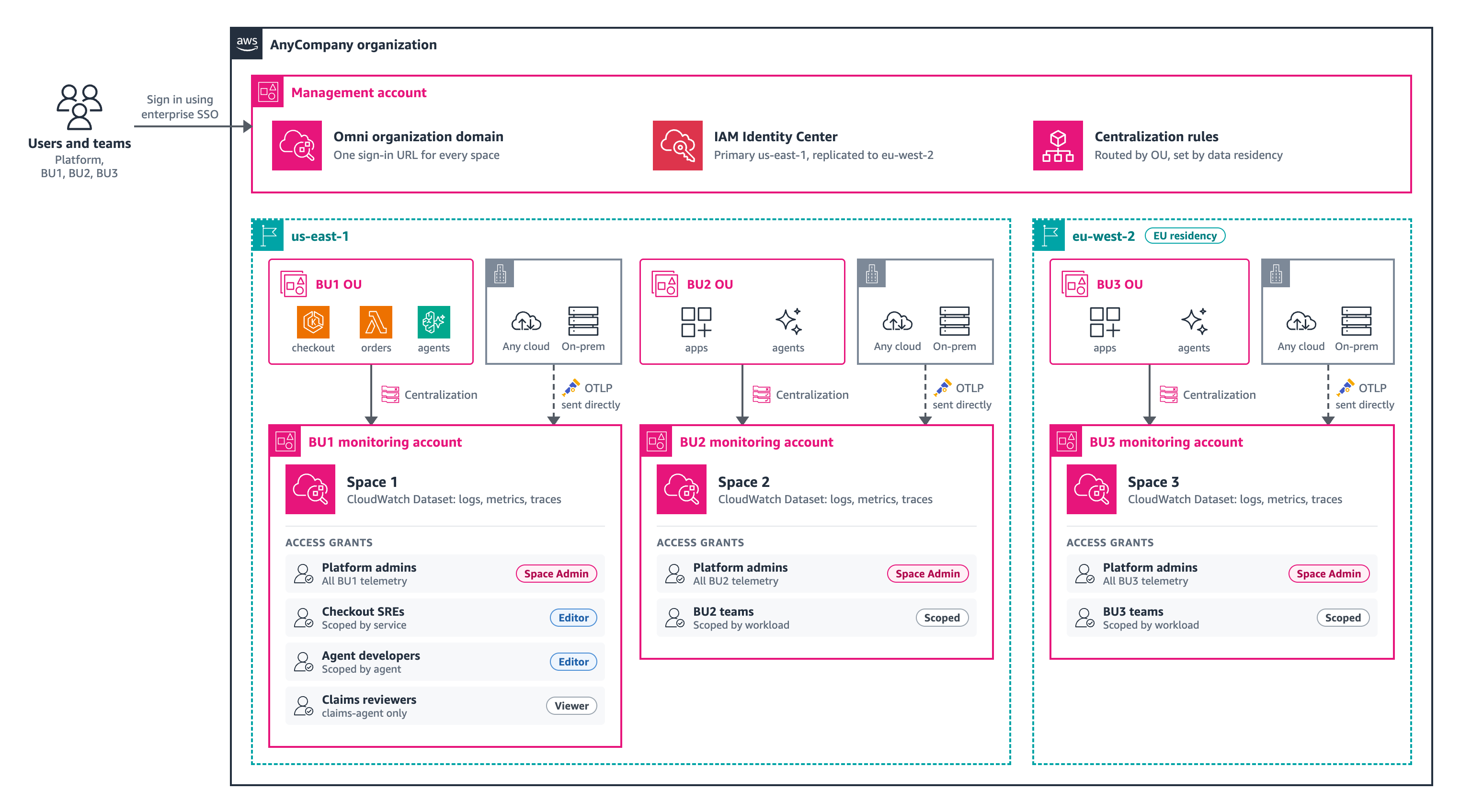
Figure 1: AnyCompany architecture: One Organization domain, centralization by business unit, and one space per BU monitoring account
How Omni is organized
- A domain is the organization’s entry point. Its name becomes the sign-in URL, in the form
https://<domain-name>.cloudwatch-omni.global.app.aws, and the identity provider connects at the domain rather than per space. - Centralization rules consolidate telemetry from source accounts and Regions into a destination monitoring account. Omni does not aggregate telemetry across accounts or Regions on its own. These rules decide what each space can see, and where that data is stored.
- A space is where teams work with telemetry: the application map, dashboards, queries, alerts, and investigations. Each space maps to one AWS account and Region, only one space can exist per account and Region. Spaces provide the BU and residency boundaries.
- A CloudWatch Dataset is how Omni brings your telemetry together. It makes your logs, metrics, and traces queryable and correlated across signals in one place. You continue to manage ingestion and storage through existing CloudWatch endpoints and resources, such as log groups. Enabling Omni creates one Dataset for your space.
- An access grant gives a principal, such as an IAM Identity Center group, an IAM role, or an access profile, a permission level and an optional data scope that filters which log and trace rows it reads. Grants separate teams and agents inside a space.
Spaces set the hard boundaries between BUs and Regions whereas Access Grants set the boundaries between teams inside each space.
Part 1: Create the Organization domain first
Create the Organization domain from the management account, in your IAM Identity Center primary Region. AnyCompany runs IAM Identity Center in us-east-1, so the domain lives there. Every member account that later creates a space links to the domain without extra configuration. Teams keep one URL no matter how many spaces you add. For the procedure, see Set up Omni for your organization.
1. Replicate IAM Identity Center before you create spaces in other Regions. BU3’s space sits in eu-west-2, so AnyCompany adds eu-west-2 to IAM Identity Center multi-Region replication first. Without that step, sign-in cannot be configured for the Region. Treat the primary Region as a fixed design decision, because the domain must stay in it.
2. Lock down sign-in methods. A domain accepts IAM, IAM Identity Center, or both. AnyCompany sets its domain to IAM Identity Center only, federated with its external identity provider, and uses AWS Organizations policies to stop member accounts from creating separate domains.
3. Keep a break-glass role. The identity that creates a space becomes its first Space Admin, and that grant cannot be removed while it is the last one. Create each space with a dedicated break-glass IAM role, then add your IAM Identity Center admin groups.
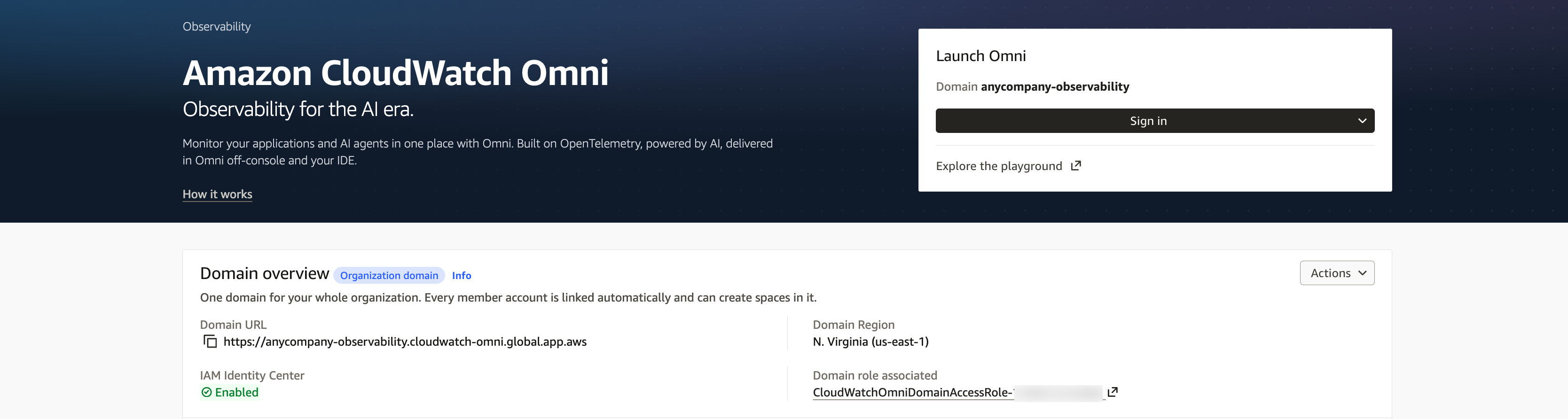
Figure 2: The Organization domain overview in the Amazon CloudWatch console, with IAM Identity Center enabled
Part 2: Design centralization rules around data residency
A space sees only the telemetry in its own account and Region. To bring in telemetry from the rest of your organization, Omni uses CloudWatch centralization rules, which replicate logs, traces, and metrics from source accounts and Regions into the account that hosts the space.
Note: Omni does not use CloudWatch cross-account observability (OAM) links, and any OAM setup you already have continues to work for CloudWatch.
AnyCompany routes by organizational unit (OU) and lets residency set the destination: BU1 and BU2 replicate into their monitoring accounts in us-east-1, and BU3 into bu3-monitoring in eu-west-2.
The following details decide whether the rules deliver what the spaces need:
- Turn rules on early. Rules process only telemetry that arrives after you create them. Historical data is not backfilled.
- Turn on Amazon CloudWatch Transaction Search in each source account. Trace centralization follows once it is on.
- Tag customer managed AWS Key Management Service (AWS KMS) keys. If destination log groups use a customer managed key, add the tag
LogsManaged = trueso the centralization service can use it.
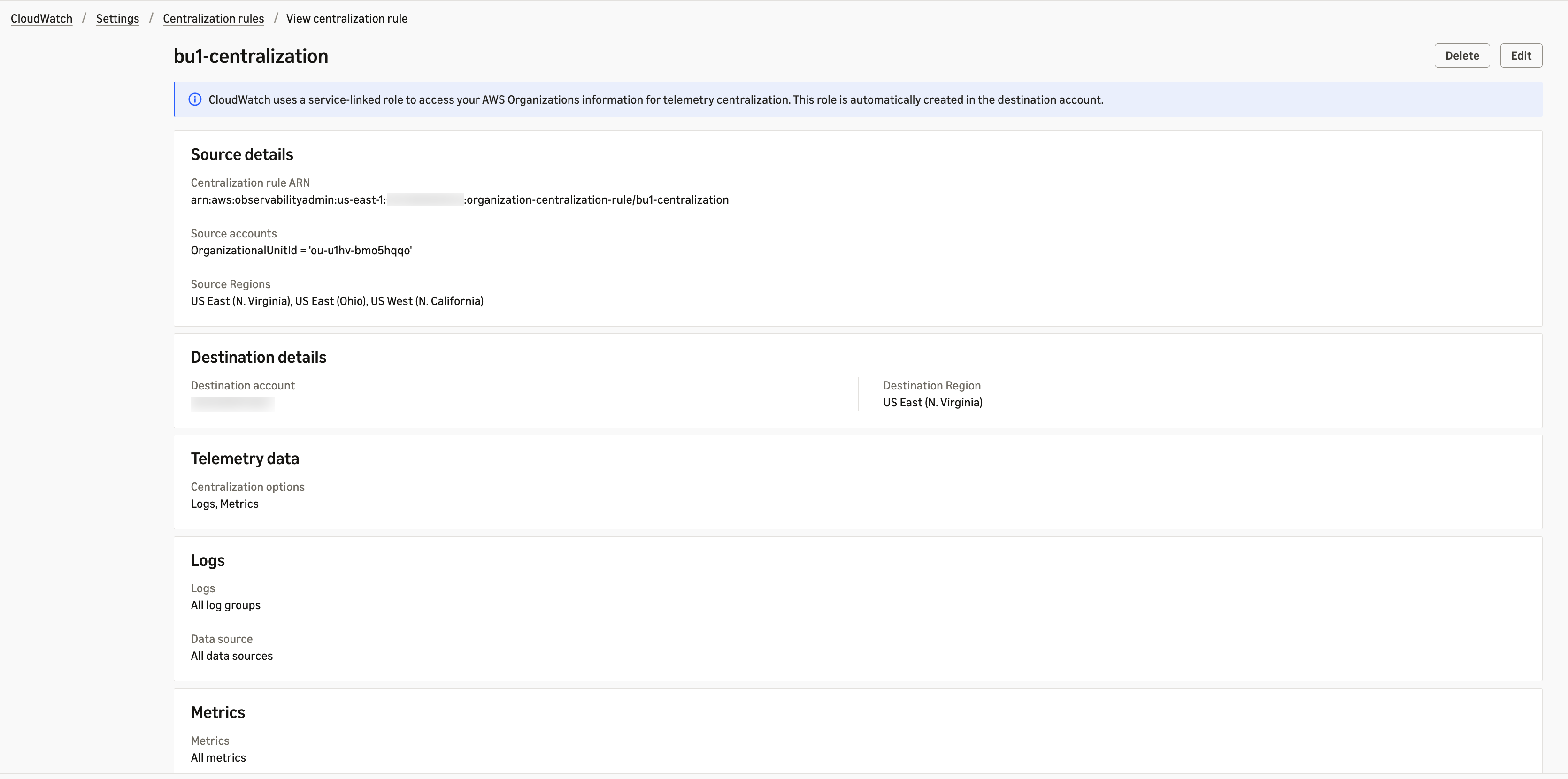
Figure 3: The bu1-centralization rule, which replicates logs and metrics from the BU1 organizational unit across three US Regions into the BU1 monitoring account in us-east-1

Figure 4: The bu1-centralization rule in a Healthy state
Send telemetry from other clouds and on-premises directly to the BU monitoring account. Centralization rules apply to AWS accounts in your organization. Workloads that run in other clouds or in on-premises data centers export with OpenTelemetry (OTLP) straight to the CloudWatch OTLP endpoints in the BU’s monitoring account and Region. The data lands in the same space as the BU’s AWS telemetry. Apply the same residency rule: BU3’s non-AWS workloads send to bu3-monitoring in eu-west-2.
The first centralized copy of logs, spans, and metrics is forwarded at no charge. Storage for logs and spans is charged in the destination account, whereas OpenTelemetry metrics have no additional storage charge. For details, see Amazon CloudWatch pricing.
Part 3: Create one space per BU monitoring account
Create each space in the BU’s monitoring member account, the destination of its centralization rule, not in the management account. The management account carries elevated privileges and should stay scoped to governance, not monitoring. You can create the centralization rules and the space in either order; telemetry appears once both are active.
1. Plan the timing. Omni forwards logs and traces to the CloudWatch Dataset from the moment the space is created. On first setup, it backfills up to 7 days of existing logs and traces, excluding data encrypted with a customer managed AWS KMS key. Centralization rules do not backfill either, so turn the rules on before you create the space if you want that week of history in the monitoring account.
2. Add a space only when a boundary must be hard. Separate business units, data residency, regulatory isolation, and production versus non-production separation each justify a space. Different views of the same data do not, because data scopes handle those inside one space. Avoid creating a space per account: when many accounts belong to one team, centralize them into one space.
3. Plan for no cross-space queries. Each space is isolated, so data that teams must query together during an incident belongs in the same space. Table 1 shows the layout that follows from AnyCompany’s requirements.
| Space | Monitoring account and Region | Why it is a separate space |
| Space 1 | bu1-monitoring, us-east-1 | BU boundary for BU1 applications and agents |
| Space 2 | bu2-monitoring, us-east-1 | BU boundary for BU2 workloads |
| Space 3 | bu3-monitoring, eu-west-2 | Residency: BU3 telemetry stays in the EU |
Table 1: AnyCompany space layout under one Organization domain
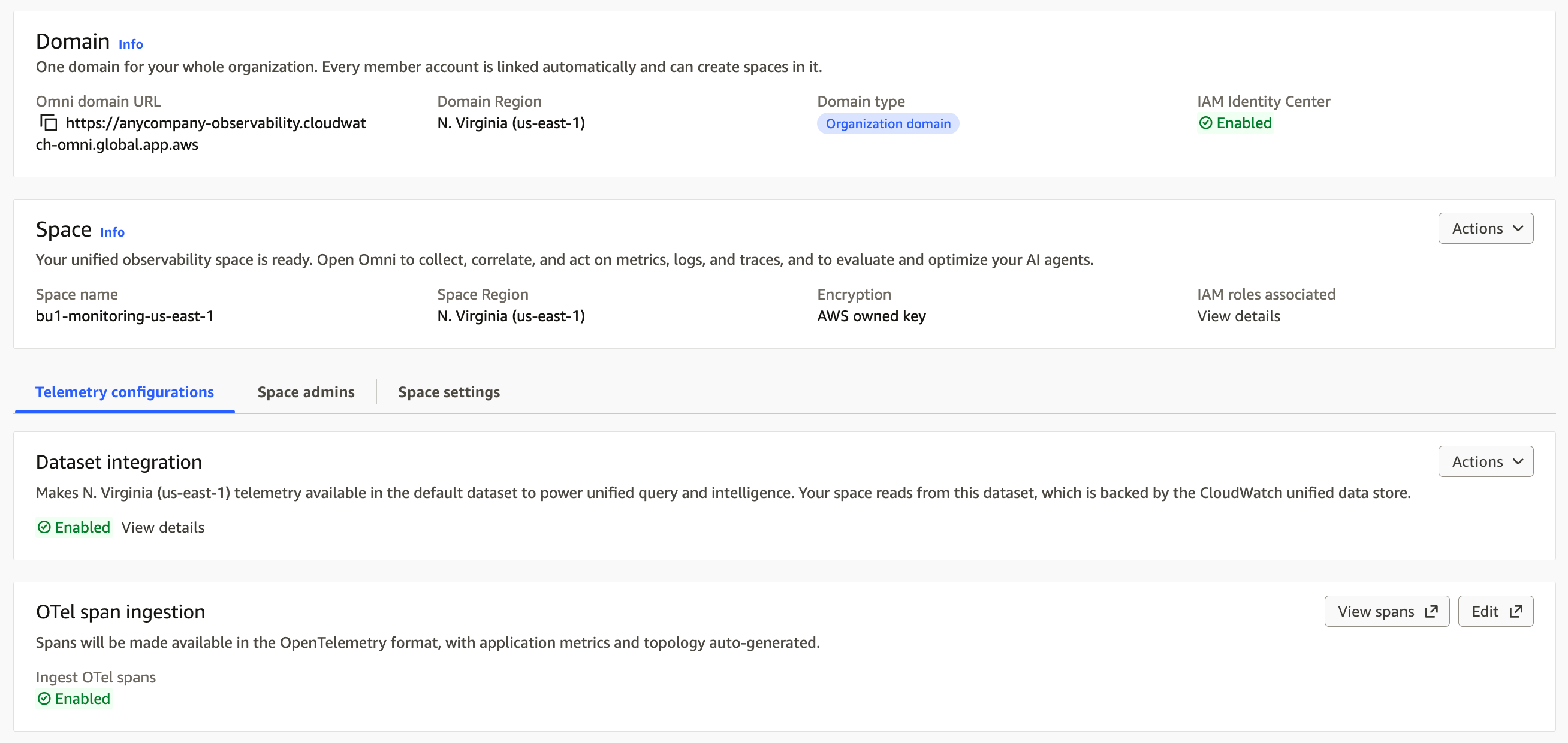
Figure 5: The BU1 space in the CloudWatch Omni console, linked to the Organization domain
Part 4: Give the platform team one sign-in across spaces
Users sign in once at the domain URL. In each space, AnyCompany adds its platform administrators’ IAM Identity Center group as Space Admin from the CloudWatch console. Space Admins are the only access you manage there; members, permission levels, and data scopes are all managed in the Omni web UI.
Keep Space Admin small. Without a data scope, a Space Admin sees all telemetry in the space, including agent prompts and responses, and can grant access to anyone. Give this level only to the people who own access governance and give engineers who support incidents across BUs a Viewer grant instead.
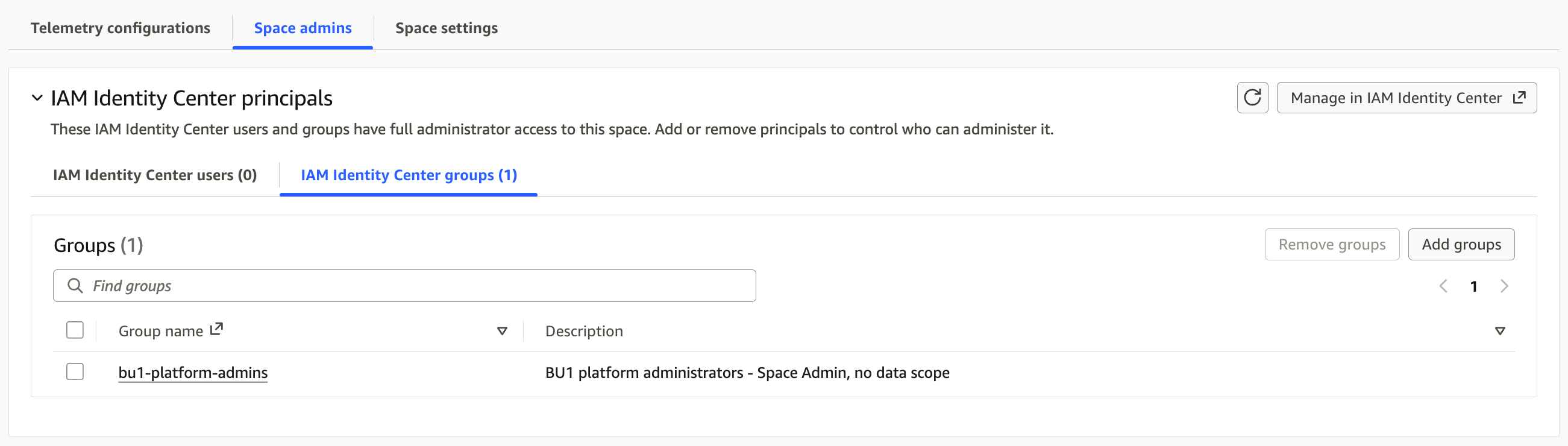
Figure 6: The platform administrators’ IAM Identity Center group added as Space Admin BU1 space
Part 5: Fine grain access controls
Any member added to an Omni space can read all of its telemetry by default. Add a data scope to narrow what a grant can read.
- Viewer: reads everything in the space, including queries and the Omni agent.
- Editor: also creates, changes, and deletes resources other than integrations, and manages datasets.
- Space Admin: also manages members and integrations.
- Custom: allows only the actions you choose.
A data scope then filters rows at read time in queries, dashboards, trace views, and the Omni agent’s answers. It covers logs and traces only and does not filter metrics. Each data scope has two parts:
- Signal types: choose Logs, Traces, or both. A type you leave unselected is not filtered.
- Condition groups built from By agent, By service, By account, and By field value conditions. Conditions in a group must all match, and a row is visible if it matches any group.
For details, see Limit what members can see. AnyCompany grants to IAM Identity Center groups, never to individuals.
1. Map each team to the lowest level that does the job, and grant to groups. AnyCompany assigns grants to IAM Identity Center groups synced from its identity provider, never to individuals. Table 2 shows the BU1 model.
| IAM Identity Center group | Permission level | Data scope |
| bu1-platform-admins | Space Admin | None |
| bu1-checkout-sre | Editor | Logs and traces, By service: checkout-api, payments-api, orders-db-proxy |
| bu1-agent-dev | Editor | Logs and traces, By agent: support-agent, returns-agent |
| bu1-claims-reviewers | Viewer | Logs and traces, By agent: claims-agent only |
Table 2: Access model for Space 1 (BU1)
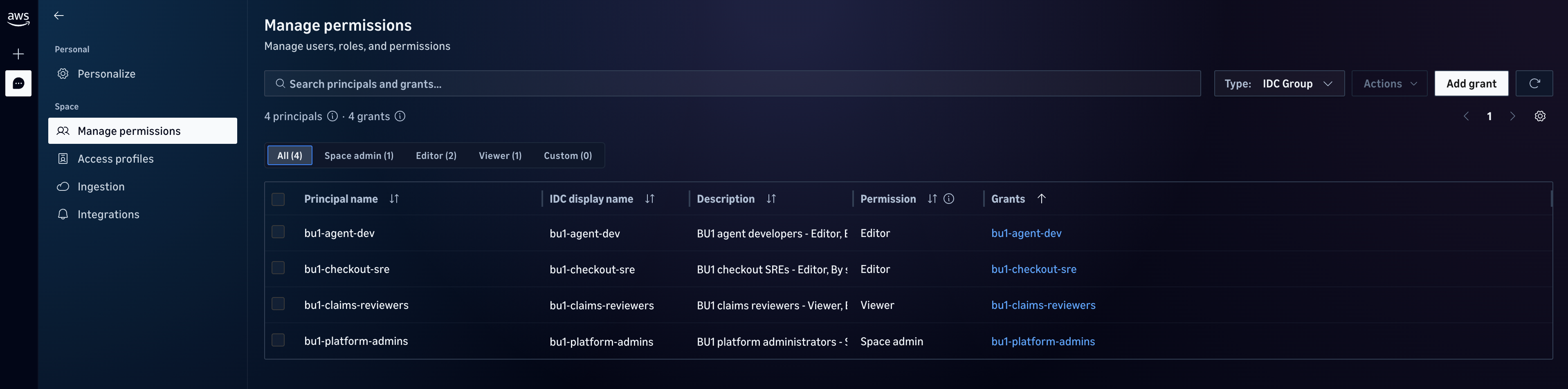
Figure 7: BU1 access grants to IAM Identity Center groups in the Omni web UI, matching Table 2
2. Scope agents by type and name. The By agent condition matches both the service name and the gen_ai_agent service type, so a regular service that shares a name with an agent stays out of the view. The JSON view of the Add grants form shows the definition behind each grant. The following Viewer grant limits the claims reviewers to claims-agent:
To add a grant, open Settings, choose Manage permissions under Space, and choose Add grants. To add the scope, under Advanced: limit the data this principal can see, choose Add limits to data visibility. You can also paste a definition into the JSON view and review the form before you choose Add. You can reuse the same definition with the CreateAccessGrant API, the AWS CLI, or the AWS CDK. See Manage space members and permissions.
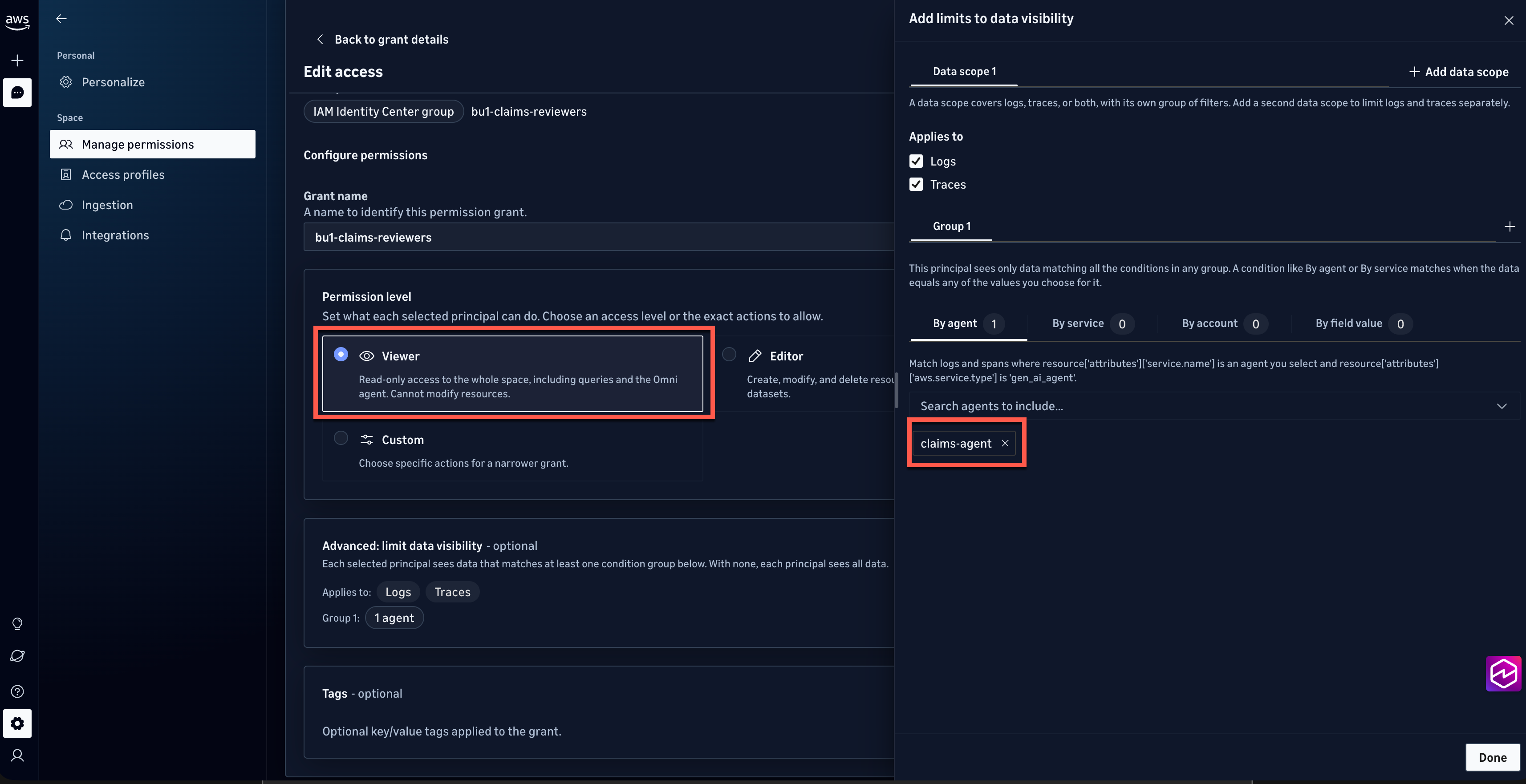
Figure 8: A Viewer grant for the bu1-claims-reviewers group, scoped to claims-agent logs and traces
Part 6: Protect sensitive data in layers
A data scope decides which rows a member sees, not which fields, so anyone who can see an agent span also sees its prompt and response. Omni does not detect or redact personally identifiable information (PII) on its own, and no data is removed unless you configure it. AnyCompany combines three controls, each applied at a different point in the pipeline, as described in Protect sensitive data.
1. Redact at capture time for data that must never leave the application. Set AWS_REDACT_SPAN_ATTRIBUTES in the AWS Distro for OpenTelemetry SDK (ADOT) where the agent runs, such as the Amazon Bedrock AgentCore runtime, an Amazon Elastic Container Service task definition, or an AWS Lambda function configuration. It replaces the listed attribute values with REDACTED before export, works on span attributes, and accepts wildcards:
For agents instrumented with OpenInference, OPENINFERENCE_HIDE_INPUTS=True and OPENINFERENCE_HIDE_OUTPUTS=True remove all prompt and response content. For finer control, a custom OpenTelemetry span processor can drop specific attributes. If you run your own OpenTelemetry Collector, its attributes, transform, and redaction processors add a second layer on the export path. Capture-time redaction is irreversible, so reserve it for content that nobody needs for debugging.
2. Mask sensitive patterns in logs at ingestion. Amazon CloudWatch Logs data protection policies mask sensitive data as log events arrive. Managed data identifiers cover credentials, financial data, PII, protected health information (PHI), and device identifiers. For business-specific values, add custom data identifiers defined by a regular expression, such as ClaimId with the pattern CLM-\d{10}. Masked data stays masked in Omni, and only principals with logs:Unmask can view the original values in CloudWatch Logs. Masking applies to log groups, not traces, and only to data ingested after you set the policy.
3. Restrict who reads the content you keep. When an agent such as claims-agent needs its prompts for quality review, keep the content and give a small reviewer group a scoped grant. Make sure no other team’s scope lists the agent. Online evaluations send trace content to the judge model you choose, so choose that model with the same care.
Cleaning up
To avoid incurring future charges, delete test grants, centralization rules, and spaces.
Conclusion
AnyCompany met all six requirements by applying the practices in order. It created the Organization domain with IAM Identity Center and multi-Region replication, centralized telemetry by OU with residency choosing each destination, and created one space per BU monitoring account. The platform team holds Space Admin in each space, and every other grant is scoped to the applications and agents a team owns. Use spaces to separate BUs and Regions, and use grants for every other access decision.
To get started, follow Set up Omni for your organization to create your organization domain and first space, then add a scoped grant for one team. For the full permission model, read Control access to your space.