AWS Cloud Operations Blog
Set data driven reliability targets with Amazon CloudWatch SLO Recommendations
Setting meaningful Service Level Objectives (SLOs) is one of the most challenging aspects of running reliable services. Choosing the right reliability targets is where many teams get stuck. Pick a threshold that’s too tight, and you drown in alerts. Pick one that’s too loose, and you won’t catch real problems until customers complain. Many teams end up guessing based on intuition, then spending weeks tuning thresholds after the fact.
Previously, configuring SLOs in Amazon CloudWatch Application Signals required you to manually determine appropriate thresholds for latency and availability. This process demanded deep familiarity with your service’s baseline behavior and often resulted in misconfigured targets.
Now, SLO Recommendations analyzes 30 days of your service’s actual performance data, including P99 latency (the response time at the 99th percentile, meaning 99% of requests complete faster than this threshold) and error rates. Based on this analysis, it proposes reliability targets designed to reflect how your application typically behaves. Instead of starting from a blank page, you get a data-driven starting point that you can validate and adjust before committing.
This post walks through how SLO Recommendations works using a five-service Python microservices application. The application is deployed across Amazon Elastic Container Service (Amazon ECS) on AWS Fargate, Amazon Elastic Kubernetes Service (Amazon EKS), and AWS Lambda. These three compute services share one unified observability experience. Along the way, the post covers the full SLO lifecycle: from auto-instrumentation and service discovery, through recommendation-based SLO creation, to burn rate monitoring and incident triage.
Prerequisites
To follow along with this walkthrough, you need:
- An AWS account with sufficient permissions to create and manage Amazon ECS, Amazon EKS, AWS Lambda, Amazon CloudWatch, and AWS CDK resources.
- Familiarity with Amazon ECS, Amazon EKS, and AWS Lambda.
- Amazon CloudWatch Application Signals enabled in your account.
- Services instrumented with the AWS Distro for OpenTelemetry auto-instrumentation SDK. For detailed instrumentation steps for each compute service, see Instrument your application for Application Signals.
Version requirements:
- AWS Distro for OpenTelemetry (ADOT) Python auto-instrumentation SDK: v0.8.0 or later
- Amazon EKS version 1.36 and Amazon EKS CloudWatch Observability add-on: v6.7.0-eksbuild.1 or later
- AWS Lambda runtime: Python 3.12
- ADOT Lambda layer: version 10 or later (region-specific ARN)
- AWS CDK: v2.x (for infrastructure-as-code deployment)
Estimated time: 2–3 hours
Estimated cost: driven mainly by request volume, so it scales with your traffic; the demo runs within the AWS Free Tier for Application Signals for the first few months (see the Cost considerations section)
The demo application
The PetStore Order Hub is a lightweight e-commerce backend with five services spanning three compute services. The complete source code for this demo is available in the PetStore Order Hub repository on GitHub.
Note: The code samples in this post are simplified to show each step. The companion repository implements the same architecture with AWS CDK in Python, so construct code, resource names, SLO names, and some threshold values differ from the samples. For example, the CDK stack creates each latency SLO with a 300 ms threshold. When you adapt a sample, use the Service and Environment values that Application Signals shows for your service. Use the repository as the reference for a complete, deployable version.
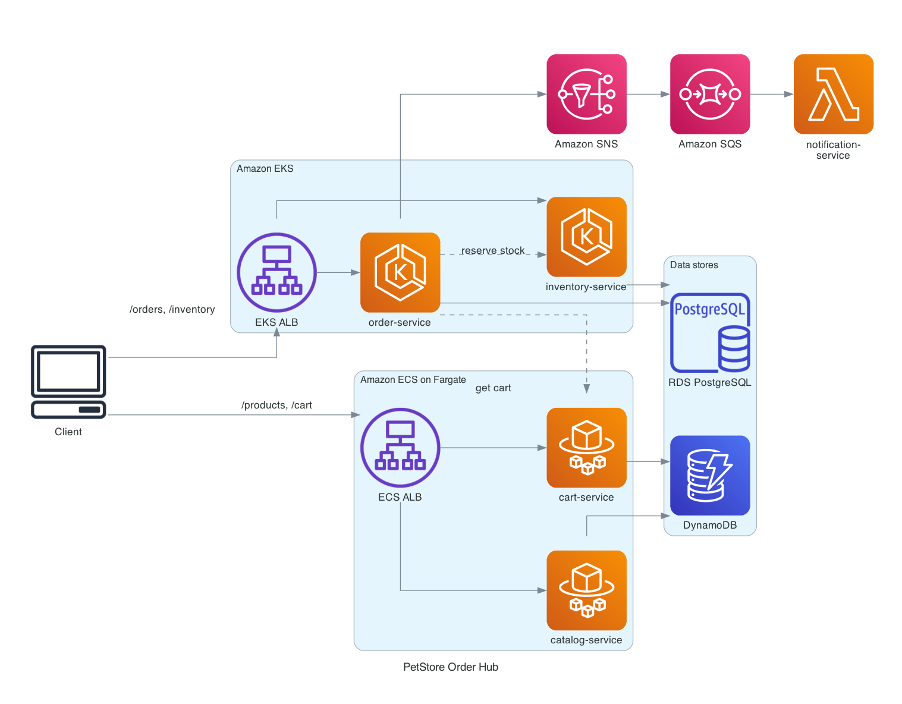
Figure 1: PetStore Order Hub architecture across Amazon EKS, Amazon ECS on AWS Fargate, and AWS Lambda
| Service | Compute service | Data store | Role |
|---|---|---|---|
| catalog-service | Amazon ECS on Fargate | Amazon DynamoDB | Product catalog |
| cart-service | Amazon ECS on Fargate | Amazon DynamoDB | Shopping cart |
| order-service | Amazon EKS | Amazon RDS for PostgreSQL | Order orchestration |
| inventory-service | Amazon EKS | Amazon RDS for PostgreSQL | Stock management |
| notification-service | AWS Lambda | Not applicable | Order notifications (via Amazon SNS → Amazon SQS) |
Security note: The IAM roles in this demo use broad permissions for simplicity. For production deployments, scope all IAM permissions to least privilege, granting only the specific actions required on specific resources. Enable encryption at rest for Amazon DynamoDB tables and Amazon RDS instances and configure SSL/TLS for connections in transit. Refer to the Security Pillar of the AWS Well-Architected Framework for guidance on permissions management, network security, and data protection.
This architecture intentionally spans three compute services. Application Signals normalizes telemetry from all three compute services into the same metrics, traces, and SLO framework, so SLO Recommendations works the same way across Amazon ECS, Amazon EKS, and Lambda.
Instrument your services
Application Signals needs telemetry from your services. The instrumentation approach depends on your compute service, but the result is the same: latency, fault, and error metrics plus distributed traces flowing into Amazon CloudWatch. The following sections walk through the specific configuration for each compute service.
Amazon ECS on Fargate
The ApplicationSignalsIntegration construct from the AWS Cloud Development Kit (AWS CDK) manages the instrumentation setup. It injects the AWS Distro for OpenTelemetry (ADOT) Python auto-instrumentation SDK. ADOT is built on the OpenTelemetry (OTEL) open standard. A CloudWatch agent sidecar is added automatically. No code changes to your application are required.
import * as appsignals from '@aws-cdk/aws-applicationsignals-alpha';
import * as cdk from 'aws-cdk-lib';
import * as ecs from 'aws-cdk-lib/aws-ecs';

// Task definition
const taskDef = new ecs.FargateTaskDefinition(this, 'CatalogServiceTask', {
  cpu: 512,
  memoryLimitMiB: 1024,
});

taskDef.addContainer('app', {
  image: ecs.ContainerImage.fromAsset('../services/catalog-service'),
  logging: ecs.LogDrivers.awsLogs({ streamPrefix: 'catalog' }),
  portMappings: [{ containerPort: 8080 }],
});

// Enable Application Signals - injects ADOT init-container + CW Agent sidecar
new appsignals.ApplicationSignalsIntegration(this, 'CatalogAppSignals', {
  taskDefinition: taskDef,
  instrumentation: {
    sdkVersion: appsignals.PythonInstrumentationVersion.V0_8_0,
  },
  serviceName: 'catalog-service',
  cloudWatchAgentSidecar: {
    containerName: 'cloudwatch-agent',
    enableLogging: true,
    cpu: 256,
    memoryLimitMiB: 512,
  },
});

new ecs.FargateService(this, 'CatalogService', {
  cluster,
  taskDefinition: taskDef,
  desiredCount: 1,
});
This adds two sidecar containers to your task definition automatically:
- adot-init: copies the ADOT Python SDK into a shared volume
- cloudwatch-agent: collects and exports telemetry to CloudWatch
To verify telemetry is flowing, check CloudWatch Logs for the /ecs/cloudwatch-agent log group:
aws logs describe-log-groups --log-group-name-prefix /ecs/cloudwatch-agent
Amazon EKS
Install the amazon-cloudwatch-observability Amazon EKS add-on and add the annotation instrumentation.opentelemetry.io/inject-python: “true” to your pod template. The add-on deploys a CloudWatch agent DaemonSet and a mutating webhook that automatically injects the ADOT SDK into annotated pods.
That’s the entire Amazon EKS setup: no sidecar containers, no manual Instrumentation Custom Resource Definitions (CRDs), no OTEL endpoint overrides. The add-on handles the DaemonSet agent, webhook injection, and all environment variables.
Important: Don’t mix the add-on with a manual CloudWatch agent sidecar. Adding a sidecar creates a dual-agent conflict where RuntimeMetric events appear but ServerSpan events don’t, because the sidecar intercepts telemetry that should go to the DaemonSet. The sample attaches the CloudWatchAgentServerPolicy and AWSXRayDaemonWriteAccess managed policies to the node group’s IAM role, and the add-on’s agent uses those permissions. For production, the Amazon EKS documentation recommends IAM roles for service accounts instead, with CloudWatchAgentServerPolicy and AWSXrayWriteOnlyAccess attached to the cloudwatch-agent service account.
// Install via EKS add-on (AWS CDK example)
const observabilityAddon = new eks.CfnAddon(this, 'CWObservability', {
  clusterName: cluster.clusterName,
  addonName: 'amazon-cloudwatch-observability',
  addonVersion: 'v6.7.0-eksbuild.1',
});
Pod annotation:
apiVersion: apps/v1
kind: Deployment
metadata:
  name: order-service
spec:
  template:
    metadata:
      annotations:
        instrumentation.opentelemetry.io/inject-python: "true"
    spec:
      containers:
      - name: order-service
        image: <your-ecr-repo>/order-service:latest
        ports:
        - containerPort: 8080
Verify the DaemonSet is running:
kubectl get daemonset -n amazon-cloudwatch
AWS Lambda
Add the AWS Distro for OpenTelemetry Python layer to your function and set AWS_LAMBDA_EXEC_WRAPPER=/opt/otel-instrument, OTEL_SERVICE_NAME, and OTEL_AWS_APPLICATION_SIGNALS_ENABLED=true as environment variables. Attach the CloudWatchLambdaApplicationSignalsExecutionRolePolicy managed IAM policy to the function’s execution role.
Note: Both the environment variable and the IAM policy are required. The Lambda console’s one-click enablement sets both automatically, but infrastructure-as-code deployments must add them explicitly.
# AWS CDK (Python) example
notification_fn = _lambda.Function(self, "NotificationFunction",
    runtime=_lambda.Runtime.PYTHON_3_12,
    handler="handler.handler",
    code=_lambda.Code.from_asset("../services/notification-service"),
    layers=[
        _lambda.LayerVersion.from_layer_version_arn(self, "AdotLayer",
            "arn:aws:lambda:REGION:615299751070:layer:AWSOpenTelemetryDistroPython:10"
        )
    ],
    environment={
        "AWS_LAMBDA_EXEC_WRAPPER": "/opt/otel-instrument",
        "OTEL_SERVICE_NAME": "notification-service",
        "OTEL_AWS_APPLICATION_SIGNALS_ENABLED": "true",
    },
)
Note: Replace REGION with your Region. AWS publishes the layer from account 615299751070, so don’t replace that account ID with your own. See AWS Distro for OpenTelemetry Lambda layer ARNs for the latest version.
The CDK stack generates the function name, so look it up from the LambdaStack outputs first. Then invoke the function and verify traces appear:
FUNCTION_NAME=$(aws cloudformation describe-stacks --stack-name LambdaStack --query "Stacks[0].Outputs[?OutputKey=='FunctionName'].OutputValue" --output text)
aws lambda invoke --function-name "$FUNCTION_NAME" --cli-binary-format raw-in-base64-out --payload '{}' /dev/null
aws xray get-trace-summaries --start-time "$(date -d '-5 minutes' +%s)" --end-time "$(date +%s)"
Note: The date command uses Linux (GNU) syntax. On macOS, replace date -d '-5 minutes' +%s with date -v-5M +%s.
Verify service discovery
After you deploy the services and send them traffic, these services should appear in the Application Signals console, each with its environment name.

Figure 2: CloudWatch Application Signals Services list showing order-service, cart-service, catalog-service and inventory-service. The SLI status column shows the state of each service’s SLOs.
Troubleshooting
If a service doesn’t appear after it has received traffic for several minutes:
- Amazon ECS: Verify the cloudwatch-agent sidecar container is running. Check CloudWatch Logs for the /ecs/cloudwatch-agent log group for configuration errors.
- Amazon EKS: Confirm the CloudWatch Observability add-on DaemonSet is running: kubectl get daemonset -n amazon-cloudwatch. Verify that the add-on version is v6.7.0 or later.
- AWS Lambda: Invoke the function at least once after adding the ADOT layer. Check the function’s CloudWatch Logs for OTEL initialization errors.
If SLO Recommendations do not appear after enabling Application Signals, verify that the service has at least 30 days of telemetry data. Recommendations require a full 30-day baseline to generate suggestions.
Use Recommendations to set reliability targets
SLO Recommendations analyzes 30 days of your service’s P99 latency and error rate data to suggest appropriate thresholds. To use it:
- Open the Amazon CloudWatch console and, in the navigation pane, choose Service Level Objectives (SLO).
- Choose Create SLO.
- For Type, choose Service, then select your service.
- For Select type, choose Service Operations and select an operation (or All operations). For a dependency SLO, choose the service dependency option instead and select the dependency.
- For Calculation method, choose Requests (request-based) or Periods (period-based).
- For Metric type, choose Latency or Availability.
- If 30 days of data is available, recommended values for the metric threshold and attainment goal appear.
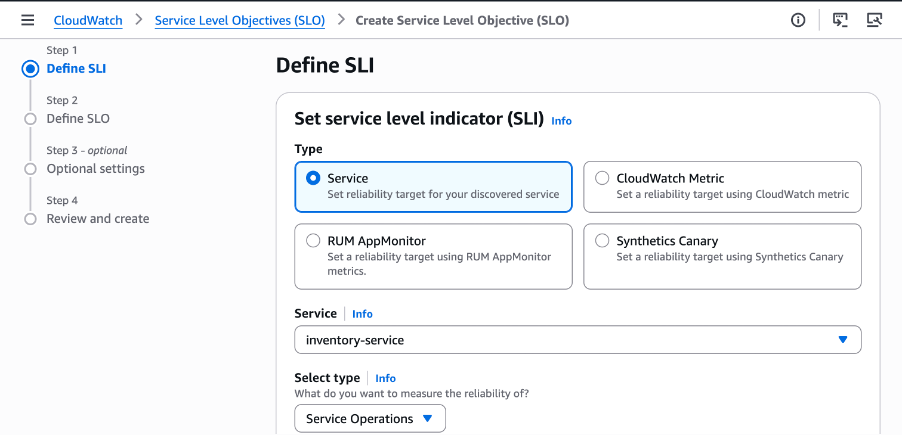
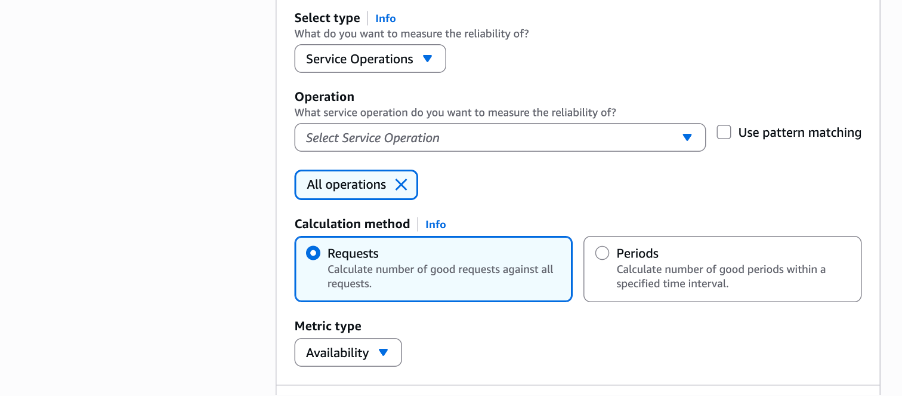
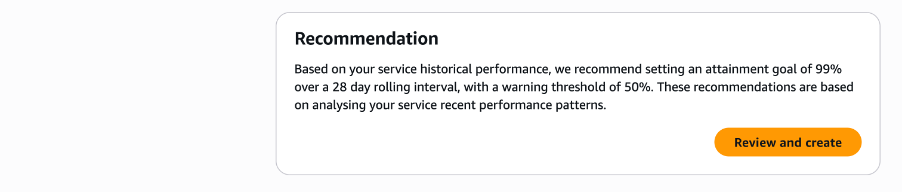
Figure 3: CloudWatch Create SLO wizard for inventory-service with Service Operations and All operations selected, a request-based calculation method, and the Availability metric type. The Recommendation panel suggests an attainment goal of 99% over a 28-day rolling interval with a 50% warning threshold, based on the service’s historical performance.
The recommendations provide a starting point based on your service’s actual behavior. A service that consistently responds in under 50ms typically gets a tighter latency threshold than one that normally takes 200ms. You can accept the recommendations as-is or adjust them based on your business requirements.
Bootstrapping data for new services
SLO Recommendations needs 30 days of metric history. For a new service, you can either wait for organic data or backfill synthetic data using the Amazon CloudWatch PutMetricData API, which accepts timestamps up to two weeks in the past. Two runs, 14 days apart, backfill 28 days. Let the service run for two more days with normal traffic to complete the 30-day window.
# Backfill synthetic latency data for the past 14 days (run this twice, 14 days apart)
for i in $(seq 0 13); do
  TIMESTAMP=$(date -u --date="${i} days ago" +%Y-%m-%dT%H:%M:%SZ)
  aws cloudwatch put-metric-data \
    --namespace "ApplicationSignals" \
    --metric-name "Latency" \
    --dimensions Service=catalog-service,Environment=ecs:<your-cluster-name> \
    --timestamp "$TIMESTAMP" --value 45 --unit Milliseconds
done
Note: This script uses Linux (GNU) date syntax. On macOS, replace date -u --date="${i} days ago" with date -u -v-${i}d.
Note: Replace <your-cluster-name> with your Amazon ECS cluster name, which you can find with aws ecs list-clusters. For the CDK deployment, the name starts with EcsStack-Cluster.
Note: Use representative values based on your expected service behavior. The SLO Recommendations engine analyzes the distribution of these data points to suggest appropriate thresholds.
Create service-level objectives for every service
With recommendations in hand, define each SLO as infrastructure-as-code using AWS::ApplicationSignals::ServiceLevelObjective, making them version-controlled and reproducible across environments.
# CloudFormation template for order-service latency SLO
Resources:
  OrderServiceLatencySLO:
    Type: AWS::ApplicationSignals::ServiceLevelObjective
    Properties:
      Name: order-service-latency-p99
      Description: "P99 latency for order-service must be ≤500ms"
      Sli:
        SliMetric:
          MetricDataQueries:
            - Id: latency
              ReturnData: true
              MetricStat:
                Metric:
                  Namespace: ApplicationSignals
                  MetricName: Latency
                  Dimensions:
                    - Name: Service
                      Value: order-service
                    - Name: Environment
                      Value: "default"
                Stat: p99
                Period: 60
                Unit: Milliseconds
        MetricThreshold: 500.0
        ComparisonOperator: LessThanOrEqualTo
      Goal:
        Interval:
          RollingInterval:
            DurationUnit: DAY
            Duration: 30
        AttainmentGoal: 99.0
        WarningThreshold: 50.0
      BurnRateConfigurations:
        - LookBackWindowMinutes: 60
        - LookBackWindowMinutes: 360
        - LookBackWindowMinutes: 4320
For this demo, each service gets both a latency and an availability SLO. The nine service-level SLOs (four latency plus five availability) are deployed by the CDK stack; the two dependency SLOs below are created in the console, for 11 SLOs total:
| Service | Compute service | Latency SLO | Availability SLO | Interval |
|---|---|---|---|---|
| catalog-service | Amazon ECS | P99 ≤ 200ms, 99% | ≥ 99%, 99.9% | 30-day rolling |
| cart-service | Amazon ECS | P99 ≤ 300ms, 99% | ≥ 99%, 99.9% | 30-day rolling |
| order-service | Amazon EKS | P99 ≤ 500ms, 99% | ≥ 99%, 99.9% | 30-day rolling |
| inventory-service | Amazon EKS | P99 ≤ 300ms, 99% | ≥ 99%, 99.9% | 30-day rolling |
| notification-service | Lambda | Not applicable | ≥ 99%, 99.9% | 30-day rolling |
This configuration also includes dependency SLOs to monitor cross-service call performance. Create these the same way, selecting a service dependency instead of a service operation:
- order-service → cart-service: P99 latency ≤ 200ms.
- order-service → inventory-service: P99 latency ≤ 300ms.
Dependency SLOs can surface upstream problems before they cascade. If inventory-service starts responding slowly, the dependency SLO misses its target before the order-service latency SLO does, giving you an earlier signal to investigate.
SLOs tell you whether you met your target after the fact. The next step is detecting when you’re on track to miss one early enough to act.
Set up multi-window burn rate alarms
An SLO tells you whether you’re meeting your target. A burn rate alarm tells you how fast you’re consuming your error budget. Burn rate monitoring is designed to detect both sharp spikes and slow degradation that a single threshold can miss.
This configuration uses three windows on each service SLO. The two dependency SLOs in this demo were created without burn rate windows; you can add the same windows to them.
| Window | Max budget consumption | What it catches |
|---|---|---|
| 1 hour | 2% | Sharp spikes — immediate customer impact. |
| 6 hours | 5% | Sustained degradation — active incidents. |
| 3 days | 10% | Slow erosion — creeping latency or error trends. |
# Burn rate configuration (part of the SLO resource in CloudFormation)
BurnRateConfigurations:
  - LookBackWindowMinutes: 60    # 1-hour window
  - LookBackWindowMinutes: 360   # 6-hour window
  - LookBackWindowMinutes: 4320  # 3-day window
To create CloudWatch Alarms that fire on burn rate thresholds:
# Create a 1-hour burn rate alarm for catalog-service availability
aws cloudwatch put-metric-alarm \
  --alarm-name "catalog-service-availability-burn-rate-1h" \
  --metric-name "BurnRate" \
  --namespace "AWS/ApplicationSignals" \
  --dimensions Name=SloName,Value=catalog-service-availability Name=BurnRateWindowMinutes,Value=60 \
  --statistic Average --period 60 --evaluation-periods 1 \
  --threshold 14.4 --comparison-operator GreaterThanOrEqualToThreshold \
  --alarm-actions "arn:aws:sns:REGION:ACCOUNT_ID:slo-alerts"
The BurnRate metric has two dimensions: SloName, and BurnRateWindowMinutes, which selects the look-back window the alarm watches. For the 6-hour and 3-day alarms, use BurnRateWindowMinutes=360 with a threshold of 6, and BurnRateWindowMinutes=4320 with a threshold of 1. Both follow the same formula: 0.05 × 720 / 6 = 6 and 0.10 × 720 / 72 = 1.
A burn rate of 14.4x means the service is consuming its error budget 14.4 times faster than the steady-state rate. At that pace, the entire 30-day budget would be exhausted in roughly 50 hours. The derivation: for a 99.9% availability SLO over 30 days (720 hours), the error budget is 43.2 minutes of allowed downtime. To alert when 2% of that budget is consumed within a 1-hour window: burn_rate = budget_fraction x period_hours / window_hours = 0.02 x 720 / 1 = 14.4. In practice, this means the alarm fires when the error rate exceeds 1.44% sustained over the 1-hour window.
You can pair short-window alarms into composite alarms that fire only when both windows exceed their thresholds at the same time, helping reduce false positives from brief transient spikes while still catching active incidents.
Observe missed reliability targets in action
To validate the alarms, trigger degradation scenarios against the running application:
| Scenario | Trigger | Expected SLO impact |
|---|---|---|
| Amazon RDS slow query | GET /inventory/slow (2s pg_sleep) | P99 latency target missed on inventory-service. |
| Stock exhaustion | Concurrent orders exhaust 100-unit stock | 409 errors → availability target missed on order-service. |
| DynamoDB pressure | High-volume /products reads | Potential latency spike on catalog-service. |

Figure 4: CloudWatch SLO dashboard showing service level indicators after degradation testing, with the order-service latency SLO not meeting its goal and remaining budget consumption visualized over the 30-day rolling window.
From the SLO dashboard, operators can see which services are unhealthy, sort by attainment to find the most at-risk SLOs, and navigate to the service detail page for correlated traces and root cause analysis.
Performance reports for stakeholders
The SLO Performance Report provides historical analysis aligned with calendar periods (daily, weekly, or monthly). This turns operational metrics into business language:
- “The application achieved 99.7% availability across all services this month.”
- “Order service latency trended upward by 15ms over the past two weeks.”
- “The inventory dependency SLO missed its target twice this quarter, both correlated with deployment events.”
Lessons learned
- Start with recommendations, not guesses. A common first approach is to set the order-service latency threshold at 200ms. The recommendation suggested 500ms, reflecting the reality that the order flow involves multiple downstream calls that add up.
- Dependency SLOs can surface problems earlier. When inventory-service slowed down during the load test, the dependency SLO missed its target two minutes before the service-level SLO did.
- Multi-window burn rates can help reduce alert fatigue. The 3-day window caught a slow latency creep that the 1-hour window missed. The 1-hour window caught a sharp error spike that wouldn’t have registered on the 3-day window for hours. Both are needed.
- Same code, three compute services, one observability experience. The same Python Flask services run on Amazon ECS, Amazon EKS, and Lambda with different instrumentation approaches, but Application Signals normalizes everything into the same metrics, traces, and SLO framework.
- Amazon EKS: let the add-on do its job. The CloudWatch Observability add-on is opinionated by design. Don’t fight it by adding manual sidecars or overriding OTEL endpoints. That creates conflicts where some telemetry types work and others silently fail.
- Lambda needs explicit opt-in. Unlike Amazon ECS and Amazon EKS where constructs and add-ons handle configuration, Lambda requires
OTEL_AWS_APPLICATION_SIGNALS_ENABLED=trueand the IAM policy to be set explicitly in your infrastructure-as-code.
Cost considerations
Application Signals cost is driven almost entirely by request volume: each inbound and outbound request is billed as an Application Signal, and each SLO adds a small, fixed number of signals. Cost therefore scales with your traffic rather than with the number of services. At roughly 20 requests per minute per service, the five-service demo generates on the order of 14 million signals a month. For current per-signal rates, tier breaks, and Free Tier terms, see the Amazon CloudWatch pricing page (https://aws.amazon.com/cloudwatch/pricing/).
- Application Signals (five services): billed per inbound and outbound request signal. At about 20 requests per minute per service, the demo generates on the order of 13 million request signals a month, which is the largest driver of cost.
- SLO signals: each SLO generates 2 signals per SLI metric period. With 11 SLOs on a 1-minute period, that is under 1 million signals a month, a small fraction of the total.
- Amazon CloudWatch Alarms: the burn rate and composite alarms are billed separately from Application Signals, per alarm.
- Total: request-signal volume dominates, so cost scales roughly with traffic; a higher-traffic deployment costs proportionally more. Estimate your own cost with the AWS Pricing Calculator or the Amazon CloudWatch pricing page.
Application Signals includes an AWS Free Tier; see the Amazon CloudWatch pricing page. for the current allowance and duration. At this demo’s volume, the Free Tier covers the Application Signals charges early on; alarm charges still apply. The AWS Free Tier isn’t available in the AWS China (Beijing) Region or the AWS China (Ningxia) Region.
Clean up
To avoid incurring future charges, delete the resources created during this walkthrough.
Warning: cdk destroy deletes the Amazon RDS instance and all stored data. Create a snapshot first if you need to keep the data.
Delete the CDK stacks
From the cdk folder of the repository, destroy all eight stacks. This also removes the scheduled backfill function and the load generator.
cd cdk
cdk destroy --all
Delete the dependency SLOs and burn rate alarms
cdk destroy removes the nine SLOs in ObservabilityStack, but not the dependency SLOs you created in the console or the burn rate alarms you created with the AWS CLI. Delete them by name. If you created only some of the alarms, CloudWatch still deletes the ones that exist:
aws cloudwatch delete-alarms --alarm-names catalog-service-availability-burn-rate-1h catalog-service-availability-burn-rate-6h catalog-service-availability-burn-rate-3d
aws application-signals delete-service-level-objective --id ORDER_TO_CART_SLO_NAME
aws application-signals delete-service-level-objective --id ORDER_TO_INVENTORY_SLO_NAME
Verify cleanup
Confirm that resources have been deleted:
aws cloudformation list-stacks --stack-status-filter CREATE_COMPLETE UPDATE_COMPLETE --query "StackSummaries[].StackName"
aws application-signals list-service-level-objectives --query "SloSummaries[].Name"
aws cloudwatch describe-alarms --alarm-name-prefix catalog-service-availability-burn-rate --query "MetricAlarms[].AlarmName"
Check the AWS Billing and Cost Management console after 24 hours to verify that charges have stopped.
Conclusion
Amazon CloudWatch Application Signals SLO Recommendations helps address a common barrier to adopting SLOs: knowing what thresholds to set. By analyzing your service’s actual performance history, it provides data-driven starting points that you can validate before you deploy.
Whether your services run on Amazon ECS, Amazon EKS, or Lambda, Application Signals provides a unified observability experience. The same SLO framework, burn rate alarms, and performance reports work across all three compute services, making it practical to implement SLO-based reliability management across your entire application portfolio.
To get started:
- Enable Application Signals in your account.
- Instrument your services using the appropriate method for your compute service.
- Wait for 30 days of data (or backfill synthetic metrics).
- Navigate to Create SLO and let Recommendations guide your configuration.
For more information about SLO best practices, see the blog post Improve application reliability with effective SLOs. To learn how Amazon’s own teams use Application Signals for SLO monitoring at scale, see the blog post Alarming on SLOs in Amazon Search.