Multicloud
Centralize your multicloud management in AWS Systems Manager with automated onboarding and simplified pricing
You can now centralize your multicloud management in AWS Systems Manager. On July 7, we announced two changes that remove the barriers to managing AWS and Azure from a single console:
- AWS Systems Manager Cloud Connector for Microsoft Azure. You can now automatically discover and onboard your Azure VMs as managed nodes, with no manual agent installation on individual VMs, no SSH key distribution, and no complex networking setup. In addition, newly launched VMs in connected subscriptions are automatically managed by AWS Systems Manager.
- The advanced instances tier has been eliminated. You can now connect hybrid and multicloud nodes to Systems Manager and pay only for what you use with no upfront per node fees. For details, see the Systems Manager pricing page.
Customers can manage non-AWS nodes (on-premises servers, edge devices, and VMs in other cloud providers) with Systems Manager through hybrid activations. Cloud Connector makes this easier by automating agent deployment and registration at scale across your Azure subscriptions.
One console and one set of tools across environments
When your fleet spans multiple environments such as AWS and Azure, operations don’t scale linearly; they multiply. Visibility is fragmented, and compliance reports require manual stitching. Teams must maintain parallel runbooks, learn multiple interfaces, and spend their time managing the gap between tools rather than the infrastructure itself.
Many organizations already operate across clouds. Using the same AWS Systems Manager Run Command documents, patch baselines, and session policies, you can manage your Azure VMs with the same experience as your Amazon Elastic Compute Cloud (Amazon EC2) instances.
A single console, a shared set of tools, and a consistent workflow across environments. Let me show you how it works.
How the Cloud Connector works
A Cloud Connector establishes a secure connection between your AWS account and your Azure tenant using OpenID Connect (OIDC) federation. Systems Manager obtains short-lived tokens through OIDC whenever it needs to authenticate to Azure. No long-lived credentials are stored or exchanged.
Creating a Cloud Connector involves two steps:
- Create a Cloud Connector: This sets up the credential exchange between AWS and Azure using federated authentication (OIDC). It also configures a recording source that captures Azure VM resource state via Azure Event Hub. This is how Systems Manager knows which VMs exist in your Azure subscriptions, including new ones that appear after setup.
- Register your Azure targets: Specify the Azure tenant and subscription(s) containing the VMs you want to manage. You can onboard specific subscriptions or the entire Azure tenant.
The console wizard also provisions three AWS Identity and Access Management (IAM) roles that form the trust chain:
- An Azure federation role that exchanges AWS credentials for Azure AD tokens via OIDC
- An automation assume role that runs the onboarding runbook
- An automation dispatch role that State Manager uses to start automation executions
These roles follow least-privilege principles, and API calls made through this connector are logged to AWS CloudTrail.
After the setup, your Azure VMs appear as standard managed nodes in Systems Manager, identified alongside your EC2 instances in Fleet Manager. Each account supports up to 10 Cloud Connectors, with each connector supporting up to 75 Azure subscription targets. Connectors in a single account must target the same Azure tenant.
Walkthrough
Let me walk you through the full customer journey, from creating a connector to managing Azure VMs with Systems Manager tools.
Azure VM prerequisites
Before creating a Cloud Connector, you need Azure VMs that meet these requirements:
| Platform | Image | Key requirements |
|---|---|---|
| Linux | Supported Azure Marketplace image (Ubuntu, RHEL, etc.) | curl installed, outbound HTTPS (port 443), Azure VM Agent present |
| Windows | Windows Server 2012 R2+ from Marketplace | PowerShell 5.1+, .NET 4.5+, outbound HTTPS (port 443), Azure VM Agent present |
Default marketplace images (e.g., Ubuntu 22.04 LTS, Windows Server 2022) satisfy the listed requirements out of the box. No special configuration needed.
The only network requirement is outbound HTTPS (port 443) to AWS endpoints. Inbound ports, VPNs, and dedicated network links between clouds are not required.
Create a Cloud Connector
In the Systems Manager console, I navigate to the new Hybrid and Multicloud nodes section in the left navigation, choose Onboard hybrid nodes, and select Azure Cloud connector.
The console generates a configuration script tailored to my connector settings.
Azure prerequisites: Your Azure user needs Global Administrator in Microsoft Entra ID to consent to the app registration. You also need Owner access on the target subscriptions. If your organization restricts these roles, the script can be handed to your Azure AD admin.
I run the generated script in my terminal with the Azure CLI. The script creates the following Azure-side resources:
- Microsoft Entra ID app registrations (one for AWS Config, one for AWS Systems Manager)
- OIDC federated credentials on each app
- An Azure Event Hub namespace and event hub for activity log streaming
- Diagnostic settings to route subscription activity logs to the Event Hub
- A custom role for VM RunCommand access
- Role assignments for both service principals
After it completes, it outputs the App IDs and resource identifiers. I paste those into the console form, enter a connector name and description, and choose Create connector.
The console provisions the AWS-side resources:
- The Cloud Connector (which records Azure resource state)
- The AWS Systems Manager connector
- The IAM roles
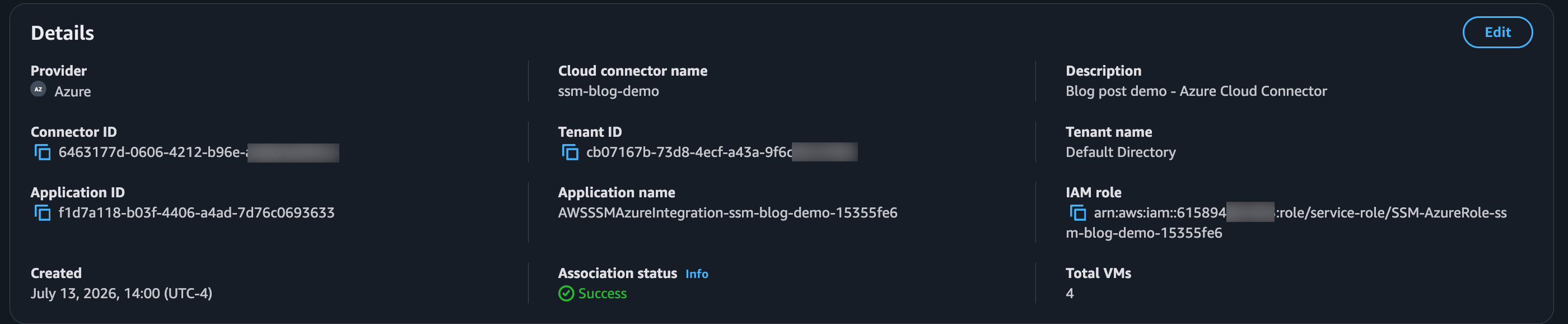
Within seconds, the connector appears in my list with its name, ID, IAM role, and creation date visible at a glance.
Verify OIDC federation
The connector creation configures OIDC federation between my AWS account and Azure AD. To verify, I choose Test connector on the connector details page. The console runs validation checks (IAM role assumption, Azure federation) and shows me the results. Green across the board.
To change which subscriptions are connected later, you can edit the connector, choose Modify subscriptions, re-authenticate to Azure, adjust, and save. The connector remains intact.
Deploy the AWS Systems Manager Agent (SSM Agent) to existing VMs
Next, I enable node management. On the connector’s details page, I choose Enable node management. The console asks me to select a managed instance role. I select the recommended AmazonEC2RunCommandRoleForManagedInstances role (with AmazonSSMManagedInstanceCore attached) and choose Connect.
Systems Manager creates a State Manager association that triggers the AWS-InstallSsmAgentOnAzure Automation runbook. This runbook:
- Creates a hybrid activation for each target VM. This step generates one-time credentials for the SSM Agent to register with Systems Manager.
- Uses Azure’s native RunCommand to install the SSM Agent (no inbound ports needed).
- Registers each VM as a managed instance in Systems Manager.
- The hybrid activation is deleted as it’s no longer needed.
On the State Manager associations tab, the association appears with its name, ID, and execution status. Selecting the execution history, I watch progress: creating the activation, running the registration command, managed instance ID received. My three Azure VMs (two Ubuntu 22.04 Linux, one Windows Server 2022) progress from ‘pending’ to ‘in progress’ to ‘succeeded’ one by one. The same process applies at scale: the State Manager association targets the connector’s subscriptions, so hundreds of VMs are processed in parallel without additional configuration.

New VMs in connected subscriptions are onboarded automatically
Here’s where it gets interesting. I create a new VM in one of my connected Azure subscriptions and take no action in the AWS console.
AWS Config detects the new VM via Azure Event Hub. The State Manager association picks it up and triggers agent installation automatically. A few minutes later, the new VM appears in Explore Nodes as a managed instance, without anyone taking manual action.
With this setup, VMs that come online in a connected subscription are onboarded automatically, keeping enrolled nodes consistently managed.
See Azure VMs in the Systems Manager console
In Explore Nodes, there they are: my Azure VMs listed alongside EC2 instances in a single unified view. I can:
- Filter by source type to view only Azure VMs
- Select a node to see Azure-specific metadata: resource ID, subscription, region, activation ID
- Confirm the SSM Agent is online and reporting
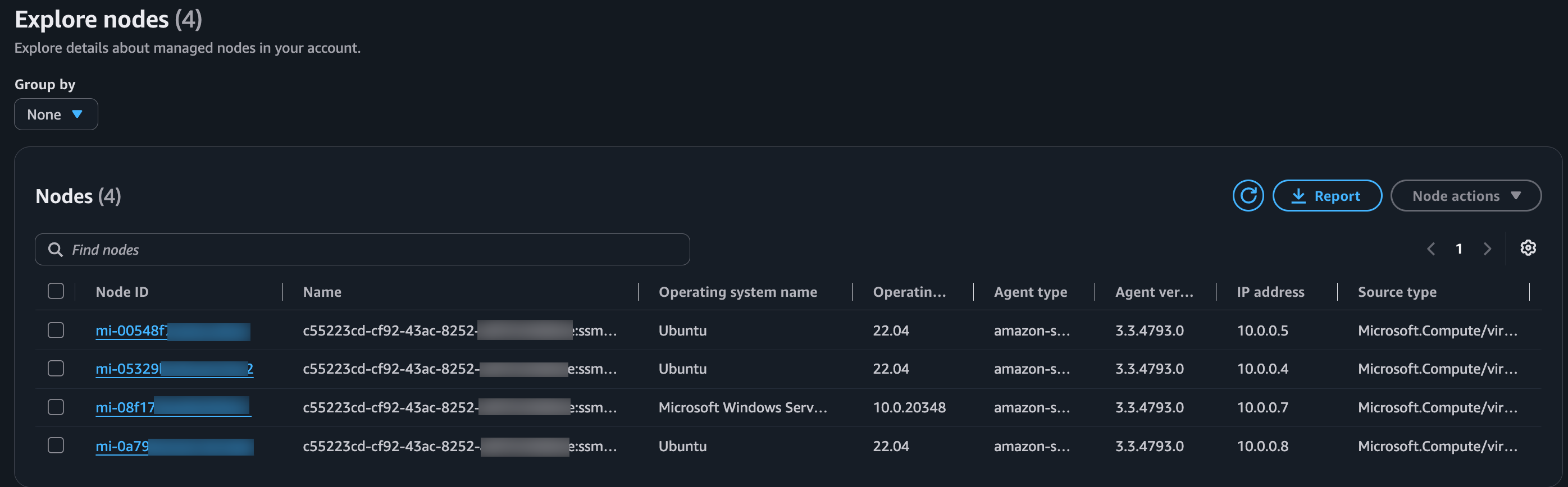
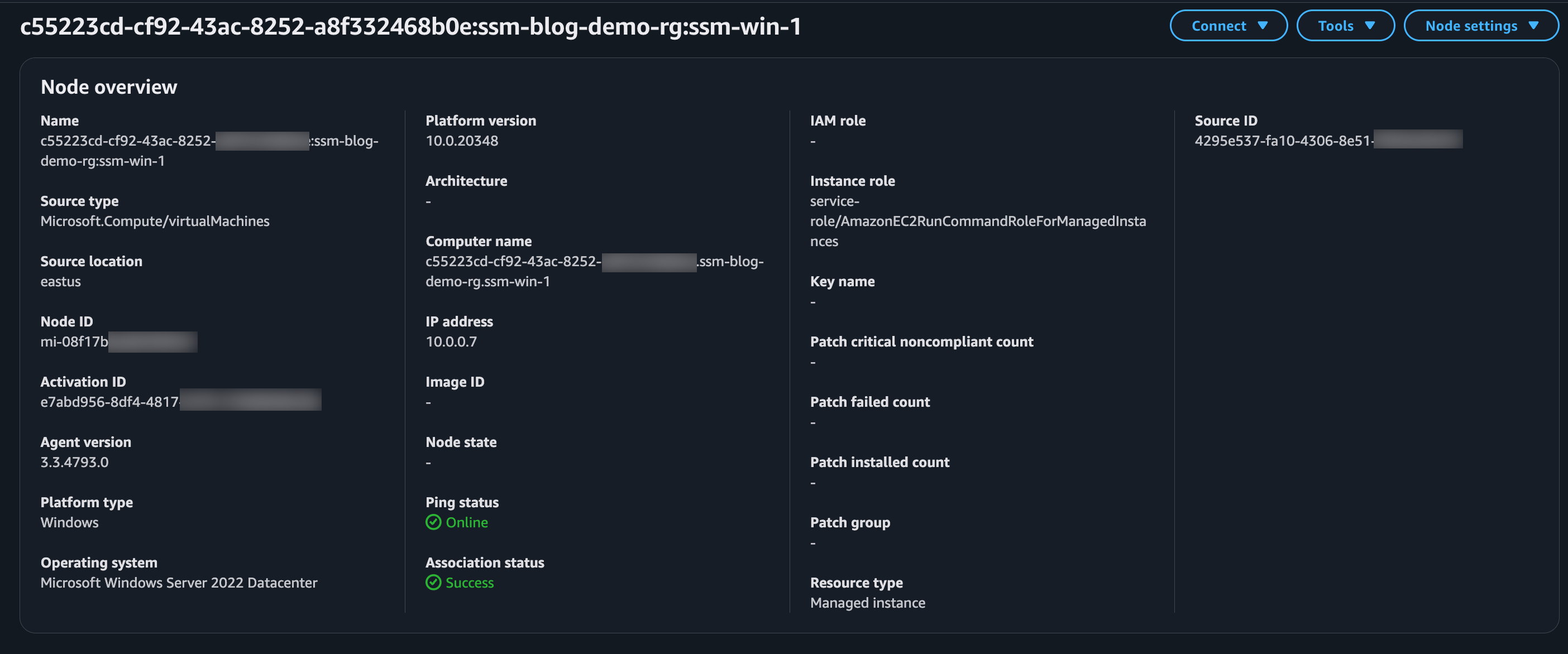
These are first-class managed nodes. They look, feel, and behave exactly like EC2 instances in the Systems Manager capabilities described in this post. Selecting the Windows VM reveals its full metadata: source type Microsoft.Compute/virtualMachines, source location eastus, the Node ID, agent version, and the CloudConnector tag that ties it back to my connector.
Run Command on Azure VMs
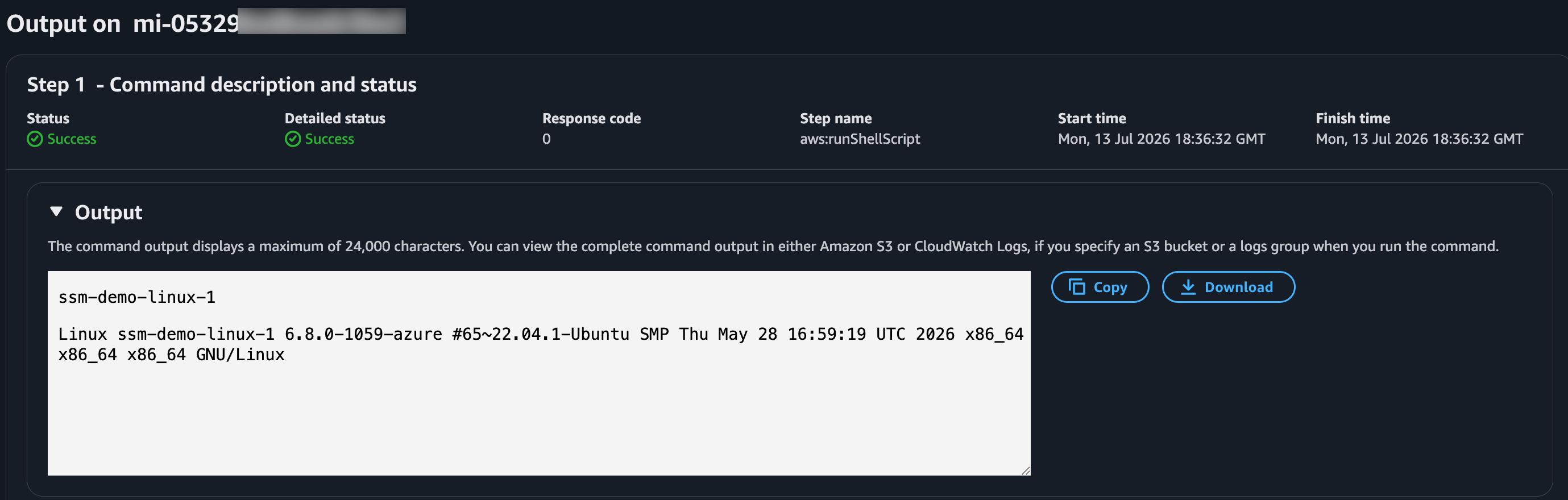
Now let’s manage something. I select one of my Azure Linux VMs, choose Run Command, pick the AWS-RunShellScript document, type hostname && uname -a, and execute.
The command runs on my Azure VM and returns the hostname and kernel information, confirming this is an Azure VM running an Azure-tuned Linux kernel.
Start an RDP session to a Windows Azure VM
For teams managing Windows workloads in Azure, secure remote desktop access without opening inbound ports is a significant operational improvement. The scenario: a Windows Server 2022 VM running in Azure with no public IP address and no inbound ports open. Without AWS Systems Manager, reaching that VM’s desktop typically requires a bastion host, a VPN, or Azure-specific tooling.
In Fleet Manager, I select the Windows Azure VM and choose Connect with Remote Desktop. The console opens an RDP session directly in the browser. I’m looking at a Windows Server 2022 desktop running in Azure, accessed from the AWS console without ever opening port 3389.
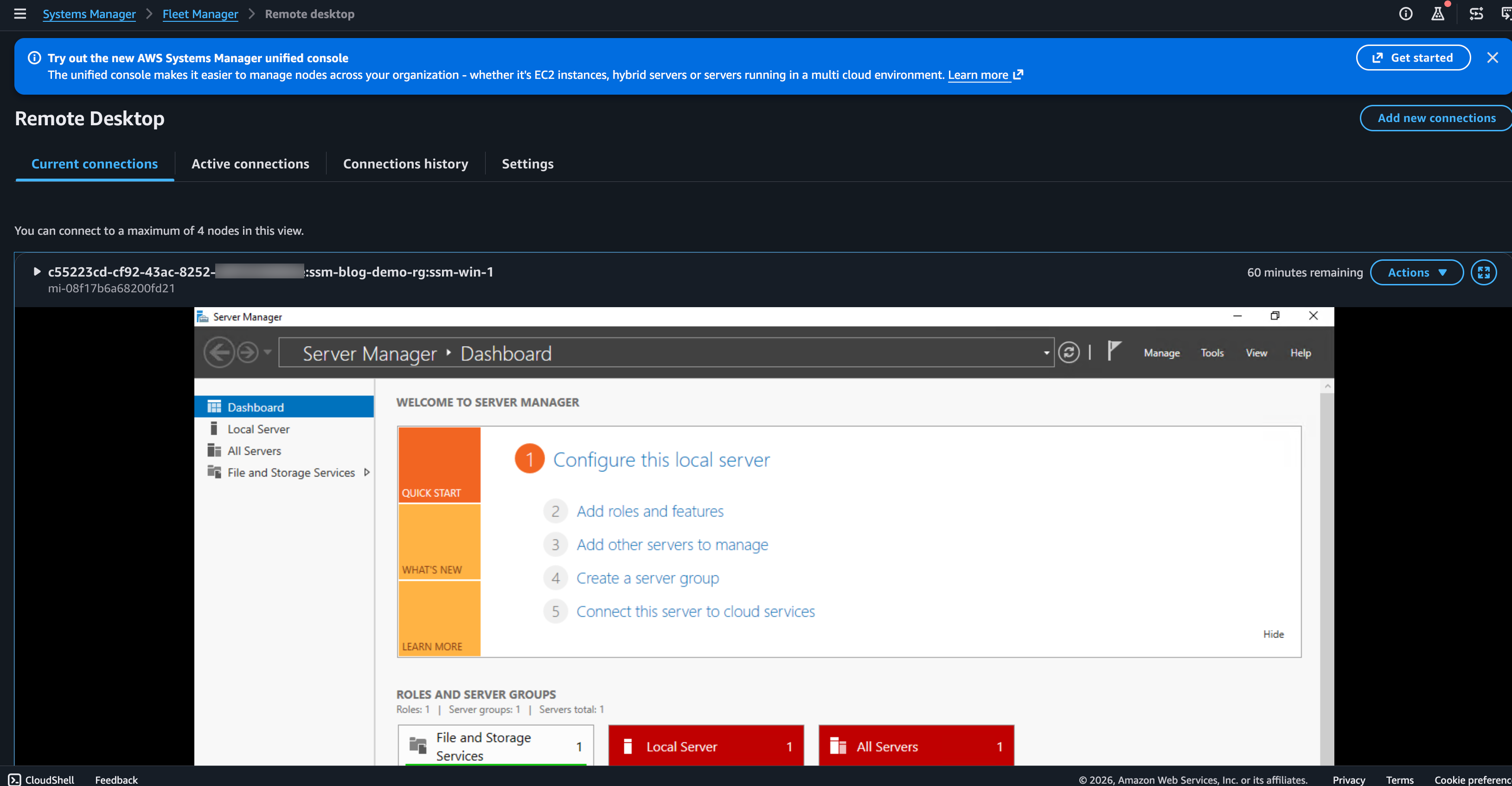
Session details including the initiating user, start time, duration, and target node are logged to AWS CloudTrail. The session streams through the SSM Agent over outbound HTTPS only.
Notice the Fleet Manager banner: “Advanced Instances Tier discontinued. You can now register hybrid and multicloud nodes with AWS Systems Manager at no additional cost and with no instance limit.”
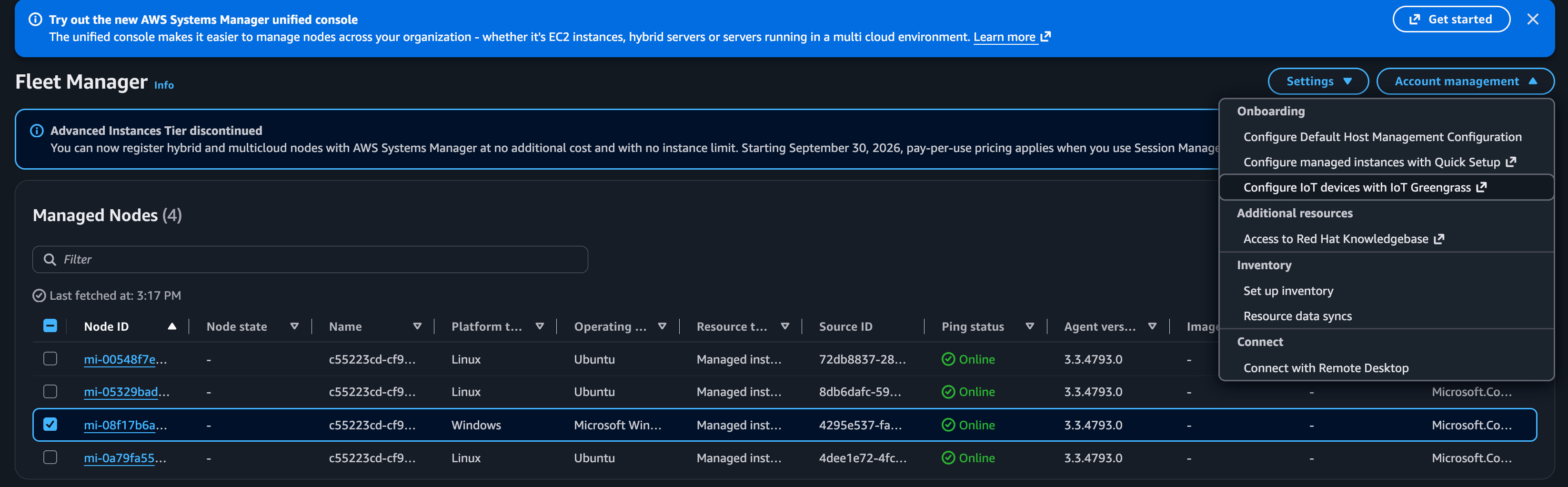
For organizations managing Windows workloads across both clouds, this means one remote access tool instead of two, with a single audit trail and no jump boxes to maintain.
Apply a State Manager association across clouds
For a configuration baseline across my entire fleet, I create a new State Manager association targeting both EC2 instances and Azure VMs using tags. The association verifies that a monitoring agent is installed and running. Systems Manager applies it to both clouds on schedule, detects drift, and corrects it automatically.
One association. Both clouds. Consistent configuration.
Consistent operations across clouds
Once your Azure VMs are onboarded, the full suite of Systems Manager capabilities is available using the same tools, APIs, and console experience you already know:
Unified Systems Manager Console. View and manage your EC2 instances and Azure VMs from a single console experience. The new Hybrid and Multicloud nodes section provides a consolidated entry point for connector management, node exploration, and operational tasks across environments.
Patch Manager. Apply security and software updates to your Azure VMs using the same patch baselines and maintenance windows you use for EC2. Scan for compliance and schedule patching operations. View unified compliance reports across your connected nodes, on both AWS and Azure.
Run Command. Execute operational commands at scale across both AWS and Azure nodes simultaneously. Use the same SSM Documents, the same concurrency controls, and the same output logging. From collecting diagnostics to deploying configuration changes to running remediation scripts, the experience is identical.
Session Manager. Securely connect to your Azure VMs directly from the AWS console or CLI without opening inbound ports, managing bastion hosts, or distributing SSH keys. Start an RDP session to a Windows Azure VM or an interactive shell to a Linux VM. Sessions are logged and auditable, with the same IAM-based access controls you use for EC2 access.
Inventory. Collect comprehensive metadata from your Azure VMs including installed applications, network configurations, OS details, file information, and more. View this data alongside your EC2 inventory for a unified understanding of your fleet composition.
Node Explorer. Get a consolidated view of your managed nodes, EC2 instances and Azure VMs together. Drill into individual nodes for file system exploration, performance monitoring, log management, and user account administration.
State Manager. Define and enforce configuration baselines across your connected nodes on AWS and Azure. Detect drift and auto-remediate on schedule.
Secure by design
The Cloud Connector uses federated authentication between AWS and Azure, using OIDC-based credential exchange. There are no long-lived credentials stored on either side. IAM roles created during setup follow least-privilege principles, and cross-cloud communication is encrypted and auditable through CloudTrail.
The SSM Agent communicates over outbound HTTPS only. Inbound ports are not opened on your Azure VMs, SSH keys are not distributed, and bastion hosts are not deployed.
Pricing
We’ve eliminated the advanced instances tier and its per-node hourly charges. Instead, you pay only for the Systems Manager capabilities you actually use on hybrid nodes, such as Run Command invocations and Session Manager connections. There’s no cost to register and manage nodes.
Together, Cloud Connector and the elimination of the Advanced Instances Tier enable multicloud management at scale.
Consider a customer managing 2,000 hybrid nodes, running commands twice a month and accessing them remotely once a month with Session Manager. Under the old model, the advanced tier charged $0.00695 per instance per hour for all registered nodes regardless of usage (2,000 × $0.00695 × 730 hours = approximately $10,150 per month). Under the new model, that flat per-node fee is gone. The Advanced Instances Tier was eliminated on June 30, 2026. Beginning September 30, 2026, pay-as-you-go pricing takes effect, and you only pay for what you use. For the same 2,000 nodes, Run Command costs 2,000 × 2 × $0.002 = $8, and Session Manager costs 2,000 × 1 × $0.05 = $100, for a total of approximately $108 per month.
For full details, see the Systems Manager pricing page.
Get started
To try it today:
- Open the AWS Systems Manager console
- Navigate to Hybrid and Multicloud
- Choose Onboard hybrid nodes and select Azure Cloud connector
- Choose Configure with script, enter your Azure tenant and subscription details
- Run the generated script in your terminal with the Azure CLI
- Paste the output values into the console and create the connector
- Turn on node management and watch your VMs appear
No manual installation or custom tooling required. From that point forward, new Azure VMs in your connected subscriptions are onboarded automatically.
To learn more, see the Cloud Connector documentation or visit AWS Systems Manager.