Networking & Content Delivery
Introducing resource context for firewall policies with AWS Transit Gateway
AWS Transit Gateway now supports context sharing with security services such as firewalls, so you can use virtual private clouds (VPCs), subnets, security groups, and transit gateway attachments in firewall policies alongside IP addresses. Transit Gateway embeds this context in traffic sent to a firewall through a network function attachment, so the firewall can enforce the right policy. As workloads scale and change, policies continue to apply without updates to IP address groups.
Enterprises that rely only on IP addresses in firewall policies must keep rules or address groups current. As workloads move and addresses change, this often requires coordination across network, application, and security teams. To reduce this work, some firewalls periodically synchronize AWS resource information, such as tags, with IP addresses, whereas other enterprises use custom automation to push updated IP lists. These approaches reduce manual updates, but a synchronization gap can remain. A new or short-lived workload, such as an Amazon Elastic Container Service (Amazon ECS) task in awsvpc mode, an Amazon Elastic Kubernetes Service (Amazon EKS) pod that uses security groups, or a VPC-attached AWS Lambda function, might begin sending traffic before the next synchronization update reaches the firewall.
“AWS gives customers the flexibility to secure their environments with the firewall of their choice, and we work closely with partners to help those firewalls run well on AWS. Customers use VPCs, subnets, and security groups to define how workloads are grouped and secured on AWS. AWS Transit Gateway can now carry that resource context to firewalls along with the traffic, giving customers a more streamlined way to write network segmentation policies while continuing to use their existing IP-based policies. This is another example of how we work with partners to help customers manage security on AWS.”
— Robert Kennedy, Vice President of Network Services, AWS
With this launch, AWS Transit Gateway network function attachments support direct connectivity to Gateway Load Balancer (GWLB), alongside existing support for AWS Network Firewall. Context sharing works with both network function attachment types. You can connect third-party firewalls, such as Palo Alto Networks software firewalls, through a network function attachment for GWLB. In this post, we configure a network function attachment of type Gateway Load Balancer, turn on context sharing, and walk you through an example of how to use resource context in your centralized inspection architecture.
How AWS Transit Gateway shares resource context with firewall appliances
To configure context sharing, connect your firewall to AWS Transit Gateway through a network function attachment. Then create a context store in AWS Network Manager, associate your transit gateway with it, and link the context store to the firewall.
After you configure it, context sharing uses two paths that come together at the firewall. The data path carries context IDs with the traffic, whereas the control path tells the firewall which AWS resources those IDs represent.
- Data path: Traffic reaches the firewall through the network function attachment. Transit Gateway adds a compact context ID of the source resource to each packet.
- Control path: A context store is an AWS Network Manager resource that monitors context for resources connected to associated transit gateways and shares that context with security services. The firewall reads the context store to map those identifiers to AWS resources, such as security groups, subnets, and VPCs.
You can now use resource context alongside IP addresses to write simpler, more precise segmentation policies. For example, you can apply threat protection to traffic that originates from web-tier security groups when the web and database tiers are in separate VPCs. You can also isolate traffic that originates in development VPCs from production address ranges. You can apply a common inspection policy to traffic entering AWS from on-premises networks through AWS Direct Connect and AWS Site-to-Site VPN attachments. After a policy references a security group or VPC, it applies to new workloads launched in that VPC or associated with that security group, without waiting for IP address mappings to update.
With this launch, the following context is available to your firewalls:
| Context | What you can express in policy |
| Security group | Groups of resources with the same access requirements, for example, all application servers |
| Subnet | Tiers inside a VPC, for example, the subnets that hold your databases |
| VPC | Wider boundaries, for example, production and development |
| Transit Gateway attachment type and ID | Where traffic entered, such as a VPC, AWS Site-to-Site VPN, or AWS Direct Connect gateway attachment, for north-south policies |
| Region and Availability Zone | The location of a resource, useful when transit gateways in multiple Regions share one context store |
Packet format
The following packet format shows the packet that the firewall appliance receives from Gateway Load Balancer using Geneve encapsulation. For an explanation of Geneve headers, refer to RFC 8926, Geneve: Generic Network Virtualization Encapsulation.
Outer Geneve options: AWS Gateway Load Balancer Type-Length-Value (TLV)
The context information is captured as part of TLV Type 22 with the following fields:
| Field | Bits | Description |
| Context Store ID | 64 | The context store that issued the following IDs. |
| AttType | 5 | Attachment type of the source, as an ID of an attachment type entry (for example, VPC). |
| Region | 6 | Region of the source, as an ID of a Region entry. |
| Zone | 5 | Availability Zone of the source, as an ID of a zone entry. |
| Attachment-CTX-ID | 24 | The transit gateway attachment the traffic entered through. |
| Resource-CTX-ID | 24 | The VPC the traffic came from. For a non-VPC attachment, the underlying resource. |
| Subnet-CTX-ID | 24 | The source subnet. |
| Signal | 8 | Reserved |
| Num-Seg | 8 | How many security group IDs follow, 0 to 5. It is 0 if the source has more than five. |
| Segment-CTX-ID | 24 each | One security group of the source. |
| Padding | 0–24 | Pads the option to a 4-byte boundary. |
To learn how each context ID in the Type 22 option resolves to a resource, refer to Consume context from a context store. The values for AttType, Region, and Zone can be resolved by calling ListContexts() and examining the AttachmentType, Region, and AvailabilityZone strings provided. For more information about the Type 1, 2, and 3 options, refer to Integrate your custom logic or appliance with AWS Gateway Load Balancer. Unlike types 1 through 3, appliances do not need to include the Type 22 TLVs when they send traffic back to GWLB.
Architecture overview
Figure 1 shows a centralized east-west inspection architecture using Transit Gateway in a multi-account scenario and a network function attachment for Gateway Load Balancer. Workload VPCs (development and production) are created in their individual accounts. Transit Gateway is created in the networking account. The inspection VPC is created in the firewall account and owned by the security team that manages and configures firewall policies.
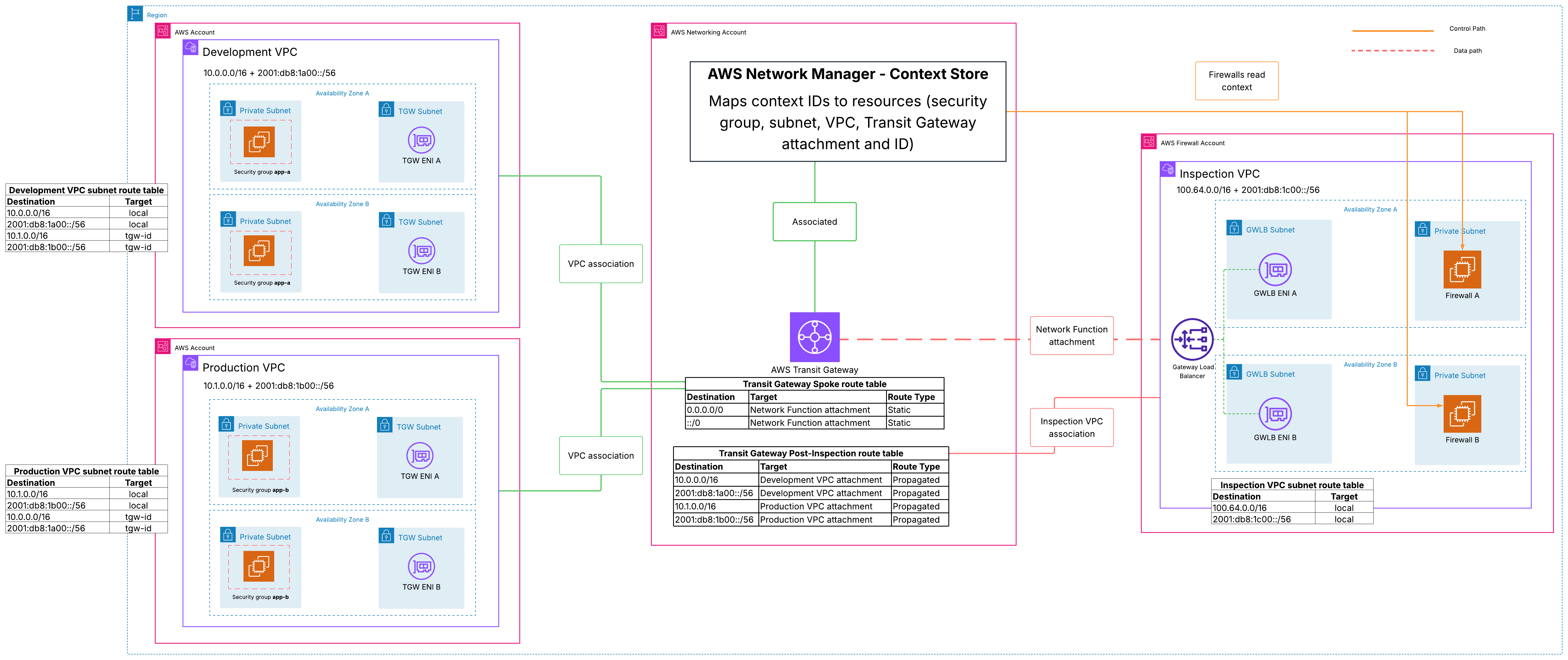
Figure 1: Centralized east-west inspection architecture through Transit Gateway and a network function attachment for Gateway Load Balancer
Walkthrough: Connect your firewall appliances to Transit Gateway
In this section, you connect your firewall appliances integrated with Gateway Load Balancer to Transit Gateway and route traffic to it.
Prerequisites
Before you begin, make sure you have the following:
- A transit gateway with two VPC attachments and Encryption Support disabled.
- Workload Amazon Elastic Compute Cloud (Amazon EC2) instances to send and receive traffic.
- A Gateway Load Balancer with healthy firewall targets. For Palo Alto Networks, this can be a VM-Series fleet you manage.
- A VPC endpoint service associated with Gateway Load Balancer.
- For cross-account deployments, permission for the transit gateway account to connect to the endpoint service. For the steps, refer to the prerequisites in Create a network function attachment for a Gateway Load Balancer.
Step 1: Create the network function attachment for Gateway Load Balancer
For this example, create a network function attachment on the transit gateway for Gateway Load Balancer and select the Gateway Load Balancer endpoint service that fronts your firewalls. Select the Availability Zones. AWS provisions a Gateway Load Balancer endpoint in each selected Availability Zone as part of the attachment (see Figure 2). Transit Gateway appliance mode is turned on automatically for network function attachments. Compared to an inspection VPC you build yourself, there are no endpoint subnets, endpoint route tables, or inspection VPC attachment to build and maintain.
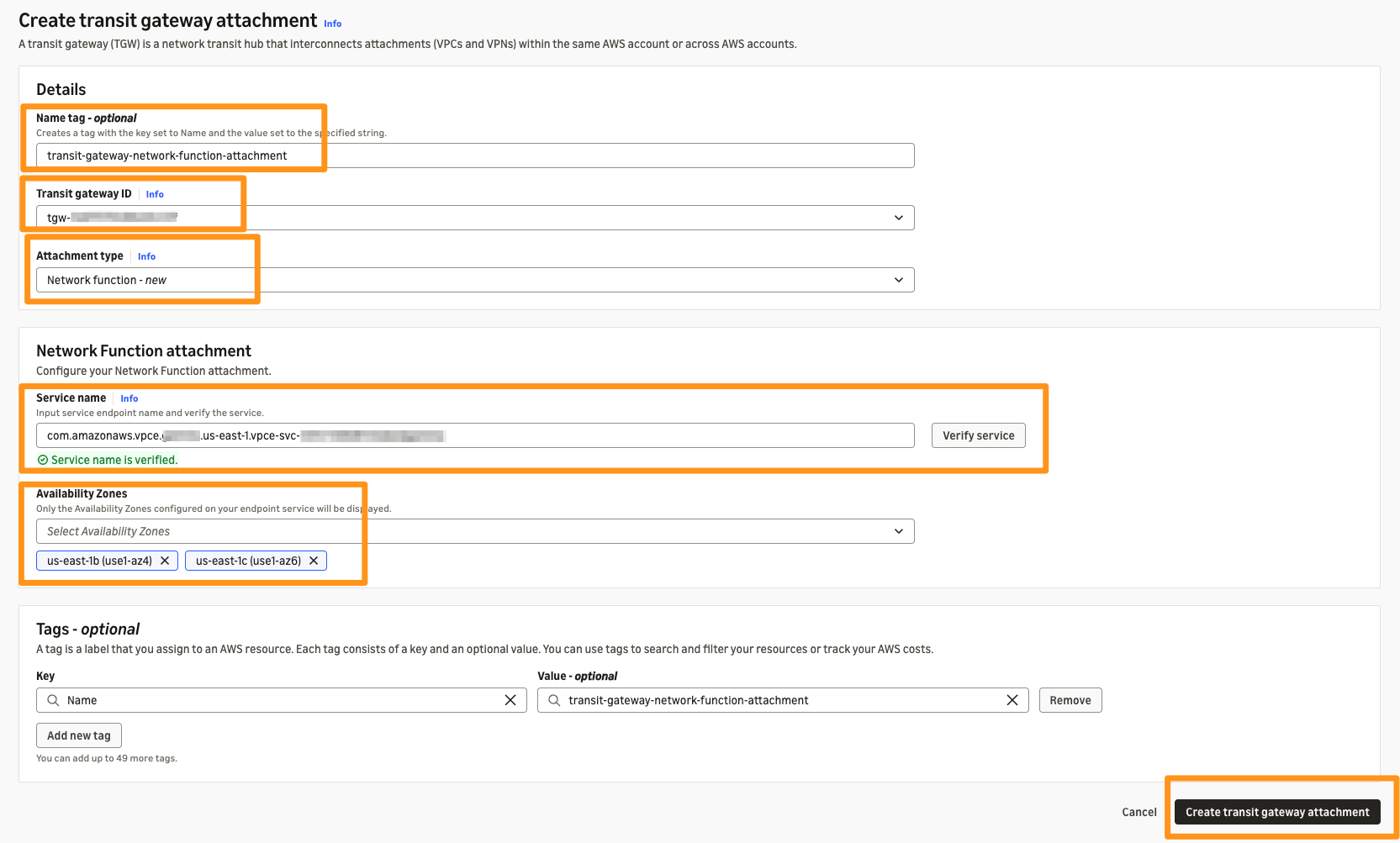
Figure 2: Create the network function attachment for Gateway Load Balancer
Step 2: Connect the network function attachment to the VPC endpoint service
A network function attachment connects through the VPC endpoint service associated with your Gateway Load Balancer, so the attachment request appears as a connection request on that endpoint service. In this walkthrough, the transit gateway is in your networking account and the endpoint service is in your firewall account. The endpoint service owner must first allow the transit gateway account to connect, as described in Create, modify, and delete a network function attachment of type Gateway Load Balancer. The endpoint service is created with automatic acceptance, so the connection is accepted automatically.
If your endpoint service does not use automatic acceptance, the endpoint service owner accepts the connection from Endpoint services, on the Connections tab.
Step 3: Update Transit Gateway route tables
Next, point traffic that requires inspection at the network function attachment. Routes to a network function attachment must be static, because route propagation is not supported. In this example, Transit Gateway has two route tables. The spoke route table is associated with your VPC attachments and has a static default route (0.0.0.0/0 for IPv4 and ::/0 for IPv6) to the network function attachment. The post-inspection route table is associated with the network function attachment and has routes back to every workload VPC (development and production). Figure 1 shows the transit gateway route tables.
Turning on context sharing
With traffic flowing through the network function attachment, you can turn on context sharing for your Transit Gateway network. You associate your transit gateway with a context store, and Network Manager starts collecting the context of the resources behind it.
Step 1: Create a global network and context store in AWS Network Manager
For this example, create a global network in the networking account, and then create a context store for your global network on the same page (see Figure 3). The context store is the source of truth your firewalls read from. Each global network can have one context store. If you have an existing deployment with an existing global network, you can create a context store in it. When created, a context store starts in the PENDING state and then moves to AVAILABLE.
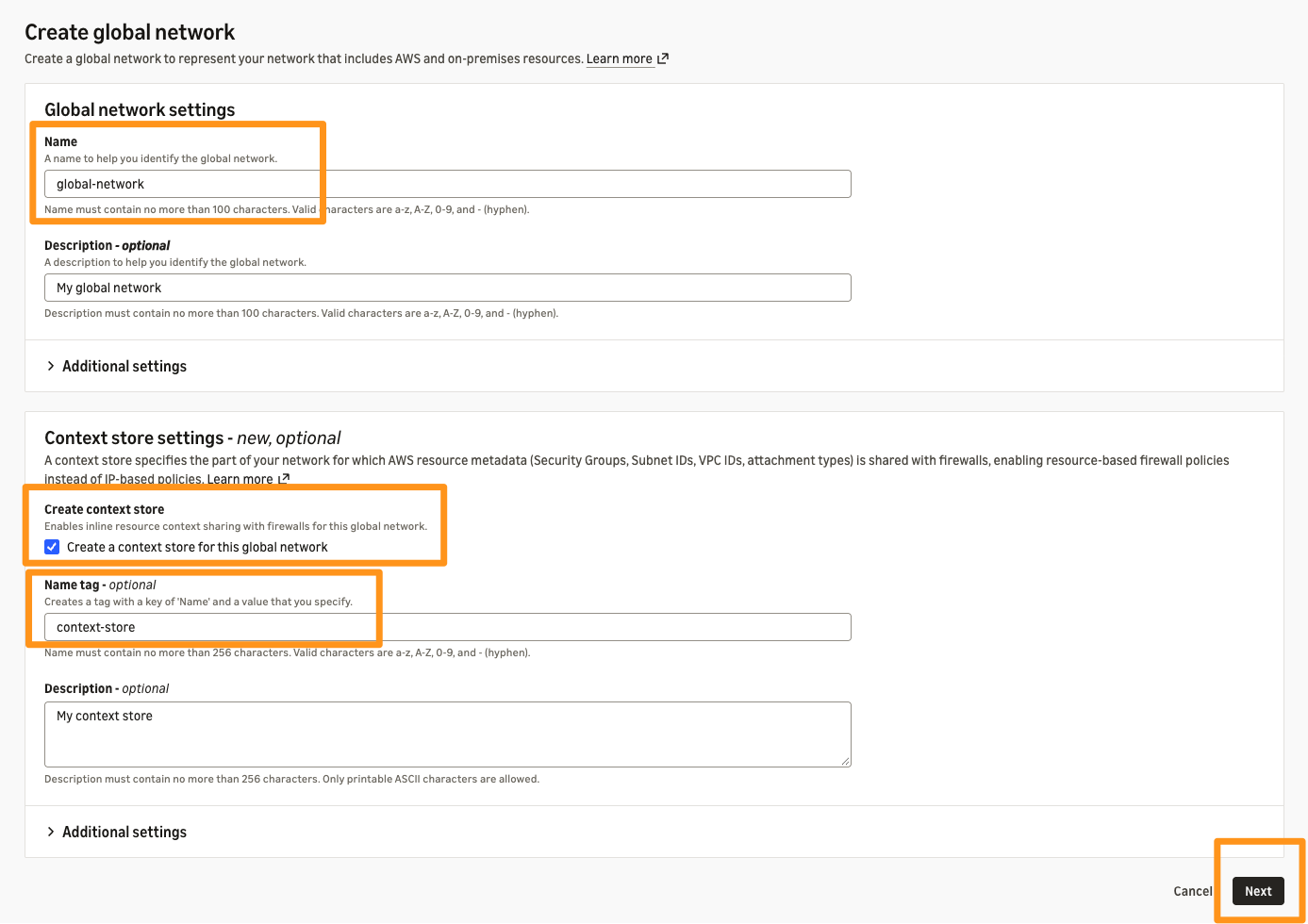
Figure 3: Create a global network and context store using AWS Network Manager
To create an AWS Transit Gateway global network only, clear the Add core network in your global network checkbox (see Figure 4).
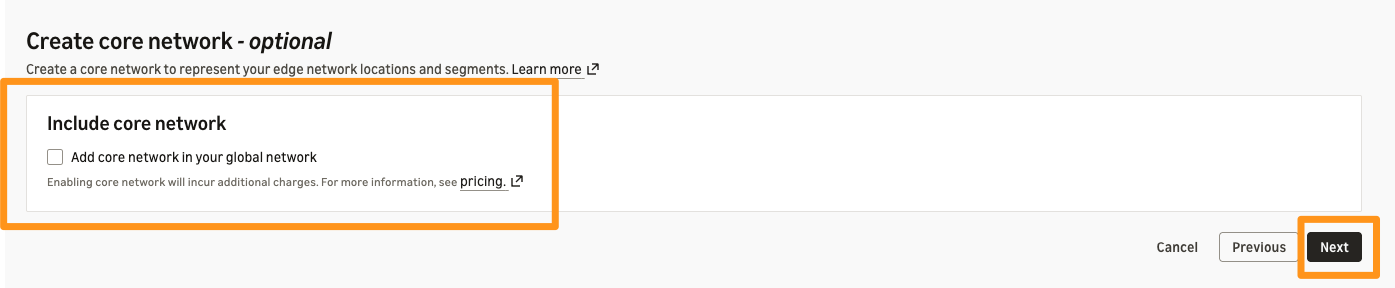
Figure 4: Clear the option to add a core network in your global network
Step 2: Register your transit gateway with the global network
In this step, register your transit gateway with the global network. Register the transit gateway with the same global network as the context store before you associate it (see Figure 5).
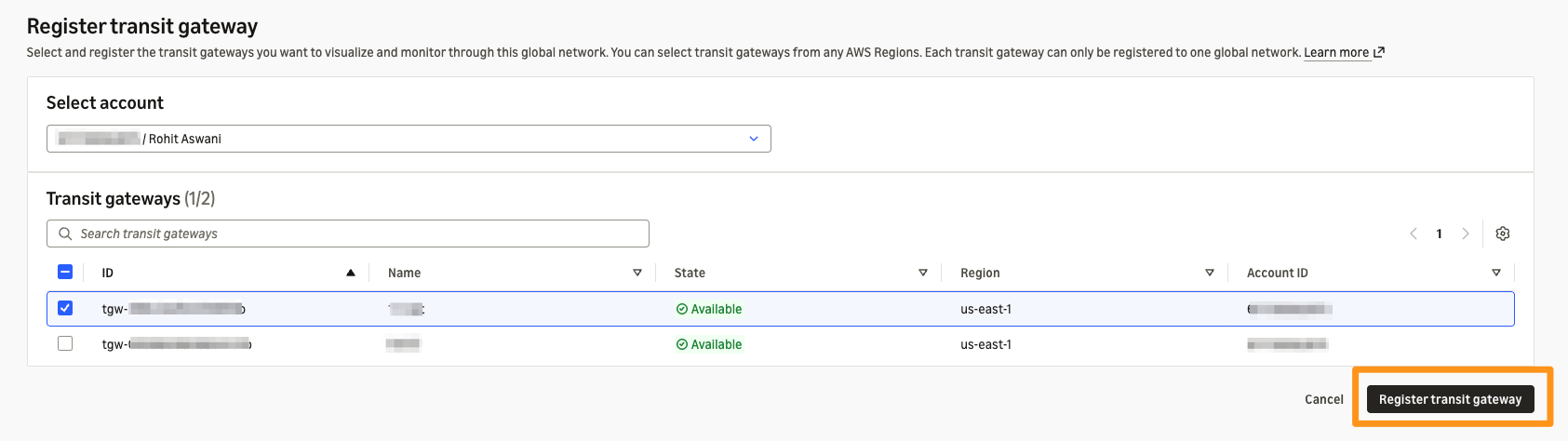
Figure 5: Register your transit gateway
Step 3: Associate your transit gateway with the context store using AWS Network Manager
In this step, you associate your transit gateway with the context store (see Figure 6). A transit gateway can be associated with only one context store, and transit gateways from more than one Region can share a store. Wait for the association to reach ASSOCIATED before you write firewall policy, because that is when Network Manager starts collecting context for the workload VPCs.
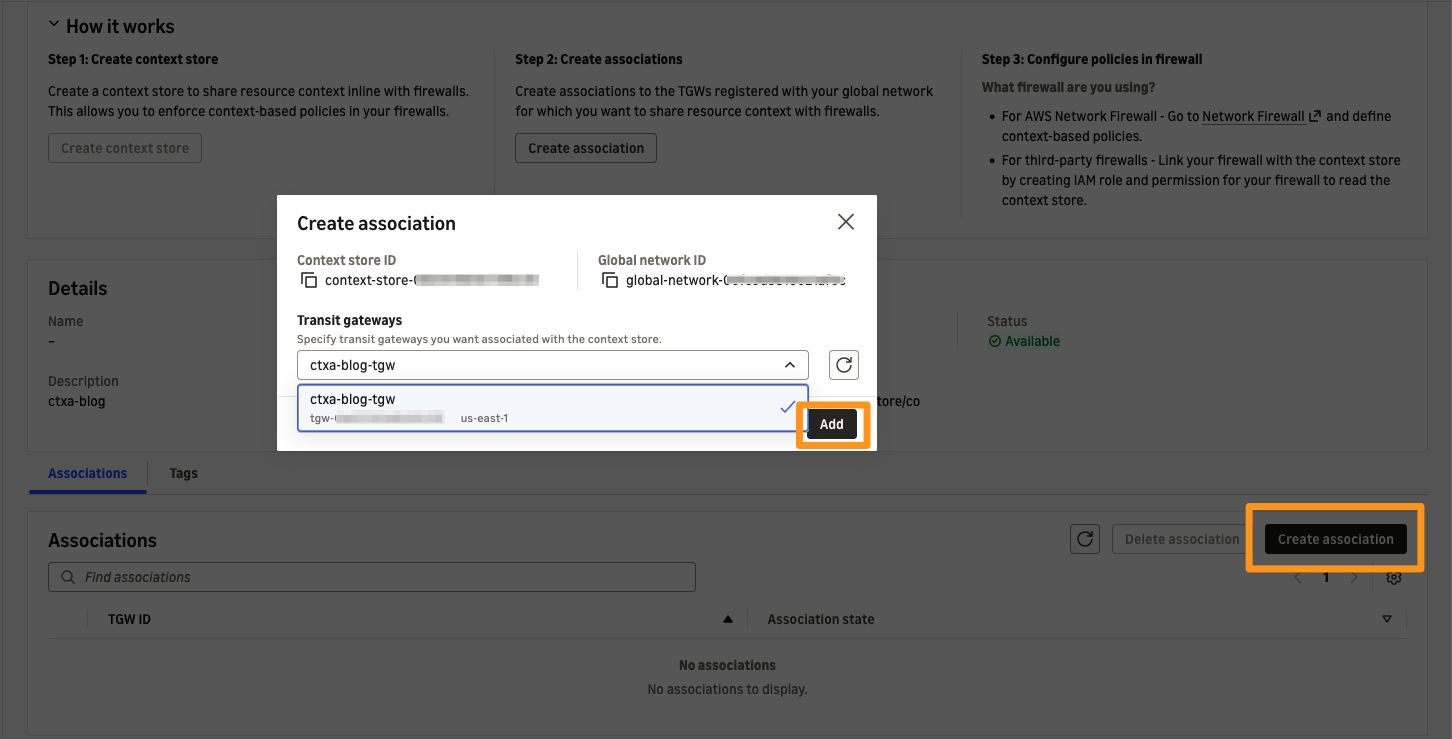
Figure 6: Associate your transit gateway with the context store
Step 4: Give your firewall access to the context store
Create an AWS Identity and Access Management (AWS IAM) role in the account that owns the context store. Your firewall provider supplies the AWS principal ARN and external ID for the role trust policy. The firewall integration assumes the role to consume context from a context store, following your firewall provider’s onboarding steps.
For detailed onboarding steps, configuration, supported features and logging, refer to the Palo Alto Networks post, Announcing Palo Alto Networks support for AWS context sharing.
Resource context in action: Isolate a development workload by using VPC and security group context
In this example, the firewall isolates an application workload in a development VPC. It denies all traffic from that workload, using resource context to identify the source. The policy identifies the workload by two pieces of source context: its VPC and its application security group.
The transit gateway does not put these resource IDs on the wire directly. It stamps each packet with compact context IDs for the source of the traffic, and the context store maps each one back to the resource it represents. When the firewall is given access to the context store, it loads those context IDs from Network Manager and builds a mapping table, for example:
| Context type | Context ID | Resource |
| VPC | 6176 | vpc-0abc123example |
| Security group | 2080 | sg-0abc123example |
Without a policy, traffic from the development instance passes inspection and reaches its destination. We then add a single segmentation rule.
As pseudocode, the rule is:
The rule has two conditions, and traffic must meet both: the source is in the development VPC, and one of its security groups is the application security group.
When a packet arrives, the firewall reads its source context IDs and looks them up in the mapping table. It does not need to call Network Manager for each packet. If the IDs resolve to the development VPC and the application security group, the firewall denies the traffic. The policy works alongside your existing IP-based rules.
A workload in the application security group in a different VPC, or in the development VPC with a different security group, is not affected, because it fails one of the two conditions. The rule matches the source’s context, so it applies to all traffic the workload sends, whatever the destination. To limit the rule to particular destinations, such as a workload in the production VPC, add a destination IP address condition. Because the rule is based on resource context, the segmentation follows the workload. If the instance receives a new IP address, it stays isolated as long as it remains in both the VPC and the security group.
Best practices and considerations
Keep the following in mind as you design your deployment:
- We recommend matching on resource context, not tags. You can author policies against AWS resources such as security groups, subnets, VPCs, and transit gateway attachments, and the firewall enforces them on the context ID that the transit gateway adds to each packet. The context store maps each context ID back to its resource, so matching never depends on only the IP address or on tags polled on a schedule. Firewalls can still display resource names or tags (if the firewall supports tags) alongside the context to make authoring easier.
- As of this writing, only source context is included in the traffic.
- Context sharing applies to traffic that the transit gateway routes to the firewall, which is traffic between attachments. Traffic between resources in the same VPC stays inside the VPC and is not inspected, so to use security groups or subnets as tiers in a policy, place the tiers in separate VPCs.
- You can use security groups for workload intent and VPCs and subnets for environment boundaries such as production and staging VPCs.
- Resource context is not shared across inter-Region transit gateway peering attachments.
- If you already inspect traffic through an inspection VPC, create the network function attachment for your Gateway Load Balancer, then point your Transit Gateway routes at it. The migration follows the same approach as Why and how to migrate to a Transit Gateway-attached AWS Network Firewall, with one difference: your existing firewalls and Gateway Load Balancer stay in place, so you change only the route. Depending on your inspection architecture, this change can interrupt connections in progress because traffic moves to a different firewall. If this applies to your deployment, we recommend a maintenance window.
- Network function attachments and context sharing support both IPv4 and IPv6 traffic, so you can apply the same policies using resource context to dual-stack workloads.
- Individual context records are visible only through the API or AWS Command Line Interface (AWS CLI), not through the AWS Management Console.
- Resource context includes up to five security groups. If a resource is associated with more than five security groups, its context does not include any security groups.
- Firewall providers that want to integrate with context stores can contact their AWS Partner team. For integration details, see Consume context from a context store.
Clean up
To stop incurring charges, remove the resources deployed as part of this walkthrough.
Conclusion
In this post, we showed how to configure a network function attachment of type Gateway Load Balancer and use context sharing in firewall policies. Together, these capabilities make firewall-based segmentation easier to deploy and manage. Policies using resource context stay aligned as workloads change and work alongside existing IP-based policies. Excited to see more partners integrate firewall appliances and use context-sharing with Gateway Load Balancer. To get started, refer to Transit Gateway network function attachments, Context sharing with security services and the Palo Alto Networks announcement.