AWS Public Sector Blog
Develop an AI voice command center with Amazon Quick and Kiro
Amazon Web Services (AWS) public sector teams devote a significant portion of each day to administrative work such as compiling cost reports, monitoring security posture, triaging email and chat, and maintaining an accurate calendar. Individually, these tasks are minor. Collectively, they consume time and attention that could be better directed toward mission outcomes and the constituents these organizations serve.
With the solution example in this post, you can build a voice-activated command center that runs on your local machine, listens when you talk to it, and answers back using a clean, high-tech dashboard. You can learn how to build a command center (you can give it a fun name such as Jarvis or Alfred) that briefs you on finances, security, your calendar, and your inbox. With an AI-powered integrated development environment (IDE) and a desktop productivity assistant, it doesn’t leave your laptop.
This post covers the two prerequisites needed (a desktop assistant and an AI IDE), how they connect through a straightforward file bridge, why this pattern is a good fit for public sector constraints, and what to keep in mind when it comes to cost.
This is a build-it-yourself, local solution for personal and team productivity. You’ll be using local desktop services including Amazon Quick for desktop and Kiro.
What you’ll build
The result is a desktop application that gives you:
- A sci-fi-style animated dashboard – A heads-up display with a live dial, transcript, and status readouts that react as you speak
- Voice in and out – Talk to it and it speaks back to you in a short briefing
- C-suite advisors you can call by name, for example:
- Chief financial officer (CFO) – A spending or cost briefing
- Chief security officer (CSO) – A security posture review
- UX designer – Spins up a new design project using the open source Open Design toolset
- Daily summary – What happened across your work day, plus quick calendar and email checks
- AI developer – Drives your local AI IDE to build and refine things for you
Everything runs on your Mac or desktop operating system (OS). There’s no server to set up and data doesn’t leave your machine unless you explicitly wire an integration to do so. For example, you can say “Call my CFO” or “chief financial officer” as the key command to call the agent. The following image is an example of the end result, which is a local voice command center:
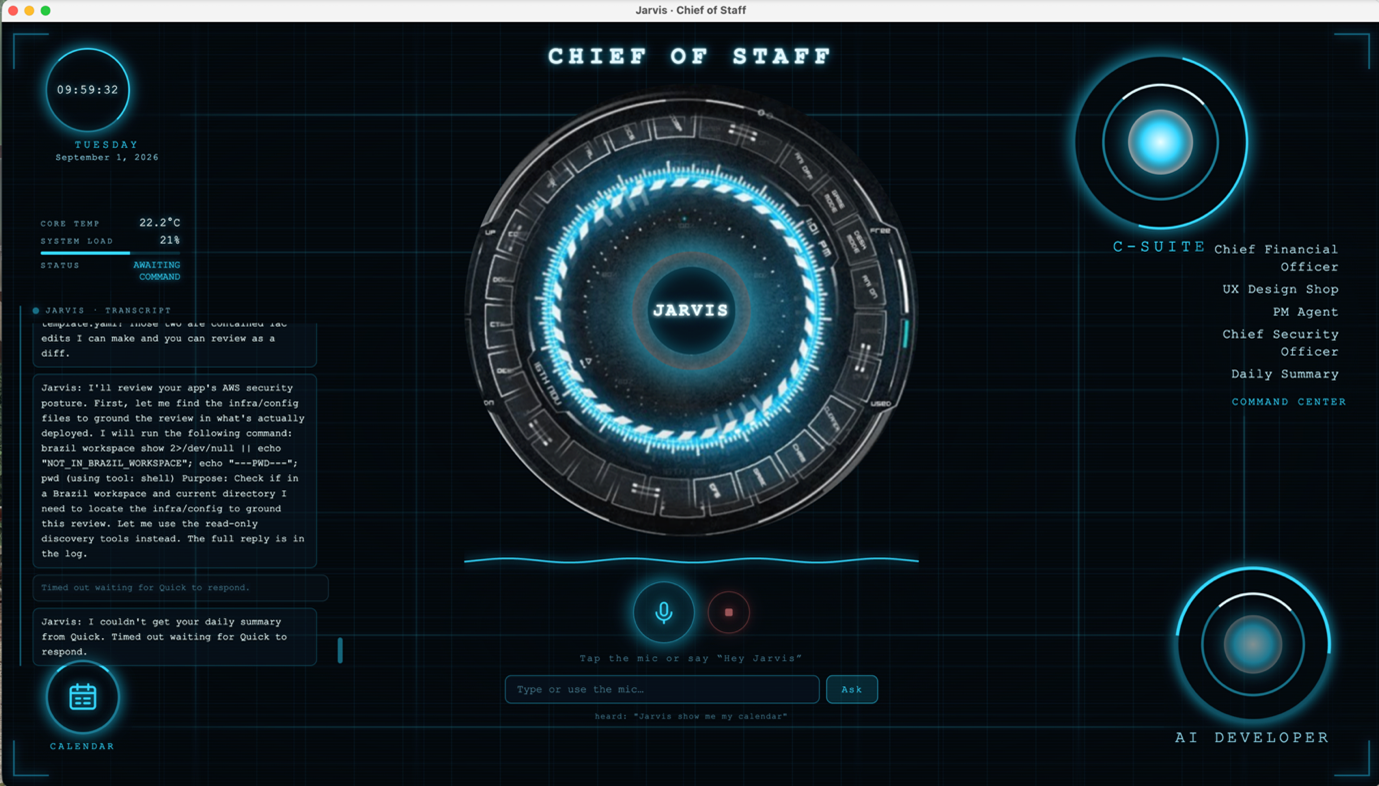
Figure 1: The local command center dashboard running on your desktop
Please note that names in this post are for fun demonstration purposes only. Any names shown, such as Jarvis or Alfred, are used solely as illustrative, user-chosen display names for a personal, local tool. Product names, logos, and brands are the property of their respective owners, and their use here is nominative and for demonstration purposes only. Choose your own name for your assistant and confirm you have the right to use any name or mark you adopt.
How it works: The file bridge
You build the bridge by prompting Amazon Quick for desktop. The command center itself is intentionally lightweight and offline. It doesn’t call a third-party API directly. Instead, it exchanges small JSON files with a desktop assistant through a shared folder called the bridge. Your AI desktop assistant does the work of connecting to email, chat, and reporting sources and writes the answers back for the command center to read aloud.
The following diagram shows the end-to-end flow, from your voice command to the spoken briefing:
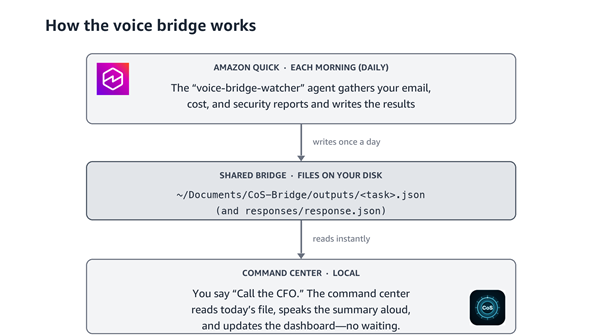
Figure 2: AI desktop to voice command center workflow. Major components are Amazon Quick and Kiro. Kiro CLI is depicted
The key idea: The desktop assistant creates and fills the responses/ and outputs/ folders; the command center only reads results for Amazon Quick. That clean separation is what keeps the local app lightweight and private.
Prerequisite 1: A desktop assistant to feed the bridge
Amazon Quick for desktop is a productivity assistant available for macOS and Windows that can connect to the services you already use and act on a schedule. This is the engine behind the bridge. The steps in the following section walk you through setup, agent creation, and wiring the bridge.
Before you create agents: Three quick setup tasks
When you install Amazon Quick for desktop, do these three things first so the assistant has good local data to work with and a place to write:
- Enable your integrations – Turn on the Google Calendar, email, Microsoft Teams, and Slack connections so Amazon Quick has accurate local data to supply the voice app.
- Create the bridge folder – Make a local folder named
CoS-Bridgein your Documents folder (~/Documents/CoS-Bridge). This is where the assistant and the command center exchange files. - Grant Amazon Quick access to the folder – In Amazon Quick, open the left sidebar, select My Computer inside Quick, and give Amazon Quick access to your
CoS-Bridgefolder so it can read requests and write results there.
Give Amazon Quick these agent prompts
With integrations enabled and the folder in place, create scheduled agents in Amazon Quick using plain-language prompts such as these. (Adapt the specifics to your own sources.)
1. Daily Report agent
Set up a Daily Report agent that runs at 3AM and sends me an email. It should provide me with key activities from my email over the last week, upcoming events, and calendar key activities for the week.
2. CFO Report agent
Set up a CFO Report that pulls my Amazon Web Services (AWS) cost and billing report data from my email, my Salesforce dashboards, and any reports that are cost- and budget-related.
3. CSO Report agent
Set up a CSO Report that pulls in <enter your security-related email or source>. (The AWS Security Agent is also a Kiro power that can scan a repository for you and summarize vulnerabilities, which is a useful complement to the CSO briefing.)
To wire these into the voice app, you also create a daily Bridge-watcher agent. You can explore the full Amazon Quick bridge setup in GitHub, which includes instructions you can copy and paste as a prompt into the Amazon Quick desktop assistant, including the exact JSON shape it should write.
Prerequisite 2: An AI IDE to build and shape the app
Kiro is an AI-powered IDE, and the Kiro command-line interface (CLI) is its command-line counterpart. Together they mean you can clone the starter project, run it locally, and then refine it in natural language until it looks and behaves the way you want.
- Download Kiro. (You can explore the Kiro Documentation too.)
- Install the Kiro CLI. The command center’s AI Developer feature drives it to build things for you, scoped to a project folder. Open Design is a third-party, optional solution that works with Kiro to design and prototype products and is open source. This repository is included for use if you choose to call the UX Designer.
- Clone the starter repository and run it:
git clone --recurse-submodules <your-repo-url>
cd chief-of-staff-voice-command-center

npm install

npm start
Because the whole thing is a local application, not a cloud deployment, and you own it. Open it in Kiro and ask for changes in plain English. You can rename the assistant, restyle the dashboard, add or remove an advisor, or change what a briefing says. The AI IDE is what turns a starter project into your command center. It runs on macOS and desktop operating systems (Windows and Linux), with a rich voice experience on macOS.
Why a desktop assistant is the right pattern
The reason this approach is valuable for public sector teams is that the desktop assistant can draw on many local connections you already have—for instance, Microsoft Teams, Slack, and email—and turn them into briefings the command center reads aloud. A few examples:
- Cost reporting – The assistant reads your finance or cost report emails and produces a CFO-style spending briefing.
- Security reporting – It summarizes security posture and findings into a CSO briefing.
- Daily operations – It scans your inbox, chat, and calendar and gives you a single morning summary.
Because that work happens through the assistant and lands in the bridge folder, the command center stays small, local, and straightforward to reason about while still benefiting from rich, connected data sources.
Cost and token use disclaimer
This solution is inexpensive to run, but it does have costs, and those costs depend on how you use it. Keep the following in mind:
- AI IDE (tokens) – Explore the Kiro pricing page.
- Desktop assistant (monthly) – Explore the Amazon Quick pricing page.
- Open Design – This is a no-cost open source third-party solution.
Get started
To build your own AI chief of staff, you can take the following next steps:
- Download Amazon Quick for desktop and complete first sign-in.
- Download Kiro and install the Kiro CLI.
- Clone the starter repository, run
npm start, and open it in Kiro to make it your own. - Create the voice-bridge-watcher agent in Amazon Quick using the setup instructions included with the project, and point it at the reporting sources you care about starting with a cost or finance report for the CFO.
Give it a name you enjoy saying, then ask it for your first briefing.
Conclusion
Administrative overhead doesn’t have to compete with mission delivery. With a local command center powered by Amazon Quick for desktop and Kiro, your team can turn routine tasks such as cost reporting, security monitoring, and inbox triage into voice-activated briefings that stay on your device.
No cloud deployment, no data leaving your machine, and no complex infrastructure to maintain. Clone the repository, set up the bridge, and give your AI chief of staff its first assignment.