AWS Storage Blog
Detect stalled Amazon S3 live replication to prevent unexpected storage costs
Organizations that replicate data across storage locations for disaster recovery, compliance, or analytics need a way to detect when replication stalls, because without early warning, unreplicated objects accumulate silently and drive unexpected storage costs. Most teams rely on automated retention policies to clean up the source copy after a defined period, but when replication breaks due to a permissions change or misconfiguration, those policies might be unable to act on the affected objects. As a result, storage bills climb quietly, and teams often discover the problem only during a billing review or disaster recovery test, weeks or months after the issue began.
Amazon S3 Replication provides built-in replication between S3 buckets across AWS Regions or within the same Region. S3 Lifecycle automates storage management by expiring or transitioning objects based on rules you define. S3 Lifecycle has previously blocked expiration and transition actions on objects with PENDING replication status. With a recent change, this protection now extends to objects with FAILED status as well, so objects aren’t removed or transitioned until they have successfully reached the destination. To complement this safeguard, Amazon S3 publishes detailed replication metrics to Amazon CloudWatch, giving you visibility into replication health at the rule level, so you can identify and retry failed objects, allowing lifecycle rules to resume processing them normally.
In this post, we demonstrate how to set up proactive monitoring for S3 Replication using CloudWatch metrics and alarms. By implementing this monitoring, you can detect stalled replication within minutes, receive actionable alerts before storage costs are impacted, and use S3 Batch Replication to recover quickly when failures occur.
How S3 Lifecycle interacts with replication status
The following diagram illustrates how S3 Lifecycle holds expiration when replication has not yet succeeded.
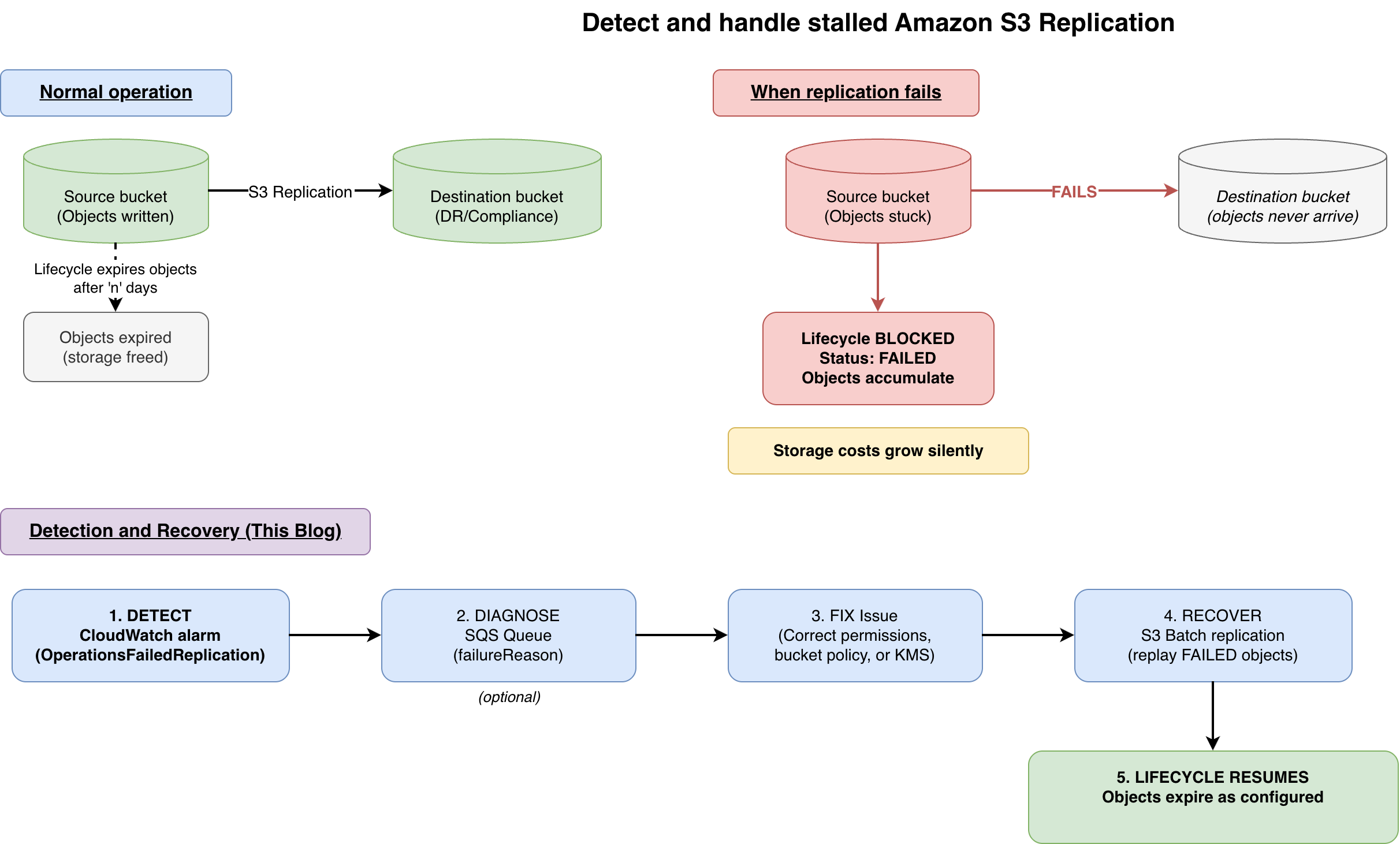
Figure 1: How S3 Lifecycle holds expiration when replication has not yet succeeded
If replication is failing due to a permissions change, a misconfigured rule, or a missing encryption key, objects remain safely in the source bucket until the issue is resolved. Proactive monitoring makes you aware of this condition promptly so you can take corrective action. Replication can fail for several reasons, some of the most common are as follows (see Amazon S3 Replication failure reasons for more details):
- AWS Identity and Access Management (IAM) role permissions were inadvertently modified
- The destination S3 bucket policy now denies the replication role
- AWS Key Management Service (AWS KMS) key policies changed, blocking decryption or re-encryption
- The destination bucket was deleted
- In 1:N replication, failure to replicate to even one destination marks the object replication status as FAILED, even if the other destinations succeeded
- The object data might arrive at the destination successfully, but if metadata (access control lists, S3 Object Lock settings, or tags) fails to replicate, the status is still marked as FAILED
The monitoring solution in this post catches these scenarios within minutes, giving you time to remediate before storage costs are impacted.
Solution overview
The solution uses S3 Replication metrics (published to CloudWatch) combined with CloudWatch alarms and Amazon EventBridge to provide multi-layered replication monitoring:
- S3 Replication metrics provide minute-by-minute visibility into replication health, including operations pending, bytes pending, replication latency, and operations that failed
- CloudWatch alarms evaluate these metrics against thresholds you define and notify you through Amazon Simple Notification Service (Amazon SNS) when replication is broken or falling behind
- (Optional) S3 Event Notifications with Amazon Simple Queue Service (Amazon SQS) buffers per-object failure events in a queue for on-demand investigation, giving you immediate visibility into specific failure reasons
- S3 Batch Replication provides the bulk recovery mechanism, replaying failed objects after you fix the underlying issue so lifecycle rules can resume
Together, these form an operational workflow: the alarm detects the problem, the failure events (if configured) help you diagnose the root cause, and S3 Batch Replication recovers the affected objects in bulk.
When S3 Replication metrics are enabled, Amazon S3 publishes four metrics to CloudWatch, as detailed in the following table.
| Metric | Description | Published in |
|---|---|---|
BytesPendingReplication |
Total bytes of objects pending replication | Destination Region |
OperationsPendingReplication |
Number of operations pending replication | Destination Region |
ReplicationLatency |
Maximum seconds the destination is behind the source | Destination Region |
OperationsFailedReplication |
Number of operations that failed replication | Source Region |
Note the difference in where each metric is published. The OperationsFailedReplication metric is emitted in the source bucket’s Region, whereas the other three are emitted in the destination bucket’s Region. This distinction is important when creating alarms, because you must create each alarm in the correct Region to receive data.
The following walkthrough covers enabling replication metrics, creating CloudWatch alarms, capturing failure events for diagnosis, and recovering with S3 Batch Replication.
Prerequisites
To follow along with this walkthrough, you need the following prerequisites:
- An AWS account with an S3 bucket configured for Cross-Region Replication (CRR) or Same-Region Replication (SRR)
- An SNS topic for alarm notifications
- The AWS Command Line Interface (AWS CLI) installed and configured (if using AWS CLI examples)
Enable S3 Replication metrics
S3 Replication metrics are not enabled by default. You must explicitly enable them on each replication rule. (If you use S3 Replication Time Control (S3 RTC), metrics are a requirement and enabled automatically.)
To enable metrics through the Amazon S3 console, complete the following steps:
- On the Amazon S3 console, in the navigation pane, choose Buckets, then choose your source bucket.
- On the Management tab, go to the Replication rules section.
- Select the replication rule you want to monitor and choose Edit rule.
- Expand the Additional replication options section.
- Select Replication metrics.
- Choose Save.
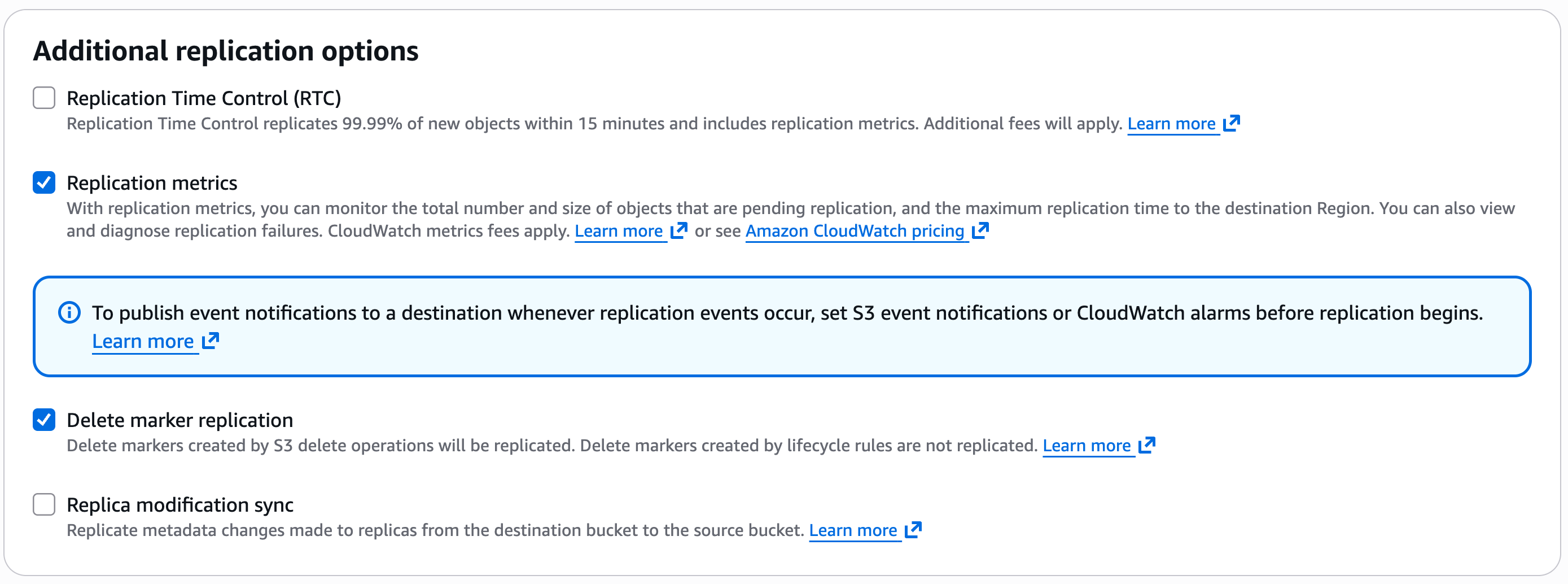
Figure 2: Configure replication options
Replication metrics will start being populated, which you will be able to see on the Metrics tab of that S3 bucket.
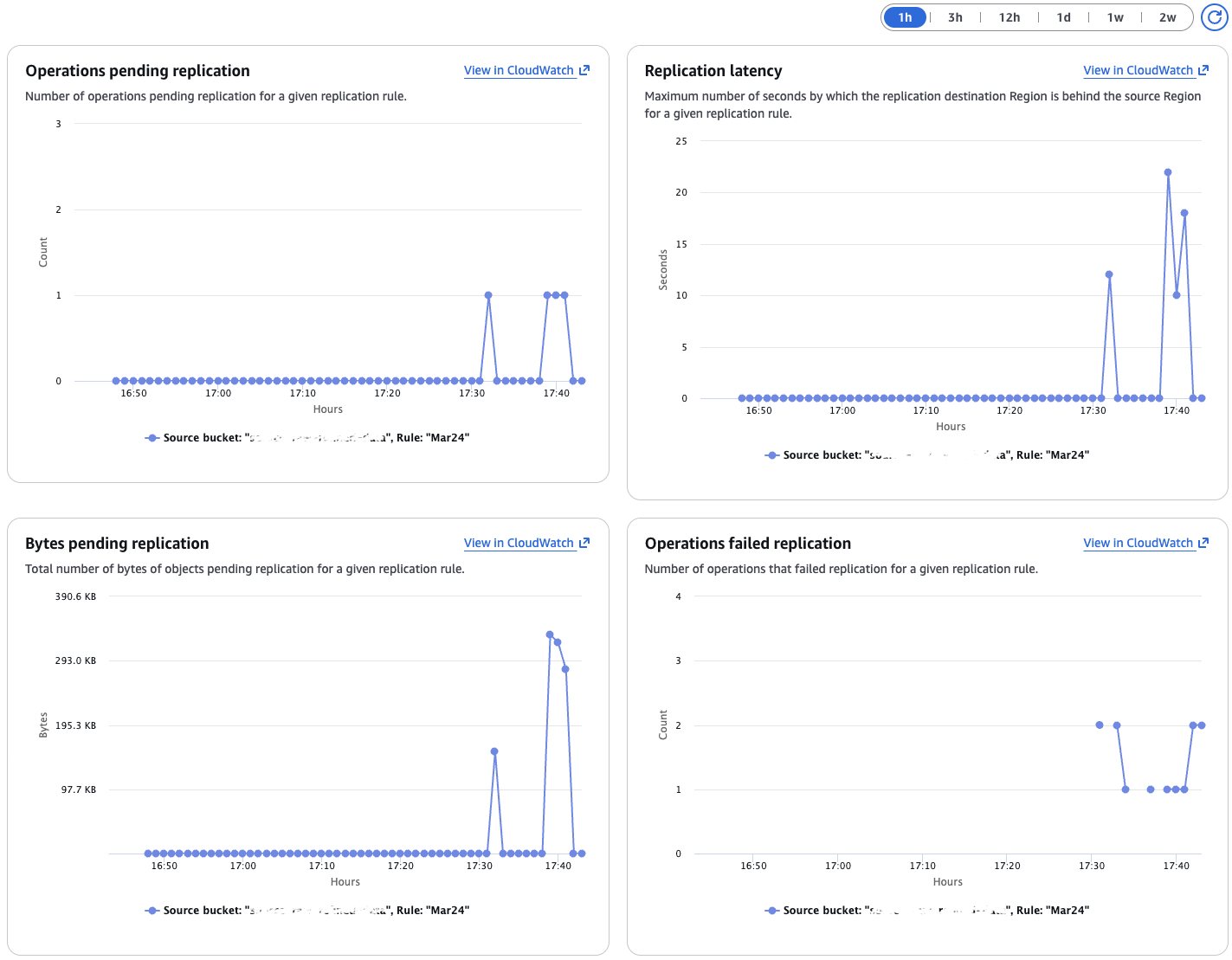
Figure 3: Replication metrics
Create CloudWatch alarms
With metrics enabled, you can create CloudWatch alarms to detect replication issues before they impact your storage costs. The following three alarms provide comprehensive coverage.
Alarm 1: Replication failures
The following alarm alerts when operations fail to replicate. It is your primary signal that replication is failing. This configuration evaluates the metric every 5 minutes and alerts after three consecutive periods with at least one failure (15 minutes of sustained failures). Create this alarm in the source bucket’s Region. To create this alarm through the CloudWatch console, complete the following steps:
- Open the CloudWatch console. Make sure you are in the source bucket’s Region.
- In the navigation pane, choose Alarms, then choose All alarms.
- Choose Create alarm.
- Choose Select metric, then go to S3 and Replication Metrics.
- Find and select the
OperationsFailedReplicationmetric for your source bucket, destination bucket, and replication rule ID. - Choose Select metric.
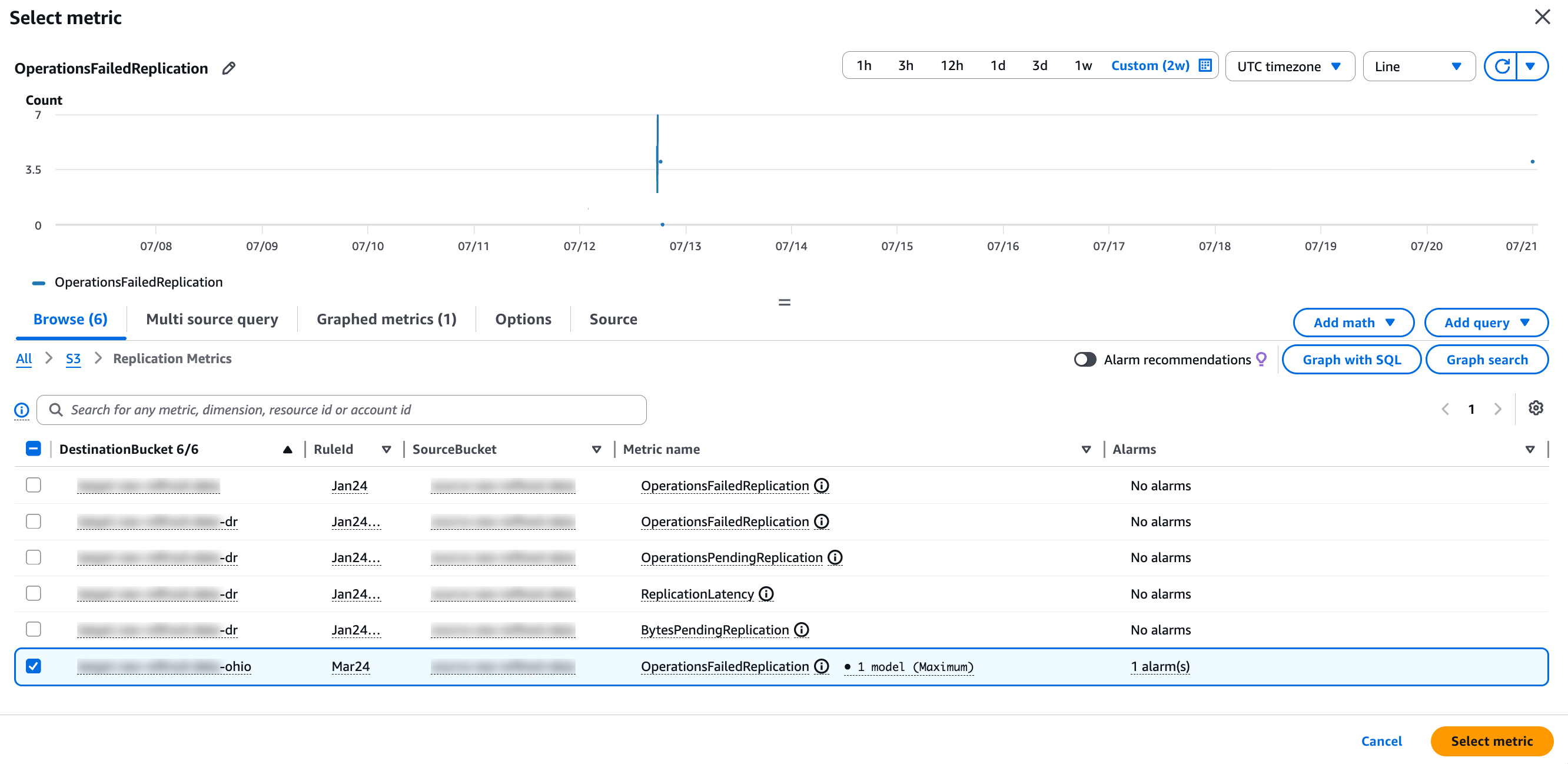
Figure 4: Select source bucket metric
- Under Statistic, choose Sum.
- Set Period to your preferred evaluation interval (for example, 5 minutes). Shorter periods detect failures faster but might increase alarm sensitivity.
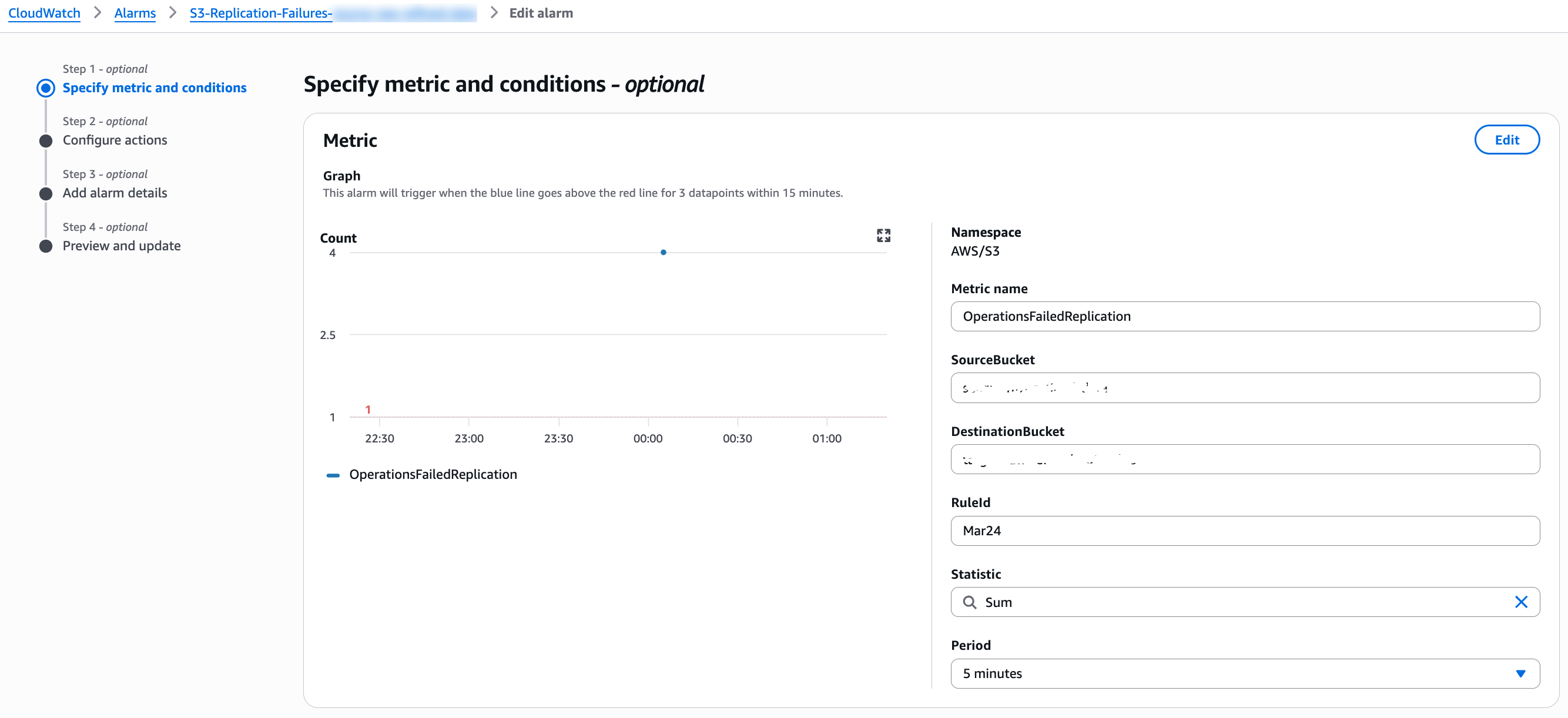
Figure 5: Specify replication metric
- Under Conditions, select Greater/Equal and enter a threshold of 1.
- Under Additional configuration, set Datapoints to alarm to 3 out of 3 and Missing data treatment to Treat missing data as ignore (maintain the alarm state). Refer to S3 Replication metrics in CloudWatch for more details.
- Choose Next.
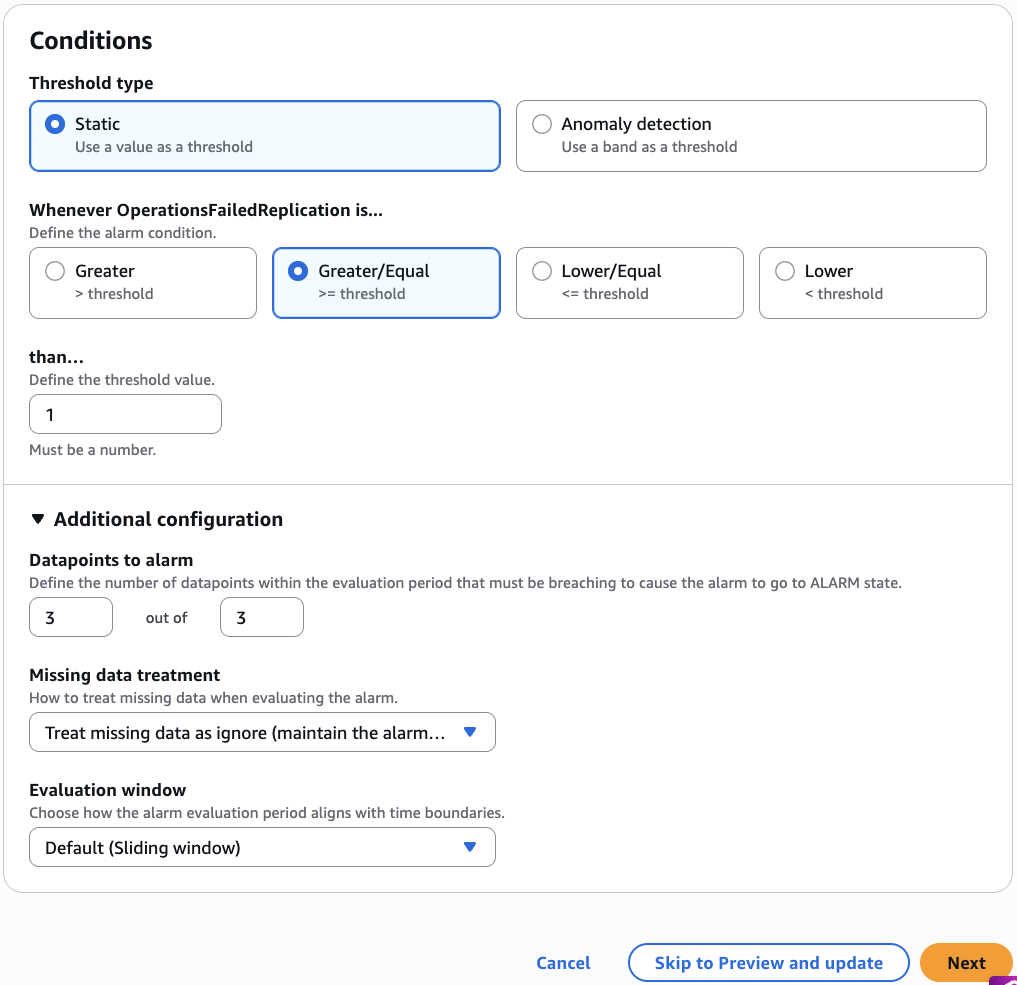
Figure 6: Specify alarm conditions
- Under Notification, choose an existing SNS topic or create a new one for your replication alerts.
- Choose Next.
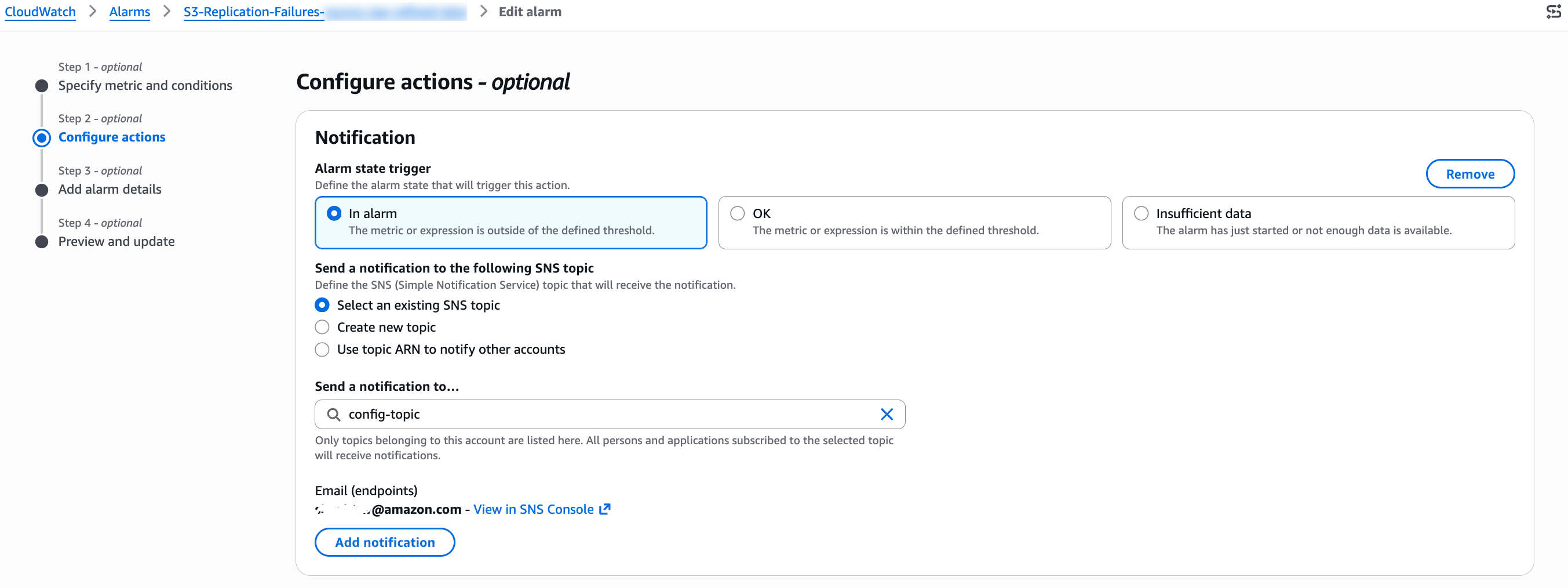
Figure 7: Configure alarm actions
- Enter an alarm name (for example, s3-replication-failures-my-source-bucket) and an optional description.
- Choose Next, review the configuration, and choose Create alarm.
You can also create the alarm using the AWS CLI:
aws cloudwatch put-metric-alarm \
  --alarm-name "s3-replication-failures-my-source-bucket" \
  --alarm-description "Fires when S3 replication operations fail" \
  --namespace "AWS/S3" \
  --metric-name "OperationsFailedReplication" \
  --dimensions \
      Name=SourceBucket,Value=doc-example-source-bucket \
      Name=DestinationBucket,Value=doc-example-destination-bucket \
      Name=RuleId,Value=my-replication-rule-id \
  --statistic Sum \
  --period 300 \
  --evaluation-periods 3 \
  --threshold 1 \
  --comparison-operator GreaterThanOrEqualToThreshold \
  --alarm-actions "arn:aws:sns:us-east-1:111122223333:replication-alerts" \
  --treat-missing-data ignore
Alarm 2 (Optional): Growing replication backlog
A sustained increase in pending operations means replication is falling behind. This catches scenarios where replication is technically running but can’t keep up with ingest, or where a subset of objects is stuck. Create this alarm in the destination bucket’s Region. You can use the CloudWatch console or the AWS CLI:
aws cloudwatch put-metric-alarm \
  --alarm-name "S3-Replication-Backlog-MY-SOURCE-BUCKET" \
  --alarm-description "Fires when replication backlog exceeds threshold" \
  --namespace "AWS/S3" \
  --metric-name "OperationsPendingReplication" \
  --dimensions \
      Name=SourceBucket,Value=doc-example-source-bucket \
      Name=DestinationBucket,Value=doc-example-destination-bucket \
      Name=RuleId,Value=my-replication-rule-id \
  --statistic Average \
  --period 3600 \
  --evaluation-periods 6 \
  --threshold 1000 \
  --comparison-operator GreaterThanThreshold \
  --alarm-actions "arn:aws:sns:us-west-2:111122223333:replication-alerts" \
  --treat-missing-data ignore
This alerts if the average pending operations exceed 1,000 for 6 consecutive hours. Adjust the threshold based on your typical ingestion rate. For example, if you normally replicate 100 objects per hour, a pending count of 1,000 means you are approximately 10 hours behind.
Alarm 3 (Optional): Replication latency
This alarm detects when the destination bucket falls significantly behind the source. Create this alarm in the destination bucket’s Region. You can use the CloudWatch console or the AWS CLI:
aws cloudwatch put-metric-alarm \
  --alarm-name "S3-Replication-Latency-MY-SOURCE-BUCKET" \
  --alarm-description "Fires when replication latency exceeds 15 minutes" \
  --namespace "AWS/S3" \
  --metric-name "ReplicationLatency" \
  --dimensions \
      Name=SourceBucket,Value=doc-example-source-bucket \
      Name=DestinationBucket,Value=doc-example-destination-bucket \
      Name=RuleId,Value=my-replication-rule-id \
  --statistic Maximum \
  --period 300 \
  --evaluation-periods 6 \
  --threshold 900 \
  --comparison-operator GreaterThanThreshold \
  --alarm-actions "arn:aws:sns:us-west-2:111122223333:replication-alerts" \
  --treat-missing-data ignore
This alerts if replication is more than 15 minutes behind for 30 consecutive minutes.
Capture failure events for diagnosis (optional)
CloudWatch alarms tell you that replication is failing. To understand why, you can optionally route failure events to an SQS queue for on-demand investigation. This step is not required for detection or recovery (the alarm handles detection, and S3 Batch Replication handles recovery), but it gives you immediate visibility into the specific failure reason without waiting for an S3 Batch Replication completion report.
Route s3:Replication:OperationFailedReplication events to an SQS queue. When thousands of objects fail simultaneously, direct email notifications through Amazon SNS can overwhelm your inbox. Amazon SQS buffers events silently and lets you pull them on demand when you need to investigate, giving you the failure details without the notification flood. For background on how Amazon S3 emits these events, see Receiving replication failure events with Amazon S3 Event Notifications.
First, create an SQS queue to receive the failure events:
- On the Amazon SQS console, choose Queues in the navigation pane.
- Choose Create queue.
- For Type, select Standard.
- Enter a queue name (for example, s3-replication-failure-events).
- Under Configuration, set Message retention period to 14 days (adjust number of days as needed).
- Choose whether to keep Encryption Enabled or Disabled based on your requirements
- Under Access policy, choose Advanced and enter the following policy, replacing the account ID and bucket name with your own:
{
  "Version": "2012-10-17",
  "Statement": [
    {
      "Effect": "Allow",
      "Principal": {
        "Service": "s3.amazonaws.com"
      },
      "Action": "SQS:SendMessage",
      "Resource": "arn:aws:sqs:us-east-1:111122223333:s3-replication-failure-events",
      "Condition": {
        "ArnLike": {
          "aws:SourceArn": "arn:aws:s3:::doc-example-source-bucket"
        }
      }
    }
  ]
}
- Choose Create queue.
- Copy the queue Amazon Resource Name (ARN) from the queue details page.
Next, configure your source bucket to send replication failure events to the queue:
- On the Amazon S3 console, choose Buckets in the navigation pane.
- Choose your source bucket, then choose the Properties tab.
- Go to Event notifications and choose Create event notification.
- Enter a name (for example, replication-failure-to-sqs).
- Optionally, provide Prefix and Suffix as required, if you need to limit the notifications for a subset of data.
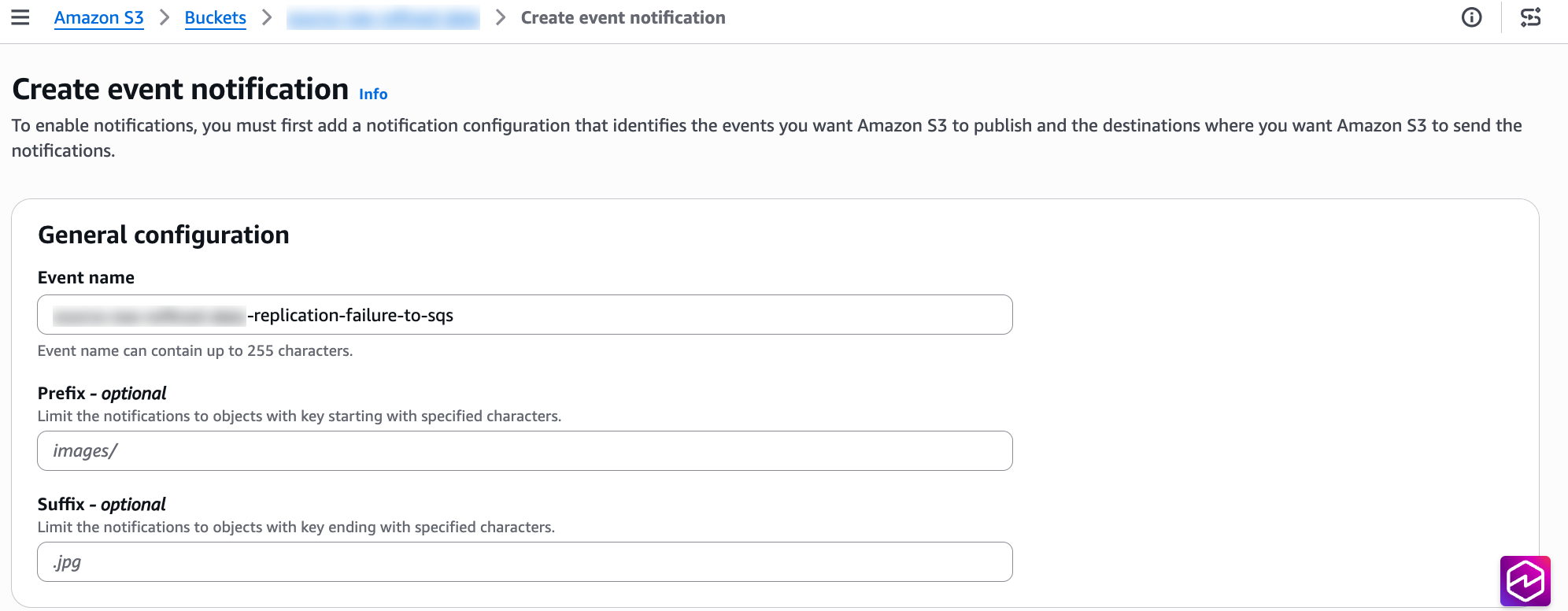
Figure 8: Create S3 event notification
- Under Event types, expand the Replication section and select Object failed to replicate (s3:Replication:OperationFailedReplication).
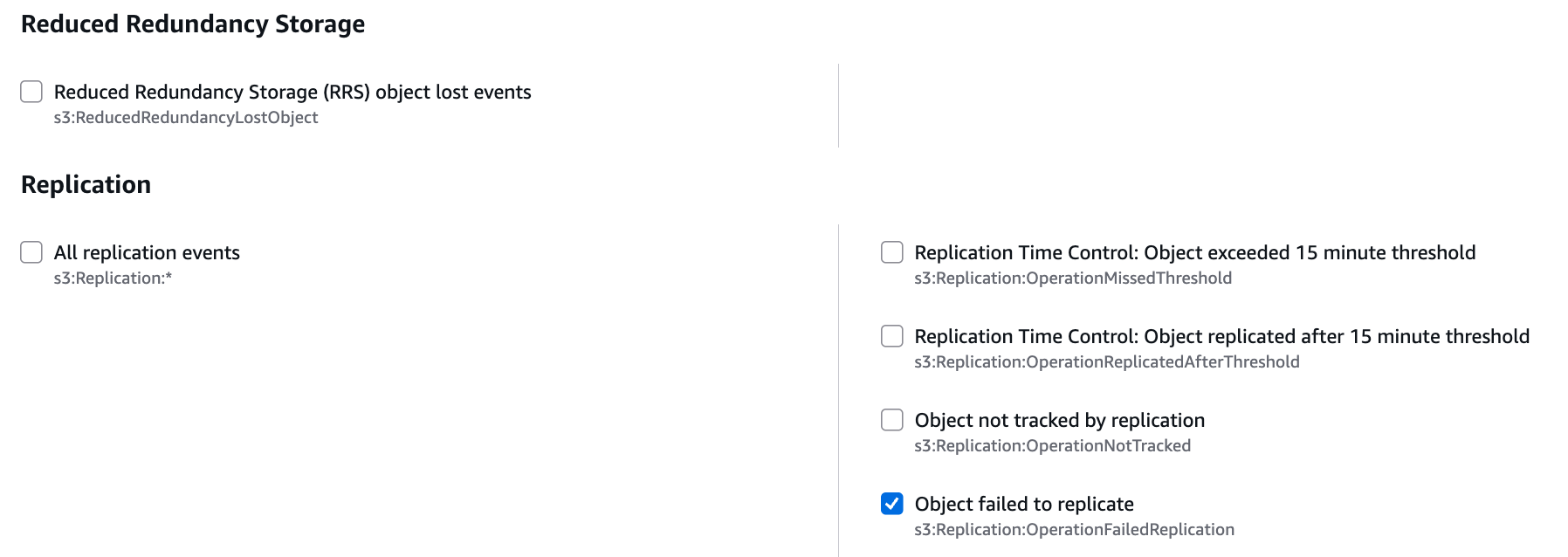
Figure 9: Select replication event
- Under Destination, select SQS queue, then choose your queue (s3-replication-failure-events).
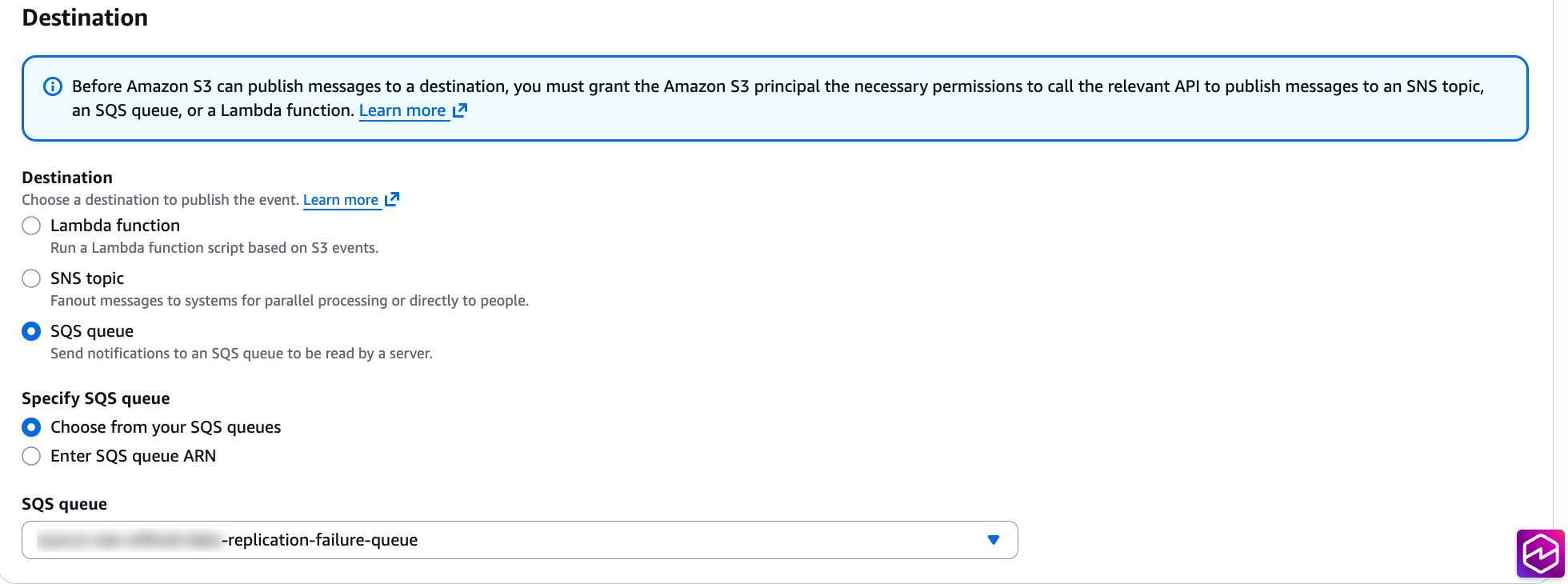
Figure 10: Select destination SQS queue
- Choose Save changes.
When your alarm activates, inspect the failure events to identify the root cause:
- On the Amazon SQS console, choose Queues in the navigation pane.
- Choose your replication failure queue (for example, s3-replication-failure-events).
- Choose Send and receive messages.
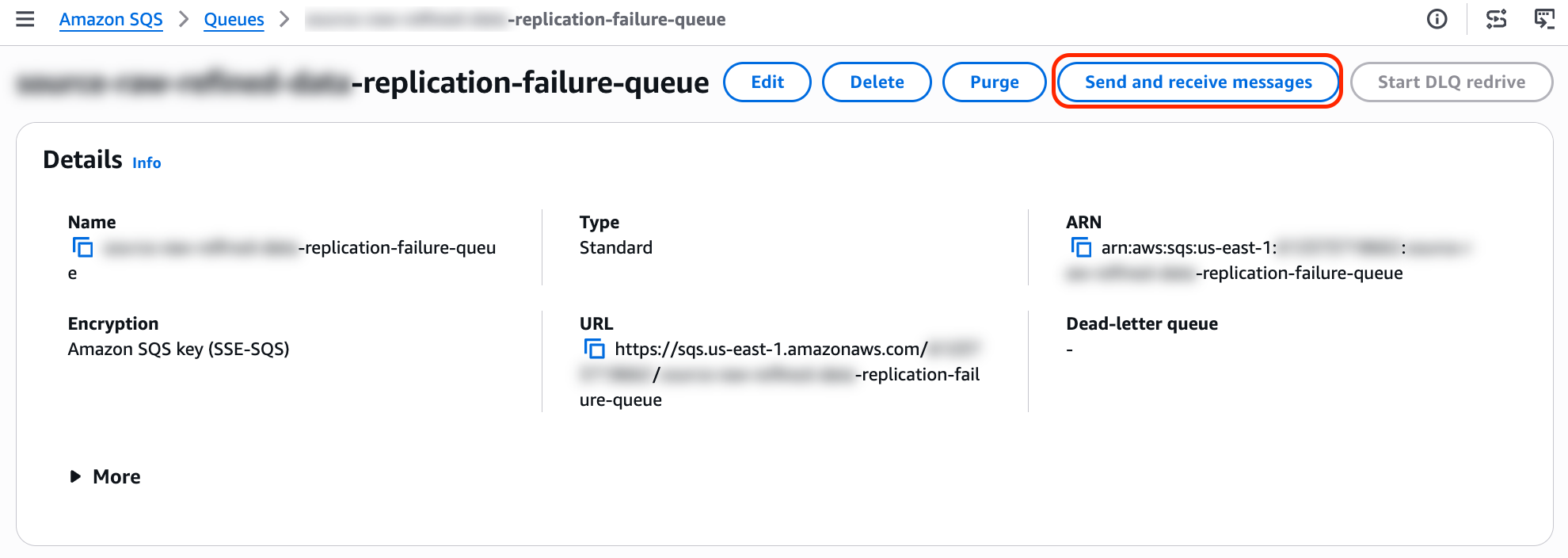
Figure 11: View sent and received messages
- In the Receive messages section, choose Poll for messages.
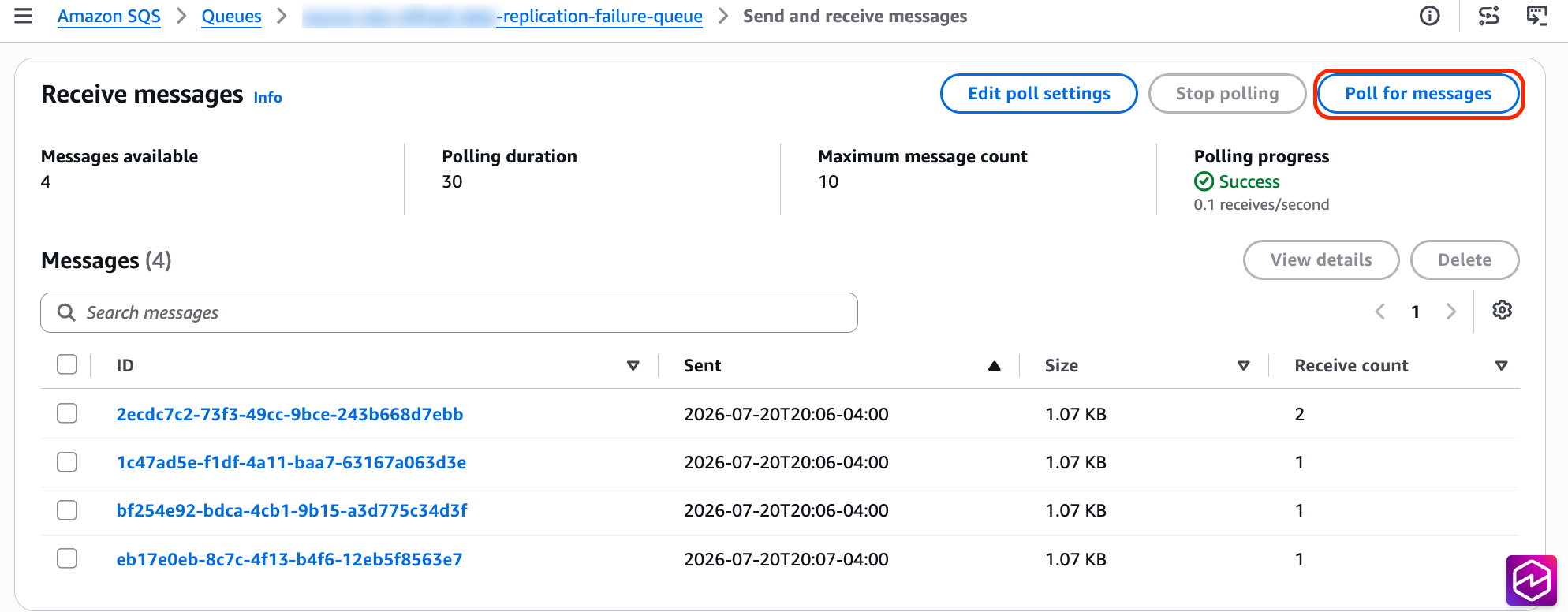
Figure 12: Poll for messages
- Select any message to view its body. The failureReason field tells you why replication failed for that object.
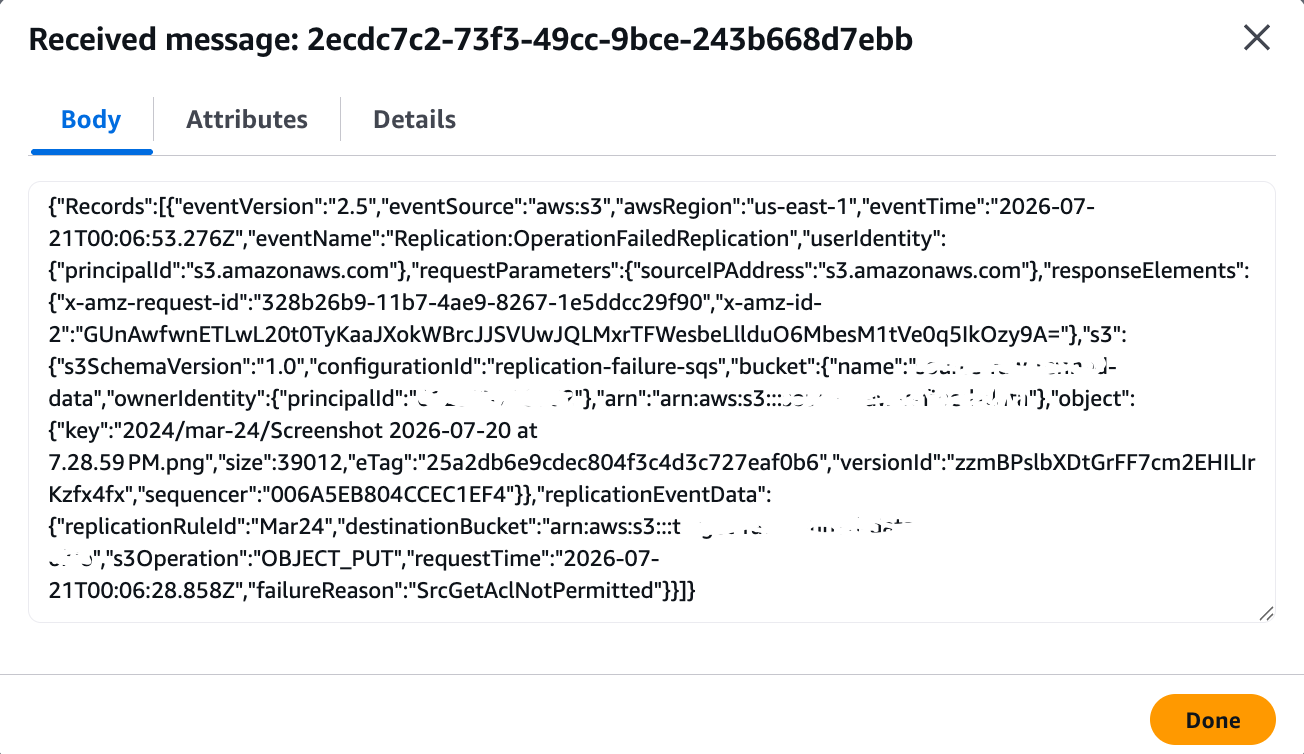
Figure 13: Replication failure reason
To use the AWS CLI, create an SQS queue with a 14-day message retention period:
aws sqs create-queue \
  --queue-name s3-replication-failure-events \
  --attributes '{
    "MessageRetentionPeriod": "1209600"
  }'
Attach a queue policy that allows Amazon S3 to publish to it:
aws sqs set-queue-attributes \
  --queue-url https://sqs.us-east-1.amazonaws.com/111122223333/s3-replication-failure-events \
  --attributes '{"Policy": "{\"Version\":\"2012-10-17\",\"Statement\":[{\"Effect\":\"Allow\",\"Principal\":{\"Service\":\"s3.amazonaws.com\"},\"Action\":\"SQS:SendMessage\",\"Resource\":\"arn:aws:sqs:us-east-1:111122223333:s3-replication-failure-events\",\"Condition\":{\"ArnLike\":{\"aws:SourceArn\":\"arn:aws:s3:::doc-example-source-bucket\"}}}]}"}'
Configure the bucket to send replication failure events to the queue:
Note: put-bucket-notification-configuration replaces the bucket’s entire notification configuration. If your source bucket already has event notifications, first retrieve them with aws s3api get-bucket-notification-configuration and merge your new queue configuration into that existing set to avoid overwriting them.
aws s3api put-bucket-notification-configuration \
  --bucket doc-example-source-bucket \
  --notification-configuration '{
    "QueueConfigurations": [
      {
        "QueueArn": "arn:aws:sqs:us-east-1:111122223333:s3-replication-failure-events",
        "Events": ["s3:Replication:OperationFailedReplication"]
      }
    ]
  }'
When your alarm activates, sample a few messages to identify the failure reason:
aws sqs receive-message \
  --queue-url https://sqs.us-east-1.amazonaws.com/111122223333/s3-replication-failure-events \
  --max-number-of-messages 5
Typically, the first handful of events reveal the common failure reason, which is all you need to diagnose the problem. You don’t need to review every individual failure because the fix is usually a single permissions or configuration change that resolves them at the same time. For a complete list of failure reason codes, see Receiving replication failure events with Amazon S3 Event Notifications.
You must have S3 Replication metrics enabled on the replication rule for failure event notifications to work.
Remediate stalled replication
Now that your alarm is telling you replication is broken and your failure events are telling you why, you can proceed with the remediation workflow.
Diagnose root cause
Sample a few messages from the SQS queue to identify the failureReason. Common causes include:
- AssumeRoleNotPermitted – Amazon S3 can’t assume the IAM role specified in the replication configuration
- DstPutObjectNotPermitted – The replication role is missing s3:ReplicateObject permission or the destination bucket policy denies the role
- DstKmsKeyInvalidState or DstKmsKeyNotFound – The KMS key for the destination is disabled, deleted, or the role lacks kms:GenerateDataKey access
- SrcGetObjectNotPermitted – The replication role is missing s3:GetObjectVersionForReplication on the source bucket
For a full list of failure reasons and resolution steps, see Troubleshooting replication.
Fix underlying issue
Restore the correct permissions, bucket policy, or KMS key access. Verify by uploading a test object and checking that it replicates successfully.
Replay failed objects with S3 Batch Replication
After the root cause is fixed, objects that have already failed will not retry automatically. Use S3 Batch Replication to replicate failed objects in bulk. Enable a completion report so you have a record of which objects were replayed and their final status.
To use the Amazon S3 console, complete the following steps:
- On the Amazon S3 console, in the navigation pane, choose Batch Operations.
- Choose Create job.
- Under Scope, choose Generate an object list based on a replication configuration. This option enables the Replicate operation in the next step.
- For Source account, select This AWS account and enter the source bucket and prefix for Source.
- In Object filters, for Object metadata filters, choose Object replication status.
- Choose Failed for Object replication status to include objects only with FAILED replication status.
- Choose Next.
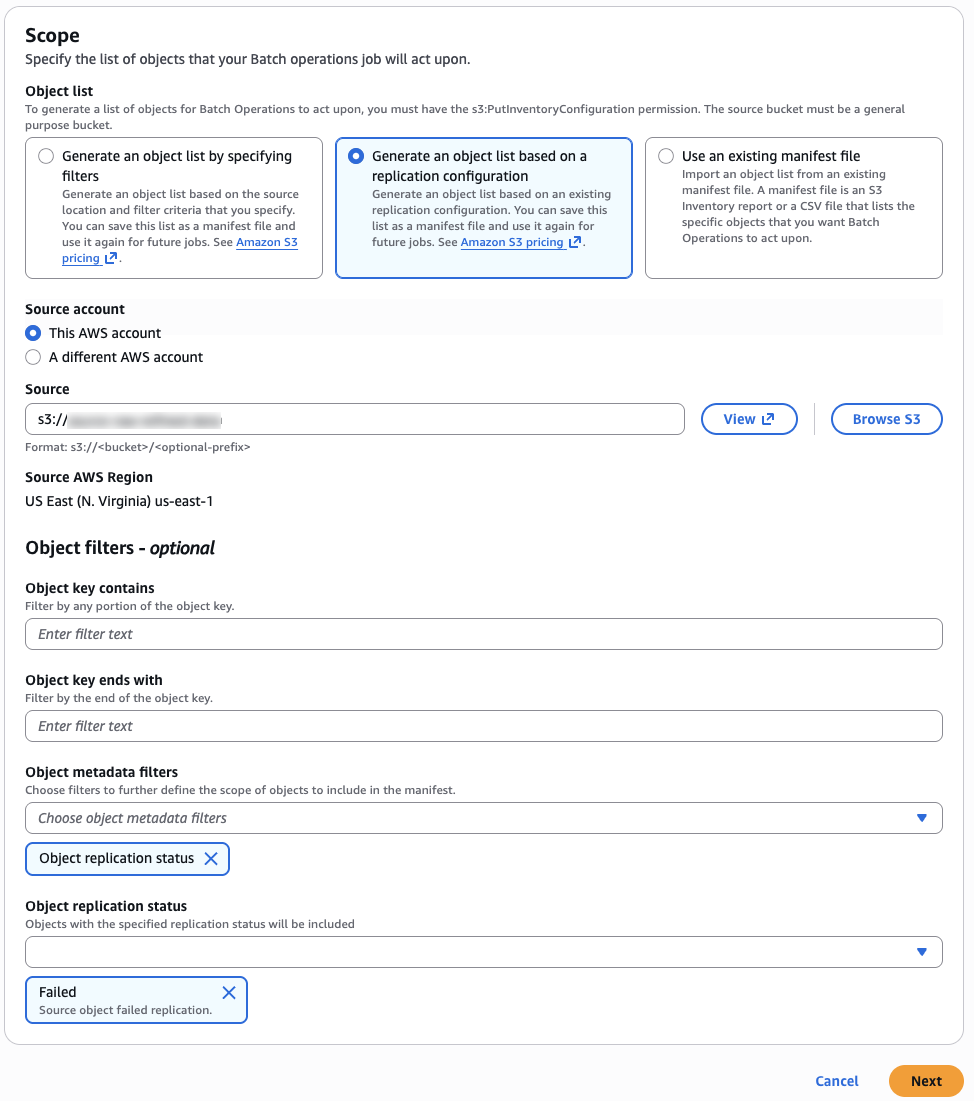
Figure 14: Configure S3 Batch Operations Job scope
- Under Operation, choose Replicate, then choose Next.
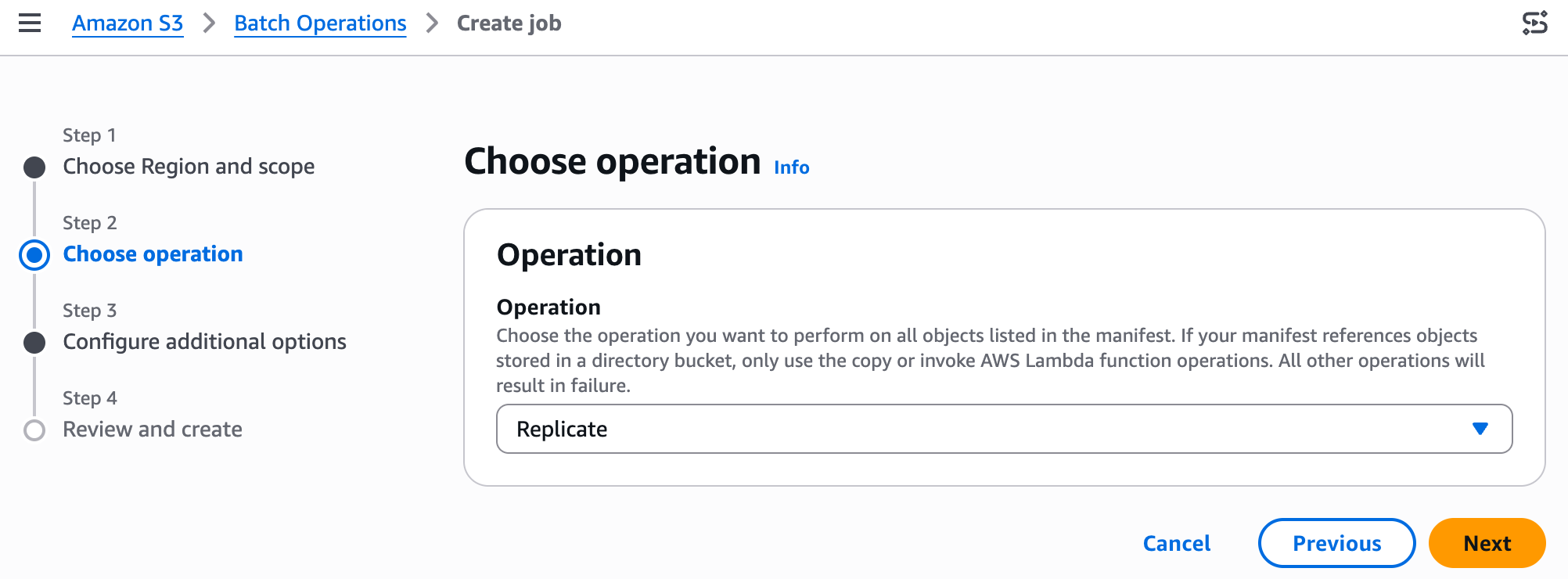
Figure 15: Choose S3 Batch Operation
- Optionally, under Destination for generated object list, choose Save object list as a manifest file and provide destination details.
- Under Completion report, choose Generate completion report and Completion report scope as Failed tasks only. Provide the destination bucket and prefix (for example, s3://DOC-EXAMPLE-REPORT-BUCKET/batch-reports/).
- Choose All tasks to include both successful and failed objects in the report.
- Under Permissions, select or create an IAM role that has permissions for S3 Batch Operations and S3 Replication, then choose Next.
- Review the job details and choose Submit.
- On the Batch Operations page, wait for job to show status as Awaiting your confirmation to run.
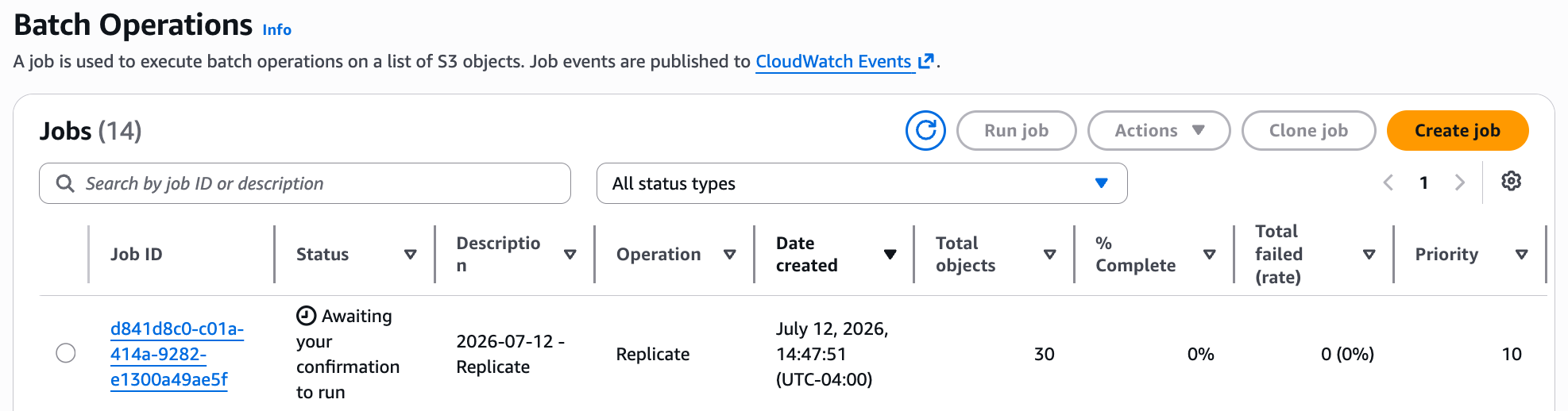
Figure 16: S3 Batch Operations Job status
- Select the job and choose Run job to confirm execution.
When the job is complete, download the completion report from the report bucket. The report is a CSV file containing each object key, its replication status, and the failure reason code if it failed again.
To use the AWS CLI, use the following commands:
aws s3control create-job \
  --account-id 111122223333 \
  --operation '{"S3ReplicateObject":{}}' \
  --manifest-generator '{
    "S3JobManifestGenerator": {
      "SourceS3BucketArn": "arn:aws:s3:::doc-example-source-bucket",
      "EnableManifestOutput": true,
      "ManifestOutputLocation": {
        "Bucket": "arn:aws:s3:::DOC-EXAMPLE-MANIFEST-BUCKET",
        "ManifestPrefix": "batch-replication"
      },
      "Filter": {
        "ObjectReplicationStatuses": ["FAILED"]
      }
    }
  }' \
  --report '{
    "Enabled": true,
    "Bucket": "arn:aws:s3:::DOC-EXAMPLE-REPORT-BUCKET",
    "Prefix": "batch-reports",
    "Format": "Report_CSV_20180820",
    "ReportScope": "AllTasks"
  }' \
  --priority 1 \
  --role-arn "arn:aws:iam::111122223333:role/S3BatchReplicationRole" \
  --confirmation-required
After the job is complete, retrieve the completion report to verify results:
aws s3 ls s3://DOC-EXAMPLE-REPORT-BUCKET/batch-reports/
aws s3 cp s3://DOC-EXAMPLE-REPORT-BUCKET/batch-reports/<job-id>/results/report.csv .
The completion report includes each object key, its final status (Succeeded or Failed), and the failure reason code for any objects that still could not be replicated. If some objects continue to fail, review the failure reasons in the report to determine if additional configuration changes are needed.
S3 Batch Replication automatically identifies objects with FAILED replication status in the source bucket, so you don’t need to manually enumerate which objects were affected. This is why per-object failure events are used for diagnosis rather than recovery. The diagnosis tells you what to fix; S3 Batch Replication handles the bulk replay.
Confirm lifecycle resumes
When S3 Batch Replication is complete, the object replication status changes to COMPLETED. At that point, S3 Lifecycle will automatically process these objects according to your configured rules, expiring or transitioning them as defined.
Cost considerations
S3 Replication metrics are billed at the same rate as CloudWatch custom metrics pricing, approximately $1.20/month per replication rule (four metrics). CloudWatch alarms add $0.10/alarm/month. This is negligible compared to the cost of undetected stalled replication. For example, 1 TB of S3 Standard objects retained an extra month due to a broken rule costs approximately $23 in unplanned storage.
Conclusion
S3 Lifecycle protects objects with PENDING replication status from premature expiration, and now extends this safeguard to objects with FAILED status as well. Pairing this protection with proactive replication monitoring gives you the best of both worlds: data durability for objects that haven’t yet reached their destination, and early visibility into issues that could otherwise go unnoticed.
By enabling S3 Replication metrics, creating CloudWatch alarms, and configuring failure event notifications, you can detect replication issues within minutes and remediate them before they impact your storage costs. When failures do occur, S3 Batch Replication provides a straightforward path to recovery, after which lifecycle rules resume automatically.
To get started, enable this monitoring for every bucket that uses both replication and lifecycle rules together. Start with the OperationsFailedReplication alarm as your primary signal, then add backlog and latency alarms as needed. Share your feedback and questions in the comments.