AWS Cloud Financial Management
Announcing Six New Idle Resource Recommendations in AWS Compute Optimizer
As your AWS environment grows, some resources keep running after they’re no longer in use. A database from a pilot project that ended, or a WorkSpace for a contractor who left, is easy to miss across hundreds of resources. Today, AWS Compute Optimizer is doubling its idle resource detection coverage with six new services, helping you optimize your AWS spending and avoid the undifferentiated heavy lifting of manual cleanup.
You can now receive idle resource recommendations for unused Amazon DynamoDB provisioned tables, Amazon ElastiCache (Redis and Valkey) clusters, Amazon MemoryDB clusters, Amazon DocumentDB clusters (provisioned and serverless), Amazon WorkSpaces desktops, and Amazon SageMaker endpoints. These new idle recommendations appear in both the AWS Compute Optimizer console and AWS Cost Optimization Hub, alongside your existing idle resource findings.
How are these resources detected as idle?
Compute Optimizer enrolls in your account or AWS Organization and analyzes CloudWatch utilization metrics over a service-specific lookback period. For each resource type, the service evaluates a small set of metrics that are emitted at standard granularity (1-minute or 5-minute, depending on the service) and aggregated over the lookback window. The following table summarizes the idle criteria and recommended action for each resource type:
| Resource type | Idle criteria | Recommended action |
|---|---|---|
| Provisioned DynamoDB tables | This DynamoDB table is idle due to zero consumed read capacity, zero consumed write capacity over 14-day lookback period. | Verify if table is unused; Consider switching to on-demand type or minimize provisioned capacity |
| ElastiCache (Redis/Valkey) | This ElastiCache cluster is idle due to zero new connections, minimal engine CPU utilization, zero cache hits, zero cache misses, zero GetType Command, and zero SetType Command over the 14-day lookback period. | Verify if application still requires this caching layer; If not required, consider deleting the resource |
| MemoryDB | This MemoryDB cluster is idle due to zero new connections, minimal engine CPU utilization, zero keyspace hits, and zero keyspace misses over the 14-day lookback period. | Verify if application still requires this caching layer; If not required, consider deleting the resource |
| DocumentDB (provisioned and serverless) | This DocumentDB cluster is idle due to zero database connections over the 14-day lookback period. | Verify if DocumentDB is needed; If temporarily not needed, stop the resource for up to 7 days; If no longer needed, create a DB snapshot and delete the resource |
| WorkSpaces (AlwaysOn) | This WorkSpace is idle due to zero user connections over the 63-day lookback period. | Verify if WorkSpaces is still needed by the assigned user; If user no longer requires access, consider deleting the resource |
| SageMaker Endpoints | The SageMaker Endpoint is idle due to zero invocation over the 14-day lookback period. | Verify if endpoint is still in use; If infrequently used, consider using serverless inference; If no longer required, consider deleting the resource |
A resource is classified as idle only when the applicable signals listed above indicate no meaningful activity for the entire lookback period. The 63-day window for WorkSpaces corresponds to roughly two monthly billing cycles plus a one-week safety margin, which avoids flagging WorkSpaces used for monthly close, payroll, or quarterly access patterns. The 14-day window for the other services captures two full weekly business cycles, sufficient for most database, cache, and inference workloads.
How are estimated savings calculated?
The savings figure shown reflects the recurring monthly cost the resource would no longer incur after the recommended action. As an example, an idle On-Demand DocumentDB cluster costing $112 per month with no Reserved Instance coverage would show the full $112 as estimated monthly savings. The exact figure depends on whether you have the savings estimation mode enabled, Compute Optimizer uses your account-specific pricing discounts to compute the savings; when it is not, the figure is based on standard On-Demand pricing. Either way, the figure does not deduct savings already locked in by Reserved Instances, Reserved Capacity, or Savings Plans, since those commitments continue regardless of whether the underlying resource exists. As a result, cleaning up a resource that is already fully covered by a commitment might not reduce your bill until the commitment expires.
How can you get started?
After opting into Compute Optimizer at the account or AWS Organization level, idle recommendations for the six newly supported resource types, as well as the already supported ones, are produced within 24 hours, subject to the lookback timing described earlier.
In the AWS Compute Optimizer console, navigate to Recommendations and then Idle resources for a consolidated view of idle or unused resources across the regions you selected. The list shows the estimated monthly savings, resource ID, resource type, and findings, which lets you sort, filter, and prioritize cleanup actions.
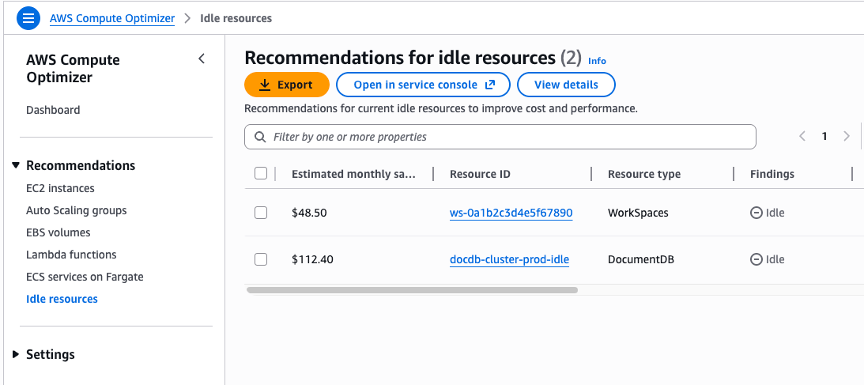
Figure 1: The Idle resources page in the AWS Compute Optimizer console
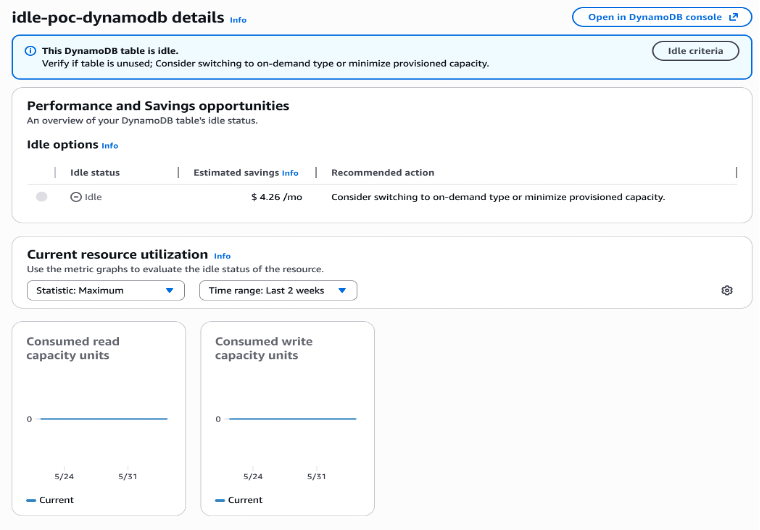
Figure 2: The detail view for an idle DynamoDB Table, showing the recommended action and the metrics that triggered the idle finding.
You can also access these recommendations programmatically. The existing Compute Optimizer GetIdleRecommendations API now returns the new resource types alongside the previously supported ones, and the same recommendations are surfaced through the AWS Cost Optimization Hub ListRecommendations API. See the Compute Optimizer user guide for details.
Conclusion
AWS Compute Optimizer now surfaces idle resources across the six new resource types alongside its existing recommendations, so spend that no longer serves the business is redirected toward workloads that do. Get started today by visiting the AWS Compute Optimizer console or reading the user guide.