AWS Marketplace
Streamline identity management with Okta MCP and Kiro CLI
Identity and access management (IAM) platforms generate large volumes of operational data such as user profiles, group memberships, access logs, and authentication events. Administrators typically navigate this data through multiple consoles and dashboards. This manual approach slows onboarding, makes access reviews time-consuming, and complicates troubleshooting permissions and meeting compliance requirements.
AI capabilities in identity workflows can help improve how development and security teams interact with this data. Rather than manually querying systems and interpreting raw outputs, teams can automatically surface user data, analyze access patterns at scale, and accelerate identity operations end to end, shifting from reactive console navigation to proactive, intelligent automation.
Okta is an identity and access management platform that provides secure authentication and authorization for applications and users.
The Okta Model Context Protocol (MCP) server enables AI agents to interact with your Okta organization through natural language, providing access to core identity operations including:
- Querying user information and status
- Analyzing group memberships
- Reviewing access patterns
- Troubleshooting authentication issues
- Monitoring identity posture and entitlements
Kiro is an agentic, AI-powered integrated development environment (IDE) built by Amazon Web Services (AWS), designed to take developers from prototype to production. Kiro command line interface (Kiro CLI) is an AI-powered command line tool that brings Kiro’s agentic development capabilities directly to your terminal. Using CLI commands to access the MCP server, you can automate complex workflows into existing DevOps pipelines. It provides a scriptable interface that eliminates the overhead of a graphical user interface (GUI), enabling scaling and control over environment configurations.
The Okta MCP server integrates with Kiro CLI, providing contextual identity assistance within your development environment.
This post walks you through deploying the Okta MCP server and integrating it with Kiro to help manage identity operations through natural language commands. Instead of navigating multiple consoles or writing complex queries, you can retrieve user data, analyze access patterns, and perform identity operations with natural language commands.
Why subscribe to Okta through AWS Marketplace
When you subscribe to Okta through AWS Marketplace, you gain access to a tool designed to help simplify procurement, reduce contracting overhead by using your existing AWS agreements, and consolidate billing—reducing time spent on procurement processes.
By procuring Okta Platform through AWS Marketplace, you can simplify both procurement and billing while using the same identity capabilities built with enterprise security considerations.
Prerequisites
Before deploying the Okta MCP server with Kiro CLI, you need to set up your Okta application, install the required tools, clone the Okta MCP server repository, set up Kiro and your development environment. To complete these prerequisites, follow the steps in the next sections.
Set up your Okta application:
- Subscribe to Okta Platform in AWS Marketplace.
- Sign in to your Okta admin console and navigate to Applications and then Applications.
- Choose Create App Integration and select native application as the application type.
- Enable the Device Authorization Grant flow for CLI authentication.
- Grant the necessary OAuth scopes:
`okta.users.read`, `okta.logs.read`, `okta.groups.read`. - Copy the generated Client ID. You need it during the MCP server configuration.
- Copy your Okta org URL. You need it during the MCP server configuration.
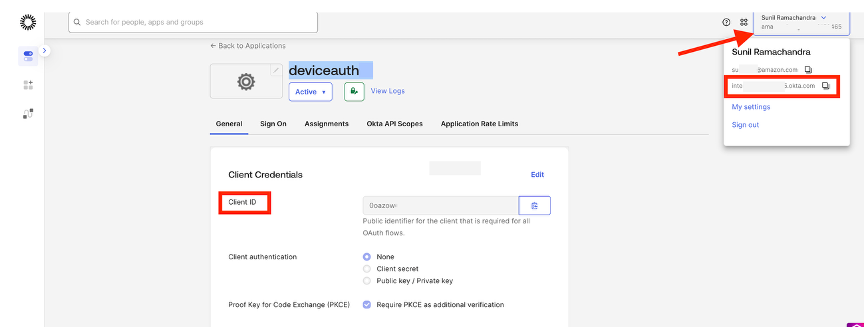
Figure 1: Okta application console to configure your app
For detailed information about creating applications, refer to the Okta documentation.
Install these required tools on your system:
- Python 3.8 or later
`uv`package manager for Python dependency management
Setup the Okta MCP server repository:
Install Okta MCP Server that provides integration with Okta’s Admin Management APIs. It allows LLM agents to interact with Okta in a programmatic way, enabling automation and enhanced management capabilities.
Set up Kiro and your development environment:
Subscribe to Kiro and configure Kiro CLI with your AWS account.
Solution overview: Streamline identity management with Okta MCP and Kiro CLI
This solution deploys Okta’s MCP server that bridges AI-powered IDEs such as Kiro with your Okta organization, creating an API connection designed to help AI agents execute identity operations through natural language interactions.
The MCP server exposes Okta’s capabilities, including user management, group membership, and access membership, and is designed to support your team’s security and compliance efforts through the OAuth-based Device Authorization Grant flow.
Create the MCP server configuration file
To configure MCP server access for Kiro, create or edit the global configuration file at ~/.kiro/settings/mcp.json or create a workspace-specific configuration at .kiro/settings/mcp.json, replacing the placeholder values as follows:
`<path/to/okta-mcp-server>`: Full path to your cloned okta-mcp-server directory`<your-org.okta.com>`: Your Okta organization URL`<your-client-id>`: The client ID from your application
{ "mcpServers": { "okta-mcp-server": { "command": "uv", "args": [ "run", "--directory", "/path/to/okta-mcp-server", "okta-mcp-server" ], "env": { "OKTA_ORG_URL": "https://your-org.okta.com", "OKTA_CLIENT_ID": "your-client-id", "OKTA_SCOPES": "okta.users.read okta.groups.read okta.logs.read" } } } }
Verify the configuration
To test the integration, open a terminal and run:
kiro-cli
The following screenshot shows the Kiro terminal.

Figure 2: Kiro IDE with Kiro CLI terminal with okta-mcp-server initialized
On first launch, okta-mcp-server loads and you’re prompted to authenticate using the Device Authorization Grant flow. Follow the on-screen instructions to complete authentication.
The following screenshot shows the Okta authentication screen for activating your device.
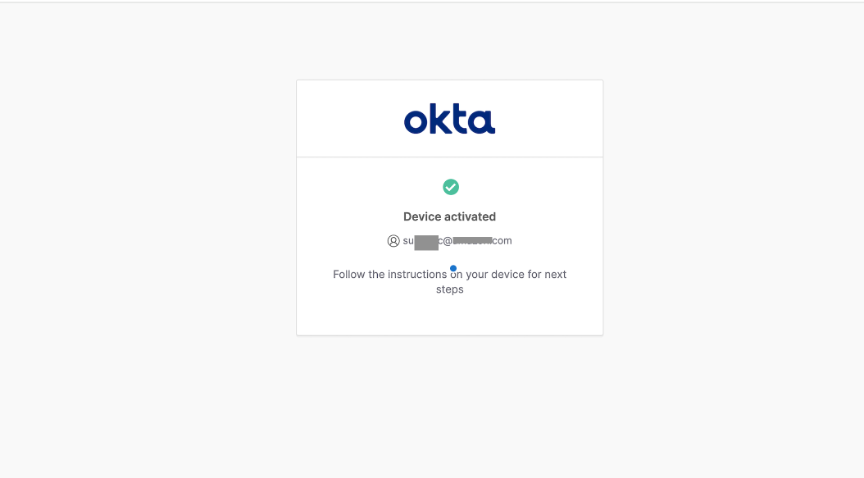
Figure 3: Browser authentication for device authorization grant
Test the MCP server connection
After authentication is complete, in the KIRO CLI Terminal try asking:
list users
You should see the MCP server load successfully and return user information from your Okta organization.
Use cases
In this section, we present three examples of using natural language to interact with your Okta organization.
User onboarding verification
Ask Kiro:
Show me all users created in the last 30 days in Okta.
Kiro CLI connects to the Okta MCP server and orchestrates the query automatically. It interprets your natural language request, understands you want recently created Okta users, and calculates the 30-day date range back from the current date. In this case, the start date of the period is February 9, 2026. The Okta MCP server, installed and configured locally as a Model Context Protocol integration, exposes tools such as list_users, get_user, create_user, and others that map directly to Okta’s API operations. Kiro selects list_users because it supports search filters and calls it through the Okta MCP server, which authenticates and queries Okta on your behalf.
The MCP server returns the matching user profiles through the protocol, and Kiro CLI formats the raw JSON response into a clean summary table for you.
The following screenshot shows the resulting table in Kiro.

Figure 4: Kiro produces a result in a tabular format for users created in the last 30 days
Troubleshooting provisioning failures
Ask Kiro:
Why did test@example.com user's provisioning fail?
Kiro CLI connects to the Okta MCP server and orchestrates the diagnosis. It searches Okta logs using get_logs, discovers duplicate identities using list_users, and retrieves the full user profile using get_user, all routed through the MCP server. The investigation reveals repeated application.provision.user.sync failures to AWS IAM Identity Center on March 9, pointing to a likely System for Cross-domain Identity Management (SCIM) conflict, expired bearer token, or userName attribute mismatch between Okta and AWS. Next, it provides the recommendations for fixing the issue.
The following screenshot shows Kiro troubleshooting the provisioning failures.

Figure 5: Kiro troubleshooting a provisioning and troubleshooting
Bulk entitlement report
Ask Kiro:
Provide a breakdown of all Okta users, including what access and permissions each user has been granted on their respective AWS accounts
Kiro CLI pulls all users from Okta using the Okta MCP server list_users, checks IAM Identity Center for matching identities, queries AWS account assignments, resolves permission set names, extracts AWS Identity and Access Management (IAM) policies, and generates a consolidated entitlement report of IAM roles and permission sets.
The report flags un-provisioned users and overprivileged access across your AWS environment.

Figure 6: Kiro generates Okta – AWS Entitlement Report
Clean up
To remove the integration, delete the MCP server configuration from mcp.json and restart Kiro CLI. Optionally, deactivate the Okta application in the Okta administrator console.
Conclusion
By deploying the Okta MCP server with Kiro CLI, you can manage identity workflows through conversational commands—querying user data, analyzing access patterns, and simplifying operations without switching tools.
Get started today
To get started, subscribe to Okta Platform in AWS Marketplace for consolidated billing, simplified procurement, and direct integration with Kiro CLI. Deploy the Okta MCP server and experience conversational identity management in your development environment.