AWS Big Data Blog
Access Databricks Unity Catalog data using catalog federation in the AWS Glue Data Catalog
AWS has launched the catalog federation capability, enabling direct access to Apache Iceberg tables managed in Databricks Unity Catalog through the AWS Glue Data Catalog. With this integration, you can discover and query Unity Catalog data in Iceberg format using an Iceberg REST API endpoint, while maintaining granular access controls through AWS Lake Formation. This approach significantly reduces operational overhead for managing catalog synchronization and associated costs by alleviating the need to replicate or duplicate datasets between platforms.
In this post, we demonstrate how to set up catalog federation between the Glue Data Catalog and Databricks Unity Catalog, enabling data querying using AWS analytics services.
Use cases and key benefits
This federation capability is particularly valuable if you run multiple data platforms, because you can maintain your existing Iceberg catalog investments while using AWS analytics services. Catalog federation supports read operations and provides the following benefits:
- Interoperability – You can enable interoperability across different data platforms and tools through Iceberg REST APIs while preserving the value of your established technology investments.
- Cross-platform analytics – You can connect AWS analytics tools (Amazon Athena, Amazon Redshift, Apache Spark) to query Iceberg and UniForm tables stored in Databricks Unity Catalog. It supports Databricks on AWS integration with the AWS Glue Iceberg REST Catalog for metadata retrieval, while using Lake Formation for permission management.
- Metadata management – The solution avoids manual catalog synchronization by making Databricks Unity Catalog databases and tables discoverable within the Data Catalog. You can implement unified governance through Lake Formation for fine-grained access control across federated catalog resources.
Solution overview
The solution uses catalog federation in the Data Catalog to integrate with Databricks Unity Catalog. The federated catalog created in AWS Glue mirrors the catalog objects in Databricks Unity Catalog and supports OAuth-based authentication. The solution is represented in the following diagram.
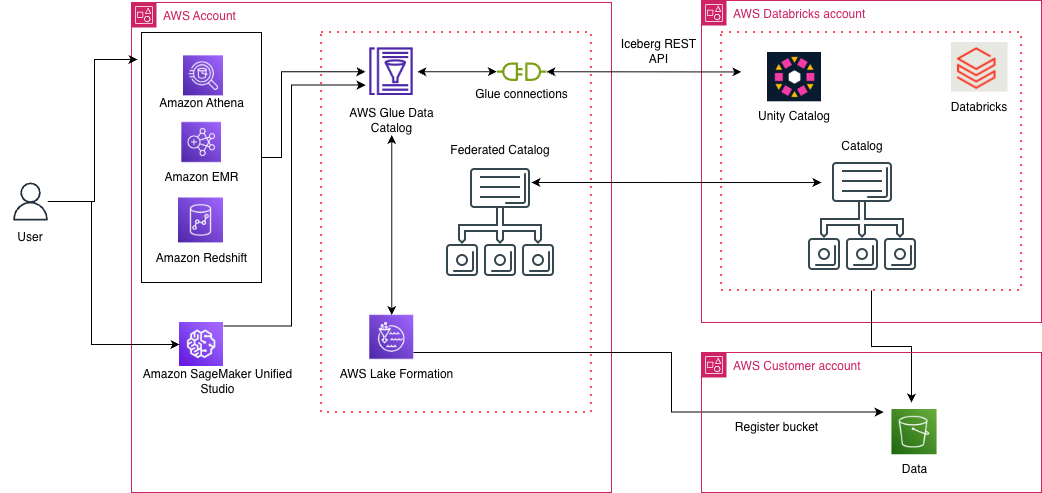
The integration involves three high-level steps:
- Set up an integration principal in Databricks Unity Catalog and provide required read access on catalog resources to this principal. Enable OAuth-based authentication for the integration principal.
- Set up catalog federation to Databricks Unity Catalog in the Glue Data Catalog:
- Create a federated catalog in the Data Catalog using an AWS Glue connection.
- Create an AWS Glue connection that uses the credentials of the integration principal (in Step 1) to connect to Databricks Unity Catalog. Configure an AWS Identity and Access Management (IAM) role with permission to Amazon Simple Storage Service (Amazon S3) locations where the Iceberg table data resides. In a cross-account scenario, make sure the bucket policy grants required access to this IAM role.
- Discover Iceberg tables in federated catalogs using Lake Formation or AWS Glue APIs. During query operations, Lake Formation manages fine-grained permissions on federated resources and credential vending for access to the underlying data.
In the following sections, we walk through the steps to integrate the Glue Data Catalog with Databricks Unity Catalog on AWS.
Prerequisites
To follow along with the solution presented in this post, you must have the following prerequisites:
- Databricks Workspace (on AWS) with Databricks Unity Catalog configured.
- An IAM role that is a Lake Formation data lake administrator in your AWS account. A data lake administrator is an IAM principal that can register S3 locations, access the Data Catalog, grant Lake Formation permissions to other users, and view AWS CloudTrail logs. See Create a data lake administrator for more information.
Configure Databricks Unity Catalog for external access
Catalog federation to a Databricks Unity Catalog uses the OAuth2 credentials of a Databricks service principal configured in the workspace admin settings. This authentication mechanism allows the Data Catalog to access the metadata of various objects (such as catalogs, databases, and tables) within Databricks Unity Catalog, based on the privileges associated with the service principal. For proper functionality, grant the service principal with the necessary permissions (read permission on catalog, schema, and tables) to read the metadata of these objects and allow access from external engines.
Next, catalog federation enables discovery and query of Iceberg tables in your Databricks Unity Catalog. For reading delta tables, enable UniForm on a Delta Lake table in Databricks to generate Iceberg metadata. For more information, refer to Read Delta tables with Iceberg clients.
Follow the Databricks tutorial and documentation to create the service principal and associated privileges in your Databricks workspace. For this post, we use a service principal named integrationprincipal that is configured with required permissions (SELECT, USE CATALOG, USE SCHEMA) on Databricks Unity Catalog objects and will be used for authentication to catalog instance.
Catalog federation supports OAuth2 authentication, so enable OAuth for the service principal and note down the client_id and client_secret for later use.
Set up Data Catalog federation with Databricks Unity Catalog
Now that you have service principal access for Databricks Unity Catalog, you can set up catalog federation in the Data Catalog. To do so, you create an AWS Secrets Manager secret and create an IAM role for catalog federation.
Create secret
Complete the following steps to create a secret:
- Sign in to the AWS Management Console using an IAM role with access to Secrets Manager.
- On the Secrets Manager console, choose Store a new secret and Other type of secret.
- Set the key-value pair:
- Key:
USER_MANAGED_CLIENT_APPLICATION_CLIENT_SECRET - Value: The client secret noted earlier
- Key:
- Choose Next.
- Enter a name for your secret (for this post, we use
dbx). - Choose Store.
Create IAM role for catalog federation
As the catalog owner of a federated catalog in the Data Catalog, you can use Lake Formation to implement comprehensive access controls, including table filters, column filters, and row filters, as well as tag-based access for your data teams.
Lake Formation requires an IAM role with permissions to access the underlying S3 locations of your external catalog.
In this step, you create an IAM role that enables the AWS Glue connection to access Secrets Manager, optional virtual private cloud (VPC) configurations, and Lake Formation to manage credential vending for the S3 bucket and prefix:
- Secrets Manager access – The AWS Glue connection requires permissions to retrieve secret values from Secrets Manager for OAuth tokens stored for your Databricks Unity service connection.
- VPC access (optional) – When using VPC endpoints to restrict connectivity to your Databricks Unity account, the AWS Glue connection needs permissions to describe and utilize VPC network interfaces. This configuration provides secure, controlled access to both your stored credentials and network resources while maintaining proper isolation through VPC endpoints.
- S3 bucket and AWS KMS key permission – The AWS Glue connection requires Amazon S3 permissions to read certificates if used in the connection setup. Additionally, Lake Formation requires read permissions on the bucket and prefix where the remote catalog table data resides. If the data is encrypted using an AWS Key Management Service (AWS KMS) key, additional AWS KMS permissions are required.
Complete the following steps:
- Create an IAM role called
LFDataAccessRolewith the following policies: - Configure the role with the following trust policy:
Create federated catalog in Data Catalog
AWS Glue supports the DATABRICKSICEBERGRESTCATALOG connection type for connecting the Data Catalog with managed Databricks Unity Catalog. This AWS Glue connector supports OAuth2 authentication for discovering metadata in Databricks Unity Catalog.
Complete the following steps to create the federated catalog:
- Sign in to the console as a data lake admin.
- On the Lake Formation console, choose Catalogs in the navigation pane.
- Choose Create catalog.
- For Name, enter a name for your catalog.
- For Catalog name in Databricks, enter the name of a catalog existing in Databricks Unity Catalog.
- For Connection name, enter a name for the AWS Glue connection.
- For Workspace URL, enter the Unity Iceberg REST API URL (in format
https://<workspace-url>/cloud.databricks.com). - For Authentication, provide the following information:
- For Authentication type, choose OAuth2. Alternatively, you can choose Custom authentication. For Custom authentication, an access token is created, refreshed, and managed by the customer’s application or system and stored using Secrets Manager.
- For Token URL, enter the token authentication server URL.
- For OAuth Client ID, enter the
client_idforintegrationprincipal. - For OAuth Secret, enter the secret ARN that you created in the previous step. Alternatively, you can provide the
client_secretdirectly. - For Token URL parameter map scope, provide the API scope supported.
- If you have AWS PrivateLink set up or a proxy set up, you can provide network details under Settings for network configurations.
- For Register Glue connection with Lake Formation, choose the IAM role (
LFDataAccessRole) created earlier to manage data access using Lake Formation.
When the setup is done using AWS Command Line Interface (AWS CLI) commands, you have options to create two separate IAM roles:
- IAM role with policies to access network and secrets, which AWS Glue assumes to manage authentication
- IAM role with access to the S3 bucket, which Lake Formation assumes to manage credential vending for data access
On the console, this setup is simplified with a single role having combined policies. For more details, refer to Federate to Databricks Unity Catalog.
- To test the connection, choose Run test.
- You can proceed to create the catalog.
After you create the catalog, you can see the databases and tables in Databricks Unity Catalog listed under the federated catalog. You can implement fine-grained access control on the tables by applying row and column filters using Lake Formation. The following video shows the catalog federation setup with Databricks Unity Catalog.
Discover and query the data using Athena
In this post, we show how to use the Athena query editor to discover and query the Databricks Unity Catalog tables. On the Athena console, run the following query to access the federated table:SELECT * FROM "customerschema"."person" limit 10;The following video demonstrates querying the federated table from Athena.
If you use the Amazon Redshift query engine, you must create a resource link on the federated database and grant permission on the resource link to the user or role. This database resource link is automounted under awsdatacatalog based on the permission granted for the user or role and available for querying. For instructions, refer to Creating resource links.
Clean up
To clean up your resources, complete the following steps:
- Delete the catalog and namespace in Databricks Unity Catalog for this post.
- Drop the resources in the Data Catalog and Lake Formation created for this post.
- Delete the IAM roles and S3 buckets used for this post.
- Delete any VPC and KMS keys if used for this post.
Conclusion
In this post, we explored the key elements of catalog federation and its architectural design, illustrating the interaction between the AWS Glue Data Catalog and Databricks Unity Catalog through centralized authorization and credential distribution for protected data access. By removing the requirement for complicated synchronization workflows, catalog federation makes it possible to query Iceberg data on Amazon S3 directly at its source using AWS analytics services with data governance across multi-catalog platforms. Try out the solution for your own use case, and share your feedback and questions in the comments.