AWS Big Data Blog
Announcing AWS Glue crawler support for Snowflake
October 2026: This post was reviewed and updated for accuracy.
For data lake customers who need to discover petabytes of data, AWS Glue crawlers are a popular way to scan data in the background. This frees you to focus on using the data to make more intelligent decisions. You might also have data in data warehouses such as Snowflake and want the ability to discover the data in the warehouse and combine it with data from data lakes to derive insights. AWS Glue crawlers now support Snowflake, making it easier for you to understand updates to Snowflake schema and extract meaningful insights.
To crawl a Snowflake database, you can create and schedule an AWS Glue crawler with a JDBC URL and credential information from AWS Secrets Manager.
Note that Snowflake is deprecating single-factor password usage for programmatic service accounts and enforcing multi-factor authentication (MFA) for human users. In response to these strict security standards, AWS Glue has introduced OAuth 2.0 support for connecting to Snowflake. Moving forward, OAuth 2.0 is the preferred integration method over legacy basic or key pair authentication.
You can configure the crawler to crawl the entire database, or limit the tables by including the schema or table path and exclude patterns to reduce crawl time. With each run, the crawler inspects and catalogs information in the AWS Glue Data Catalog. This includes updates or deletes to Snowflake tables, external tables, views, and materialized views. For Snowflake columns with non-Hive compatible types, such as geography or geometry, the crawler extracts that information as a raw data type and makes it available in the Data Catalog.
In this post, we set up an AWS Glue crawler to crawl the OpenStreetMap geospatial dataset, which is freely available through Snowflake Marketplace. This dataset includes all of the OpenStreetMap location data for New York. OpenStreetMap maintains data about businesses, roads, trails, cafes, railway stations, and much more, from all over the world.
Overview of solution
Snowflake is a cloud data platform that provides data solutions from data warehousing to data science. Snowflake Computing is an AWS Advanced Technology Partner with AWS Competencies in Data & Analytics, Machine Learning, and Retail, as well as an AWS service validation for AWS PrivateLink.
In this solution, we use a sample use case involving points of interest in New York City, based on the following Snowflake quick start. Follow sections 1 and 2 to get access to sample geospatial data from Snowflake Marketplace. We show how to interpret the geography data type and understand the different formats. We use the AWS Glue crawler to crawl this OpenStreetMap geospatial dataset and make it available in the Data Catalog with the geography data type maintained where appropriate.
Prerequisites
To follow along, you need the following:
-
An AWS account.
-
An AWS Identity and Access Management (IAM) user with access to the following services:
-
Amazon Simple Storage Service (Amazon S3).
-
AWS Glue.
-
-
An IAM role with access to run AWS Glue crawlers.
-
If the AWS account you use to follow this post uses AWS Lake Formation to manage permissions on the AWS Glue Data Catalog, make sure that you log in as a user with access to create databases and tables. For more information, refer to Implicit Lake Formation permissions.
-
A Snowflake Enterprise Edition account with permission to create storage integrations, ideally in the AWS
us-east-1Region or closest available trial Region, such asus-east-2. If necessary, you can subscribe to a Snowflake trial account on AWS Marketplace.-
On the Marketplace listing page, choose Continue to Subscribe, and then choose Accept Terms. You’re redirected to the Snowflake website to begin using the software. To complete your registration, choose Set Up Your Account.
-
If you’re new to Snowflake, consider completing the Snowflake in 20 Minutes tutorial. By the end of the tutorial, you should know how to create required Snowflake objects, including warehouses, databases, and tables for storing and querying data.
-
-
A Snowflake worksheet (query editor) and associated access to a Snowflake virtual warehouse (compute) and database (storage).
-
Access to an existing Snowflake account with the
ACCOUNTADMINrole or theIMPORT SHAREprivilege.
Create an AWS Glue connection to Snowflake
For this post, an AWS Glue connection to your Snowflake cluster is necessary. When you create the connection, you can choose OAuth 2.0 (recommended), key pair, or basic authentication. For more details, follow the current Snowflake connection setup guidance for AWS Glue.
The following screenshot shows the configuration used to create a connection to the Snowflake cluster for this post.
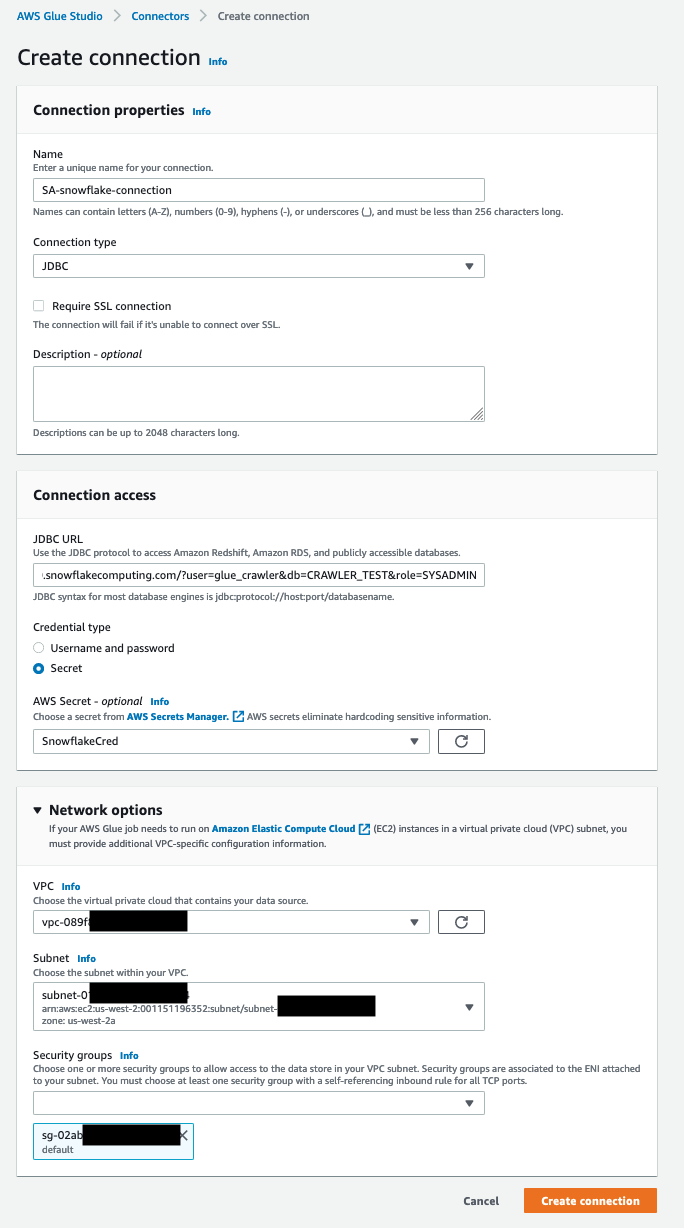
Figure 1: AWS Glue connection configuration for Snowflake
Create an AWS Glue crawler
To create your crawler, complete the following steps:
- On the AWS Glue console, choose Crawlers in the navigation pane.
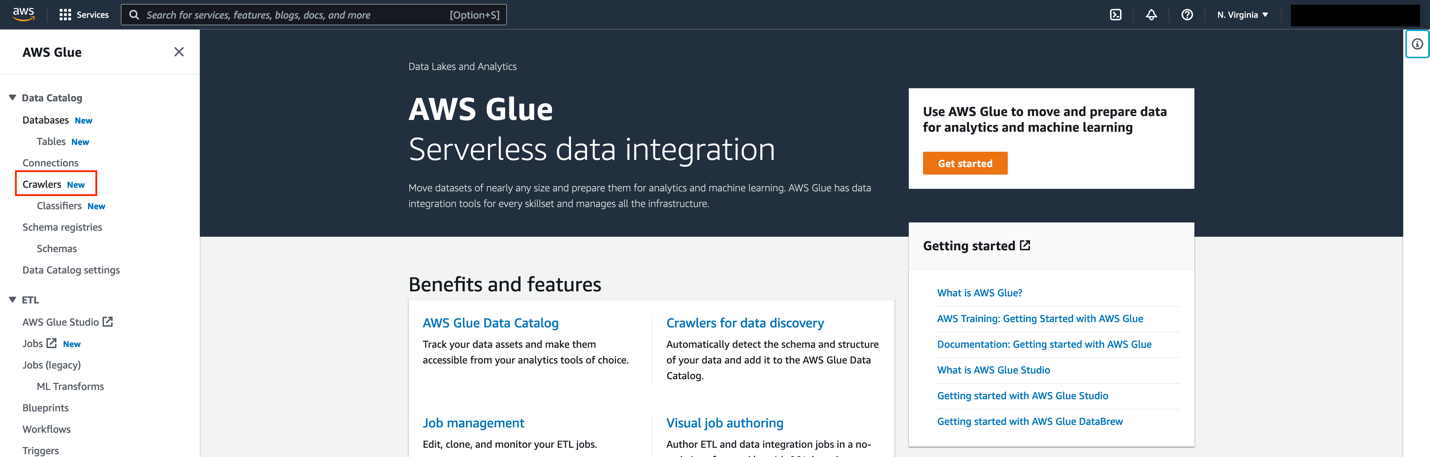
Figure 2: The Crawlers page in the AWS Glue console
- Choose Create crawler.

Figure 3: Creating a new crawler
-
For Name, enter a name (for example,
glue-blog-snowflake-crawler). -
Choose Next.
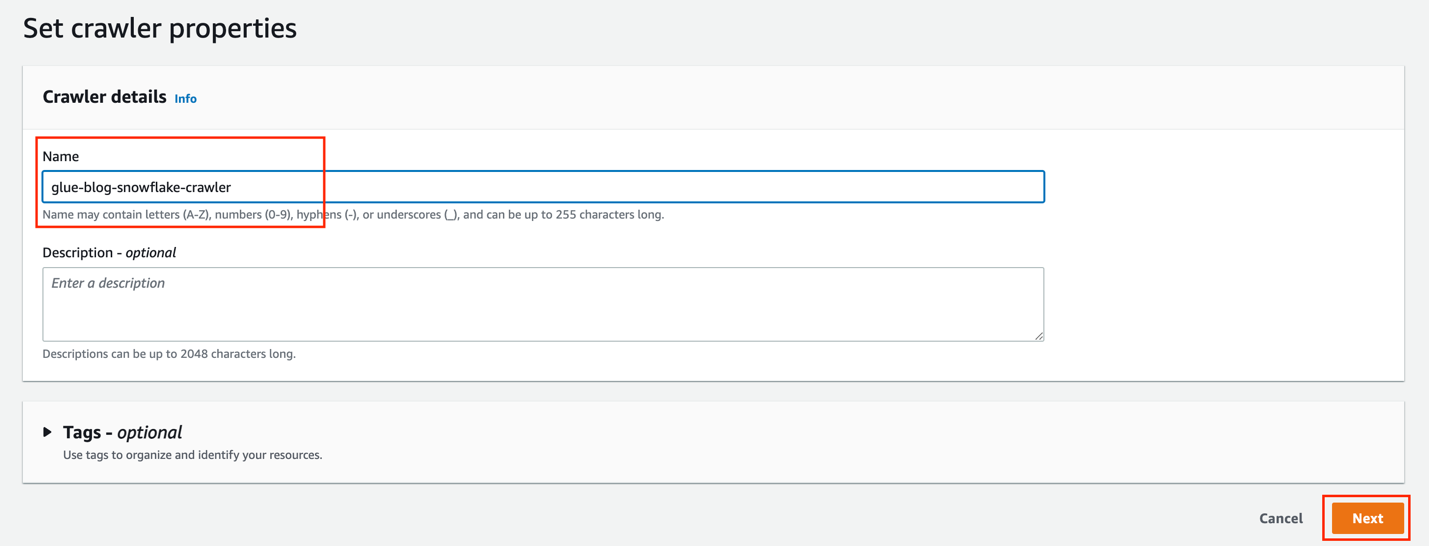
Figure 4: Setting the crawler name
-
For Is your data already mapped to Glue tables, select Not yet.
-
In the Data sources section, choose Add a data source.
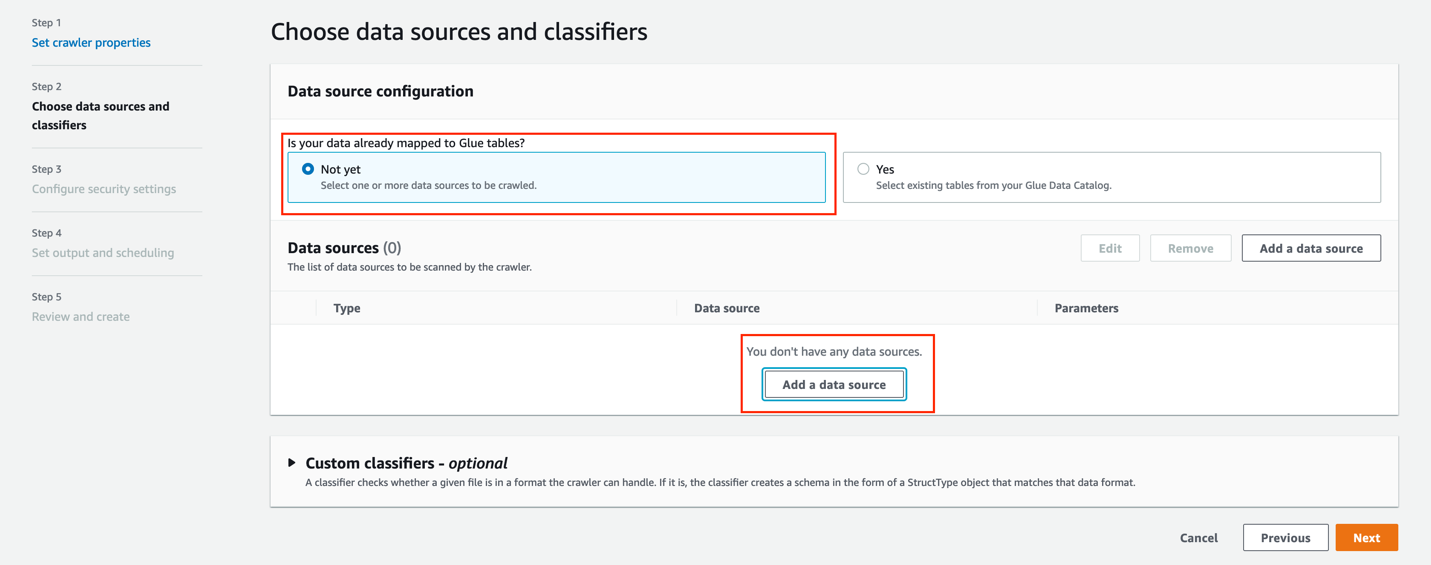
Figure 5: Adding a data source to the crawler
For this post, you use a JDBC dataset as a source.
-
For Data source, choose JDBC.
-
For Connection, select the connection that you created earlier (for this post,
SA-snowflake-connection). -
For Include path, enter the path to the Snowflake database you created as a prerequisite (
OSM_NEWYORK/NEW_YORK/%). -
For Additional metadata, choose COMMENTS and RAWTYPE.
This allows the crawler to harvest metadata related to comments and raw types like geospatial columns.
- Choose Add a JDBC data source.
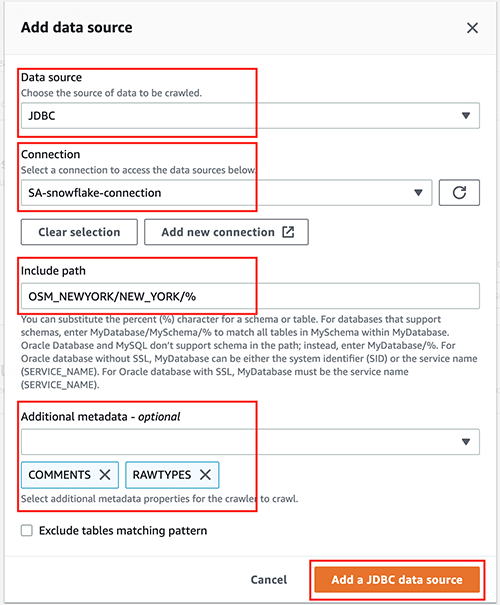
Figure 6: Configuring the JDBC data source
- Choose Next.
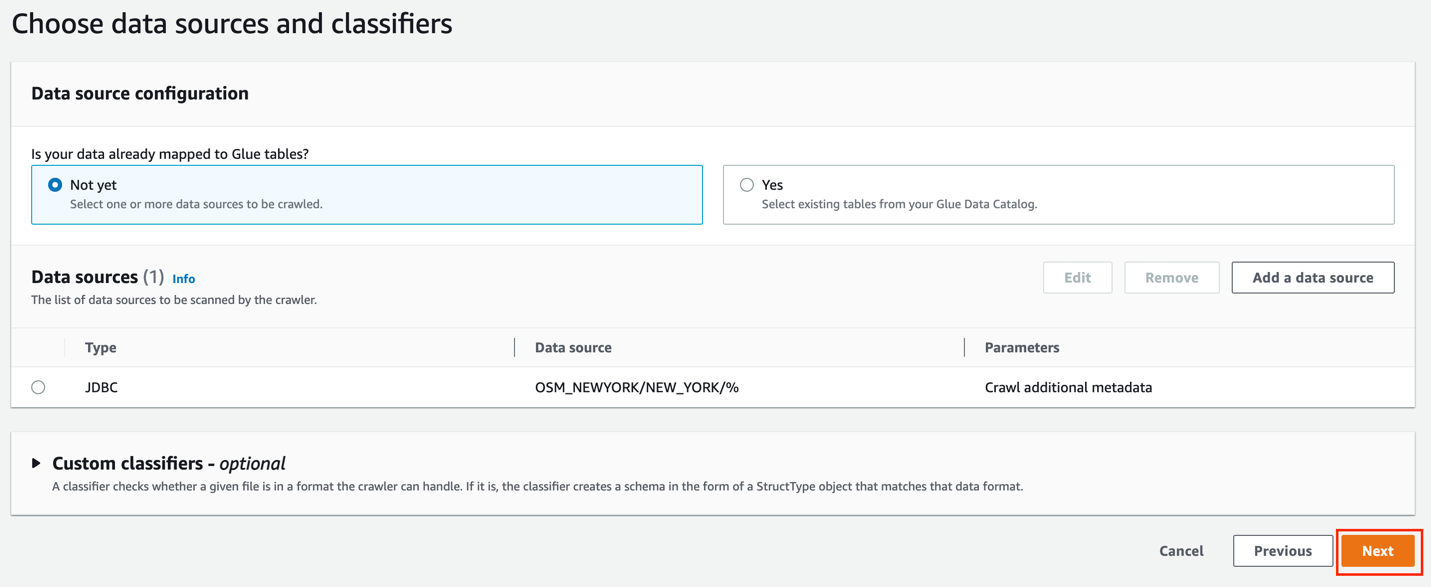
Figure 7: The configured JDBC data source
-
For Existing IAM role, choose the role you created as a prerequisite (for this post, we use
AWSGlueServiceRole-DefualtRole). -
Choose Next.
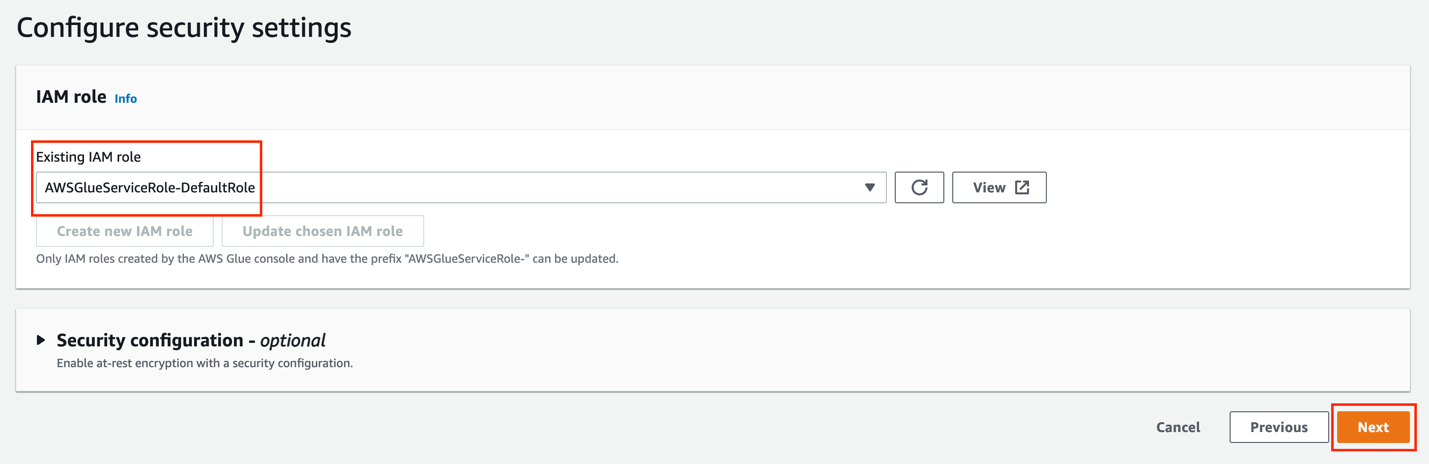
Figure 8: Selecting the IAM role for the crawler
Now let’s create an AWS Glue database.
- Under Target database, choose Add database.
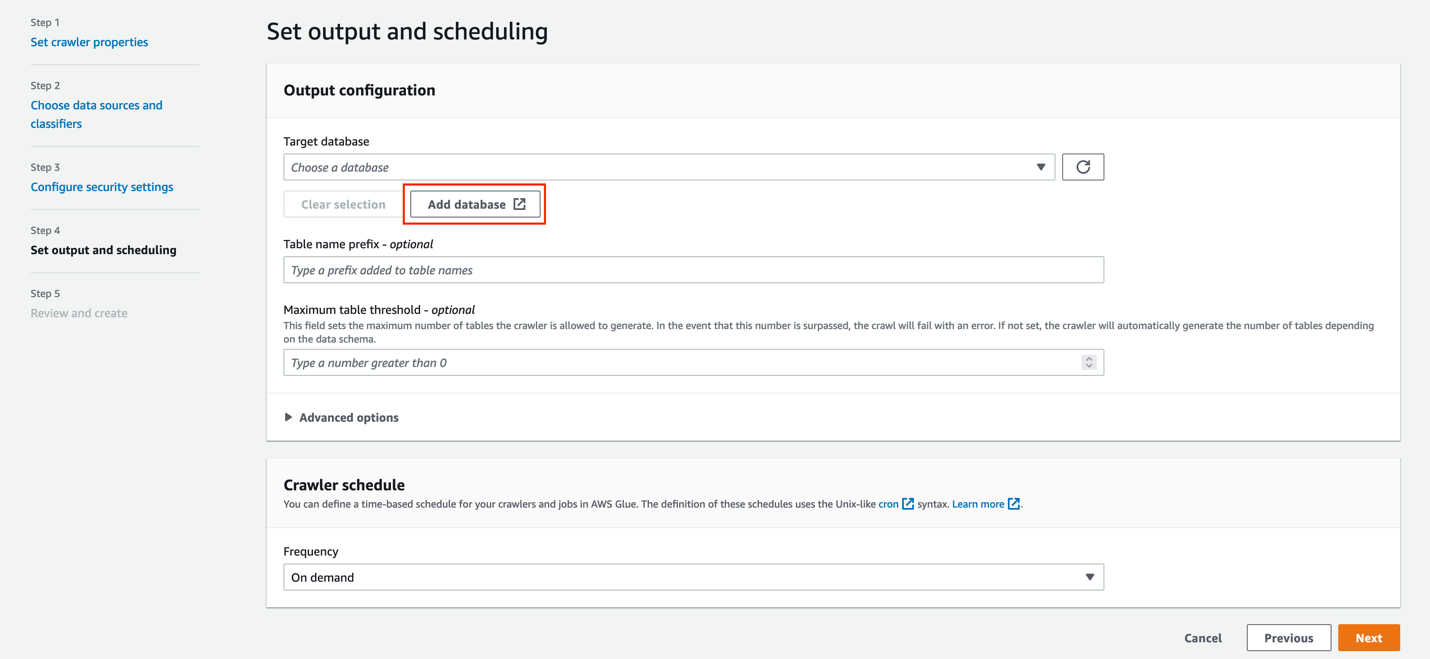
Figure 9: Adding a target database
-
For Name, enter
gluesnowdb. -
Choose Create database.
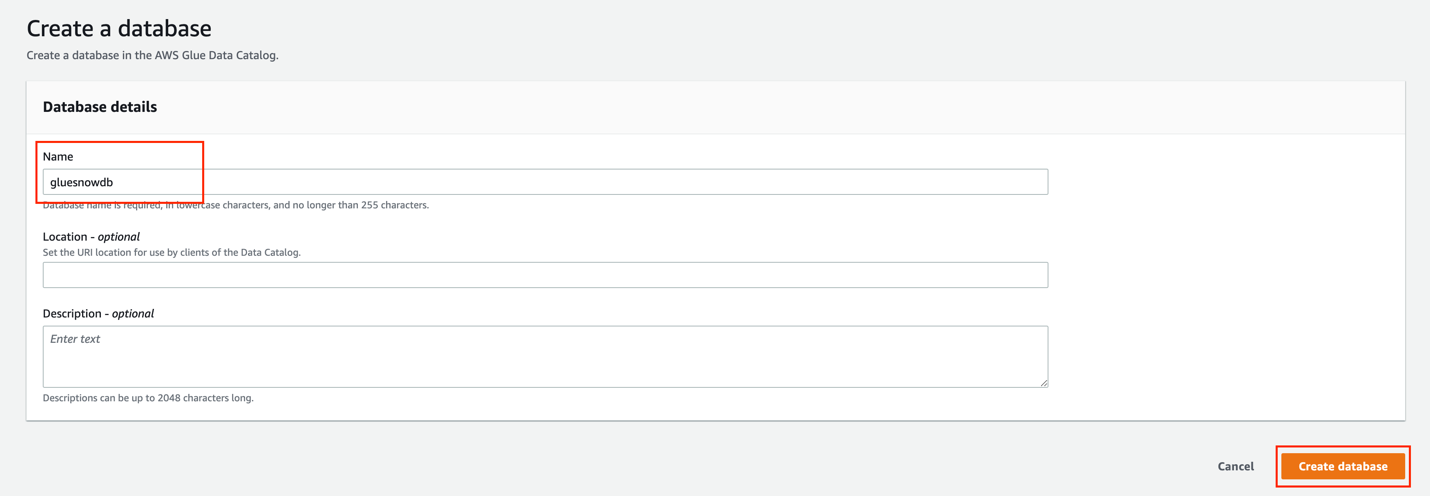
Figure 10: Creating the target database
-
On the Set output and scheduling page, for Target database, choose the database you just created (
gluesnowdb). -
For Table name prefix, enter
blog_. -
For Frequency, choose On demand.
-
Choose Next.
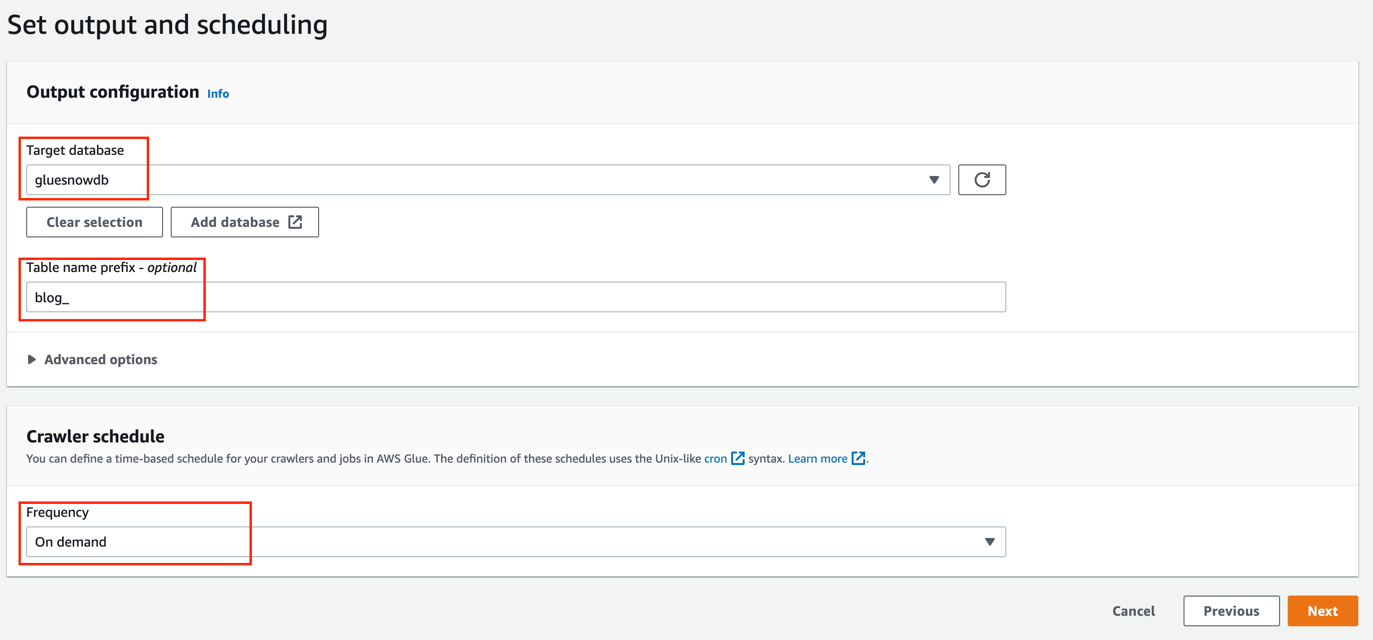
Figure 11: Setting the crawler output and schedule
- Review the configuration and choose Create crawler.
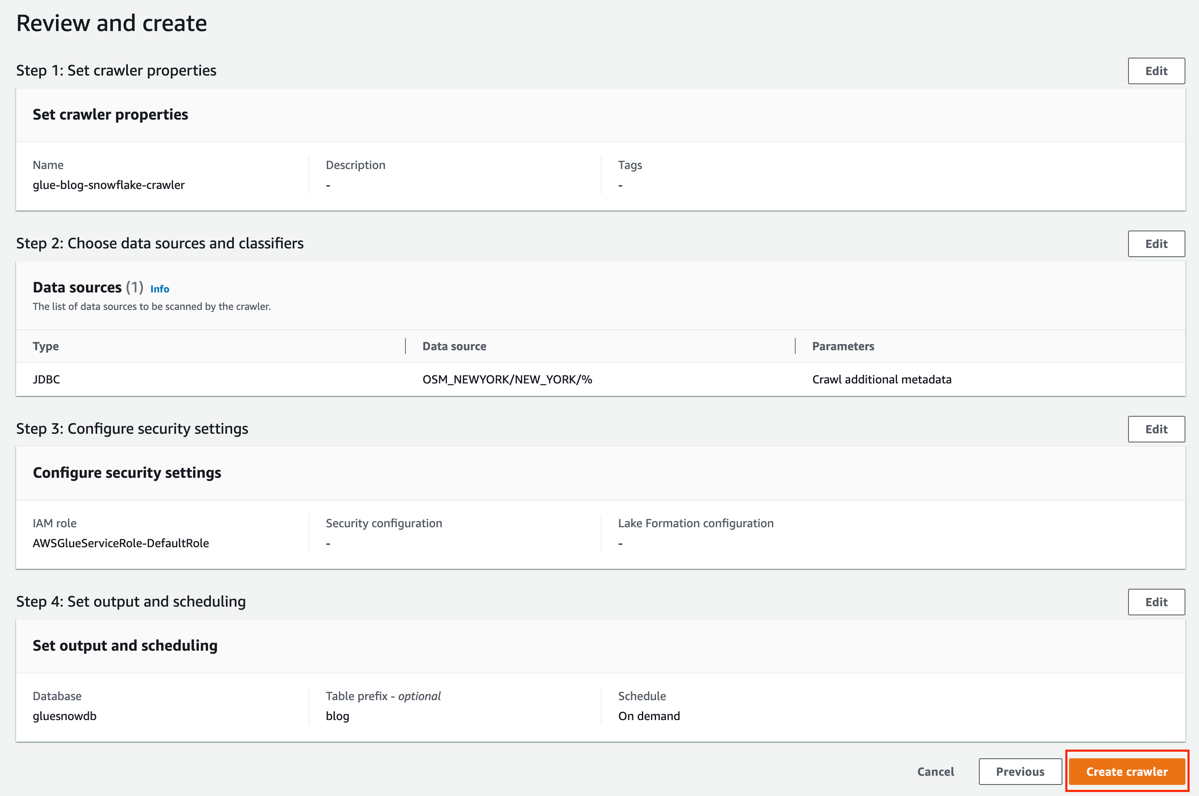
Figure 12: Reviewing the crawler configuration
Run the AWS Glue crawler
To run the crawler, complete the following steps:
-
On the AWS Glue console, choose Crawlers in the navigation pane.
-
Choose the crawler you created.
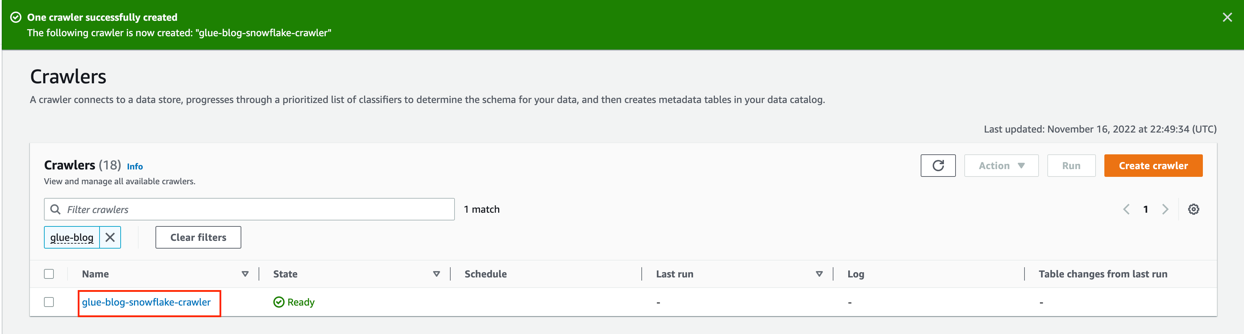
Figure 13: The newly created crawler in the Crawlers list
- Choose Run crawler.
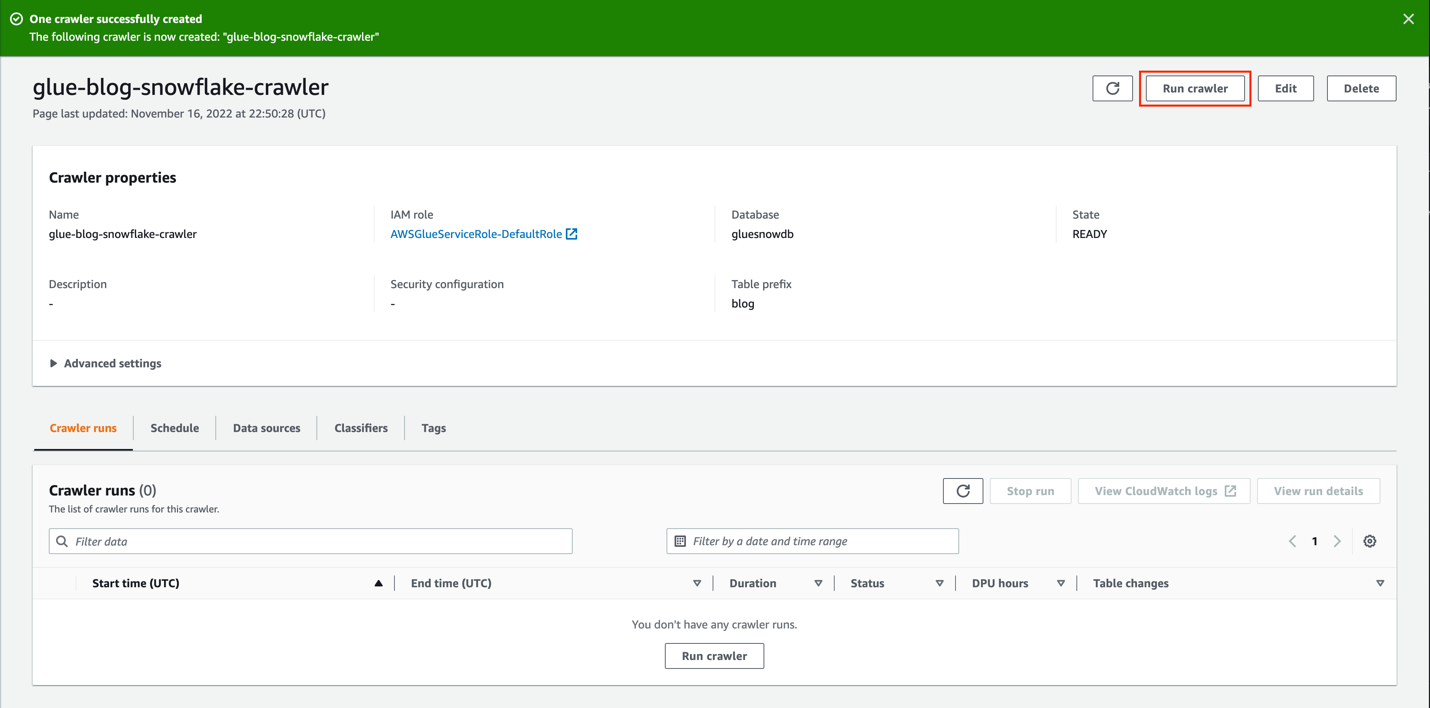
Figure 14: Running the crawler
On the Crawler runs tab, you can see the current run of the crawler.

Figure 15: Monitoring the crawler run
- Wait until the crawler run is complete.
As shown in the following screenshot, 27 tables were added.

Figure 16: The completed crawler run with 27 tables added
Now let’s see how these tables look in the AWS Glue Data Catalog.
Explore the AWS Glue tables
Let’s explore the tables created by the crawler.
- On the AWS Glue console, choose Databases in the navigation pane.

Figure 17: The Databases page in the AWS Glue console
- Search for and choose the
gluesnowdbdatabase.

Figure 18: Locating the gluesnowdb database
Now you can see the list of the tables created by the crawler.
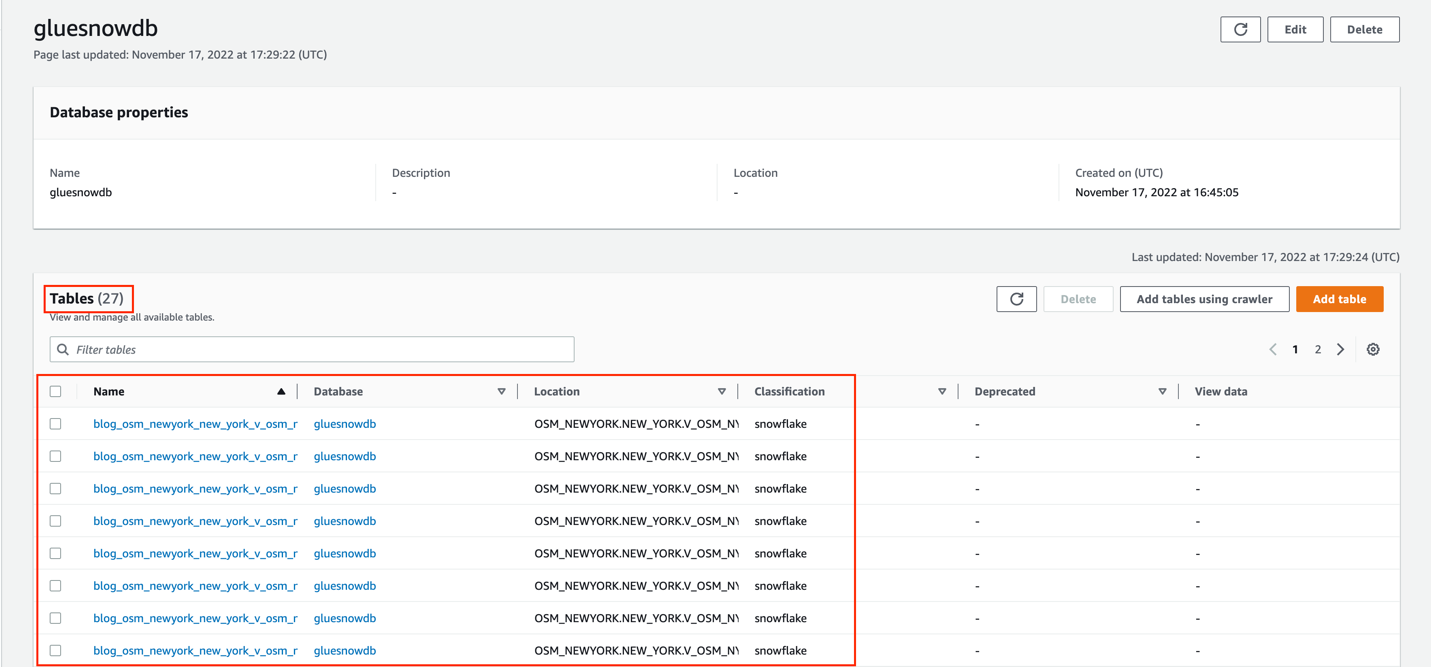
Figure 19: Tables created by the crawler
- Choose the
blog_osm_newyork_new_york_v_osm_ny_amenitytable.
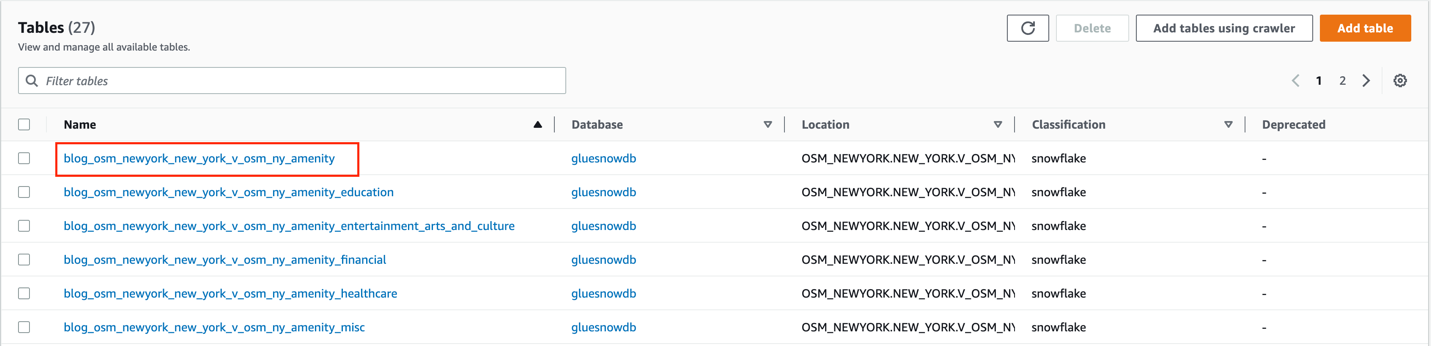
Figure 20: Selecting a crawled table
In the Schema section, you can see that the raw type was also harvested from the source Snowflake database.
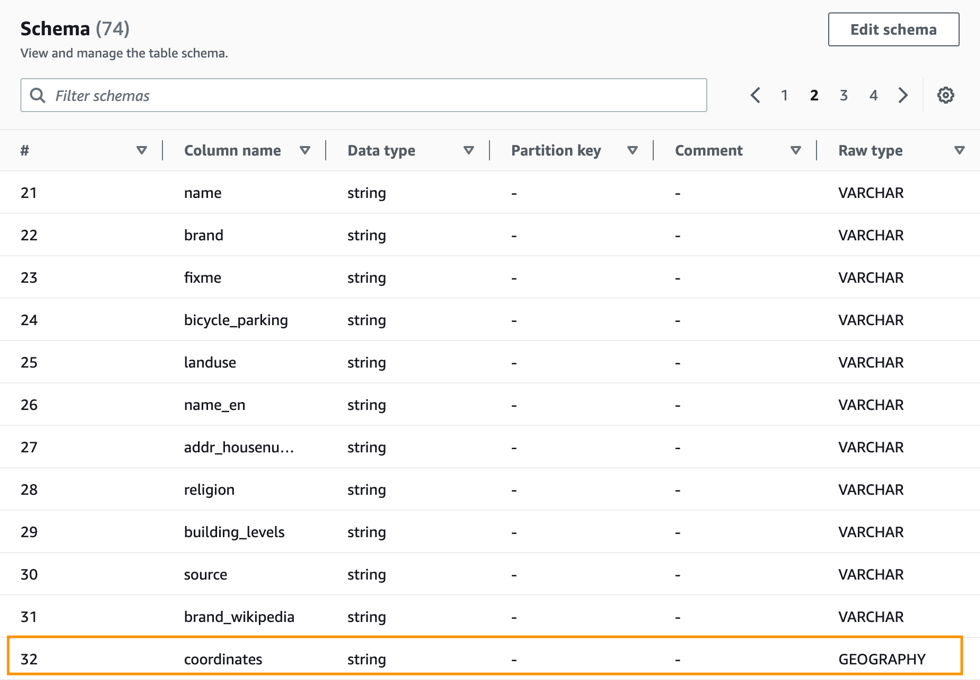
Figure 21: The table schema with the Snowflake raw type
-
Choose the Advanced properties tab.
-
In the Table properties section, you can see that the
classificationissnowflakeand thetypeOfDataisview.
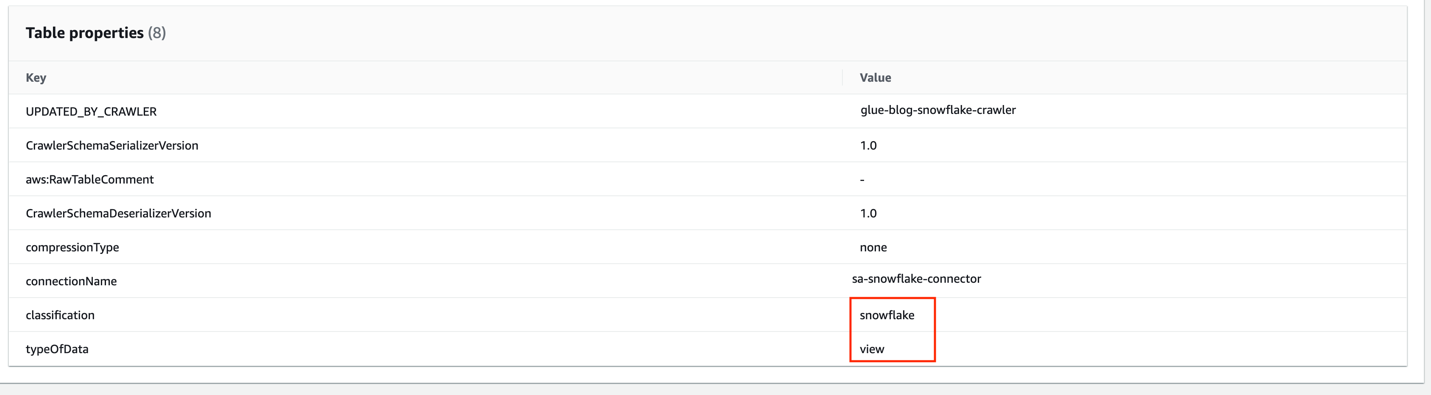
Figure 22: Table properties showing the Snowflake classification
Clean up
To avoid incurring future charges, and to clean up unused roles and policies, delete the resources you created: the AWS CloudFormation stack, S3 bucket, AWS Glue crawler, AWS Glue database, and AWS Glue table.
Conclusion
AWS Glue crawlers now support Snowflake tables, views, and materialized views, offering more options to integrate Snowflake databases into your AWS Glue Data Catalog. You can use AWS Glue crawlers to discover Snowflake datasets, extract schema information, and populate the Data Catalog.
In this post, we provided a procedure to set up AWS Glue crawlers to discover Snowflake tables, which reduces the time and cost needed to incrementally process Snowflake table data updates in the Data Catalog. To learn more about this feature, see the AWS Glue crawlers documentation.
Special thanks to everyone who contributed to this crawler feature launch: Theo Xu, Hunny Vankawala, and Jessica Cheng.
Happy crawling!
Attribution
OpenStreetMap data by OpenStreetMap Foundation is licensed under Open Data Commons Open Database License (ODbL).