AWS Compute Blog
Set up your AI coding agent to build with AWS Step Functions
You want to build an AWS Step Functions workflow, and you have an AI coding agent open in your terminal or IDE. But the agent doesn’t know about Amazon States Language (ASL), service integrations, or how to deploy state machines. Before you can start, you need to find the right Model Context Protocol (MCP) server package, figure out the configuration format for your specific agent, and set up credentials.
AWS Step Functions has added a “Copy agent prompt” button to the AWS Step Functions console that removes this setup entirely. You choose the button, paste the prompt into your agent, and the agent configures itself with Serverless skills and an MCP server. You can start building workflows with natural language immediately. The feature works with Claude Code, Kiro CLI, Cursor, GitHub Copilot, Codex, Devin Desktop, OpenCode, and any other MCP-compatible agent.
How it works
The button appears in three places in the Step Functions console:
- The home page, under “How it works”.
- The Create State Machine modal (at the top, before you begin building).
- The Local Development section on the home page.
Here’s an example from the Create State Machine flow:
- Open the Step Functions console and choose Create state machine.
- At the top of the modal, you see the banner: “Set up your agent to build with Step Functions. Copy and paste this prompt into your AI agent to set up Step Functions skills and MCP server.”
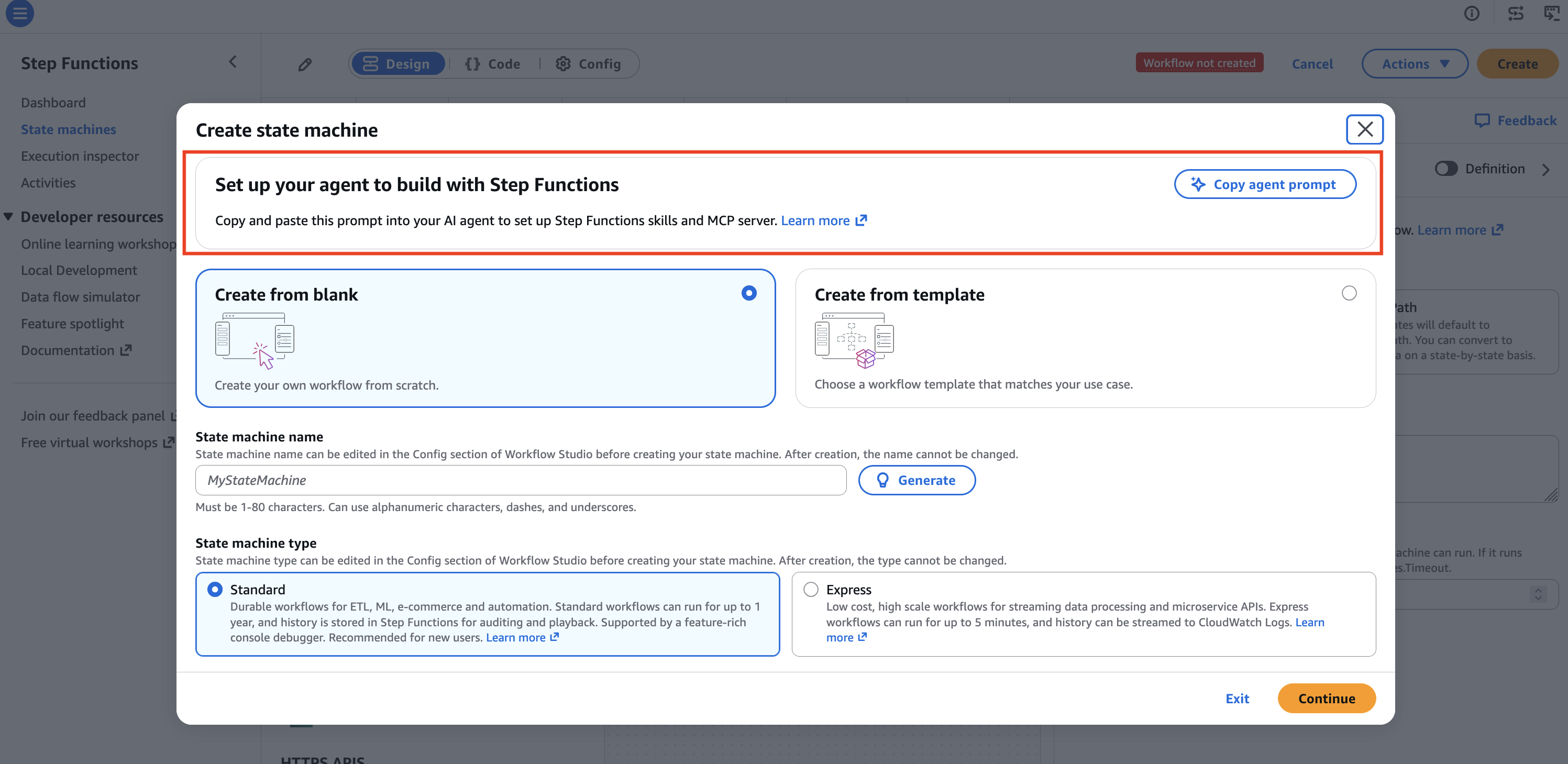
Figure 1: Step Functions console modal showing the Copy agent prompt
- Choose Copy agent prompt. The console copies a fetch instruction to your clipboard.
- Paste the prompt into your AI agent’s chat or terminal.
- The agent reads the setup guide and self-configures.
The copied prompt is a fetch instruction that points to a setup guide hosted on AWS documentation. You paste it into your agent, and the agent installs two things:
AWS Serverless skill (from the Agent Toolkit for AWS) provides your agent with deep context on Step Functions. It includes how to write ASL, structure workflows with retries and error handling, choose between Standard and Express workflow types, implement patterns like saga orchestration and parallel fan-out, and deploy using AWS Serverless Application Model (AWS SAM) or AWS Cloud Development Kit (AWS CDK).
AWS Serverless MCP Server gives your agent direct access to AWS. Through the Model Context Protocol, your agent can create and update state machines, start and describe executions, inspect workflow history, and manage resources in your account.
Supported agents
The setup guide auto-detects your agent and provides the correct configuration format:
- Claude Code: Installs through the plugin marketplace and registers the MCP server with
claude mcp add. - Kiro CLI: Writes to
~/.kiro/settings/mcp.json. - Codex: Registers with
codex mcp add. - Cursor: Writes to
.cursor/mcp.json. - GitHub Copilot: Writes to
.vscode/mcp.json. - Devin Desktop: Writes to
.devin/mcp_config.json. - OpenCode: Writes to
~/.config/opencode/opencode.jsonc.
If you use a different MCP-compatible agent, the guide provides a generic JSON configuration block you can add to your agent’s config file.
What you can build
Once your agent is configured, you can describe workflows in natural language, and the agent produces valid, deployable state machines. Here are a few examples:
Order processing with compensation: “Build a workflow that validates a payment, reserves inventory and sends a confirmation email. If payment fails, release the inventory reservation.”
Parallel fan-out: “Create an Express workflow that calls three AWS Lambda functions in parallel, waits for all to complete, and merges the results into a single response.”
Human approval gate: “Add a step that pauses the workflow and waits for a manager to approve before proceeding with the deployment.”
Error handling: “Add retry with exponential backoff and a maximum of three attempts to the payment processing step. If all retries fail, route to a fallback notification step.”
Because the agent has the MCP server connected, it can also deploy the workflow directly to your account, start test executions, and inspect the results without leaving the agent interface.
Advantages
Always current: The Agent Toolkit for AWS content stays up to date as Step Functions adds new features, integrations, and patterns. When you run the prompt, your agent gets the latest skills and configurations automatically.
No context switching: You stay in your agent’s interface for the entire workflow: design, build, deploy, test, and iterate. No switching between the console, documentation, and your editor.
Works with your existing credentials: The MCP server uses your local AWS profile. No new AWS Identity and Access Management (IAM) roles or permissions are required beyond what you already use for Step Functions development.
Agent-agnostic: Whether you use Claude Code, Kiro, Cursor, Copilot, or another tool, the same button and prompt works. You don’t need to find agent-specific setup instructions.
Get started
- Open the AWS Step Functions console.
- Choose Copy agent prompt from the banner (on the home page under “How it works,” in the Local Development section, or in the Create State Machine modal).
- Paste the prompt into your AI coding agent.
- Start describing the workflow you want to build.
This feature is available in all commercial AWS Regions at no additional cost. To learn more about the setup process, see the agent setup guide. For more on the Agent Toolkit for AWS, see the GitHub repository. For AWS MCP Servers, see the documentation.
We’d like to hear how you use this feature. Tell us about it in the comments.