Desktop and Application Streaming
Amazon WorkSpaces Personal: A modern management approach with Microsoft Entra ID and Intune
Amazon WorkSpaces has traditionally supported Active Directory domain-join desktops. Administrators manage these desktops through group policies and tools that run on site servers and branch servers. Custom image pipelines are built to install applications, push updates, and patch desktops at scale. IT administrators spend time to create and maintain custom images for different user personas. They build automations to keep those images current. In this post, you explore how modern management transforms the way IT teams deploy and manage WorkSpaces. Modern management uses cloud-based identity providers, Mobile Device Management (MDM) solutions, and low-touch deployment. These are the same practices already used for physical devices. By adopting this approach, organizations simplify operations, strengthen security, and deliver unified desktop experience. This eliminates the overhead of legacy infrastructure.
What is modern device management?
Modern device management is a Software as a Service (SaaS) only approach to identity and device management that eliminates the need for infrastructure. Legacy technologies like Active Directory domain controllers and site servers are no longer required. Modern management uses cloud-based identity providers such as Microsoft Entra ID or JumpCloud. It also uses MDM solutions like Microsoft Intune to configure, secure, and manage desktops from anywhere.
With Amazon WorkSpaces Personal, IT administrators manage cloud-based virtual desktops using the same tools and policies used for physical devices. This enables a truly unified management experience. Low-touch deployment through technologies like Windows Autopilot further reduces manual effort, while out-of-the-box base images replace intricate, custom-built image pipelines. The result is a simplified, scalable, and secure management model. It aligns with how today’s distributed workforce operates — without on-premises infrastructure overhead.
Benefits of using modern device management with Amazon WorkSpaces
Physical devices must be procured and shipped to users. Even with modern device management, it takes days or weeks for users to become productive. With Amazon WorkSpaces, a productive desktop is ready within the hour. Users request a WorkSpace through a self-service portal or IT administrators provision it for them. The benefits of modern device management with Amazon WorkSpaces are:
- Low Touch Deployment: Modern device management allows IT administrators to provision WorkSpace instance with a single API call. Instead of the time-consuming process of creating master images, modern deployment transforms WorkSpaces into a fully configured machine, compliant with organization policies. WorkSpace registers with organization’s tenant and upon first user login, all the policies and configurations are applied and applications are installed.
- Scalability: As your business grows, you can scale from hundreds to thousands of WorkSpaces within hours instead of days. This is possible because of the scalability of AWS Cloud. Organizations can launch the deployment of virtual desktops at scale in minutes across regions without the burden of procuring hardware or managing on-premises infrastructure.
- Improve Operational Efficiency: IT administrators do not have to prepare the devices and ship to the users. With automated WorkSpaces provisioning and modern device management, administrative tasks can be automated with low touch deployment.
- Cost Reduction: Traditional tools and virtual desktops required costly hardware procurement and maintenance. With WorkSpaces and modern device management, you don’t need physical infrastructure. Operational costs can be reduced by automating and reducing manual process. The pay-as-you-go pricing model combined with automated provisioning helps manage costs effectively, only paying for what you use.
- Common user sign in experience: A common identity and sign-in experience for applications, organizations are realizing numerous security benefits. The Amazon WorkSpaces sign in experience becomes like other application that users are familiar with.
- Centralized Security and Compliance: With Intune, administrators gain centralized visibility and control over their security posture. They can deploy applications, enforce compliance policies, apply security patches, and make configuration changes across the entire fleet. This centralized approach helps maintain a strong security posture while ensuring compliance with industry standards.
Architecture: WorkSpaces integration with Microsoft Entra ID and Intune
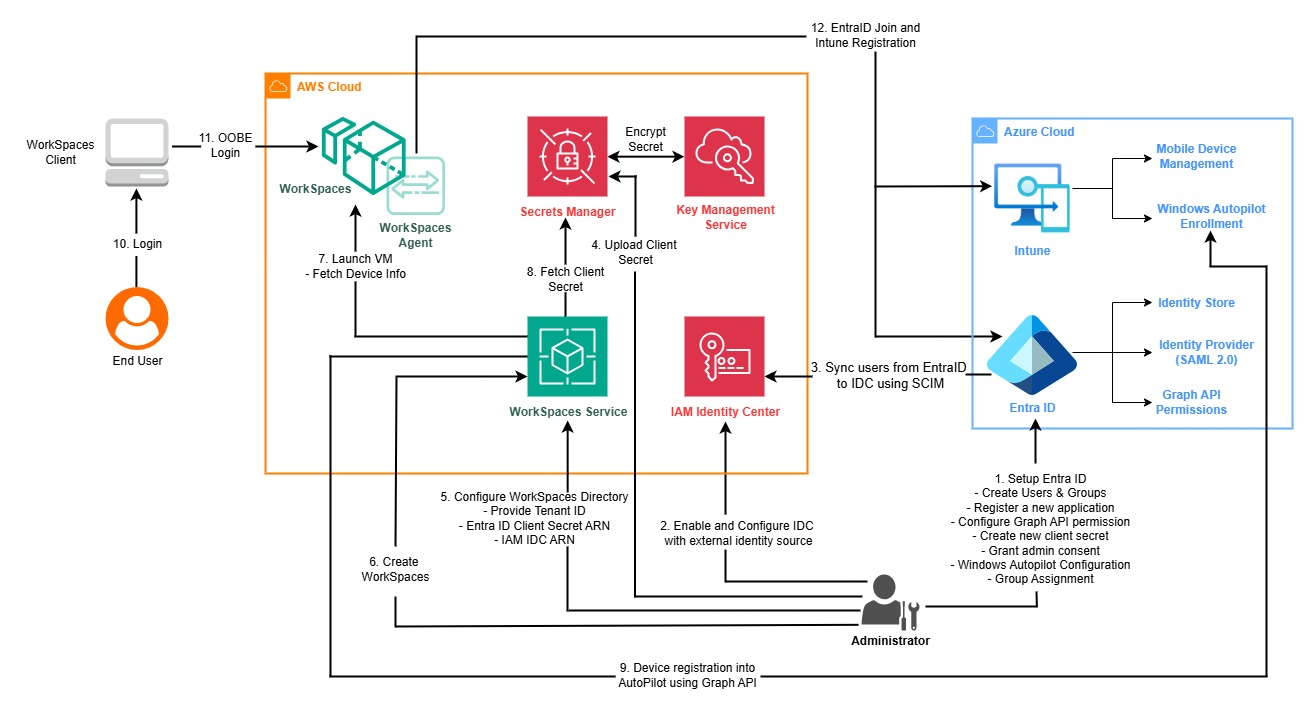
Figure 1: Entra ID WorkSpaces Integration Architecture
Configuration & Setup (AWS Side)
On the AWS side, the solution relies on four core components working together. AWS IAM Identity Center (IDC) acts as an identity broker between AWS and Entra ID to make the user information available to AWS. AWS Secrets Manager and AWS Key Management Service securely store and encrypt credentials. These credentials are needed during WorkSpaces provisioning and device enrollment. The WorkSpaces agent runs inside the WorkSpaces instance. It communicates with the WorkSpaces service to download autopilot deployment profile and apply configurations to boot the Windows into Out-of-Box (OOBE) experience.
Configuration & Setup (Azure Side)
On the Azure side, Entra ID is configured with following responsibilities:
- Serve as the identity store for user accounts.
- Store registered device information (WorkSpaces details).
- Act as the SAML 2.0 identity provider for federated authentication with IAM Identity Center.
- Expose Graph API permissions so that Amazon WorkSpaces can register WorkSpaces Personal into Autopilot.
Windows Autopilot user-driven mode enrolls WorkSpaces to Intune and join them to Entra ID. Windows Autopilot user-driven Entra join is a Windows Autopilot solution that automates the configuration of Windows on WorkSpaces. The Windows Autopilot deployment profile specifies how the device is configured during Windows Setup and what is shown during the out-of-box experience (OOBE). Microsoft Intune specifies the MDM policies, configurations, and application deployments applied to each WorkSpace on enrollment.
User Login & Out-of-Box (OOBE) Experience
When a WorkSpace is assigned to a user and they login for the first time, they are presented with the Windows Out-of-Box Experience (OOBE). The user signs in with their Entra ID credentials, which triggers Autopilot enrollment — the WorkSpace is automatically joined to Entra ID and enrolled with Intune. From that point, Intune pushes all MDM policies, compliance baselines, and required applications without IT intervention. The user gets a fully configured, compliant desktop ready to use.
Design Considerations
To deploy this solution, you need to consider the following design considerations:
- You need to configure the firewall to allow outbound traffic to the endpoints for Microsoft Intune and Windows Autopilot. See, Network Requirements for Device Registration with Microsoft Entra, Network endpoints for Microsoft Intune – Microsoft Intune and Windows Autopilot requirements for list of IP addresses and endpoints. Plan the network capacity and rules required for managing, securing and configuring the WorkSpaces.
- IAM Identity Center syncs user identities from Entra ID using the System for Cross-domain Identity Management (SCIM) v2.0 standard. You deploy an account instance of IAM Identity Center or an AWS organization instance. If you don’t have an existing IAM Identity Center instance, we recommend creating one in the same Region as your WorkSpaces. If you have an existing AWS Identity Center instance in a different Region, you can set up cross-Region integration. See Step 1: Enable IAM Identity Center and synchronize with Microsoft Entra ID.
- The following blogs are on enabling users to deploy their WorkSpaces through self-service portal. You can build a self-service portal following one of these blogs or use them as guidance to create your own portal.
- Create self-service software portal to enable your users to deploy the applications themselves.
Conclusion
Modern device management fundamentally changes how IT teams deploy Amazon WorkSpaces by replacing traditional, labor-intensive imaging processes with a streamlined, API-driven approach. IT administrators can provision WorkSpaces with a single API call instead of building and maintaining master images. This dramatically reduces the time to get users up and running. WorkSpaces are registered with the organization’s Entra ID tenant upfront. When a user logs in for the first time, everything happens automatically. Policies are applied, configurations are pushed, and applications are installed — all without manual intervention. This transforms a multi-step, error-prone process into a consistent, repeatable workflow. It scales effortlessly whether you’re onboarding one user or a thousand. The result is a fully configured, policy-compliant workspace ready on first login. End users get a seamless day-one experience, and IT is freed from routine provisioning. For step-by-step implementation see WorkSpaces Personal: Entra ID & Intune Integration.
About the authors:
 |
Mayank Jain is a Sr. Cloud Support Engineer in AWS Support Engineering who specializes in End User Computing Services. He is SME for Amazon Workspaces and Amazon WorkSpaces Applications and loves helping customers on all things EUC. Prior to AWS, Mayank has worked on Citrix and Omnissa (Formerly VMware) Horizon VDI technologies. |
 |
Richard is a Senior Partner Solutions Architect at AWS, based in Sydney, Australia. With over 25 years of industry experience spanning desktop as a service, cloud infrastructure, collaboration, messaging, and device management at scale, Richard brings deep technical breadth to his role. Over his 5+ years at AWS, he has continued to build on a career that includes advisory, consulting, architecture, engineering, and support roles. |