AWS DevOps & Developer Productivity Blog
Integrate AWS DevOps Agent with third-party tools using Amazon EventBridge
AWS DevOps Agent investigates operational issues and proposes likely root causes. Many teams, though, want to follow an investigation from where they already work: a ticket in Jira or ServiceNow, or a notification in PagerDuty. When an investigation stays inside the AWS DevOps Agent console, engineers move between tools, and the history of the work is spread across them. This makes the work harder to piece together later.
In this post, I use the AWS Cloud Development Kit (AWS CDK) to build a solution for this. It receives AWS DevOps Agent investigation events through Amazon EventBridge and processes them with AWS Lambda. The solution then creates and updates issues in Jira Cloud. I use Jira as the example, but the same pattern applies to other tools with an API.
Solution overview
This solution is an event-driven integration that starts from the investigation events that AWS DevOps Agent emits. When AWS DevOps Agent creates an investigation, it sends an event with the source aws.aidevops to Amazon EventBridge. An Amazon EventBridge rule matches detail-types that begin with Investigation (a prefix match) and invokes an AWS Lambda function. The Lambda function calls the Jira Cloud REST API: on Investigation Created it creates a new issue, and on every other investigation event it adds a comment to the existing issue.
To link an issue to an investigation, the solution uses Amazon DynamoDB. On Investigation Created, it stores the mapping between the investigation task_id and the Jira issue key in DynamoDB. For later events, it looks up the issue key from that mapping and appends a comment to the same issue. Jira connection details (base URL, user, API token, and project key) are stored in AWS Secrets Manager, so they stay out of the Lambda function’s environment variables and code.
With this design, you can add the integration without changing AWS DevOps Agent itself. Amazon EventBridge handles event delivery, so you add a rule and a target when you want another destination. The processing lives in Lambda, so replacing Jira with another tool keeps the change inside the function code.
Architecture diagram
The following diagram shows the path an investigation event takes from AWS DevOps Agent to Jira Cloud. The flow runs from the event to the created or updated issue without a manual step.
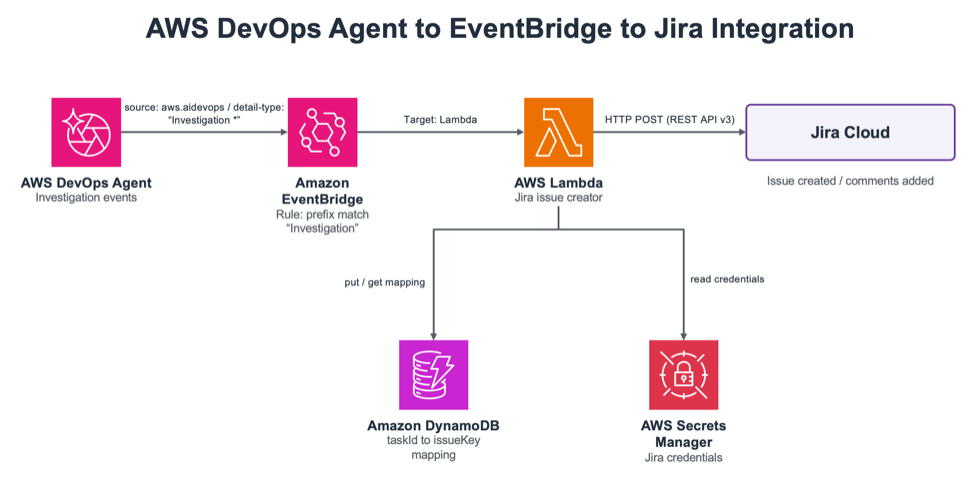
Figure 1: Event flow from AWS DevOps Agent through Amazon EventBridge and AWS Lambda to Jira Cloud
The flow works as follows. AWS DevOps Agent emits an investigation event, and an Amazon EventBridge rule (prefix match on Investigation) captures it and invokes the AWS Lambda function (Jira Issue Creator). The Lambda function reads the Jira credentials from AWS Secrets Manager and stores or reads the mapping between the task_id and the issue key in Amazon DynamoDB. It then calls the Jira Cloud REST API v3 to create an issue or add a comment.
Walkthrough
The following steps deploy the sample and confirm the behavior. The code is available on GitHub (sample-aws-devops-agent-eventbridge-integration).
Prerequisites
Before you start, prepare the following. First, an AWS account with permissions to create Lambda, Amazon EventBridge, DynamoDB, Secrets Manager, AWS Identity and Access Management (IAM), and AWS CloudFormation resources. Second, a local development environment with the AWS Command Line Interface (AWS CLI) with configured credentials, the AWS CDK, and Node.js 18 or later. You also need an Agent Space in AWS DevOps Agent and a target Jira Cloud project for issue creation.
On the Jira side, create one API token. Create the token from your Atlassian account settings, and note the Jira base URL, the email address tied to the token, and the project key where issues are created. You store these values in Secrets Manager in the next step.
Step 1: Store the Jira credentials in Secrets Manager
First, store the Jira connection details in AWS Secrets Manager. The Lambda function reads the credentials from here, so no secret stays in the code or in a parameter. The following command stores the four values as a single secret.
When the command succeeds, it returns the Amazon Resource Name (ARN) of the secret. Note this ARN. You use it in the next step.
Step 2: Deploy with the AWS CDK
Get the repository and deploy the stack with the CDK. If this is the first time you use the CDK in this Region, run cdk bootstrap first. When you deploy, pass the ARN of the secret from Step 1 as a parameter.
This stack creates the Amazon EventBridge rule, the Lambda function, the DynamoDB table, and the related IAM roles. The Lambda function receives only the permission to read the specified secret and to read from and write to the DynamoDB table.
Step 3: Understand the investigation event structure
Knowing what the Lambda function receives makes it more straightforward to adapt the solution to other tools. AWS DevOps Agent sends an event each time the state of an investigation changes. The state moves from PENDING_START to IN_PROGRESS to COMPLETED, and arrives with the detail-types Investigation Created, Investigation In Progress, and Investigation Completed. Alongside these three, you handle Investigation Failed, Investigation Timed Out, Investigation Cancelled, and Investigation Priority Updated through the same mechanism.
The following is part of an Investigation Created event. The detail.metadata.task_id value uniquely identifies the investigation, and the solution uses it as the DynamoDB key.
The Amazon EventBridge event does not include the investigation title or description. To fill in the summary and body of the issue, the Lambda function calls the AWS DevOps Agent GetBacklogTask API. The Investigation Completed event includes data.summary_record_id, which you use to retrieve the investigation summary.
Step 4: Confirm the behavior
When you start an investigation in AWS DevOps Agent, it emits an Investigation Created event, and the Lambda function creates an issue in Jira. The following screen shows an investigation starting in the AWS DevOps Agent console. The Investigation timeline shows the first event, where an Amazon CloudWatch alarm entered the ALARM state.
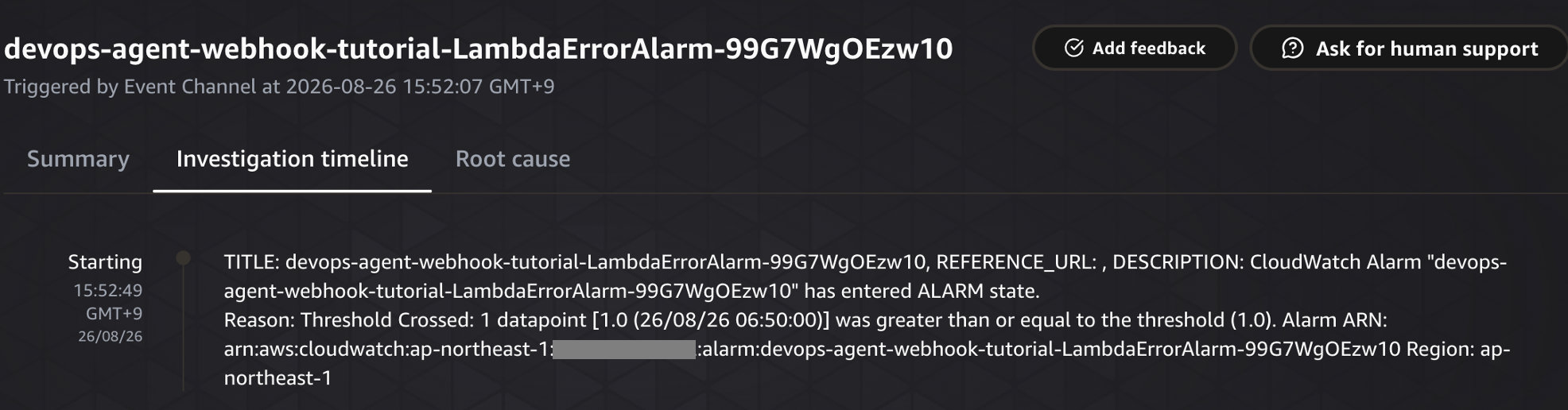
Figure 2: An investigation starting in the AWS DevOps Agent console
At this point, a new issue is created on the Jira side. The following screen shows the Jira board, where a single issue created by AWS DevOps Agent (its summary begins with [DevOps Agent]) appears in the To Do column.
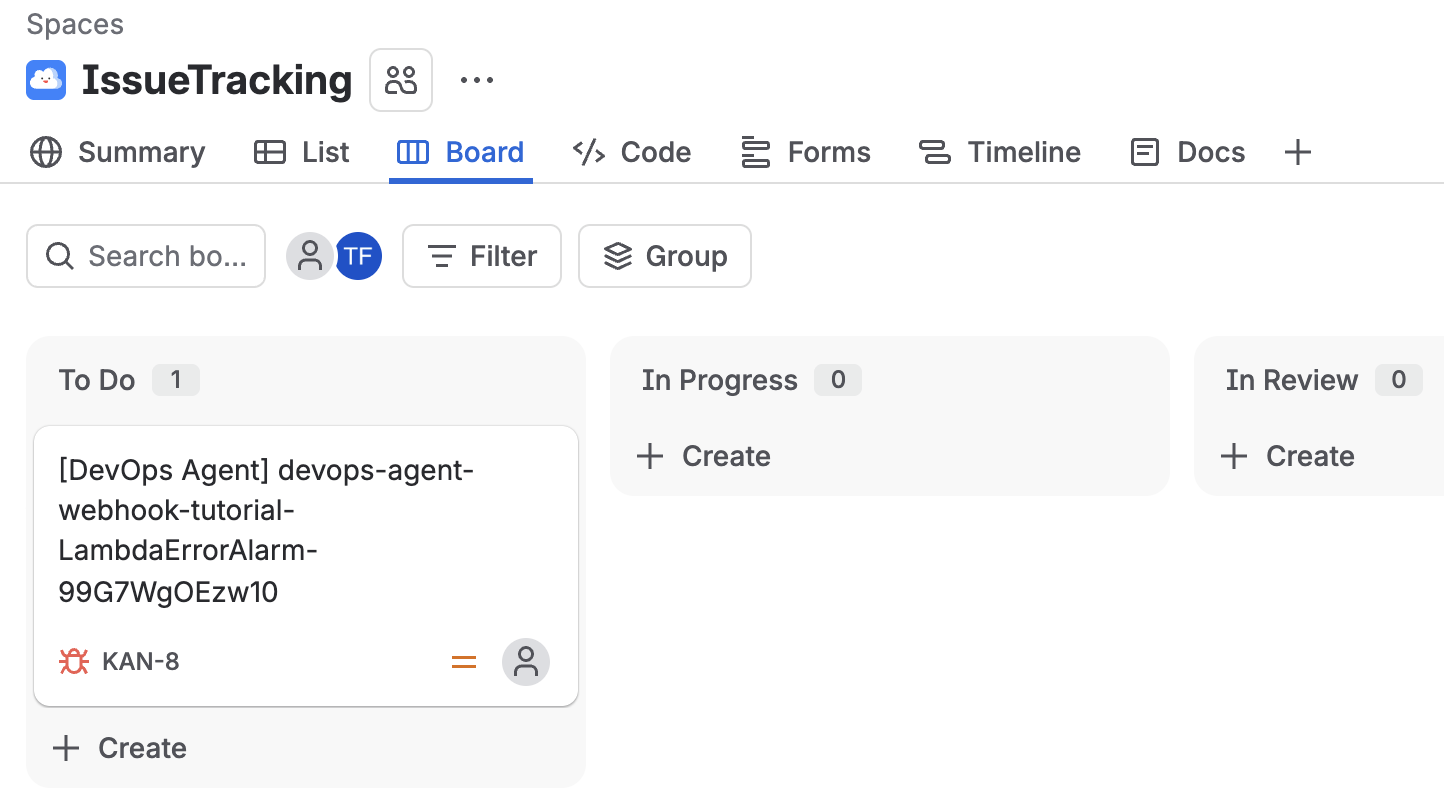
Figure 3: The new Jira issue in the To Do column
When you open the issue, the detail looks like the following. The description holds the investigation title and the alarm details, along with metadata such as task_id, execution_id, agent_space_id, and the status. The Lambda function assembles these from the Amazon EventBridge event and the GetBacklogTask API.
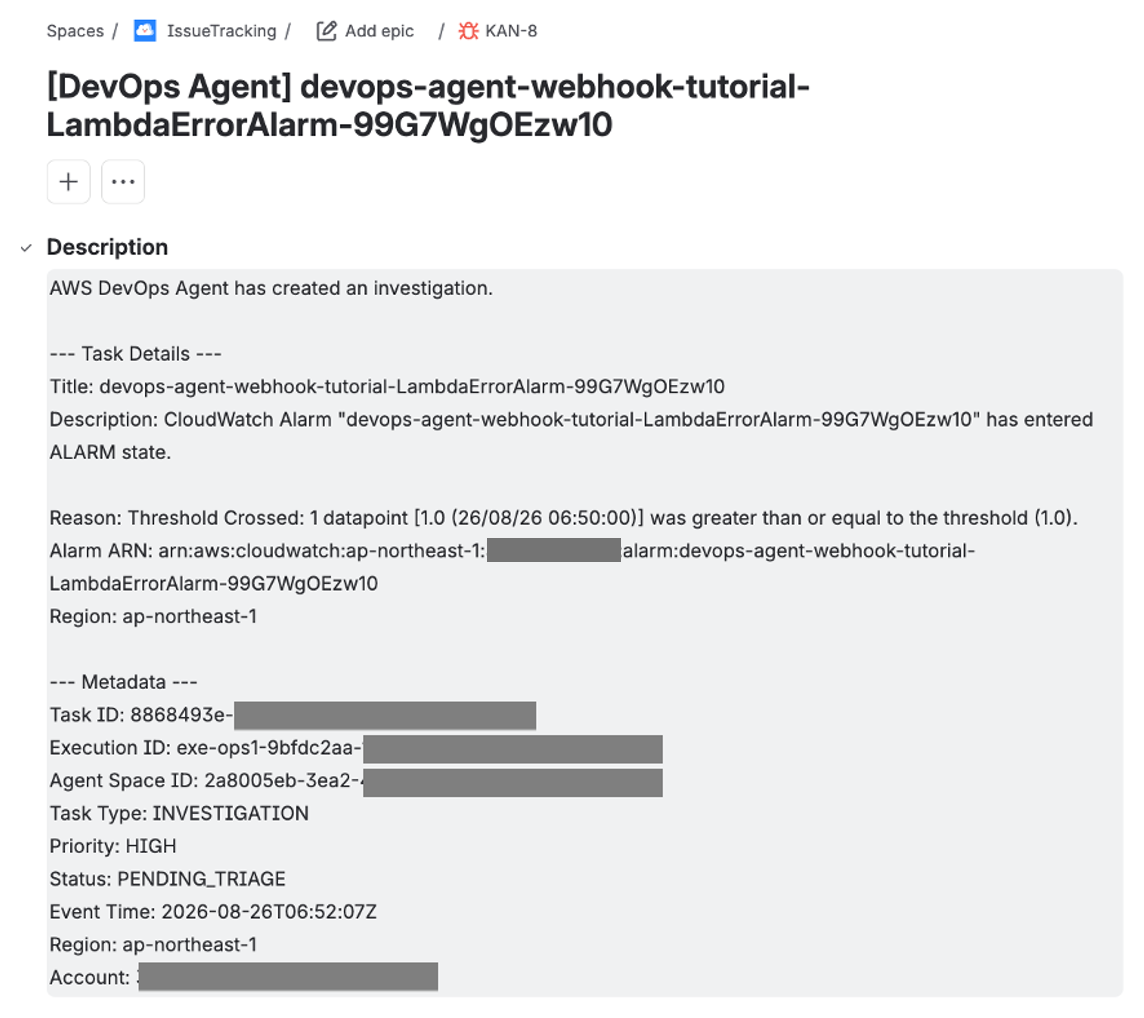
Figure 4: The Jira issue detail with investigation metadata
As the investigation progresses and the state changes, the Lambda function looks up the issue key in DynamoDB and adds a comment to the same issue. When the investigation completes, AWS DevOps Agent presents a root cause. The following screen shows the cause summarized as an intentionally failing Lambda function.
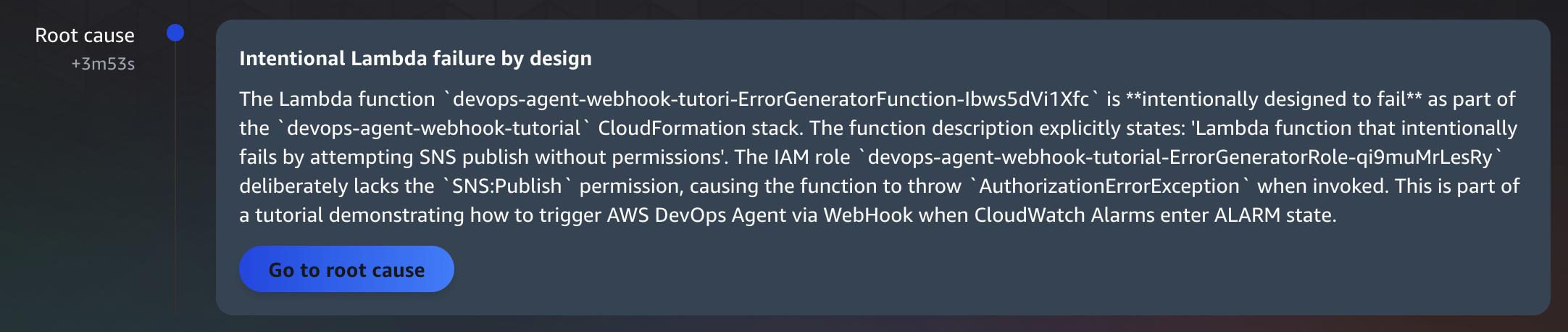
Figure 5: The completed investigation and its root cause in the AWS DevOps Agent console
At the same time, a comment with the investigation result is appended to the Jira issue. The comment in the following screen includes the Investigation Completed status and an Investigation Summary that covers the symptoms, findings, and root cause.
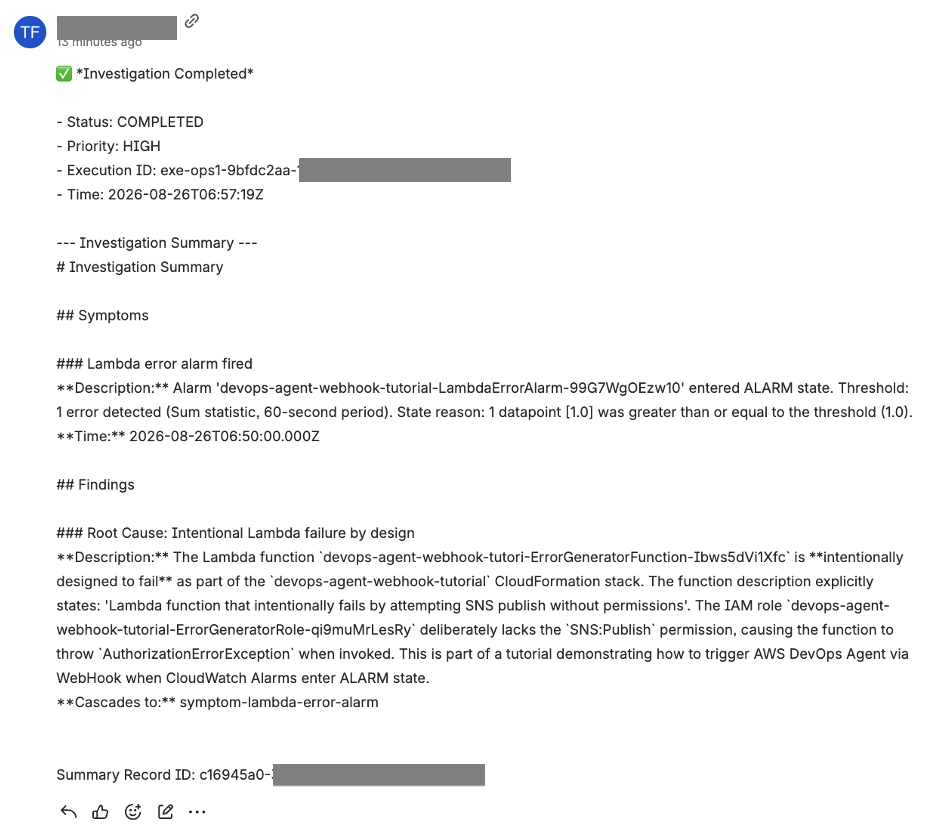
Figure 6: The investigation result appended as a Jira comment
Through this flow, an engineer follows the investigation from start to finish by looking at Jira alone, without switching between the AWS DevOps Agent console and Jira.
Adapting to other tools
The same pattern applies to other tools with an API. What you change is mainly the body of the Lambda function. For ServiceNow, you replace the issue-creation call with the incident-creation API. For PagerDuty, you call its notification API instead of creating or updating an issue. The Amazon EventBridge rule and the DynamoDB mapping stay the same, so you don’t rebuild them for each destination. Storing credentials in Secrets Manager is also common across tools.
Clean up
When you finish testing, delete the resources you no longer need to avoid future charges. First, delete the CDK stack.
Next, delete the Jira credentials stored in Secrets Manager.
The DynamoDB table and the Lambda function are created as part of the CDK stack, so deleting the stack removes them as well.
Conclusion
In this post, I used the AWS CDK to build a solution for connecting AWS DevOps Agent to Jira Cloud. It receives investigation events through Amazon EventBridge, processes them with AWS Lambda, and creates and updates issues in Jira. Because you follow the investigation from the Jira side, engineers keep working inside the tools they already use. By storing credentials in AWS Secrets Manager and mapping investigations to issues in Amazon DynamoDB, you keep each state change on the same issue. The same design applies to other tools with an API, such as ServiceNow and PagerDuty.
Deploy the GitHub sample (sample-aws-devops-agent-eventbridge-integration) to your own account and try it until an investigation event reaches Jira. To learn more about AWS DevOps Agent itself, see the service detail page and the launch post Announcing General Availability of AWS DevOps Agent. To learn more about the Amazon EventBridge integration, see the AWS documentation (Integrating AWS DevOps Agent with Amazon EventBridge and AWS DevOps Agent events detail reference).