AWS DevOps & Developer Productivity Blog
Tracing failures across Terraform state boundaries with AWS DevOps Agent
AWS DevOps Agent helps trace failures that cross Terraform state boundaries, which may be hard to diagnose because the team that sees the symptoms often doesn’t own the stack that caused them. This post shows how AWS DevOps Agent helps find the root cause of these cross-stack failures. First, some context on why those boundaries can introduce challenges.
Many teams split infrastructure into independent Terraform stacks. It gives teams clear ownership boundaries and smaller scope. An infrastructure team owns networking, and an application team owns compute and data. Each stack has its own state file, and neither team has to coordinate with the other for routine changes.
That separation also creates a visibility gap. When one team changes a stack and their change silently breaks an application in another stack, the team that sees the symptoms rarely owns the stack that the first team modified. They check their own AWS Lambda logs, AWS Identity and Access Management (IAM) policies, and database metrics. Everything looks fine, because their stack shows no issues.
Here’s the scenario this post walks through. An infrastructure team tightens a security group egress rule during a routine security audit. The infrastructure team’s change accidentally severs an application team’s Lambda from Amazon DynamoDB. The application team sees timeouts, and the alarms point everywhere except the real problem.
AWS DevOps Agent helps address that challenge. It correlates the alarms, maps the dependency chain across the state boundary, and inspects AWS CloudTrail to help narrow down the networking change as the likely root cause. You can then take its mitigation spec into Kiro to generate and apply the fix.
You can find all the Terraform and Lambda code referenced here in the accompanying GitHub repository. This is demonstration code that intentionally injects a failure and exposes an unauthenticated API for teaching purposes. It isn’t production-ready. See the repository’s
SECURITY.mdfor the known gaps and hardening steps.
Solution architecture
The following diagram shows the full request path and how AWS DevOps Agent connects to it.
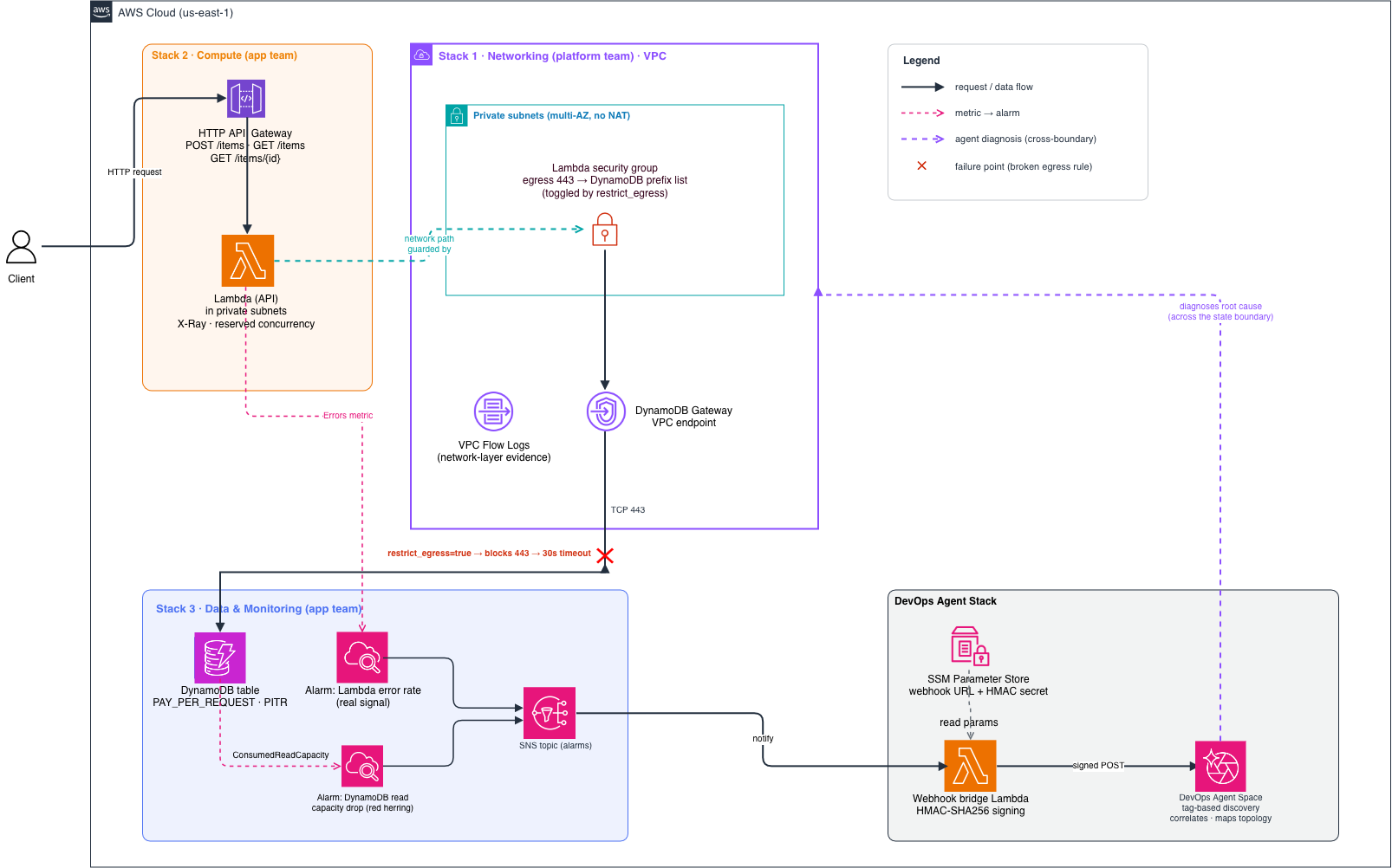
Figure 1: Request path and monitoring flow that connects the sample application to AWS DevOps Agent
As the diagram shows, a client request enters through Amazon API Gateway, which invokes the Lambda function running inside the VPC. The function reaches Amazon DynamoDB over TCP/443 through a Gateway VPC endpoint, and a security group egress rule in the networking stack controls that path. On the monitoring side, Amazon CloudWatch alarms publish to an Amazon SNS topic. A webhook bridge Lambda function forwards each signed alarm to the AWS DevOps Agent Space, and the agent traces the failure back to the networking stack that owns the changed rule.
The architecture is a small serverless application split across three independent Terraform stacks, each with its own state file, plus an optional AWS DevOps Agent stack. The stack boundaries mirror real team ownership: an infrastructure team owns networking, while an application team owns compute and data.
When everything is healthy, a request flows like this:
The compute stack doesn’t hardcode anything from the other two. It reads the networking stack’s outputs through terraform_remote_state. Those outputs are the Amazon Virtual Private Cloud (Amazon VPC), the subnet IDs, and the security group ID. It reads the data stack’s outputs (table name and ARN) the same way.
That’s the dependency chain that matters. The application’s runtime health depends on a security group that lives in a stack it only reads from, never writes to.
The key detail is that Lambda reaches DynamoDB through a Gateway VPC endpoint, not over the public internet. There’s no NAT gateway. The only path from the Lambda function to DynamoDB is TCP/443 out to the DynamoDB service prefix list. A single security group egress rule in the networking stack gates that path. Break that rule, and every DynamoDB call from the Lambda function hangs until it times out.
The data-monitoring stack defines two CloudWatch alarms. One is the real signal, the other is a deliberate red herring:
- Lambda error-rate alarm fires on the
Errorsmetric. It’s the genuine symptom of trouble. - DynamoDB read-capacity-drop alarm fires when
ConsumedReadCapacityUnitsfalls to near zero. While this appears to implicate DynamoDB, the table is healthy. Capacity drops only because the network layer blocks requests before they ever reach DynamoDB.
Both alarms publish to an Amazon SNS topic. The webhook bridge Lambda function in the AWS DevOps Agent stack subscribes to that topic, signs each alarm payload, and then forwards the payload to AWS DevOps Agent.
Prerequisites
Before you deploy this sample, make sure that you have the following in place:
- An AWS account with access to the US East (N. Virginia) AWS Region (us-east-1), where you use AWS DevOps Agent. AWS DevOps Agent is available in 11 AWS Regions, and regardless of which supported Region you create your Agent Space in, it can monitor and investigate resources in AWS accounts located in any AWS Region. This walkthrough uses the US East (N. Virginia) Region (us-east-1) for the demo.
- Permissions to create the resources used across the stacks: Amazon VPC networking (VPC, subnets, security groups, VPC endpoints, VPC Flow Logs), AWS Lambda, Amazon API Gateway, Amazon DynamoDB, Amazon SNS, Amazon CloudWatch alarms, AWS Systems Manager Parameter Store parameters, and the IAM roles and policies these resources require.
- Permissions to provision AWS DevOps Agent resources through AWS Cloud Control API, including creating the Agent Space and account association and passing the agent’s IAM role.
- Terraform 1.6.0 or later, with the
hashicorp/aws(5.50.0 or later) andhashicorp/awscc(1.66.0 or later) providers. The AWS provider manages standard resources, and the AWS Cloud Control API provider manages the AWS DevOps Agent resources. - The AWS Command Line Interface (AWS CLI) configured with credentials for the target account.
- An Amazon Simple Storage Service (Amazon S3) bucket for Terraform remote state and an Amazon DynamoDB table for state locking because the compute stack reads the other stacks’ state through
terraform_remote_state.
Setting up AWS DevOps Agent with Terraform
AWS DevOps Agent resources aren’t in the standard hashicorp/aws provider. You provision the Agent Space and account association through the hashicorp/awscc provider (the AWS Cloud Control API provider). A few things trip people up here, so they’re worth calling out.
Use the US East (N. Virginia) Region
AWS DevOps Agent is available in 11 AWS Regions, and no matter which supported Region hosts your Agent Space, the agent can monitor and investigate resources in AWS accounts located in any AWS Region. This walkthrough creates the Agent Space in us-east-1 for the demo.
Get the IAM trust policy right
Two details matter. The service principal is aidevops.amazonaws.com (not devops-agent.amazonaws.com), and the aws:SourceArn condition must be the exact Agent Space ARN. A wildcard ARN causes a 400 error.
Attach the AWS managed policy AIDevOpsAgentAccessPolicy to the role, plus a small inline policy allowing iam:CreateServiceLinkedRole for AWS Resource Explorer. The agent creates that service-linked role on its first run.
Then associate your account with the Agent Space in monitor mode:
On the first apply, the association can fail with “Invalid AWS Security Token Service (AWS STS) role configuration.” That’s a race between the IAM trust policy propagating and the association forming. Re-run the same apply and it succeeds.
Bridge the alarms to the agent
CloudWatch alarms have no native action that targets AWS DevOps Agent, so you need a small bridge Lambda between SNS and the agent’s webhook. The bridge:
- Receives the CloudWatch alarm through SNS.
- Fetches the webhook URL and HMAC signing secret from AWS Systems Manager Parameter Store (stored as
SecureString). - Builds an event payload from the alarm data.
- Signs it with HMAC-SHA256 over
timestamp:payload, Base64-encoded. - POSTs it with the
x-amzn-event-signatureandx-amzn-event-timestampheaders.
The signing method is specific. The agent rejects the request with a 403 if the signature isn’t HMAC-SHA256 over timestamp:payload in exactly that form:
To generate the webhook, open your Agent Space on the console, go to Capabilities, choose Webhook, and then choose Generate. When prompted for the authentication method, choose HMAC so the agent validates each request against the HMAC-SHA256 signature the bridge Lambda produces. This returns a webhook URL and a signing secret. This walkthrough generates the webhook on the console because that is the only option today. Unlike the Agent Space, IAM roles, and associations, which this post provisions with Terraform, the generic webhook is not exposed as a Terraform resource. The generated URL and secret are only available from the Capabilities tab. This mirrors the official AWS DevOps Agent Terraform sample, which provisions everything in code but leaves console-only steps, such as connecting Datadog, as manual actions. Once you generate the webhook, store its URL and secret in the Parameter Store parameters that Terraform created with placeholder values. The bridge Lambda then picks them up from there.
Deploying the three interdependent Terraform stacks
Deploy order follows the dependency chain. Networking comes first (everything depends on the VPC and security group), then data-monitoring (the table has to exist before compute references it), then compute (it reads both other stacks’ remote state).
Terraform takes a minute or two to create the VPC-attached Lambda because of elastic network interface (ENI) setup. If an apply times out mid-run, re-run the same command, and Terraform picks up where it left off.
After compute finishes, retrieve the API URL and confirm the expected behavior before introducing the failure:
A POST returns {"message": "Item created"} and the GET returns the item. The full path now works, from the API request through to the DynamoDB write and read: API Gateway invokes the Lambda function, the Lambda function writes and reads DynamoDB through the VPC endpoint, confirming both stacks work as expected.
Note:
priceis a string ("29.99"), not a number. DynamoDB through boto3 rejects Python floats.
Finally, deploy the AWS DevOps Agent stack and complete the manual webhook step described earlier. After the account association is active, the Agent Space page starts showing “Relationships mapped” climbing as the agent discovers your resources and builds topology. This discovery phase populates the agent space memory that AWS DevOps Agent relies on to understand your environment and correlate signals during an investigation. Wait until discovery has completed and the agent has finalized its agent space memory before you proceed. That way, the agent has the full context it needs for the incident investigations that follow. You can tell discovery is finished from the Agent Space page on the console. The “Relationships mapped” count stops climbing and holds steady over a few minutes. The account association shows an Active status rather than Syncing or In progress. The resource and topology view reflects the resources you deployed (the VPC, Lambda functions, DynamoDB table, and their relationships). For a brand-new account of this size, the initial build typically settles within roughly 10 to 15 minutes.
Introducing the cross-stack failure
Here’s the change that starts the failure. The whole failure hinges on one security group egress rule in the networking stack, toggled by a single variable:
Flipping restrict_egress to true is the kind of change that looks entirely reasonable in a pull request. “Scope Lambda egress to the VPC CIDR instead of a broad prefix list” reads like tightening, not breaking. The description even says “security audit compliance.” A reviewer on the infrastructure team would likely approve it without a second thought. From inside the networking stack, there’s no visible connection to the application’s DynamoDB traffic.
Inject it with the provided script:
The moment you change the rule, the path from the Lambda function to the DynamoDB VPC endpoint disappears. The Lambda function is still perfectly invocable, because API Gateway ingress is untouched. Requests come in and the handler runs, but every DynamoDB call then sits there until the 30-second Lambda timeout. Drive a little traffic and confirm:
Within a minute or two, the alarms fire. And this is where a human investigation goes sideways:
- The Lambda logs show
Task timed out after 30.00 seconds. No stack trace, noAccessDenied, nothing that points at networking. - The DynamoDB console shows a perfectly healthy table. No throttling, no errors, capacity near zero.
- IAM is correct. The Lambda role has the right DynamoDB permissions. This isn’t a permissions problem.
- The DynamoDB capacity alarm actively misleads you toward the database.
An engineer troubleshooting this naturally checks Lambda configuration, then IAM, then DynamoDB. Only after exhausting all of those might they think to look at VPC networking. That networking lives in a stack another team owns, one they didn’t know had changed. That’s the visibility gap the state boundary creates.
AWS DevOps Agent investigation
Both alarms publish to SNS, the bridge Lambda signs and forwards them, and AWS DevOps Agent opens an investigation triggered by the event channel. From there it works the problem in parallel rather than the linear path a human would take.
The investigation fans out into subagents. They look at Lambda metrics, DynamoDB metrics, Lambda logs, CloudTrail, and VPC networking simultaneously. That parallelism is what collapses sequential log-diving into a much shorter effort. While one line of inquiry reads the Lambda timeout logs, another is already correlating the two alarms as a single event. A third is pulling recent CloudTrail events for the resources in the topology.
What the agent establishes:
- A single correlated event – The two alarms started within the same window and are related, not independent failures.
- The dependency chain – API Gateway to Lambda to VPC to security group to DynamoDB VPC endpoint to DynamoDB. Critically, it walks this chain across the Terraform state boundary. It sees AWS resources and their relationships, not stack ownership. The boundary that hides the cause from the app team is invisible to the agent, which works in its favor.
- A network timeout, not a permissions or database fault – The Lambda logs show connection timeouts to the DynamoDB endpoint. The DynamoDB metrics confirm the table is idle rather than erroring.
- The trigger – CloudTrail shows a recent egress change on the Lambda security group, with the principal and timestamp. Correlating that timestamp against the onset of Lambda timeouts (roughly a minute later) establishes causation.
- A red herring that is really a symptom – The DynamoDB capacity drop reflects a downstream effect (requests never arrive), not a DynamoDB fault.
It lands on a root cause along these lines:
A security group egress modification blocked the network path from Lambda to DynamoDB. The change replaced the egress rule that allowed TCP/443 to the DynamoDB VPC endpoint prefix list with a rule scoped to the VPC CIDR only. As a result, Lambda functions in the private subnets can no longer establish connections to DynamoDB through the Gateway VPC endpoint. Both alarms are symptoms of this one network-layer change, and the DynamoDB table itself is healthy.
With VPC Flow Logs active in the networking stack, the agent gains additional network-layer evidence to confirm that the network drops the traffic rather than letting it reach DynamoDB and fail there.
Generating the mitigation specification with Kiro
AWS DevOps Agent doesn’t stop at diagnosis. Alongside the root cause, it produces a mitigation plan, which is structured, agent-ready guidance describing what needs to change. In the web app, the Mitigation plan tab has a Copy spec button that hands you a spec you can drop straight into Kiro.
The spec captures the intent without prescribing exact syntax:
Mitigation: Restore the security group egress rule that allows Lambda to reach DynamoDB through the VPC endpoint.
- Security group: the Lambda security group in the networking stack.
- Rule: egress, TCP, port 443.
- Destination: the DynamoDB VPC endpoint prefix list.
- Effect: restore the Lambda to DynamoDB network path that the recent change removed.
This is the handoff point between detection and remediation. The agent understood what is wrong and what the fix needs to accomplish. Kiro turns that into the actual Terraform change in your repository.
Implementing the remediation with Kiro
Open the spec in Kiro. Because the fix is a matter of intent expressed against real code, Kiro reads the networking stack, locates the toggled egress rule, and produces the corrected Terraform. In this repo the clean fix is to flip restrict_egress back to false, which restores the prefix-list rule:
For a repo that defines the restrictive rule directly (not behind a toggle), Kiro generates the equivalent change. It swaps the cidr_blocks destination back to the DynamoDB prefix_list_ids:
The engineer stays in control. You review the diff, run terraform plan to confirm it only touches the one egress rule, and then apply:
The loop is now closed. AWS DevOps Agent detected and diagnosed, Kiro generated the fix, and a human approved it before anything changed. While iterating on the demo, you can shortcut this with ./scripts/restore.sh, which re-applies with restrict_egress=false.
Validating recovery
As soon as you restore the egress rule, the path from the Lambda function to the DynamoDB VPC endpoint comes back. Confirm with the same request that was timing out:
The request returns immediately instead of hanging for 30 seconds. On the monitoring side, once real traffic reaches DynamoDB again, consumed read capacity climbs back above the threshold and the DynamoDB alarm returns to OK. The Lambda error-rate alarm clears as timeouts stop. The bridge Lambda forwards the OK-state transitions to AWS DevOps Agent, which reflects the issue resolving.
Assessment and key takeaways
Being honest about what the agent does well and where it has limits matters more than a clean demo.
What it got right:
- The agent identified networking as the root cause instead of chasing DynamoDB or IAM, which is exactly where the human investigation stalls.
- It traced the VPC endpoint connectivity path accurately and correlated the two alarms into a single event.
- The DynamoDB red herring didn’t fool it, because it explained the capacity drop as a downstream symptom.
- CloudTrail analysis surfaced the security group change, and the agent tied its timestamp to the onset of failures.
- Most importantly, it turned a cross-team investigation that spans multiple stacks into a single, correlated result.
Where to keep expectations realistic:
- The agent reasons about AWS resources and their relationships, not Terraform stacks. That’s a strength here, because it sees past the state boundary. It does mean the agent won’t tell you “this was in the networking stack.” Instead, it names the security group and the change, and you map that back to the stack.
- When a security group change is made by running
terraform apply, CloudTrail records the IAM role that ran the apply, not the individual engineer. Attribution stops at the automation identity unless you have additional context. - The quality of the network-layer diagnosis depends on signals being available. With VPC Flow Logs active in this demo, the agent gains concrete evidence. Without them, it has less to work with and may flag the gap.
The broader takeaway is that Terraform state separation is the right call for team ownership, but it manufactures operational visibility gaps. The team that owns the symptoms often doesn’t own the cause and can’t see the change that triggered it. AWS DevOps Agent helps address that gap by understanding resource topology regardless of how you provisioned the resources or which state file describes them.
Clean up
To avoid ongoing charges, destroy the resources when you’re done. Because the compute stack depends on the networking and data-monitoring stacks, tear the stacks down in the reverse of the deploy order. Destroy AWS DevOps Agent first, then compute, then data-monitoring, and networking last.
Deleting the VPC-attached Lambda function can take a minute or two while AWS releases its elastic network interfaces. Allow the networking stack destroy to finish before you remove the remote state backend. If you created a dedicated Amazon S3 bucket and Amazon DynamoDB lock table for Terraform state, delete those last, after you destroy all four stacks.
Conclusion
Independent Terraform stacks give you clean ownership boundaries and small scope, and you should keep using them. The tradeoff is that failures don’t respect those boundaries. A routine, reasonable-looking security group change in the infrastructure team’s stack can time out an application team’s Lambda, and the symptoms will point everywhere except the actual cause.
AWS DevOps Agent narrows that gap. It correlates alarms, maps the dependency chain across state boundaries, and reads CloudTrail to find the triggering change. Pairing it with Kiro closes the full loop from detect to remediate. The agent produces a mitigation spec, Kiro turns it into a reviewed Terraform diff, and an engineer applies the fix with confidence. The human still makes the call, and the cross-team log-diving is no longer the bottleneck.
Next steps
To try this end to end, deploy the sample from the accompanying GitHub repository, inject the failure, and watch the agent trace the cause across the state boundary. To learn more, see the following resources:
- AWS DevOps Agent documentation for automated troubleshooting capabilities.
- Kiro documentation to explore the development workflow used for the remediation.
- Terraform on AWS for the AWS provider documentation.
- Gateway VPC endpoints for DynamoDB to review the networking pattern this sample relies on.