.NET on AWS Blog
Building Resilient .NET Applications Using Amazon DynamoDB Warm Throughput
Introduction
When your .NET application needs to handle a planned, instantaneous traffic spike, you want Amazon DynamoDB to be ready from the moment the spike begins. DynamoDB auto scaling is designed to adapt to gradual traffic changes by evaluating utilization over a period before increasing provisioned capacity. For planned events where demand increases instantaneously, warm throughput provides a way to prepare the table in advance so that provisioned capacity can be scaled up in seconds when needed.
For example, an online learning platform that launches a new course reads thousands of user profiles from DynamoDB and broadcasts personalized notifications. This event-driven workload generates a sudden, concentrated spike in read operations that differs from the platform’s steady-state traffic. With provisioned capacity mode and auto scaling enabled, DynamoDB adjusts throughput in response to sustained traffic changes over time. For workloads like course launch notifications, where thousands of reads begin simultaneously and the timing is known in advance, warm throughput helps prepare the table for these workloads.
In this post, you use a sample .NET application to observe how DynamoDB handles instantaneous traffic spikes with and without warm throughput and compare the results through Amazon CloudWatch metrics. By the end of this post, you will understand when to use warm throughput, how to calculate the required capacity, and how to integrate warm throughput into your .NET application workflow.
Prerequisites
Before starting this walkthrough, ensure you have the following:
- AWS account with permissions to create and manage DynamoDB tables, Application Auto Scaling policies, and Amazon CloudWatch metrics
- .NET 10 SDK installed on your local machine
- AWS CLI version 2 installed and configured with credentials for your target AWS Region
- AWS CDK CLI version 2.258.0 or later
- AWS SDK for .NET (AWSSDK.DynamoDBv2) version 3.7 or later
The complete source code, infrastructure templates, and setup instructions are available in the sample-dynamodb-warmthroughput repository on GitHub. The repository README provides two deployment options: local testing (running the .NET console application from your machine) and AWS deployment (AWS Lambda + AWS Step Functions). Clone the repository and follow the README to deploy the infrastructure before proceeding.
Solution overview
The sample .NET application simulates a course launch notification system for an online learning platform. The application reads user profile data from a DynamoDB table and sends notifications to each user about a newly launched course.
Figure 1 illustrates the warm throughput workflow, showing the sequential steps the application performs: calculating peak capacity, pre-warming the table, scaling up provisioned throughput, executing the workload, monitoring metrics, and scaling back down.

Figure 1: Warm throughput sequential workflow
The application runs in two phases of different workload:
1. Phase 1 (medium-load) – The application sends read requests at a moderate rate that is closer to provisioned capacity.
2. Phase 2 (peak-load) – A new course launches, triggering the notification workflow. The application ramps up to a significantly higher number of concurrent read requests.
You will run the sample application in two modes to compare how DynamoDB handles the workloads. First, you run the application without warm throughput to observe what happens when demand rises instantaneously beyond provisioned capacity. Then, you run with warm throughput to observe how pre-warming the table and scaling provisioned capacity in advance addresses this specific pattern. After each run, you review CloudWatch metrics to compare the results.
Running the application without warm throughput
With the table configured using provisioned capacity (30 RCUs) and auto scaling, run the notification application in without-warm-throughput mode, using the following command.
dotnet run --without-warm-throughput
After running the application, you may observe the following behaviors:
- Throttling – When demand exceeds provisioned capacity and available burst capacity, DynamoDB returns ProvisionedThroughputExceededException responses. This can occur in either phase depending on burst capacity availability. The application retries with exponential backoff. For more information, refer to Troubleshooting throttling in Amazon DynamoDB.
- Auto scaling behavior – Auto scaling triggers to increase the provisioned capacity when your consumed capacity breaches the configured target utilization for two consecutive minutes. CloudWatch alarms might have a short delay of up to a few minutes before triggering auto scaling. For more details refer Managing throughput capacity automatically with DynamoDB auto scaling.
In the application output, you may observe:
- Throttled items increasing as demand exceeds available capacity during the spike
- Retry counts growing as the application retries throttled requests with exponential backoff
- Provisioned RCUs increasing as auto scaling detects sustained elevated utilization
Observing CloudWatch metrics
After running the application, observe the behavior through CloudWatch metrics for the UserProfiles table.
ConsumedReadCapacityUnits
Figure 2 shows how the application may consume the capacity during the workload execution.
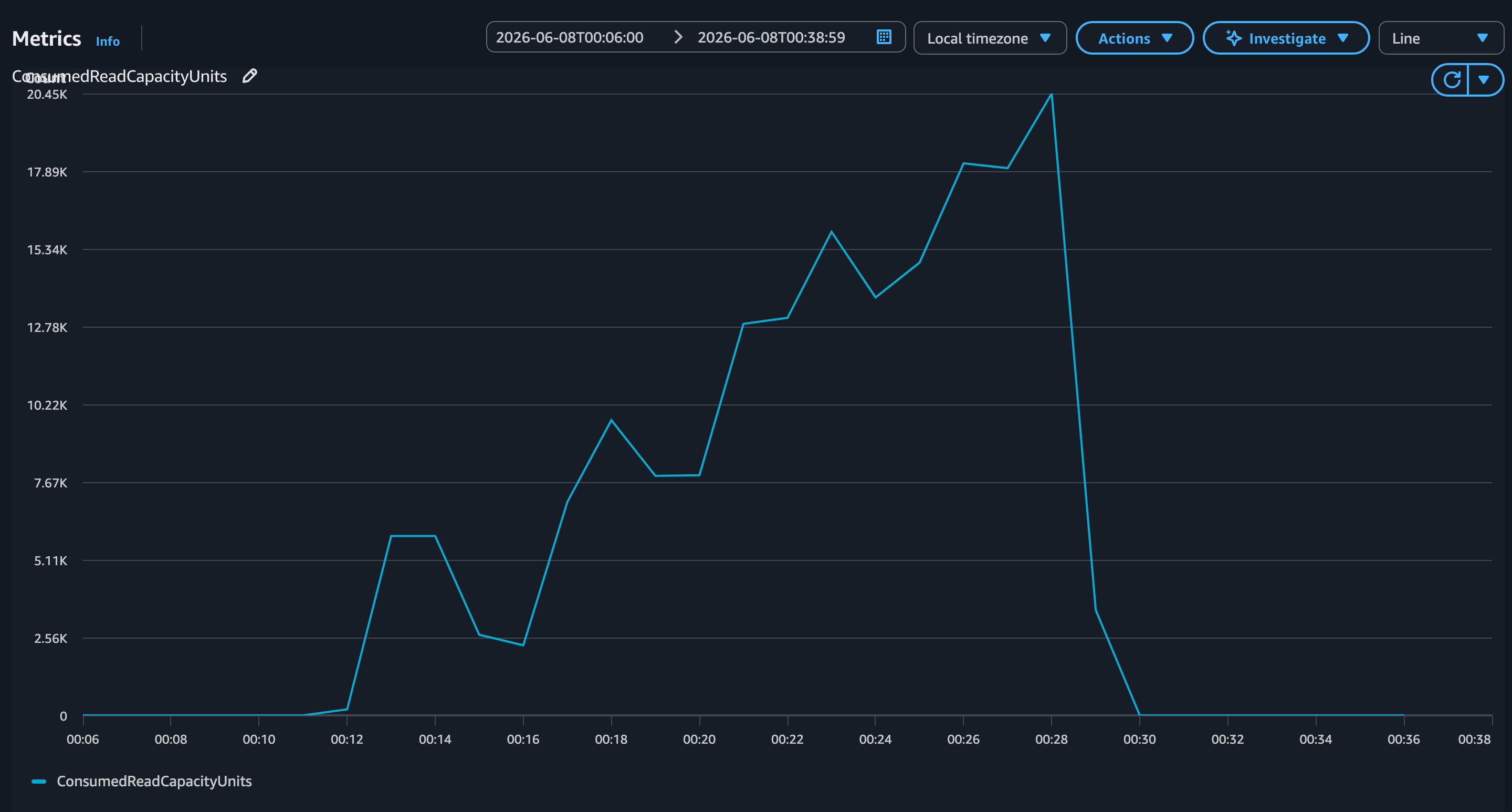
Figure 2: ConsumedReadCapacityUnits without warm throughput
ProvisionedReadCapacityUnits
Figure 3 shows provisioned capacity changes during the workload as auto scaling responds to the traffic.
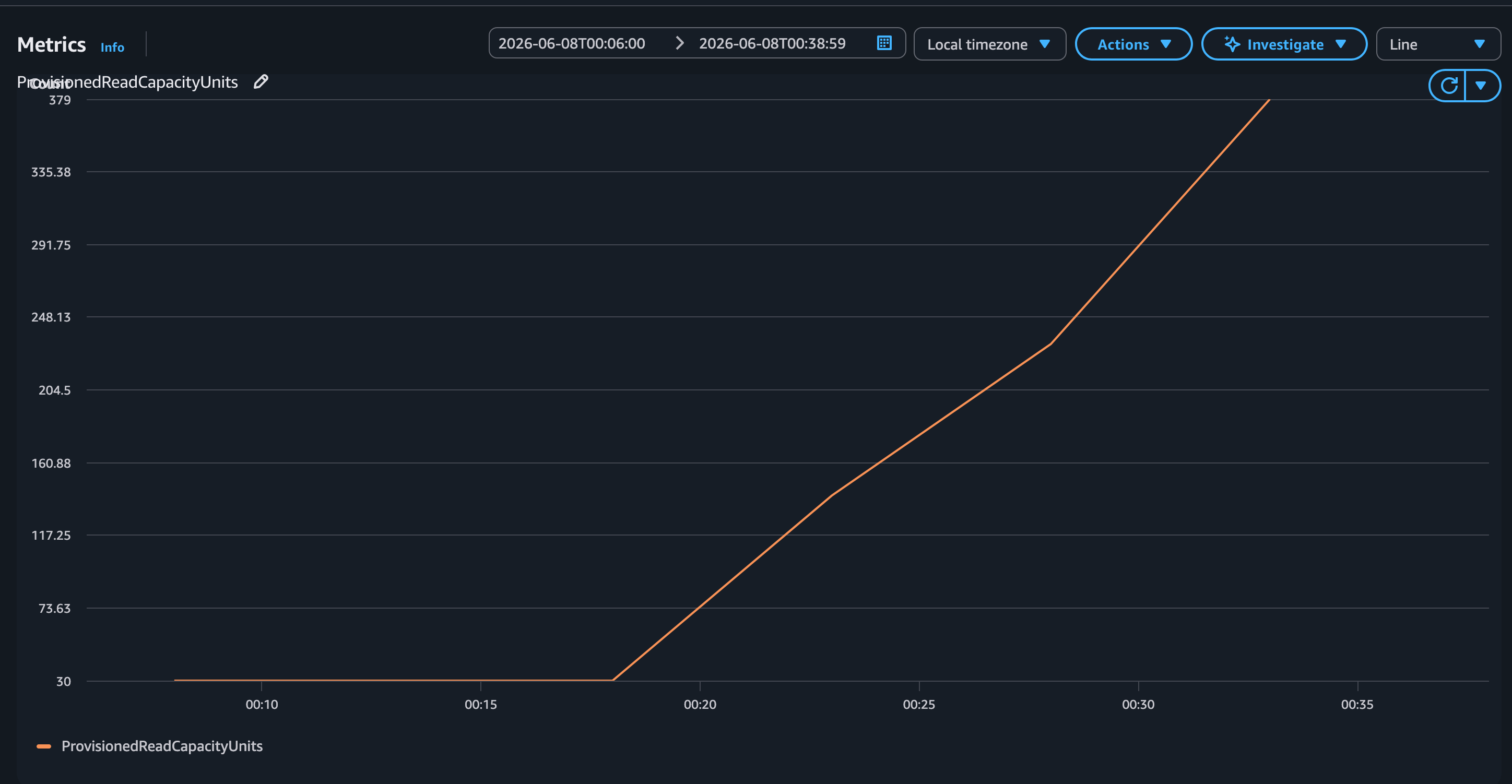
Figure 3: ProvisionedReadCapacityUnits without warm throughput
ReadThrottleEvents
Figure 4 shows the volume of throttle events observed during the workload.
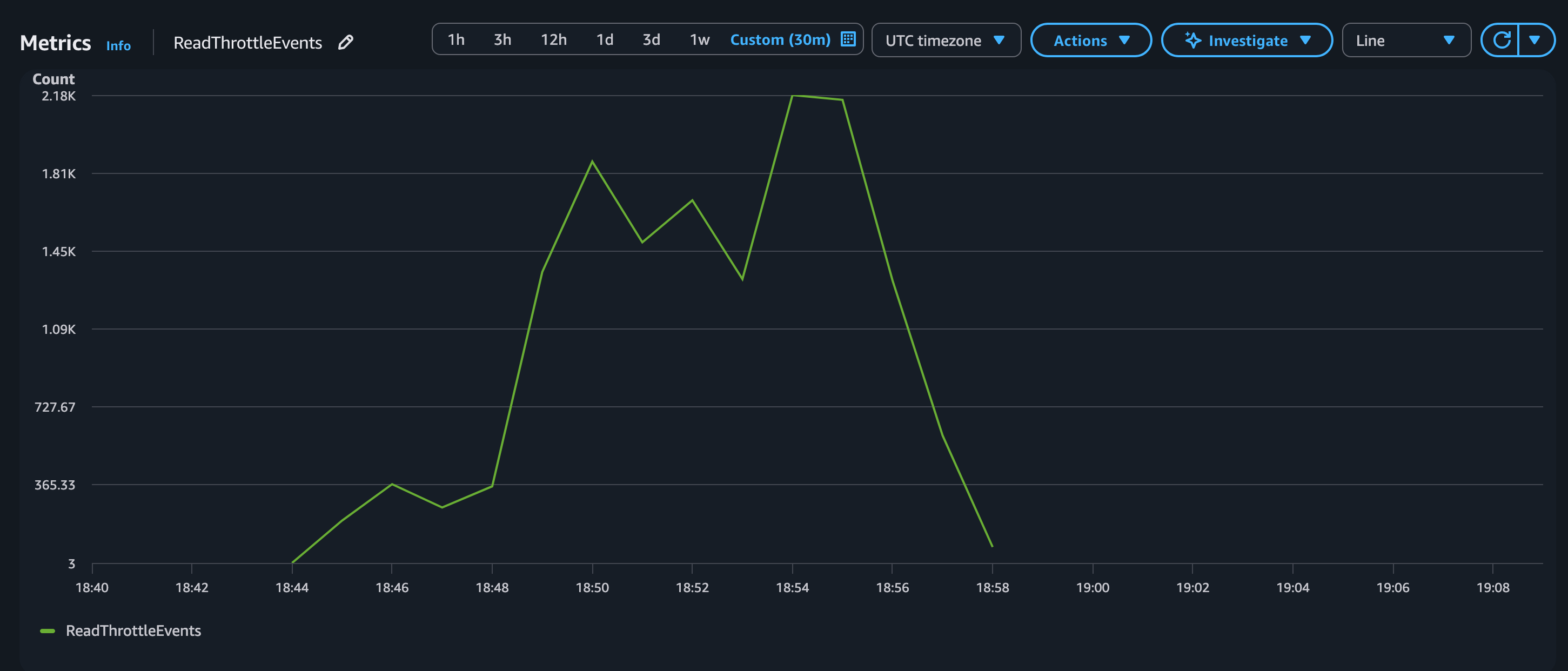
Figure 4: ReadThrottleEvents without warm throughput
For more details on monitoring, refer to Monitoring DynamoDB with Amazon CloudWatch.
Running the application with warm throughput
To address the throttling observed in the previous section, run the application in with-warm-throughput mode using following command.
dotnet run --with-warm-thoughput
In this mode, the application pre-warms the table, scales provisioned capacity up to the calculated peak demand, runs the workload and scales back down after completion. Refer to the repository README for the exact commands to run locally or via Lambda.
Note: Warm throughput is available for both provisioned capacity and on-demand tables. This walkthrough uses provisioned capacity mode to demonstrate the pattern. For more information, refer to Understanding DynamoDB warm throughput.
The following steps describe what the application does internally when running in this mode.
Step 1: Calculate the warm throughput value
You determine the warm throughput value based on the peak read capacity needed for your application during the spike:
- Determine peak operations per second – Calculate the number of read or write operations application generates at peak.
- Calculate capacity units per operation – Each RCU (Read Capacity Unit) provides one strongly consistent read per second for items up to 4 KB.
- Calculate total capacity units required – Peak RCUs = (Number of concurrent operations) x (RCUs per operation).
- Check current warm throughput – Use DescribeTable to check the current warm throughput value.
The following calculation shows how the sample application determines its warm throughput value:
Total users: 10,000 Average item size: 4 KB Items per BatchGetItem: 100 Concurrent batch operations: 5 RCUs per batch: (4 KB / 4 KB) x 100 = 100 RCUs (strongly consistent) Peak RCUs: 5 concurrent x 100 RCUs = 500 RCUs
Step 2: Pre-warm the table
The sample application sets the calculated warm throughput value on the table. In a real-world scenario, you perform this step hours or days before the planned event.
Using the AWS CLI:
aws dynamodb update-table \ --table-name UserProfiles \ --warm-throughput ReadUnitsPerSecond=500,WriteUnitsPerSecond=30 \ --region us-east-1
Programmatically in C#:
var warmUpdateRequest = new UpdateTableRequest { TableName = tableName, WarmThroughput = new WarmThroughput { ReadUnitsPerSecond = requiredReadUnits, WriteUnitsPerSecond = requiredWriteUnits } }; await dynamoDbClient.UpdateTableAsync(warmUpdateRequest);
You can monitor the table status using the following CLI command:
aws dynamodb describe-table --table-name UserProfiles \ --query
'Table{Status:TableStatus,WarmRead:WarmThroughput.ReadUnitsPerSecond}'
Or programmatically:
var response = await dynamoDbClient.DescribeTableAsync(tableName); var status = response.Table.TableStatus; // Wait until ACTIVE var warmRead = response.Table.WarmThroughput?.ReadUnitsPerSecond ?? 0;
Note: Pre-warming does not change your table’s provisioned capacity or how it operates. Your table continues to serve requests at its provisioned capacity level. Pre-warming only prepares the table so that a subsequent increase to provisioned capacity can take effect in seconds. Once increased, warm throughput values can’t be decreased. For pricing details, refer to Amazon DynamoDB pricing.
Step 3: Scale provisioned capacity and run the workload
Once the table status is ACTIVE, the sample application increases provisioned capacity up to the pre-warmed level. Because the table was pre-warmed, this scaling takes effect in seconds. The following code scales provisioned capacity up to the pre-warmed level, and polls until the table is active:
// Scale provisioned capacity up - takes effect in seconds
var updateRequest = new UpdateTableRequest
{
    TableName = tableName,
    ProvisionedThroughput = new ProvisionedThroughput
    {
        ReadCapacityUnits = requiredReadUnits,
        WriteCapacityUnits = currentWriteUnits
    }
};
await dynamoDbClient.UpdateTableAsync(updateRequest);

// Wait for ACTIVE status
while (true)
{
    await Task.Delay(5000);
    var status = await dynamoDbClient.DescribeTableAsync(tableName);
    if (status.Table.TableStatus == TableStatus.ACTIVE) break;
}
Console.WriteLine("Provisioned capacity scaled up successfully.");
After the provisioned capacity is set, the sample application runs the workload and once it completes, scale back down the provisioned capacity to manage costs, the following code scales provisioned capacity back to the baseline after the workload completes:
var scaleDownRequest = new UpdateTableRequest { TableName = tableName, ProvisionedThroughput = new ProvisionedThroughput { ReadCapacityUnits = baselineReadUnits, WriteCapacityUnits = baselineWriteUnits } }; await dynamoDbClient.UpdateTableAsync(scaleDownRequest);
Observing CloudWatch metrics
After running the application in with-warm-throughput mode, review the CloudWatch metrics and you may observe the following metrics.
ConsumedReadCapacityUnits
Figure 5 shows that consumed capacity scales smoothly during the workload. Because provisioned capacity was scaled up to the calculated peak demand before the workload began, all reads are served without exceeding provisioned limits.
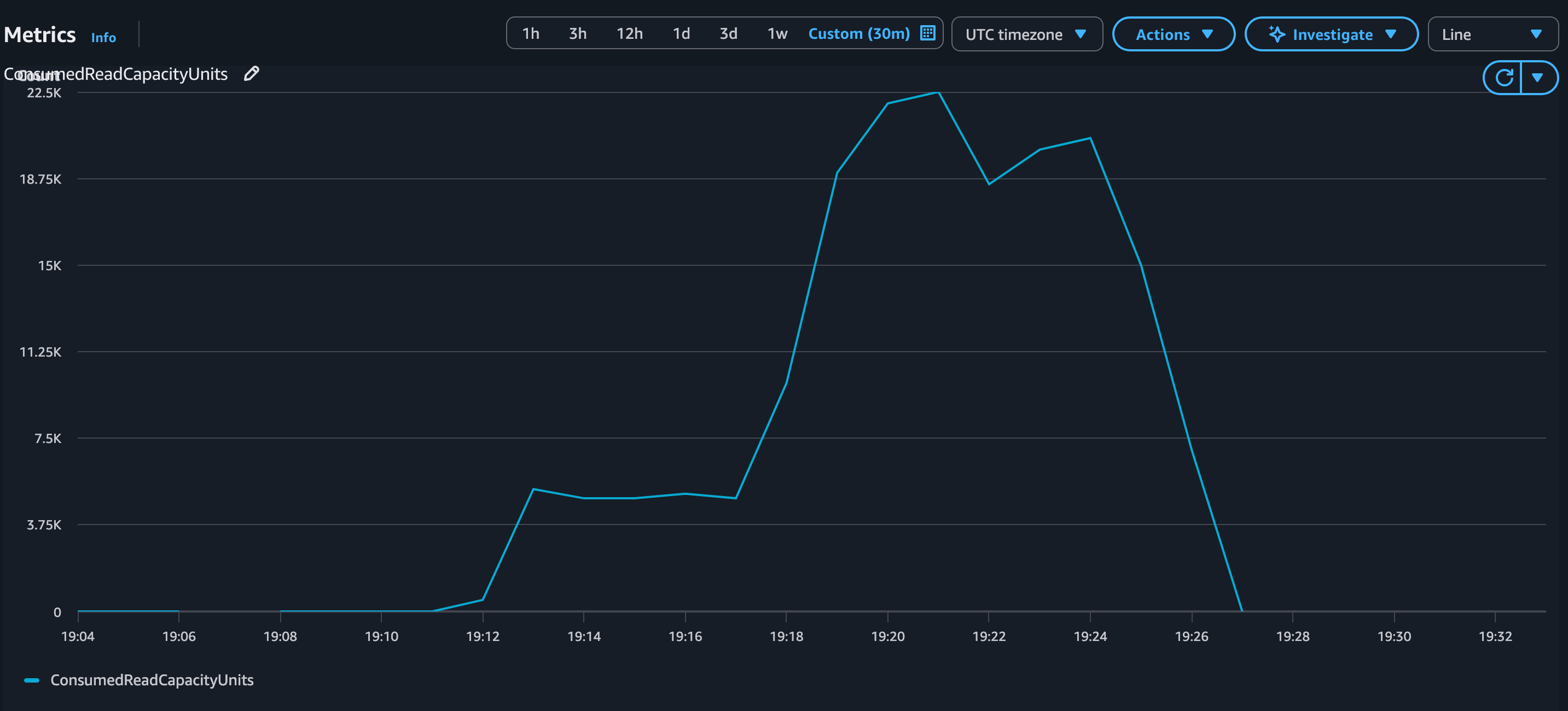
Figure 5: ConsumedReadCapacityUnits with warm throughput
ProvisionedReadCapacityUnits
Figure 6 shows provisioned capacity at the pre-scaled level throughout the workload execution.
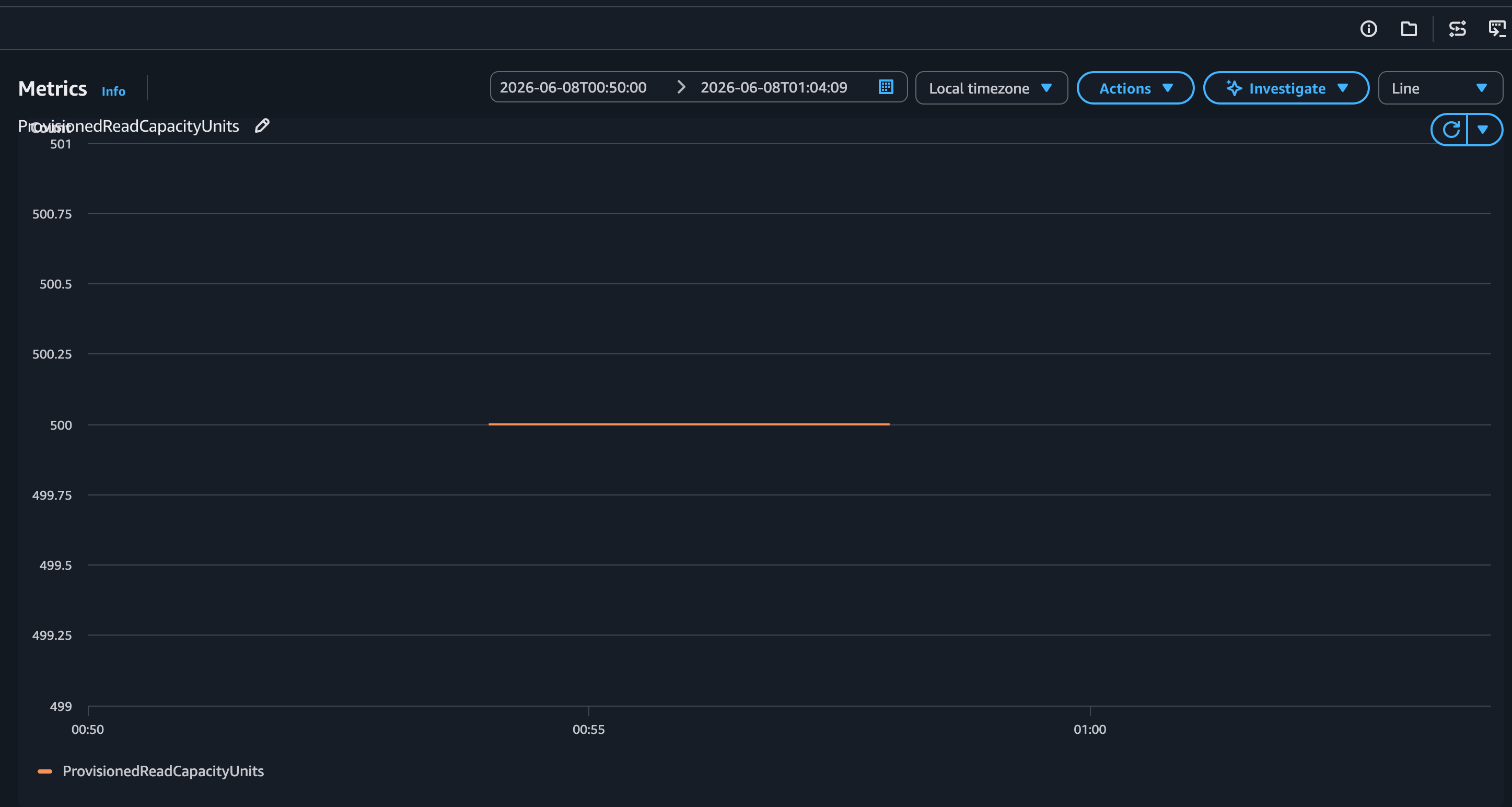
Figure 6: ProvisionedReadCapacityUnits with warm throughput
ReadThrottleEvents
Figure 7 confirms zero throttle events throughout the entire application run. The No data available message from CloudWatch indicates that no ReadThrottleEvents were recorded during this time window.
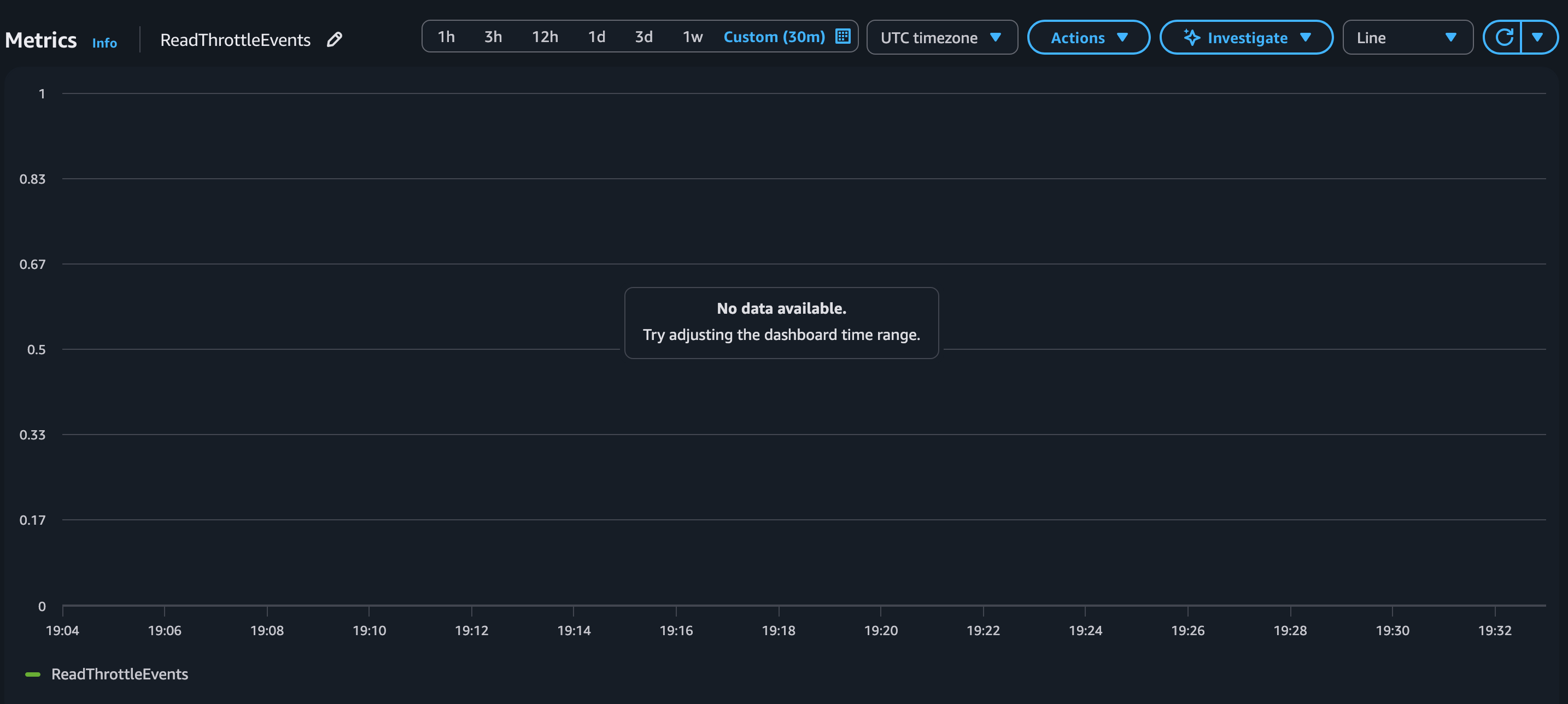
Figure 7: ReadThrottleEvents with warm throughput: no throttle events recorded (zero throttling)
Results comparison
The application output and CloudWatch metrics illustrate the key behavioral differences between the two runs:
- Throttling – Without warm throughput, throttled requests appear during the workload as demand exceeds available capacity. With provisioned capacity scaled up using warm throughput, the same workload may complete with significantly fewer or no throttled requests
- Retries – Without warm throughput, the application retries throttled requests with exponential backoff, extending the total elapsed time beyond the planned workload duration. With warm throughput, retries may be significantly reduced or absent.
- Cloudwatch metrics – ReadThrottleEvents and ThrottledRequests metrics show activity without warm throughput and significantly fewer or no events with warm throughput applied.
All requests are eventually processed in both runs because the sample application implements custom retry logic.
Note: The sample application disables the built-in of AWS SDK retry mechanism and implements its own exponential backoff. This is intentional to make throttling and retry behavior visible in the per-second metrics for demonstration purposes. In production applications, AWS SDK handles throttled request retries automatically. For more information, refer to Error retries and exponential backoff in AWS.
When to use warm throughput
Warm throughput is useful for workloads where you can anticipate a traffic spike that exceeds the table’s current capacity:
- Scheduled events – Course launches, marketing campaigns, product releases, or flash sales where you know the timing and expected traffic volume in advance.
- Batch processing – Periodic jobs that read or write large volumes of data, such as nightly report generation or bulk notification delivery.
- Migration workloads – Data migration tasks that require sustained high throughput for a defined period.
- Seasonal traffic – Predictable traffic increases during specific periods, such as enrollment seasons for learning platforms.
Clean up
To avoid ongoing charges, delete the resources you created during this walkthrough. Refer to the Cleanup section in the repository README for detailed instructions.
Conclusion
In this post, you explored a .NET application that reads user profiles from DynamoDB to send course launch notifications. You observed how an instantaneous surge in read operations exceeds provisioned capacity in a scenario where the demand pattern is instantaneous rather than gradual. You then used warm throughput to pre-warm the table in advance and scaled provisioned capacity at execution time, which enabled the workload to complete without throttling.
The sample application demonstrates this pattern end-to-end: checking current capacity, pre-warming the table, scaling provisioned capacity, running the workload, and scaling back down.
For pricing details, refer to Amazon DynamoDB pricing.
To get started, explore the complete source code in the sample-dynamodb-warmthroughput repository on GitHub.
References
- Amazon DynamoDB warm throughput
- DynamoDB provisioned capacity mode
- Application Auto Scaling for DynamoDB
- Monitoring DynamoDB with Amazon CloudWatch
- Error retries and exponential backoff in AWS
- Amazon DynamoDB pricing
- sample-dynamodb-warmthroughput (GitHub)
- Troubleshooting throttling in Amazon DynamoDB
- BatchGetItem API Reference
- AWS SDK for .NET