AWS for Games Blog
Run Unreal Engine 5.6 with Proton on Amazon GameLift Streams Linux Runtime
If you are looking to run a Windows game based on Unreal Engine 5.6 or newer, it currently isn’t compatible with the available managed Proton runtimes on Amazon GameLift Streams. Instead, you can run the same Unreal Engine game with a compatible version of Proton by using the Linux Runtime option on Amazon GameLift Streams.
Linux Runtime is an option when creating an application on Amazon GameLift Streams. This option provides developers with Linux experience the full range of standard Linux functionality, such as running Linux-native applications. Proton itself is a Linux-native application, which we can direct to run Windows applications. It is possible to upload a combination of the Proton compatibility layer, plus your Windows application, as if the total combination were entirely one native Linux application.
We will cover how you can use a compatible Proton version to run an Unreal Engine 5.6 game built on Windows by packaging it as a Linux Runtime application on Amazon GameLift Streams.
Prerequisites
Before you begin, confirm you have:
- A compatible Linux environment to build and test the Proton build against the Unreal Engine Windows game with the following recommended specifications:
- Ubuntu 22.04 64-bit operating system consistent with what Amazon GameLift Streams Ubuntu 22.04 long-term support (LTS) runtime.
- For more information, see the documented list of Runtime Environments
- Nvidia or AMD GPU with latest drivers installed
- A functional display device to view the desktop
- Ubuntu 22.04 64-bit operating system consistent with what Amazon GameLift Streams Ubuntu 22.04 long-term support (LTS) runtime.
- An Unreal Engine 5.6 game
- Built for Windows (Not Linux)
- Tested and working on Windows
- AWS resources and access
- AWS Command Line Interface (AWS CLI) installed and configured
- An AWS account with access to Amazon Simple Storage Service (Amazon S3) and Amazon GameLift Streams
- AWS Identity and Access Management (IAM) credentials with permissions to:
- Upload files to Amazon S3
- Create applications on Amazon GameLift Streams
- Delete applications and Amazon S3 objects for cleanup
Solution overview
The Proton and Unreal Engine 5.6 game bundle will be referred to as the Packaged Application from this point onward. You will first need to assemble the Packaged Application, then ingest this onto Amazon GameLift Streams as a Linux Runtime application.
Understanding the Packaged Application folder structure
The Packaged Application requires three things:
- The Unreal Engine 5.6 game built for Windows
- Proton
- An executable script to launch the binaries
Assuming you are on an Ubuntu 22.04 LTS machine logged onto the Ubuntu user, the folder structure of your Packaged Application will look like the following:
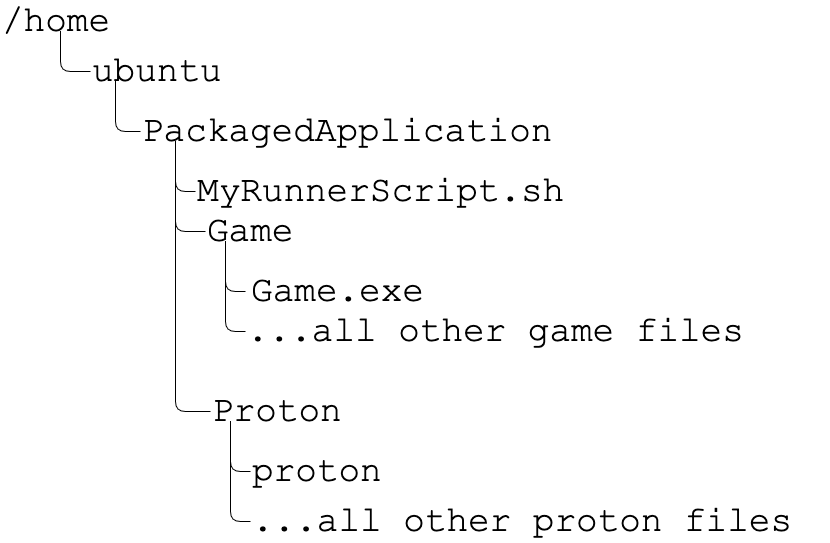
Figure 1: Packaged Application folder structure.
Understanding the executable script for Linux Runtime applications
When you ingest the Packaged Application onto Amazon GameLift Streams as a Linux Runtime application, you will need to specify a Linux executable. This executable should be a program that runs on an Ubuntu 22.04 LTS machine. Currently the executable cannot require root permission and must interface with the X11 display server for rendering the application. For your Packaged Application, the executable will be a Bash script.
Walk-through
Assembling the Packaged Application
Step 1: To generate the top-level folder
First, you will need to generate the top-level folder of the Packaged Application. Enter the following commands in your terminal to set up the required folder:
mkdir ~/PackagedApplication
Step 2: Build Proton 10 from source
- You will be building Proton with the tag experimental-10.0-20250805 from source. Follow the instructions in the Install Proton section in the Amazon GameLift Streams developer guide to create the Proton setup script named
proton-setup.sh. - Next, execute the script to build Proton on your Ubuntu 22.04 LTS machine.
- Once the script is done, take note of the Proton artifact location printed at the very last line. Following is an example of what the location line will look like. The bold part is the location you want to take note of for later use.
Finished installing proton. Proton artifact location: /home/ubuntu/protonBuild/dist
Step 3: To add Proton 10 to the Packaged Application
Copy the Proton artifact location from the previous section into the Packaged Application directory:
The Proton artifact will be referenced later when creating MyRunnerScript.sh.
Step 4: To add the Unreal Engine 5.6 Game to the Packaged Application
Copy the root folder of your Unreal Engine 5.6 game into the Packaged Application folder:
Step 5: To create the executable Bash script
- Create a file named
MyRunnerScript.sh.
- Then, paste the following contents into the MyRunnerScript.sh file and make the necessary updates to the
APP_DIRandAPP_EXEvariables:
NOTE: When modifying the prior Bash script, make certain that the changes are secure and follow the Amazon Web Services (AWS) Shared Responsibility Model.
Step 6: To test the Packaged Application
It is best to test the Packaged Application first on the Linux machine before uploading to Amazon GameLift Streams. Execute MyRunnerScript.sh file on your terminal with the following commands:
If the game runs as expected, then you are ready to create an application with the Linux Runtime on Amazon GameLift Streams. If not, check your terminal output and the wine.log file located in the same directory as the script for further debugging. For more information about debug log files, see the Debug the application through log files section under the Amazon GameLift Streams Troubleshooting Compatibility on Proton guide.
Creating the GameLift Streams application with Linux Runtime
Verify your AWS credentials are active in your terminal and accessible by the AWS CLI. The credentials must have the necessary permissions to upload objects to your S3 bucket and create an application on Amazon GameLift Streams.
Step 1: Uploading the Packaged Application to Amazon S3
In the code snippet that follows, update the <USER_BUCKET> string with your S3 bucket. Then, enter the commands in your terminal to upload the Packaged Application you have just assembled to your S3 bucket.
The compatdata folder contains the WINE prefix, which acts as a virtual drive for your Windows application. For more information, see the official WINE FAQ on WINE prefixes. This folder contains symbolic link files that are not supported by Amazon S3.
Code snippet to upload the Packaged Application:
For more information on uploading files to Amazon S3 using the sync command, see the Amazon S3 sync AWS CLI documentation.
Step 2: Calling Amazon GameLift Streams CreateApplication API
Once the Packaged Application files are in Amazon S3, you can call the Amazon GameLift Streams CreateApplication API using the AWS CLI. On your terminal, enter the commands:
For more information on creating an application on Amazon GameLift Streams, see the CreateApplication API documentation.
The Amazon GameLift Streams Linux application is now ready to be associated with a Stream Group and streamed. A stream session can be started through the console. See the Testing a stream session in the console section in the Amazon GameLift Streams developer guide.
Works on Linux but not on Amazon GameLift Streams
If your game works on your Linux machine but not Amazon GameLift Streams, then it may not currently be compatible with the service and requires further debugging. For feedback or questions, reach out to your AWS representative or Sales Support for further assistance.
Cleanup
When it is no longer in use, the Amazon GameLift Streams application, and artifacts uploaded to Amazon S3, can be deleted to avoid incurring future costs. In the following code snippet, replace the <USER_BUCKET> with your S3 bucket and <APPLICATION_IDENTIFIER> with the identifier returned when creating the application. Then enter the commands in your terminal:
For more information on resource cleanup, see the Amazon S3 rm AWS CLI documentation and Amazon GameLift Streams DeleteApplication API documentation.
Conclusion
We showed how to create a Linux Runtime application on Amazon GameLift Streams by packaging Proton 10, an Unreal Engine 5.6 game, and a Bash script as the application executable together. This approach can be an alternative method when managed Proton versions on Amazon GameLift Streams are not compatible with your game.
Contact an AWS Representative to find out how we can help accelerate your business.
Further Reading
- Deploy your first web application with Amazon GameLift Streams
- Scale and deliver game streaming experiences with Amazon GameLift Streams
- Streaming Windows Games using Proton 9 on Amazon GameLift Streams
- Wine home page with a brief introduction
- ProtonDB website containing a database of games and its compatibility with Proton