Microsoft Workloads on AWS
Building an Enterprise RAG System with SharePoint Online and Amazon Quick
It’s a common challenge for customers: years of dynamic institutional knowledge – company policies, organization structures, employee handbooks – sit buried across thousands of documents, and employees waste hours hunting for answers that already exist.
In this blog post, we share how Amazon Quick (Quick) turns SharePoint Online content into a secure, conversational RAG knowledge base while preserving existing SharePoint document-level permissions.
Start by understanding the architecture
Quick is the intelligence layer that sits between users and their data, and it collapses what would normally be a multi-component RAG stack – crawler, chunker, embedding model, vector store, and retriever – into a single managed service to configure rather than build. Once connected to SharePoint, Quick automatically crawls and indexes the document libraries, sites, and pages, then serves natural-language answers grounded in that content through a conversational agent. Critically for enterprise use, it enforces document-level access controls at query time, so the AI layer respects the same permissions users already have in SharePoint.
Solution overview
The following steps outline the end-to-end path from identity foundation to a working knowledge base.
- Federate Identities – Connect Microsoft Entra ID to AWS IAM Identity Center. This lets you reuse existing Entra identities and match them to Quick user identities for accurate ACL enforcement
- Create a KMS signing key – Generate an AWS KMS asymmetric RSA-2048 key
- Register the connector application – Create an Entra ID app registration
- Sign up for Amazon Quick – Subscribe to Enterprise edition with IAM Identity Center
- Grant Amazon Quick access to KMS – Authorize Amazon Quick to use the signing key
- Build the SharePoint knowledge base – Connect Amazon Quick to the SharePoint site
- Validate retrieval – Query the knowledge base through an Amazon Quick Space
Note: This walkthrough creates billable resources (Quick subscription, KMS signing key, and knowledge base storage). To avoid ongoing charges, follow the Cleanup section when you are finished.
High-level architecture
As shown in Figure 1, dashed arrows represent identity flows and solid arrows represent content and credential flows. Identity: Entra ID authenticates users to AWS IAM Identity Center via SAML 2.0 and provisions users and groups via SCIM; Identity Center passes these identities to Quick for query-time access control. Content: Quick signs an OAuth client assertion with an AWS Key Management Service (KMS) private key, Entra ID validates it against the uploaded public-key certificate and issues an access token, and Quick uses that token to crawl SharePoint libraries, sites, lists, and pages.
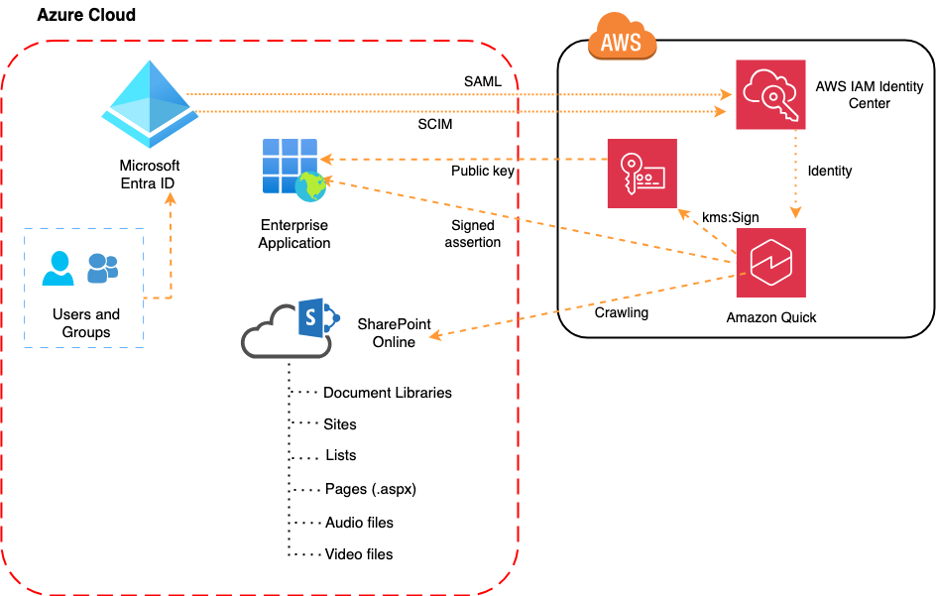
Figure 1. Authentication workflow from Microsoft Entra to AWS Identity Center
Prerequisites
On the Amazon Web Services (AWS) side:
- An active AWS account
- A Quick subscription on Enterprise edition, which is required for IAM Identity Center integration
- Administrative access to Quick (the Admin Pro role)
- IAM Identity Center enabled in the account, in the same AWS Region as the Quick instance
On the Microsoft side:
- A Microsoft 365 tenant with SharePoint Online
- Global Administrator or Privileged Role Administrator access in Microsoft Entra ID
- A Microsoft Entra ID P1 (or P2) license, needed only if you manage app access through group-based assignment or govern it with Conditional Access. The connector’s app-only certificate authentication does not itself require a premium license
Local tooling:
- OpenSSL 3.0 or later
- AWS CLI
Solution implementation
We will go through the end-to-end steps to implement this solution.
1. Integrating IAM Identity Center with Microsoft Entra
To leverage existing SharePoint Online permissions, we integrate IAM Identity Center with Entra ID using SAML 2.0 for authentication and SCIM for automatic user/group provisioning. (See AWS documentation for detailed steps.)
As shown in Figure 2, we created a dedicated group in Entra and added a user as a member to serve as the Quick admin – this is required during Quick sign-up. The group can be seen in the IAM Identity Center after SCIM synchronization is completed.
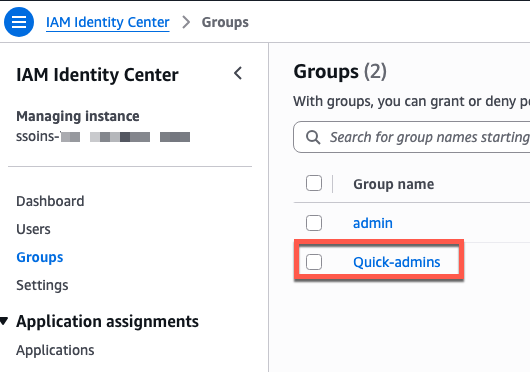
Figure 2. IAM Group for Quick-admins
2. Setting up KMS key
- KMS Key
Quick uses an AWS KMS asymmetric key to sign the OAuth assertions it presents to Microsoft Entra ID when authenticating as the SharePoint connector. We created KMS key (Figure 3) with the following parameters.
- Key type: Asymmetric
- Key spec: RSA_2048
- Key usage: Sign and verify
- Origin: AWS KMS
Refer to the AWS documentation for detailed steps to create KMS key.
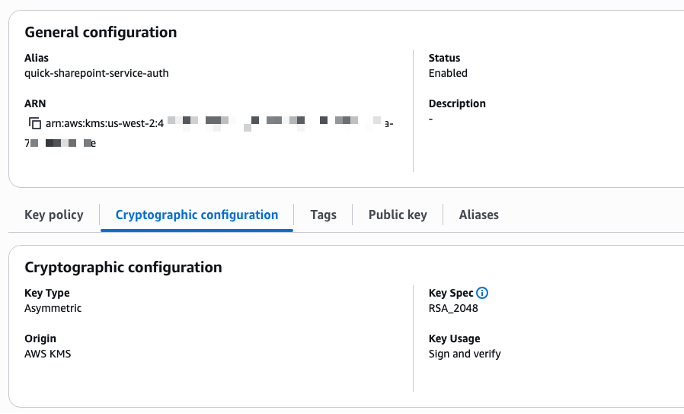
Figure 3. New KMS Key in AWS Console
2. Export the KMS Public Key
Export the public key from AWS KMS in DER format, then convert it to PEM so OpenSSL can work with it using following commands.
aws kms get-public-key \
  --key-id "arn:aws:kms:us-west-2:123456789012:key/5df3d360-1c2e-46d4-b89a-7a1ec686016e" \
  --region us-west-2 \
  --output text \
  --query PublicKey | base64 --decode > kms_public_key.der


openssl rsa -pubin -inform DER -in kms_public_key.der -outform PEM -out kms_public_key.pem
3. Create a temporary signing key
Generate a temporary local RSA key purely to sign the certificate structure – its public key is discarded and replaced by the KMS public key in the next step.
openssl genrsa -out temp_signing_key.pem 20484. Build the certificate, forcing the AWS KMS public key into it
Create a certificate signing request using the temporary key, then self-sign it while injecting the AWS KMS public key.
openssl req -new -key temp_signing_key.pem -subj "/CN=amazon-quick-sharepoint" -out temp.csr
openssl x509 -req -in temp.csr -signkey temp_signing_key.pem -force_pubkey kms_public_key.pem -days 730 -out certificate.cer
Note: OpenSSL will warn “Signature key and public key of cert do not match”. This is expected: the -force_pubkey flag embeds the KMS public key while the certificate is signed with the temporary local key.
5. Confirm the cert carries the AWS KMS key and verify that the certificate’s embedded public key matches the AWS KMS public key.
diff <(openssl x509 -in certificate.cer -pubkey -noout) kms_public_key.pem && echo "OK: Certificate carries the KMS public key"6. Remove tempsigningkey.pem as we only need certificate.cer file.
rm -f temp_signing_key.pem temp.csr kms_public_key.der kms_public_key.pem7. Derive the base64url thumbprint. Compute the SHA-1 digest of the certificate in base64url encoding. Make sure to record the output.
openssl x509 -in certificate.cer -outform DER | openssl dgst -sha1 -binary | openssl base64 | tr '+/' '-_' | tr -d '='3. Register an application in Microsoft Entra ID
- Register a new application in Microsoft Entra ID by navigating to App registrations and selecting New registration. We use “Single tenant only” for “Supported account types” as this connector authenticates as an app (Figure 4).
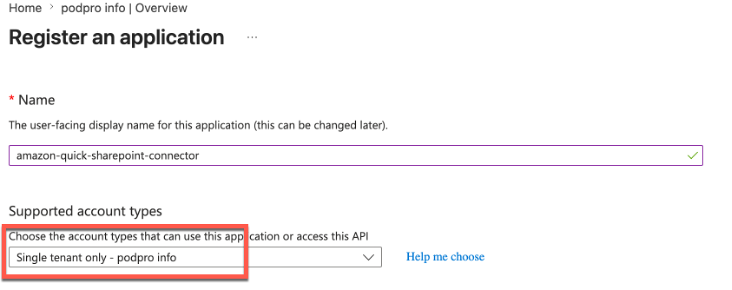
Figure 4. Register an application in Microsoft Entra ID
2. As shown in Figure 5, record both the Application (client) ID and the Directory (tenant) ID values immediately as they are required to provide during the Quick knowledge base connection wizard later.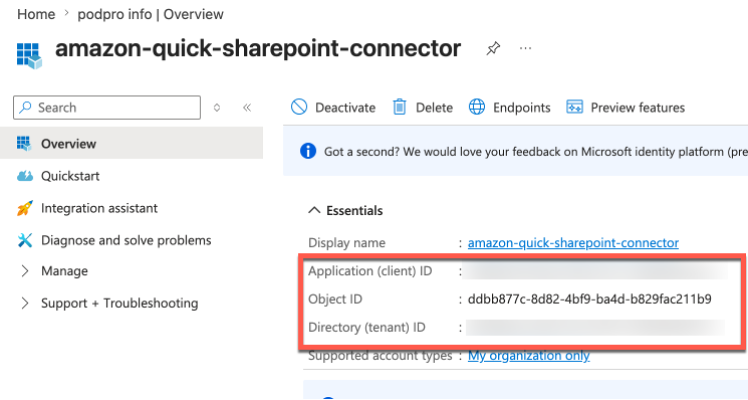
Figure 5. Quick-SharePoint connector in Azure
3. Four Application-type API permissions are required: Sites.Read.All, User.Read.All, and GroupMember.Read.All for Microsoft Graph, and Sites.FullControl.All for SharePoint. Alternatively, as mentioned in the AWS documentation, Sites.Selected can be used in place of Sites.FullControl.All to grant per-site permissions scoped to specific SharePoint sites rather than tenant-wide full control. In this case, the app can only access sites that you explicitly grant permission to.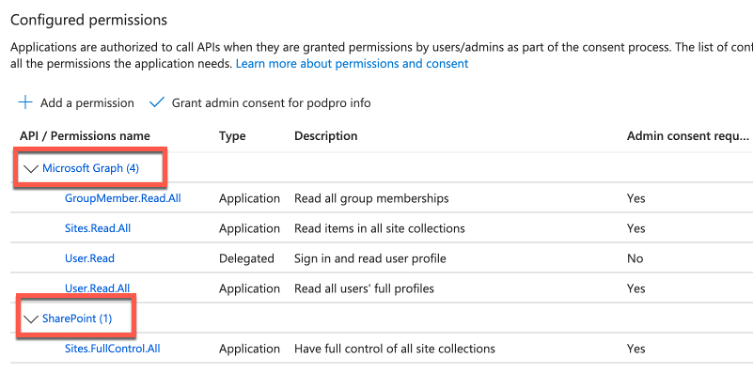
Figure 6. Assign API Permission in Azure
4. Granting admin consent activates all four permissions tenant-wide, enabling the connector to read SharePoint content, resolve user identities, and enumerate group memberships.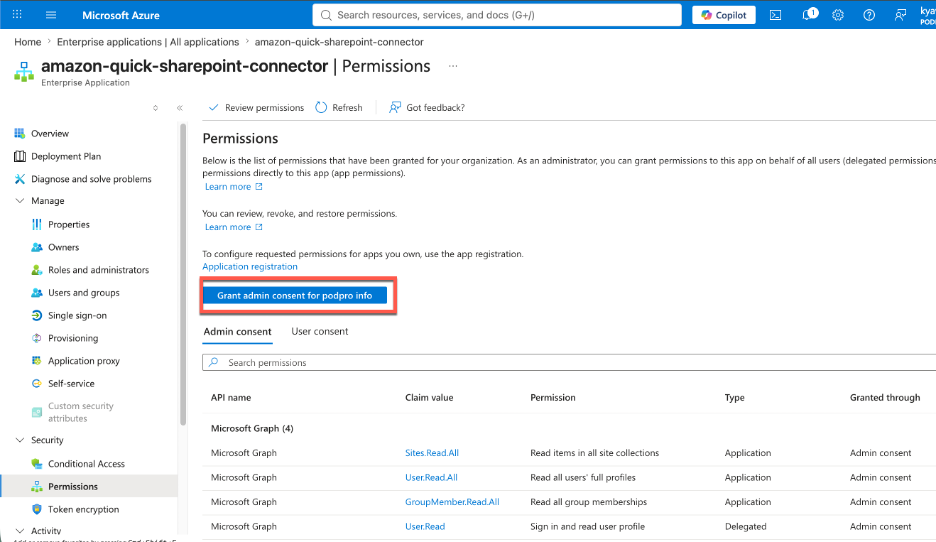
Figure 7. Grant admin consent in Azure portal
5. Upload the certificate.cer file generated in the AWS KMS steps under Certificates & secrets on the Certificates tab (Figure 8).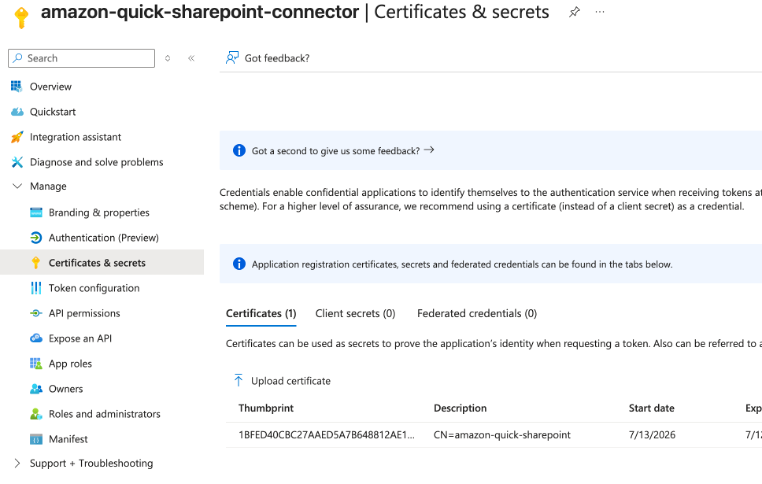
Figure 8. Upload the certificate in Azure portal
4. Amazon Quick Signup
- Subscribe to Quick as an Enterprise edition account, select IAM Identity Center as the authentication method, and define the admin group provisioned from Microsoft Entra ID. The identity method and AWS Region selected here are permanent choices – both must match the IAM Identity Center configuration before proceeding.
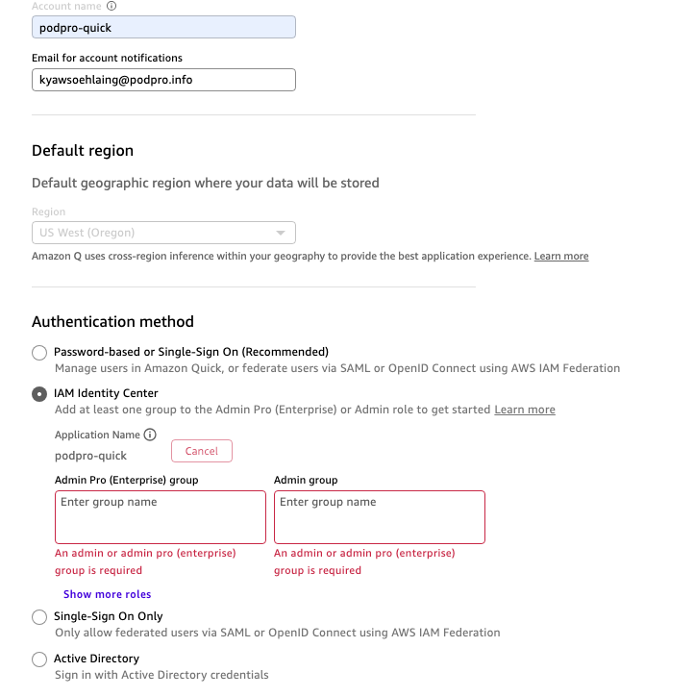
Figure 9. Subscribe to Quick as an Enterprise account
2. As illustrated in Figure 10, Quick must be granted explicit permission to use the AWS KMS signing key.
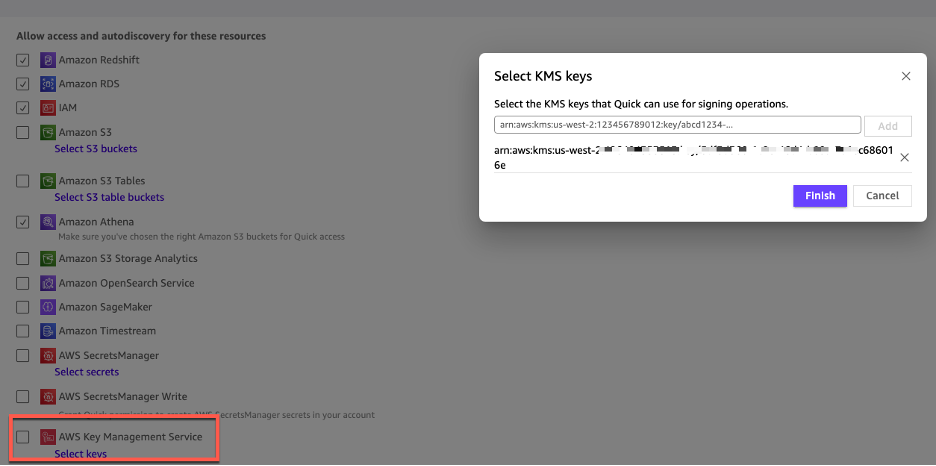
Figure 10. Define the KMS key that Quick can use for signing operations
5. Build a knowledge base in Amazon Quick
- Navigate to Knowledge in the Quick console, select Microsoft SharePoint Online, and choose the admin-managed option that enforces per-document access control.
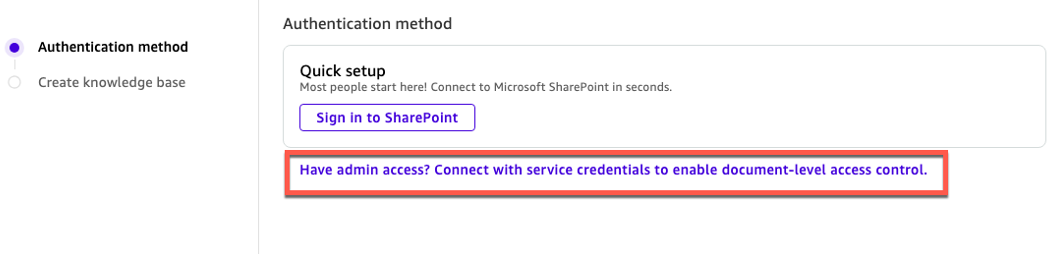
Figure 11. Connect with service credentials to enable document-level access control
- The connection wizard requires the five values collected during setup plus a connection name: SharePoint domain, Tenant ID, Client ID, KMS key ARN, and the certificate thumbprint in base64url encoding.
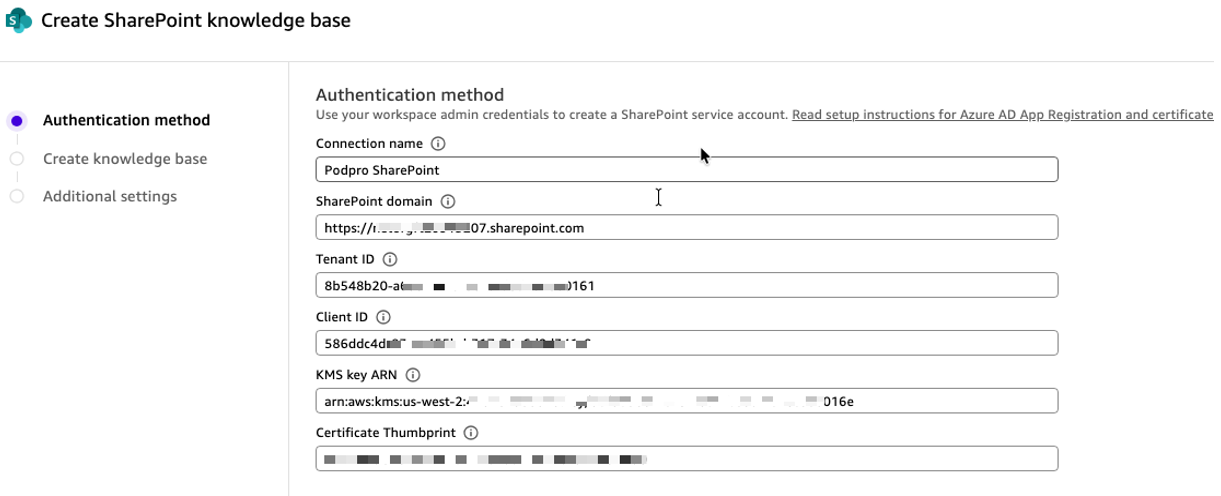
Figure 12. Configure Authentication method
3. Enter the SharePoint site URL to define the crawl scope. For a root-site collection, the URL is the bare tenant domain; for a managed-path site it follows the /sites/SiteName pattern.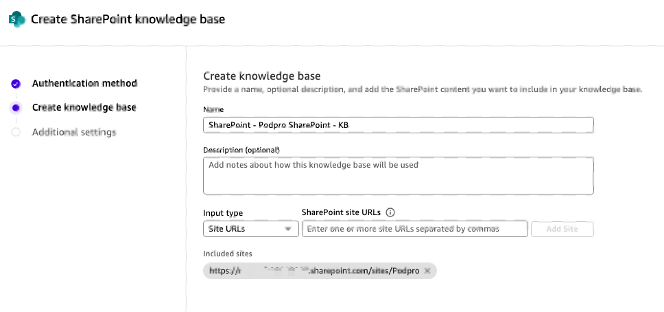
Figure 13. Create knowledge base
4. Enable ‘Control document access with ACLs‘ in Additional settings when creating the knowledge base. Quick then enforces access in two stages: it syncs SharePoint ACLs on the knowledge base refresh schedule (every 24 hours by default), and at query time it performs a real-time check against the user’s current SharePoint permissions — so access stays correct even when permissions change between syncs. This setting cannot be changed after the knowledge base is created. Note: By default, the wizard’s “Filter content by date” setting uses a start date of one year before today, so documents older than that are not crawled. If you want to include your full history of institutional knowledge, change or clear this filter before creating the knowledge base.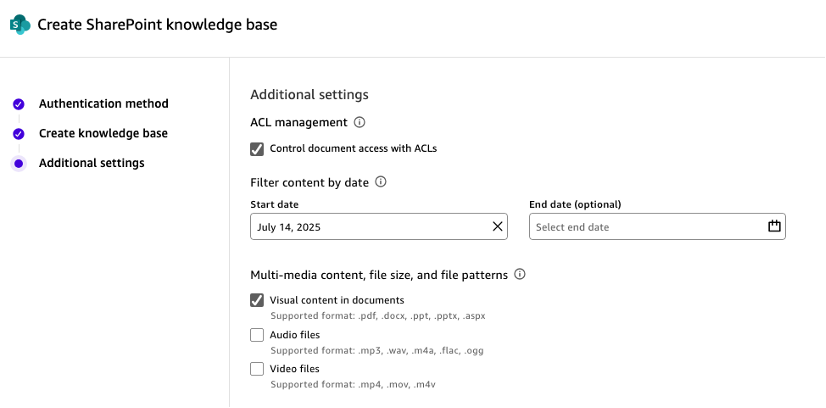
Figure 14. Configure ACL management
5. Once created, Quick provisions the knowledge base and triggers the initial sync automatically. You can check Sync status updates in summary page. 
Figure 15. Synchronizing SharePoint and Quick knowledge base
6. The sync report provides a per-item breakdown of documents that were indexed, skipped, or failed, along with error types and recommendations for each.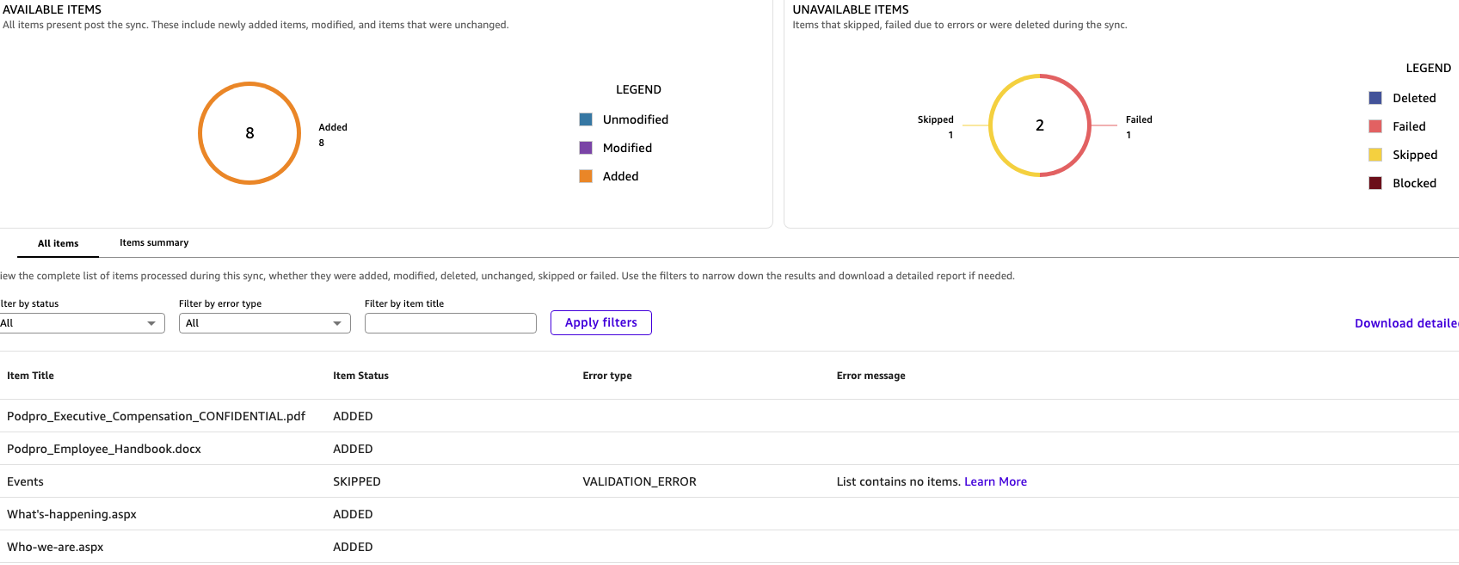
Figure 16. Synchronization report
Test the solution
To validate the solution, as shown in Figure 17, submit natural-language questions to a Space in Amazon Quick with the SharePoint knowledge base attached. Each answer is grounded in the indexed SharePoint content, with the source document cited in the response.
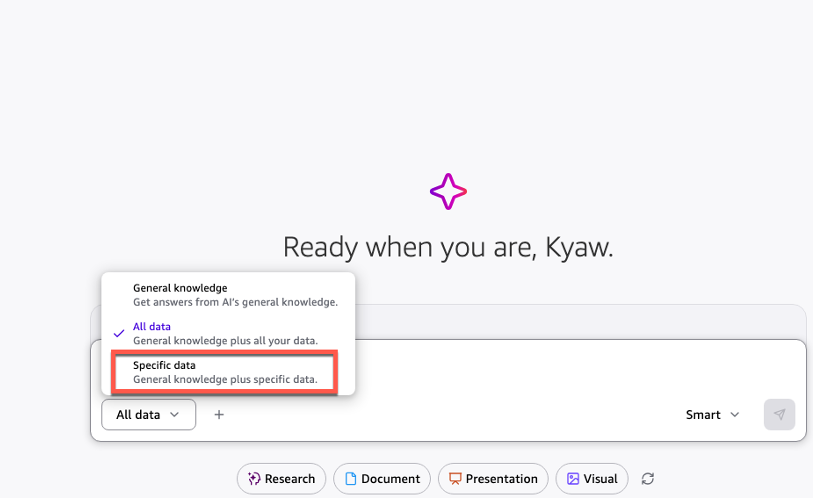
Figure 17. Testing chat agents
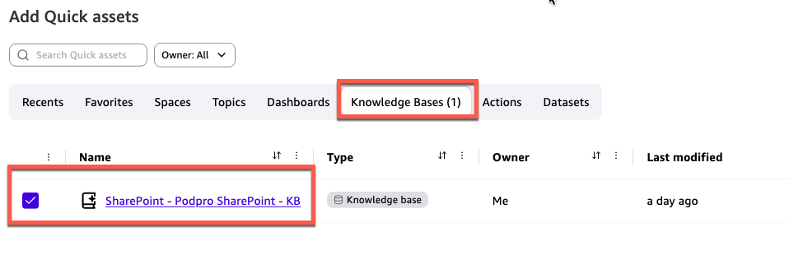
Figure 18. Adding Quick assets
Let’s try querying with role-specific questions and validate that structured content in PDFs is retrieved accurately. Specific answers confirm that the connector is serving grounded responses from the documents, not the model’s general training data.
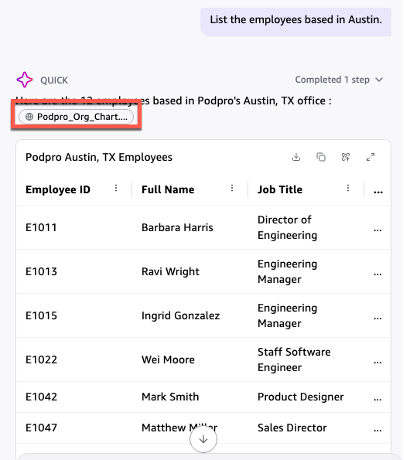
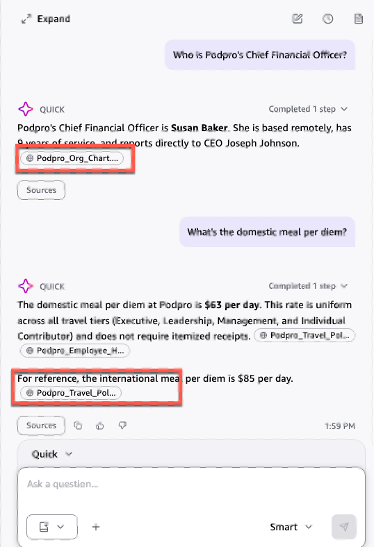
Figure 19. Verify the chat agent’s responses
As shown in Figure 20, let’s test conditional reasoning to see whether Quick retrieves the correct tier row from a structured table rather than a generic answer.
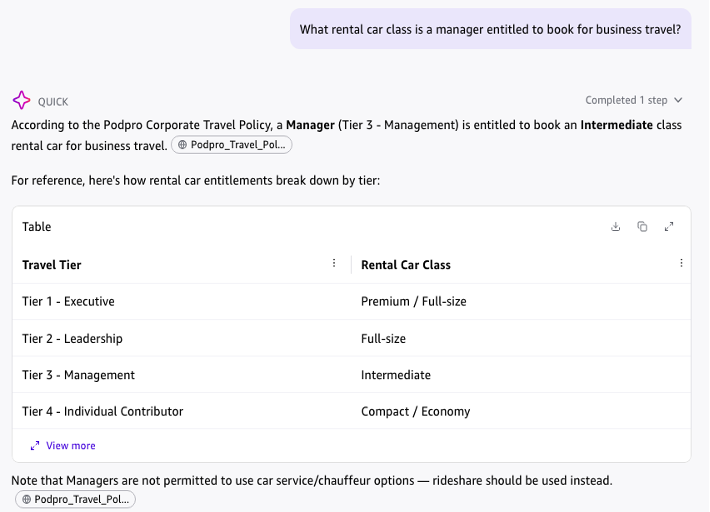
Figure 20. Conditional reasoning
We are testing a cross-document query (Figure 21). The main answer is sourced from the employee handbook, and the specific vesting condition is a canary fact: a unique, specific detail planted in a document to confirm the answer comes from the indexed content rather than the model’s training data.
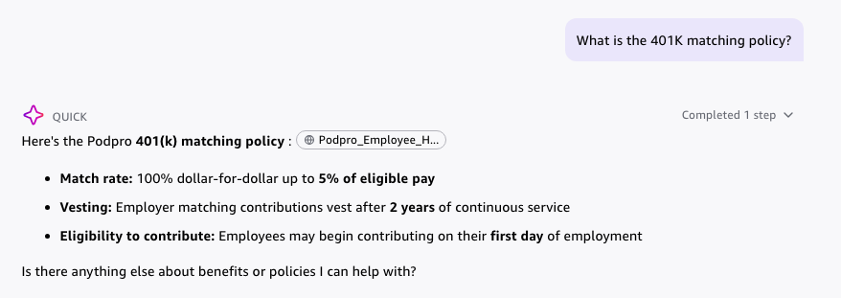
Figure 21. Cross-document query
Validate document-level access control
Because ACL management is enabled, Quick filters every answer by the asking user’s SharePoint permissions. It first filters candidate passages using the ACLs synced during the last crawl. It then checks the user’s current access in SharePoint before returning results. If Quick can’t evaluate a user’s permissions, it returns no documents rather than unfiltered results.
To verify this in your environment:
- In SharePoint, restrict a sensitive document (for example, an HR or compensation file) to a single group, such as HR
- Run a sync, or wait for the next scheduled sync
- Sign in to Quick as a member of that group and ask a question only that document can answer. The response should cite the document
- Sign in as a user outside the group and ask the same question. Quick shouldn’t return content from the restricted document
Cost considerations
This walkthrough provisions resources that incur ongoing charges. Plan for the following cost drivers before you build the knowledge base:
- Amazon Quick subscription – Enterprise edition is billed per user. Enterprise edition is required for IAM Identity Center integration and document-level ACL enforcement.
- AWS KMS asymmetric signing key – a monthly charge for the customer managed key, plus a per-request charge for each signing operation Quick performs during authentication.
- Knowledge base index and storage – vector index storage scales with the volume of SharePoint content you crawl; larger document libraries cost more to index and retain.
For current pricing, see the Amazon Quick pricing page and the AWS Key Management Service pricing page.
Conclusion
Connecting SharePoint to Quick turns a passive document store into an active, permission-aware knowledge layer, without building or operating your own RAG pipeline. Teams that need custom chunking, hybrid search, or a shared index across applications can pair it with Amazon Bedrock Knowledge Bases and OpenSearch Serverless. For most enterprise SharePoint deployments, though, Quick’s managed approach can deliver grounded answers, document-level security, and operational simplicity, making buried institutional knowledge findable and conversational without changing the permissions model that governs it.
Clean up
To avoid ongoing charges, remove the following AWS resources provisioned during this walkthrough.
- Amazon Quick knowledge base
- Amazon Quick account (only if created for this walkthrough)
- Microsoft Entra ID app registration + uploaded certificate ← highest priority (tenant-wide SharePoint permissions)
- (If Sites.Selected was used) the temporary permission-granter admin app
- AWS KMS signing key
- IAM Identity Center – only if you enabled it for this walkthrough