AWS Security Blog
How AWS Security Incident Response triages your security findings
AWS Security Incident Response continuously triages the threat findings from Amazon GuardDuty and AWS Security Hub CSPM, but most of that work never shows up as a case. If cases are all you look at, it’s hard to tell whether the service is working at all, and that’s the question I hear most often when I help customers onboard. The Proactive response dashboard gives you a high-level view of this activity, and this post takes you behind the numbers to show what happens to an individual finding.
In this post, I walk you through what happens to a finding after it’s ingested by the service, what gets triaged, where each finding is sent, and how a triage decision becomes a case. I then show you how to confirm triage is working day-to-day, so your team can focus on the findings that require attention. The process flow is shown in Figure 1.
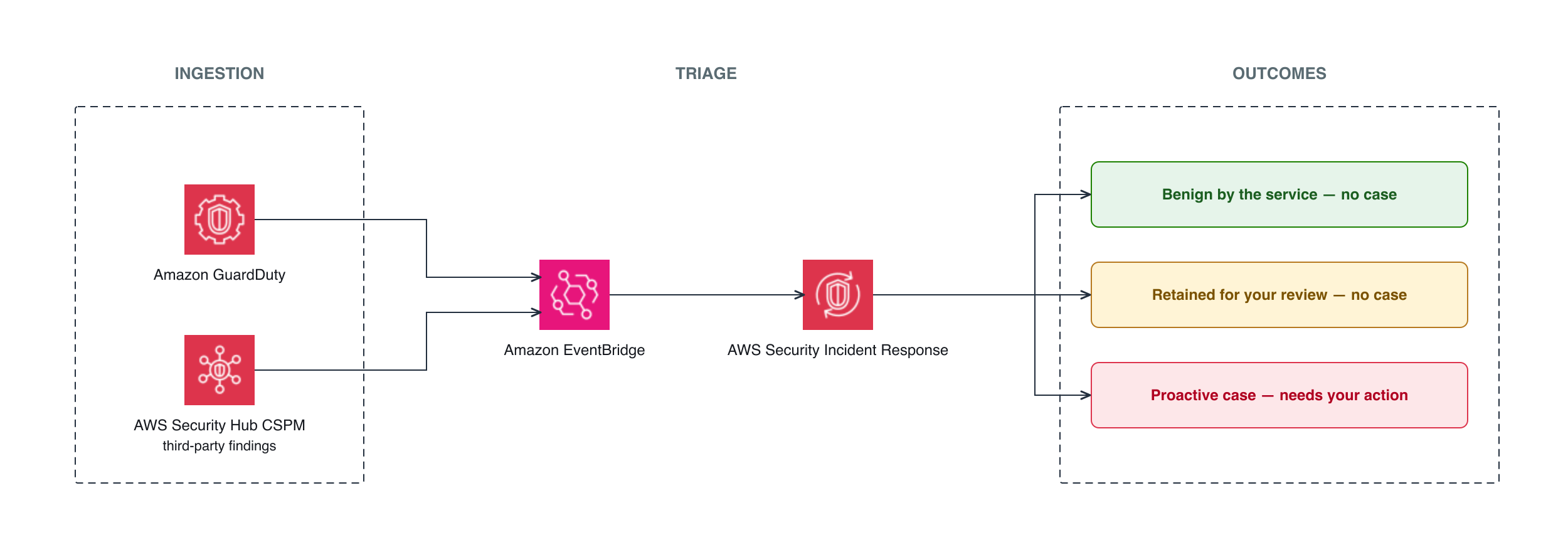
Figure 1: AWS Security Incident Response triage flow, from ingestion through to one of three outcomes
Ingestion
AWS Security Incident Response ingests threat findings from GuardDuty through Amazon EventBridge rules that are automatically deployed to your accounts during the onboarding process.
If you send third-party detection findings to Security Hub CSPM from tools such as CrowdStrike, Trend Micro, or Lacework, their threat detection findings are also ingested. Each of those findings must carry complete payload information such as resource ID, account ID, timestamp, and threat details. GuardDuty findings are ingested directly, so these findings aren’t re-ingested through Security Hub CSPM and there’s no duplication.
Triage
The service triages findings that indicate an active threat, such as compromised credentials, cryptomining, or data exfiltration. These represent activity that’s underway or has already occurred.
Posture and compliance findings aren’t triaged. A misconfiguration or a failed benchmark check reflects the state of your environment rather than an active threat, so those findings remain for your team to address through your existing remediation process.
Outcomes
For each threat finding, the service runs an automated triage process. It evaluates the finding payload, related AWS activity from AWS CloudTrail and Amazon VPC Flow Logs, AWS threat intelligence, and the context you provide about your environment. The service then maps the finding against a profile of known-good activity. What fits the profile is treated as expected, and what doesn’t is flagged for a closer look.
What happens next depends on that outcome. A finding is sent to one of three places:
- Archived, no action needed – Automated triage or an AWS Security Incident Response engineer confirms the activity is benign or expected. The finding is archived in GuardDuty, with no case and no customer contact.
- A proactive case is opened – Triage can’t confirm the activity is benign. This is either Unconfirmed Activity (the service needs you to confirm whether it’s expected) or Inappropriate/Unintended Activity (confirmed activity that needs your action). A proactive case is opened, your incident response team is engaged, and the finding stays Current until it’s resolved.
- Retained for your review, no case – Posture-related findings, such as overly permissive policies, configuration, or missing encryption, aren’t threats. By design, they stay Current without archiving and no case is created.
When a proactive case is opened, you respond to it in the AWS Management Console for AWS Security Incident Response under Cases, where you can communicate directly with the team, share context, and resolve or reopen the case. Timely responses also help the service learn your environment, which helps reduce false positives over time. For the full workflow, see Responding to an AWS generated case.
The preceding outcomes use GuardDuty terms, because it’s the primary source. Third-party findings ingested through Security Hub CSPM follow the same triage logic, but their disposition shows as a workflow-status change rather than archiving. The finding moves from NEW to NOTIFIED when triage begins, which removes it from the default Security Hub CSPM view. If triage clears it as benign, it moves to SUPPRESSED. Otherwise it stays visible for your review.
Because only benign findings are archived, it’s normal to see many findings in Current, and that isn’t a sign the service missed them. Across customers, less than 1 percent of ingested findings result in a customer-facing escalation. Most are handled automatically, without a case.
Credential exfiltration finding example
Suppose GuardDuty generates an UnauthorizedAccess:IAMUser/InstanceCredentialExfiltration.OutsideAWS finding: temporary credentials created on an Amazon Elastic Compute Cloud (Amazon EC2) instance were used from an IP address outside AWS. Triage cross-references the payload against what it knows about your environment.
- Cleared – The external IP belongs to a corporate virtual private network (VPN) range that your workloads regularly call through, and the service has seen this pattern before. The finding is archived in GuardDuty.
- Escalated – The IP is in a hosting-provider range with no prior association to your accounts, and the AWS Identity and Access Management (IAM) role has never made calls from outside AWS. The service creates a proactive case, notifies your incident response team, and an engineer investigates whether the credentials were compromised.
Same finding type, two outcomes. The difference is context, and context is what triage builds by observing your environment over time.
How triage sharpens over time
The service builds a profile of what’s normal in your environment. It learns the IP ranges and domains you trust, and the IAM principals and behaviors your workloads rely on. When your team routinely connects from a known VPN range, or a specific IAM role runs nightly batch jobs, the service recognizes those patterns and measures new findings against them. Early on, engineers investigate more findings by hand as they learn your environment. Within a few weeks, automated triage handles most of those decisions on its own.
Triage is dynamic. A finding treated as expected today can be re-evaluated tomorrow if the context changes, so the service can still catch a real threat that reuses a pattern it formerly treated as safe. You can shape the profile by submitting known-good activity, such as trusted IP ranges or authorized scanning tools, through an AWS Support case. For details, see Submit known-good activity.
Archiving versus suppression
It’s possible to conflate the two mechanisms, so it’s worth separating them:
- Archiving is the primary mechanism. When automated triage or an engineer determines a finding is benign, the service archives it in GuardDuty. The finding then stays there for 90 days.
- Suppression rules are less common and work differently. A suppression rule acts on future findings. When the service identifies a recurring pattern of expected activity, it might create a GuardDuty suppression rule that automatically archives matching findings so they don’t generate new alerts. Suppressed findings aren’t sent to your configured export, such as an Amazon Simple Storage Service (Amazon S3) bucket or SIEM. When the service creates a rule, your incident response team is notified, and you can view and manage it in the GuardDuty console under Suppression rules.
A healthy deployment typically shows many archived findings and few or no suppression rules. That’s expected, and it means the service is handling findings dynamically rather than relying on static filters.
How to see what triage is doing
Triage runs on its own, and the service gives you a few ways to confirm it’s working.
Proactive response dashboard
The Dashboard page in the AWS Security Incident Response console has a Proactive response section. It counts how many findings were ingested, triaged, investigated, and escalated over the timeframe you select, the last 7, 30, or 90 days.
The Overview leads with two figures. Noise reduction is the share of ingested findings that automated triage resolved without opening a case, so you can see for yourself how much volume never reached your team. Time saved estimates the analyst hours that automation returned to you, counted as one hour for each ingested finding.
Below that, Finding evaluations breaks those stages down:
- Ingest – Threat findings collected from your detection sources
- Triage – Findings evaluated automatically to decide whether the activity is expected
- Investigation – Findings automated triage couldn’t confirm, passed to an AWS Security Incident Response engineer for a closer look
- Escalation – Investigations raised as a case when a genuine risk was detected or the activity couldn’t be confirmed as expected
A flow diagram on the dashboard shows how those findings move from their sources through triage and investigation, with branches for the ones closed as false positives and the ones still in progress. For more, see Viewing proactive response metrics.
Monthly report
The monthly report is the periodic companion to the dashboard. AWS Security Incident Response emails it to your incident response team a week or two after each month closes. It opens with the accounts monitored, findings processed, and investigations, then lists each investigation and its status, the triage flows that show the checks run for each finding type, and the context the service has learned about your environment, such as the trusted networks it now recognizes as normal.
Archived findings in GuardDuty
For a quick confirmation outside either view, open Findings in the GuardDuty console and filter to see Archived. That list also includes findings archived by you or by suppression rules, so look for the threat findings AWS Security Incident Response archived after triage. Each one is a finding that the service cleared as benign so your team didn’t have to.
Conclusion
AWS Security Incident Response continuously evaluates your threat findings so your team can spend its time on confirmed threats rather than alert volume. Findings that are evaluated as benign are archived automatically, the ones that need a response become proactive cases, and posture issues stay in Current for your team to handle.
Cases show only a small part of that work. When I deliver AWS Security Incident Response to customers now, I walk them through the triage flow in Figure 1, the Proactive response dashboard, and their monthly report, so they can see how triage works end to end.
To get started, see the onboarding guide. Setup takes about 10 minutes. For more information, see the AWS Security Incident Response product page or the User Guide.
If you have questions about this post, contact AWS Support or start a new thread on AWS re:Post.