AWS Storage Blog
Deploy Amazon S3 Files with Terraform
Amazon S3 Files makes Amazon Simple Storage Service (Amazon S3) buckets accessible as Network File System (NFS) mounts from Amazon Web Services (AWS) compute resources. A production deployment brings together multi-AZ mount targets, network isolation, IAM policies, encryption, monitoring, and the compute resources that mount the file system. All of these fit neatly into a single Terraform configuration. This gives you a version-controlled, repeatable setup that you can replicate across environments and customize as your needs evolve.
In this post, we walk you through a Terraform module that handles all S3 Files resources end-to-end, from file system creation through Amazon CloudWatch monitoring.
You will learn how to:
- Create an S3 file system and deploy mount targets across multiple Availability Zones for high availability.
- Configure security groups for NFS access between compute and mount targets.
- Configure IAM policies for least-privilege access.
- Mount the S3 file system on Amazon Elastic Compute Cloud (Amazon EC2), Amazon Elastic Container Service (Amazon ECS), and AWS Lambda.
- Set up Amazon CloudWatch monitoring for client connectivity to the linked bucket.
- Configure encryption: SSE-S3 (Server-Side Encryption with Amazon S3 managed keys) or customer managed AWS Key Management Service (AWS KMS) key, and review the security settings before production.
S3 Files also supports Amazon Elastic Kubernetes Service (Amazon EKS). For the full list of supported compute types, see Mounting your S3 buckets on compute resources.
Solution overview
The S3 bucket is accessible as a file system using an S3 Files resource. Mount targets in private subnets across two Availability Zones serve NFS traffic to compute resources. Security groups restrict access to TCP port 2049 (NFS) between compute and mount targets, and IAM policies enforce least-privilege access at both the resource and identity levels.
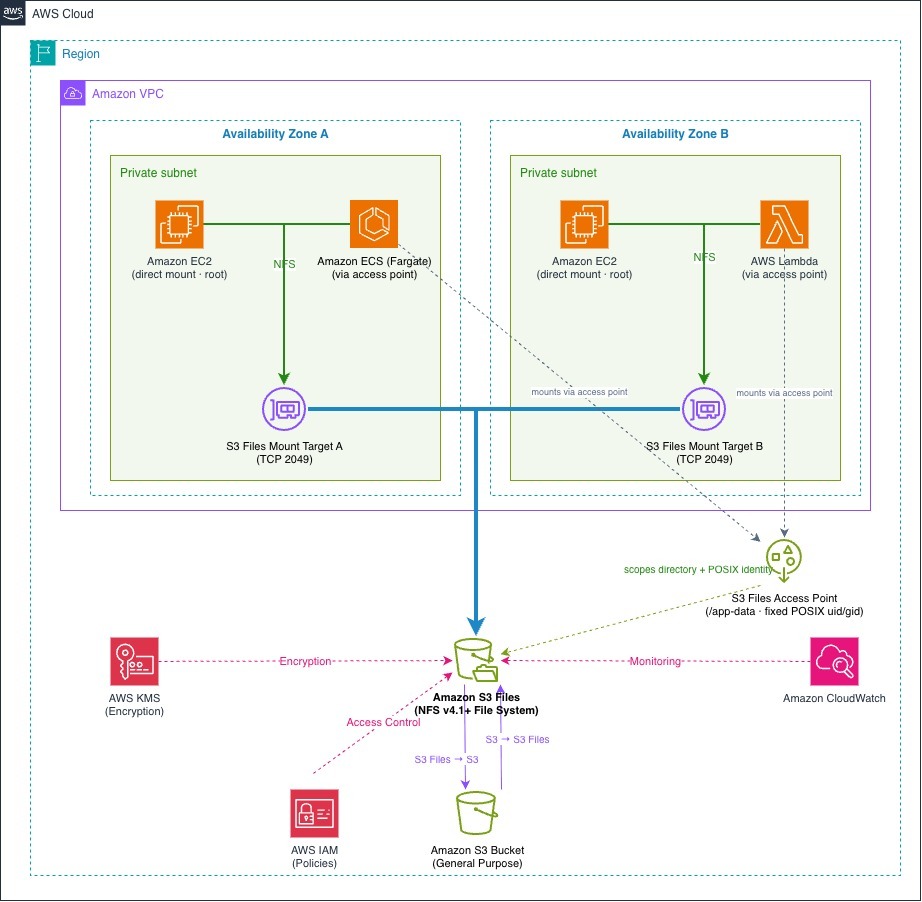
Figure 1: Architecture diagram of S3 Files deployment with multi-AZ mount targets
Prerequisites
- An AWS account with permissions to create S3 Files, virtual private cloud (VPC), IAM, and AWS KMS resources.
- Terraform v1.5.0 or later installed.
- AWS provider for Terraform v6.53.0 or later (tested with v6.66.0).
- An S3 general purpose bucket with S3 Versioning enabled and SSE-S3 or SSE-KMS encryption (you can also create one with Terraform, as shown in Step 1).
- A VPC with private subnets in at least two Availability Zones.
- Permissions to launch an Amazon Linux 2023 EC2 instance in one of the private subnets (Step 6 creates it).
- An ECS cluster with the AWS Fargate launch type in the same VPC (for Step 6).
- Compute resources (EC2, ECS tasks, and the Lambda function) in private subnets in the same Availability Zones as the S3 Files mount targets.
- Outbound access from the private subnets, through a NAT gateway or VPC endpoints for Amazon S3 and CloudWatch, so instances can install the S3 Files client and publish metrics.
- Basic understanding of Terraform modules and HCL syntax.
If you don’t have a VPC and bucket yet, the repository environments/dev configuration creates a VPC, private subnets, a versioned bucket, the S3 Files service role, and the file system for you. The rest of this post uses the examples/ folders, which deploy into your existing VPC and bucket.
Step 1: Clone repository and review structure
This post provides a sample Terraform module and three runnable examples you can clone or adapt to your repository. Clone the repository using the following command:
The repository has the following layout:
Each folder under examples/ is a complete Terraform root configuration. It contains its own provider configuration, the IAM role that S3 Files uses to synchronize data, a security group for the compute resource, the call to the module, the compute resource, and a terraform.auto.tfvars.example file for your values. You run each example from its own folder, so the code blocks in the following steps are excerpts of files that already exist in the repository. You don’t need to copy them into a new project.
The module accepts the following key input variables:
- bucket_arn – Amazon Resource Name (ARN) of the existing S3 bucket to expose as a file system.
- role_arn – IAM role ARN granting S3 Files permission to sync data (must trust elasticfilesystem.amazonaws.com).
- vpc_id – VPC where mount targets are created.
- subnet_ids – List of private subnet IDs (one per Availability Zone).
- compute_security_group_ids – Security groups of resources that will mount the S3 file system.
- kms_key_arn – Optional KMS key ARN for encryption (defaults to SSE-S3 if null).
- access_points – Map of S3 Files access points for scoped, per-application access.
- import_trigger, import_size_threshold, and expiration_days – Synchronization settings (see Step 5).
- accept_bucket_warning – Acknowledges the warning S3 Files raises for buckets with a very large number of objects (default false).
- allowed_principal_arns – Optional IAM principals for the file system policy.
Use the module from your own project. To call the module from an existing Terraform configuration instead of cloning the repository, reference it by Git tag:
Step 2: Deploy S3 file system and mount targets
Change to the example for the compute type you want to use. This post uses Amazon EC2 for the shared steps:
The example’s main.tf calls the module:
The service role needs its permissions before the file system is created:
The same main.tf creates the IAM role that S3 Files assumes to synchronize data between the file system and the bucket. The role trusts elasticfilesystem.amazonaws.com only for file systems in your account:
Two inline policies in the same file give the role read and write access to the bucket and permission to manage the Amazon EventBridge rules that S3 Files uses for change detection. For the complete trust and permissions policies, see Prerequisites for S3 Files.
Inside the module, main.tf creates two resources from these inputs:
| Resource | Purpose | Controlled by |
| aws_s3files_file_system | The S3 file system linked to your bucket | bucket_arn, role_arn, kms_key_arn, prefix, accept_bucket_warning |
| aws_s3files_mount_target | One mount target in each subnet | subnet_ids |
The kms_key_arn input optionally turns on AWS KMS encryption. When null, the file system uses SSE-S3 encryption by default. The optional prefix input scopes the file system to a specific path within the bucket. The accept_bucket_warning input acknowledges a warning that S3 Files raises when the bucket or prefix contains a very large number of objects (approximately 12 million or more). At that scale, directory rename operations require additional synchronization time. The module defaults it to false, so Terraform stops and surfaces the warning. After you review the warning, set accept_bucket_warning = true and run terraform apply again.
Each S3 Files mount target receives an IP address in the subnet’s CIDR range. Deploying one per Availability Zone provides high availability. If one zone becomes unavailable, compute in the other zone continues through its local mount target. S3 Files supports one mount target per Availability Zone. Mount targets take about 5 minutes to create, and the security group in Step 3 controls which resources can connect.
Step 3: Configure network security
Security groups control which compute resources can reach the S3 Files mount targets over NFS. The module creates a dedicated security group for the mount targets and allows TCP 2049 in from each security group you pass in compute_security_group_ids. The example creates the compute security group and its egress rules in main.tf:
NFS to the mount targets (the module allows this inbound from the compute security group):
Outbound HTTPS so the compute resource can reach package repositories, Amazon Elastic Container Registry (Amazon ECR), and AWS APIs:
Security benefits:
- Security group references – Rules remain valid as instances scale up and down, unlike CIDR-based rules that require updates.
- Dedicated S3 file system security group – Separates S3 Files mount target access control from compute security policies.
- Port restriction – Only TCP 2049 (NFS) is allowed between compute and the mount targets.
Step 4: Configure IAM policies
S3 Files supports both resource-based policies (on the file system) and identity-based policies (on compute roles). We implement both for defense-in-depth. Within the same account, an allow in either policy is enough to mount. For cross-account access, both are required. For details, see How S3 Files works with IAM. The following table summarizes the three policies we use.
| Policy | Created by the module when | What it does |
| File system policy (aws_s3files_file_system_policy) | allowed_principal_arns is not empty | Allows s3files:ClientMount, ClientWrite, and ClientRootAccess only for the listed principals, and denies any connection that doesn’t use TLS |
| EC2 policy (outputs ec2_iam_policy_arn) | Always | ClientMount, ClientWrite, ClientRootAccess, GetFileSystem, and GetMountTarget on the file system, plus direct reads from the bucket |
| ECS and Lambda policies (outputs ecs_iam_policy_arn, lambda_iam_policy_arn) | Always | ClientMount, ClientWrite, GetFileSystem, and GetMountTarget on the file system, ClientMount and ClientWrite on the access points (only when access points exist), plus direct reads from the bucket |
The EC2 policy includes s3files:ClientRootAccess because Amazon EC2 mounts the file system root. Without it, root is mapped to an anonymous user and writes to the root directory fail with Permission denied. Amazon ECS and Lambda mount through access points with a fixed POSIX identity, so they don’t need it. With the S3 read statements, clients can read large files directly from the bucket. Without them, reads still succeed through the file system, but at higher cost and lower performance. For the full list of actions, see Actions, resources, and condition keys for Amazon S3 Files.
You attach the policy for your compute type to its role. The Amazon EC2 example does this in ec2.tf:
Step 5: Configure synchronization
S3 Files keeps the file system and your S3 bucket in sync bidirectionally. S3 Files keeps the file system and your S3 bucket in sync bidirectionally. To control when file data is imported to low-latency storage, which file sizes qualify, and how long unused data stays, set import_trigger, import_size_threshold, and expiration_days in the module call in main.tf. For full details on sync timing, conflict handling, and the lost-and-found directory, see Understanding how synchronization works and Customizing synchronization for S3 Files.
Step 6: Mount on your compute
Each compute type mounts S3 Files differently, but the deploy pattern is the same: from the relevant examples/ folder, copy terraform.auto.tfvars.example to terraform.auto.tfvars, enter your VPC, subnet, and bucket values, and run terraform init and terraform apply. Every example includes depends_on = [module.s3_files] so the compute resource waits for the mount targets. Apply one example at a time per account and environment, because the module names its alarms and dashboard after the environment.
Replace the placeholder values:
Then, deploy:
Amazon EC2
The instance mounts the file system at boot with a user data script that installs the S3 Files client and adds a persistent mount. The S3 Files mount helper supports Amazon Linux 2/2023, RHEL 8 and 9, Ubuntu 20.04/22.04/24.04, and SLES 15.
The following code shows the user data template (examples/ec2/templates/user-data.sh.tftpl):
The instance in examples/ec2/ec2.tf references the template and waits for mount targets through depends_on. The same file creates the instance role, attaches the module’s EC2 policy, AmazonElasticFileSystemsUtils (for CloudWatch metrics in Step 7), and AmazonSSMManagedInstanceCore (for Session Manager access). See examples/ec2/ec2.tf for the complete resource.
Verify the deployment. Open a shell with Session Manager:
Then check the mount and write a file:
About a minute after the last write, verify the file appears in your S3 bucket:
Amazon ECS on AWS Fargate
S3 Files integrates with Amazon ECS through the s3filesVolumeConfiguration parameter in the task definition. Transit encryption is always on, and the access point scopes the container to /app-data so tasks share files without seeing the full file system.
The ECS example’s main.tf adds an access point to the module call, enforcing a POSIX identity and root directory:
The task definition’s volume block wires the access point to the container:
See examples/ecs/ecs.tf for the complete task definition and service resource. We tested on Fargate platform version 1.4.0.
Verify the deployment. The container writes ecs-test.txt, visible in the task’s logs:
AWS Lambda
Lambda functions access S3 Files through access points when deployed in the same VPC as the mount targets. S3 Files uses the same file_system_config block as Amazon Elastic File System (Amazon EFS) in Terraform. The access_point_arn distinguishes S3 Files from Amazon EFS:
The Lambda function configuration requires:
- VPC attachment – The function must be in the same VPC as the mount targets.
- Access point ARN – Points to a specific access point (not the file system directly).
- Local mount path – Must start with /mnt/.
- Adequate timeout – Set to at least 60 seconds for VPC-attached cold starts.
- VPC permissions – Attach AWSLambdaVPCAccessExecutionRole, AWSLambdaBasicExecutionRole and the module’s Lambda policy.
The example sets replace_security_groups_on_destroy = true so terraform destroy doesn’t wait for Lambda to release its network interfaces. See examples/lambda/lambda.tf for the complete resource.
Verify the deployment. The function lists the files under /mnt/s3data and writes lambda-processed.txt:
The first invocation right after terraform apply may fail with S3FilesMountTimeoutException. Wait about a minute and invoke again. Consider provisioned concurrency for latency-sensitive workloads.
Step 7: Configure monitoring
The module deploys two CloudWatch alarms to detect connectivity issues with the linked bucket. Each alarm covers a condition that silently degrades performance: loss of permission to read the bucket, or loss of the network path to Amazon S3. The S3 Files client (amazon-efs-utils) publishes these metrics to the efs-utils/S3Files namespace, one series per client, with the dimensions Bucket and InstanceId. Because the metrics are per client, each alarm uses a CloudWatch Metrics Insights query that takes the minimum across all clients of the bucket. As a result, a single unhealthy client puts the alarm into the ALARM state, even if every other client is healthy.
| Alarm | Metric | Alerts when |
s3files-<environment>-s3-permissions |
S3BucketAccessible | A client lacks permission to read the linked bucket |
s3files-<environment>-s3-unreachable |
S3BucketReachable | The linked bucket or prefix is not reachable from a client |
The module also creates a CloudWatch dashboard, s3files-<environment>-dashboard, with one line per client for each metric.
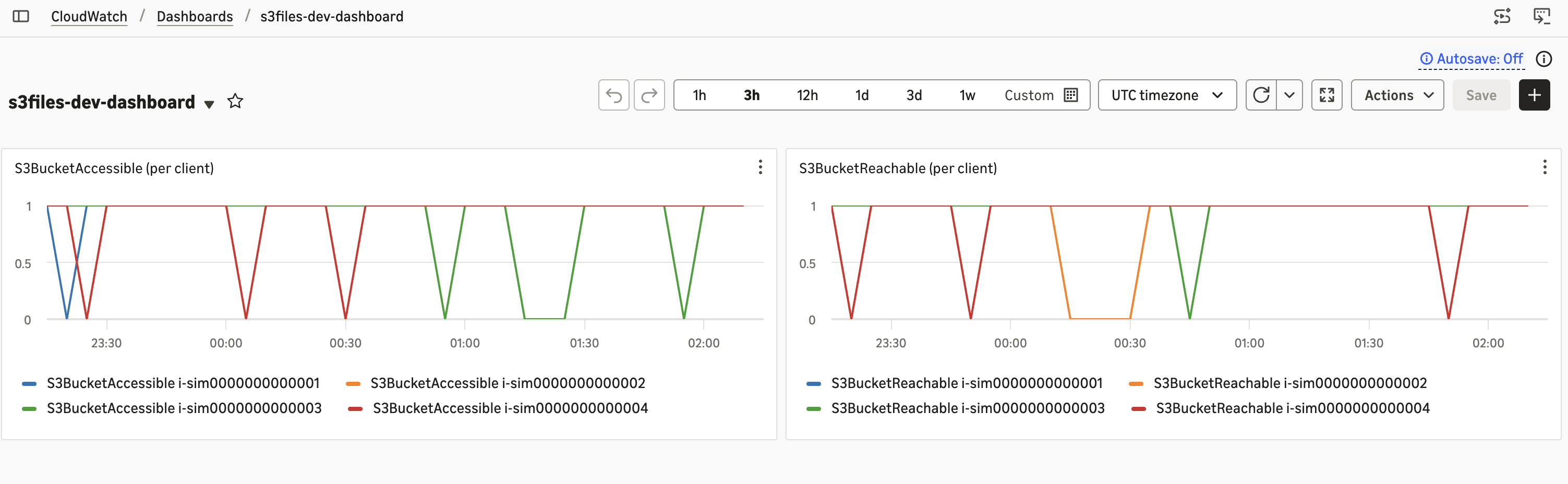
Figure 2: CloudWatch dashboard showing S3 bucket connectivity for each client
The client publishes metrics only if the compute role can write to CloudWatch. The Amazon EC2 example attaches AmazonElasticFileSystemsUtils for this. When no client is mounted, the alarms receive no data, which is treated as not breaching. For the full list of client metrics, see Monitoring S3 Files with Amazon CloudWatch.
Step 8: Review security implementations
Before deploying to production, review the following security best practices implemented in this module. For additional guidance, see S3 Files best practices.
AWS KMS encryption
- Customer managed KMS key with automatic key rotation enabled.
- Deletion window set to 30 days to prevent accidental key loss.
- The key encrypts data in the file system layer. Objects in the bucket use the bucket’s own encryption setting, which you configure separately.
The following code illustrates the relevant configuration:
Pass the key to the module with kms_key_arn = aws_kms_key.s3files.arn. The environments/prod configuration shows the complete setup.
The default key policy is sufficient. In our testing, a file system encrypted with a customer managed key that had only the default key policy mounted, accepted writes, and synchronized to Amazon S3, and the compute roles didn’t need AWS KMS permissions.
Network isolation
- S3 Files mount targets deployed only in private subnets.
- Security groups reference compute groups by ID (not CIDR).
- Only TCP port 2049 is allowed (NFS).
- Egress from file system security group restricted to VPC CIDR.
IAM least privilege
- File system policy enforces TLS for all connections.
- Identity-based policies scoped to the specific file system ARN.
- Separate policies per compute type (Amazon EC2, Amazon ECS, Lambda).
- The synchronization role trusts elasticfilesystem.amazonaws.com only for file systems in your account (aws:SourceAccount and aws:SourceArn conditions).
Operational safeguards
- Do not modify or delete the IAM role that S3 Files assumes, or the Amazon EventBridge rule it creates (prefixed
DO-NOT-DELETE-S3-Files). Changing either one breaks synchronization with the bucket. - The S3 Files client writes S3 object key names to /var/log/amazon/efs. If your key names contain sensitive information, restrict access to that directory, for example with sudo chmod 700 /var/log/amazon/efs.
Environment separation
Use directory-based environment separation to maintain distinct configurations and state. This keeps the blast radius of changes small and makes promotions explicit and reviewable.
| Configuration | Dev | Prod |
| Encryption | SSE-S3 | Customer managed AWS KMS |
| Mount targets | 2 Availability Zones | 3 Availability Zones |
| File system policy | None (identity-based policies only) | Least-privilege with explicit principals |
| State backend | Local | S3 with Amazon DynamoDB locking |
| Access points | 1 (application) | 2 (application, analytics) |
The following code illustrates the production module call in environments/prod/main.tf:
Troubleshooting
For general S3 Files issues, see Troubleshooting S3 Files. The following table covers issues specific to this Terraform deployment.
| Issue | Cause | Resolution |
| Failed to resolve “fs-….efs…” | Mounted with -t efs | Use mount -t s3files <file-system-id>:/ <path> |
| Access point mount denied, or Permission denied inside it | Access point directory doesn’t exist, or is owned by root | Set root_directory_creation_info on the access point |
| Mount succeeds but I/O hangs | Mount target in a different Availability Zone than compute | Deploy compute in a subnet that has an S3 Files mount target |
| Lambda creation fails with a CreateNetworkInterface error | Execution role lacks VPC permissions | Attach AWSLambdaVPCAccessExecutionRole |
| No CloudWatch metrics or alarm data | Compute role can’t publish metrics, or no client is mounted | Attach AmazonElasticFileSystemsUtils. Metrics are per client |
| Permission denied on file operations | UID/GID mismatch | Use access points to enforce consistent POSIX identities |
| ECS task stops with ResourceInitializationError | Access point directory missing, or task role lacks s3files:ClientMount | Set root_directory_creation_info. Check the task role policy |
| EC2 instance boots but /mnt/s3files is not mounted, and cloud-init logs Failed to resolve “…s3files…on.aws” | The instance booted before the mount targets were available | Make the instance depend on the module (depends_on = [module.s3_files]), as the example does, then replace the instance |
| ECS tasks stop with ResourceInitializationError: … Failed to resolve “…s3files…on.aws” | The service started the tasks before the mount targets were available | Make the service depend on the module, as the example does. Amazon ECS retries failed tasks automatically |
| First Lambda invocation after deployment fails with S3FilesMountTimeoutException | The function’s first mount right after deployment | Wait about a minute and invoke again |
terraform apply fails with MalformedPolicyDocument: Policy statement must contain resources |
A module version earlier than v1.0.0, called without access points | Use v1.0.0 or later |
terraform plan always shows a change to volume_configuration on aws_ecs_service |
AWS provider earlier than v6.58.0 | Use AWS provider v6.58.0 or later |
Customization
To customize this solution for your environment, you can modify the module variables to adjust encryption settings, add access points for additional teams, or integrate the module outputs with your existing compute infrastructure. For workloads with specific access patterns, adjust import_size_threshold and expiration_days to balance latency and storage cost.
Clean up resources
To avoid ongoing charges, destroy the resources when you’re done testing. From the folder you applied (examples/ec2, examples/ecs, examples/lambda, or environments/dev), run the following command:
Enter yes when prompted to confirm.
Keep in mind:
- Your data stays on Amazon S3. Destroying the file system doesn’t delete objects in the bucket. You can create a new file system later to access the same data through NFS.
- Allow extra time for the Lambda example. Lambda detaches its network interfaces from the function subnets after the function is deleted. The example sets replace_security_groups_on_destroy = true, so terraform destroy doesn’t wait on the security group. In our testing, it took about 8 minutes.
- If you also delete the VPC or subnets, wait until Lambda has released its network interfaces (45+ minutes). To list remaining interfaces, run
aws ec2 describe-network-interfaces --filters Name=vpc-id,Values=<vpc-id>. - Delete resources created outside Terraform manually, such as test files in the bucket and the Lambda log group
/aws/lambda/<function-name>, which Lambda creates automatically.
Conclusion
In this post, we showed you how to deploy production-ready S3 Files resources using Terraform. The setup is version-controlled, repeatable, and ready for you to customize as your needs evolve. The module handles all S3 Files resources end-to-end, including S3 file system creation, multi-AZ mount targets, security groups, IAM policies, AWS KMS encryption, synchronization configuration, and CloudWatch monitoring.
For more information, see the following resources: