AWS Storage Blog
Secure team file sharing on Amazon WorkSpaces with Amazon EFS
As more organizations move to remote and distributed work, builders and development teams face growing challenges in sharing files securely. Without a central file system, these teams deal with version control problems, unclear access permissions, and security risks from scattered storage locations. Central IT becomes a bottleneck when handling every permission change, yet granting full access to everyone creates security risks. Organizations need a way for leaders to manage permissions for their own teams without compromising security or requiring deep technical knowledge.
By combining Amazon Elastic File System (Amazon EFS), Amazon WorkSpaces, AWS IAM Identity Center, and AWS Directory Service for Microsoft Active Directory (AWS Managed Microsoft AD), organizations can implement secure, scalable file sharing for distributed teams without the bottlenecks of traditional permission management. Amazon EFS provides scalable file storage that grows automatically with your needs. Amazon WorkSpaces Personal gives each team member a secure, persistent virtual desktop accessible from anywhere. IAM Identity Center centralizes authentication with single sign-on (SSO) and multi-factor authentication (MFA) using your AWS Managed Microsoft AD directory.
In this post, we show you how to set up Amazon EFS, IAM Identity Center, and AWS Managed Microsoft AD to create a central file system with delegated permission management for distributed teams using Amazon WorkSpaces. This approach helps team leaders manage file permissions for their teams by granting them controlled Amazon EFS access through IAM Identity Center. This is scoped exclusively to the EFS file system, reducing the workload on central IT while keeping security strong.
Solution overview
This solution provides team leaders with access to the file system to create directories for their teams and restrict access for each team member to just their team directory. First, we create an EFS file system with a restrictive policy. Then, we connect AWS Managed Microsoft AD to IAM Identity Center, sync team leader groups, create a permission set that grants Amazon EFS access, and assign it to the relevant team leader groups. Finally, we configure WorkSpaces clients to authenticate through IAM Identity Center and mount the file system.The following diagram illustrates the integration workflow.
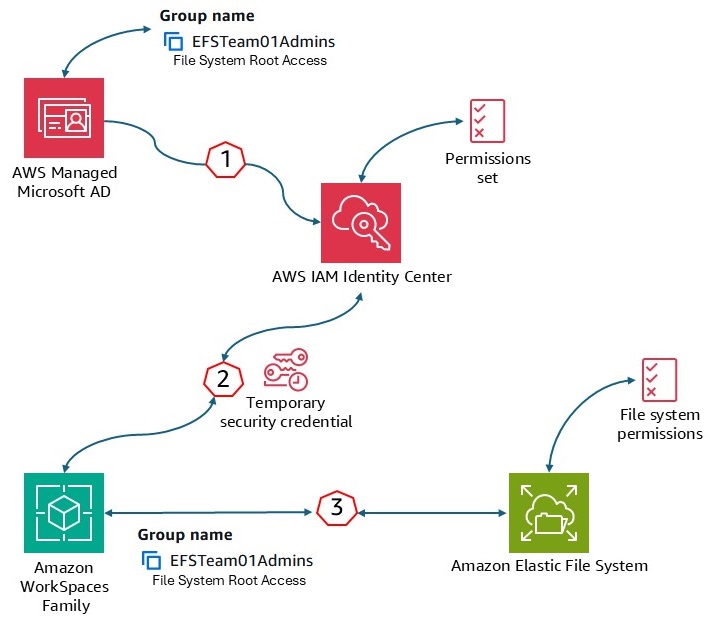
Figure 1: The integration workflow between AWS Managed Microsoft AD, IAM Identity Center, and Amazon EFS
This approach uses your existing AWS Managed Microsoft AD (users and groups) and aligns it with the EFS file system structure, as illustrated in the following figure.
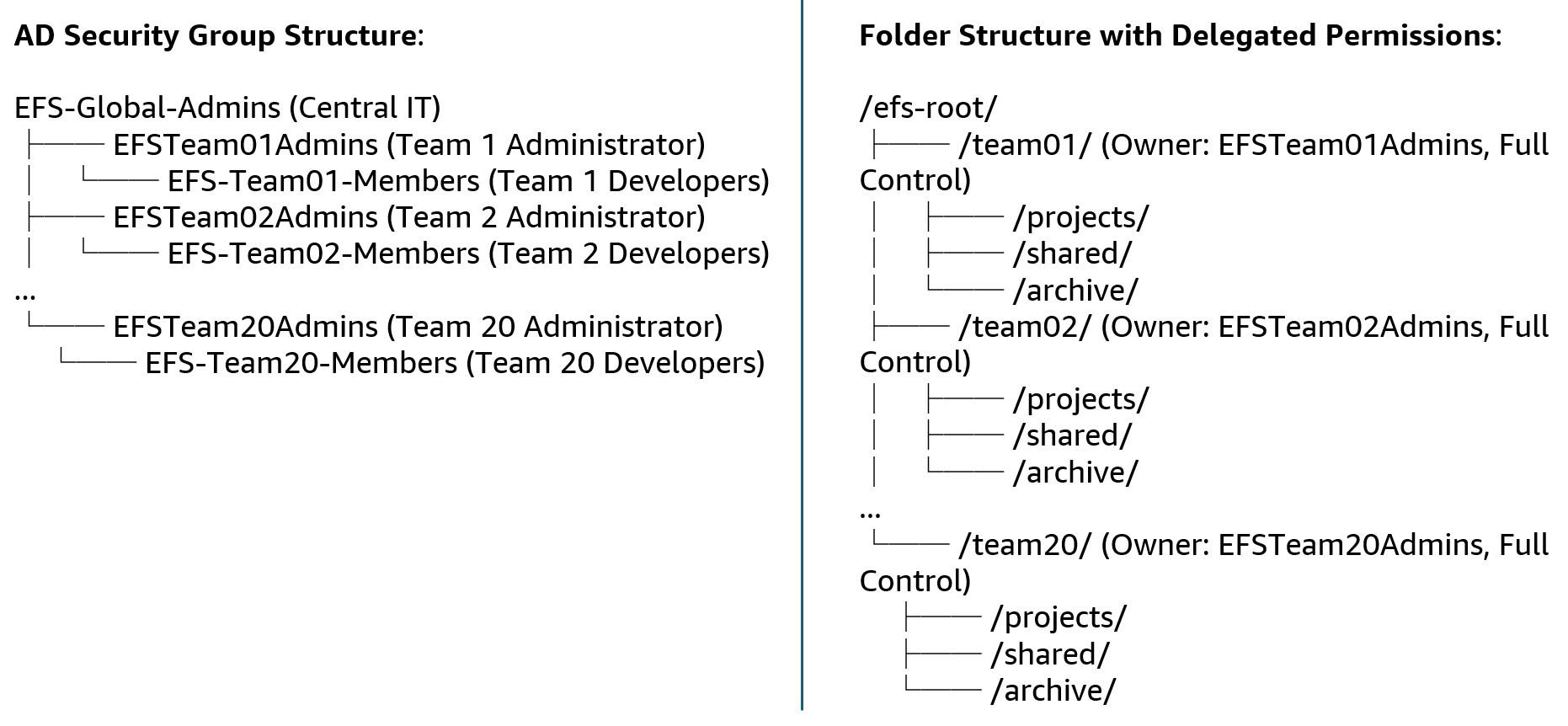
Figure 2: Example of how organizational teams map to file system access controls
After a team leader mounts the file system with root access, they create their team’s directory (for example, /efs-root/team01/) and set POSIX ownership and permissions using standard Linux commands. For example, the team leader sets the directory owner to the EFSTeam01-Members group and applies permissions (for example, 770) so only members of that AD group can read and write files within it. Common users who mount the file system without root access can only access directories where their AD group membership grants them POSIX-level permissions.
Prerequisites
Before starting the walkthrough, ensure you have the following installed on your WorkSpaces client:
- Install the latest AWS Command Line Interface (AWS CLI) client (version 2). For instructions, see Installing or updating to the latest version of the AWS CLI.
- Botocore is required for EFS-utils v1.31.1 and later versions to mount with IAM identity by using AWS profiles. For instructions, see the GitHub repo.
- Install the latest version of amazon-efs-utils from the GitHub repo.
Create EFS file system
Create an EFS file system and configure a file system policy that grants common users elasticfilesystem:ClientMount and elasticfilesystem:ClientWrite permissions only. This allows users to mount and read/write files but does not grant root access or the ability to change file system permissions.
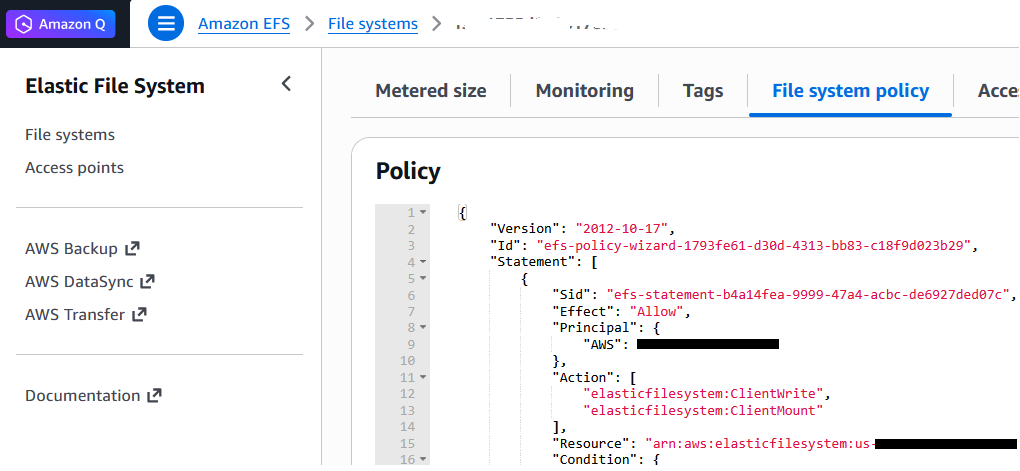
Figure 3: File system policy configuration on the Amazon EFS console
Connect AWS Managed Microsoft AD to IAM Identity Center
In this step, you create and connect AWS Managed Microsoft AD to IAM Identity Center. This makes it possible to use AD users and groups as identities for granting Amazon EFS permissions. Before proceeding, you need an AWS Managed Microsoft AD directory (in our case, workspaces.labx.com). If you don’t have one, create it using the AWS Directory Service console.
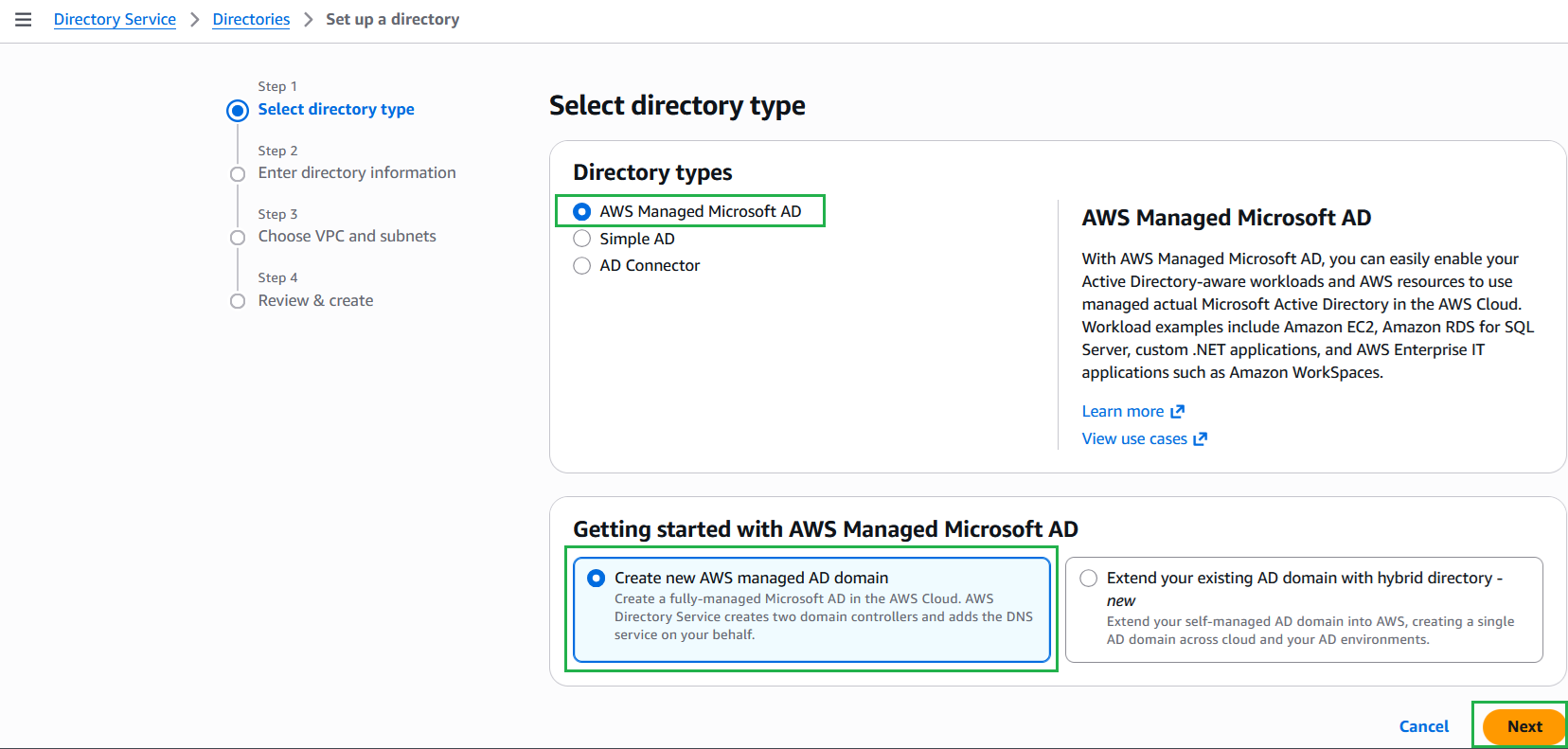
Figure 4: Create AWS Managed Microsoft AD directory on the Directory Service console
To connect your directory, open the IAM Identity Center console, choose Settings in the navigation pane, choose Change identity source, select Active Directory, and follow the instructions to configure the change.
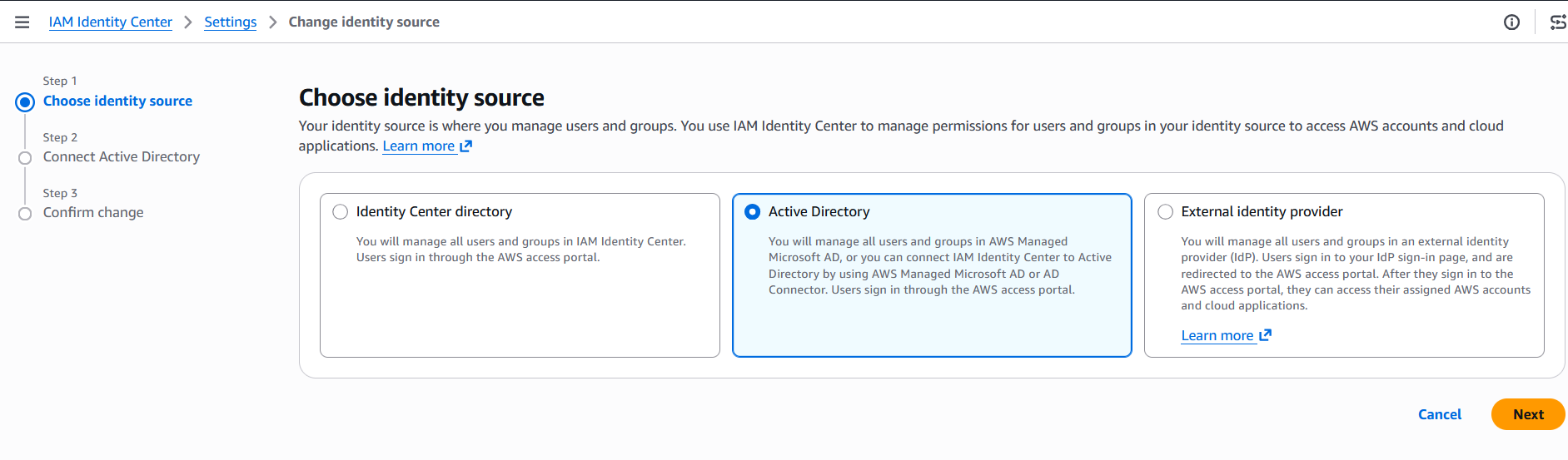
Figure 5: Choose your identity source to access AWS accounts and cloud applications
After connecting your directory to IAM Identity Center, you can grant your AD users and groups access to AWS accounts, applications, or both. After you sync your Active Directory with IAM Identity Center, you can sync users and groups from Active Directory.
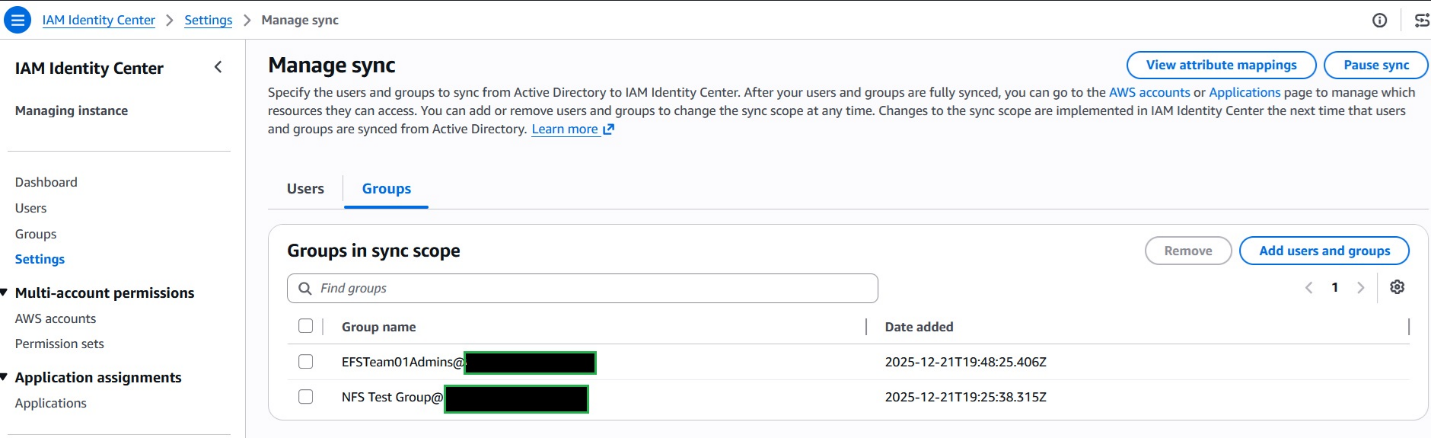
Figure 6: Syncing Active Directory groups in IAM Identity Center
Now you need to create an EFS file system permission set that includes policies to provide root access to Amazon EFS. This approach helps you define users or groups of users with rights to manage file system permissions.
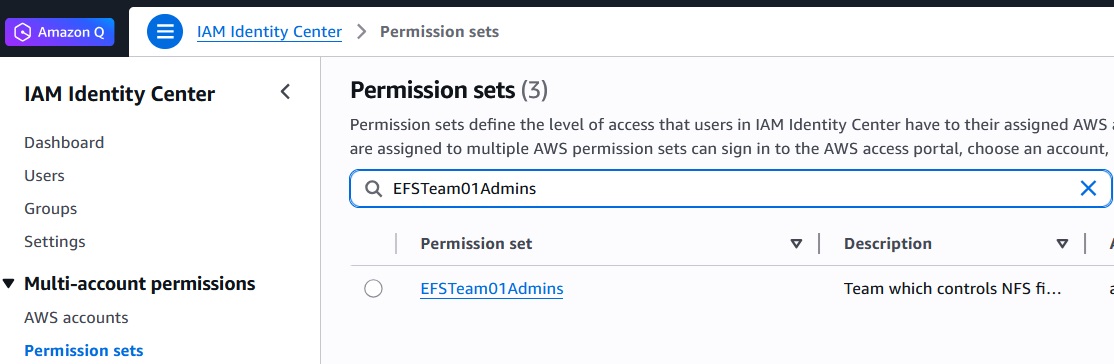
Figure 7: Custom EFS administrator permissions that grant elevated access for file system management
The following code is part of the inline policy that provides root access to Amazon EFS (provide your 12-digit AWS account ID and your EFS file system ID):
After you define the permission, you can assign it to the user or groups that you previously synced from AWS Managed Active Directory.
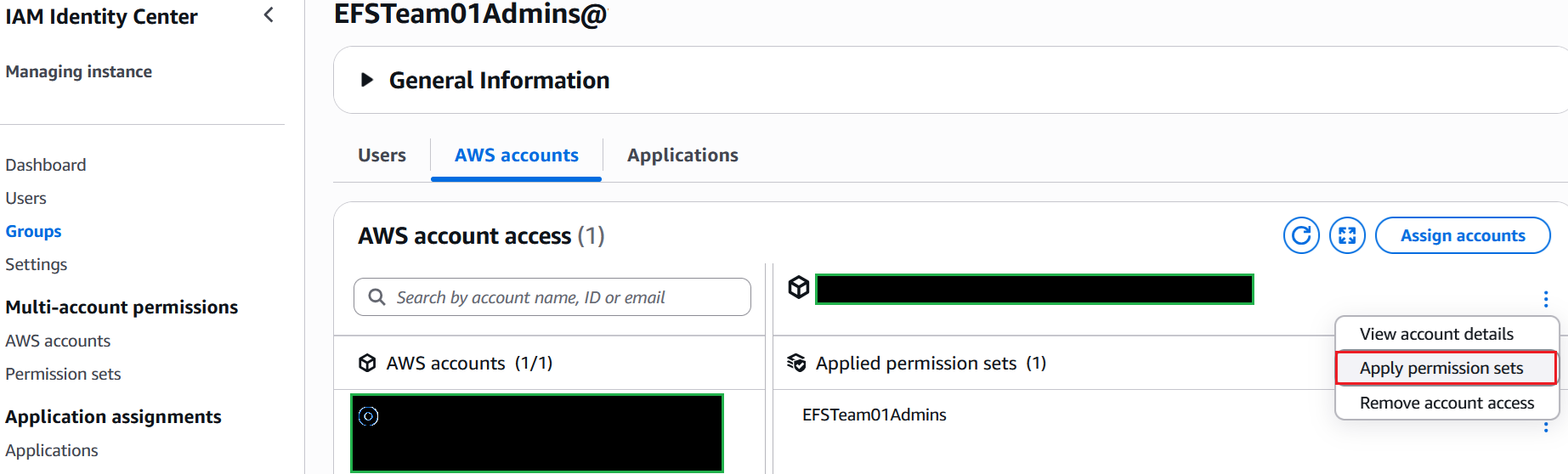
Figure 8: Assigning a permission set to a team group for delegated administration
As an additional step to set up better security, configure MFA in IAM Identity Center.
Set up WorkSpaces client
On your WorkSpaces client, create a local directory that will serve as the mount for the EFS file system. For example:
# sudo mkdir /mnt/efs
The Amazon EFS client (amazon-efs-utils) is an open source collection of tools for Amazon EFS. The Amazon EFS client includes a mount helper, which is a program that helps simplify mounting EFS file systems. The EFS-utils makes it possible to authenticate with EFS using the system’s IAM identity of an awsprofile, add the IAM option, and pass the profile name to awsprofile option:
# sudo mount -t efs -o tls,iam,awsprofile=default file-system-id efs-mount-point/
This approach makes it possible to mount the EFS file system using IAM Identity Center credentials. To achieve this, the user with delegated permissions management should configure and use IAM Identity Center from their AWS CLI.
To configure IAM Identity Center authentication with the AWS CLI, set up a profile with the following command:
# aws configure sso
The following AWS CLI configuration file sets up the SSO profile required for Amazon EFS authentication, including the SSO start URL, AWS Region, and account settings. Add the following profile and SSO session configuration to your ~/.aws/config file. Replace the placeholders with values from your environment. Your session name must match in both lines (in sso_session and the section header).
Open Terminal in the WorkSpaces client and sign in to an IAM Identity Center session (when the user needs to get access to the EFS file system with root permissions). Run the following command to start SSO authentication:
# sudo aws sso login --profile default
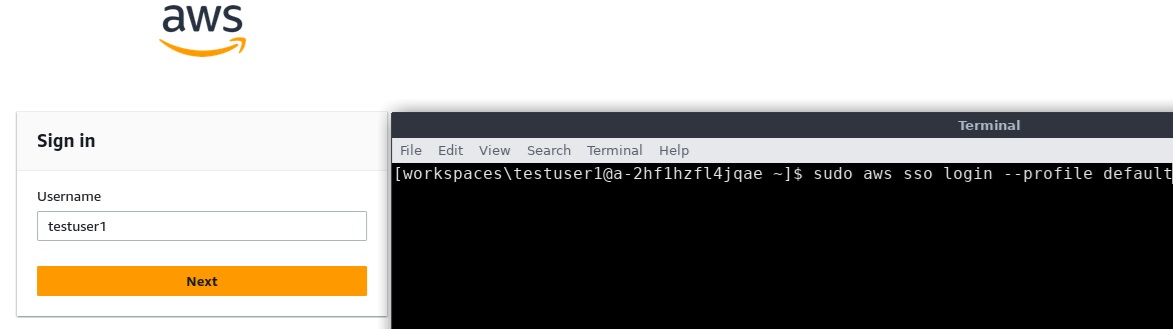
Figure 9: IAM Identity Center login from the WorkSpaces terminal
If you set up MFA, you will get an additional protection layer, and users need to provide an authentication code.
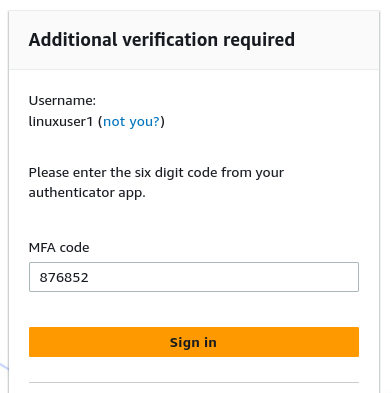
Figure 10: Enter a verification code from authenticator application
Mount the EFS file system to a WorkSpaces client through efs-utils:
# mount -t efs -o tls,iam,awsprofile=default fs-012325346764 /mnt/efs
The three required options are:
- tls – Enables encryption in transit using TLS
- iam – Enables IAM authentication for mounting
- awsprofile – Specifies the AWS profile to use for authentication
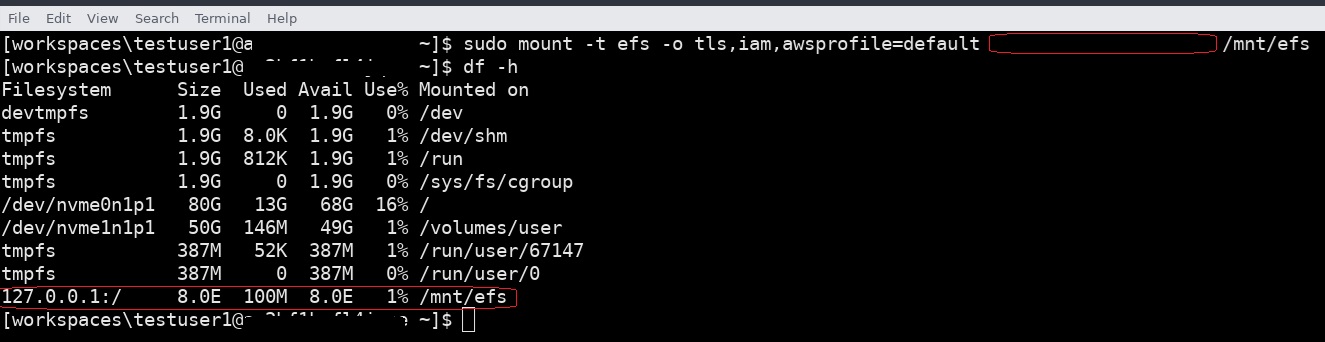
Figure 11: EFS file system mounted successfully using IAM authentication
After the file system is mounted with client root permission, team administrators can change and set up file rights and permissions for their team members. Root access is granted only to users assigned the EFS administrator permission set in IAM Identity Center, typically one or two team leaders per team. Each team leader creates and manages only their team’s directory (for example, /mnt/efs/Projects/Project2), following organizational naming conventions.
Advanced access control with EFS access points
For organizations requiring even more granular permission management, EFS access points provide an additional layer of access control. Access points are application-specific entry points into an EFS file system that enforce a specific operating system user identity, including the user’s POSIX groups, for file system requests made through the access point.
To implement access points for your teams, you can create separate access points for each project or team, each with its own root directory path and POSIX user/group settings. This approach provides defense-in-depth security by combining IAM authentication, file system policies, and access point restrictions. Access points are mounted using the access point mount option. This approach is best suited for new deployments or when adding new teams to an existing file system. For detailed guidance on implementing EFS access points, refer to the Working with access points.
Recommendations and troubleshooting
Keep in mind the following:
- You can use AWS Managed Microsoft AD users’ NetBIOS names in the form workspaces\linuxuser1. These map to Linux UID and GID. For example:
# sudo chown "workspaces\linuxuser1" /mnt/efs/<YOUR-PROJECT-PATH>
- If you need to troubleshoot mounting, use the debug option in amazon-efs-utils:
# sudo mount -t efs -o tls,iam,debug fs- <YOUR-FILE-SYSTEM-ID> /mnt/efs
# tail -f /var/log/amazon/efs/mount.log
- In case of SSO issues, you can clean a local SSO cache using rm -rf ~/.aws/sso/cache and drop an SSO session using the IAM Identity Center console or the AWS CLI, or use the aws sso logout command to properly terminate your session.
Clean up
To avoid ongoing charges, remove the resources you created in this walkthrough when you no longer need them:
-
-
- Unmount the EFS file system from your WorkSpaces client (sudo umount), then delete the file system from the Amazon EFS console.
- Delete your WorkSpace from the Amazon WorkSpaces console.
- Remove and delete the IAM Identity Center permission set you created.
- If you provisioned AWS Managed Microsoft AD only for this walkthrough, deregister it from Amazon WorkSpaces and then delete the directory from the AWS Directory Service console.
- Run aws sso logout on your WorkSpaces client and remove the entries you added to ~/.aws/config.
-
Cost considerations
Pricing varies by Region. For current rates in your Region, see each service’s pricing page:
-
-
- Amazon WorkSpaces pricing – Billed per WorkSpace, monthly or hourly
- Amazon EFS pricing – Billed per GB-month, with separate rates for storage classes
- AWS Managed Microsoft AD pricing – Billed hourly per directory
-
IAM Identity Center is offered at no additional charge.
For an estimate of total monthly cost across these services, use the AWS Pricing Calculator.
Conclusion
Implementing secure file sharing for distributed development teams requires balancing accessibility with robust security controls. By integrating Amazon EFS with AWS Managed Microsoft AD and IAM Identity Center, organizations can achieve centralized file storage with enterprise-grade security while maintaining the flexibility teams need to collaborate effectively.This solution delivers two key outcomes for teams on Amazon WorkSpaces: Team leaders manage file permissions for their own teams, and MFA and IAM-based controls restrict access to their files. For distributed engineering teams, that brings shared storage into the same identity model they already use for AWS accounts.To implement this solution in your environment, take the following next steps:
-
-
- Review the Amazon EFS documentation for detailed configuration options
- Explore IAM Identity Center best practices for managing user access at scale
- Visit the amazon-efs-utils GitHub repository for the latest version, installation instructions, and troubleshooting guides for mounting EFS file systems
-