AWS Architecture Blog
Track generative AI costs with Amazon Bedrock inference profiles
Tracking generative AI costs is a common challenge when multiple teams share a single foundation model through Amazon Bedrock. Your HR team answers policy questions, Accounting analyzes financial documents with it, and IT troubleshoots infrastructure issues. All three use the same foundation model. But usage shows up as one line item on the bill. As a result, finance can’t charge back each department, set per-team budgets, or identify who’s driving the most spend.
With Amazon Bedrock application inference profiles, you can solve this. An inference profile is a tagged wrapper around a foundation model. You can use it to attribute costs to specific teams or departments. By combining these profiles with AWS cost allocation tags, you can view per-department Amazon Bedrock costs as separate line items in AWS Cost Explorer.
In this post, we show you how to create application inference profiles for three departments and tag them for cost allocation. You also update your application to route invocations through department-specific profiles and view the per-department cost breakdown in Cost Explorer.
Solution overview
The following diagram shows the solution architecture. Users authenticate at the application layer, and the application identifies each user’s department. It then routes the request to that department’s tagged inference profile in Amazon Bedrock. All profiles use the same foundation model. The application calls Amazon Bedrock using a single IAM role, and individual user identities are not passed to AWS. Cost attribution comes from the inference profiles rather than the calling identity. Amazon Bedrock records usage against each profile’s Team tag, and AWS Cost Explorer displays the costs grouped by department.
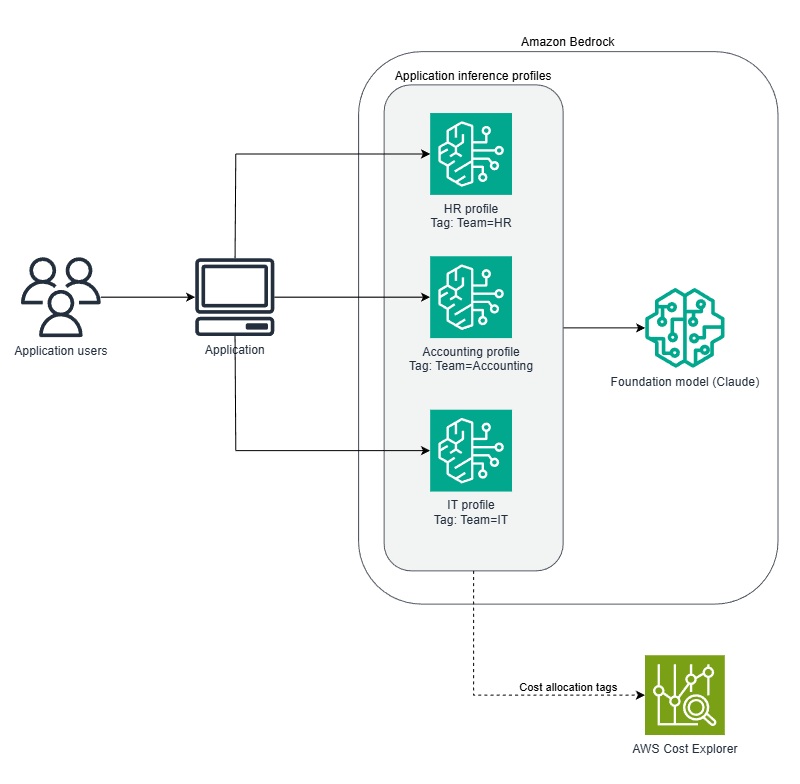
Figure 1 — Solution architecture for per-department cost tracking with application inference profiles
Amazon Bedrock can also attribute inference costs to the IAM principal that makes each call. This works well when each team calls Amazon Bedrock under a distinct IAM identity. In this architecture, a single application serves all departments under one role. Per-caller attribution can’t separate team costs without adding per-user session management. With application inference profiles, you can attribute costs per team by routing each team to a tagged profile.
To track costs per department:
- Create an application inference profile for each department, associating each one to the same foundation model.
- Tag each profile with a cost allocation tag (for example,
Team=HR). - Activate the tag in the AWS Billing and Cost Management console.
- Update your application to route invocations through each department’s inference profile Amazon Resource Name (ARN).
- View the per-department cost breakdown in Cost Explorer.
You pay the same per-token rate whether you invoke the model directly or through an inference profile – no additional charges for cost attribution.
Create and configure inference profiles for cost tracking
The following sections walk you through creating inference profiles, activating cost allocation tags, updating your application, and viewing costs in Cost Explorer.
Prerequisites
To configure this solution, you need the following:
- An AWS account.
- Model access enabled for your chosen foundation model in Amazon Bedrock (for instructions, refer to the Amazon Bedrock User Guide).
- AWS Identity and Access Management (IAM) permissions including
bedrock:CreateInferenceProfile,bedrock:TagResource,bedrock:InvokeModel,bedrock:InvokeModelWithResponseStream,ce:GetCostAndUsage, andce:UpdateCostAllocationTagsStatus. - Access to the AWS Billing and Cost Management console to activate cost allocation tags and view Cost Explorer. For more information, refer to Managing access permissions for AWS Billing.
- Python 3.12 with boto3 1.35.7 or later (for testing invocations).
Estimated time: 30 minutes (plus 24–48 hours for cost data to appear in Cost Explorer).
Estimated cost: Based on invocations at standard model pricing. For more information, refer to Amazon Bedrock Pricing.
Create application inference profiles
Create an application inference profile for each department. Each profile points to the same foundation model but has a unique tag for cost tracking.
To create an application inference profile:
- On the Amazon Bedrock console, in the navigation pane, choose Inference profiles.
- Choose the Application tab.
- Choose Create inference profile.
- For Profile name, enter HR.
- For Model, select your foundation model (for example, Anthropic Claude).
Note: Model availability varies by Region. Check the Amazon Bedrock model availability documentation for the current list.
To tag the inference profile:
- In the Tags section, choose Add tag.
- For Key, enter Team.
- For Value, enter HR.
- Choose Create. The inference profile status changes to Active.
- Repeat for Accounting (Tag:
Team=Accounting) and IT (Tag:Team=IT).
The following figure shows the create inference profile page with the profile name and tag configured.
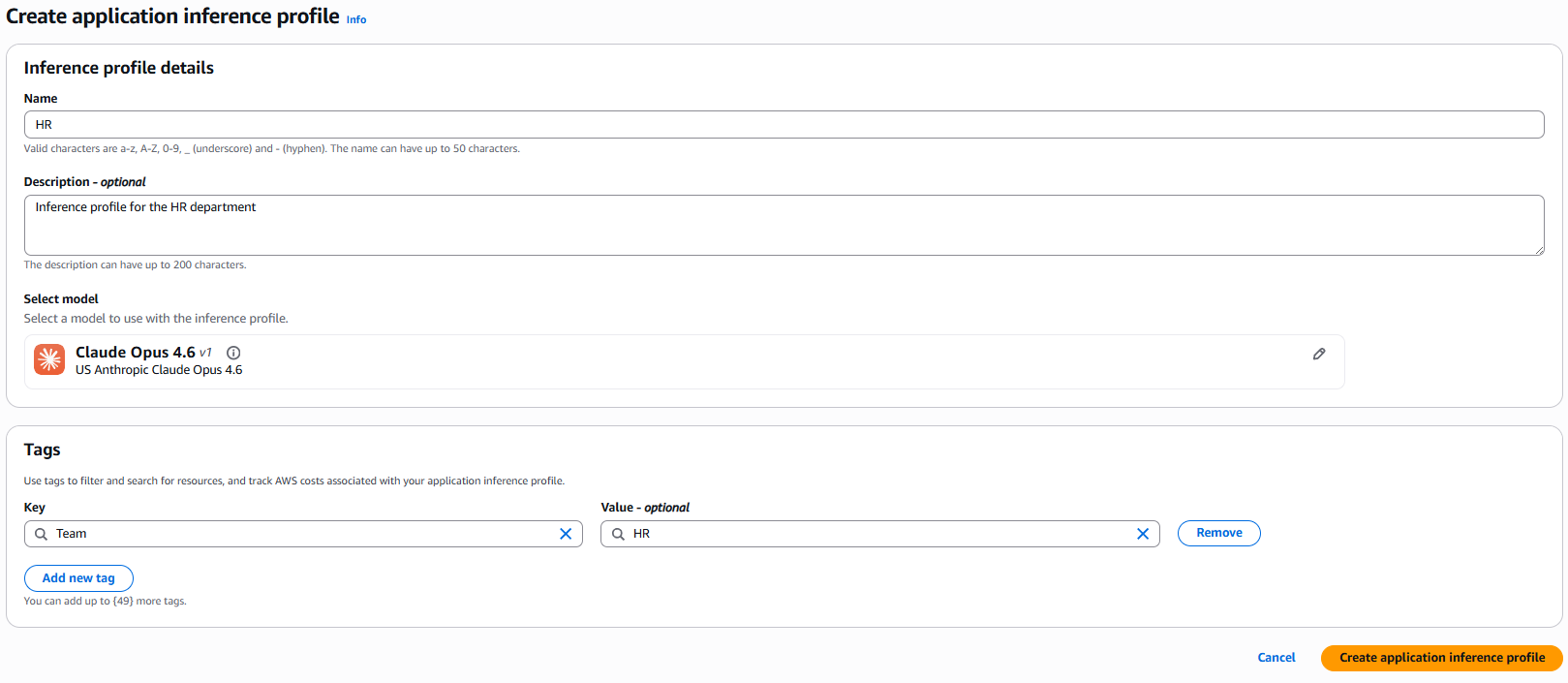
Figure 2 — Creating an application inference profile with a department tag
After you create all three profiles, the Application inference profiles list shows the HR, Accounting, and IT profiles, each with a status of Active and its corresponding Team tag. The following figure shows the three inference profiles after creation.
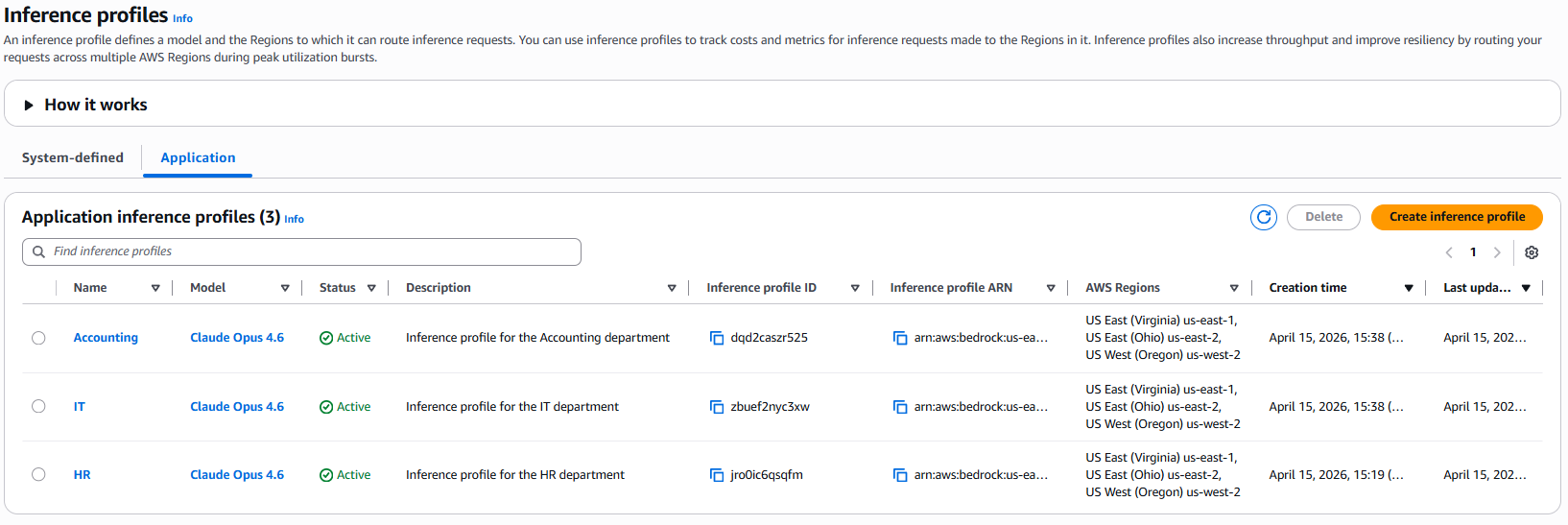
Figure 3 — Three application inference profiles, one per department
To provision inference profiles at scale (for example, one per team across dozens of teams), use the AWS::Bedrock::ApplicationInferenceProfile AWS CloudFormation resource instead of creating each profile manually.
Activate the cost allocation tag
After creating the inference profiles, you activate the cost allocation tag so that tagged costs appear in Cost Explorer. In multi-account environments using AWS Organizations, activate the Team cost allocation tag in the management (payer) account. Tagged usage from member accounts then consolidates in Cost Explorer. For more information about cost allocation tags, refer to Using AWS cost allocation tags.
To activate the cost allocation tag:
- Open the AWS Billing and Cost Management console.
- In the navigation pane, choose Cost allocation tags.
- In the search box, enter Team.
- Select the Team tag.
- Choose Activate.
The tag status changes to Active.
Note: Cost allocation tags are case-sensitive. Team and team are different tags. Tagged costs can take 24–48 hours to appear in Cost Explorer after activation.
Update the application to use inference profiles
To attribute costs to a department, pass the inference profile ARN as the modelId parameter instead of the foundation model ID. The API call remains the same. You only change the ID you pass.
To find an inference profile ARN:
- On the Amazon Bedrock console, choose Inference profiles.
- Select the profile.
- Copy the ARN from the details panel.
The ARN appears in the format arn:aws:bedrock:region:account-id:application-inference-profile/profile-id.
The following example shows how to route invocations based on the user’s department:
The full code is available on the GitHub repo.
When using inference profiles in production, validate user inputs and consider using Amazon Bedrock Guardrails to filter unintended content. API communications with Amazon Bedrock are encrypted in transit using Transport Layer Security (TLS). For more information about data protection, refer to Data protection in Amazon Bedrock.
Configure the IAM policy for Amazon Bedrock access
Because a single application calls Amazon Bedrock on behalf of all departments, it uses one IAM role. The following policy grants that role permission to invoke the department inference profiles and the underlying foundation model:
The wildcard (*) in the application inference profile ARN lets the single application role invoke the department profiles. The foundation model ARN is required because invoking through an inference profile needs permissions on both the profile and the underlying model. The application determines which department each request belongs to and routes it to the matching profile, and cost attribution comes from each profile’s Team tag. To further restrict access, replace the wildcard with the specific ARNs of your profiles.
Replace 111122223333 with your AWS account ID in the preceding policy.
To create the policy:
- On the IAM console, choose Policies.
- Choose Create policy.
- Choose the JSON tab.
- Paste the preceding policy.
- Choose Next.
- For Name, enter BedrockDepartmentAccessPolicy.
- Choose Create policy.
The BedrockDepartmentAccessPolicy appears in the policies list.
To attach the policy to a role:
- In the navigation pane, choose Roles.
- Select the role used by your application.
- Choose Add permissions.
- Choose Attach policies.
- Search for BedrockDepartmentAccessPolicy.
- Select BedrockDepartmentAccessPolicy.
- Choose Add permissions.
The BedrockDepartmentAccessPolicy appears in the role’s permission list. To add a department later, create another tagged inference profile and map it in your application. With the wildcard policy, no IAM change is needed. If you scoped the policy to specific ARNs, add the new profile’s ARN.
View per-department costs in Cost Explorer
To view the per-department breakdown in Cost Explorer:
- Open the Billing and Cost Management console.
- In the navigation pane, choose Cost Explorer.
- Set the date range to cover the period after you ran invocations.
- For Granularity, select Daily or Monthly.
- Choose Group by.
- Select Tag.
- Select Team.
To view exact amounts, scroll down to view the cost breakdown table.
The following figure shows the per-department cost breakdown in Cost Explorer. The bar chart displays a separately-colored segment for each department – HR, Accounting, and IT – with the cost amount for each. The table below the chart lists the exact dollar amount per department for the selected time period.
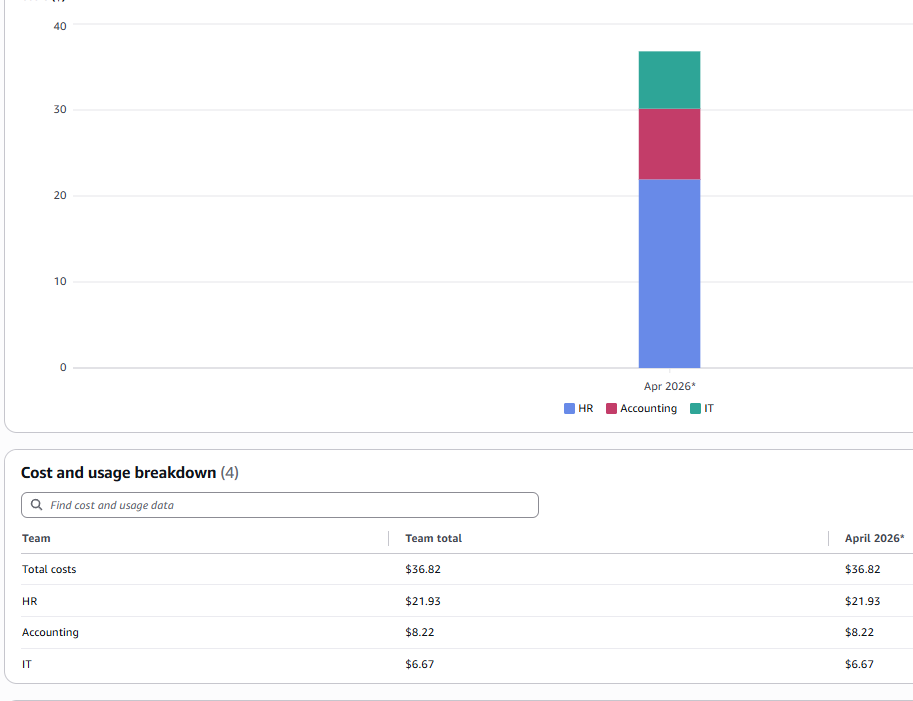
Figure 4 — Per-department Amazon Bedrock costs in Cost Explorer, grouped by the Team tag
After running invocations through each inference profile, verify the following:
- Each inference profile shows the correct
Teamtag in the Amazon Bedrock console. - The
Teamcost allocation tag is active in the Billing and Cost Management console. - Per-department costs appear in Cost Explorer when you group by the
Teamtag.
If costs don’t appear after 48 hours, verify that the cost allocation tag is active and that invocations were made through the inference profile ARNs. If invocations fail, confirm that the inference profile status is Active and the IAM role has the required permissions.
Clean up
Inference profiles don’t incur charges on their own. You only pay for model invocations made through them. As a cleanup step, delete the inference profiles you created for this walkthrough to prevent accidental invocations.
Note: Deleting an inference profile immediately affects applications using that profile ARN. Verify that applications are not actively using these profiles before deletion. To recover, recreate the profile — note that it receives a new ARN, so update your application references.
Delete the following resources:
- Application inference profiles – For instructions, refer to Delete an application inference profile.
- IAM policy – For instructions, refer to Deleting IAM Policies.
Teamcost allocation tag – Deactivate it in the Billing and Cost Management console. For instructions, refer to Deactivating cost allocation tags.
Conclusion
In this post, we showed you how to split generative AI costs by team using Amazon Bedrock application inference profiles and cost allocation tags. With this approach, you can see each department’s costs as a separate line item in Cost Explorer.
To add a new department, create another tagged profile. Costs show up as a separate line item.
You can also:
- Set per-department spending alerts and control with AWS Budgets.
- Detect unusual spending patterns with AWS Cost Anomaly Detection.
- Monitor token usage per department with Amazon CloudWatch.
- Attribute costs for higher-level Amazon Bedrock features – reference the same tagged profile ARN in the Knowledge Bases (RAG) to extend per-team attribution beyond direct model invocation.
For more background on application inference profiles, refer to Track, allocate, and manage your generative AI cost and usage with Amazon Bedrock.
For more information about inference profiles, refer to the Amazon Bedrock User Guide.
For help implementing this solution, contact your AWS representative.