AWS Big Data Blog
Optimizing Apache HBase availability on Amazon EMR, Part 2: Diagnose and tune compaction
This post shows you how to diagnose and tune compaction in Apache HBase on Amazon EMR. Compaction is the background process that merges store files. When it competes with your workload during peak hours, you can see higher read and write latency, write stalls, and RegionTooBusyException errors. Amazon EMR on Amazon Simple Storage Service (Amazon S3), you can also see more 503 Slow Down responses when you increase your cluster’s request rate.
This is the second post in a two-part series on operating Apache HBase on Amazon EMR:
- Part 1 covers the three-level troubleshooting model and three availability issues: an HBase coordinator that doesn’t finish initializing, a RegionServer that stops unexpectedly, and HBase regions that stay in transition (RIT).
- Part 2 (this post) covers performance: how to confirm that compaction is the cause, which parameters to tune first, and when to contact AWS Support.
This post covers the following:
- How compaction affects performance.
- How to confirm whether compaction is causing the latency.
- The compaction parameters to tune, their defaults, and what each one does.
- Practices that reduce compaction work.
- When to stop and contact AWS Support, and what to bring to a support case.
This post doesn’t cover the following:
- Coordinator startup, RegionServers that stop unexpectedly, and regions in transition, which are covered in Part 1 of this series.
- Compaction algorithm internals or writing custom compaction policies.
- Schema design and row key distribution (the Practices that reduce compaction work section covers how they affect compaction).
This post is for operations teams, data engineers, HBase administrators, and site reliability engineers (SREs) who see recurring latency spikes, write stalls, RegionTooBusyException errors, or high Amazon S3 request rates during compaction on HBase on Amazon EMR.
Terminology
Apache HBase names the process that coordinates the cluster HMaster, and Amazon EMR runs it on the primary node. This post refers to it as the HBase coordinator. Names that contain master, such as the hbase-master service and the hbase-hbase-master-*.log log files, appear only in commands and log output, where you need the exact name.
In HBase, a region is a range of rows in a table, and a RegionServer is the process that serves regions. Neither is related to an AWS Region.
Prerequisites
- Read Part 1 of this series, in particular the Three levels of troubleshooting and Quick reference sections.
- Confirm that you have access to the HBase web UI (coordinator on port 16010, RegionServer on port 16030).
- Confirm that you have SSH access to the primary and core nodes.
- Know whether your cluster uses Hadoop Distributed File System (HDFS) or Amazon S3 as its storage mode, and how to apply configuration changes through the
hbase-siteclassification in Amazon EMR. For storage-mode specifics, see HBase on Amazon S3. - Be familiar with minor and major compaction in HBase.
How compaction affects performance
By default, HBase runs a major compaction roughly every seven days and uses a jitter factor of 0.5 to spread the start times so that HBase regions don’t all compact at once. For guidance specific to Amazon EMR, see the HBase best practices in the Amazon EMR best practices guide.
Major compaction reads and rewrites all store files in a region. It improves read performance and removes deleted and expired cells, but when it runs during peak hours it competes with client requests and can increase latency. Tuning compaction means controlling when major compaction runs and how much I/O it uses.
Compaction decision flow
Before you change any parameters, use the following decision flow to identify the cause.
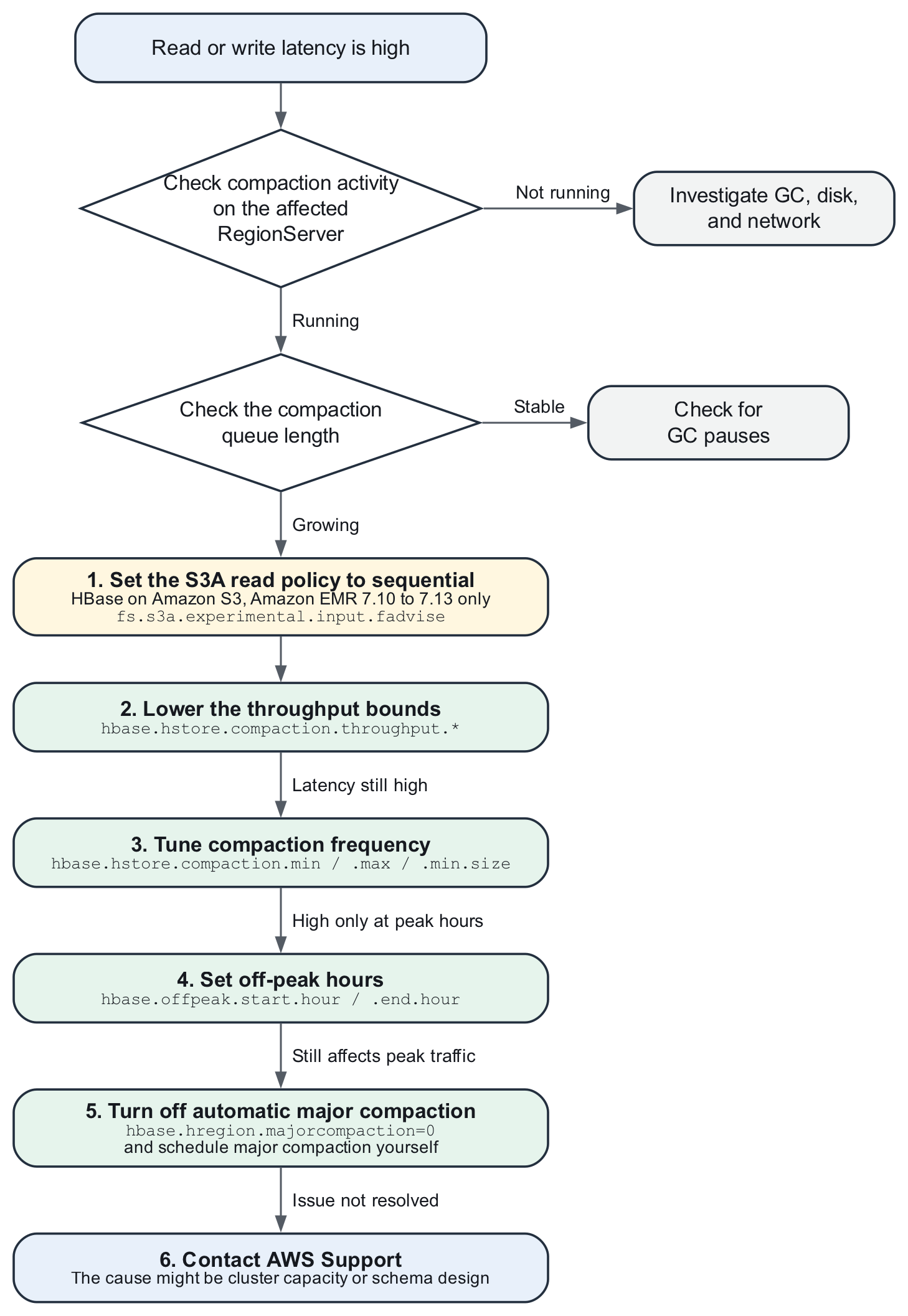
Figure 1: Compaction decision flow
The flow has the following steps:
- If latency is high, check whether compaction is running on the affected RegionServer. If it isn’t, investigate garbage collection (GC), disk, and network instead.
- If compaction is running, check whether the compaction queue is growing. If it isn’t, check for GC pauses.
- If compaction is running and the queue is growing, work through the following steps in order:
- On HBase on Amazon S3 with Amazon EMR 7.10 to 7.13, set the S3A read policy to
sequentialbefore you change any compaction parameter. See Step 3 in Diagnose compaction pressure. - Lower the throughput bounds (
hbase.hstore.compaction.throughput.*) to reduce the I/O that compaction takes from client requests. The queue can grow while the limit is lower. HBase removes the limit when any store reacheshbase.hstore.blockingStoreFiles, so the limit doesn’t keep a store at the blocking threshold. - If latency is still high, tune compaction frequency (
hbase.hstore.compaction.min,hbase.hstore.compaction.max, andhbase.hstore.compaction.min.size). - If latency is high only during peak hours, set off-peak hours (
hbase.offpeak.start.hourandhbase.offpeak.end.hour) so that more compaction work runs outside them. - If compaction still affects peak traffic, turn off automatic major compaction (
hbase.hregion.majorcompaction=0) and schedule it yourself. - If none of these steps resolves the issue, contact AWS Support. The cause might be cluster capacity or schema design.
- On HBase on Amazon S3 with Amazon EMR 7.10 to 7.13, set the S3A read policy to
Note: Changing the previous configuration requires EMR HBase Restart. For reconfiguration behavior, refer to Reconfiguration behaviors in the Amazon EMR Management Guide.
Signs of compaction pressure
The following symptoms indicate compaction pressure. They don’t all appear at once. Start with the first two, because you can confirm them in the HBase web UI:
- Read and write latency rises on some RegionServers but not others. The affected set changes over time as different regions reach their compaction window.
- The compaction queue length on the affected RegionServer keeps increasing.
- Long-running reads (report generation, Apache Spark table scans) pause and then resume.
- Clients receive
RegionTooBusyException, call timeouts, or retries. The RegionServer log showsRegion is too busy due to exceeding memstore size limitwarnings for the same regions. - Writes stall periodically. When a store reaches
hbase.hstore.blockingStoreFilesstore files, HBase delays MemStore flushes until compaction reduces the count, for up tohbase.hstore.blockingWaitTime(90 seconds by default). If the MemStore exceedshbase.hregion.memstore.flush.sizemultiplied byhbase.hregion.memstore.block.multiplierin the meantime, HBase blocks updates to the region. - On HBase on Amazon S3, more requests return 503 Slow Down when the request rate from your cluster to an Amazon S3 prefix is high. These responses ask your cluster to reduce its request rate. Compaction reads and rewrites store files in Amazon S3, so it adds to that rate.
- On Amazon EMR 7.10 to 7.13 with HBase on Amazon S3, compactions, scans, and bulk loads run slower than expected and the number of HFiles keeps increasing. See Step 3 in Diagnose compaction pressure.
- The pattern recurs on a weekly rhythm, which matches the default seven-day major compaction interval.
Diagnose compaction pressure
Work through the following steps in order. Step 1 uses the HBase web UI (Level 1). Steps 2 and 3 use logs, operating system tools, and configuration files (Level 2). None of these checks change the cluster.
Step 1 (Level 1): Check the HBase web UI
- In the HBase web UI, sort RegionServers by request count and by store file count to find the outliers. A server with a much higher store file count might be running, or waiting for, a compaction.
- On the RegionServer web UI of an affected server, check the compaction queue length and store file count per region. A queue that keeps growing means compaction can’t keep up with your write volume, so add capacity or tune your configuration.
- Check the BlockCache hit rate. A lower hit rate also increases latency. On HBase on Amazon S3, RegionServers cache reads in the BlockCache (memory) and the BucketCache (local disk). A cache miss reads the store file from Amazon S3, which has higher latency than a local read. If the hit rate dropped when compaction started, compaction might be replacing frequently read data in the cache.
Step 2 (Level 2): Check the logs and the operating system
Confirm that compaction is running, and on which HBase regions:
Rule out GC as the cause, because heavy compaction and heap pressure look the same to clients:
Check CPU, memory, and disk usage on the host:
Use the canary tool to measure read latency per HBase region. The tool writes its results to the console and to /var/log/hbase/hbase.log. Save the output as a baseline to compare against after each change:
Check the store file layout of the table to see whether it has many small files (from frequent flushes) or a few large ones. Store files are under the HBase root directory, which is in HDFS or Amazon S3, depending on your storage mode. On HBase on Amazon S3 with Amazon EMR 7.4 and later, HBase tracks the store files it reads in a meta file in each store directory instead of relying on directory listings, so use the store file count in the RegionServer web UI as the count of active files:
Step 3 (Level 2): Check the S3A read policy (Amazon EMR 7.10 to 7.13)
Starting with Amazon EMR 7.10, HBase on Amazon S3 uses the S3A file system client, and fs.s3a.experimental.input.fadvise defaults to normal. In this mode, S3A can switch to a random read policy even when HBase continues to read sequentially, which slows compactions, scans, and bulk loads. Use the recommended setting for Amazon EMR 7.10, 7.11, 7.12, and 7.13. The symptoms are similar to compaction pressure: slow compactions, an increasing number of HFiles, and blocked flushes that return RegionTooBusyException.
Check the release label and the current setting:
If the release is 7.10 to 7.13 and the property isn’t set, or is set to normal, set it to sequential in the hbase-site classification before you tune compaction. Changing the setting requires a restart, so it’s a Level 3 action:
Apply the setting to hbase-site.xml on all nodes, then restart the HBase coordinator and RegionServer processes. Setting the property on individual commands instead doesn’t improve compaction and scan performance. For more information, see HBase on Amazon S3 in the Amazon EMR Release Guide.
Compaction tuning parameters
The following table lists the compaction parameters that this post covers. Apply changes through the hbase-site configuration classification in Amazon EMR. Changing these parameters is a Level 3 action. Change one parameter at a time and compare the results with the canary baseline from Step 2, because several of these parameters interact.
Note: The Amazon EMR column lists defaults from the HBase on Amazon S3 documentation. Where a default isn’t listed there, check the effective value in /etc/hbase/conf/
hbase-site.xmlon your cluster, and verify component versions on the Amazon EMR release components page. For example,hbase.hstore.blockingStoreFilesis 16 in Apache HBase 2.x, but Amazon EMR sets it to 10 for HBase on Amazon S3.
| Parameter | What it does | Apache HBase 2.x default | Amazon EMR default (HBase on Amazon S3) |
| hbase.hstore.compaction.throughput.higher.bound | Upper limit on compaction throughput per RegionServer when store file pressure is high. | 104857600 (100 MB/s) | Not listed |
| hbase.hstore.compaction.throughput.lower.bound | Lower limit on compaction throughput per RegionServer when store file pressure is low. | 52428800 (50 MB/s) | Not listed |
| hbase.hstore.compaction.min | Minimum number of eligible store files before a minor compaction runs. If it isn’t set, HBase uses hbase.hstore.compactionThreshold. | 3 | Not listed |
| hbase.hstore.compaction.max | Maximum number of store files included in a single minor compaction. | 10 | Not listed |
| hbase.hstore.compaction.min.size | HBase always considers store files smaller than this size eligible for minor compaction. | 134217728 (128 MB) | Not listed |
| hbase.hstore.compaction.ratio | Size ratio that decides which larger files are included in a minor compaction. | 1.2 | Not listed |
| hbase.hstore.blockingStoreFiles | Number of store files in a store at which HBase delays MemStore flushes, for up to hbase.hstore.blockingWaitTime (90 seconds), until compaction reduces the count. | 16 | 10 |
| hbase.hregion.memstore.flush.size | MemStore size, in bytes, at which HBase flushes to a new store file. | 134217728 (128 MB) | 134217728 (128 MB) |
| hbase.hregion.memstore.block.multiplier | HBase blocks updates when a MemStore exceeds the product of hbase.hregion.memstore.flush.size and this value. | 4 | 4 |
| hbase.hregion.max.filesize | Region size at which HBase splits the region. | 10737418240 (10 GB) | 10737418240 (10 GB) |
| hbase.offpeak.start.hour hbase.offpeak.end.hour | Off-peak window (hours 0–23). During this window, the larger hbase.hstore.compaction.ratio.offpeak (default 5.0) applies, and compaction throughput isn’t limited unless you set hbase.hstore.compaction.throughput.offpeak. | -1 (no off-peak window) | Not listed |
| hbase.hregion.majorcompaction | Time between automatic major compactions, in milliseconds. 0 turns off automatic major compaction. | 604800000 (7 days) | Not listed |
| hbase.hregion.majorcompaction.jitter | HBase uses this value to spread major compaction start times so that Regions do n’t all compact at once. | 0.5 | Not listed |
| hbase.bucketcache.size | Local disk space, in MB, on each RegionServer for the BucketCache (instance store and Amazon Elastic Block Store (Amazon EBS) volumes). | Not set | 8,192 MB |
| fs.s3a.experimental.input.fadvise | S3A read policy for HBase on Amazon S3. See Step 3 in Diagnose compaction pressure. | Not applicable | normal (7.10 and later) |
Warning: If you turn off automatic major compaction (hbase.hregion.majorcompaction=0), you are responsible for scheduling it. Minor compactions still merge store files, but delete markers and deleted cells stay in store files until a major compaction runs. This slows reads and delays reclaiming storage. If you turn it off:
- Schedule
major_compactyourself, per table, in a maintenance window. Run it on the primary cluster only, because read-replica clusters must not run manual compactions. On Amazon EMR releases earlier than 7.4.0, also turn off compaction on the read-replica cluster (hbase.regionserver.compaction.enabled=false). From 7.4.0, store file tracking makes this unnecessary. - Alarm when the store file count of any store approaches
hbase.hstore.blockingStoreFiles(for example, at 80 percent of that value), so that you notice if the schedule slips before writes are delayed.
Use the following HBase shell commands to run a major compaction and check its progress:
Practices that reduce compaction work
Tuning limits the effect of compaction on your workload. The following practices reduce how much compaction work the cluster has to do:
- Limit region size and the number of regions per RegionServer. Large regions make major compaction expensive, because major compaction rewrites every store file in the region. HBase splits a region when it reaches
hbase.hregion.max.filesize(10737418240 bytes, or 10 GB, by default on HBase on Amazon S3). Pre-split tables where you can predict the key distribution, using theSPLITSoption of the HBase shellcreatecommand or theRegionSplittertool. - Fix hotspotting at the row key. A row key that concentrates writes on one region (sequential timestamps, monotonically increasing IDs) produces frequent flushes and repeated compaction on a single RegionServer. To spread writes across HBase regions, salt, hash, or reverse the key.
- Reduce small flushes. Many small MemStore flushes create many small store files, which increases compaction work. Compare the MemStore flush size (
hbase.hregion.memstore.flush.size) with your write pattern. If regions flush every few seconds, the flush size might be too small, or the RegionServer might be under memory pressure. On HBase on Amazon S3, consider increasinghbase.hregion.memstore.flush.sizeandhbase.hregion.memstore.block.multiplier. This increases the time between compactions, but it also increases replication lag if you use a read-replica cluster. Make sure that the RegionServer heap can hold the larger MemStores. - Size the BucketCache on HBase on Amazon S3. The BucketCache stores reads on the local instance store and Amazon EBS volumes of each RegionServer. The more of your dataset it holds, the fewer reads go to Amazon S3, so compaction competes less with client reads. Increase
hbase.bucketcache.size(default 8,192 MB) and choose an instance type with enough instance storage. See HBase on Amazon S3 and the Amazon S3 best practices in the Amazon EMR best practices guide. - Use multiple primary nodes. On an Amazon EMR cluster with multiple primary nodes, the HBase coordinator keeps running if one primary node in your cluster stops, so region assignment and split procedures continue. See Plan and configure primary nodes.
- Alarm on compaction metrics. Set alarms on compaction queue length and store file count per region, which increase as compaction falls behind. Also alarm on Java virtual machine (JVM) pause frequency and the number of stopped RegionServers. For the metrics that are available, see the observability guidance in the Amazon EMR best practices guide.
When to stop and contact AWS Support
Some repair actions change cluster metadata and are difficult to reverse. Stop and open a case with AWS Support when any of the following is true:
- HBCK2 bypass or setRegionState is your next step. Both can leave procedures or regions in an inconsistent state that you then must correct, and
bypassmight require a coordinator restart to release locks. AWS Support can validate your diagnosis and confirm the command before you run it. - Your next step is to delete znodes. Removing
/hbasechildren discards state that HBase keeps in ZooKeeper, such as the location ofhbase:meta, RegionServer registrations, and, on Amazon EMR, store file tracking data. This makes the problem harder to resolve. Don’t delete znodes as a first step. - A procedure is stuck and you cannot identify why from the logs. If three thread dumps and the coordinator log have not explained what is holding the procedure, AWS Support can help identify the cause.
- Several RegionServers stop at the same time. Look for a cause on your cluster that the RegionServers share, such as the network configuration between cluster nodes, the ZooKeeper ensemble, or HDFS.
- You have tuned compaction parameters twice and latency has not improved. The cause might be schema design, row key distribution, or cluster capacity, and further tuning can hide it without resolving it.
- The stack trace contains exceptions that you don’t recognize. If the error doesn’t appear in this post or the Apache HBase Reference Guide, it might be an Apache HBase issue that is fixed in a later release. Check the Amazon EMR Release Guide and the Apache HBase JIRA before debugging further.
What to bring to the support case
Collect the following information before you open the case:
| Artifact | How to get it |
| Coordinator log extract (first ERROR plus 100 lines of context) | Run grep -n -m1 "ERROR" /var/log/hbase/hbase-hbase-master-*.log, then sed -n 'X,+100p' from that line number |
| RegionServer log extract from the affected server | Run the same commands on the affected core node against /var/log/hbase/hbase-hbase-regionserver-*.log |
| Thread dumps (3, taken 30 seconds apart) from the affected JVM | Find the process ID with sudo jps -l, then run sudo -u hbase jstack -l <PID> three times, 30 seconds apart |
| Stuck procedure identifiers | list_procedures in the HBase shell, or the Procedures and Locks page in the HBase web UI |
| Encoded region names involved | From the HBCK Report tab or the Regions in Transition list |
| Amazon EMR release and HBase version | aws emr describe-cluster --cluster-id <cluster-id> --query 'Cluster.ReleaseLabel' for the release, and sudo -u hbase hbase version for the HBase version |
| Storage mode and S3A read policy | grep -A1 -E "hbase.rootdir\|fs.s3a.experimental.input.fadvise" /etc/hbase/conf/hbase-site.xml |
| Timeline: when it started, what changed | Amazon CloudWatch metrics, cluster events in the Amazon EMR console, and any configuration changes or scaling actions |
| Compaction metrics: queue length, store file count, duration of recent compactions | The RegionServer web UI, or the Completed compaction and Completed major compaction log lines, which include how long each compaction took |
| Any configuration changes you have already made | List the parameters you changed and their before and after values |
Providing this information up front reduces the number of follow-up requests from AWS Support.
Quick reference: Compaction log signatures
Search for the first occurrence of each signature in the following table, which shows when the condition started. Unless the table says otherwise, the signatures appear in the RegionServer log. For example:
| Signature | Meaning |
too many store files |
A store reached the blocking threshold. HBase is delaying MemStore flushes until compaction reduces the number of store files. |
RegionTooBusyException |
A MemStore exceeded hbase.hregion.memstore.flush.size multiplied by hbase.hregion.memstore.block.multiplier, for example because flushes are delayed by too many store files. The RegionServer logs Region is too busy due to exceeding memstore size limit, and clients receive the exception. |
Completed major compaction |
A major compaction finished on that store. A major compaction that rewrote every file also shows (all). |
Completed compaction |
A minor compaction finished. The line includes the number of files, the resulting store size, and how long the compaction took. Use it to establish a baseline. |
Detected pause in JVM / JvmPauseMonitor |
A GC pause. Compare its timestamp with the compaction start time to see which came first. |
SlowDown |
Amazon S3 returned HTTP 503 with the error code SlowDown, which asks your cluster to reduce its request rate to a prefix. Compaction adds to the request rate on HBase on Amazon S3. |
ServerCrashProcedure |
Appears in the coordinator log (hbase-hbase-master-*.log). HBase is reassigning the regions of a RegionServer that stopped. Check whether a GC pause during heavy compaction caused it to stop. |
Finished flush of |
A MemStore flush completed and wrote a new store file. Many of these lines in a short period mean frequent small flushes, which increase compaction work. |
Conclusion and next steps
In this post, you learned how to confirm whether compaction is causing latency on HBase on Amazon EMR, and how to tune it, starting with the least invasive change.
For coordinator startup, RegionServers that stop unexpectedly, and regions in transition, see Part 1 of this series.
Next steps
- Add the triage flow from both posts to your team’s runbook, with your own alarm names, dashboards, and on-call procedures.
- Set up the alarms described in Practices that reduce compaction work.
- Stage the HBCK2 jar for your HBase version on the cluster now, so that it’s ready before you need it.
- Record a compaction baseline. Run
grep -E "Completed (major )?compaction"across a week of RegionServer logs to learn the normal duration and frequency for your tables, so that you can recognize unusual behavior. - Review the guidance in the HBase best practices and troubleshooting sections of the Amazon EMR best practices guide.