AWS Big Data Blog
Optimizing Apache HBase availability on Amazon EMR, Part 1: Coordinator startup, RegionServer recovery, and regions in transition
Running Apache HBase on Amazon EMR gives you a scalable, high-performance NoSQL store, and following well-understood operational patterns can help improve availability. The most common availability conditions each leave a reliable signature. With the right process, you can more efficiently identify the cause and restore the cluster to full health.
This post gives you that repeatable process for three situations you are most likely to meet: an HBase coordinator that is slow to finish initializing, a RegionServer that leaves the cluster, and regions that stay in transition longer than expected. For each one, you learn which web UI pages, commands, and log messages point you to the cause, and which actions can help resolve it.
This is the first post in a two-part series on operating Apache HBase on Amazon EMR.
- Part 1 (this post) covers the triage framework and availability topics: an HBase coordinator that is slow to start, a RegionServer that leaves the cluster, and AWS Regions that stay in transition (RIT).
- Part 2 covers performance: diagnosing and tuning compaction, the parameters worth changing, and knowing when to engage AWS Support.
What this post covers:
- How to restore an HBase coordinator that is slow to start or finish initializing.
- How to recover a RegionServer that stopped or won’t rejoin the cluster.
- How to resolve regions that stay in transition (RIT).
- The tools to diagnose each situation, and when each tool is the right one to reach for.
What this post doesn’t cover:
- Performance tuning during major compaction (see Part 2).
- Cluster sizing, schema and row key design, or capacity planning.
- Backup, restore, snapshot, and disaster recovery procedures.
- Security configuration such as Kerberos, encryption, and authorization.
This post is written for operations teams, data engineers, HBase administrators, site reliability engineers (SREs), and support engineers. These are the people who operate HBase clusters on Amazon EMR and want a repeatable process for keeping them healthy.
If you’re evaluating whether to run HBase on Amazon EMR, or designing a new cluster, start with the Apache HBase on Amazon EMR documentation and the Amazon EMR best practices guide instead.
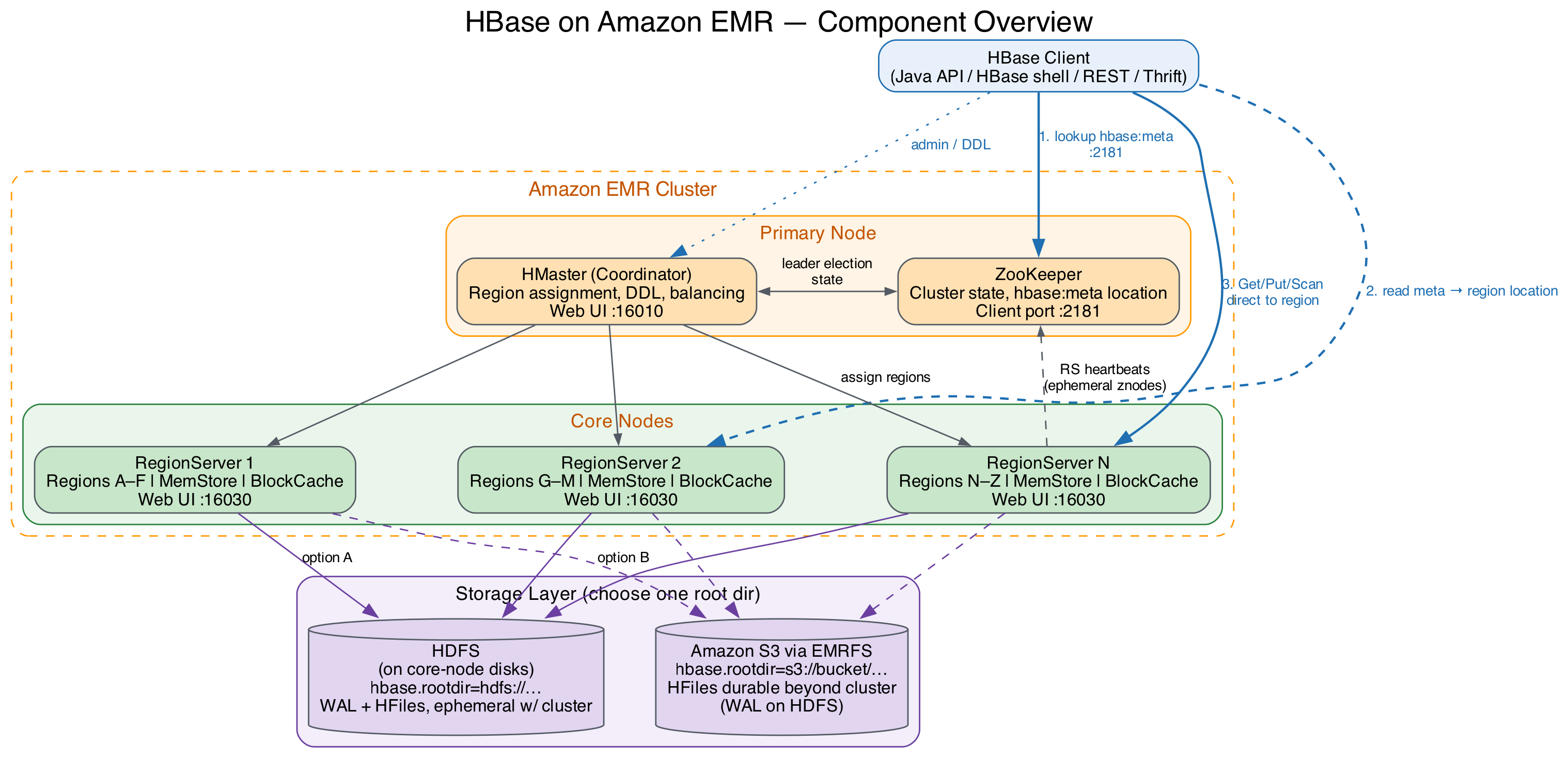
Figure 1: HBase on Amazon EMR port reference, where 16010 is the HMaster (coordinator) web UI, 16030 is the RegionServer web UI, and 2181 is the ZooKeeper client port
Terminology
Apache HBase names the process that coordinates the cluster HMaster, and Amazon EMR runs it on the primary node. This post refers to it as the HBase coordinator. Names that contain master, such as the hbase-master service and the hbase-hbase-master-*.log log files, appear only in commands and log output, where you need the exact name.
In HBase, a Region is a range of rows in a table, and a RegionServer is the process that serves regions. Neither is related to an AWS Region.
Prerequisites
Before you begin, make sure you have the following access in place:
- HBase web UI (coordinator on port 16010, RegionServer on port 16030): shows live RegionServers, failed RegionServers, and regions in transition. Reach it through an SSH tunnel or the Amazon EMR persistent application user interfaces.
- SSH access to the primary and core nodes: needed for logs, the HBase shell, and every Level 2 and Level 3 step. See Connect to the primary node using SSH.
- Read access to
/var/logand the Amazon S3 log URI: covers coordinator, RegionServer, ZooKeeper, and Hadoop Distributed File System (HDFS) logs. The Amazon Simple Storage Service (Amazon S3) copy matters when a node has been replaced. - Permission to run the HBase shell as the
hbaseuser: usesudo -u hbase hbase shellto keep file ownership consistent.
This post assumes you are familiar with the following:
- Amazon EMR architecture (primary, core, and task nodes).
- HBase components (the coordinator process, RegionServers, ZooKeeper, write-ahead log (WAL), MemStore, HFiles, and the
hbase:metatable). - Your storage mode (HDFS or Amazon S3).
- Common Linux command line tools.
Before you start, confirm your Amazon EMR release and storage mode:
An s3:// or s3a:// value means you are running HBase on Amazon S3. Log paths, default values, and the correct repair tool all depend on your release and storage mode.
Three levels of troubleshooting
Start with the checks that need the least access, and move to the next level only if you need more information.
- Level 1 (read-only checks): Web UI, shell commands, and console events. Safe to run anytime, with no cluster impact.
- Level 2 (intermediate diagnostics): Log analysis, process inspection, and disk and memory checks. Still non-destructive, but requires SSH access.
- Level 3 (advanced intervention): Thread dumps, heap analysis, and HBCK2 repairs. These can change cluster state, so take a snapshot first and change one thing at a time.
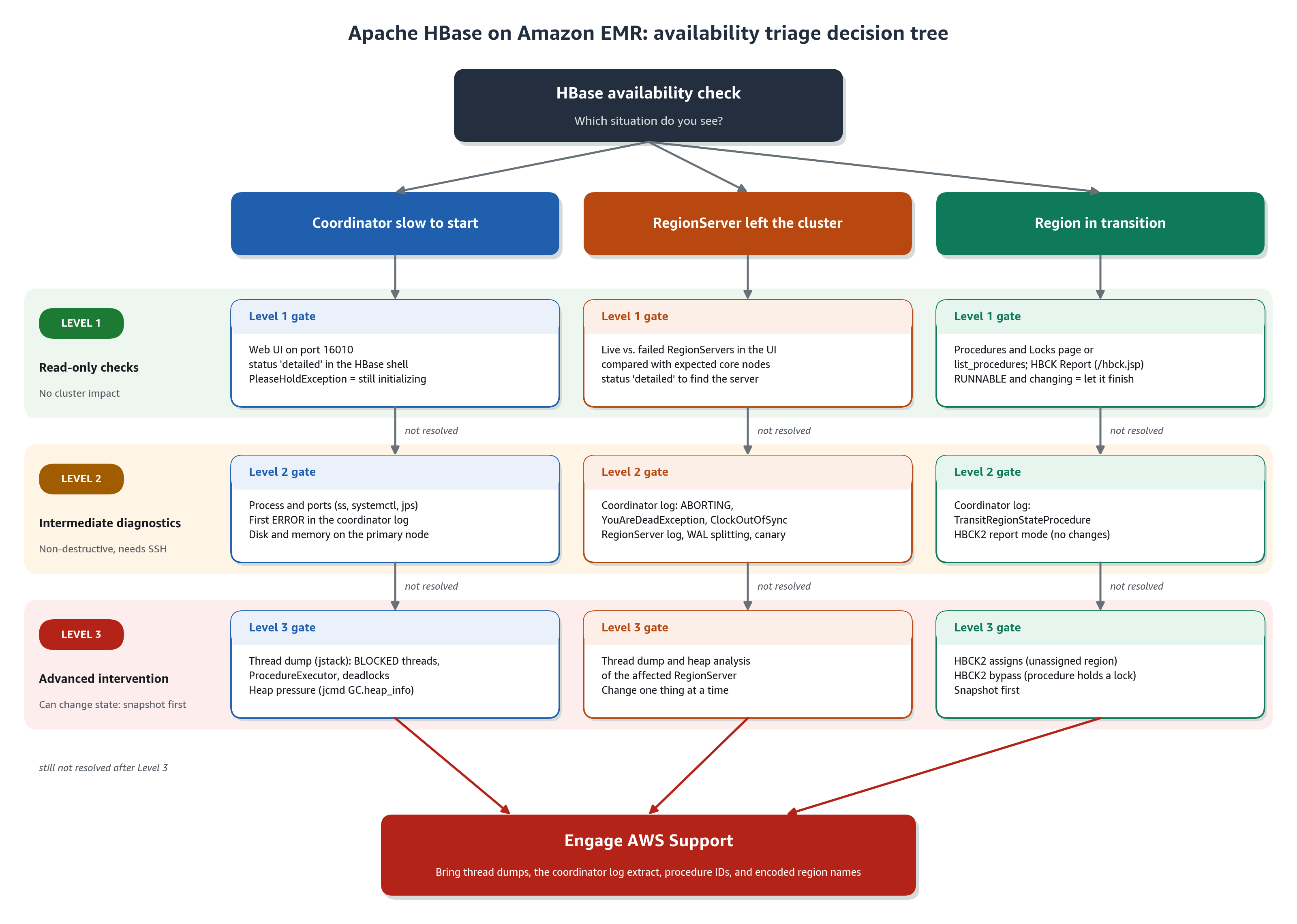
Figure 2: HBase availability triage decision tree, where each of the three situations flows through a Level 1 read-only gate, a Level 2 diagnostics gate, and a Level 3 intervention gate before you engage AWS Support
Restore an HBase coordinator that is slow to start
The HBase coordinator runs on the Amazon EMR primary node and handles region assignments, RegionServer health monitoring, and failover. While the coordinator in your HBase cluster initializes, your RegionServers keep serving the regions they already host, so your clients can continue to read from and write to those regions. Until the coordinator finishes initializing, your HBase cluster can’t start new work, such as reassigning regions or recovering from a RegionServer loss. You also can’t run administrative operations such as creating a table. Your goal is to bring it to a fully initialized state quickly.
A coordinator that is slow to finish starting usually points to one of these areas: HDFS, the Java virtual machine (JVM), ZooKeeper, Amazon S3 throttling, or a known Apache HBase behavior already addressed in a later release.
Step 1 (Level 1): Confirm the current state
These checks are read-only.
- Check the HBase web UI on port 16010. If it loads, the coordinator process is running. A coordinator that is running but reports
Initializingfor a long time usually means the coordinator cannot assignhbase:meta. You troubleshoot this situation differently from one where the coordinator is not running at all. - Check cluster status from the shell:
If this returns a
PleaseHoldException, the coordinator is running but has not finished initializing. If no coordinator is found, go to Level 2. - Identify the active coordinator (on a cluster with multiple primary nodes):
- Review cluster events and the Amazon EMR console. Note when the coordinator stopped responding, and whether an instance event, scaling action, or configuration change lines up with it.
Step 2 (Level 2): Check the process, ports, and resources
This helps you tell “the coordinator is not running” apart from “I cannot reach the coordinator”:
A process ID (PID) that changes each time you check tells you the coordinator is restarting repeatedly. That is a useful signal, because the explanation sits at the end of each log cycle.
- Find the first error in the coordinator log (
hbase-hbase-master-*.log): - Check resources. A full disk on the primary node often causes this problem, so check disk usage early:
- Search for known log signatures. See the Quick reference table at the end of this post.
Log locations (see View Amazon EMR log files):
- HBase logs are in
/var/log/hbase/. - ZooKeeper logs in
/var/log/zookeeper/. - HDFS logs in
/var/log/hadoop-hdfs/. - Archived copies are in
/mnt/var/log/and in the Amazon S3 log URI under<cluster-id>/node/<instance-id>/applications/hbase/.
Confirm the paths with ls /var/log on your cluster, because they have varied across releases.
Step 3 (Level 3): Inspect a coordinator that is running but not yet progressing
When the coordinator is running but has not yet made progress, and the log hasn’t pointed you to a cause, SSH into the primary node for a deeper look.
- Take a thread dump of the coordinator. Capture the process ID first:
Look for
BLOCKEDthreads, threads namedProcedureExecutor, and any deadlock section. - Check heap pressure:
Heap dumps are expensive. A full heap dump with jmap -dump pauses the JVM for as long as it takes to write the file. The jmap -histo:live command also pauses the JVM, because the :live option forces a full garbage collection before it builds the histogram. On a large coordinator heap, that pause can be noticeable, so treat jmap -histo:live as a Level 3 action. The jcmd GC.heap_info check shown earlier doesn’t pause the JVM.
HDFS and the NameNode
In HDFS storage mode, the coordinator doesn’t finish initializing until HDFS is fully available:
Check the NameNode logs in /var/log/hadoop-hdfs/. On clusters with multiple primary nodes, also check the standby NameNode. Check the DataNodes for missing blocks or full disks as well.
Log signatures to look for include SafeModeException, BlockMissingException, cannot obtain block length for LocatedBlock, and NoRouteToHostException. Resolve HDFS first, then restart the coordinator.
JVM and garbage collection
The coordinator runs as a JVM, so garbage collection (GC) pauses can cause it to lose its ZooKeeper session and trigger a failover:
Occasional sub-second pauses are normal. Repeated multi-second pauses are what to address. If the heap is undersized, raise the coordinator heap through the hbase-env configuration classification, and review the GC log configuration in /etc/hbase/conf/hbase-env.sh. Treat repeated failovers caused by pauses as a capacity signal.
ZooKeeper
HBase uses Apache ZooKeeper for coordinator election, RegionServer registration, and startup coordination, so a ZooKeeper condition often affects several components at once:
Inspect the HBase znodes if needed:
Resolve the ZooKeeper condition before you restart the coordinator.
Warning: Don’t delete HBase znodes. Removing
/hbaseor its children can discard the region assignment state that HBase needs in order to recover, which makes recovery significantly harder. Engage AWS Support if you need help with the HBase ZooKeeper state.
Amazon S3 request throttling
This section applies to HBase on Amazon S3 only. If the coordinator log shows the following, Amazon S3 is throttling your requests:
Step 1: Confirm it is throttling by counting occurrences rather than reacting to a single line:
Step 2: Increase the EMRFS retry limit. By default, EMRFS uses an exponential backoff strategy and retries Amazon S3 requests up to 15 times. Raise the limit through the emrfs-site configuration classification:
For large clusters, you can instead turn on the additive-increase/multiplicative-decrease (AIMD) retry strategy. It’s supported on Amazon EMR releases 6.4.0 and later, and it adapts the request rate based on recent successful requests. For details on both strategies, see Retry Amazon S3 requests with EMRFS. A higher retry limit helps during short periods of throttling. If throttling is continuous, additional retries convert errors into latency, so also reduce the request rate as described in Step 3.
Step 3: Reduce or spread the request rate. Lower compaction pressure (covered in Part 2 of this series). Make sure the local block cache is working so that reads don’t go to Amazon S3 unnecessarily, and spread load across prefixes. See Resolve HTTP 503 “Slow Down” AmazonS3Exception in Amazon EMR and Best practices design patterns: optimizing Amazon S3 performance.
Check whether a later release includes a fix
Before you begin a deep investigation, check whether your symptom is a known bug already fixed in a later release. Read the “Changes, enhancements, and resolved issues” section of the Amazon EMR release guide for releases after yours. Then search for the exact exception in the Apache HBase JIRA. Search for the exception class and the stack trace, because many different causes can produce the same symptom.
Keep RegionServers healthy and recover them quickly
RegionServers host the regions that serve client reads and writes. If a RegionServer leaves your cluster, you are responsible for confirming that the HBase coordinator on your primary node moved that server’s regions to your remaining RegionServers, finding out why the server left, and taking steps to prevent a repeat. Read the coordinator log before the RegionServer log, because the coordinator records why it marked the server as gone, and that is the most direct path to the root cause.
Recover a RegionServer that stopped or won’t rejoin the cluster
Step 1 (Level 1): In the HBase web UI, compare the live and failed RegionServer lists against the number of core nodes you expect. Run status 'detailed' to see which server stopped reporting, so you know exactly where to focus.
Step 2 (Level 2): Read the coordinator log first:
A RegionServer writes ABORTING to its log when it shuts itself down after a fatal error. A YouAreDeadException means the ZooKeeper session expired, usually because of a GC pause. A ClockOutOfSyncException means there is time skew between nodes, so check the time service.
Then read that server’s own log on the core node:
In HDFS mode, check the DataNode for missing blocks or failed volumes. Check the node itself:
Check WAL splitting progress. Slow WAL splitting can make recovery appear to stall after a RegionServer is lost:
Use the canary tool to confirm which tables and regions are affected, instead of inferring it from client errors:
The canary tool writes its results to the console, including each region that it couldn’t read, and saves a log of the results to /var/log/hbase/hbase.log.
Resolve regions that stay in transition (RIT)
A region enters transition state when your HBase cluster opens, closes, splits, or merges the region. HBase typically completes these transitions in seconds as part of normal cluster operations. If a region stays in transition for more than a few minutes, it is worth a closer look. One of these situations typically explains it:
- A split was in progress when the RegionServer restarted.
- A ZooKeeper session change occurred partway through.
- The RegionServer JVM paused for GC, so the transition didn’t complete.
- A coordinator failover happened during the transition.
Work through the following steps in order.
Step 1 (Level 1): Confirm it is still in transition. Check the UI and note the region, the duration, and the owning procedure from the Procedures and Locks page, or run list_procedures. If the procedure is RUNNABLE and its state changes between checks, let it finish.
Step 2 (Level 2): Find what is blocking it:
Inspect and report region and meta inconsistencies
If the region is still in transition, inspect and report inconsistencies before you attempt any repair.
Step 1 (Level 1): Confirm without changing anything. Open the HBCK Report tab in the HBase web UI (HBase 2.1.6 and later, at /hbck.jsp). Check the Regions in Transition list and the Procedures and Locks page. Confirm the table state:
Step 2 (Level 2): Report the inconsistency. For Amazon EMR 6.x and 7.x (HBase 2.x), use HBCK2 in report mode through bin/hbase with the -j option.
Note: The HBCK2 jar path and version shown in the following commands are examples. Before you run these commands, verify the actual jar location and version on your cluster with
find / -name "hbase-hbck2*.jar" 2>/dev/null.
For Amazon EMR 5.x (HBase 1.x), use sudo -u hbase hbase hbck -details to report state. Don’t run HBCK1 repair commands against Amazon EMR 6.x or 7.x clusters. HBCK1’s write facility (-fix) has been removed, and its assessments of an HBase 2.x cluster are inaccurate because it doesn’t understand the internal workings of HBase 2.x.
Step 3 (Level 3): Apply a targeted fix. If a region is unassigned, use HBCK2 assigns. If a procedure is holding a lock, use HBCK2 bypass. Take a snapshot first, and change one thing at a time.
Step 4 (Level 3): Escalate. If clearing znodes looks like the answer, open a case with AWS Support instead. Have your thread dumps, coordinator log extract, procedure IDs, and encoded region names ready.
Quick reference: Log signatures
Search for the first occurrence of a signature. The first error usually identifies the cause:
| Log signature | What it means | Where to look next |
SafeModeException |
HDFS is in safe mode | Resolve HDFS. Check the NameNode logs |
BlockMissingException |
Missing HDFS blocks | Run hdfs fsck. Check the DataNodes |
SessionExpired / ConnectionLoss |
ZooKeeper session lost | Check the ZooKeeper logs and GC pauses |
YouAreDeadException |
The RegionServer’s ZooKeeper session expired | GC pause or network partition |
ClockOutOfSyncException |
Time skew between nodes | Check the Network Time Protocol (NTP) or time service |
503 Slow Down |
Amazon S3 request throttling | Increase EMRFS retries. Spread prefixes |
JvmPauseMonitor / Detected pause in JVM |
GC pause | Check heap sizing. Review the GC logs |
PleaseHoldException |
The coordinator has not finished initializing | Wait. Check whether hbase:meta can be assigned |
Conclusion
In this post, you learned a repeatable way to keep Apache HBase on Amazon EMR highly available by resolving three common situations: a coordinator that is slow to initialize, a RegionServer that leaves the cluster, and regions that stay in transition. Start with the read-only Level 1 checks, use Level 2 log analysis to confirm the cause, and reach for the Level 3 tools only after you’ve confirmed it. Take a snapshot first and make one change at a time.
Part 2 of this series covers slow reads and writes caused by compaction: how to confirm that compaction is the cause, which parameters to tune first, and when to contact AWS Support.
Next steps:
- Read Part 2 of this series for compaction tuning and guidance on when to contact AWS Support.
- Review the HBase guidance in the Amazon EMR best practices guide.