AWS Database Blog
AWS Organizations now supports upgrade rollout policy for Amazon Aurora and Amazon RDS automatic minor version upgrades
Keeping database engines up to date with minor version upgrades is important for maintaining secure and reliable applications. These upgrades provide new features, extension updates, security patches, and bug fixes. Amazon Aurora and Amazon Relational Database Service (Amazon RDS) provide automatic minor version upgrades (AmVU) as part of their managed service offerings to help customers stay current with these updates.
Customers use AWS Organizations to streamline operations and standardize resource management across their organizations. As enterprises scale their AWS footprint, they need centralized mechanisms to manage database version upgrades across environments while following security and compliance best practices. Typically, organizations stagger these changes manually, deploying first in less critical environments before moving to business-critical environments, to minimize the risk of potential disruption.
AWS Organizations now supports an upgrade rollout policy, a new capability that provides a streamlined solution for managing automatic minor version upgrades across your database fleet. This feature supports Amazon Aurora MySQL-Compatible Edition and Amazon Aurora PostgreSQL-Compatible Edition and Amazon RDS database engines MySQL, PostgreSQL, MariaDB, SQL Server, Oracle, and Db2. It eliminates the operational overhead of coordinating upgrades across hundreds of resources and accounts while validating changes in less critical environments before reaching production. Instead of managing upgrades manually or maintaining custom tools, you can now define policies that automatically control the upgrade sequence across your environments.
In this post, we explore how upgrade rollout policy works, its key benefits, and how you can use it to implement a systematic approach to database maintenance across your organization.
A deeper look into AWS Organizations upgrade rollout policies
AWS Organizations upgrade rollout policy is designed for you to define policies that systematically stagger automatic minor version upgrades across your database fleet. With this policy, you can specify upgrade orders (first, second, last) that align with your software development lifecycle. For example, you might assign development environments to the first upgrade order, testing environments to second, and production to last. These orders can be applied either at the account level or to specific resources using tags, giving you flexible control over your upgrade strategy.
When a new minor version becomes eligible for automatic upgrade, the policy upgrades your resources in your defined sequence. Each upgrade phase includes a designated validation period, so you can thoroughly test your applications before upgrading the next environment. For observability, the feature provides comprehensive monitoring through AWS Health events and Amazon RDS events. AWS Health notifications keep you informed about campaign progress, phase transitions, and fleet-wide status, and Amazon RDS events provide resource-specific updates including upgrade eligibility, scheduling, and completion status. You have complete control over the upgrade journey because you can disable automatic progression if issues are detected.
How does the upgrade rollout policy work?
Resources can be assigned upgrade orders (first, second, last) through resource tags, or organizational units (OUs), or at the account level. If no specific order is defined, resources automatically assume the default order of second. When AWS releases an update, it automatically follows this predetermined sequence.
- Resources marked as first receive updates during their scheduled maintenance windows.
- After an AWS designated waiting period, resources in the second group (including those with default ordering) become eligible for upgrades.
- Finally, after another AWS designated waiting period, resources marked as last receive their upgrades.
To understand how upgrade rollout policy works, let’s consider a company that processes billions of transactions daily across multiple environments. The company manages their database infrastructure across three AWS accounts:
- Development account with 10 Aurora PostgreSQL-Edition clusters for new feature testing
- QA account with 5 clusters for integration testing
- Production account with 8 clusters handling live transactions
Each cluster is appropriately tagged to identify its environment (Dev, QA, or Prod). The company’s development team had disabled automatic minor version upgrades and was manually managing version upgrades across their environments. They couldn’t rely on automatic minor version upgrades due to the risk of production clusters being upgraded before development clusters, which could potentially impact their critical business operations. The team invested significant engineering time in planning and executing these manual upgrades, time that could have been spent on core business initiatives.
With the upgrade rollout policy, the company now defines a single organization-wide policy that automatically manages the upgrade sequence. Development account resources are assigned to the first upgrade order, QA account resources in the second order, and production account resources in the last order. When a new minor version becomes available, development clusters are upgraded first during their maintenance windows, followed by a validation period for testing. The upgrades then proceed to QA clusters, allowing additional validation time, before finally upgrading production clusters. Throughout this process, AWS Health notifications and Amazon RDS events provide comprehensive visibility into the upgrade progress, and built-in validation periods provide time for testing between phases.
This automated approach provides the company with confidence that changes are thoroughly tested in lower environments before reaching production. The development team can now focus on business initiatives instead of managing upgrade sequences while maintaining complete control over the upgrade process through AWS Organizations.
Prerequisites
There are several prerequisites to follow to manage your upgrades with the rollout policy:
- AWS Organizations must be enabled in your account, and a delegated user should have permissions to enable and manage the upgrade rollout policy
- Auto-minor version upgrades should be enabled for all database resources that you want to manage with the upgrade rollout policy
- Each database resource needs a defined maintenance window when the upgrades can be scheduled. You can review and update the maintenance window of your cluster under the Maintenance section in the Amazon RDS console
- Define environment-specific tags to determine the upgrade order for specific database resources. Although upgrade orders can be applied at the account or organizational unit (OU) level, tags provide additional flexibility for accounts containing resources from multiple environments.
Next, we walk you through the process of creating an upgrade rollout policy.
Create and attach the policy in AWS Organizations
On the AWS Organizations console, navigate to the Policies section. Follow these steps:
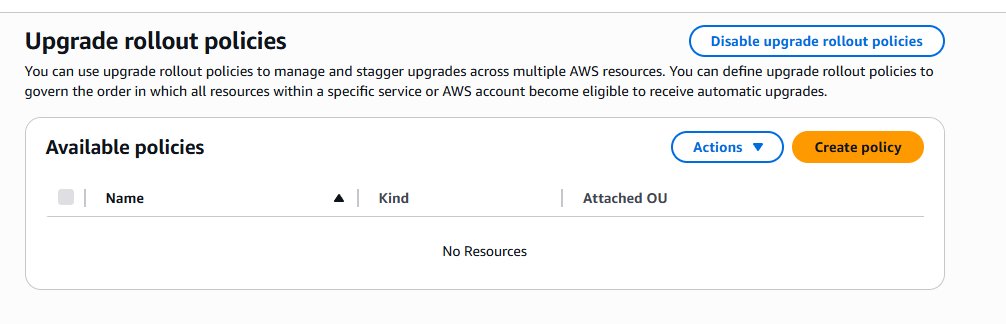
- Enable upgrade rollout policies. After they’re enabled, choose Create policy, as shown in the following screenshot.
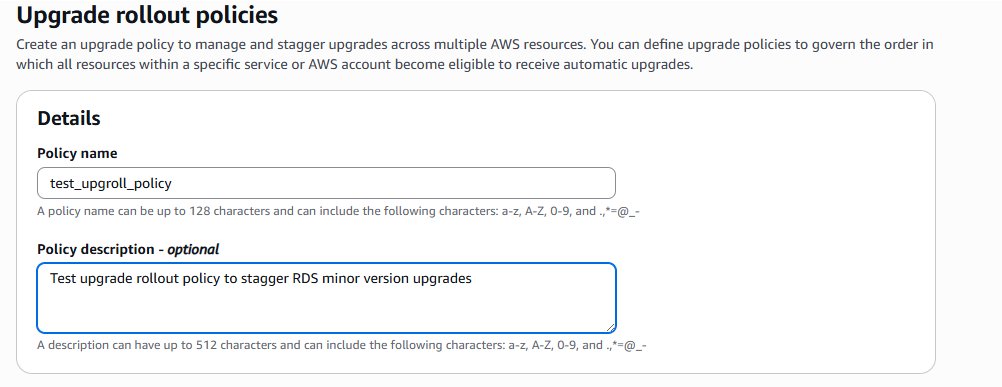
- Create the policy by providing a Policy name and a Policy description, as shown in the following screenshot.
- Use the visual editor to define your Upgrade rollout settings.
By default, all resources are assigned an upgrade order of second. To implement a controlled upgrade progression through your environments, you can override these default settings. This way, you can upgrade less critical resources (like development) first with first order and upgrade critical production resources last with last order, helping validate changes before they reach production. You can define the tag key values for the three policy upgrade orders (such as, Key:env, Values:devfor first,qafor second,prodfor last).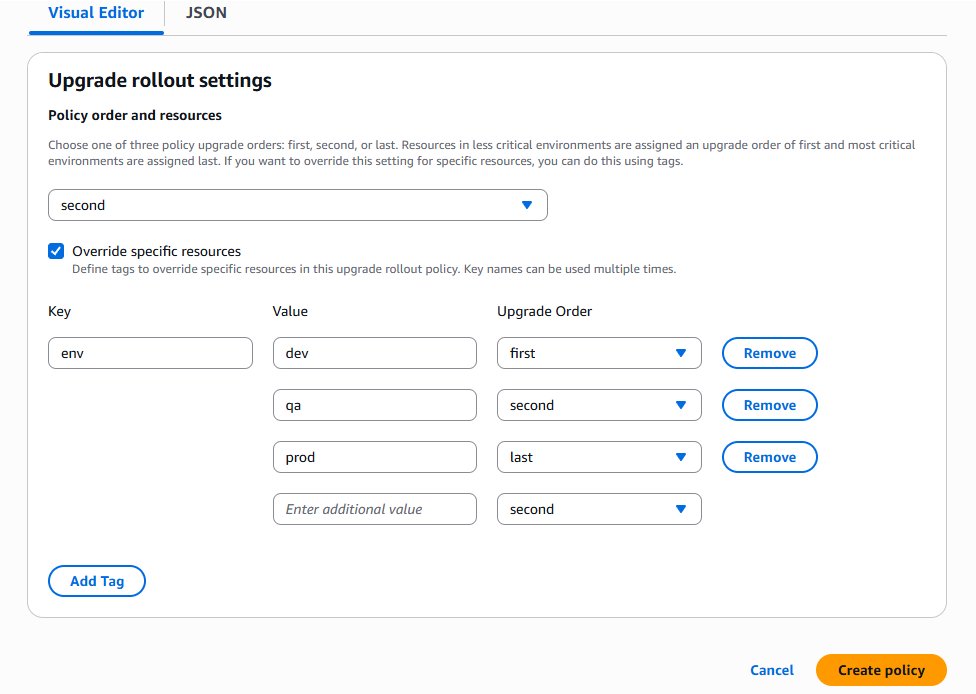 Example JSON policy looks like the following:
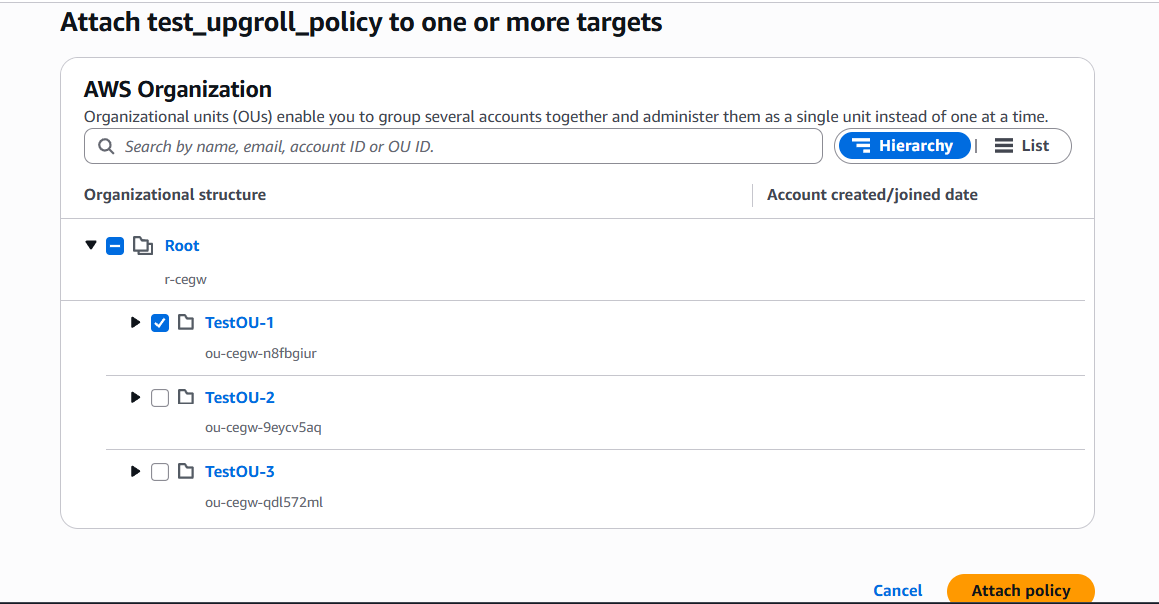
- Navigate to AWS accounts and attach the policy with either the AWS accounts or the OU you want to manage the upgrades for. In this case, I attach it to the organization unit
TestOU-1, which impacts all the child accounts in that OU, as shown in the following screenshot.
As a best practice, you should always start small with a test policy on a single account in a noncritical environment to validate the behavior and impact without risking disruption to critical workloads, then gradually scale up through your organizational structure to include more accounts and organizational units after you’ve confirmed the policy works as expected. Refer to the Start small and scale gradually in the AWS Organizations User Guide for additional best practices for upgrade rollout policies.
Tag and verify database resources
Resource-level tags are applied to individual resources (such as Amazon RDS) for finer-grained organization, cost allocation, and access control. To read more about tagging, refer to Tagging AWS Organizations resources. In the following example, we look at how upgrade rollout policies can be applied to individual resources such as Amazon Aurora.
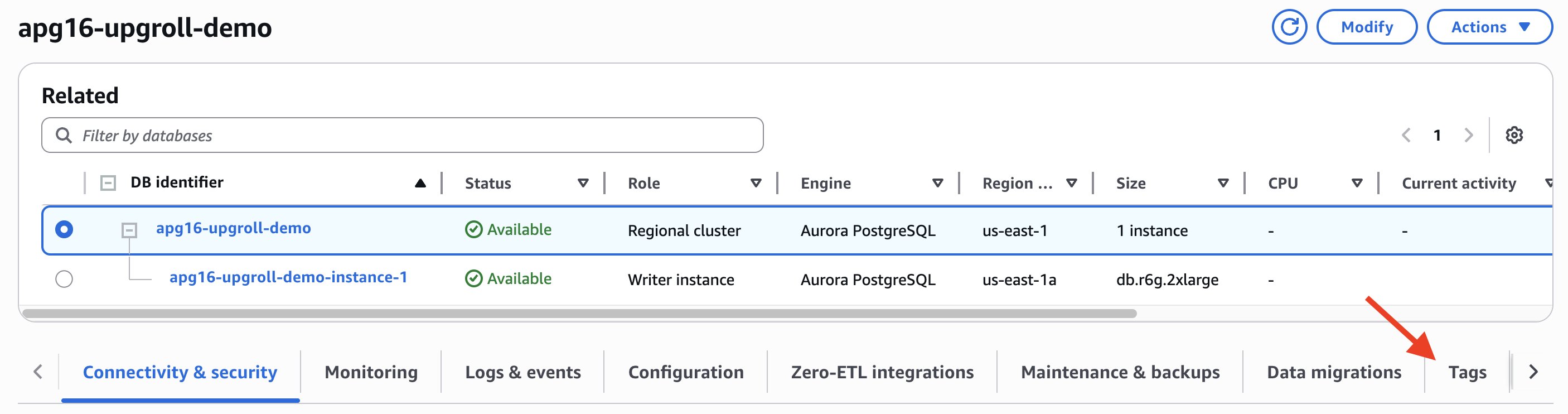
- On the Amazon RDS console, select the DB cluster and open the Tags tab in the navigation bar, as shown in the following screenshot
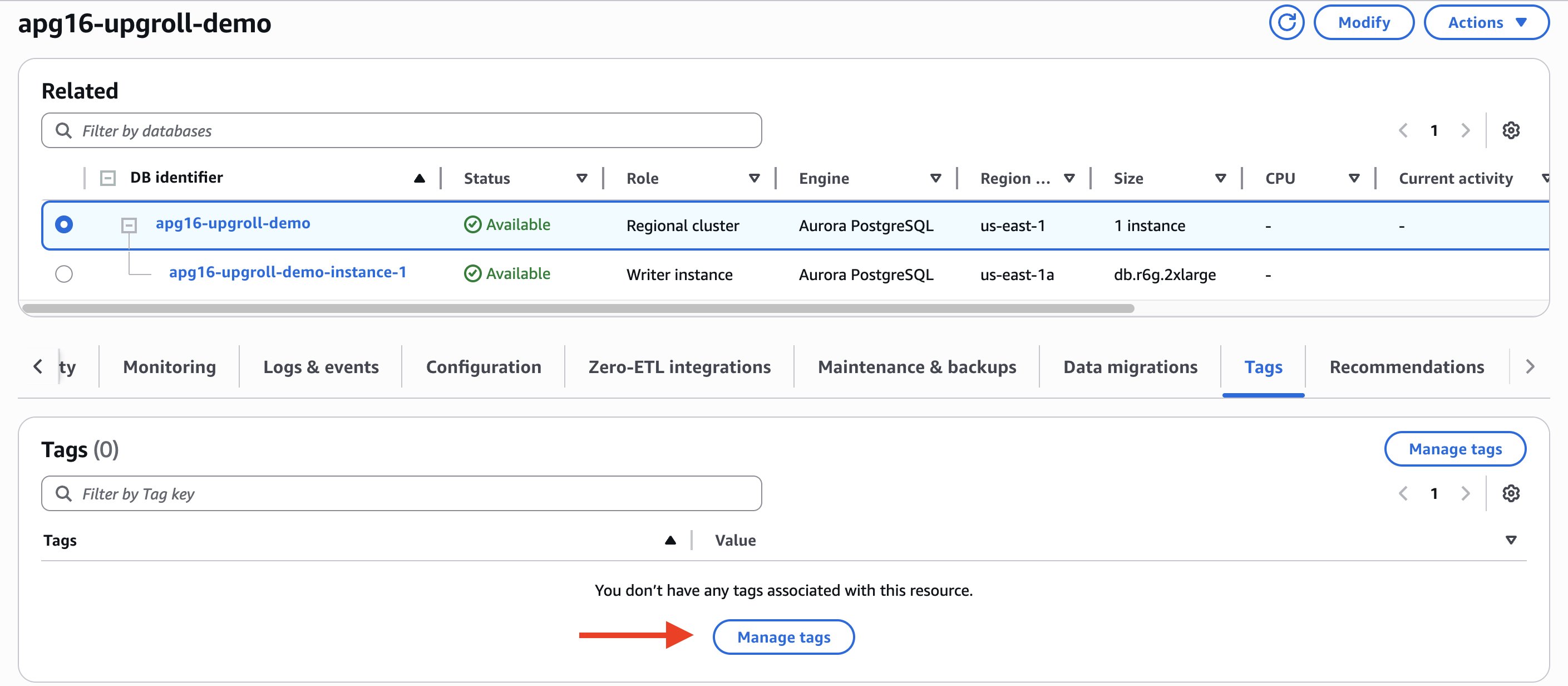
- Choose Manage tags, as shown in the following screenshot
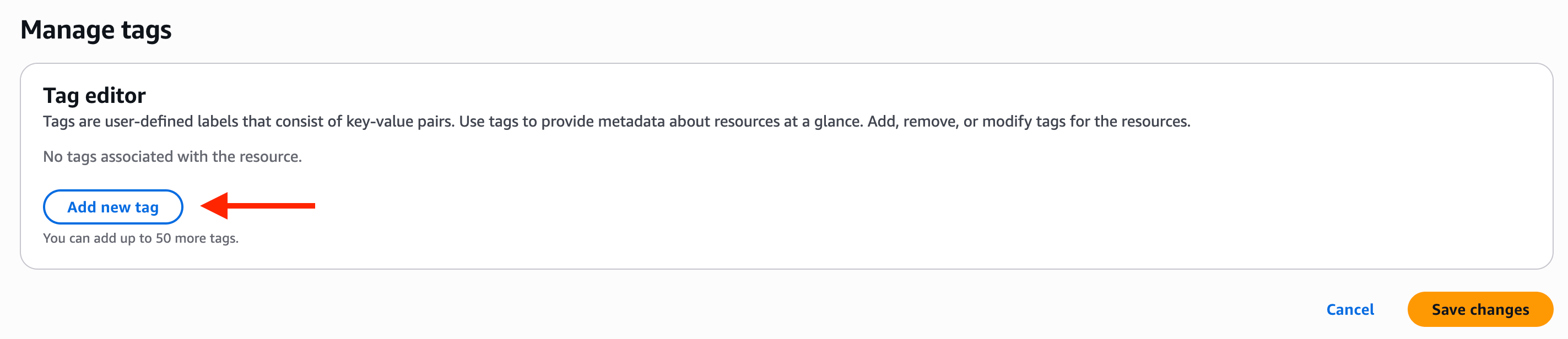
- Choose Add new tag, as shown in the following screenshot
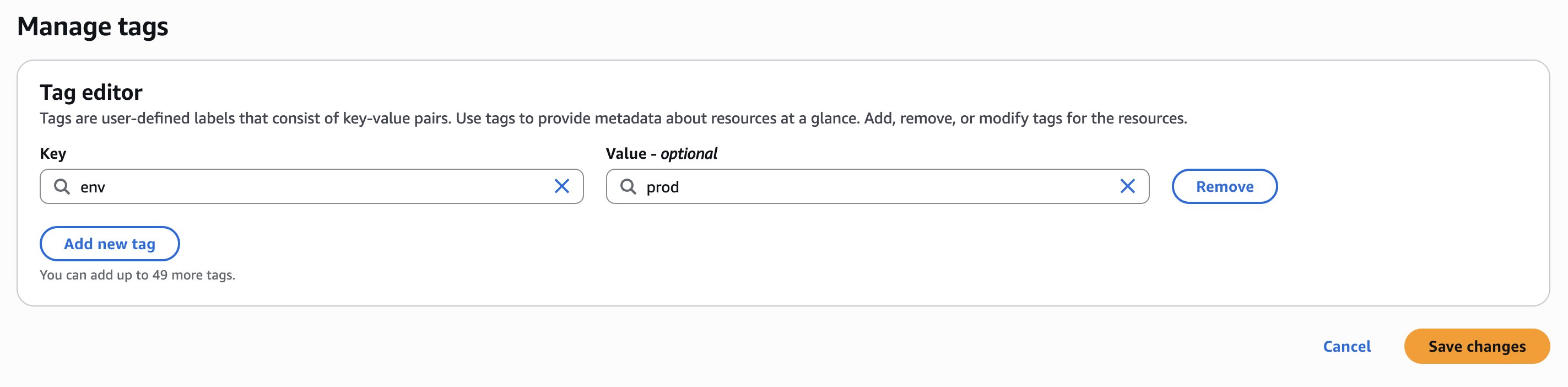
- Enter tag Key and tag Value (such as, Key:
env, Value:prod). Choose Save changes, as shown in the following screenshot.
You can also do the same procedure using the AWS Command Line Interface (AWS CLI):
Replace the placeholders with your cluster Amazon Resource Name (ARN) and tag key and value:
--resource-name: The ARN of your DB cluster (such as,arn:aws:rds:us-west-2:123456789012:cluster:my-aurora-cluster)--tags: The tag key-value pair that defines the environment (such as,Key=env,Value=dev)
For tagging multiple clusters at one time, you can use Tag Editor console or enter the following AWS CLI command:
Replace the placeholder values with the following:
<cluster_identifier_1> <cluster_identifier_2> <cluster_identifier_3>: Space-separated list of your cluster identifiers<region>: Your AWS region (such as,us-west-2)<account-id>: Your AWS account ID<tag_key>and<tag_value>: The environment tag you want to apply (such as,Key=env,Value=prod)
Alternatively, you can use AWS CloudFormation template to add tags to your database clusters. For existing clusters created, you can modify your CloudFormation template and add tags under Properties. The following is an example:
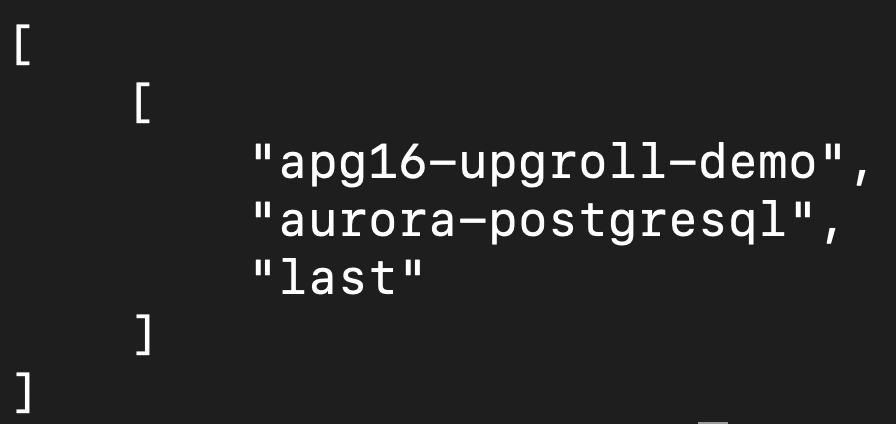
Verify the updated Upgrade rollout order. On the Amazon RDS console, view your DB cluster details and check the Upgrade rollout order field, as shown in the following screenshot.

To verify the Upgrade rollout order using AWS CLI, enter the following command:
The AWS CLI output will be like the following:
Monitor progress and validation windows
AWS Health Dashboard provides a centralized view of the status of AWS services and your account-specific resources, combining both public service health information and personalized notifications about events affecting your infrastructure. For upgrade rollout policies, the dashboard serves as a single pane of glass to view all automatic minor version upgrades across your account or organization, displaying the patch order for each resource along with their maintenance apply times to help you verify upgrade sequences across your entire database fleet.
When an upgrade campaign becomes available, you’ll receive notifications through multiple channels to provide comprehensive visibility and control:
- AWS Health Dashboard – Provides detailed campaign timelines, resource-specific upgrade schedules, and status tracking
- Amazon RDS event notifications – Delivers real-time updates on database upgrade activities
Describe Pending Maintenance Actions– This is an Amazon RDS API that shows pending maintenance actions for resources requiring version upgrades
These parallel notification channels work together to give you complete oversight of the upgrade process. The following examples provide more details about each notification type and how to use them effectively during an AmVU campaign.
AWS Health Notifications
When the engine team initiates an AmVU campaign, you will receive comprehensive notifications that are integrated with AWS Health Dashboard and can be sent to these delivery channels.
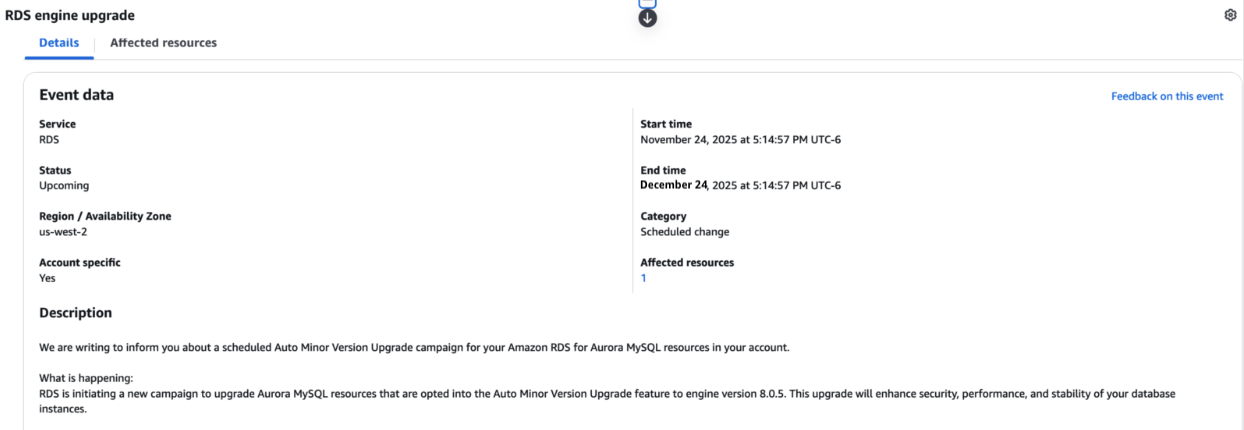
When an upgrade campaign becomes available, you’ll receive notifications in the AWS Health Dashboard’s Scheduled changes section, displaying the RDS engine upgrade event with its status, affected Region, start and end times, and the count of affected resources, as shown in the following screenshot.

Opening an event shows a detailed message about the RDS upgrade campaign, shown in the following screenshot, that includes the engine version being deployed and the upgrade timeline based on your maintenance window settings.
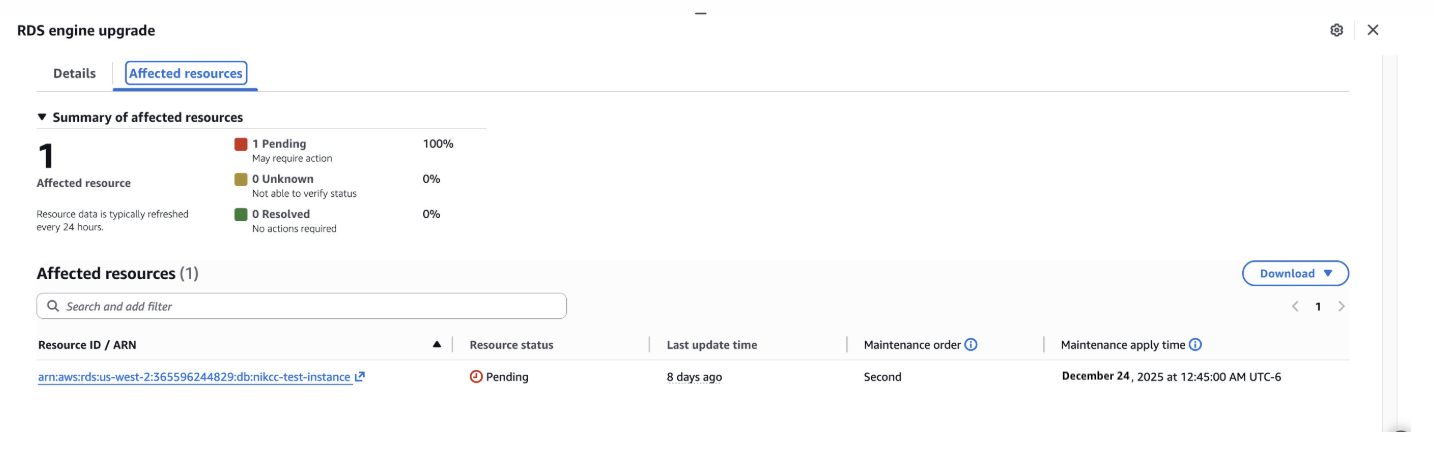
The Affected resources tab, shown in the following screenshot, shows each database cluster’s ARN or identifier along with its assigned upgrade rollout order and scheduled maintenance apply time (based on the configured maintenance window). Resources with a Pending status have not yet been automatically upgraded and are awaiting their scheduled maintenance window according to their patch order assignment.
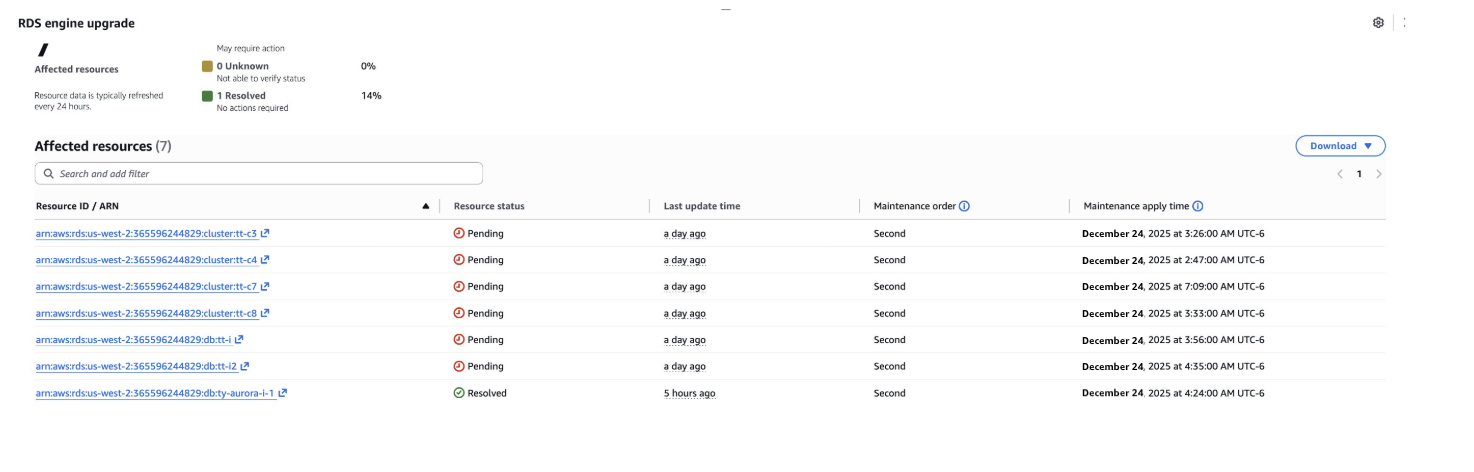
Once the upgrade is complete for the resource during your maintenance window, the resource status will change to Resolved, as shown in the following screenshot.
Describe pending maintenance action (DPMA)
On the Amazon RDS console, select the database cluster and open the Maintenance & backups tab. Under Pending maintenance, you will find the pending action and its Apply date, as shown in the following screenshot.
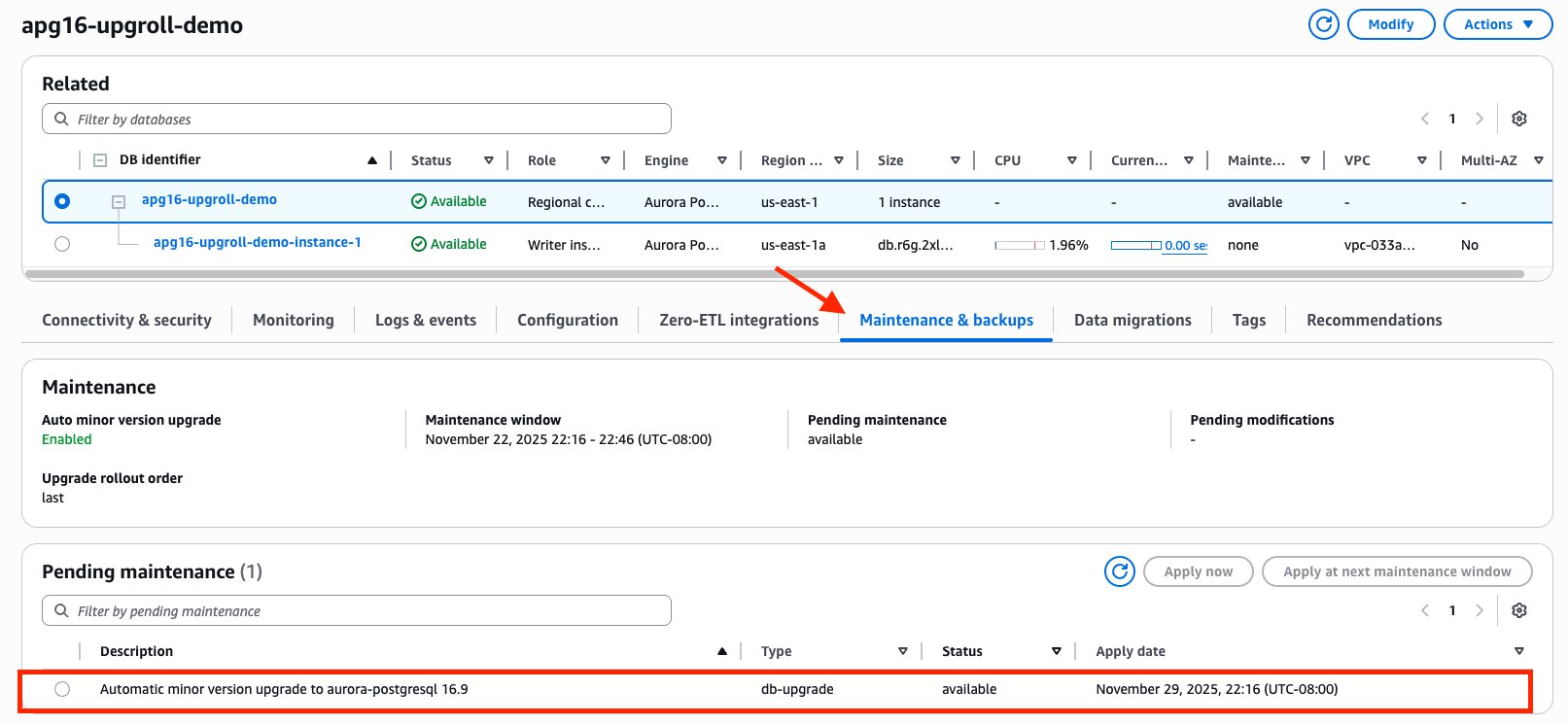
You can also check out the DescribePendingMainteananceActions API to learn what maintenance is pending for your cluster.
Amazon RDS event subscription
You can set up alerts for various events using Amazon RDS event notifications, such as failures, configuration changes, or maintenance activities. You can subscribe to RDS event notifications through Amason Simple Notification Service (Amazon SNS) to receive alerts by email or use Amazon EventBridge for your monitoring and alerting systems for automated workflow triggers.
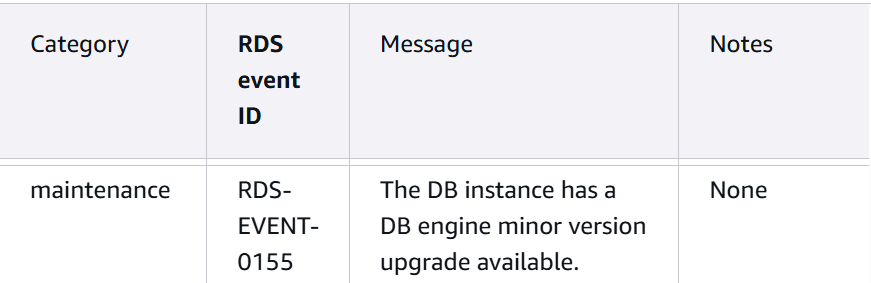
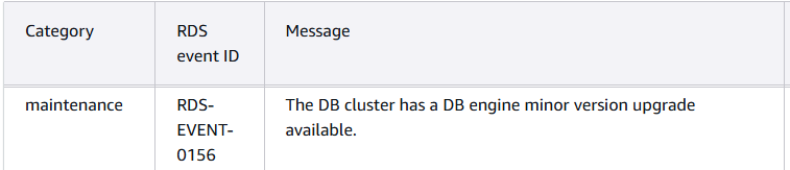
For upgrade-related notifications, you’ll receive advance notification through specific events based on your database type: RDS-EVENT-0155 for RDS instances and RDS-EVENT-0156 for Aurora clusters. These events are emitted at least 2 weeks before a resource becomes eligible for automatic minor version upgrades, indicating that a patch is available.
Validation windows between upgrade orders
The upgrade rollout policy includes built-in validation periods between upgrade orders, providing you with critical time to verify database stability before upgrades progress to more critical environments. During these waiting periods between upgrade orders, you can:
- Validate database changes – Verify that the automatic minor version upgrade was successful by checking the correct database engine version
- Perform testing – Conduct performance tests and validate application functionality after the upgrade
- Identify and address issues – If you discover problems during validation, you have time to investigate and resolve them
- Control campaign progression – If issues are detected, you can disable automatic minor version upgrades for database clusters in subsequent upgrade orders, preventing more critical resources (such as production databases tagged with last) from being impacted
With this systematic approach, you can maintain complete control and visibility throughout the entire upgrade process, with built-in safety mechanisms to prevent issues from cascading to critical environments.
The following are some important things to note:
- If a database cluster isn’t tagged, it will automatically default to the second upgrade order as specified in the policy’s default settings.
- For Amazon Aurora, only cluster-level tags are honored by upgrade rollout policies. Instance-level tags are ignored because Aurora upgrades are performed at the cluster level, affecting all instances in the cluster together.
- If you join an ongoing upgrade campaign, your resources will follow the current running upgrade order and won’t wait for a configured policy.
Summary
In this post, we discussed how upgrade rollout policy provides a structured, systematic approach for your Amazon Aurora and Amazon RDS minor version upgrades. To learn more about upgrade rollout policies, visit our Upgrade rollout policies in the AWS Organizations documentation.