AWS Database Blog
Migrate RDS and Aurora logs to CloudWatch Infrequent Access
Organizations running Amazon Relational Database Service (Amazon RDS) and Amazon Aurora often pay full Amazon CloudWatch Logs ingestion rates for database logs they access infrequently, such as general, error, slow query, and audit logs. CloudWatch Logs Infrequent Access typically offers 50 percent lower ingestion costs for these workloads. However, migrating existing log groups requires deleting and recreating them. This manual process risks log gaps and human error at scale.
In this post, you learn how to build an automated solution that migrates your Amazon RDS and Aurora CloudWatch log groups from Standard to Infrequent Access class with tag-based targeting, scheduled re-enablement, and email verification.
By default, the Amazon RDS and Aurora services publish database logs to CloudWatch log groups in the Standard log class. Standard provides real-time monitoring through metric filters and subscription filters, which is valuable during active development and incident response. Over time, however, many of these log groups shift to periodic use: compliance reviews, occasional troubleshooting, or historical analysis. The Infrequent Access log class is designed to serve these workloads at 50 percent lower ingestion cost with the same durability and Logs Insights query support.
This migration has the following impacts:
- Temporary log gap. During the migration, log delivery to CloudWatch is briefly suspended while log groups are deleted and recreated. Plan the migration during a low-activity window.
- Existing log data is deleted. The current log groups are removed as part of the process. If you need to retain historical logs, export them to Amazon Simple Storage Service (Amazon S3) before running the migration (see Step 1).
- No subscription or metric filters. Infrequent Access log groups do not support subscription filters or metric filters. If your monitoring or alerting pipelines depend on these features, those log groups should remain in the Standard class.
- Data protection costs. Standard log groups include data protection (masking and auditing) at no additional cost. For Infrequent Access log groups, data protection incurs an additional per-GB charge. If you use this feature, factor in the added cost before migrating.
Solution overview
The solution uses AWS Lambda, Amazon EventBridge, and Amazon Simple Email Service (Amazon SES) to orchestrate the migration. The following diagram illustrates the solution architecture:
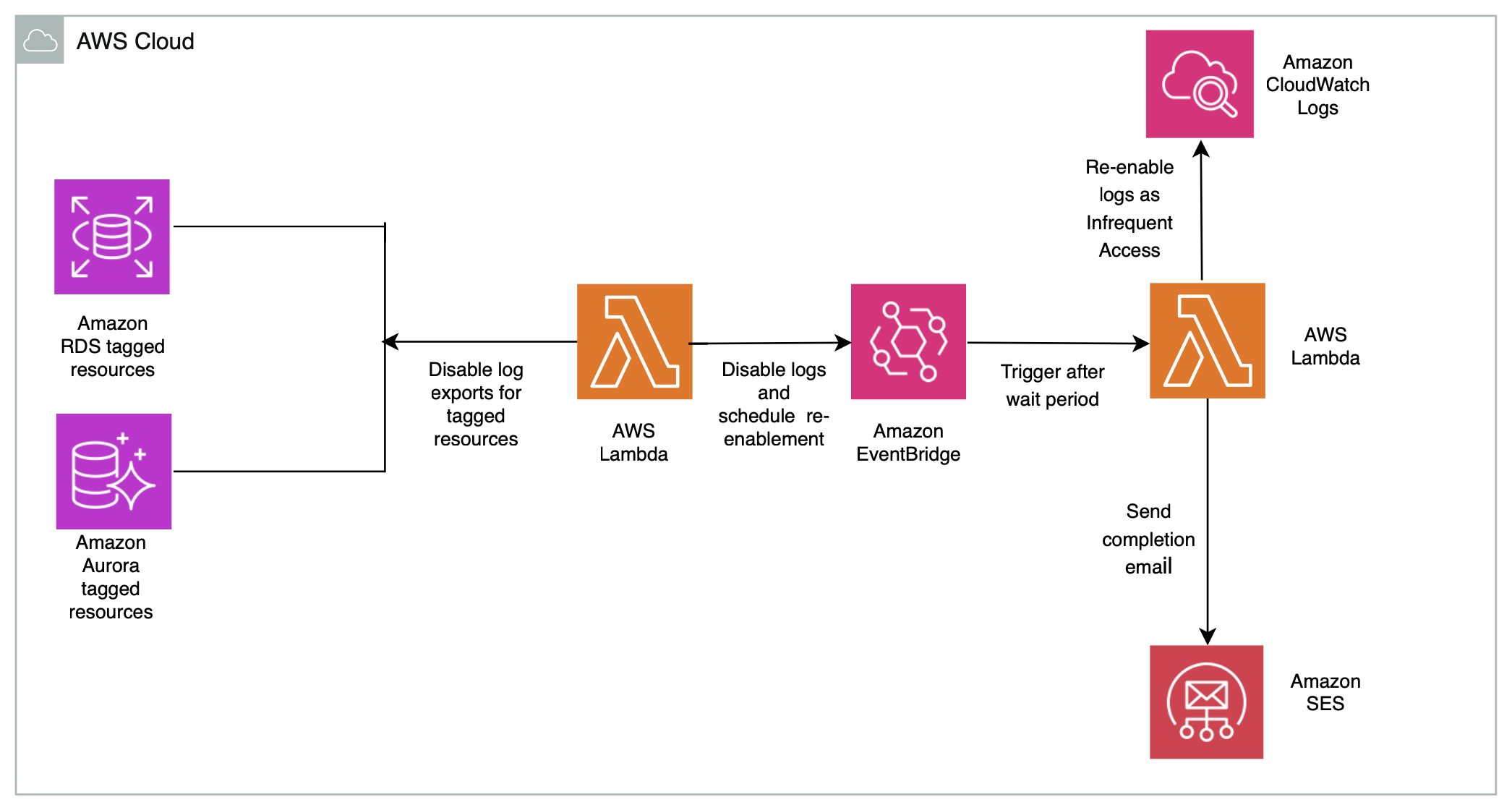
Figure 1: Solution architecture for migrating RDS and Aurora logs to the Infrequent Access log class
The workflow consists of the following steps:
- Tag-based discovery: A Lambda function scans all Amazon RDS instances and Aurora clusters for a configurable tag. With this tag, you can selectively target specific databases for migration.
- Disable log exports: For each tagged resource, the function disables all CloudWatch log exports. This prevents Amazon RDS and Aurora from recreating deleted log groups in Standard class.
- Delete and recreate log groups: The function deletes the existing CloudWatch log groups and immediately recreates them with the configuration that you want.
- Schedule re-enablement: The first Lambda function creates a one-time Amazon EventBridge rule that triggers a second Lambda function after a configurable delay. This delay allows the Amazon RDS instance or Aurora cluster to finish its modification before logging is re-enabled.
- Re-enable and verify: The second Lambda re-enables the original log types on each Amazon RDS and Aurora resource, verifies that the log groups are in the correct class, and sends a completion email through Amazon SES.
- Self-cleanup: The second Lambda deletes the one-time Amazon EventBridge rule that triggered it, leaving no orphaned resources.
This workflow requires a temporary suspension of log delivery while log groups are deleted and recreated. Existing logs in the original log groups are lost during the migration. We address both aspects later in this post.
Prerequisites
To implement this solution, you need the following:
- An AWS account with permissions to create Lambda, Amazon EventBridge, CloudWatch Logs, and Amazon RDS resources.
- An email address verified in Amazon SES to send and receive notifications.
- An Amazon RDS instance or Aurora cluster with at least one CloudWatch log export enabled.
Note: Pricing varies by AWS Region. For current pricing, see Amazon CloudWatch Pricing.
Storage and Logs Insights query charges are the same for both log classes. The savings come entirely from the lower ingestion price. For organizations with high-volume Amazon RDS and Aurora logging, this translates to significant monthly savings.
Cost savings example
The following example uses illustrative pricing for the US East (N. Virginia) Region as of June 2026. Check the Amazon CloudWatch pricing page for current rates in your Region.
Consider an organization running 15 Amazon RDS instances and 3 Aurora clusters across production, staging, and development environments. Their database fleet generates 5 TB of CloudWatch log volume monthly:
- Standard class cost: 5 TB × $0.50/GB = $2,500/month.
- Infrequent Access cost: 5 TB × $0.25/GB = $1,250/month.
- Monthly savings: $1,250.
- Annual savings: $15,000.
Deploy the solution using AWS CloudFormation (optional)
If you’d rather provision the entire solution in one step, deploy the included AWS CloudFormation template. It creates both Lambda functions, their AWS Identity and Access Management (IAM) execution roles, and the shared IAM policy, with the initiator automatically wired to the re-enabler’s ARN. The manual steps that follow this section are provided for readers who want to build or customize each component individually.
The template retrieves the Lambda code from Amazon S3, so first upload the two deployment packages from the sample-rds-cw-infrequent-access GitHub repository to an S3 bucket in the same AWS Region:
Then deploy the stack:
| Parameter | Description |
| SesSenderEmail | Verified SES sender email address |
| SesRecipientEmail | Verified SES recipient email address |
| CodeS3Bucket | S3 bucket holding the two Lambda packages |
| TagKey / TagValue | Tag that identifies resources to migrate (default rds-ia-migration / true) |
| LogClass | Target log class – INFREQUENT_ACCESS or STANDARD |
| LogRetentionDays | Retention (in days) for recreated log groups (default 90) |
| VerifyDelayMinutes | Delay before the re-enabler runs (default 2) |
After the stack reaches CREATE_COMPLETE, verify your Amazon SES sender and recipient identities (see Step 2) if you haven’t already. Then continue to the Tag your RDS and Aurora resources and Testing the solution sections. Tagging and invocation work the same regardless of how you deployed.
Implementation
The following steps walk through building each component of the solution manually. If you deployed the AWS CloudFormation template in the preceding section, use these steps as a reference for how each component works.
Step 1: Export existing logs to Amazon S3 (optional)
This step is optional. Skip it if you don’t need to preserve historical log data.
If you want to retain your existing CloudWatch log data before migrating, export it to Amazon S3. The migration process deletes the current log groups and recreates them in the Infrequent Access class, so any logs stored in the existing log groups are lost unless exported. Log data can take up to 12 hours to become available for export. This export only retains logs that existed when the export started. Logs generated during the export aren’t captured.
If this is a concern, consider adopting a near real-time log exporting solution with Amazon Data Firehose. For more details, see Automate the export of Amazon RDS for MySQL or Amazon Aurora MySQL audit logs to Amazon S3 with batching or near real-time processing.
Step 2: Set up Amazon SES for notifications
The solution sends email notifications when migration completes. Configure Amazon SES with verified sender and recipient email addresses.
To set up Amazon SES for notifications using the AWS CLI, follow these steps:
You can also verify identities using the Amazon SES console. For instructions, see Creating and verifying identities in Amazon SES.
The verification status changes to Success after you choose the verification link in each confirmation email from Amazon SES.
Step 3: Create the IAM policy for the Lambda functions
Both Lambda functions require permissions to interact with Amazon RDS, CloudWatch Logs, Amazon EventBridge, and Amazon SES. Create a shared IAM policy to attach to both function execution roles.
You can also create IAM policies using the AWS Management Console. For instructions, see Creating IAM policies.
You can now attach this IAM policy to the Lambda function execution roles.
Step 4: Create the re-enabler Lambda
This function re-enables CloudWatch log exports, verifies log group class, sends the completion email, and cleans up the Amazon EventBridge rule.
Create the re-enabler Lambda first because the initiator Lambda needs the ARN of this function as an environment variable during initial configuration.
To create a Lambda function using AWS CLI, follow these steps:
You can also create Lambda functions using the AWS Management Console. For instructions, see Creating Lambda functions.
Step 5: Create the initiator Lambda
Before creating this Lambda, retrieve the function ARN of the re-enabler Lambda. You need this ARN to set the LAMBDA_ARN environment variable for the initiator Lambda.
To create Lambda 1 using AWS CLI, follow these steps:
The VERIFY_DELAY_MINUTES variable controls how long the initiator function waits before triggering the re-enabler function. This delay gives RDS time to finish applying the log export modifications before the re-enabler function verifies the log group configuration. Increase this value if your RDS instances take longer to apply modifications.
The LOG_RETENTION_DAYS variable sets the retention for the newly created log group. By default, CloudWatch log groups created by RDS have infinite retention, so you can use this variable to match your data retention policies.
You can also create Lambda functions using the AWS Management Console. For instructions, see Creating Lambda functions.
Step 6: Tag your RDS and Aurora resources
Tag each Amazon RDS instance or Aurora cluster you want to migrate using the following step:
You can also add tags using the Amazon RDS console. For instructions, see Tagging Amazon RDS resources.
Testing the solution
After you complete the setup, follow these steps to validate the migration workflow.
- Verify that your target RDS instance or Aurora cluster has the tag
rds-ia-migrationset totrue. - Invoke the initiator Lambda using the AWS CLI:
Important: After the initiator function runs, it will delete your existing CloudWatch log groups and recreate them in the Infrequent Access class. Any logs stored in the original log groups will be permanently lost. Make sure you have exported any data you need to retain before proceeding (see Step 1).
- Monitor the function’s execution in Amazon CloudWatch Logs. Confirm that the function:
-
- Discovers your tagged RDS resources.
- Disables log exports on each resource.
- Deletes the existing CloudWatch log groups.
- Recreates the log groups with the Infrequent Access class.
- Creates an Amazon EventBridge one-time schedule to invoke the re-enabler Lambda.
- Wait for the scheduled delay (configured by
VERIFY_DELAY_MINUTES) to pass. The rds-re-enabler-CWIA function runs automatically. - After re-enabler-CWIA completes, verify the following:
-
- The RDS instance or Aurora cluster has log exports re-enabled. You can confirm this in the Amazon RDS console under Configuration > Published logs.
- The CloudWatch log groups now show
INFREQUENT_ACCESSas the log class. Open the Amazon CloudWatch console, choose Log groups, and check the Log class column. - You received a completion notification email from Amazon SES with the verification results.
- The Amazon EventBridge one-time rule was automatically deleted. Open the Amazon EventBridge console and confirm the rule no longer exists.
If any step doesn’t produce the expected result, review the CloudWatch Logs for both Lambda functions to identify errors. Common issues include insufficient IAM permissions, unverified SES email addresses, or RDS instances that aren’t in an available state.
During the migration, database logs aren’t delivered to CloudWatch for a short period. This gap consists of three phases: the time for RDS to apply the log export disablement, the configured delay before the re-enabler function runs (controlled by VERIFY_DELAY_MINUTES), and the time for RDS to re-enable log exports. The total duration varies depending on the number of resources, instance size, and current database state. Plan your migration during a maintenance window or low-traffic period to minimize the impact of this gap.
Cleaning up
To avoid incurring ongoing charges, delete the resources you created during this walkthrough. Some resources are cleaned up automatically by the solution, but the following permanent resources require manual deletion.
- Delete the Lambda functions.
- Delete the IAM policy and roles.
- Remove the resource tags.
- Remove Amazon SES verified identities (optional). If you created SES email identities solely for this solution, open the Amazon SES console and delete them under Verified identities.
- If you deployed using CloudFormation, delete the stack:
Note: The Amazon EventBridge rule and its associated targets and permissions are automatically removed by re-enabler Lambda after a successful run. If the solution didn’t complete successfully, check the Amazon EventBridge console for any remaining rules and delete them manually.
The CloudWatch log groups that were recreated in the Infrequent Access class will continue to collect logs from your RDS and Aurora instances. If you want to revert to the Standard log class, you must delete the Infrequent Access log groups and re-create them in the Standard class, then re-enable log exports.
Conclusion
In this post, you learned how to automate the migration of Amazon CloudWatch Logs from the Standard log class to the Infrequent Access log class for Amazon RDS and Amazon Aurora.
This solution provides you with a flexible framework that applies across your RDS and Aurora CloudWatch Log Groups. This helps you optimize costs for logs that don’t need frequent access. Before adopting it in production, confirm that the Infrequent Access class aligns with your operational requirements and that your monitoring workflows don’t depend on metric filters or subscription filters, because these features aren’t supported with the Infrequent Access log class.
To get started, deploy the AWS CloudFormation template from the GitHub repository, or build the solution manually using the steps in this post. For more information about log classes, see Log classes in the Amazon CloudWatch Logs documentation.