Desktop and Application Streaming
Dynamic multi-group entitlements in WorkSpaces applications with Entra ID
Organizations deploying Amazon WorkSpaces applications with Microsoft Entra ID need a way to dynamically control application entitlements based on group membership. As user populations grow and application catalogues expand, manual entitlement management becomes error-prone and operationally expensive. This post walks through a serverless solution that automatically controls application visibility based on a user’s Entra ID group membership. When a user is added to or removed from a group, their entitlements update on the next sync — typically within 15 minutes. In this scenario the Users and groups exist purely in Entra ID. An AWS Lambda function running on a schedule, calls the Microsoft Graph API to sync group membership into a user attribute. That attribute is passed as a SAML session tag to WorkSpaces applications.
Walkthrough
Prerequisites
AWS
- AWS account with WorkSpaces applications enabled
- Permissions to create AWS Identity and Access Management (IAM) roles, Lambda functions, AWS Secrets Manager secrets, Amazon EventBridge rules, and AWS CloudFormation stacks
- WorkSpaces applications Stack and Fleet already configured with at least one application refer here
Microsoft Entra ID
- Entra ID tenant (any tier)
- Global Administrator or Application Administrator role to create Enterprise Apps and grant API consent
- An App Registration (Service Principal) with the following Application permissions granted with admin consent:
- User.ReadWrite.All and Group.Read.All
Networking
- Lambda does not require a VPC. It needs outbound internet access to reach login.microsoftonline.com and graph.microsoft.com — both public endpoints.
How It Works
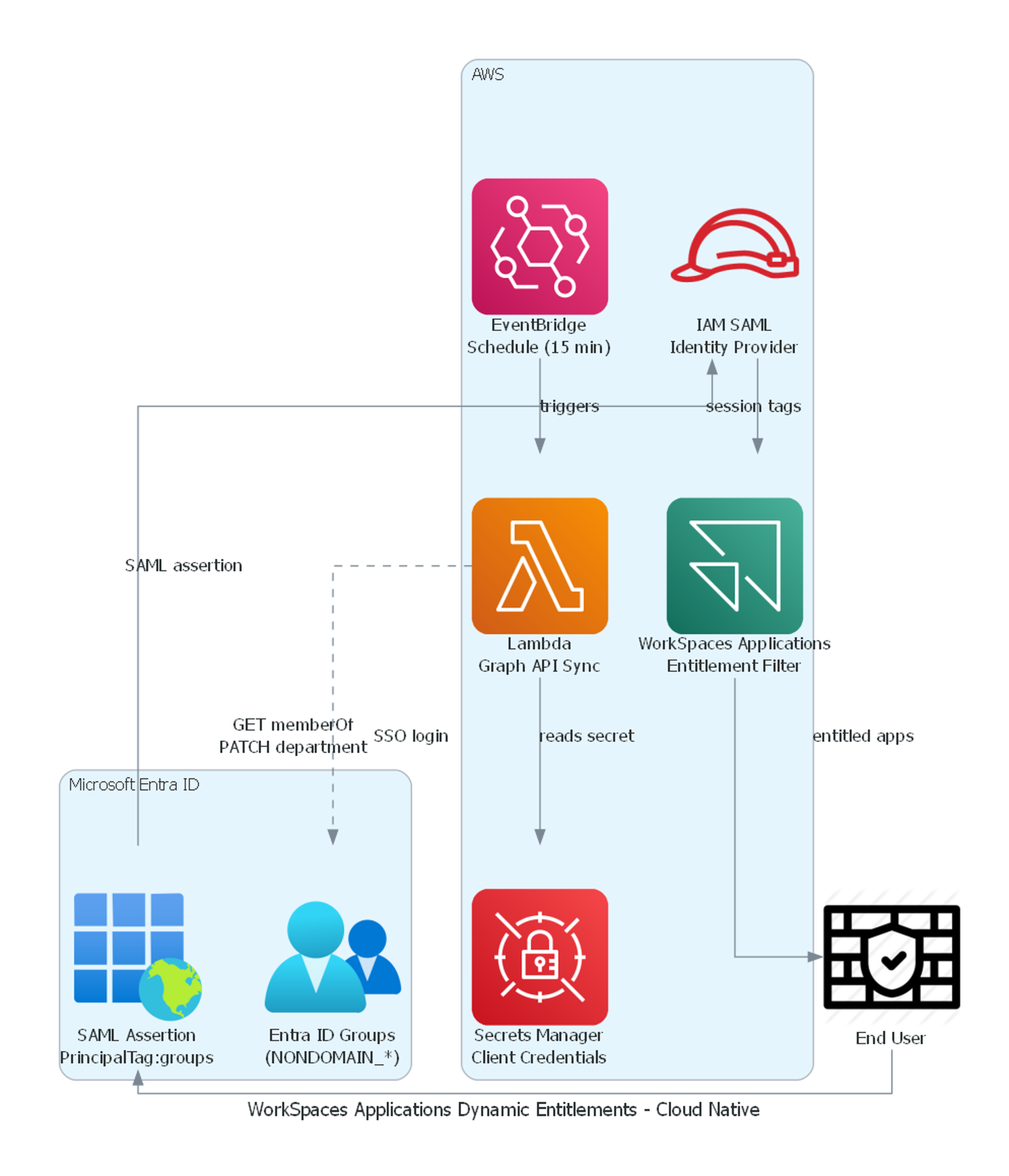
Figure 1: EventBridge triggers Lambda to sync Entra ID group membership to user attributes, which are passed as SAML session tags to WorkSpaces applications.
The solution uses WorkSpaces applications attribute-based application entitlements.
When a user authenticates via SAML, Entra ID includes session tags in the assertion. WorkSpaces applications read these tags and shows only matching applications.
Entra ID does not natively pass group names as a colon-separated string. This solution bridges that gap:
- Naming Entra ID groups with a consistent prefix (e.g., NONDOMAIN_Notepad, NONDOMAIN_Chrome)
- A Lambda function reads each user’s group memberships via the Graph API, strips the prefix, and writes the result to the user’s department attribute (for example, ` Notepad:Chrome`).
- Configuring Entra ID to pass “user.department” as the PrincipalTag:groups SAML claim. For production use, we recommend a custom extension attribute instead of the shared department field.
- Configuring WorkSpaces applications entitlements to match on the groups session tag.
- Note: AWS Security Token Service (STS) session Tag values have a hard limit of 256 characters.
Scaling Considerations
This solution performs a full sync on each invocation. For small-to-medium tenants (under 1,000 users), this works within Lambda timeout and Graph API rate limits. For larger environments, consider:
- Delta queries: Use the Microsoft Graph delta query endpoint to retrieve only changed users.
- Pagination: The Lambda function handles@odata.nextLink pagination automatically.
- Retry and backoff: Graph API enforces ~10,000 requests per 10 minutes per tenant. Implement exponential backoff for HTTP 429 responses.
- Batching writes: Use the Graph API $batch endpoint to group up to 20 updates per request.
- Increased interval: For very large tenants, consider increasing the EventBridge schedule (e.g., 30 or 60 minutes) and the Lambda timeout to allow more processing headroom.
Part 1 Set up – AWS Environment
If you have already configured SAML federation, skip to Step 2.
Step 1: Create the IAM SAML Identity Provider
If you have not already configured SAML federation for WorkSpaces applications, follow Steps 1–3 in the admin guide
Important for this solution:
- The role’s trust policy must include both sts:AssumeRoleWithSAML and sts:TagSession. Without sts:TagSession, session tags are not passed and entitlements fail silently.
- Attach an inline policy granting appstream:Stream on your stack. Without it, users receive AccessDenied. See Step 3 in the admin guide.
Step 2: Configure application entitlements
Entitlements define which session tag values grant access to which applications. For details, see Application entitlements with SAML.
1. Go to WorkSpaces applications > Stacks > your stack > Entitlements > Create Entitlement.
2. For each application, set
- Attribute: groups
- Value: the application name exactly as it appears after stripping the NONDOMAIN_ prefix (for example, Notepad)
3. Repeat for every application in your catalog.
The entitlement value must exactly match the group name suffix. If your group is NONDOMAIN_Notepad, the value must be Notepad.
Part 2 Microsoft Entra ID Environment setup
Step 3: Create the Enterprise Application
a. Go to Entra ID > Enterprise Applications > New Application
b. Search for Amazon Web Services and select it, or create a custom SAML application
c. Name it (e.g., WorkspacesApplication-Entra-nondomainjoined)
d. Click Create
Step 4: Configure SAML Single Sign-On
Configure SAML SSO following the admin guide.
Under Basic SAML Configuration, set:
- Identifier (Entity ID): urn:amazon:webservices
- Reply URL: https://signin.aws.amazon.com/saml
- Relay State: https://appstream2.euc-sso.<region>.aws.amazon.com/saml?stack=<stack-name>&accountId=<account-id>
For the full list of regional relay state URLs, see SAML session tag relay states.
The relay state URL directs users to your WorkSpaces applications stack after authentication. Without it, users authenticate but are not redirected to the application catalog.
- Download the Federation Metadata XML — you need this for Step 1.
Step 5: Configure SAML Attributes and Claims
The additional claim specific to this solution:
| Claim Name | Source / Value |
| https://aws.amazon.com/SAML/Attributes/PrincipalTag:groups | user.department |
Step 6: Create the App Registration for Lambda
Lambda authenticates to Graph API as a service principal using client credentials.
1. Go to Entra ID > App Registrations > New Registration.
2. Name it (for example, WorkspacesApplication-Graph-Sync).
3. Note the Application (Client) ID and Directory (Tenant) ID.
4. Go to Certificates & Secrets > New Client Secret. Note the value immediately.
5. Go to API Permissions > Add a permission > Microsoft Graph > Application permissions.
6. Add User.ReadWrite.All and Group.Read.All.
7. Click Grant admin consent.
The permissions must be Application permissions (not Delegated). Lambda runs without a signed-in user.
Step 7: Create Entra ID Groups
Create security groups using the naming convention NONDOMAIN_<AppName>:
- NONDOMAIN_Notepad
- NONDOMAIN_Chrome
- NONDOMAIN_VSCode
Assign users to the appropriate groups. A user assigned to both NONDOMAIN_Notepad and NONDOMAIN_Chrome get their department set to Chrome:Notepad (alphabetically sorted).
Part 3: Deploy and test
Step 8: In your AWS account deploy the CloudFormation Stack
The CloudFormation template deploys all required AWS resources. Download it from the GitHub repository.
The stack creates:
- Secrets Manager secret (stores Entra ID credentials)
- IAM role (least-privilege Lambda execution role)
- Lambda function (Python 3.12, no external dependencies)
- EventBridge rule (triggers Lambda every 15 minutes)
- Lambda permission (allows EventBridge invocation)
Wait for the stack to reach CREATE_COMPLETE before proceeding.
Step 9: Test the Lambda Function
Invoke the function manually:
bash
aws lambda invoke \
--function-name WorkspacesApplicationEntraGroupSync \
--log-type Tail \
response.json
Step 10: Verify the Attribute in Entra ID
After the Lambda runs, verify the department attribute was updated:
a. Go to Entra ID > Users > select user > Properties
b. Confirm the Department field shows colon-separated app names (e.g., Chrome:Notepad)
Or use Graph Explorer: GET https://graph.microsoft.com/v1.0/users/<user-upn>?$select=department
Step 11: Monitor with Amazon CloudWatch Logs
Lambda output is sent to Amazon CloudWatch Logs under /aws/lambda/WorkspacesApplicationEntraGroupSync.
Example output:
““
Total users found: 25
Skipped: admin@yourtenant.onmicrosoft.com (no matching groups)
Updated: john.doe@yourtenant.onmicrosoft.com -> Chrome:Notepad
Updated: jane.smith@yourtenant.onmicrosoft.com -> Notepad:VSCode
Sync complete. Updated 2 users.
““
Step 12: Test SSO Login
- Navigate to your WorkSpacesApplication URL or the Entra ID My Apps portal
- Select the WorkSpaces applications Enterprise Application
- Verify you see only applications matching your group membership.
Security Considerations
1. Client secret rotation — Entra ID client secrets expire (maximum 24 months). When expired, Lambda silently fails to authenticate.
- Recommended: Implement a Secrets Manager rotation Lambda.
- Minimum: create a CloudWatch alarm on the Lambda Errors metric.
2. Graph API permissions — User.ReadWrite.All grants broad write access to user profiles. Compensating controls:
- The secret is encrypted at rest in Secrets Manager, accessible only by the Lambda execution role.
- Use a custom extension attribute instead of the shared department field.
- Enable Entra audit logs and alert on unexpected profile modifications.
3. Secret storage — The client secret is in Secrets Manager, not in environment variables or plaintext parameters. The CloudFormation parameter uses NoEcho: true.
4. Lambda networking — Lambda is intentionally not in a VPC. Graph API endpoints are public. If your policy requires a VPC, ensure a NAT Gateway is present.
Troubleshooting
| Symptom | Cause | Resolution |
| Invalid SAML response at AWS login | Wrong Audience URI in Entra ID | Set Identifier to exactly urn:amazon:webservices |
| Lambda returns 403 from Graph API | Missing or unapproved API permissions | Ensure User.ReadWrite.All and Group.Read.All are Application permissions with admin consent granted |
| Lambda returns 401 from Graph API | Expired or incorrect client secret | Regenerate the client secret in Entra ID and update the Secrets Manager secret |
| department attribute empty after Lambda runs | User has no groups matching the prefix | Verify group names start with NONDOMAIN_ and the user is a member |
| User sees no applications in WorkSpacesApplication | Entitlement value mismatch | The entitlement value must exactly match the group name suffix — case sensitive |
| Lambda timeout | Large number of users | Increase Lambda timeout in the CloudFormation template (max 15 minutes) |
| CloudWatch shows no logs | Lambda not invoked | Check EventBridge rule is ENABLED and the Lambda permission resource exists |
Clean up
To avoid ongoing costs, delete the CloudFormation stack. All resources (Lambda, EventBridge rule, Secrets Manager secret, IAM role) are removed upon stack deletion.
Conclusion
In this post, I showed how to automate Amazon WorkSpaces applications entitlement management using Microsoft Entra ID group membership as the source of truth. The solution uses a Lambda function triggered by EventBridge to sync group memberships via the Microsoft Graph API into a user attribute passed as a SAML session tag.
As your application catalog grows, adding a new application requires only two steps: create a NONDOMAIN_<AppName> group in Entra ID and create a matching entitlement in WorkSpaces applications. The sync handles the rest automatically.
To learn more, see:
- Amazon WorkSpaces applications documentation
- Application entitlements with SAML
- GitHub repository with CloudFormation template
 Ese Alofoje is a Senior Cloud Support Engineer at AWS, based in South Africa. He specializes in end-user computing services and serves as a subject matter expert in Amazon WorkSpaces. Ese works closely with customers to design and implement identity federation and desktop streaming solutions on AWS. Through his deep technical expertise and hands-on approach, he enables organizations to streamline application delivery and secure access for their end users. Outside of work, he enjoys spending time with his family and learning new things